
Team, CS & roles
Add CS or sales team members to cshub, decide which features each role can open, set each agent's working hours, and manage your own account profile — all from the Team group on the Settings page.
In cshub, every team member is called an agent. Agents log in with their own email and password, then reply to chats in CRM Chat, handle tickets, or manage orders — depending on the role you give them.
| Section | What it's for |
|---|---|
| CS Team | Adding, editing, and removing agent accounts, plus their work schedules |
| Team Access | Creating roles (e.g. Admin, Sales, CS) and choosing which features each role can open |
| My Profile | Personal info, password change, and a permission summary for the logged-in account |
The agent list (CS Team)
Click Settings in the sidebar, then the CS Team card in the Team group.
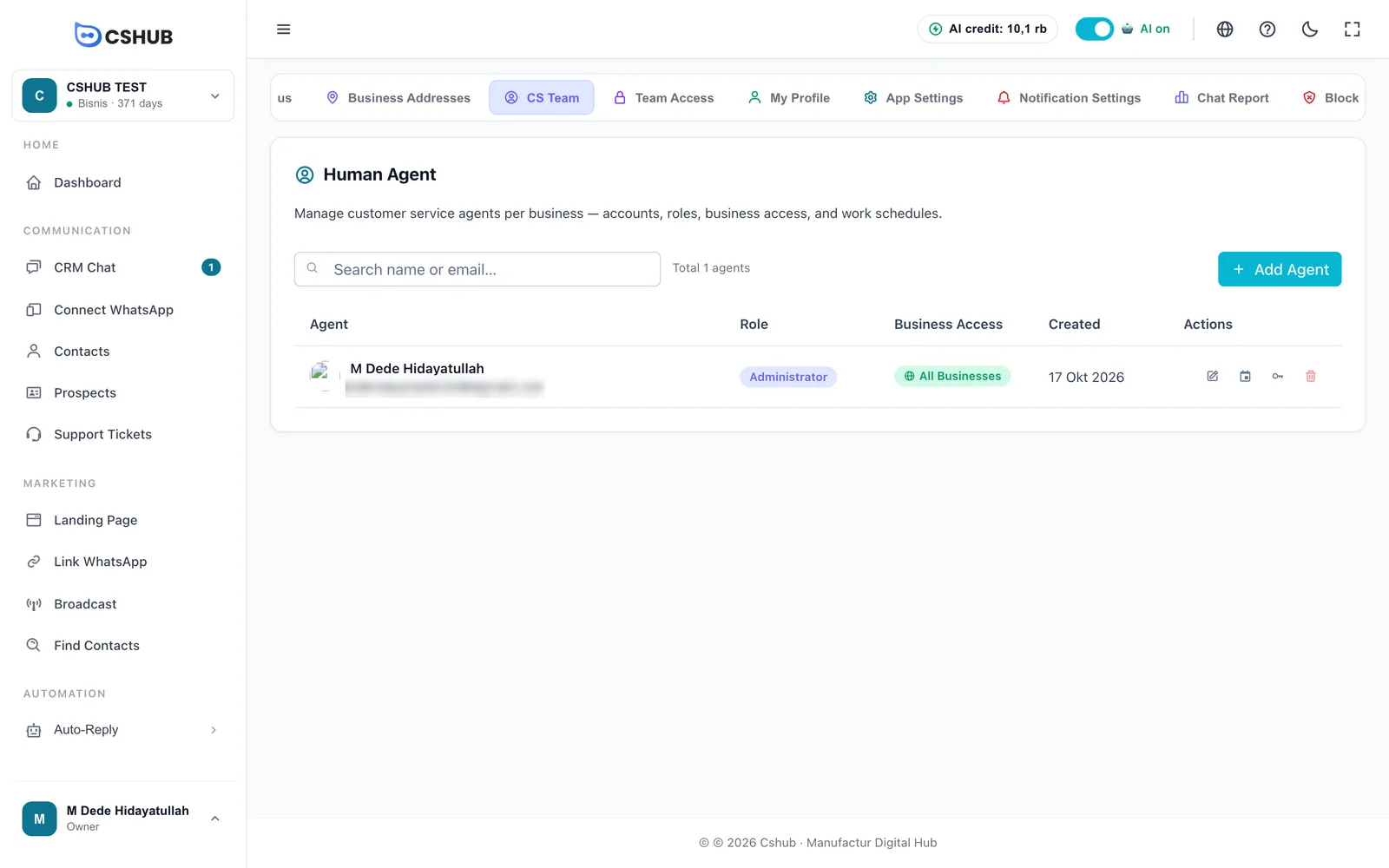
| Column | What it shows |
|---|---|
| Agent | Photo, name, and login email |
| Role | The role that sets their access |
| Business Access | All Businesses, or a number of specific businesses (e.g. 2 businesses) |
| Created | When the account was created |
| Actions | Edit, Manage Schedule, Change Password, and Delete |
The business owner is listed here as an agent too.
Adding an agent
- Click Add Agent.
- Fill in the form, then click Add Agent.
- Share the email and password with your team member so they can log in.
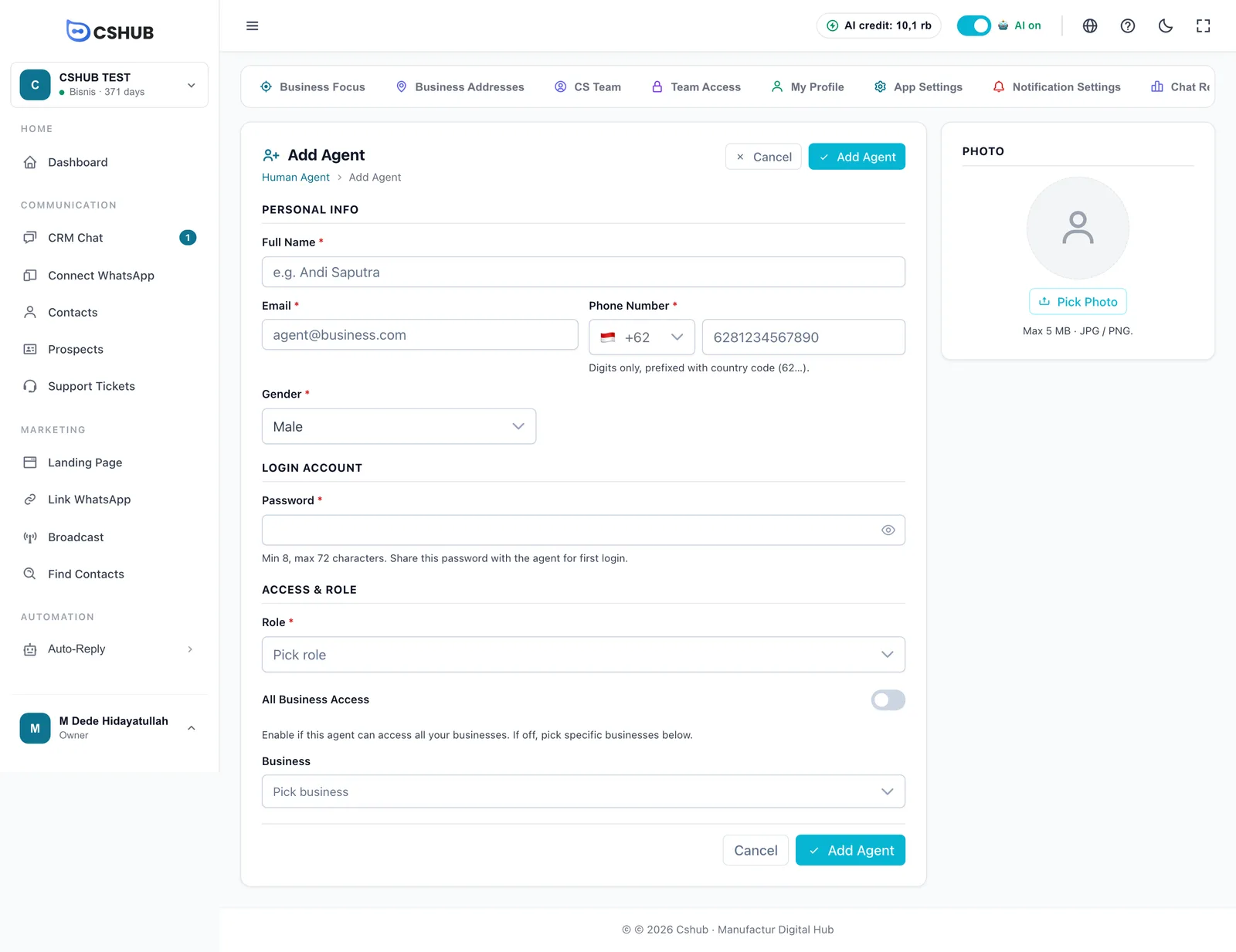
| Field | Notes |
|---|---|
| Full Name | Required. Shown in CRM Chat, reports, and message signatures |
| Required. The agent uses it to log in | |
| Phone Number | Required. Digits only, starting with the country code (62…). This number receives notifications and the daily chat report for the agent |
| Gender | Required. Male or Female |
| Password | Required when creating an agent, 8–72 characters. Share it with the agent for their first login |
| Role | Required. Pick one of the roles created under Team Access. If there are none yet, create one there first |
| All Business Access | Turn on if the agent may access all your businesses, including ones you create later |
| Business | If the switch above is off, pick the specific businesses this agent can access |
| Photo | Optional, JPG / PNG up to 5 MB |
Agent quota
The number of agents depends on your plan. When the quota is full, the page shows a warning with an Upgrade Plan button. See Billing & packages.
Editing and deleting agents
- Edit opens the same form. The password isn't shown; use Change Password to replace it.
- Change Password asks for New Password and Confirm Password. The new password applies from the next login — active sessions aren't forced to log out.
- Delete deactivates the agent account. The business owner and your own account can't be deleted.
Agents and WhatsApp numbers
Adding an agent doesn't automatically let them reply to chats from a particular WhatsApp number. Set who can reply and how new chats are shared in each device's settings — see WhatsApp (scan QR).
Agent work schedules
Click the Manage Schedule icon on an agent's row to set their hours for each day.
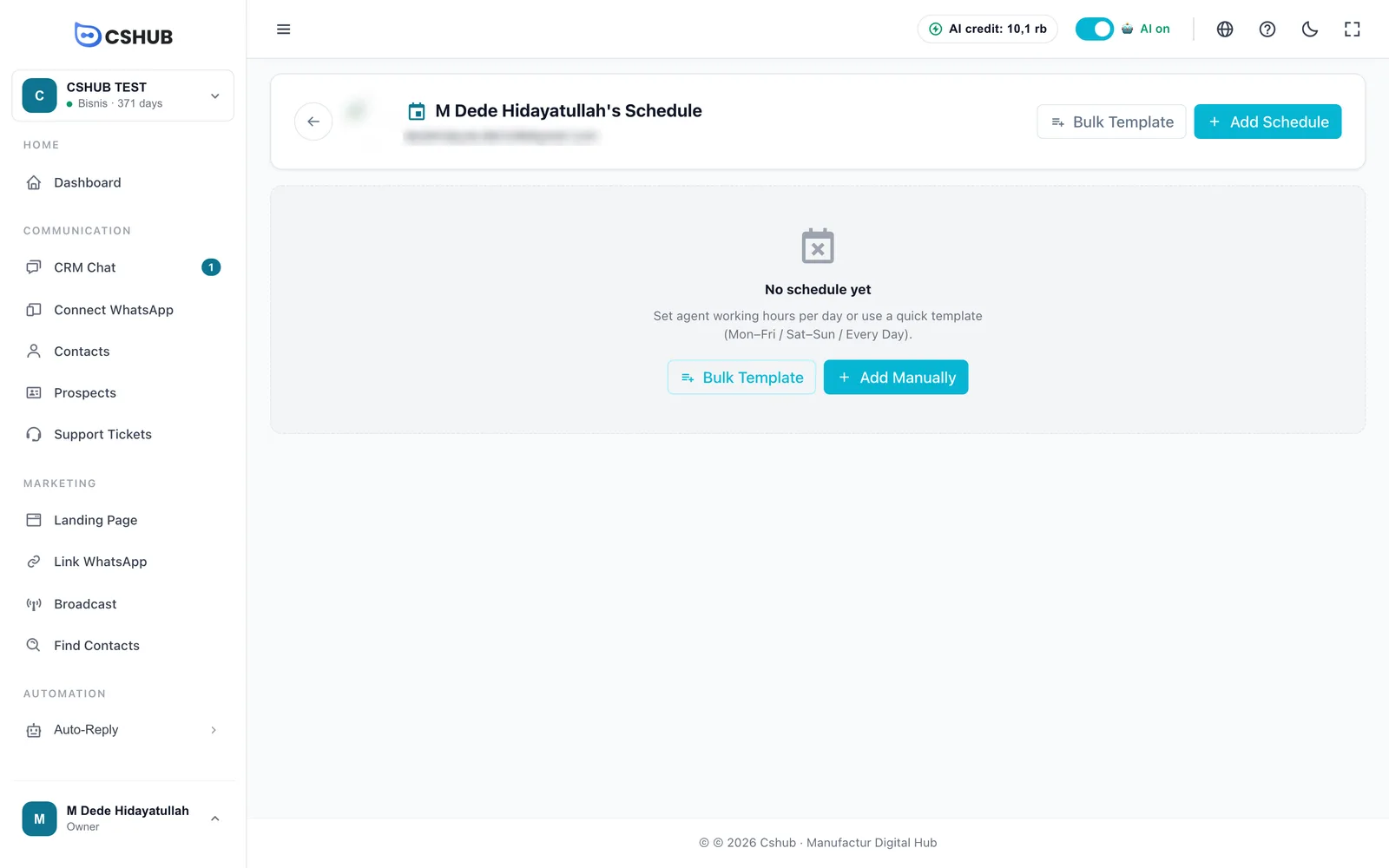
Schedules decide whether an agent is Currently Active, and they're a requirement when cshub shares new chats among your CS team automatically.
Agents without a schedule don't get automatic chats
If a device is set to share new chats among CS agents automatically, only agents who are currently within their working hours get chats. An agent with no schedule at all counts as off duty, so they won't receive any. Make sure every agent who takes part in chat sharing has a schedule.
Adding a schedule slot
- Click Add Schedule (or Add Manually while the schedule is empty).
- Fill in the form, then click Add.
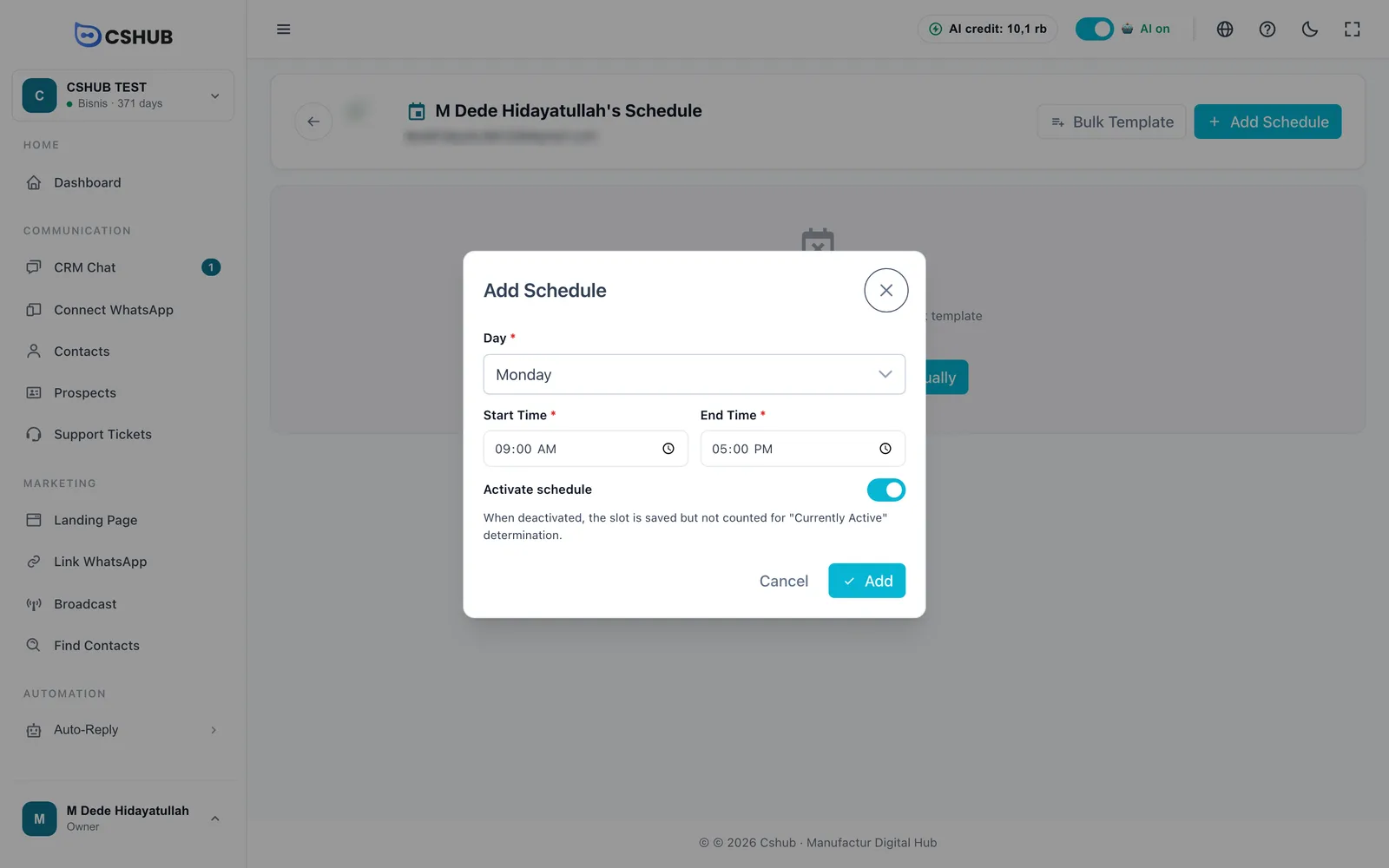
| Field | Notes |
|---|---|
| Day | Monday through Sunday |
| Start Time / End Time | The working hours for that day, in the time zone set in App Settings |
| Activate schedule | Turn off to keep the slot without counting it — handy when an agent is on leave |
A day can have more than one slot, for example 08:00–12:00 and 13:00–17:00 with a lunch break in between.
Creating schedules in one go (Bulk Template)
Click Bulk Template to create schedules for several days at once.
| Field | Notes |
|---|---|
| Template | Mon – Fri, Sat & Sun, or Every Day |
| Start Time / End Time | The same hours for every day in the template |
| Delete existing schedules first | If ticked, all the agent's schedules are deleted and replaced by this template. This can't be undone |
Click Generate Schedule. Slots with exactly the same day and hours as an existing one are skipped, so you don't get duplicates.
Once schedules exist, the page shows one card per day. Each slot can be switched on or off, edited, or deleted right from its card.
Roles & permissions
A role decides which features an agent can open. Click the Team Access card in the Team group.
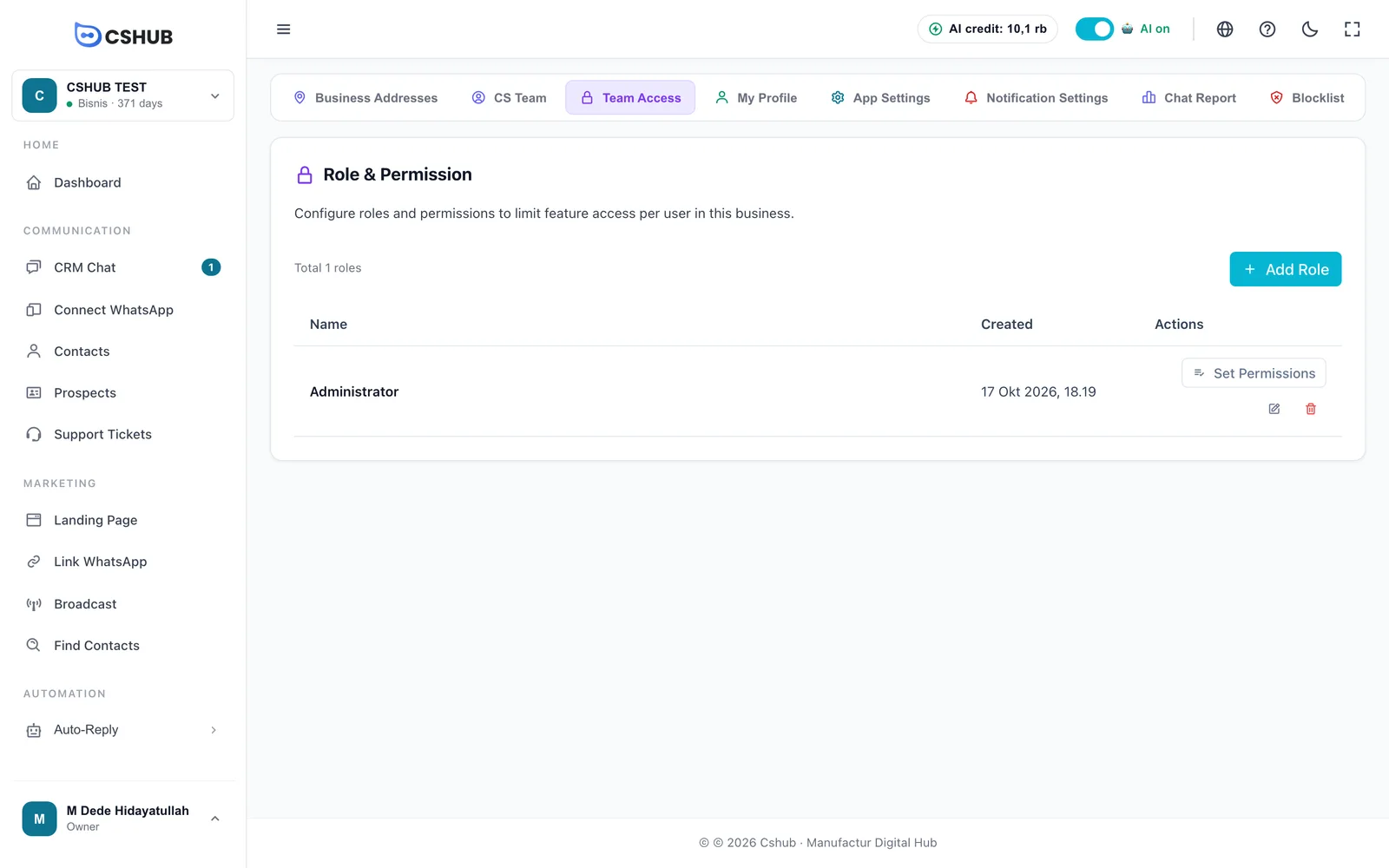
There's usually an Administrator role already, with every permission turned on.
Creating a role
- Click Add Role.
- Enter the Role Name, for example Admin, Sales, or Support.
- Save.
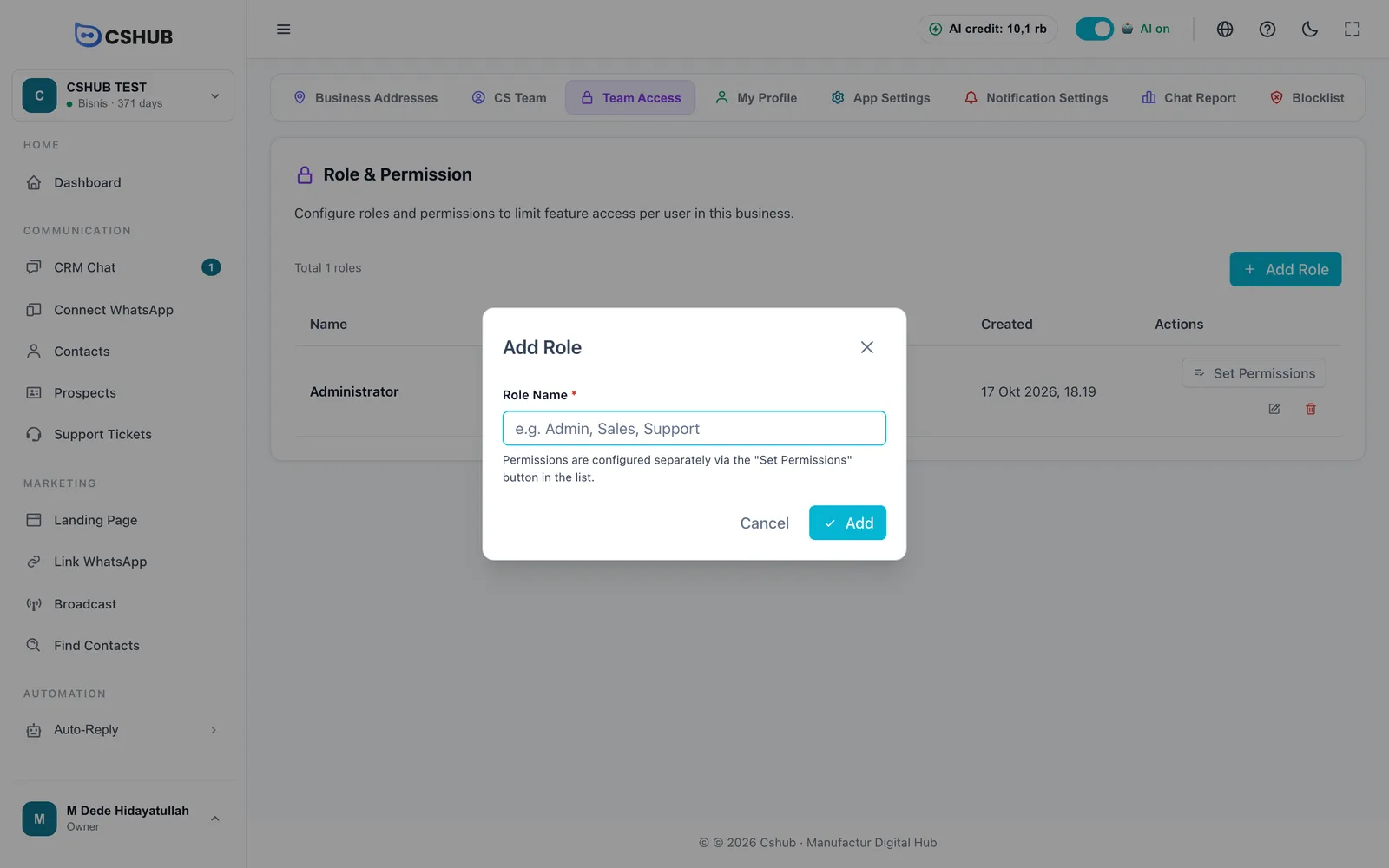
A new role has no permissions yet. Carry on by setting them.
Setting permissions
Click Set Permissions on the role's row.
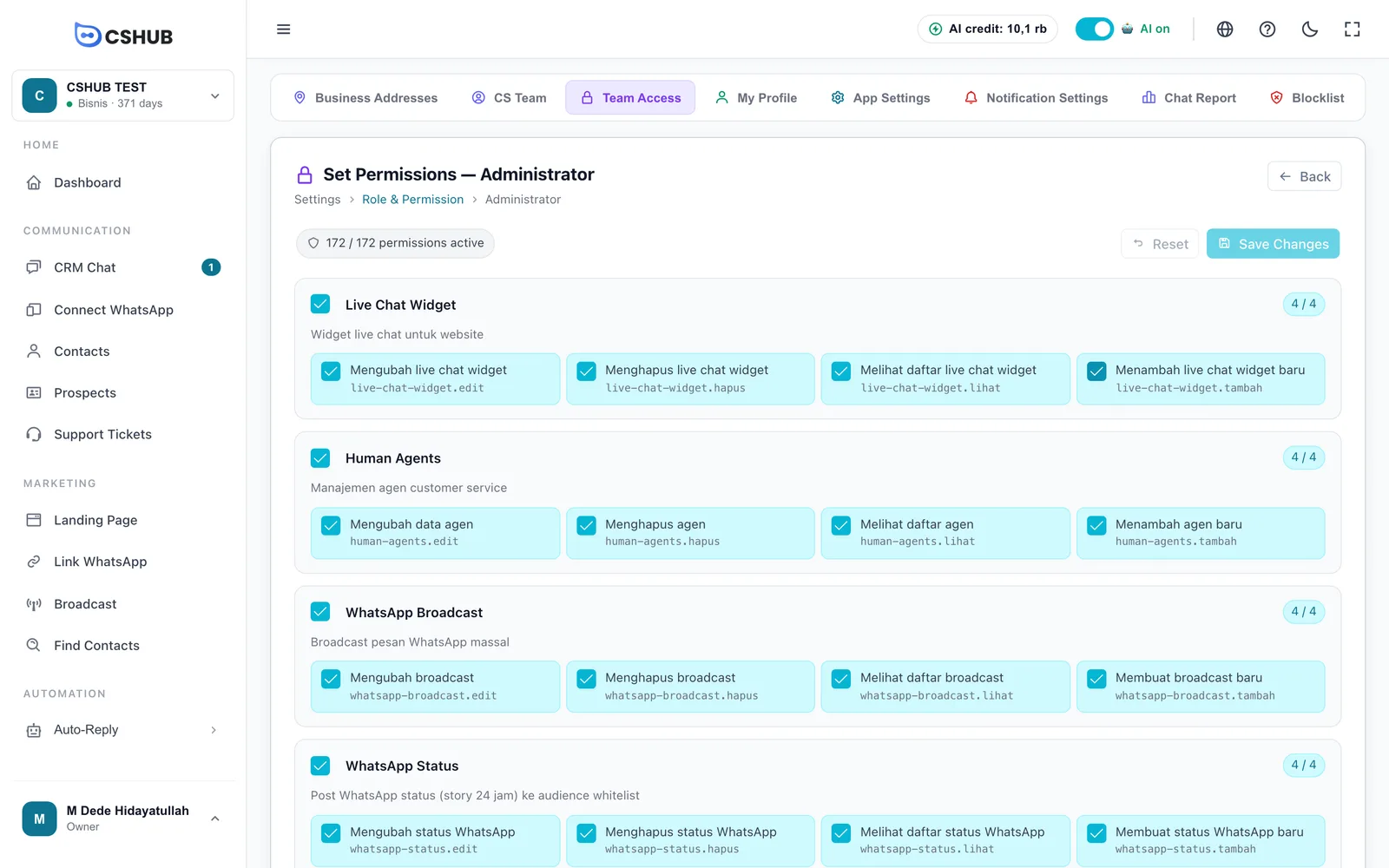
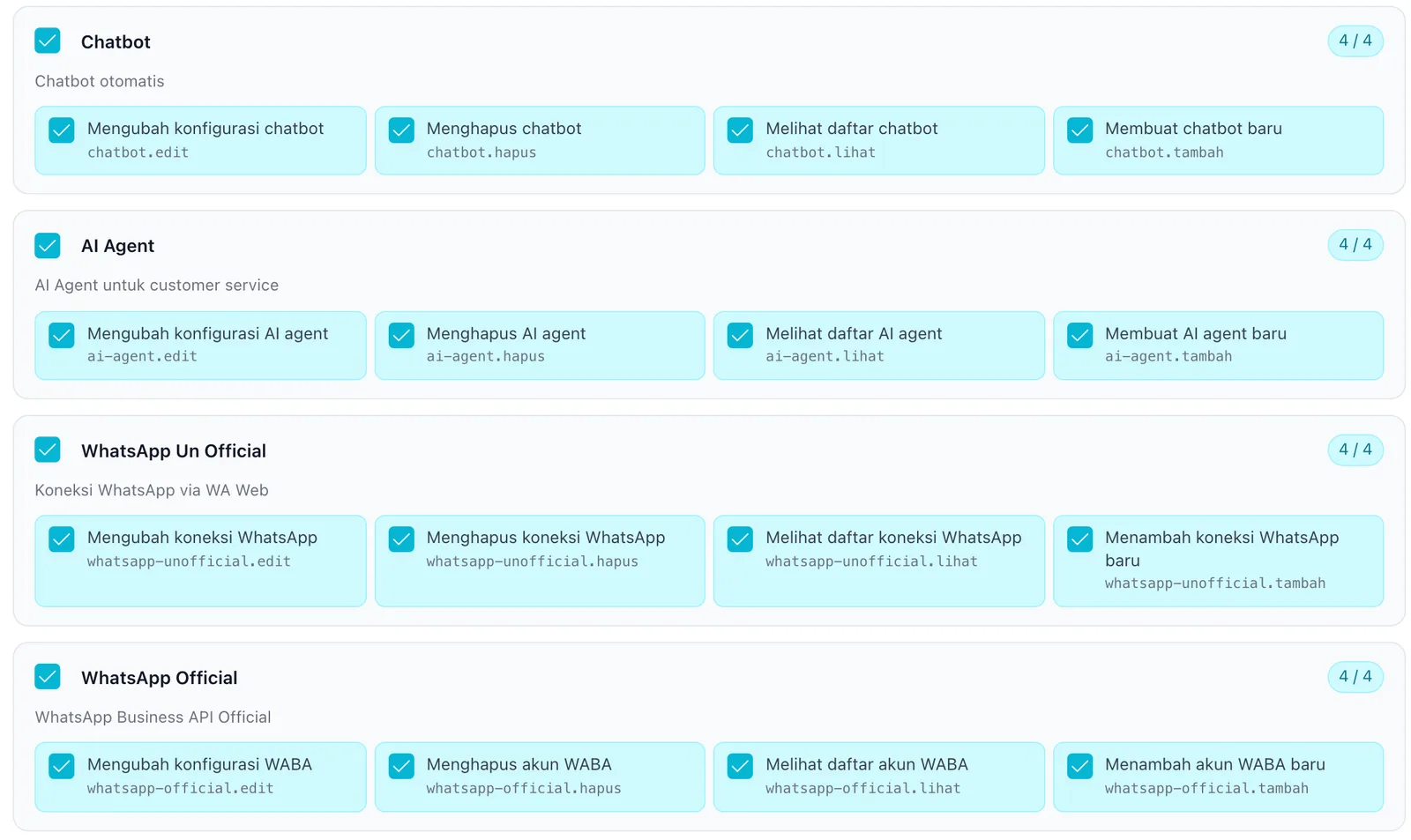
Permissions are grouped by feature module. Most modules have four permissions:
| Permission | Meaning |
|---|---|
| View | Open the menu and see its data |
| Add | Create new records |
| Edit | Change existing records |
| Delete | Remove records |
Permission names currently appear in Indonesian even in the English interface (Melihat = view, Menambah = add, Mengubah = edit, Menghapus = delete).
How to set them:
- Tick permissions one by one, or tick the box on a module's title to select all of that module's permissions at once.
- Watch the x / y permissions active counter at the top. While you have changes, an x unsaved changes count appears too.
- Click Save Changes. Reset throws away every unsaved change.
If you try to leave the page before saving, cshub asks Leave page?, so you don't lose changes by accident.
Start narrow
For a CS role, give just View and Add on the modules they use every day (chat and contacts, for example). Add more later if needed — that's safer than taking permissions away after something has been deleted by mistake.
The business owner always has full access
The role picked for the business owner has no effect — owners can always open every feature. Some pages, such as App Settings, Business addresses, and Notifications, are for the owner only.
Agents also only see the menus that match your business focus. If an agent says a menu has "disappeared", check two things: their role's permissions, and the business focus.
My Profile
My Profile holds the data of whoever is logged in — owner or agent. Open the My Profile card in the Team group.
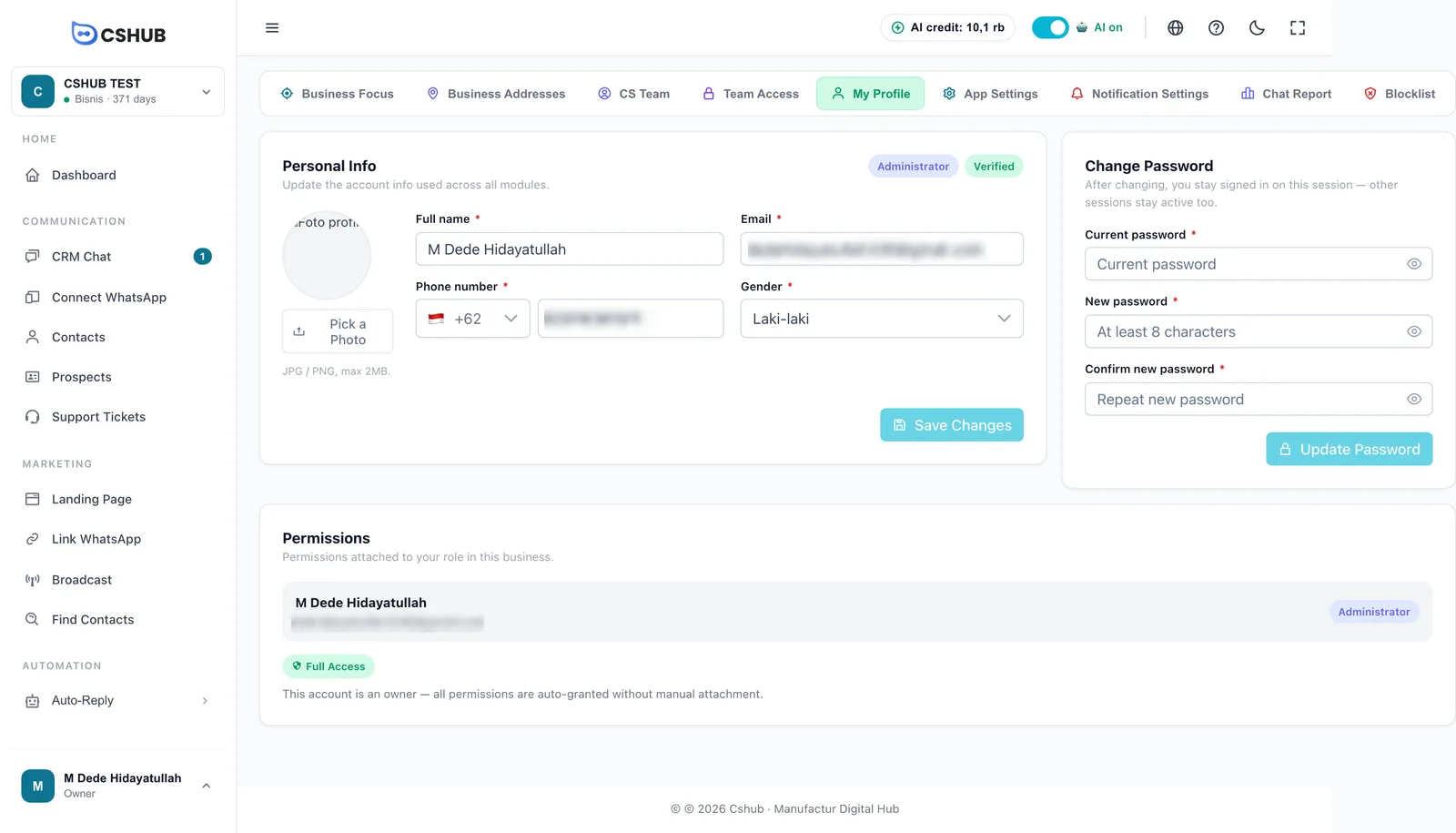
| Card | What's inside |
|---|---|
| Personal Info | Full name, Email, Phone number, Gender, and a photo (JPG / PNG, max 2 MB). Click Save Changes |
| Change Password | Current password, New password (at least 8 characters), and Confirm new password. Click Update Password. You stay signed in on this session, and sessions on other devices aren't logged out automatically |
| Permissions | The permissions attached to your role in this business. The business owner sees Full Access |
Changing your email
Changing your email removes its verified status. After saving, you need to verify the new email again with an OTP code.
Other account settings — such as the list of all your businesses — live in My Account & all businesses.
Related
- WhatsApp (scan QR) — who can reply and how chats are shared per number
- Escalation to your team
- Daily chat report
- Business focus
- Billing & packages