
Website live chat
Add a chat button to your website so visitors can ask questions straight away, without a phone number or any app. Messages from the live chat widget land in CRM Chat alongside your other channels, and can be answered automatically with keywords or by an AI Agent.
One widget = one chat button with its own name, photo, FAQ, and reply settings. You can create several widgets — say, one for your online store and one for your services page — up to your plan's quota.
Widget list
Open Connect WhatsApp in the sidebar, then the Website live chat tab.
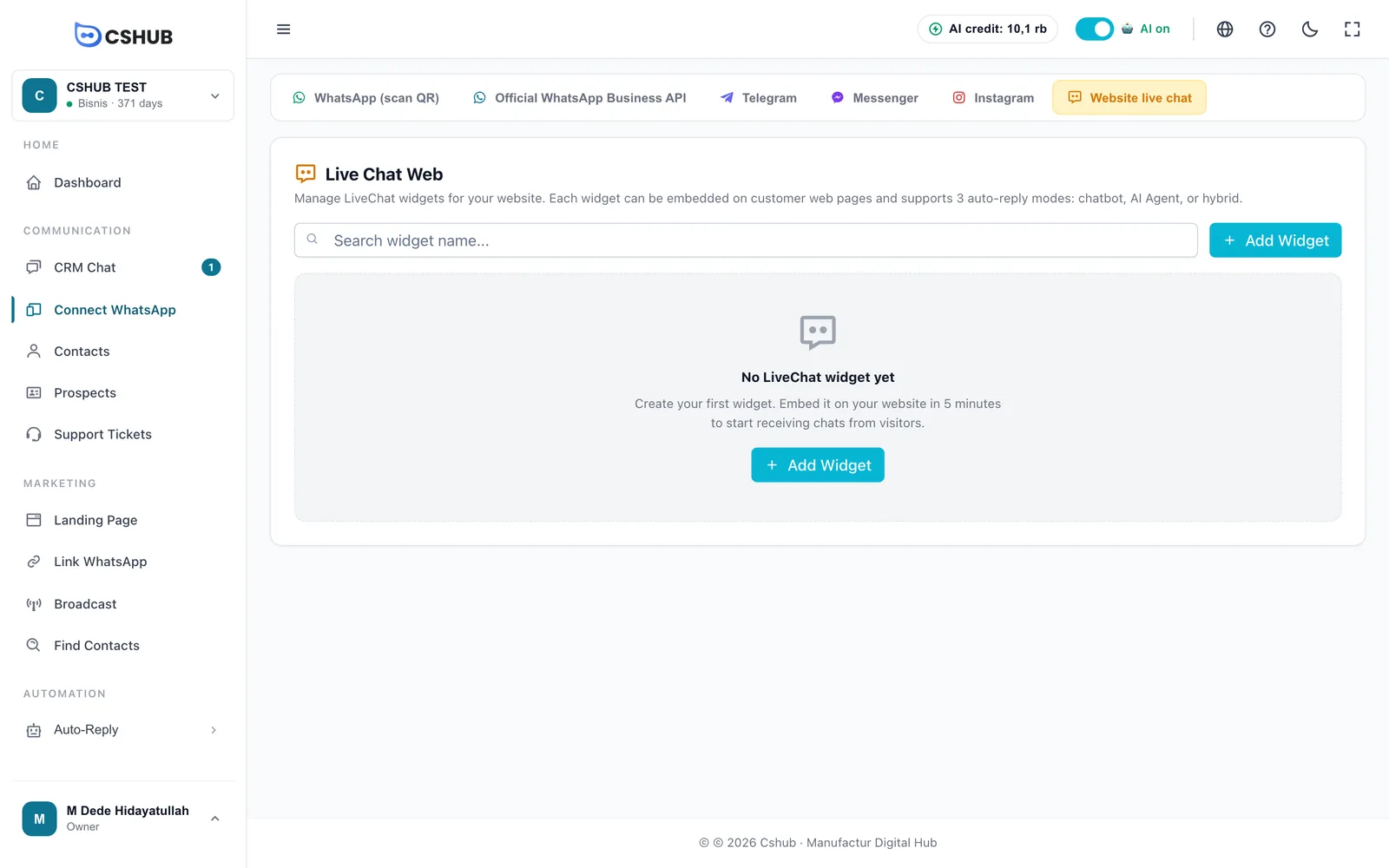
Once you have widgets, the list shows Photo, Widget Name, Type (a Chatbot, AI, or All badge based on the reply mode), and Action for editing or deleting.
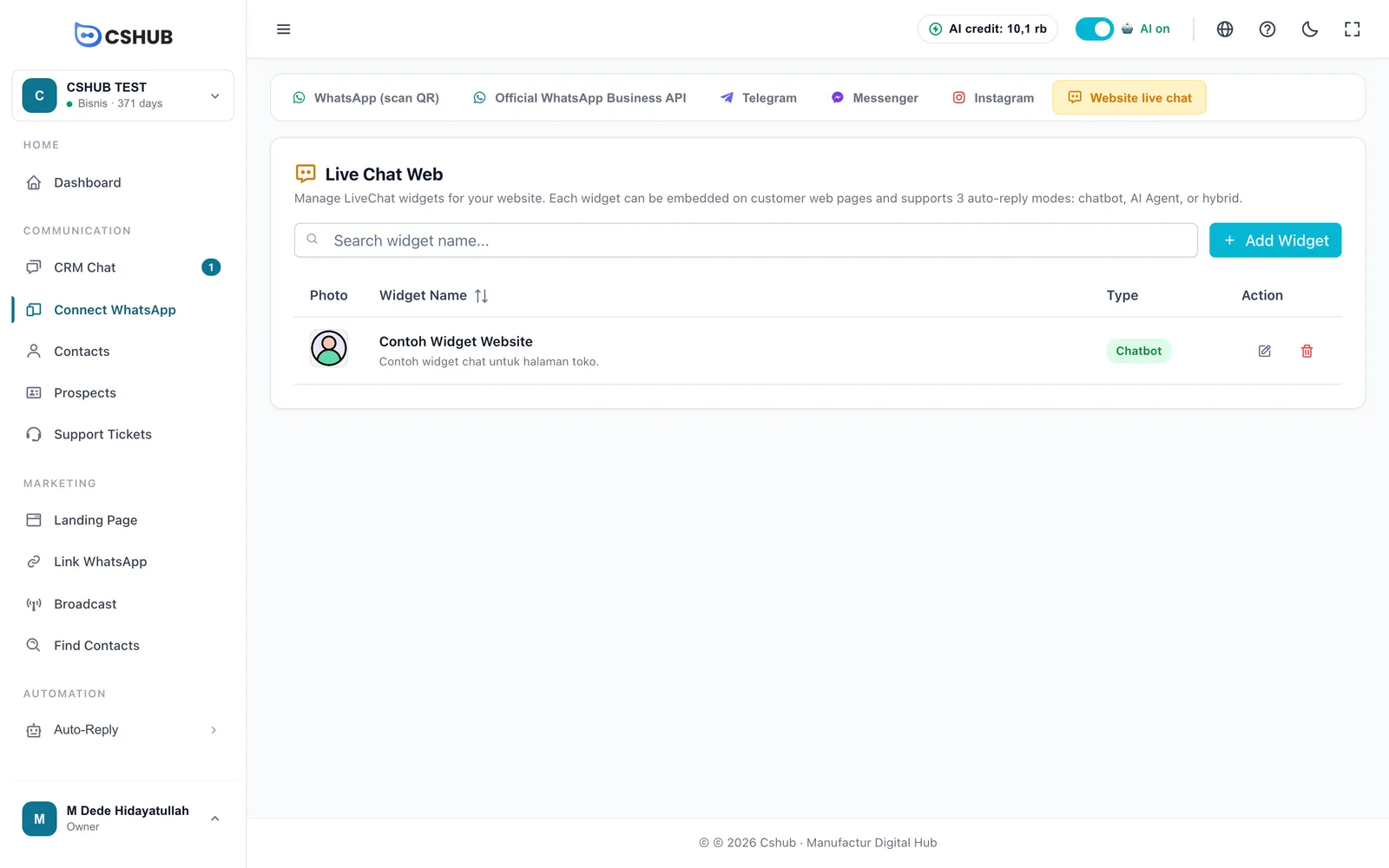
Click the pencil icon to open a widget's settings. The bin icon deletes the widget; if it already has conversation history, cshub first asks whether to move that history or delete it too (see About channels).
Creating a widget
Click Add Widget.
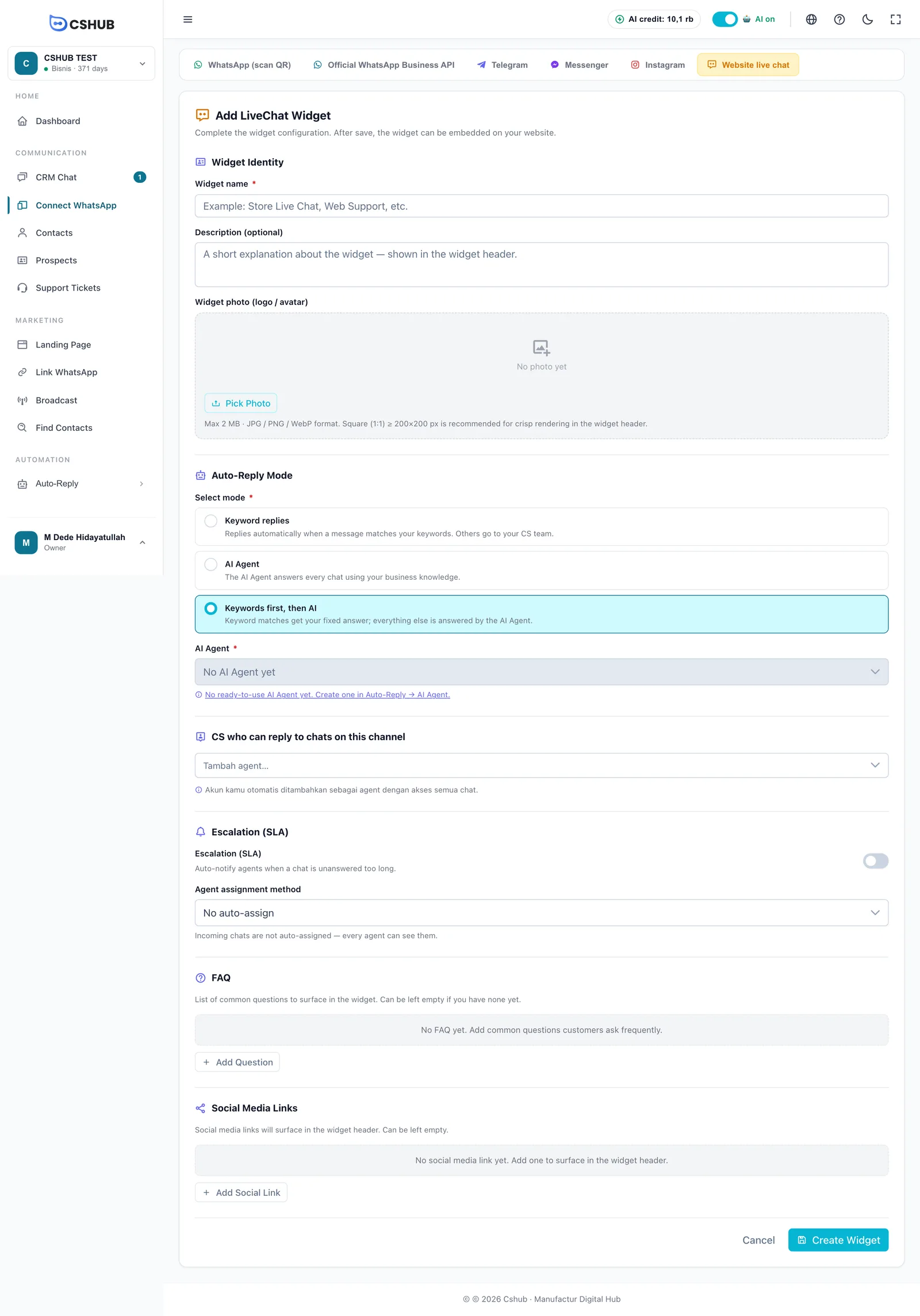
Widget Identity
| Field | Notes |
|---|---|
| Widget name * | The widget's name, e.g. Store Live Chat or Web Support |
| Description (optional) | A short explanation shown in the widget header |
| Widget photo (logo / avatar) | Your logo or a CS photo shown in the header. Max 2 MB, JPG / PNG / WebP. Sharpest as a square (1:1) of at least 200×200 px |
Auto-Reply Mode
| Mode | Behaviour |
|---|---|
| Keyword replies | Replies automatically when a message matches your keywords. Others go to your CS team. See Keyword replies |
| AI Agent | The AI Agent answers every chat using your business knowledge |
| Keywords first, then AI | Keyword matches get your fixed answer; everything else is answered by the AI Agent |
For the last two modes, pick the AI Agent. If you see "No AI Agent yet", create one in AI Agent first.
Team, escalation & assignment
| Section | Notes |
|---|---|
| CS who can reply to chats on this channel | Team members who handle conversations from this widget. Your account is added automatically with access to all chats |
| Escalation (SLA) | Notifies agents when a chat waits too long for a human. See Escalation to your team |
| Agent assignment method | No auto-assign, Round robin, Sequential (priority), or Random. See About channels |
FAQ
A list of common questions shown in the widget, so visitors can tap a frequent question right away. Click Add Question and type it, e.g. What are the store hours?. You can leave it empty.
Social Media Links
Social links shown in the widget header. Click Add Social Link for each one:
| Field | Example |
|---|---|
| URL | https://wa.me/628123... |
| Label | |
| Icon class | fab fa-whatsapp (a FontAwesome fab fa-X or Boxicons bx bxl-X icon) |
Click Create Widget.
Installing the widget on your website
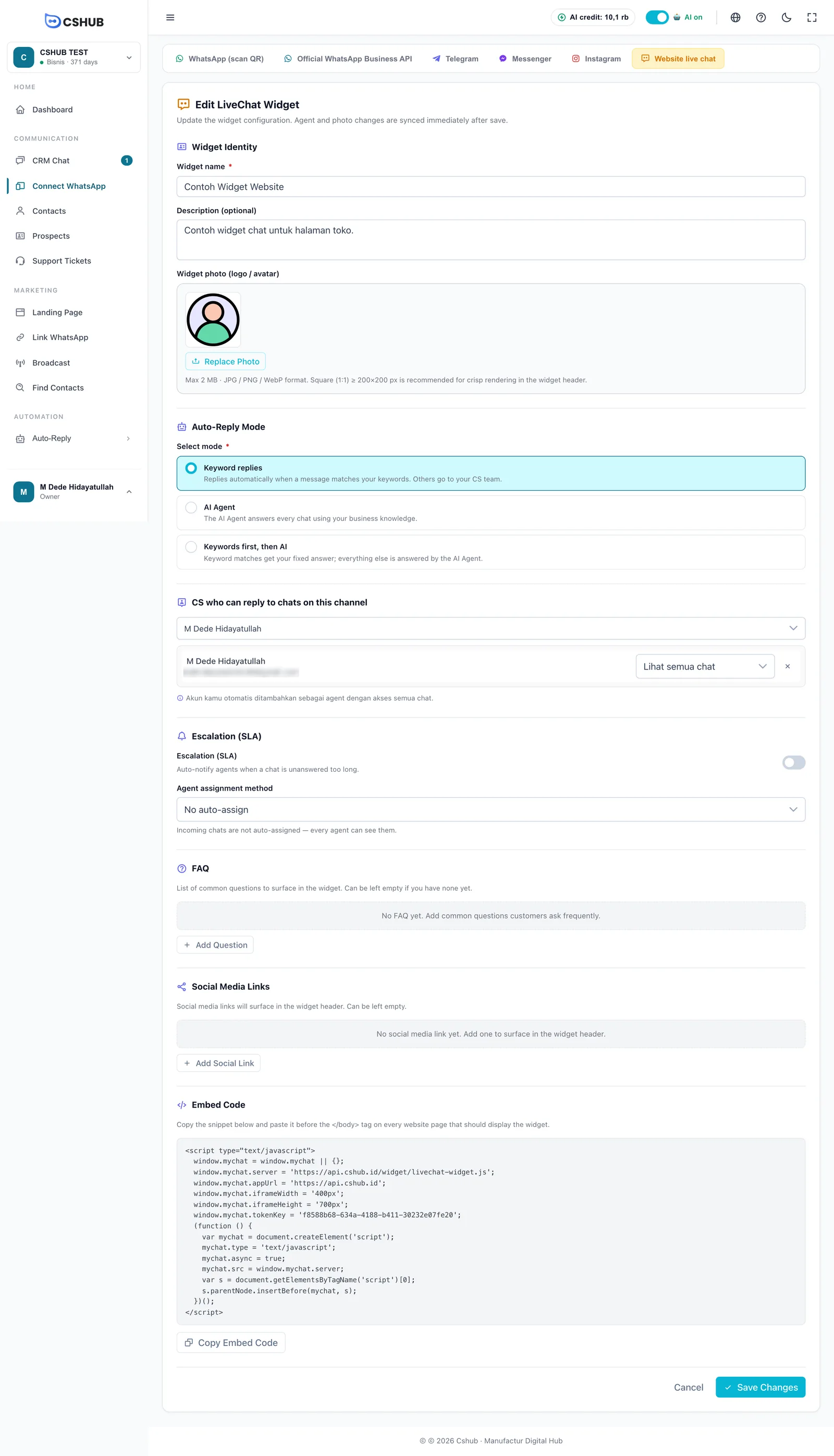
Once the widget is created, open its edit page and scroll to the Embed Code section.
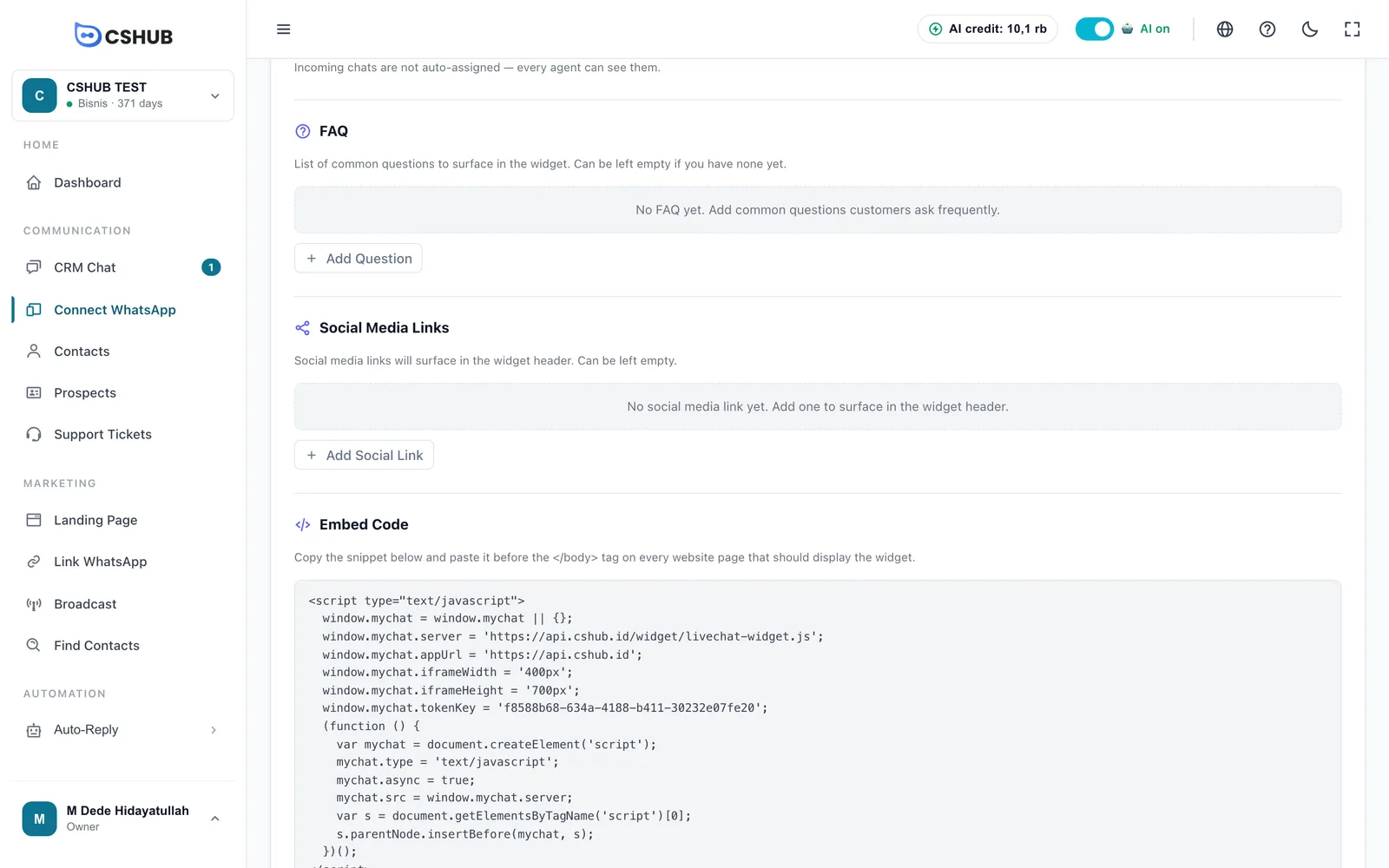
- Click Copy Embed Code.
- Open your website settings and find where to add code at the bottom of the page (often called footer code, custom code, or tracking code).
- Paste the code before the
</body>tag on every page that should show the widget. - Save and open your website — the chat button appears in the corner of the page.
Using a website builder?
WordPress, Shopify, Wix, and similar platforms usually have a setting for adding code to the footer or before </body>. If a developer built your site, send them this code.
One code per widget
Each widget has its own code. Don't paste two widget codes on the same page.
Editing a widget
Click the edit icon in the widget list.
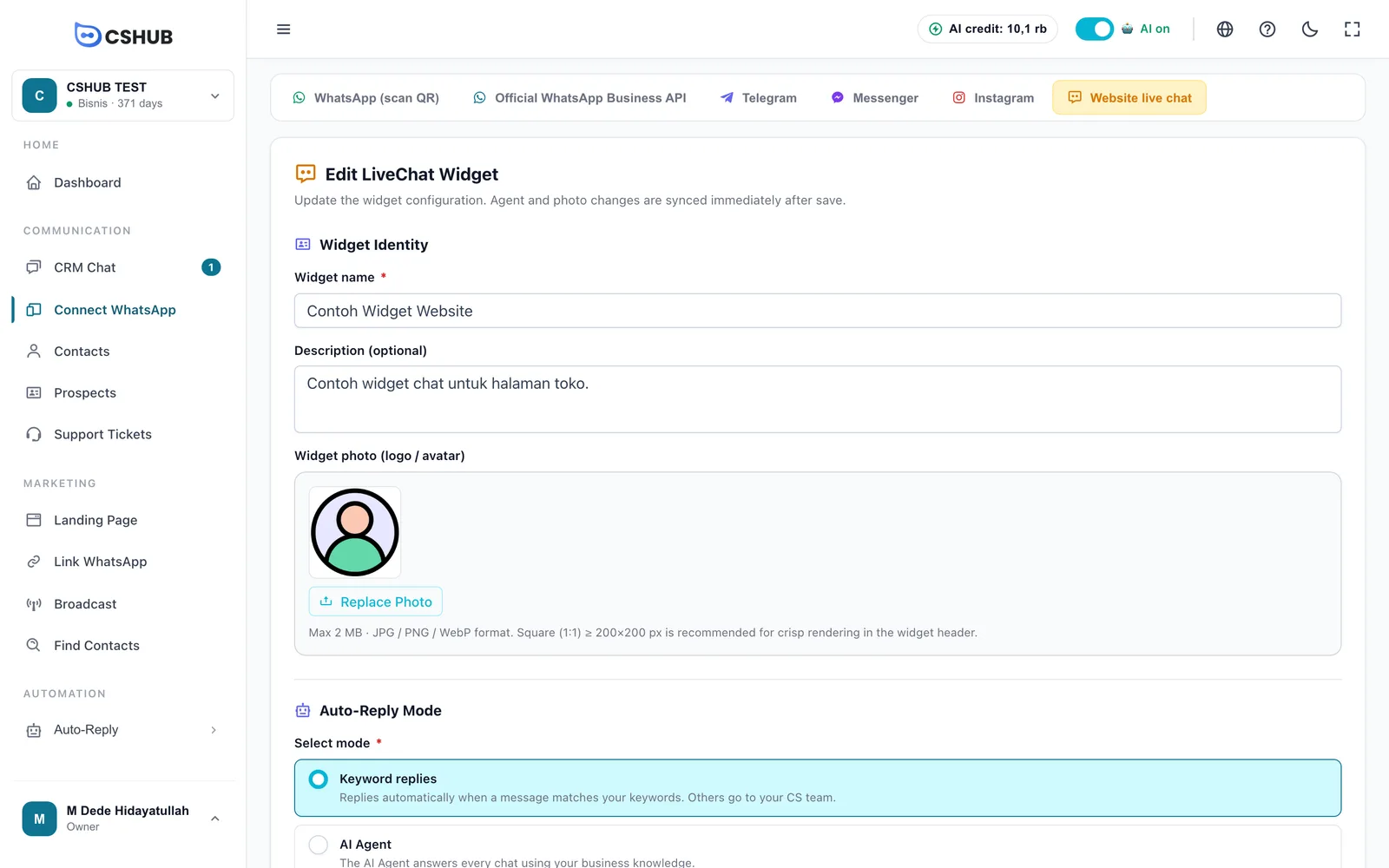
The edit form matches the add form, plus the Embed Code section at the bottom. Agent and photo changes take effect as soon as you click Save Changes — no need to reinstall the code on your website.
Deleting a widget
Click the delete icon in the widget list.
- No conversation history yet — the widget can be deleted right away, along with its photo.
- Has history — choose Move to another widget (nothing is lost) or Force delete. For force delete, type the word DELETE to confirm.
After deleting a widget, remember to remove its code from your website.
Tips
- Fill the FAQ with your 3–5 most common questions, such as shipping costs, opening hours, and payment methods. Visitors get answers faster.
- Use "Keywords first, then AI" so routine questions get your fixed answers and the AI handles the rest.
- Create a separate widget per website if you run more than one site, so CRM Chat shows clearly where each visitor came from.
More issues are covered in Troubleshooting.