
Notifications
Notification settings make cshub send an automatic WhatsApp message whenever something happens to a transaction — a new order comes in, an order status changes, a transfer proof arrives, a payment is approved or rejected — to your agents, to the customer, or to both.
Your team hears about new orders right away without opening the dashboard, and customers always get the latest news about their order without you typing it by hand.
Notifications vs the daily chat report
Notifications go out every time a transaction or payment event happens, one message per event. If you want a once-a-day summary of conversations, use the Daily chat report.
Opening notification settings
- Click Settings in the sidebar.
- Open the Notification Settings card in the Advanced group.
Only the business owner can open this page.
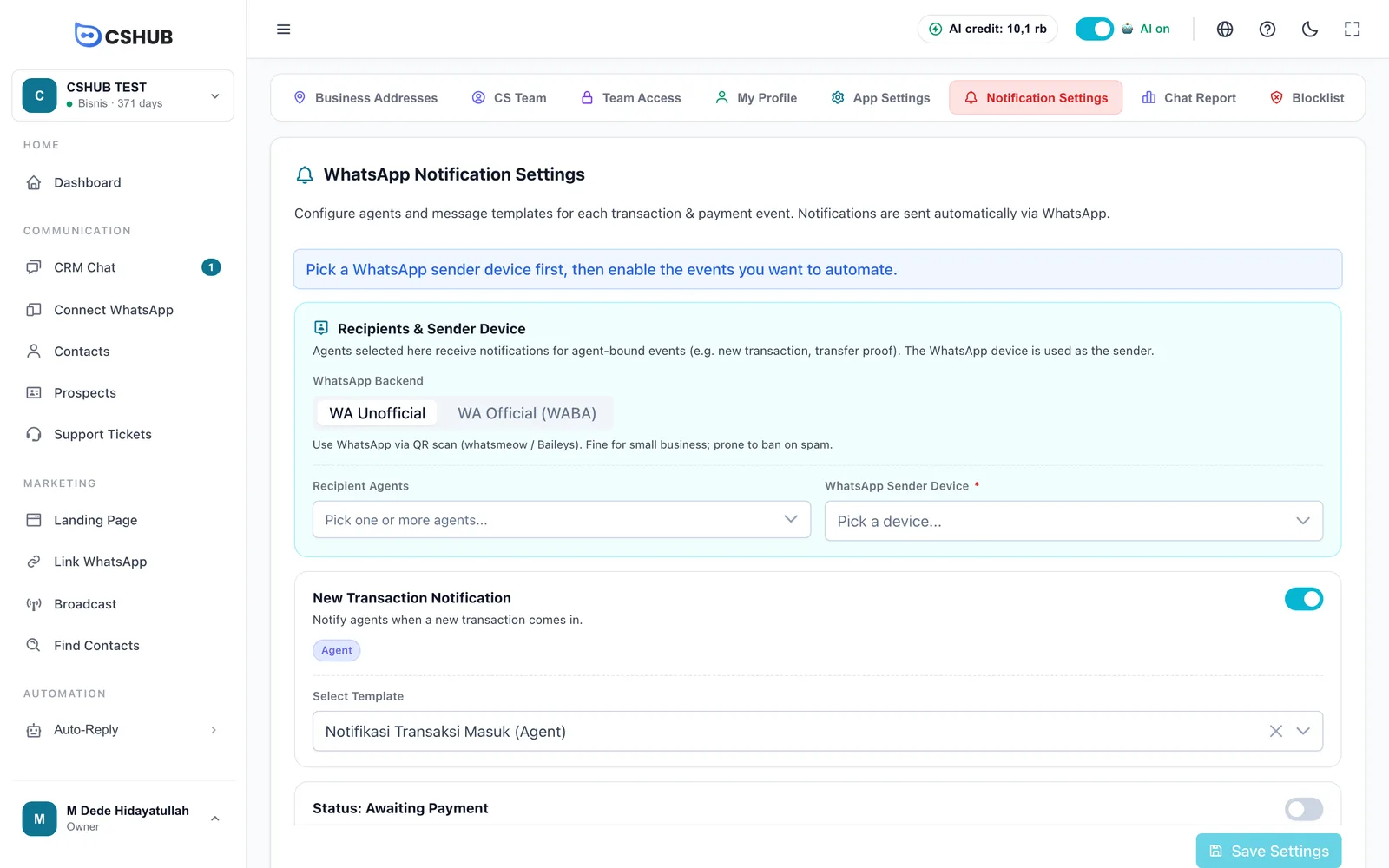
Step 1 — choose the sender and recipients
The Recipients & Sender Device card at the top must be filled in before any event can run.
| Field | Notes |
|---|---|
| WhatsApp Backend | WA Unofficial — sends through a WhatsApp number connected by QR scan. Fine for small businesses, but prone to being banned if used for spam. WA Official (WABA) — sends through the official WhatsApp Business API. More stable for high volume |
| Meta Account | Only shown for WA Official (WABA). Pick the connected Meta account first, then the device becomes selectable |
| Recipient Agents | One or more agents who receive the events marked Agent. Messages go to the phone number saved on each agent (see Team, CS & roles) |
| WhatsApp Sender Device | Required. The WhatsApp number that sends every notification |
Switching backend means picking again
When you switch between WA Unofficial and WA Official (WABA), the device and every event template are reset. Pick the device and templates again for the new backend.
Agents without a phone number are skipped
Agent notifications go to the phone number on the agent's profile. An agent with no number receives nothing — make sure the number is right and active on WhatsApp.
Step 2 — turn on events
Below the recipients card is the list of events. Each event has a switch, recipient badges (Agent and/or Customer), and a template picker that appears once the switch is on.
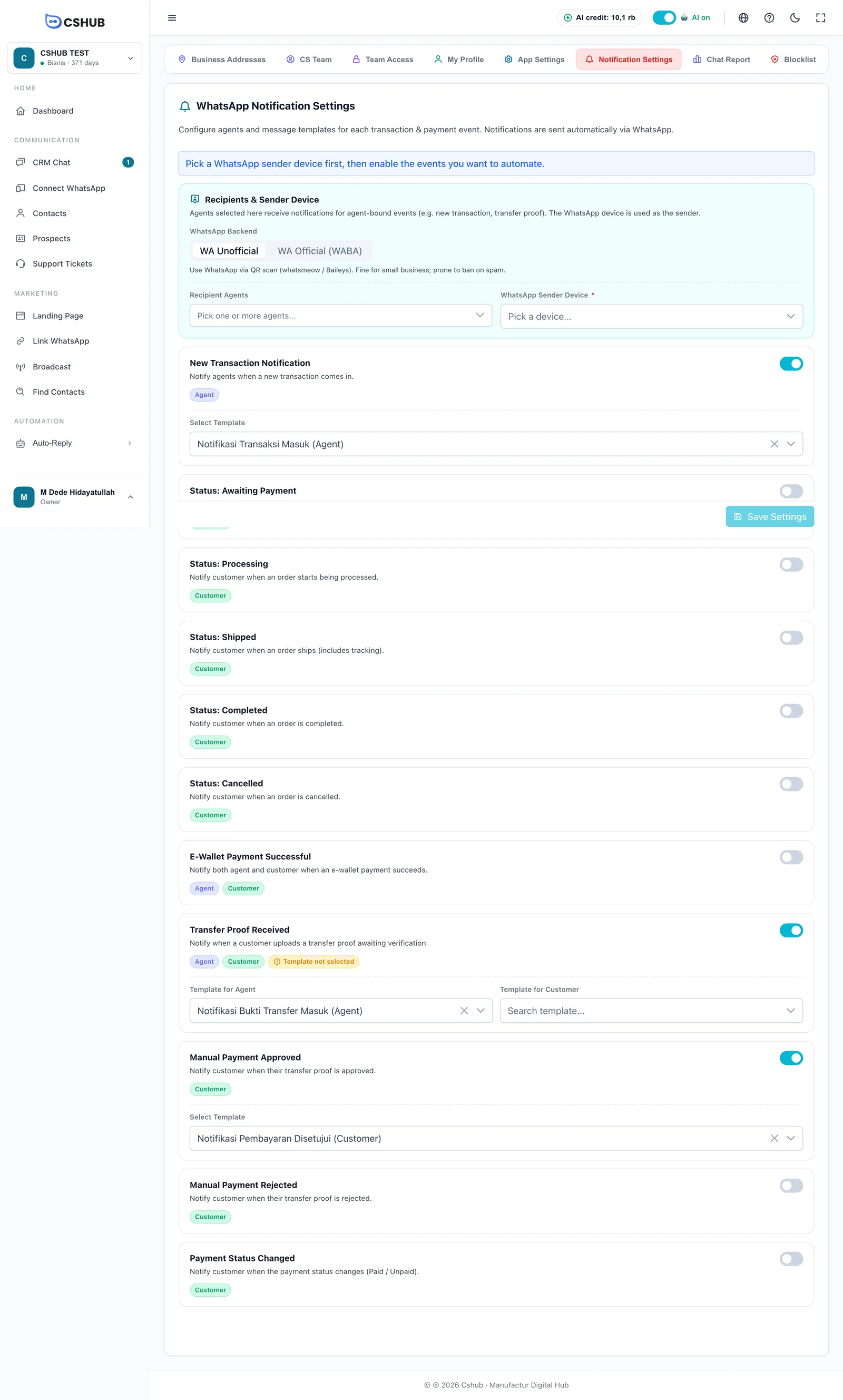
| Event | Recipient | Sent when |
|---|---|---|
| New Transaction Notification | Agent | A new transaction comes in |
| Status: Awaiting Payment | Customer | An order is awaiting payment |
| Status: Processing | Customer | An order starts being processed |
| Status: Shipped | Customer | An order ships (includes tracking number) |
| Status: Completed | Customer | An order is completed |
| Status: Cancelled | Customer | An order is cancelled |
| E-Wallet Payment Successful | Agent & Customer | An e-wallet payment succeeds |
| Transfer Proof Received | Agent & Customer | A customer uploads a transfer proof awaiting verification |
| Manual Payment Approved | Customer | The transfer proof is approved |
| Manual Payment Rejected | Customer | The transfer proof is rejected |
| Payment Status Changed | Customer | The payment status changes (Paid / Unpaid) |
Events with two recipients have two pickers: Template for Agent and Template for Customer. Customer messages go to the number saved on the transaction.
How to do it:
- Switch on the events you want.
- Under Select Template, search for and pick the message template.
- Repeat for other events, then click Save Settings. You'll see "Notification settings saved."
An active event with no template doesn't send
If an event is switched on but has no template, its card shows a Template not selected badge and nothing is sent. For two-recipient events, pick both templates if you want both the agent and the customer to receive it.
Notification templates
For WA Unofficial, the template list comes from Message Templates in Data & templates. cshub ships a ready-made template for each event, such as Notifikasi Transaksi Masuk (Agent), Notifikasi Pesanan Pending (Customer), and Notifikasi Bukti Transfer Masuk (Agent). These default templates are written in Indonesian; you can use them as they are or rewrite the text in your own language.
For WA Official (WABA), the list comes from the WhatsApp Business API templates of the selected Meta account. Templates must already be approved by Meta; unapproved templates won't be sent.
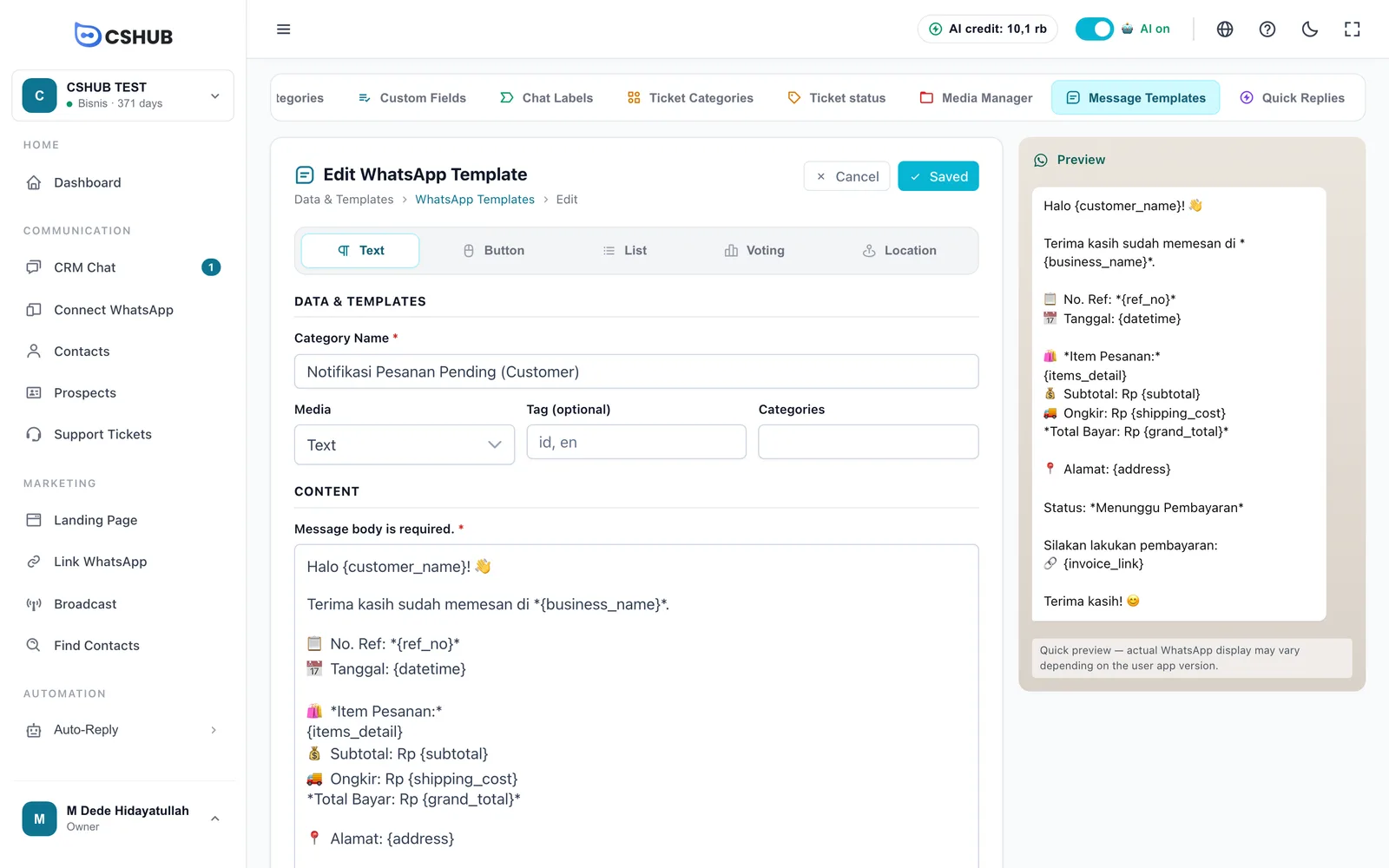
Variables you can use
Put variables in the template body; when the message is sent, cshub replaces them with the transaction's data.
| Variable | Replaced with |
|---|---|
{customer_name} | Customer name |
{customer_phone} / {customer_email} | Customer phone / email |
{customer_address} | Customer address |
{business_name} | Your business name |
{agent_name} | The receiving agent's name (for Agent templates) |
{ref_no} / {invoice} | Order reference number / invoice number |
{invoice_link} | Link to the customer's invoice page |
{date} / {datetime} | Transaction date / date and time |
{status} | Order status |
{payment_status} | Payment status |
{old_payment_status} / {new_payment_status} | Payment status before / after the change |
{payment_method} / {payment_amount} | Payment method / amount |
{items_detail} / {total_items} | Item breakdown / number of items |
{subtotal} / {shipping_cost} / {grand_total} | Subtotal / shipping cost / total due |
{courier} / {service} / {resi_number} | Courier / courier service / tracking number |
{address} / {pos_code} | Shipping address / postal code |
{reject_reason} / {rejected_note} | Payment rejection reason / note |
{created_method} | How the transaction was created |
Match variables to the event
{resi_number} is only filled after an order ships, and {reject_reason} only exists when a payment is rejected. Use them in the matching event's template so messages don't end up with blank parts.
Tips
- Test with your own number first. Add yourself as a recipient agent, create a test order, and check the messages you get.
- Use a stable number as the sender. Notifications stop when the sender device disconnects. Check its status under Connect WhatsApp.
- Don't overdo it. Customers only need the important updates — too many messages can get your number reported as spam.