
Escalation to your team
Escalation (SLA) sends a WhatsApp reminder to your CS team when a customer chat has waited too long for a human reply — say, more than 5 minutes — and can move up a ladder of backup CS if the first person doesn't reply either, so no customer gets forgotten.
The AI can keep the customer company while they wait; escalation is the safety net that makes sure a person eventually replies. The rules are saved as a policy, and you attach that policy to the channels you want watched.
Can't see the Escalation menu?
The menu shows for customer-service Business focus settings. If it's missing, choose Show all features in the sidebar, or change your business focus.
How escalation works
- A customer sends a message and no human has replied yet — the timer starts.
- If no CS member has replied by the end of the Duration without reply, cshub sends a WhatsApp reminder to CS.
- With Tiered backup CS, if the chat is still unanswered after another full duration, the reminder moves to the next CS on the list, and so on.
- As soon as someone on the team replies to that chat — from CRM Chat or straight from the phone — the timer stops and the cycle ends. If the customer writes again and is left waiting, the timer starts over.
- If everyone on the list has been reminded and still nobody replies, reminders stop for that chat until a human replies.
Good to know:
| Rule | Details |
|---|---|
| AI replies | Don't stop the timer — what counts is a human reply. Unless you switch on AI reply resets the timer |
| One message per CS | If several chats are waiting at once, each CS gets one message listing all of them, longest wait first, with a link to open them |
| Sent via WhatsApp | Reminders are always sent from your business's active WhatsApp (scan QR) number, even when the customer chat is on Instagram, Telegram, or another channel |
| CS phone numbers | Taken from the phone number in each team member's profile. Make sure it's filled in under Team, CS & roles |
| Credit | Each reminder message uses 1 AI credit. When credit runs out, reminders aren't sent |
| Hours | Escalation runs 24/7, regardless of the channel's auto-reply schedule |
| Resolved chats | Marking a chat as resolved in CRM Chat also stops its escalation |
Don't reply to the reminder
Reminders arrive in the CS member's WhatsApp from your business number. Ask your team to open the chat through the link in the reminder, not to reply to the reminder itself.
Policy list
In the sidebar, open the Automation group → Auto-Reply → Escalation.
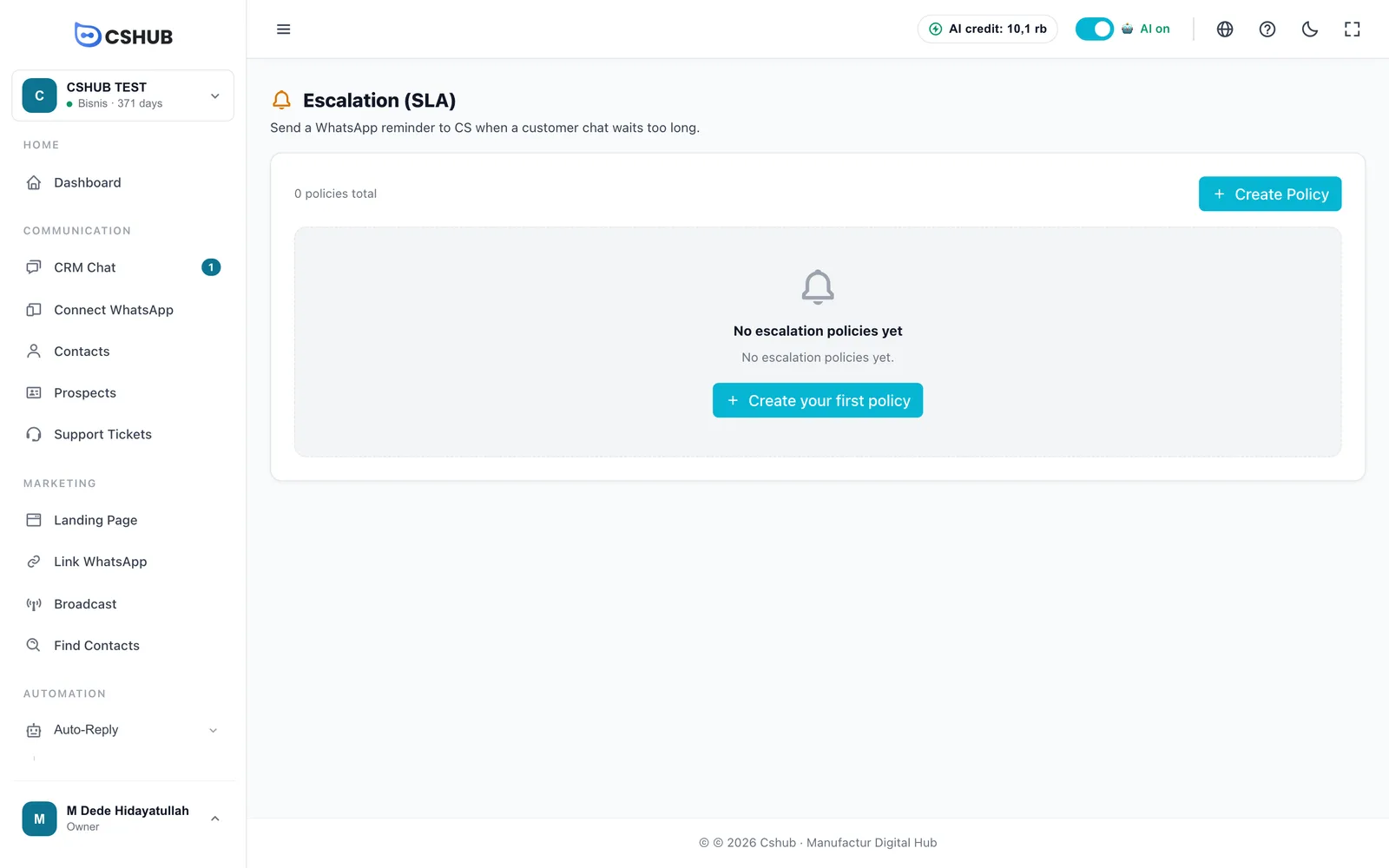
| Column | Contents |
|---|---|
| Name | The policy name |
| Duration | How long a chat may wait, in minutes |
| Target | CS handling the chat or Tiered backup CS |
| Members | Number of CS on the tiered list |
| Status | Active or Inactive |
| Actions | Edit policy or Delete policy |
Creating a policy
Click Create Policy.
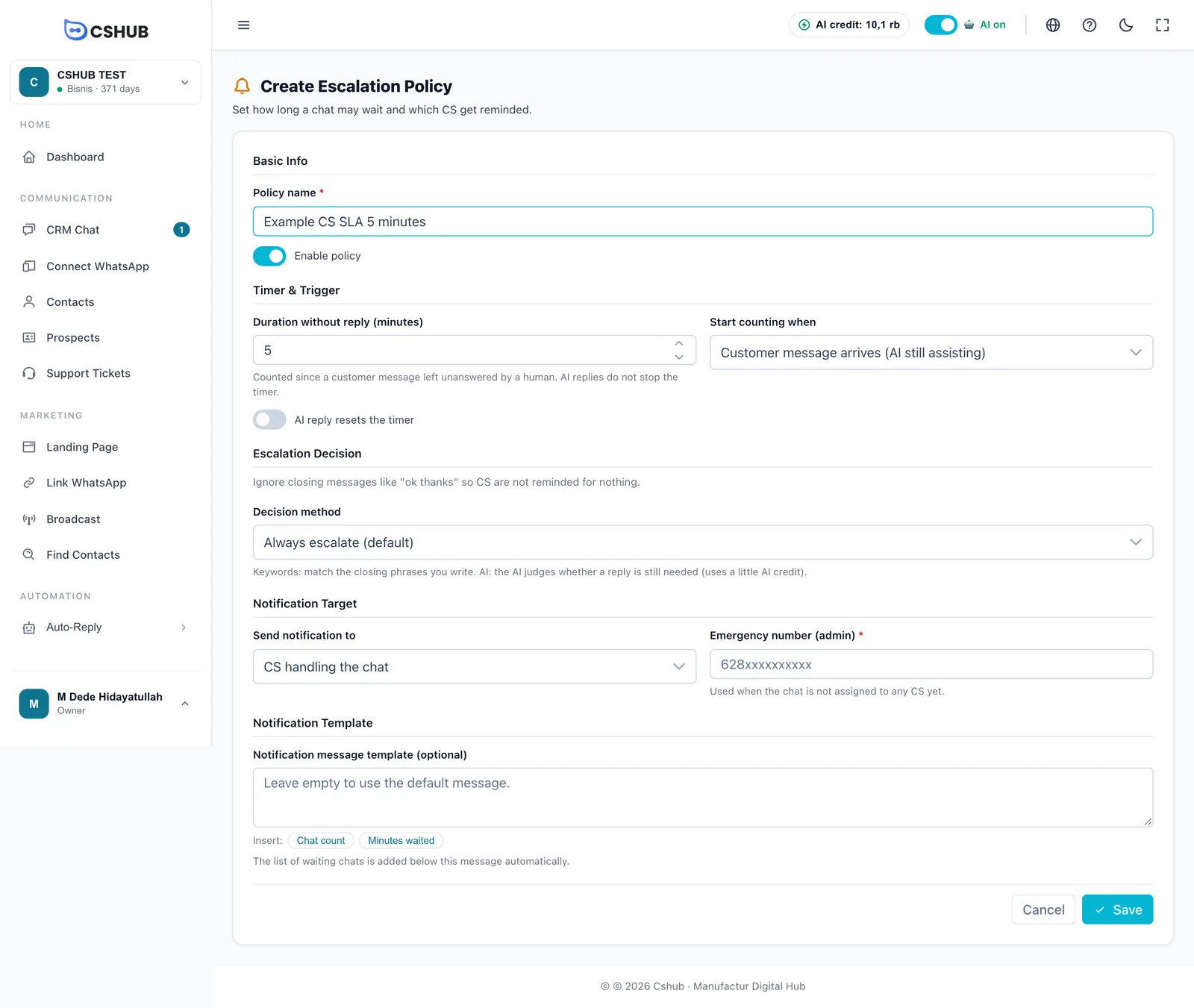
Basic Info
| Field | Details |
|---|---|
| Policy name (required) | Any name, e.g. Sales SLA 5 min |
| Enable policy | Switch off to pause it without deleting |
Timer & Trigger
| Field | Details |
|---|---|
| Duration without reply (minutes) | 1–1,440 minutes. Counted from when a customer message is left unanswered by a human. The same duration is the gap between tiers of backup CS |
| Start counting when | When the timer starts (see the table below) |
| AI reply resets the timer | When on, every AI reply restarts the timer from zero. Leave it off if a human must still reply within the limit even after the AI has answered |
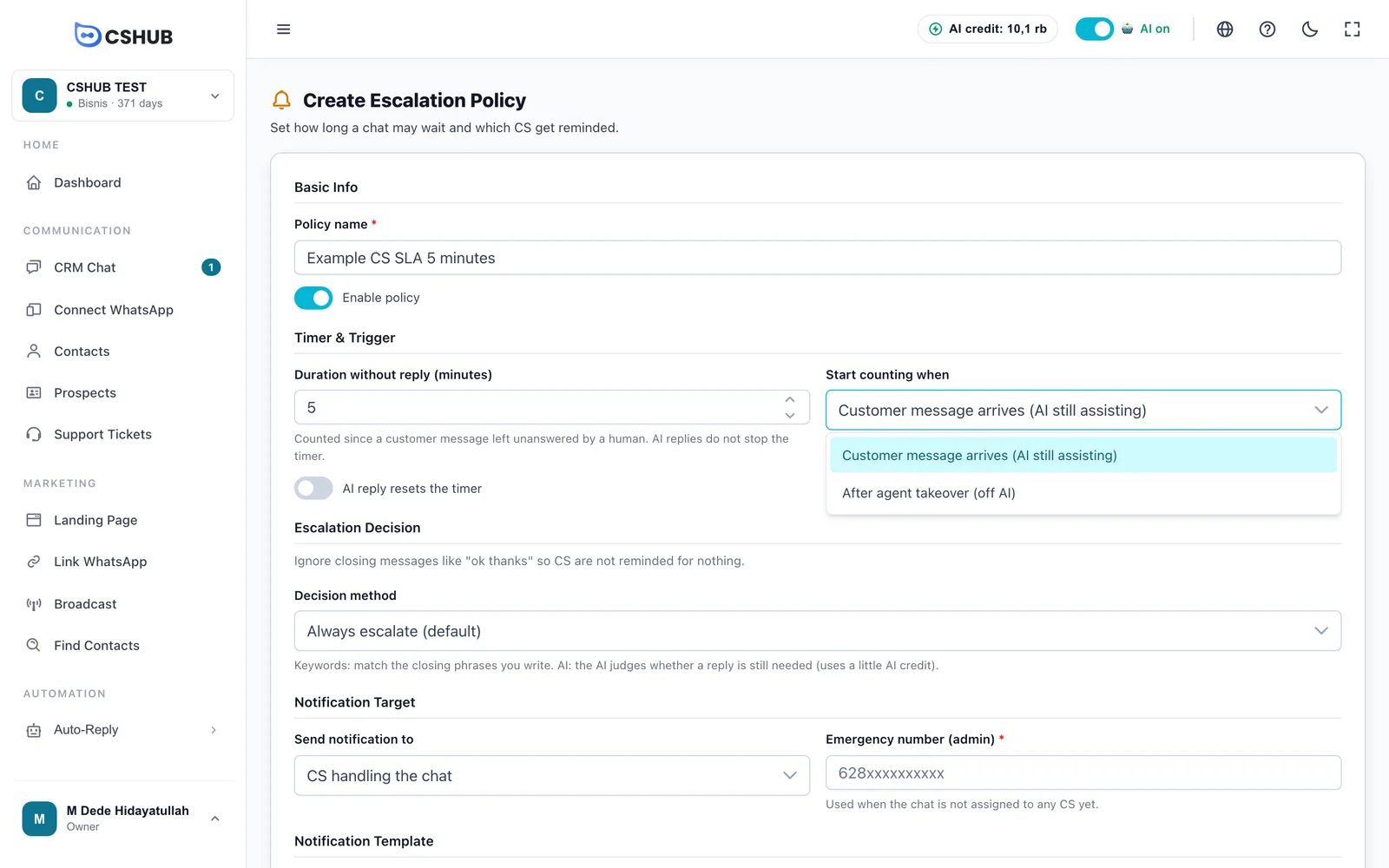
| Option | When to use it |
|---|---|
| Customer message arrives (AI still assisting) | The timer runs for every customer message, even while the AI is answering. Good when every chat must be touched by a person |
| After agent takeover (off AI) | The timer only runs for chats that have left the AI — for example after the AI hands over to CS. Good when the AI already handles most chats |
Escalation Decision
This section stops CS being reminded about closing messages like "ok thanks" that don't really need a reply.
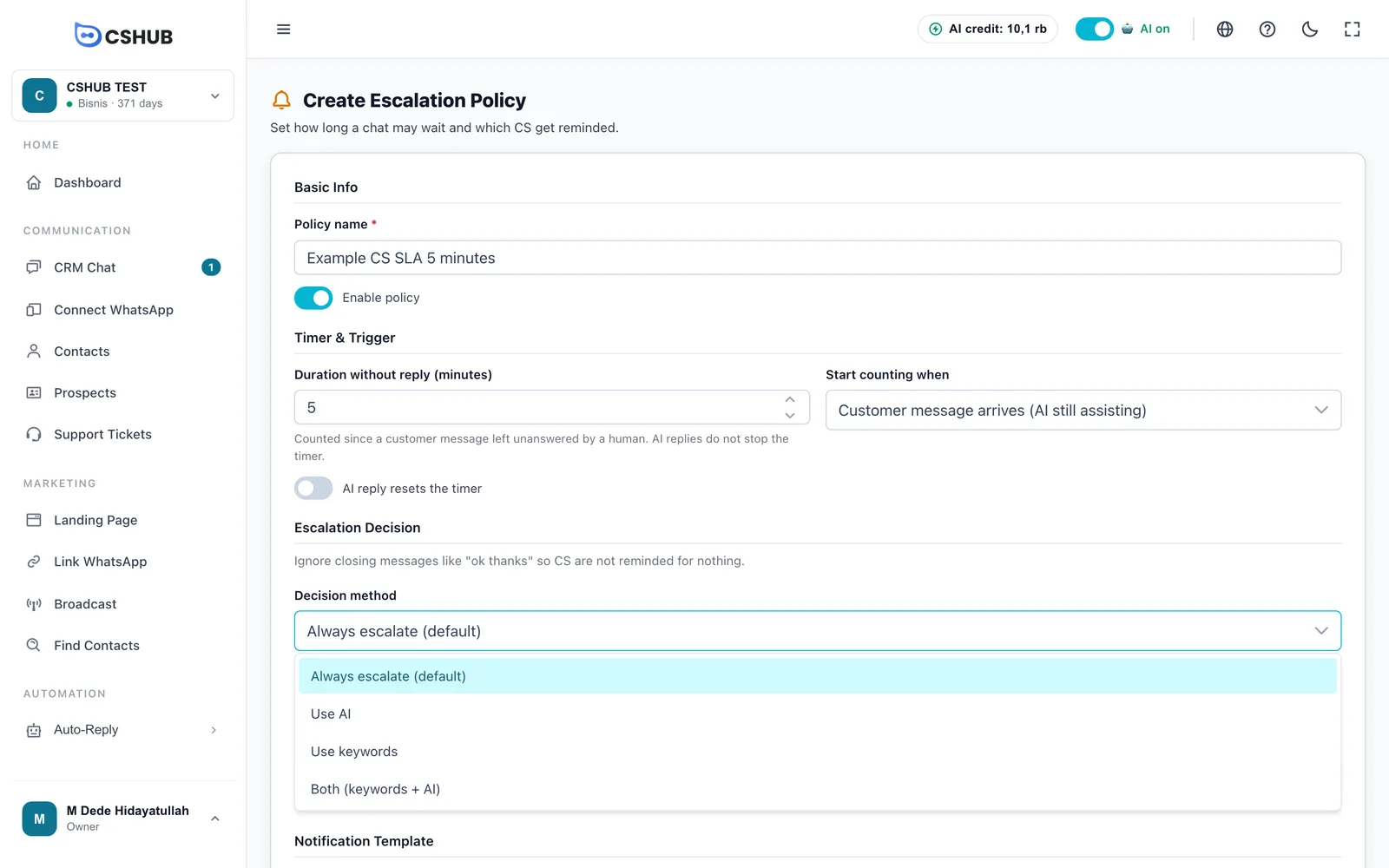
| Method | Behavior |
|---|---|
| Always escalate (default) | Every message left unanswered by a human is escalated |
| Use keywords | If the customer's message matches one of your Closing words/phrases, escalation is cancelled |
| Use AI | The AI judges whether the message still needs a reply. Uses a little AI credit |
| Both (keywords + AI) | Keywords and the AI's judgement are used together |
For the keyword method, type a closing word or phrase (e.g. thank you, ok got it) and click Add. Keywords match whole words or phrases, case-insensitive. At least one keyword is required for Use keywords and Both.
Notification Target
| Send notification to | Behavior |
|---|---|
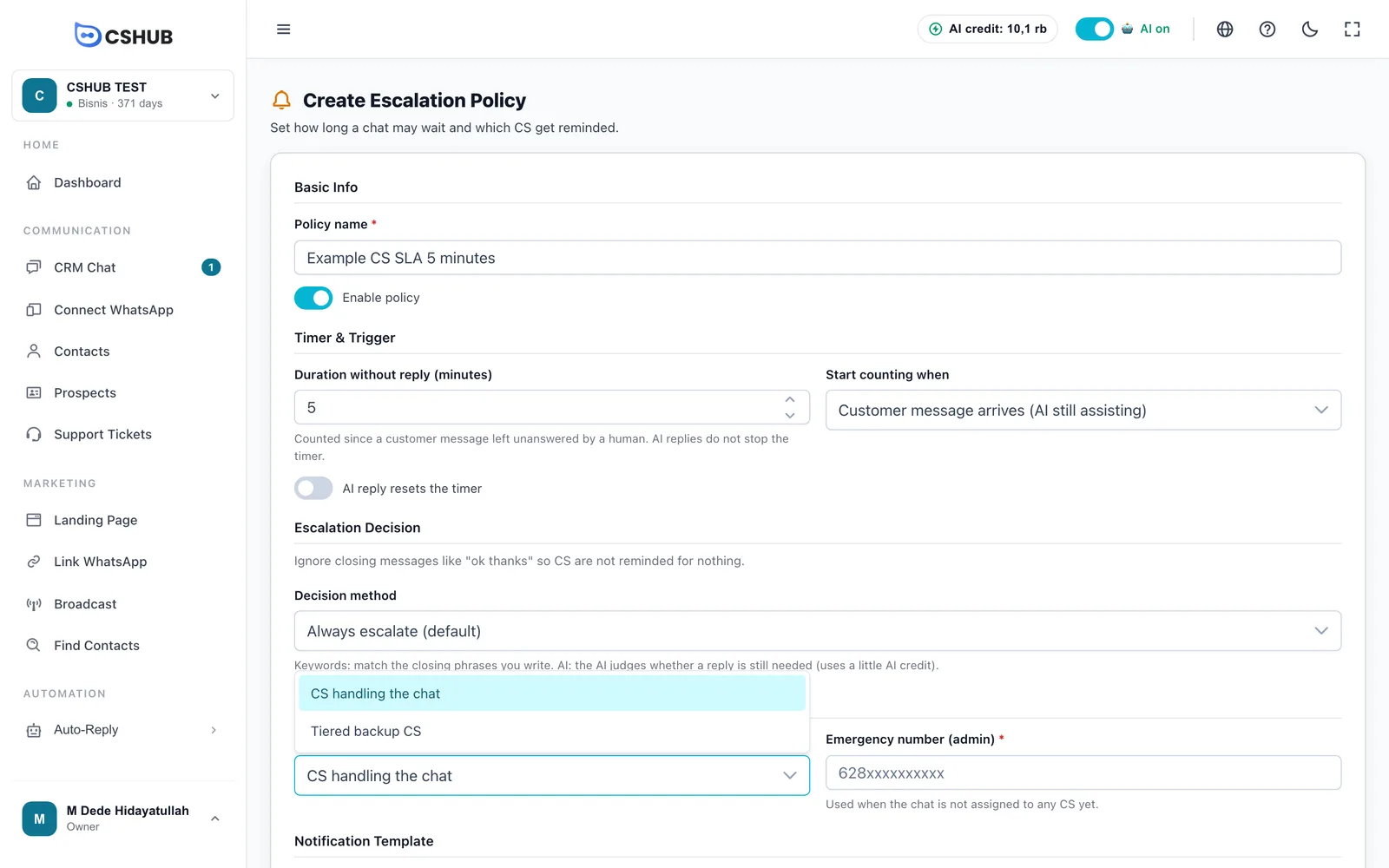
| CS handling the chat | The reminder goes to the CS member recorded as handling the chat. Fill in Emergency number (admin) (required) — used when the chat isn't assigned to anyone yet. Include the country code, e.g. 628123456789 |
| Tiered backup CS | Build the CS list (tiered): choose a CS member and click Add, then repeat. The list order is the reminder order; use the arrow button to move someone up. At least 1 CS |
Example ladder
Duration 5 minutes, list: Rina → Budi → Supervisor. A chat waits 5 minutes → Rina is reminded. Still unanswered 5 minutes later → Budi. Another 5 minutes → Supervisor. Then reminders stop until someone replies.
Notification Template
Notification message template (optional) — the opening text of the reminder. Leave it empty to use the default message. Click Chat count or Minutes waited to insert those numbers automatically. The list of waiting chats is always added below your message.
Click Save. The policy is saved but doesn't watch anything until you attach it to a channel.
Attaching a policy to a channel
Policies are attached in each channel's settings:
- Open the channel's settings, for example Edit on a device in WhatsApp (scan QR).
- Switch on Escalation (SLA).
- Choose the Escalation policy.
- Save the channel settings.
Escalation works on WhatsApp (scan QR), the WhatsApp Business API, Telegram, Instagram, Messenger, and Website live chat. One policy can be used by many channels.
Editing & deleting policies
- Click Edit policy in the list, make your changes, then Save. Changes apply to every channel using it.
- Delete policy asks for confirmation. Channels using it are detached automatically — escalation on those channels stops.
Tips
- Start with a realistic duration for your team, such as 10–15 minutes at busy times. Durations that are too short flood CS with reminders.
- Double-check each CS member's phone number in their profile, and keep at least one business WhatsApp (scan QR) number connected.
- Use the keyword method to ignore closing messages common in your business.
- Pair it with AI: let the AI answer quickly, and use escalation so chats that need a person still get one. See also AI lead qualification for handing hot leads to CS.