
Products & stock
Keep everything you sell in one catalogue — with prices, photos, variants (colour, size), stock, weight for shipping, wholesale prices, and upsells. The same catalogue is used by AI selling over chat, landing pages, the online store, and the manual order form, so you only update it in one place.
Everything product-related lives in the Inventory menu, which has three parts:
| Part | What it's for |
|---|---|
| Master Products | The products you sell — prices, variants, photos, stock, and couriers |
| Product Categories | Product groups (e.g. Food, Drink, Accessories) for filtering the catalogue and the online store |
| Saved Variants | Variant templates you use often (e.g. Size S/M/L) so you don't retype them for every product |
Opening Inventory
Open Inventory in the Products & Orders section of the sidebar.
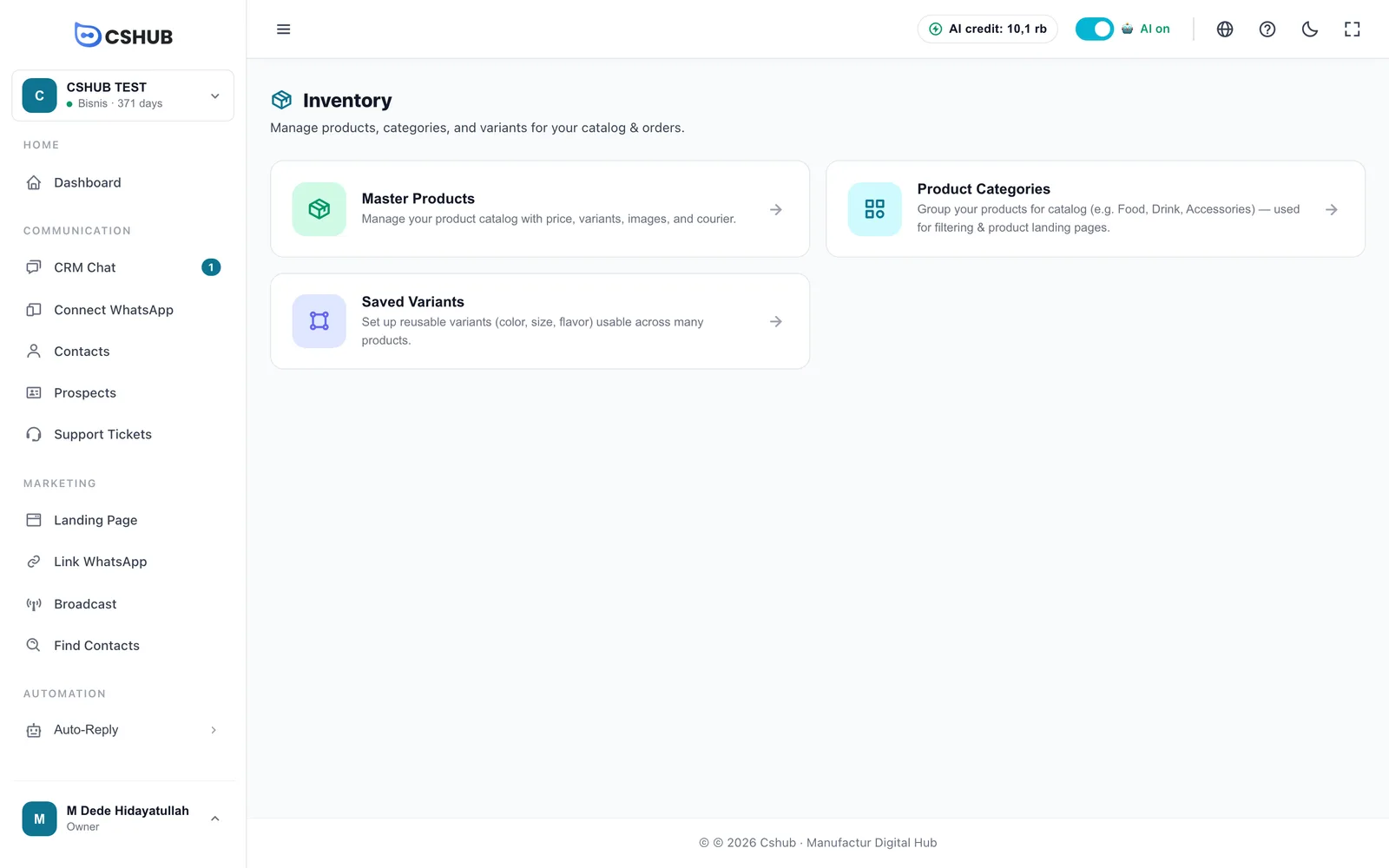
Each part has a Master Products · Product Categories · Saved Variants tab bar at the top, so you can switch without coming back to this page.
Don't see Inventory in the menu?
The sidebar follows the business focus you picked. Click Show all features at the bottom of the sidebar to see every menu. If it's still missing, your package may not include products — check Billing & packages.
Product list
Click the Master Products card. When you have no products yet, the page invites you to add the first one.
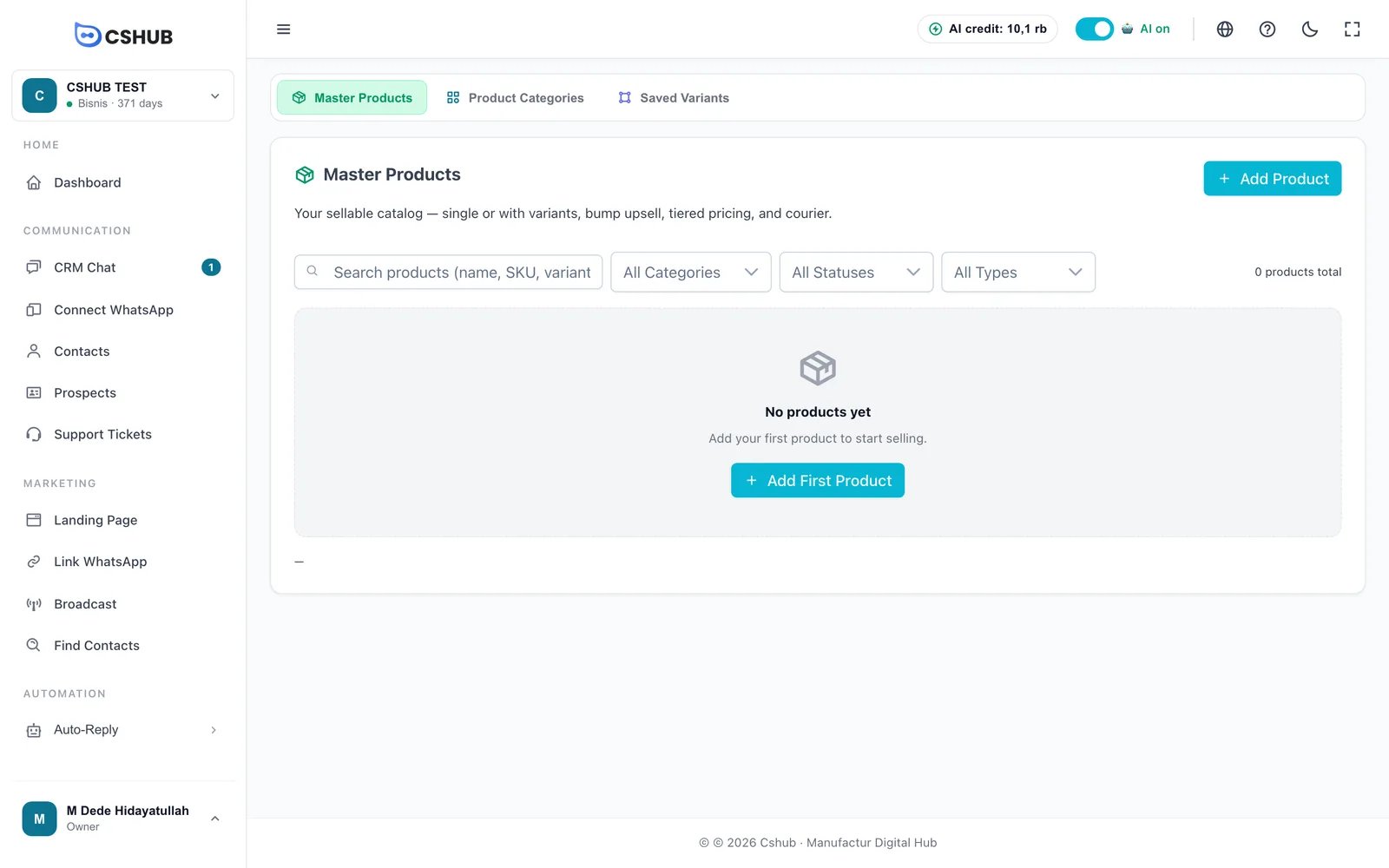
Once you've added products, they're listed in a table:
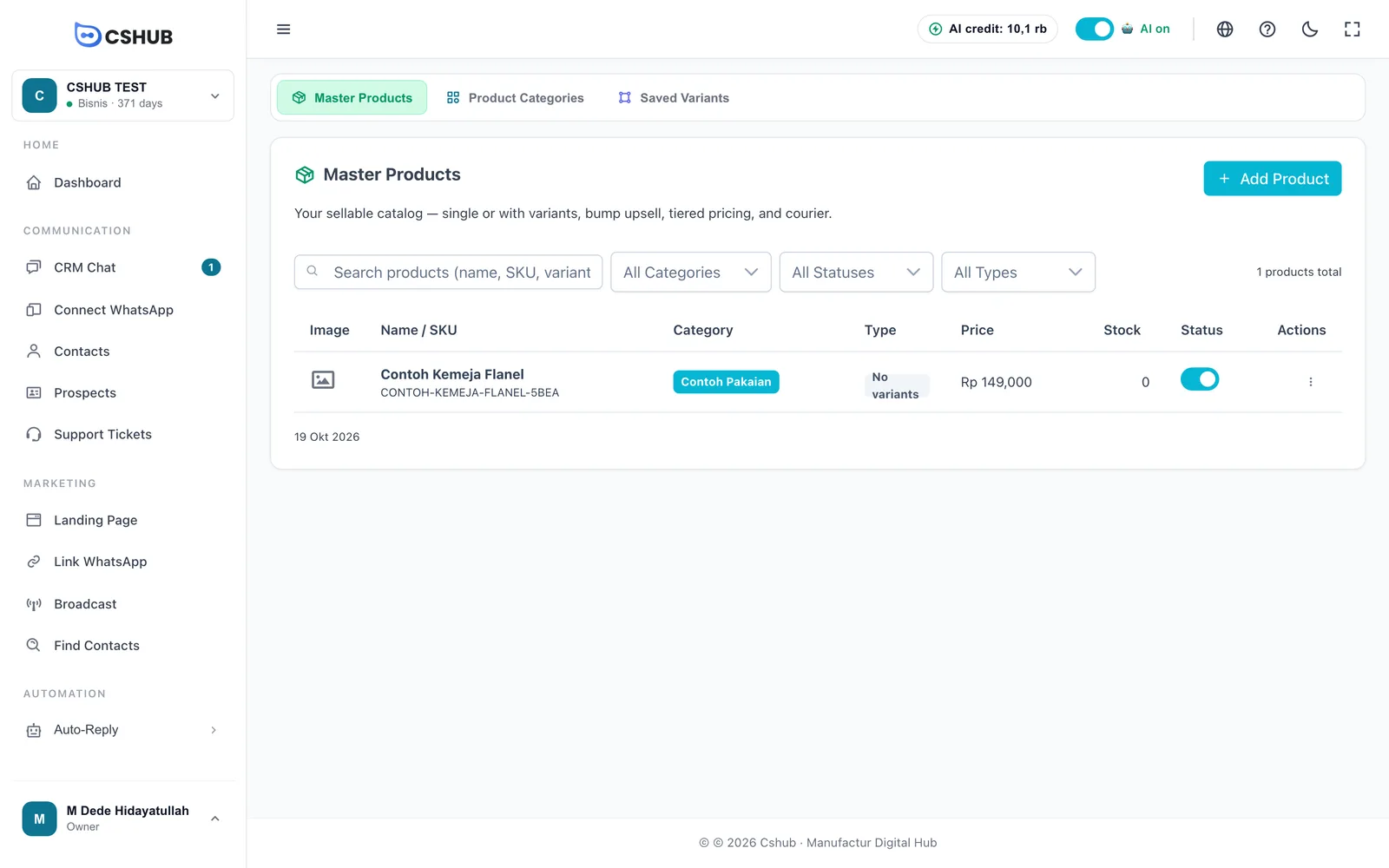
| Column | What it shows |
|---|---|
| Image | The product's main photo |
| Name / SKU | Product name and its SKU code |
| Category | The product category, if set |
| Type | No variants or Has variants |
| Price | Selling price. Products with variants show the lowest–highest range |
| Stock | Stock on hand. A — means unlimited stock |
| Status | An Active / Inactive switch you can flip right from the list |
| Actions | The three-dot menu (see below) |
Search by name, SKU, or variant name, and use the Category, Status, and Type filters to narrow the list.
Product actions
Click ⋮ at the end of a row:
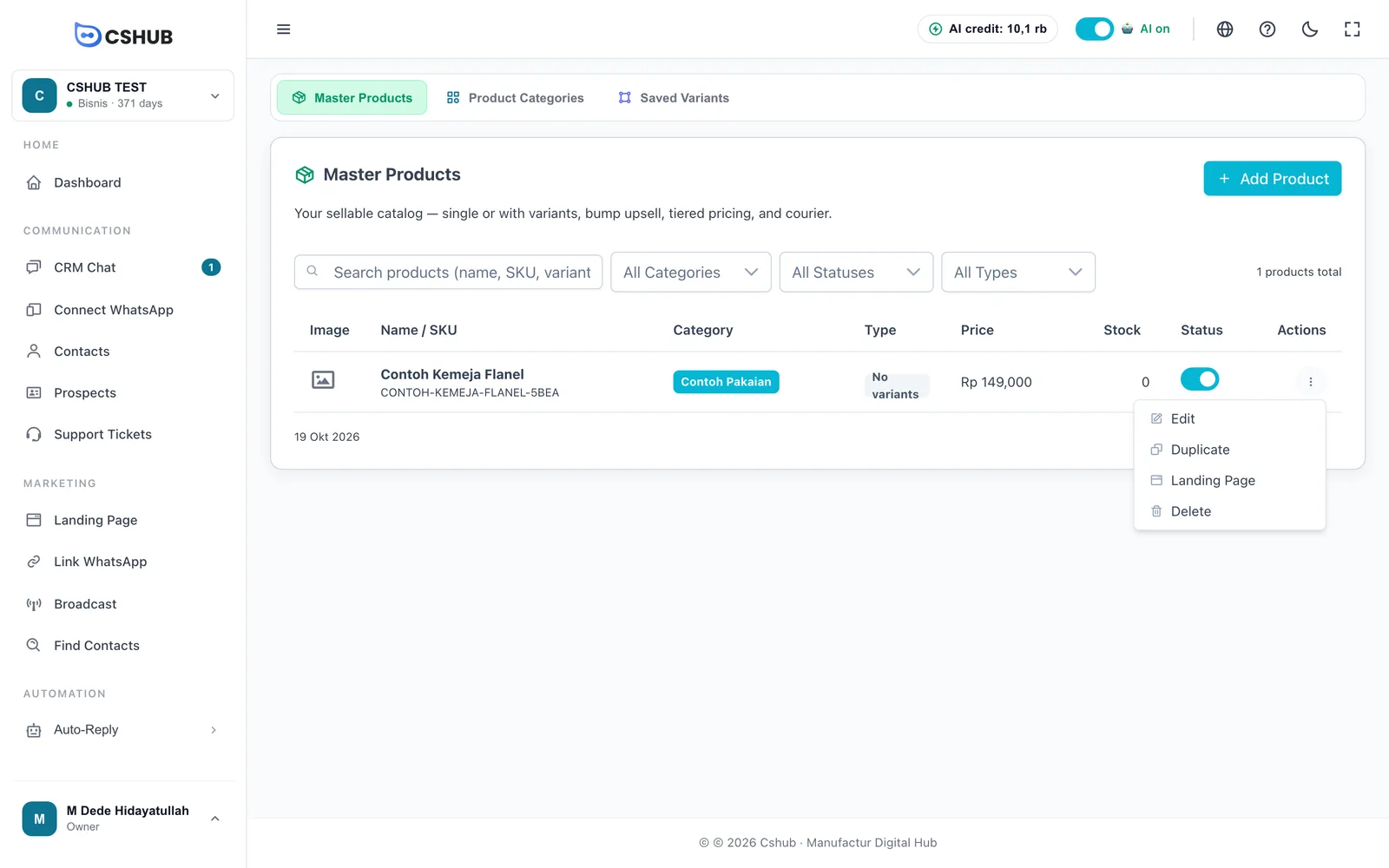
| Action | What it does |
|---|---|
| Edit | Opens the product form to change its details |
| Duplicate | Makes a copy of the product — handy for similar products; just change the name and price |
| Landing Page | Opens the landing pages for this product, or lets you create one. See Landing pages |
| Delete | Deletes the product and its photo files. This can't be undone |
Deactivate instead of deleting
If a product is out of stock or seasonal, turn off its Status switch. Inactive products don't appear in the online store and aren't offered by the AI, but their data is kept and you can turn them back on at any time.
Adding a product
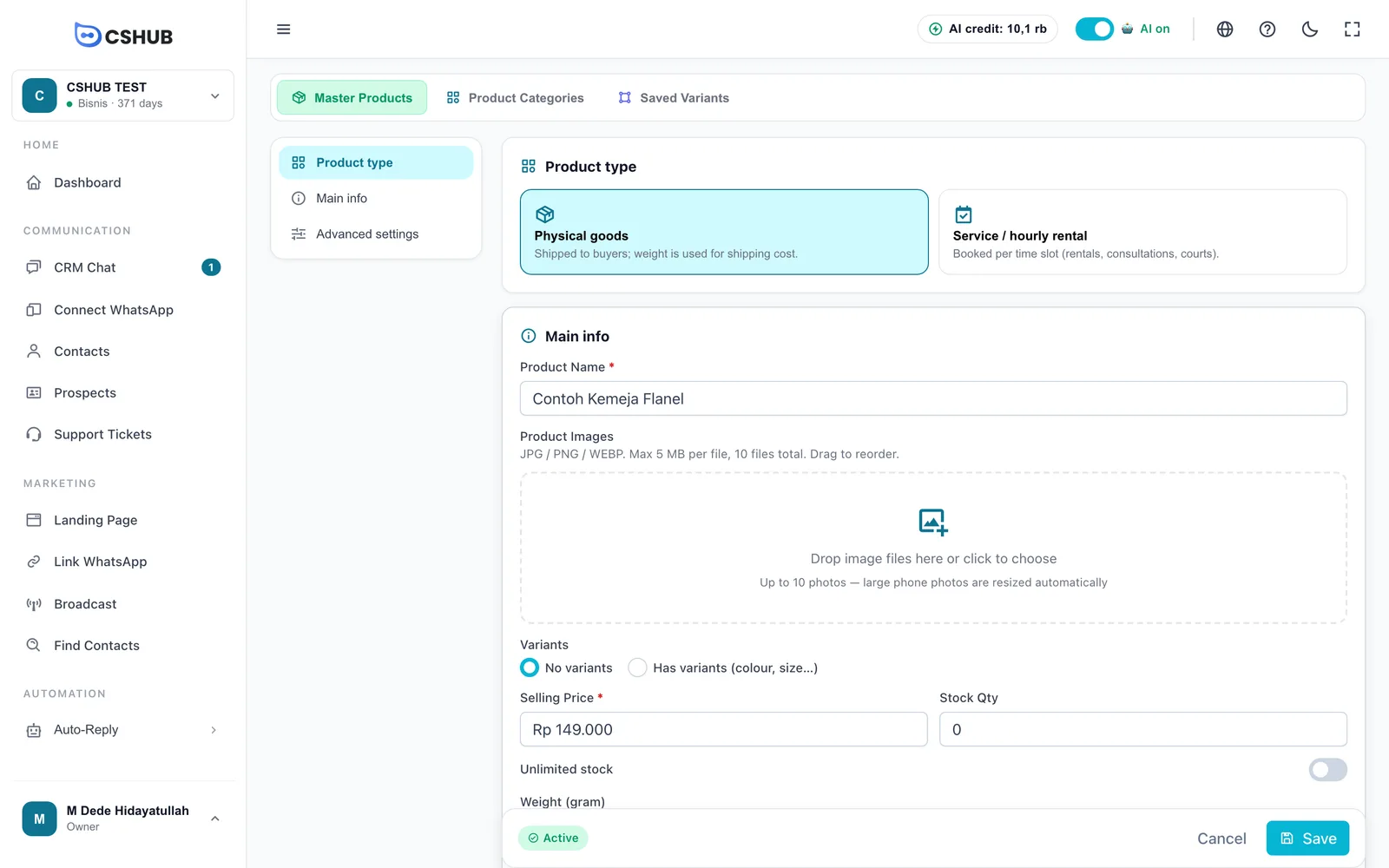
Click Add Product. The form has three sections you can jump between using the navigation on the left: Product type, Main info, and Advanced settings. For a simple product, the first two are enough.
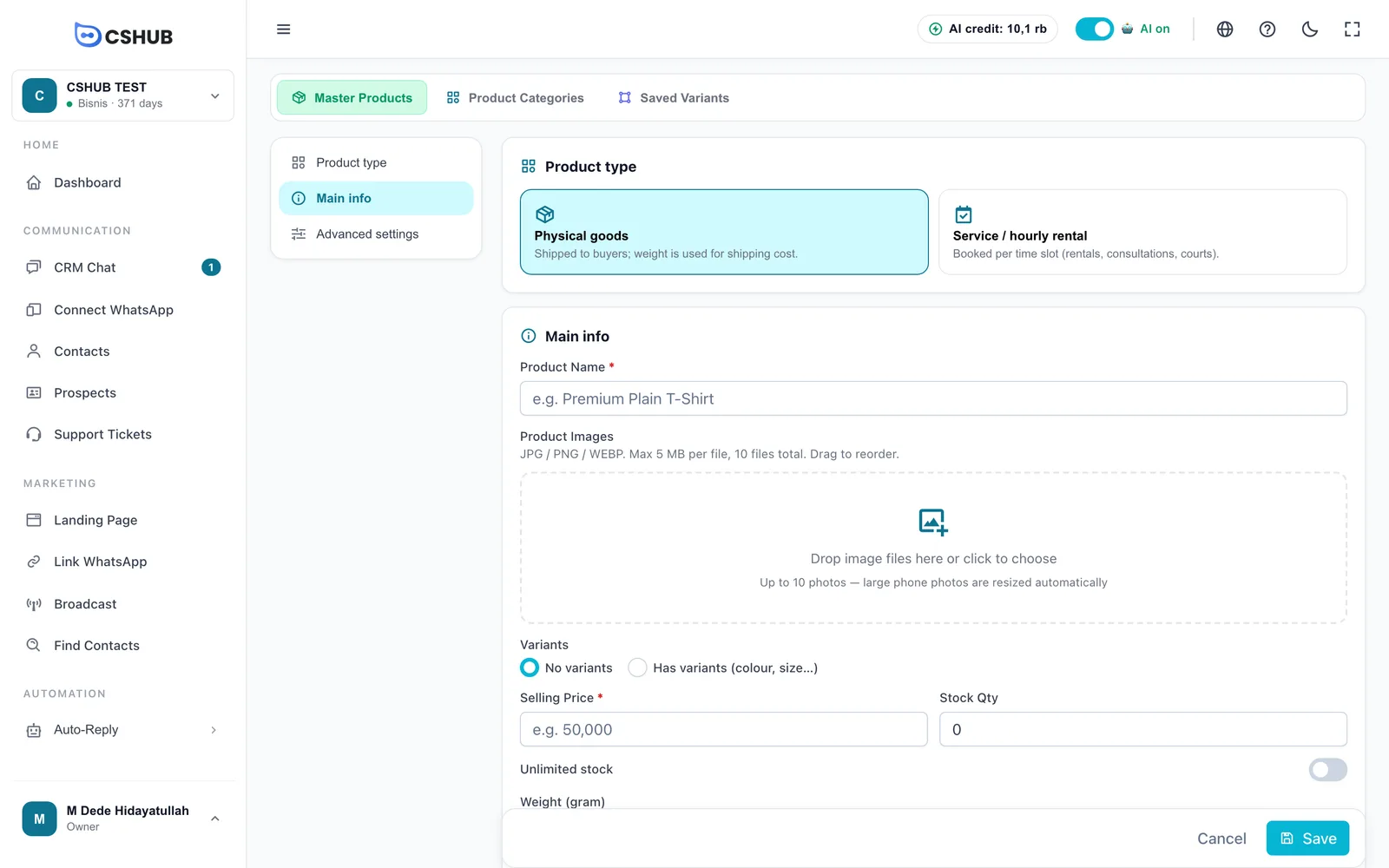
1. Product type
| Option | Best for |
|---|---|
| Physical goods | Physical products shipped to the buyer. Weight is used to calculate shipping |
| Service / hourly rental | Services booked per time slot — equipment rental, consultations, courts, classes, and so on |
If you choose Service / hourly rental, a Booking Mode option appears:
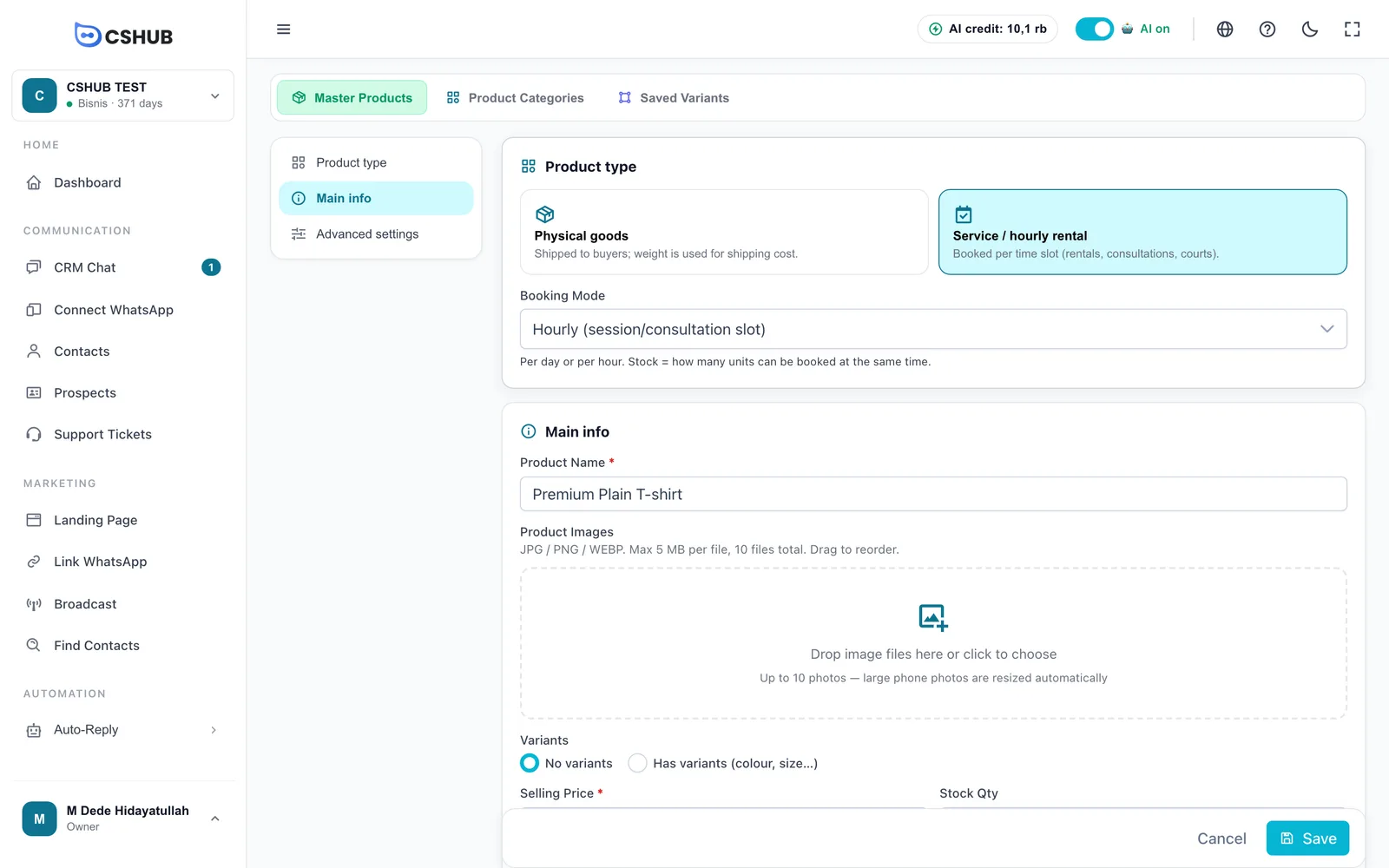
| Booking Mode | Meaning |
|---|---|
| Daily (rental, multi-day) | Rented by the day — cars, cameras, party equipment |
| Hourly (session/consultation slot) | Booked per session — consultations, lessons, court rental |
For services, Stock Qty means how many units can be booked at the same time — for example, 3 courts means 3 people can book the same hour. Services don't use weight or couriers.
Services also get an Operating Schedule under Advanced settings: set the open days and one or more time slots per day (for example 09:00–12:00 and 14:00–17:00 for a lunch break). Quick buttons Mon-Fri 08-17, All Days 09-17, and Clear are available. If you don't set it, a default Monday–Friday 08:00–17:00 schedule is created the first time you save. Customers book against this schedule through AI appointment booking.
2. Main info
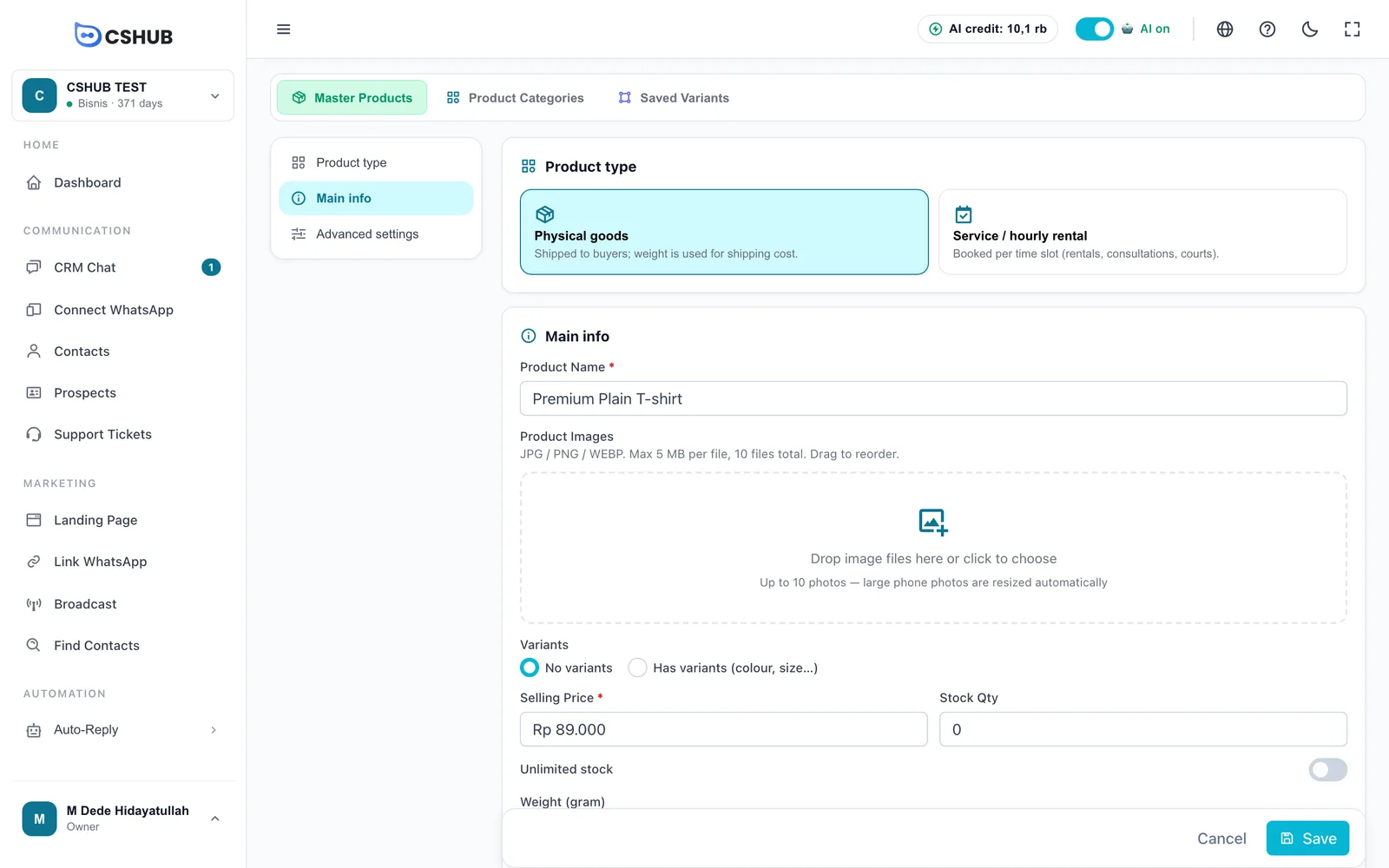
| Field | Details |
|---|---|
| Product Name (required) | The name buyers see, e.g. Premium Plain T-Shirt |
| Product Images | Drop files on the upload area or click to choose. JPG/PNG/WEBP, up to 5 MB each and 10 photos. Large phone photos are resized automatically. Drag to reorder — the first photo is the main one |
| Variants | No variants for a single product, or Has variants (colour, size…) for products with options. See Products with variants |
| Selling Price (required, no variants) | Price per item; must be more than 0 |
| Stock Qty | Stock on hand. Hidden when stock is unlimited |
| Unlimited stock | Turn on for products whose stock you don't need to track (pre-orders, digital products, unlimited services) |
| Weight (gram) | Weight per item, used to calculate shipping. Only for Physical goods without variants (variant products set weight per variant) |
Get the weight right
Shipping at checkout is calculated from product weight. A weight that's too low means buyers pay less shipping than it actually costs. See Shipping & rates.
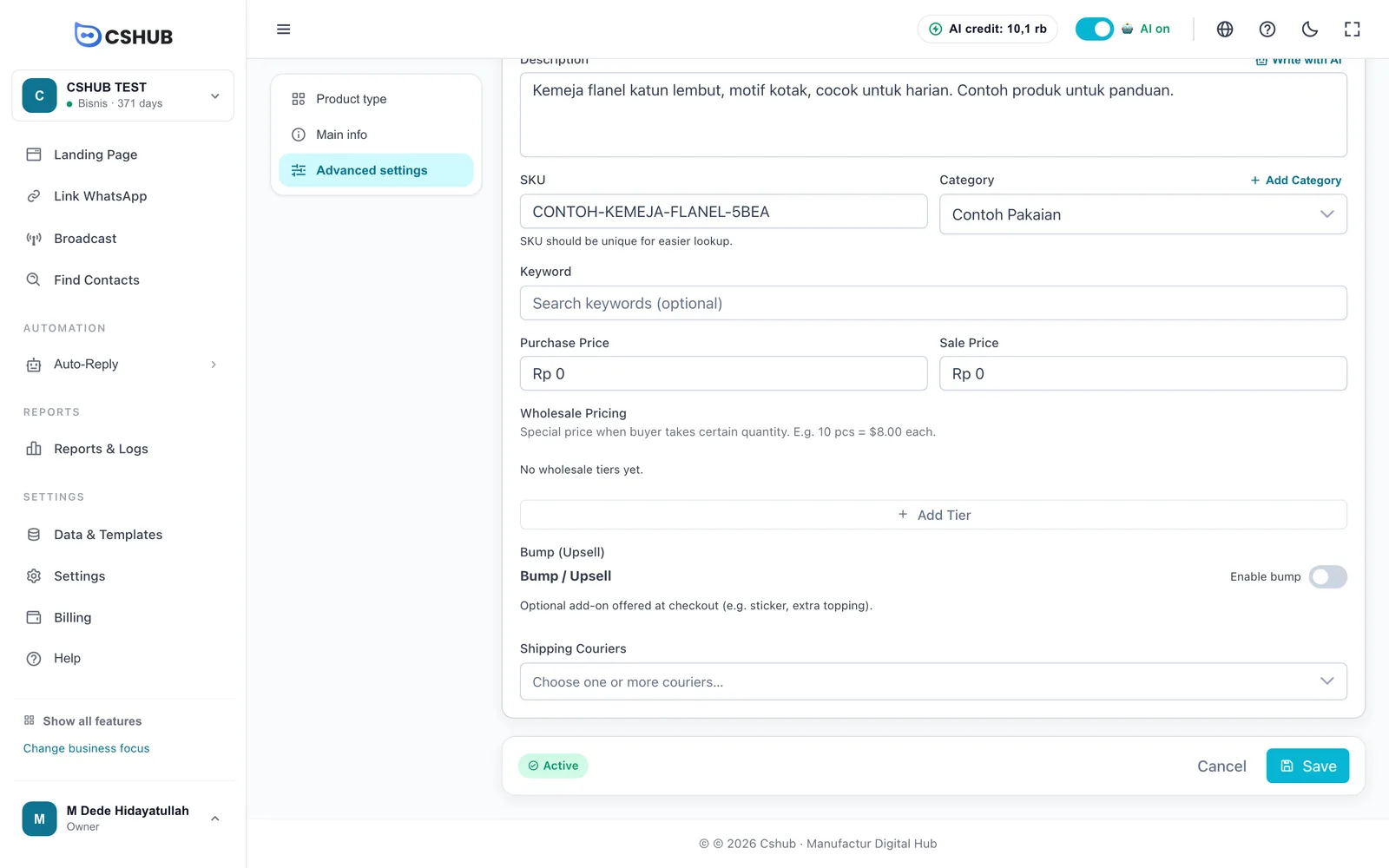
3. Advanced settings
Click Advanced settings to open the extra options. Everything here is optional.
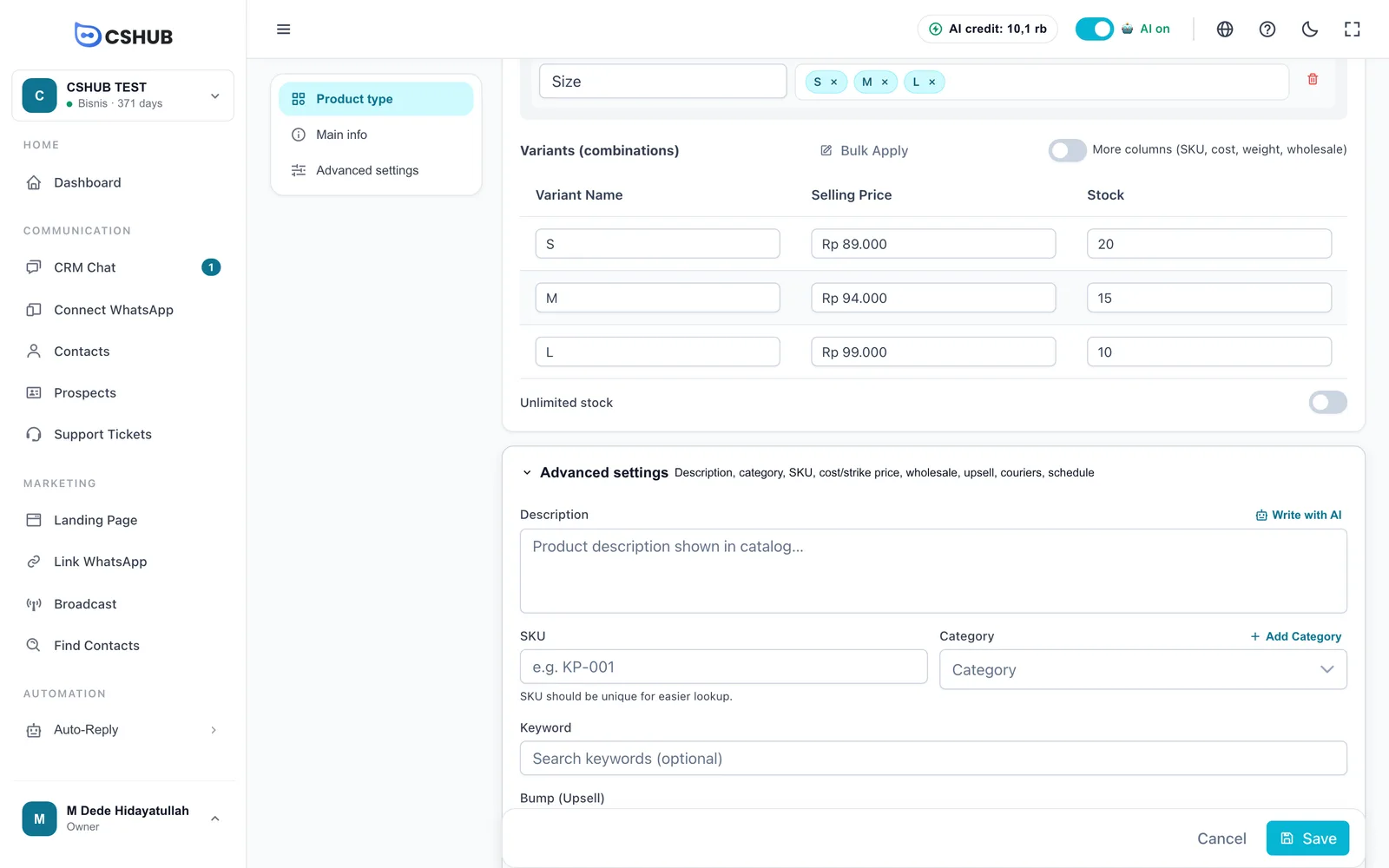
| Field | Details |
|---|---|
| Description | Product description shown in the catalogue. Fill in the product name first, then click Write with AI to draft a description from the name, category, price, and any notes you've written — uses AI credit |
| SKU | Product code for easier lookup, e.g. KP-001. Best kept unique |
| Category | Pick a category, or click + Add Category to create one without leaving the form |
| Keyword | Extra search keywords so the product is easy to find |
| Purchase Price | Your cost per item (no variants). For your own records |
| Sale Price | Strike-through / promo price (no variants) |
| Wholesale Pricing | Special prices for larger quantities (see below) |
| Bump (Upsell) | An add-on offered at checkout (see below) |
| Shipping Couriers | Couriers buyers can choose for this product (Physical goods only) |
| Operating Schedule | Open days and hours (Service / hourly rental only) |
Wholesale pricing
Click Add Tier to add a price level. Enter a Min Qty and the per-item Price — for example, from 10 pcs the price is $8.00 each. Each tier needs a different minimum quantity.
Bump / Upsell
Turn on Enable bump to offer an optional add-on at checkout, such as a sticker, gift wrap, or extra topping. Fill in Bump Name, Bump Price, Weight (gram), and Bump Image. Buyers just tick the offer on the landing page checkout form.
Shipping couriers
Choose one or more couriers. The couriers you pick appear as shipping options when buyers check out. If the list is empty, no couriers are active for your business yet — see Shipping & rates.
4. Save
Click Save. The product appears in the list with Active status.
Products with variants
Choose Has variants (colour, size…) under Variants if your product comes in options.
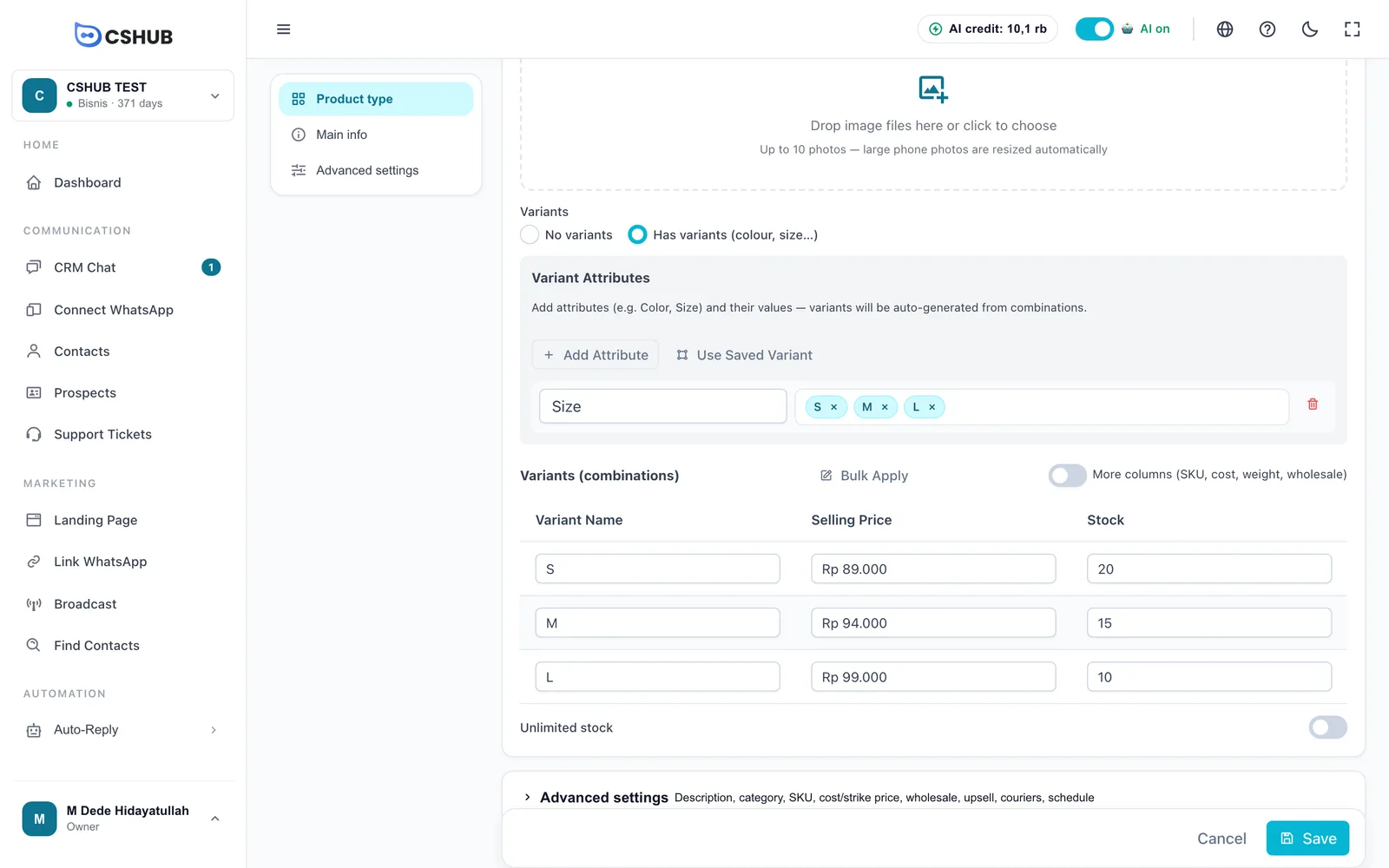
- Click Add Attribute, enter the attribute name (e.g. Size), then type its values one by one — press Enter or a comma after each (S, M, L).
- Add more attributes if needed (e.g. Colour). Variants are generated automatically from the combinations — Size S/M/L × Colour Red/Blue gives 6 variants.
- Or click Use Saved Variant to fill the attribute from a template you've saved.
- Enter the Selling Price and Stock for each variant in the Variants (combinations) table.
| Table feature | What it does |
|---|---|
| Bulk Apply | Apply the same value (price, stock, etc.) to every variant at once. Tick the fields to apply, then click Apply |
| More columns | Show the SKU, Purchase Price, Weight (g), and Wholesale columns per variant |
| Wholesale → Set | Set wholesale tiers for a specific variant |
Variant limit
A product can have up to 50 variants. If your attribute combinations go over that, reduce the number of attribute values.
Product categories
Categories group products so they're easy to filter in the list, and they power category pages and the Category Grid block in the online store.
Open the Product Categories tab.
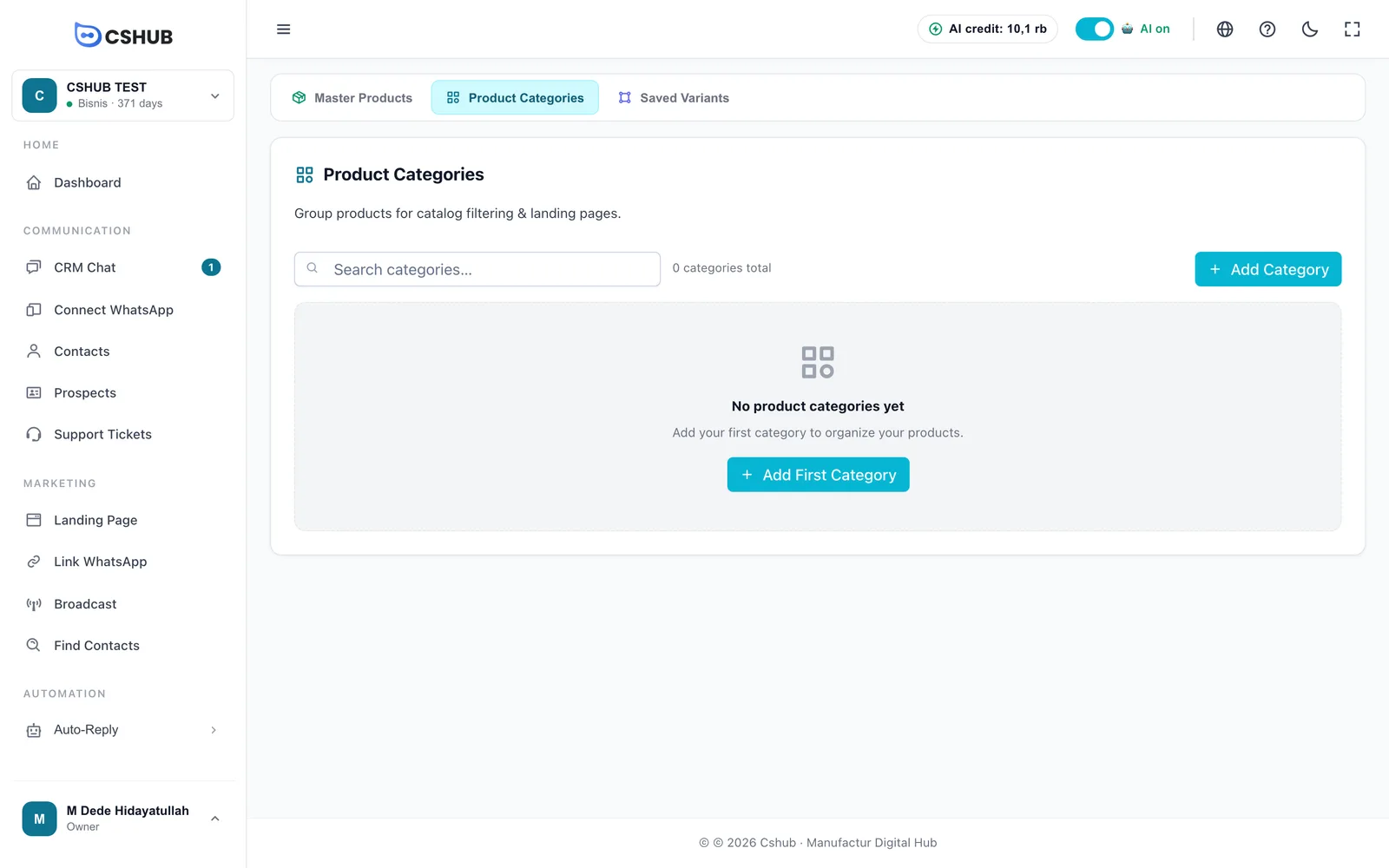
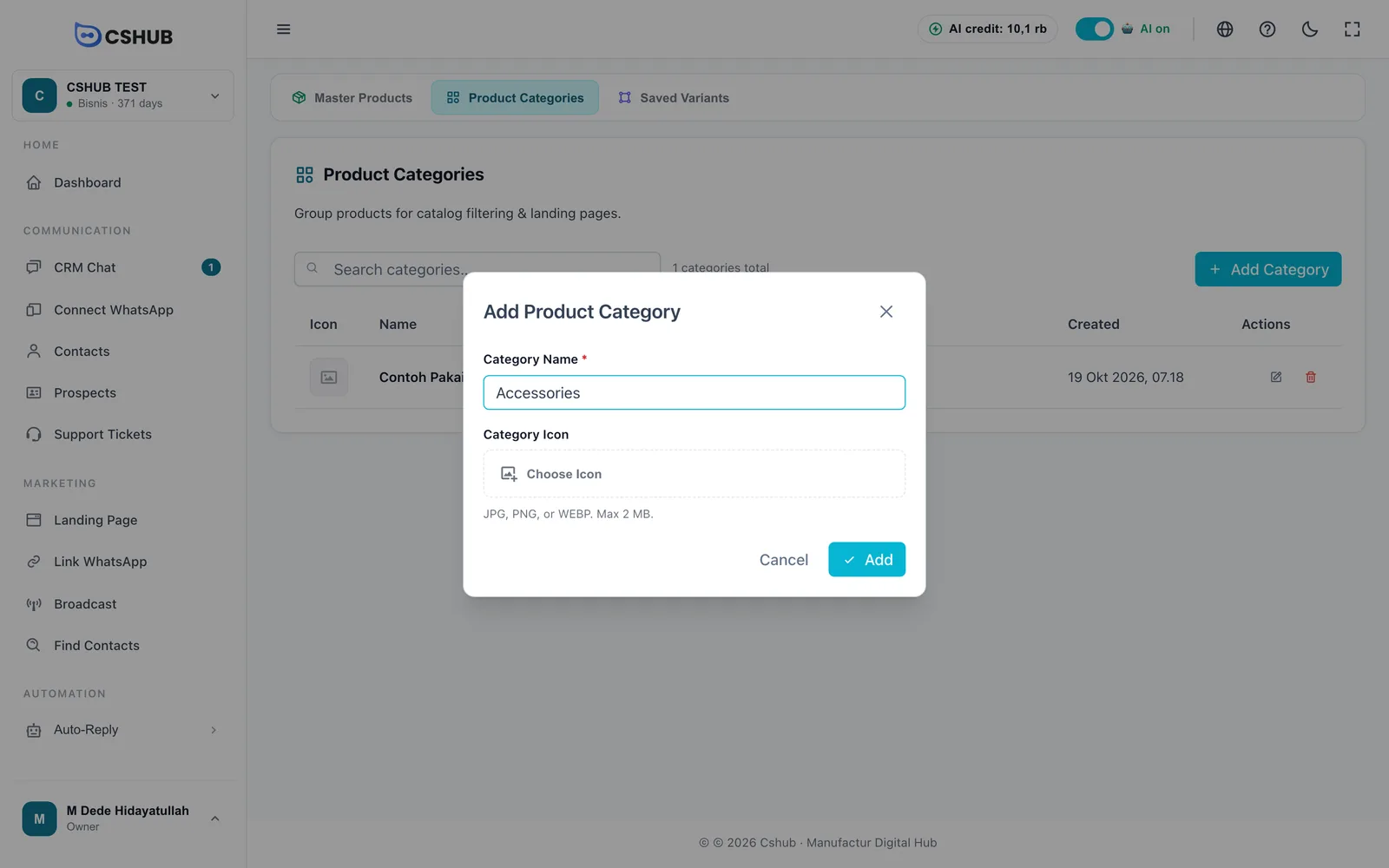
Click Add Category:
| Field | Details |
|---|---|
| Category Name (required) | E.g. Food, Drink, Accessories |
| Category Icon | A small image for the category. JPG, PNG, or WEBP, up to 2 MB |
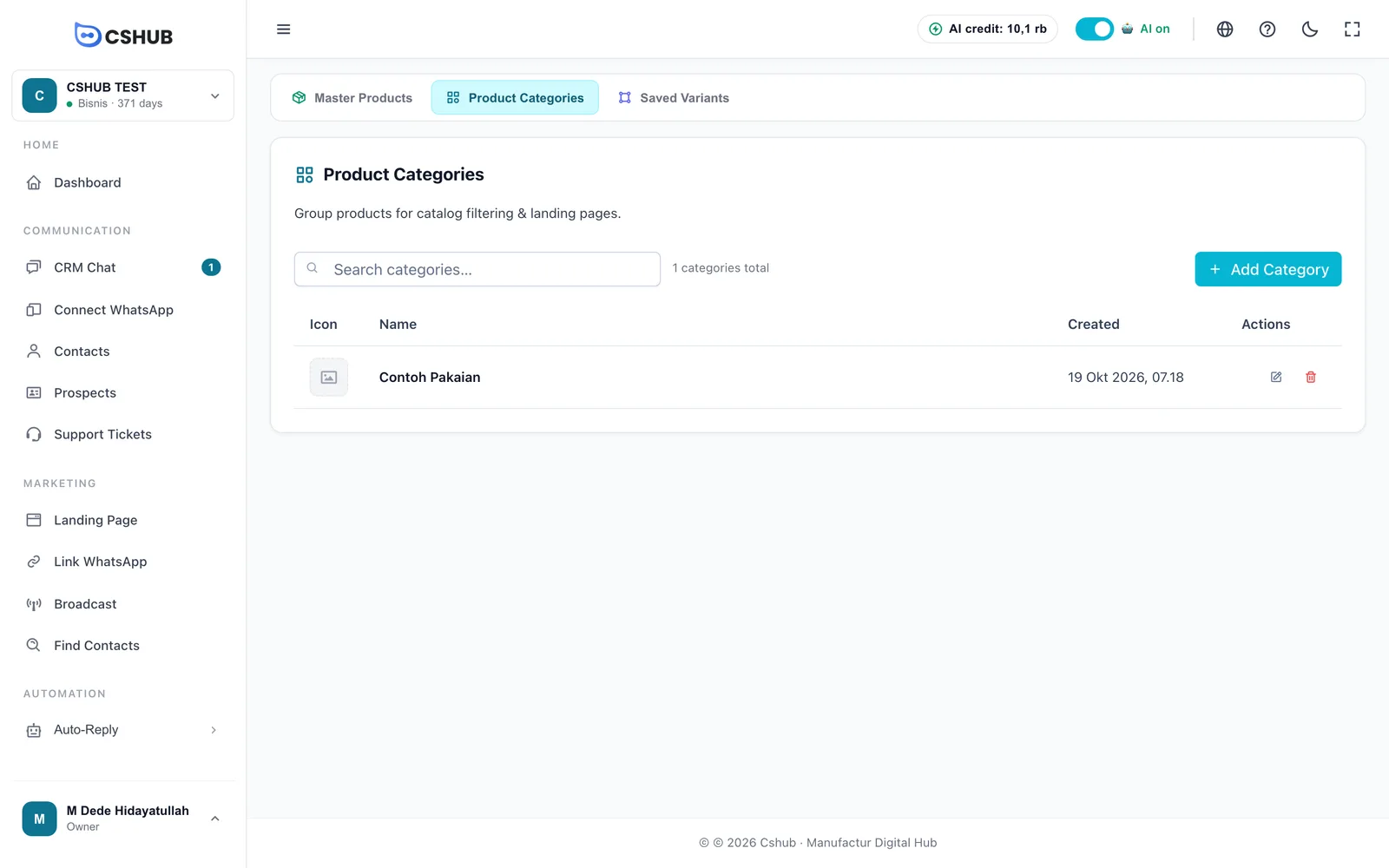
Deleting a category doesn't delete its products — linked products just lose their category.
Saved variants
Saved variants are variant templates you use often, such as Size: S, M, L, XL or Colour: Black, White, Navy. When creating a product with variants, click Use Saved Variant and the attribute fills in instantly.
Open the Saved Variants tab.
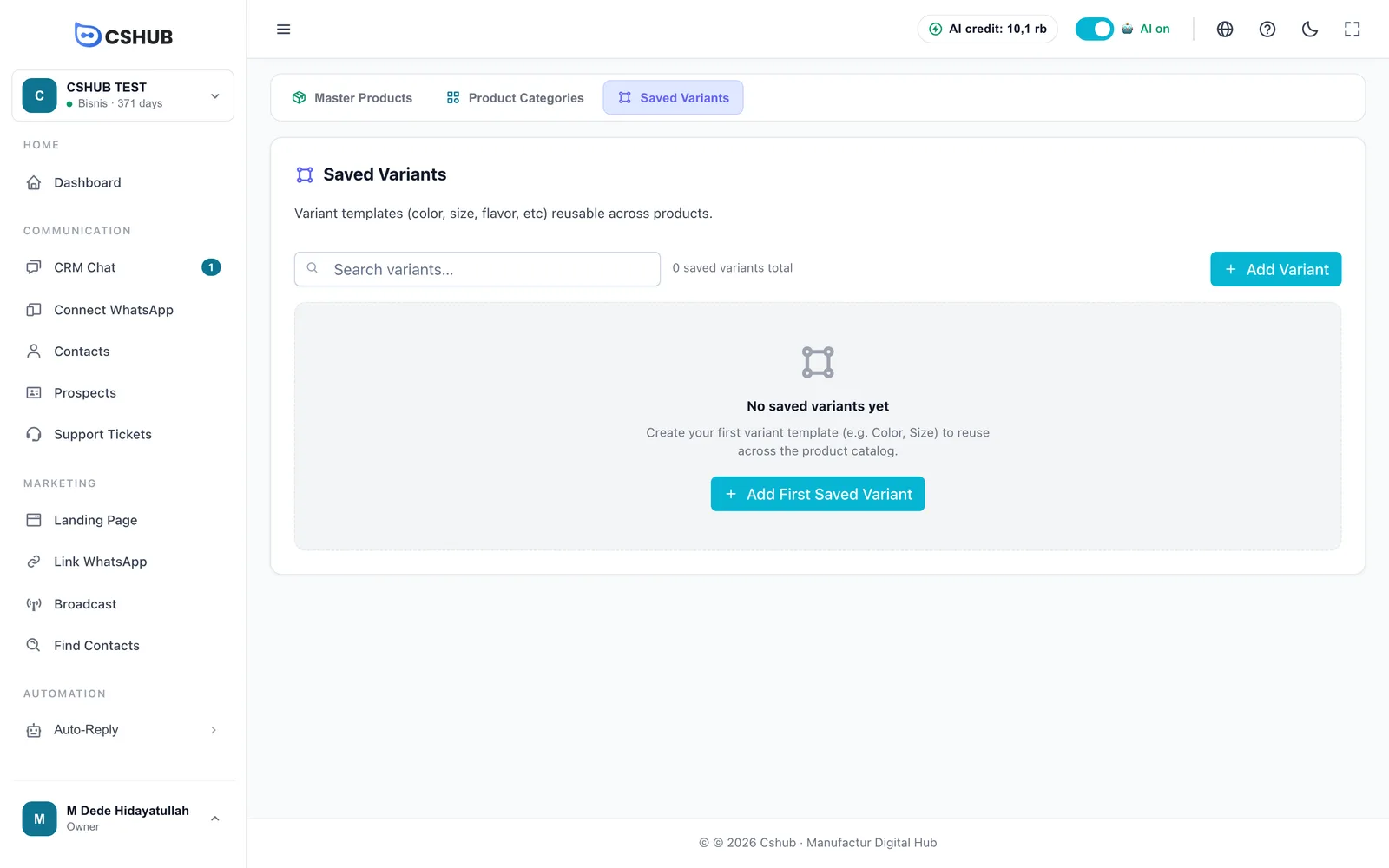
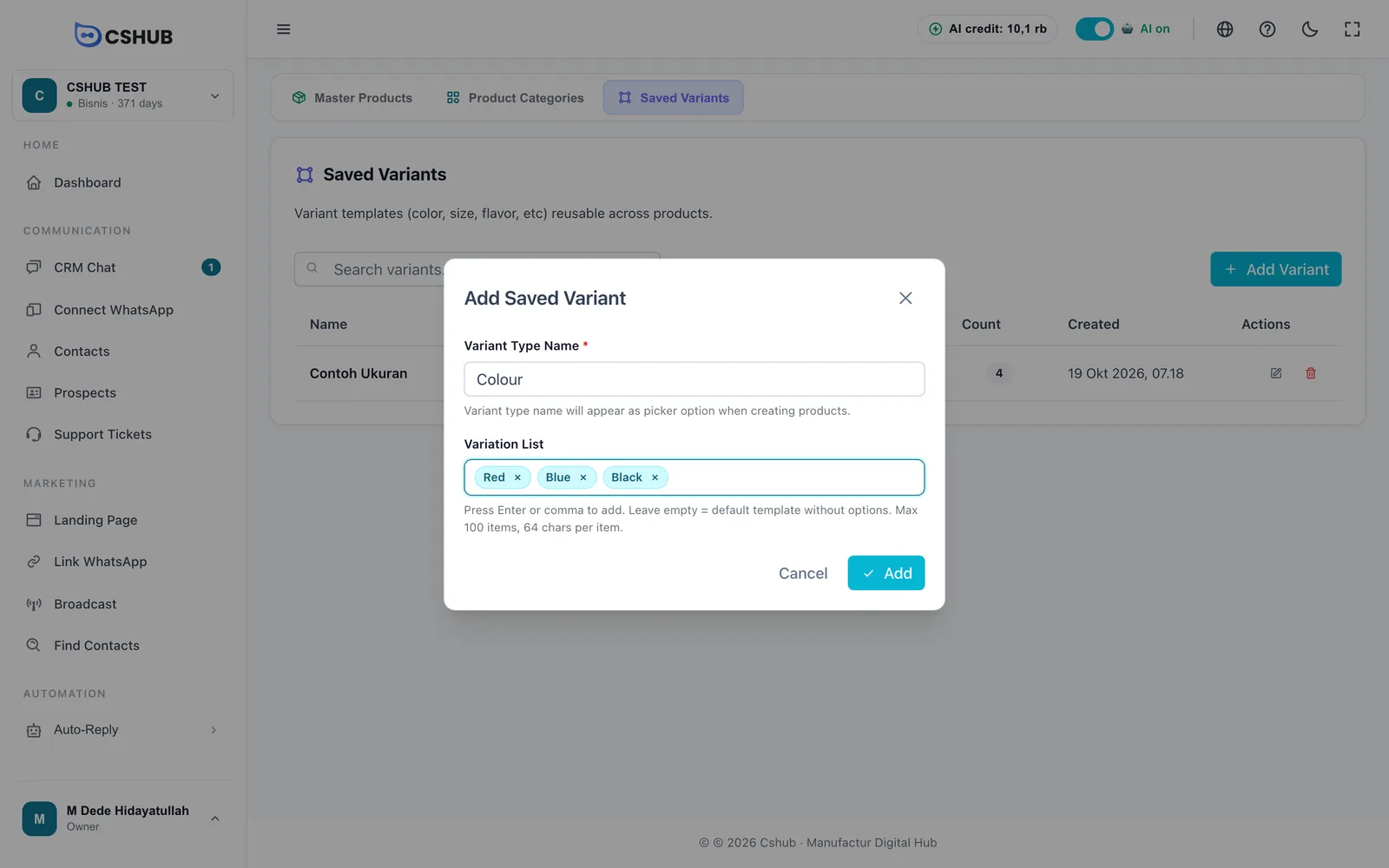
Click Add Variant:
| Field | Details |
|---|---|
| Variant Type Name (required) | The attribute name, e.g. Colour, Size, Flavour |
| Variation List | Type an option and press Enter or a comma. Up to 100 options, 64 characters each |
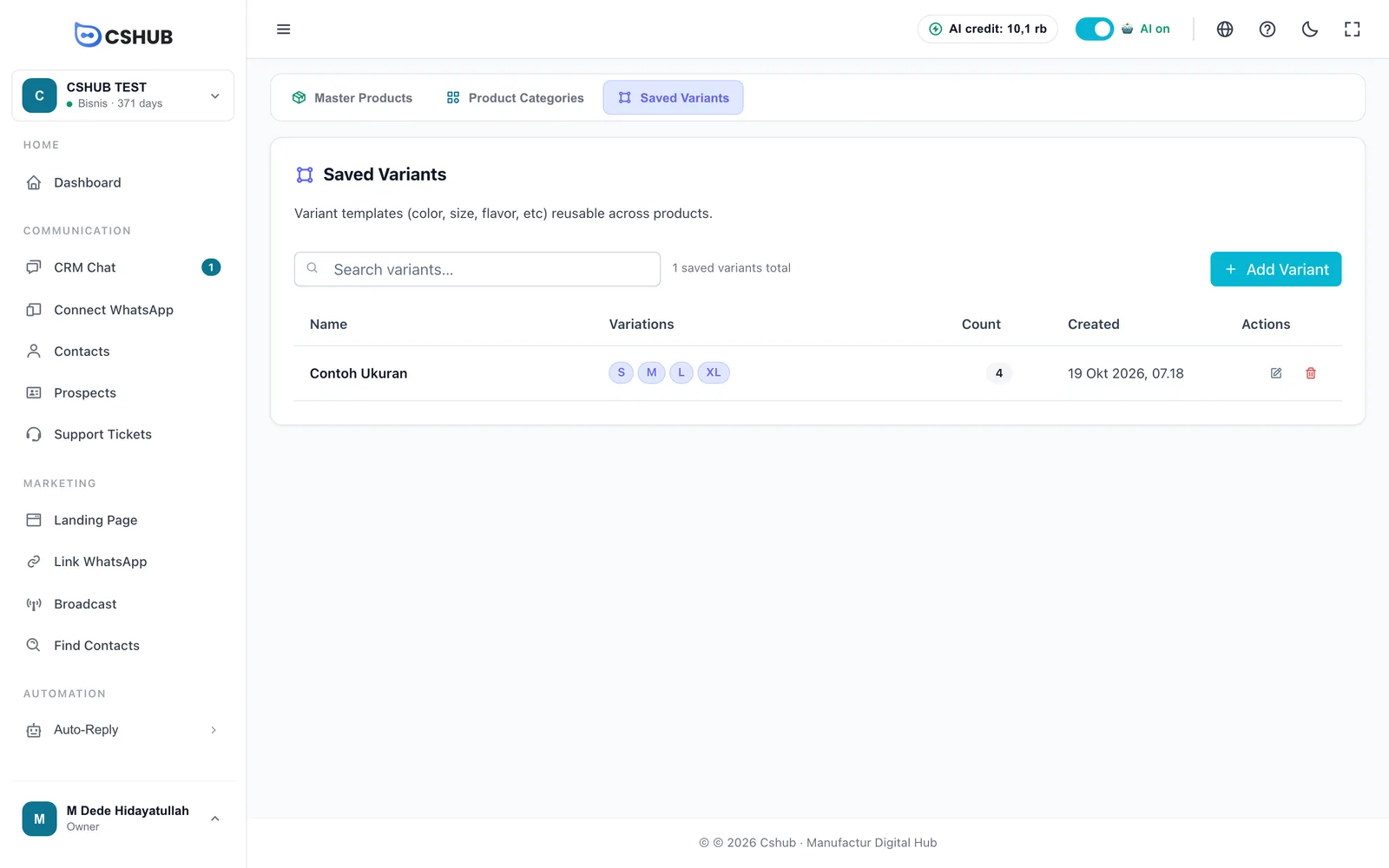
Deleting a saved variant doesn't change products that already use it — only the template is removed.
Editing a product
Click ⋮ → Edit in the product list. The edit form is the same as the add form, plus a status pill (Active / Inactive) in the bottom bar.
Price, stock, and photo changes take effect in the online store, landing pages, and AI replies as soon as you save.
How stock goes down
Stock isn't deducted when an order is created, but when the order is Shipping or Completed. If the order is moved back to an earlier status, cancelled, or refunded, the stock is returned automatically. The full status flow is in Orders.
Tips
- Use your best photo first. The first photo is the main image in the catalogue and the online store.
- Keep SKUs consistent so products are easy to find in the order form (search works by name or SKU).
- Create saved variants first if many of your products share the same sizes or colours.
- How many products you can create depends on your package quota. Check Billing & packages.