
Orders
Every order lands in one Transactions list — whether the AI created it from a chat, it came from a landing page checkout or your online store, or you entered it by hand. From here you take each order to completion: confirm payment, enter tracking numbers, print invoices and shipping notes, and hand orders to your team.
Open Orders → Transactions in the Products & Orders section of the sidebar.
Don't see Orders in the menu?
The sidebar follows your business focus. Click Show all features at the bottom of the sidebar. If it's still missing, your package may not include transactions — check Billing & packages.
Transaction list
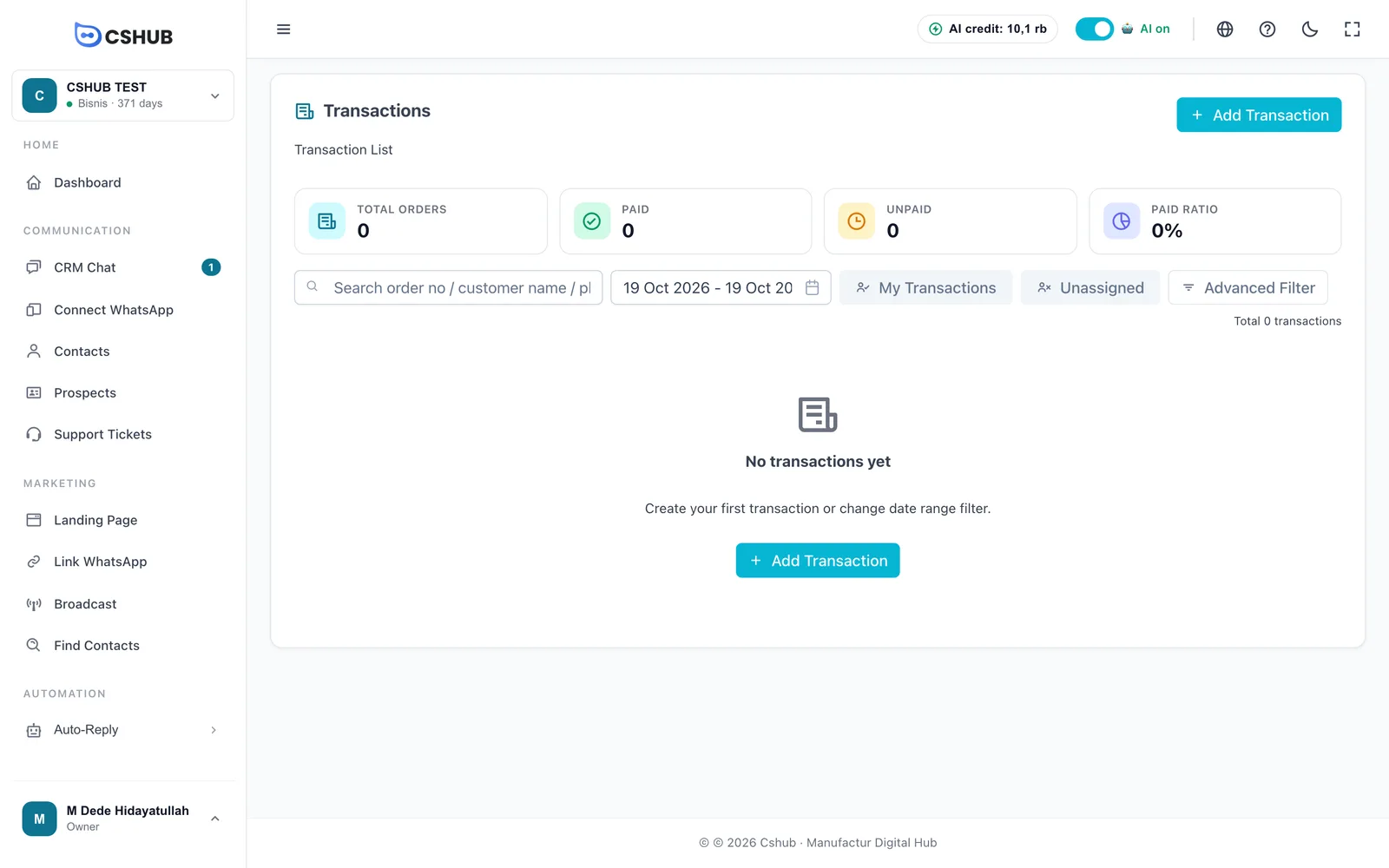
The summary cards count orders in the selected date range:
| Card | Meaning |
|---|---|
| Total Orders | Number of orders |
| Paid | Orders that are fully paid |
| Unpaid | Orders not yet paid |
| Paid Ratio | Percentage of orders that are paid |
Once orders come in, the table looks like this:
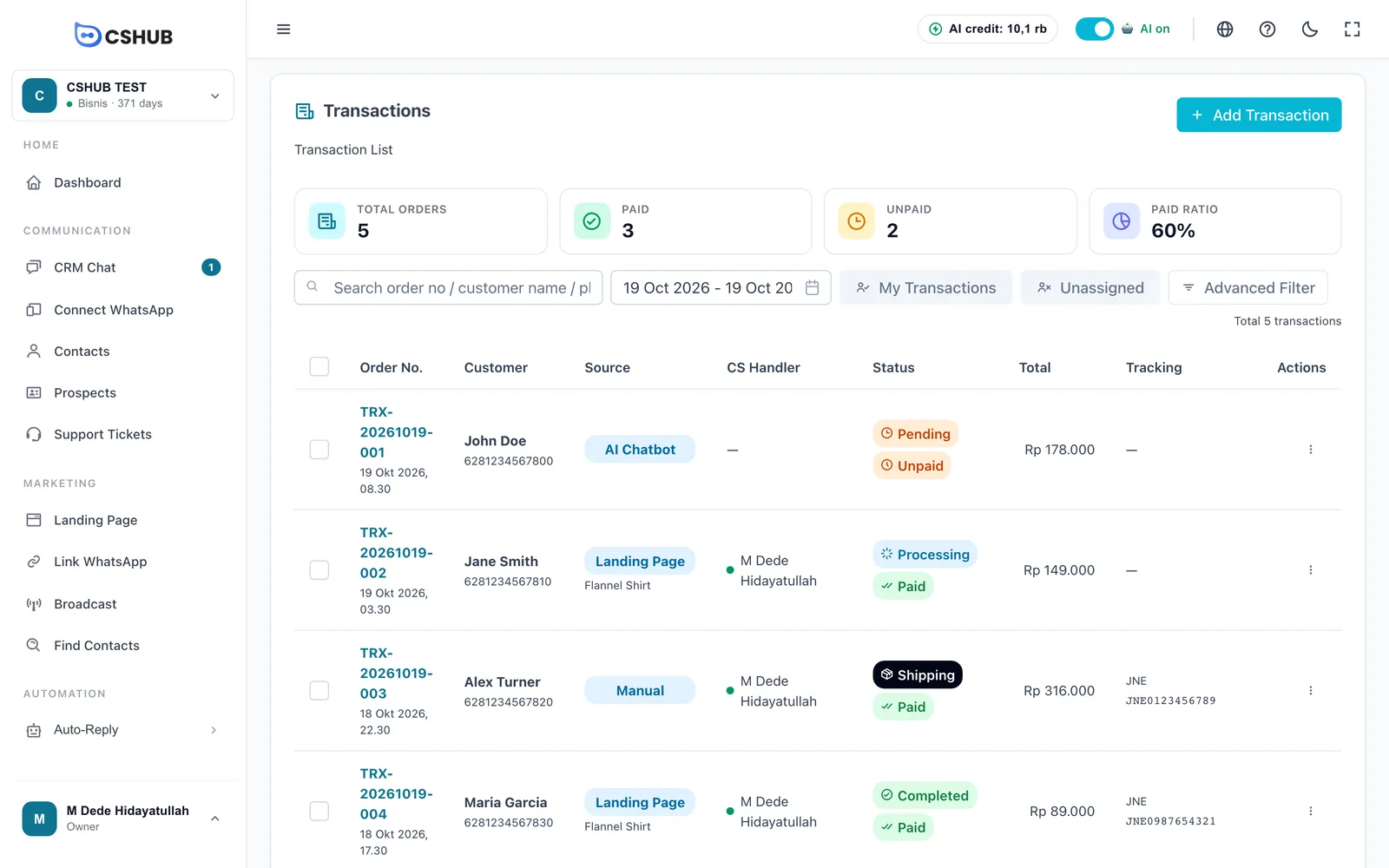
| Column | What it shows |
|---|---|
| Order No. | Order number and creation date. Click it to open the order |
| Customer | Buyer's name and phone number |
| Source | Where the order came from (see below) |
| CS Handler | The team member handling the order. — means unassigned |
| Status | Order status and payment status |
| Total | Grand total including shipping |
| Tracking | Courier and tracking number, once shipped |
| Actions | View, Edit, and Delete |
Order sources
| Source | Meaning |
|---|---|
| Manual | Created by your team with Add Transaction |
| AI Chatbot | Created by the AI from a chat. See AI selling & chat checkout |
| Landing Page | From a landing page checkout form. The page name appears under the badge |
| Online Store | From your online store checkout |
Searching & filtering
- Search box — search by order number, customer name, or phone number.
- Date range — limit orders to a period.
- My Transactions — only orders assigned to you.
- Unassigned — only orders with no handler yet.
- Advanced Filter — filter by order status and payment status.
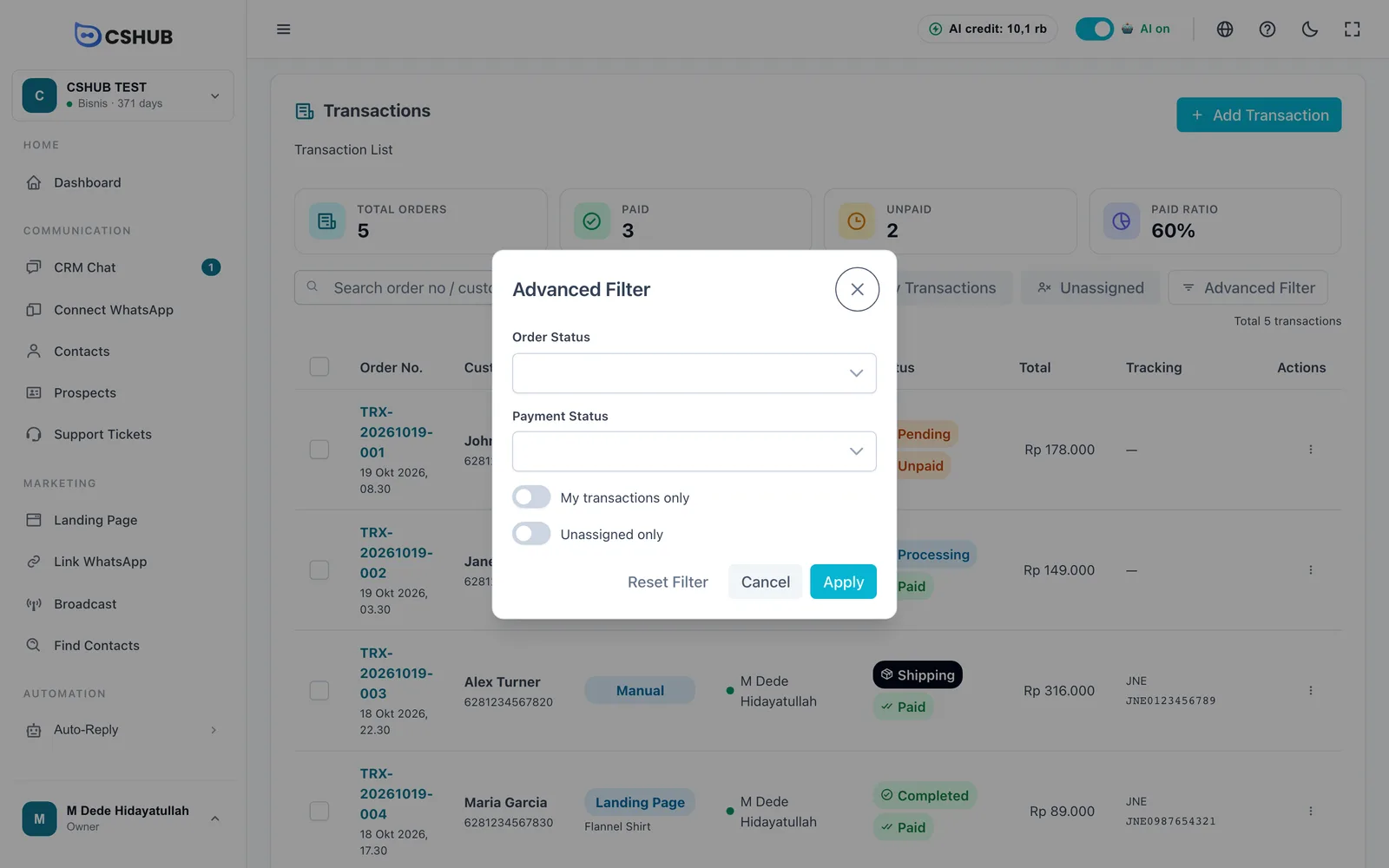
| Filter | What it does |
|---|---|
| Order Status | Pending, Processing, Shipping, Completed, Cancelled, or Refunded |
| Payment Status | Unpaid or Paid |
| My transactions only | Same as the My Transactions button |
| Unassigned only | Same as the Unassigned button |
Click Apply to use the filter, or Reset Filter to clear it.
Assigning orders to your team
Tick several orders in the left-most column, click Assign CS, and pick a team member. You can also assign a single order from its detail page.
Order statuses
Each order has two separate statuses: the order status (how far along it is) and the payment status (paid or not).
| Order status | Meaning |
|---|---|
| Pending | New order, not processed yet |
| Processing | The order is being prepared |
| Shipping | Handed to the courier (or picked up / delivered yourself) |
| Completed | The buyer has received it |
| Cancelled | The order was cancelled, with a reason |
| Refunded | Payment was returned to the buyer, with a reason |
| Payment status | Meaning |
|---|---|
| Unpaid | No payment recorded yet |
| Partly paid | A deposit has been paid. The badge shows the remaining balance |
| Paid | Fully paid |
The normal flow is Pending → Processing → Shipping → Completed. Other allowed moves:
| From | Can move to |
|---|---|
| Pending | Processing, Cancelled, Refunded |
| Processing | Pending, Shipping, Cancelled, Refunded |
| Shipping | Pending, Processing, Completed, Refunded |
| Completed | Refunded |
| Cancelled | Pending (if cancelled by mistake) |
| Refunded | Pending (if refunded by mistake) |
Stock follows the status
Product stock is deducted when an order is Shipping or Completed, and returned automatically if the order goes back to Pending/Processing, is cancelled, or is refunded.
Order details
Click an order number to open it.
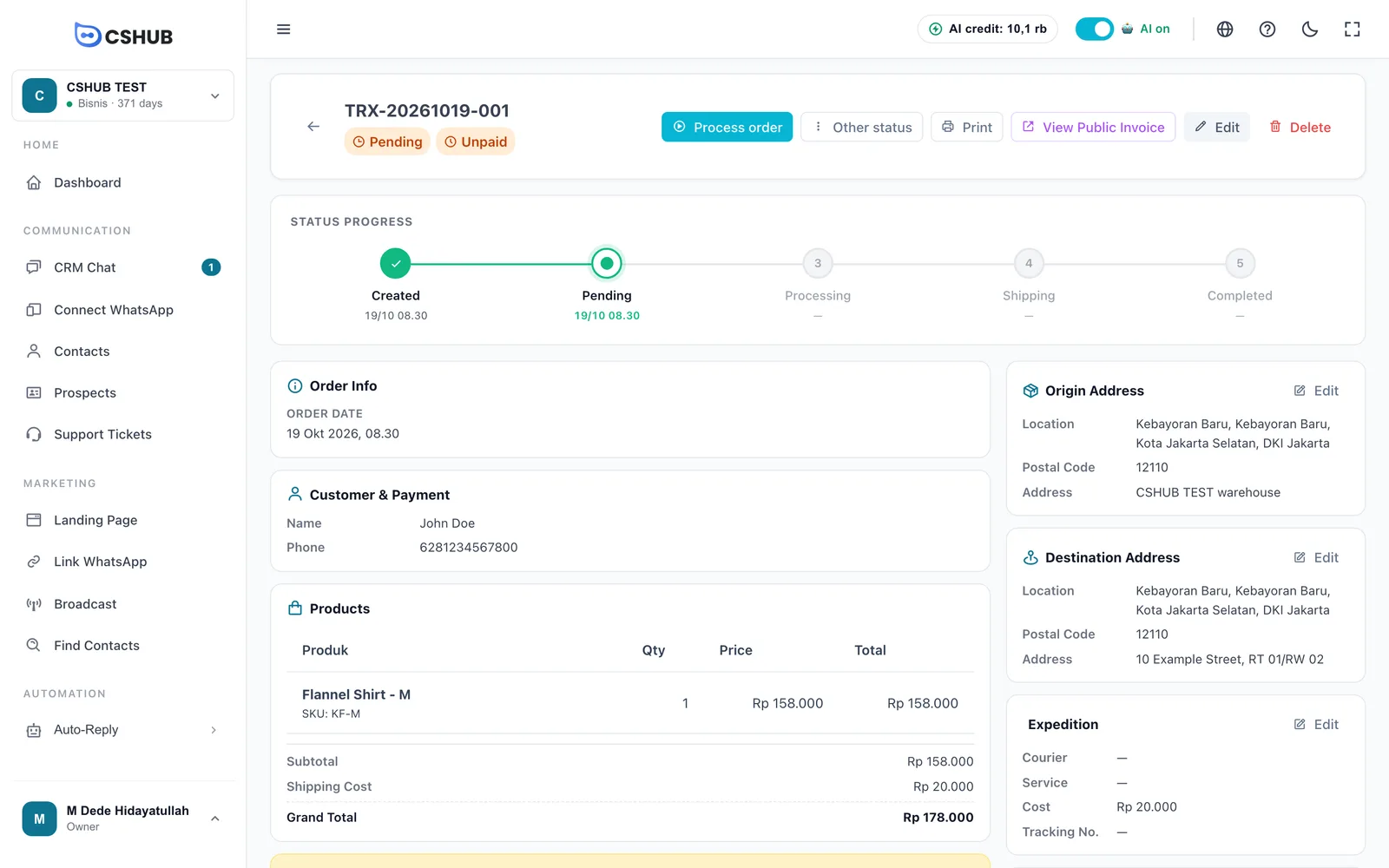
| Section | What it shows |
|---|---|
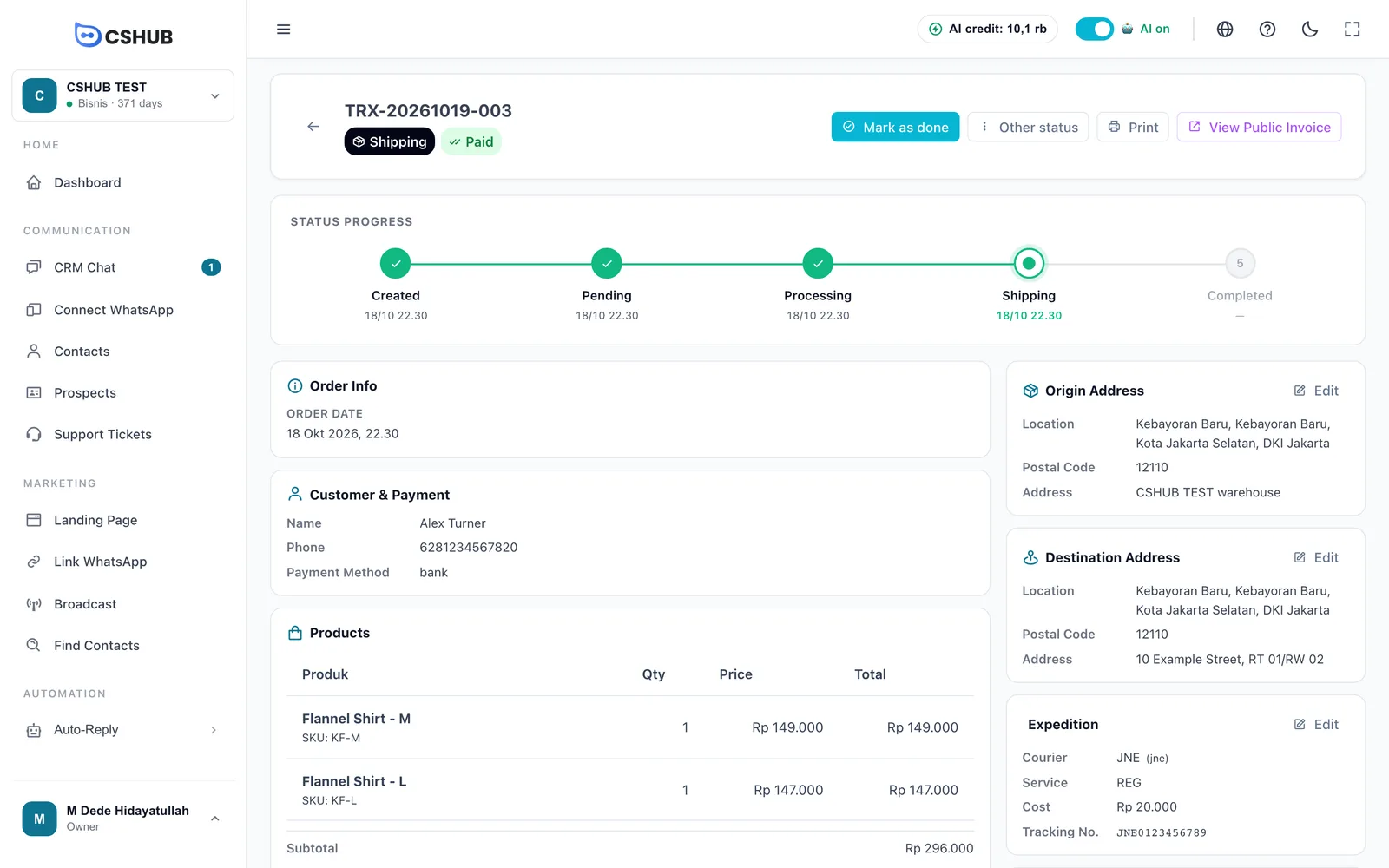
| Status Progress | A timeline from Created to Completed, with the date of each step |
| Order Info | Order date and when it was processed, shipped, and completed |
| Customer & Payment | Name, phone, email, and payment method |
| Products | Products, quantities, prices, Subtotal, Shipping Cost, and Grand Total |
| Origin Address / Destination Address | Your warehouse address and the buyer's address. Click Edit to change |
| Expedition | Courier, service, cost, and tracking number. Click Edit to change |
| CS Handler | The team member handling it, with Assign, Change, or Unassign |
| Payment | Appears when a payment is recorded — method, amount, source (Gateway or Manual), and transfer proof |
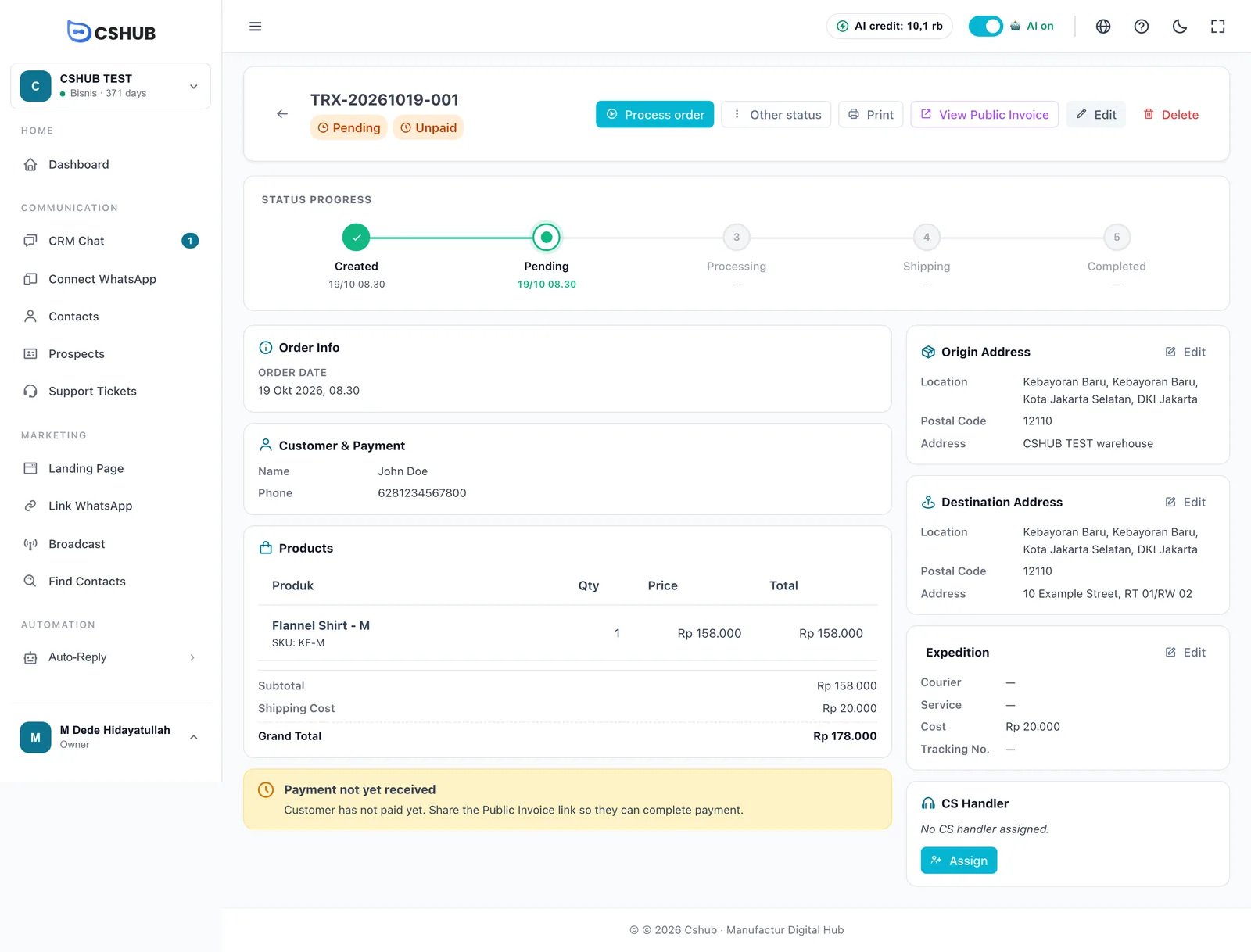
While the order is unpaid, a Payment not yet received notice appears — share the public invoice link so the customer can pay.
Buttons at the top
| Button | What it does |
|---|---|
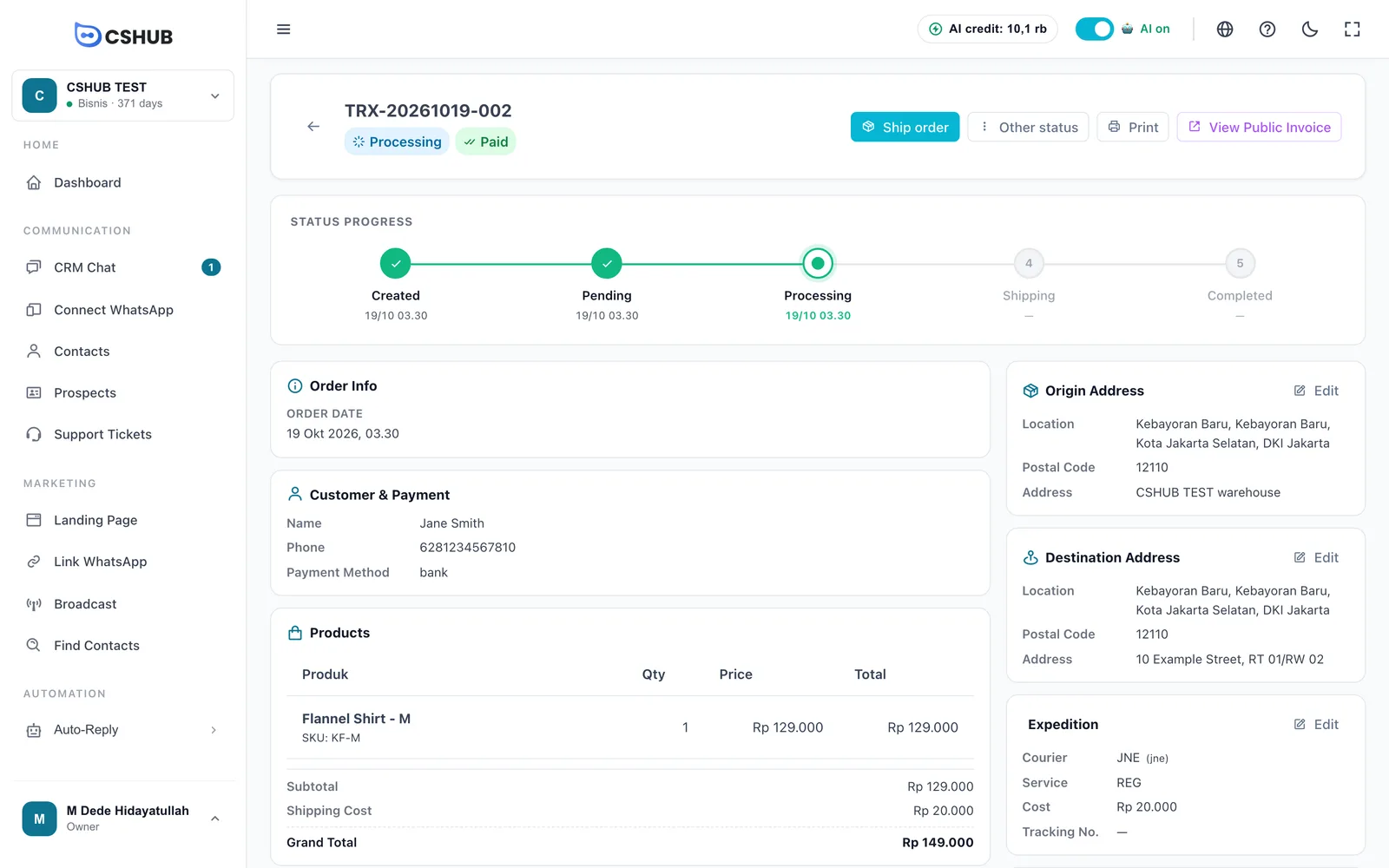
| Next-step button | One main button that matches the status: Process order (Pending), Ship order (Processing), Mark as done (Shipping) |
| Other status | Move to any allowed status, including cancel and refund, and change the payment status |
| Print Invoice, Print Transaction, or Print Shipping Note | |
| View Public Invoice | Opens the invoice page you can share with the customer |
| Edit | Change products, customer, and addresses. Pending orders only |
| Delete | Delete the order. Pending, Cancelled, or Refunded orders only |
Processing an order
1. Process the order
Click Process order. The Mark as Processing dialog opens.
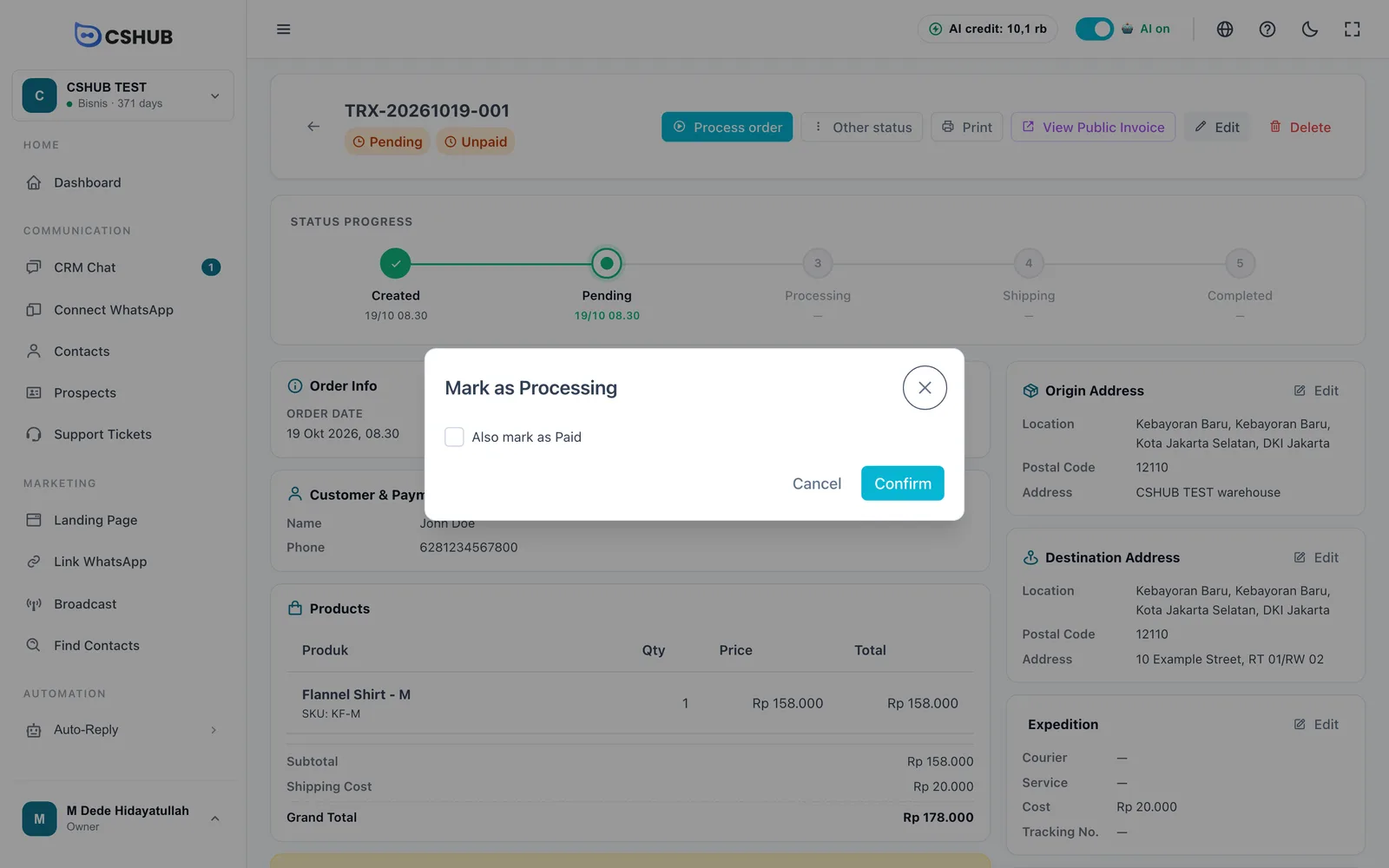
If the buyer has already paid, tick Also mark as Paid and fill in the payment:
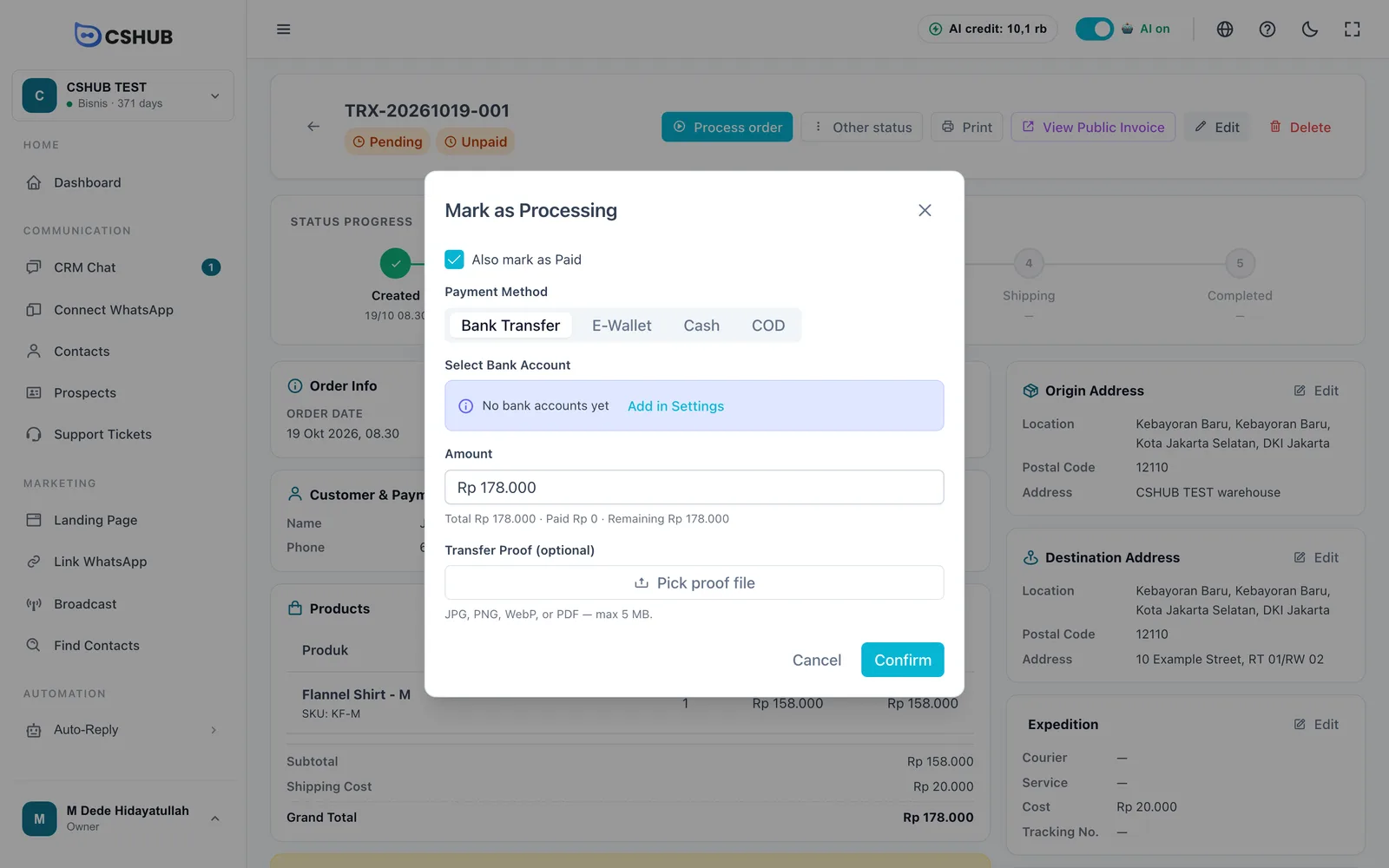
| Field | Details |
|---|---|
| Payment Method | Bank Transfer, E-Wallet, Cash, or COD |
| Select Bank Account | (Bank Transfer) The account the buyer paid into. Add accounts under Settings → Bank Accounts |
| E-Wallet Name | (E-Wallet) E.g. OVO, GoPay, DANA, ShopeePay |
| Amount | Enter the full amount, or part of it as a deposit. The summary below shows the total, what's been paid, and what's left. The amount can't exceed the remaining balance |
| Transfer Proof (optional) | JPG, PNG, WebP, or PDF, up to 5 MB |
Click Confirm. The status changes to Processing.
2. Ship the order
When the goods are ready to go, click Ship order.
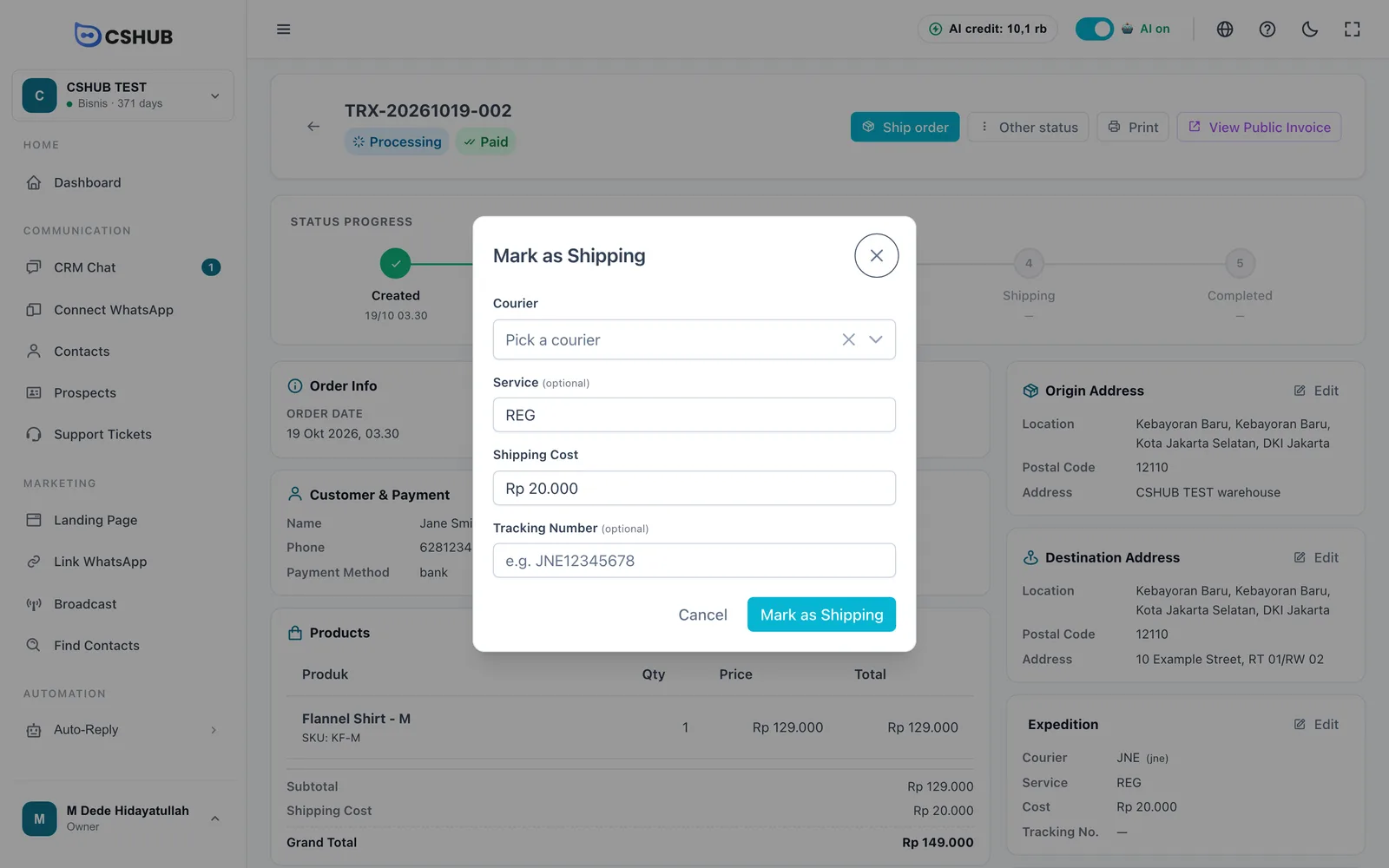
| Field | Details |
|---|---|
| Courier (required) | The shipping courier, or Own delivery / Store pickup if you don't use one |
| Service (optional) | Courier service type, e.g. REG, YES, OKE |
| Shipping Cost | Delivery fee. Pre-filled if shipping was calculated at checkout |
| Tracking Number (optional) | The courier's tracking number, e.g. JNE12345678. You can add it later from the Expedition card |
Click Mark as Shipping. The courier and tracking number appear in the Expedition card, the transaction list, and the public invoice.
Orders without delivery
For services, rentals, or store pickup, choose Store pickup or Own delivery in the Courier field when marking as shipped, then continue to Mark as done.
3. Mark as done
Once the buyer has received the order, click Mark as done. In the Mark as Complete dialog you can also mark it as paid (handy for COD) and add a tracking number if it's missing. Click Confirm Complete.
Here's a Processing order that's already paid — the main button switches to Ship order and the payment method shows in the customer card:
Cancelling & refunding
Open Other status:
- Cancel Transaction — enter a Cancel Reason, then Confirm Cancel. The status becomes Cancelled.
- Mark as Refund — only for Paid orders. Enter a Refund Reason, then Confirm Refund. The status becomes Refunded, the payment record is removed, and the payment status goes back to Unpaid.
The cancel or refund reason is shown on the detail page and the public invoice. If you cancelled or refunded by mistake, move it back with Mark as Pending.
Changing the payment status
Other status also has:
- Mark as Paid — records a payment without changing the order status.
- Mark as Unpaid — reverts the payment status. The payment data, including any transfer proof, is permanently deleted.
Gateway payments are locked
Payments that came in automatically through a payment gateway can't be changed manually.
Checking proof uploaded by the customer
Customers can upload their own transfer proof from the public invoice. It shows up in the Payment card as Awaiting Verification. Click Approve or Reject on that card to open Review Payment, check the amount and proof image, then Approve — or Reject with a reason (for example, invalid proof or wrong amount).
Public invoice
View Public Invoice opens an invoice page you can send to the customer. On it, the customer can:
- See the order and payment status, the products, and shipping and tracking info.
- Pick a destination bank account, transfer, and upload their transfer proof.
- Cancel the order by giving a reason.
Printing documents
Click Print and choose:
| Document | Contents |
|---|---|
| Print Invoice | The bill for the customer, with payment info |
| Print Transaction | An order summary for your records |
| Print Shipping Note | A delivery note: sender, recipient, tracking number, and signature boxes |
Adding an order manually
For orders that come in by phone, DM, or walk-in, click Add Transaction.
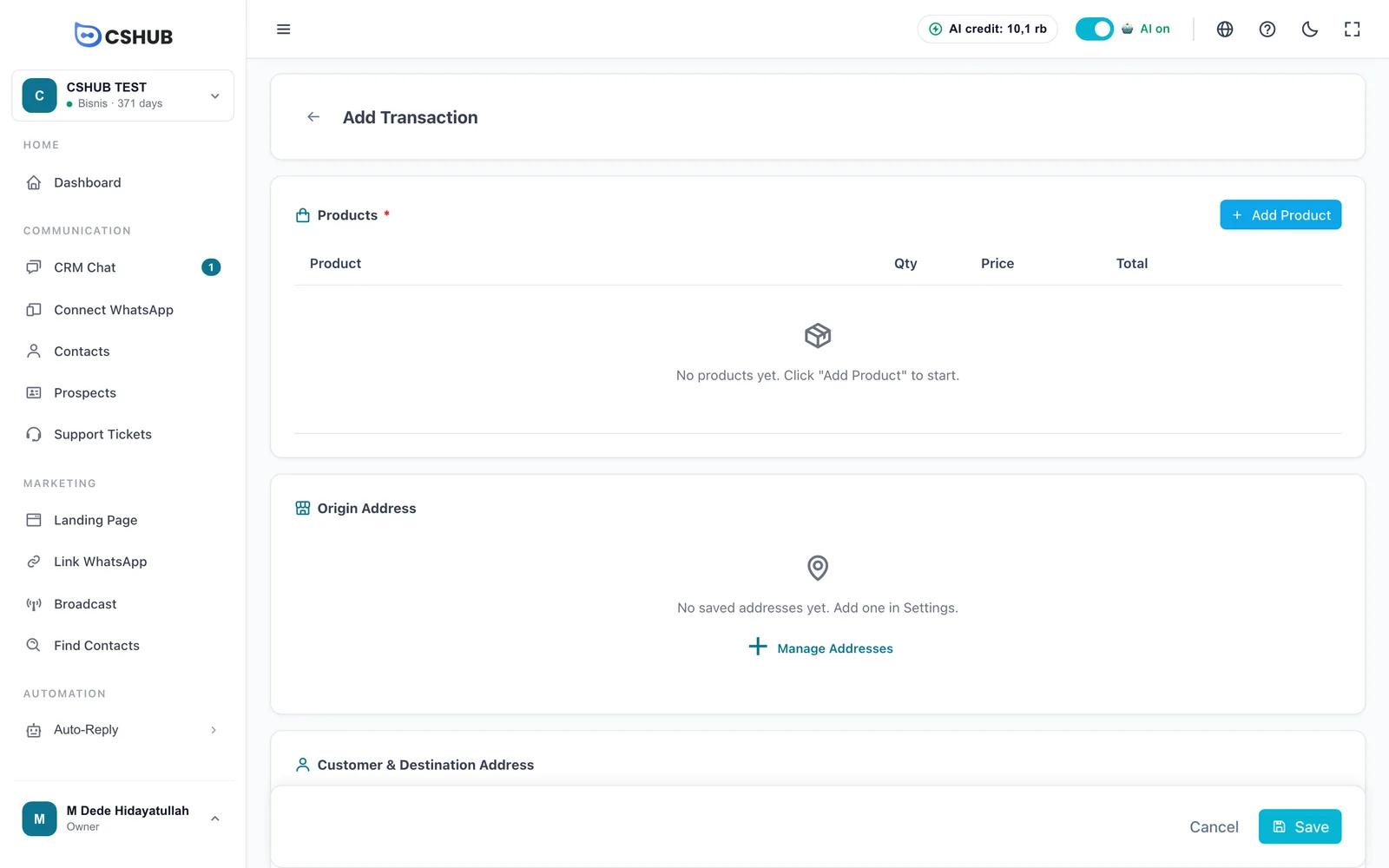
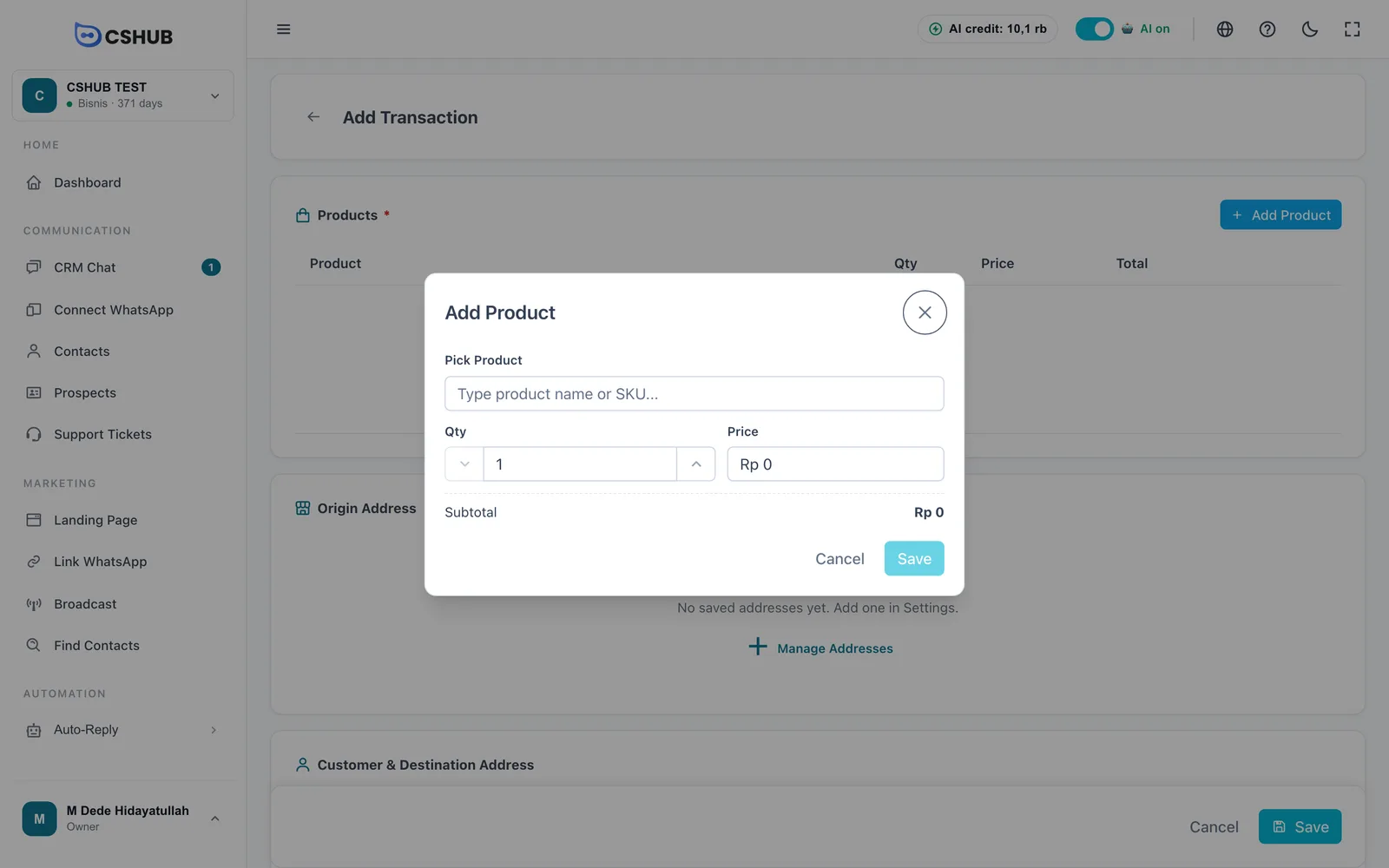
- Add products. Click Add Product, type a product name or SKU, set the Quantity, and adjust the Price if needed. Available stock is shown as a hint.
- Choose the origin address. Pick one of your saved business addresses. If there are none, click Manage Addresses — see Business addresses.
- Choose the customer. Type a name or phone number under Customer. If they're new, choose + Add "…" as a new customer and enter their Name and WhatsApp number. An address already saved on the contact fills in automatically.
- Enter the destination address. Pick the Province, City / Regency, District, and Sub-district, then fill in the Postal Code and Full Address. For services, rentals, or store pickup, turn off Needs shipping? — no address needed.
- Set the Date and add a Note if needed, then click Save.
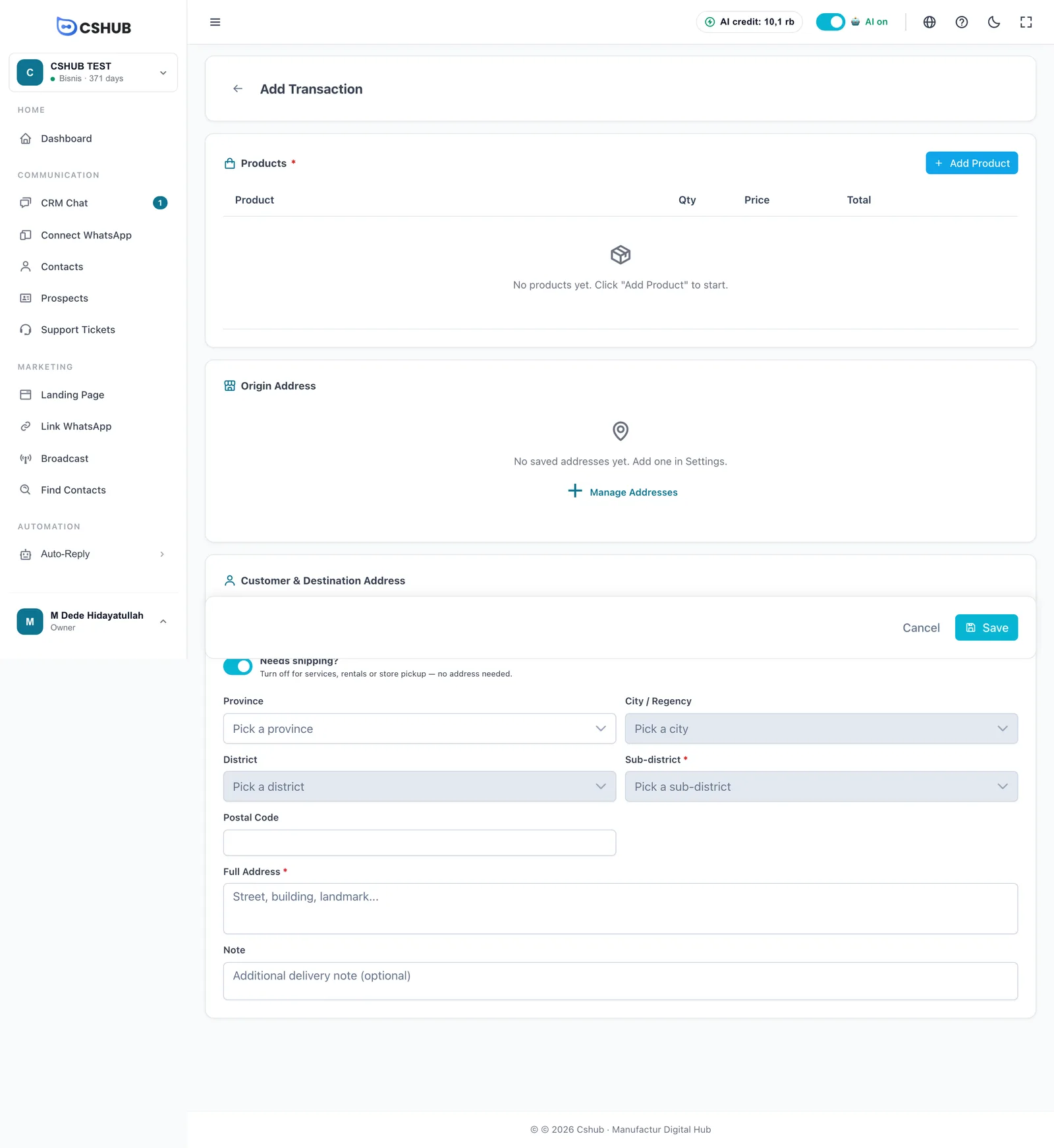
The new order is saved as Pending and Unpaid. You can set the courier and shipping cost from the Expedition card on the detail page.
The address is saved to the contact
The order's destination address is also saved to the customer's contact, so their next order fills in automatically.
WhatsApp notifications
cshub can automatically WhatsApp the customer when an order is processed, shipped (with tracking number), completed, or cancelled — and alert your team when a new order or transfer proof comes in. Set the recipients and message templates in Notifications.
Limits
- Orders can only be edited while Pending.
- Orders can only be deleted while Pending, Cancelled, or Refunded.
- The number of transactions follows your package quota. When it's full, new orders — including from the AI and landing pages — can't be created until you upgrade. Check Billing & packages.