
Landing pages
Build your own web pages without code — a checkout page that sells one product with an order form, or a general page such as a bio link, event promo, or service profile — and share the address in ads, social bios, or chats. Everything is assembled by stacking blocks in a visual editor, starting from a ready-made theme.
There are two kinds of landing page:
| Kind | Best for | Contents |
|---|---|---|
| With Product | Selling one product straight from the page | Order form, product summary, shipping calculator, bump offer, and a success page after checkout. Orders go to Orders |
| Without Product | Bio link, coming soon, event promo, service profile, portfolio | Content blocks and buttons to external links (WhatsApp, marketplaces, social media) |
Need a full store with many products?
A landing page focuses on a single page. For a storefront with a catalogue, cart, and many products, use the Online store.
Landing page list
Open Landing Page in the Marketing section of the sidebar.
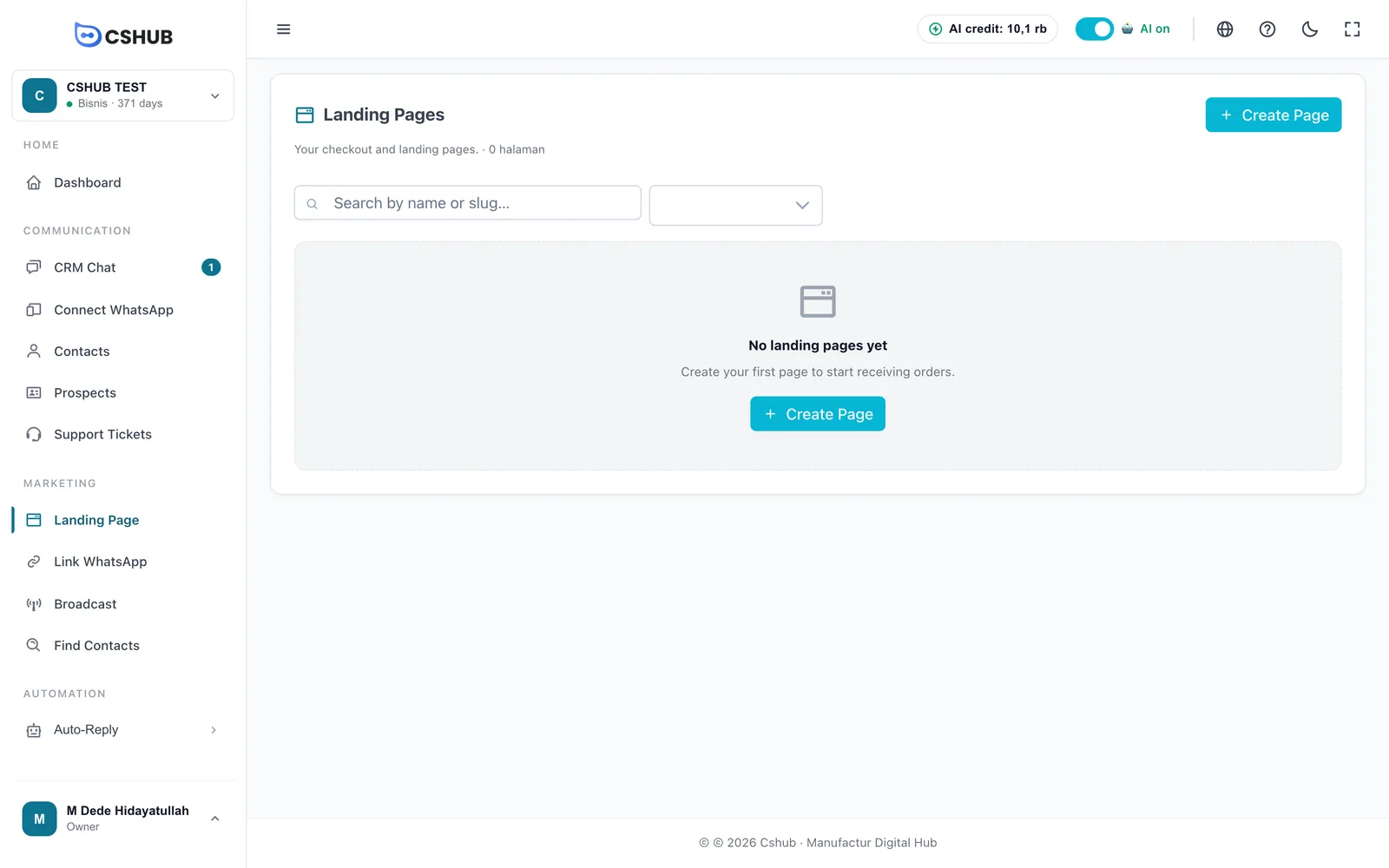
Once you have pages, the table lists them all:
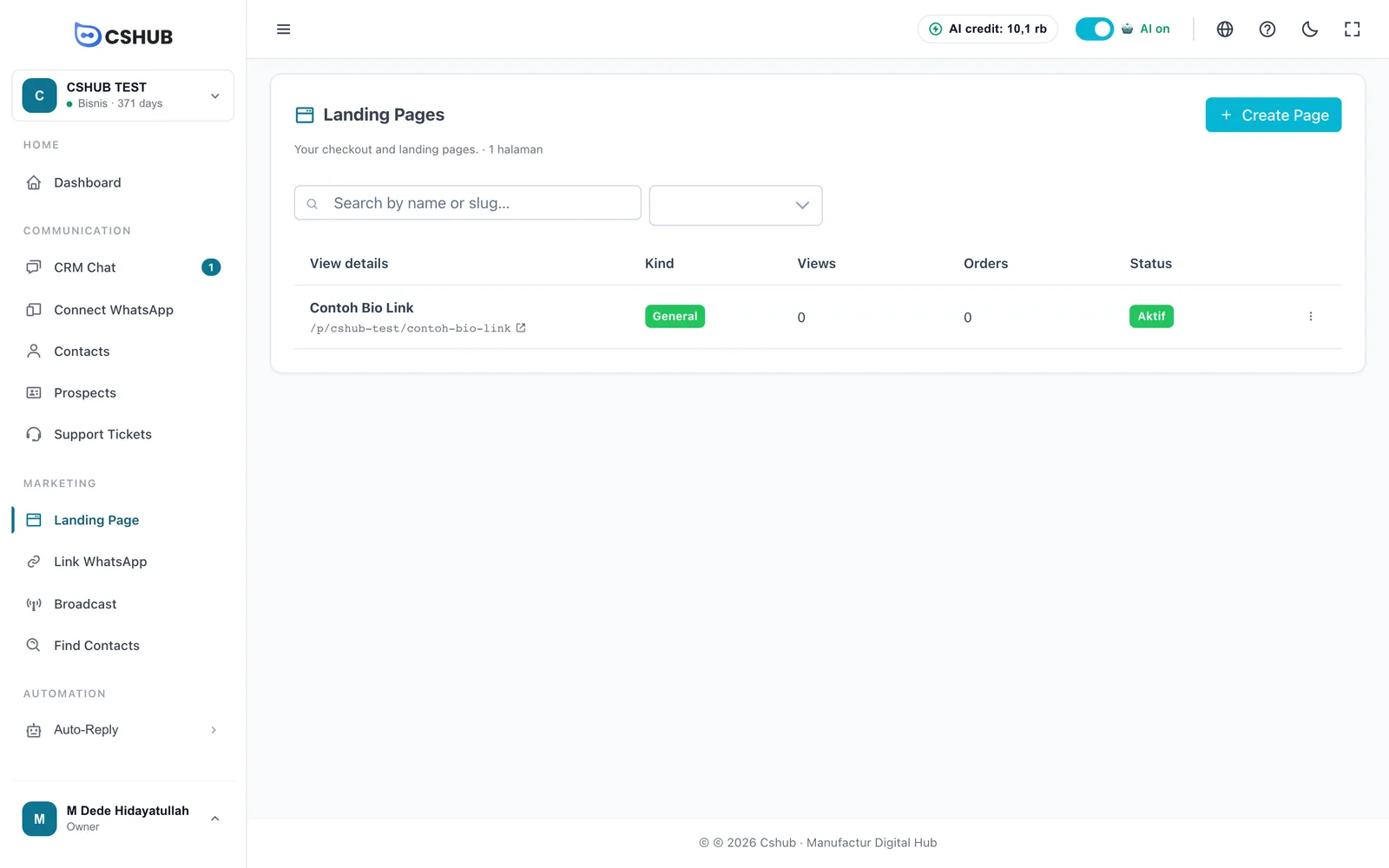
| Column | Contents |
|---|---|
| Name & address | Page name and public address (/p/business-address/slug). Click the arrow icon to open it |
| Kind | Product or General |
| Views | How many times the page was opened |
| Orders | Orders placed through the page (Product kind) |
| Status | Active — the page is publicly reachable |
Search by name or slug and filter by kind (All kinds, Product, General). The ⋮ menu contains Edit (open the editor), Preview (open the public page), Duplicate, and Delete. A deleted page is no longer publicly reachable.
Creating a page
Click Create Page. The Create Page wizard walks you through each step.
Page with a product
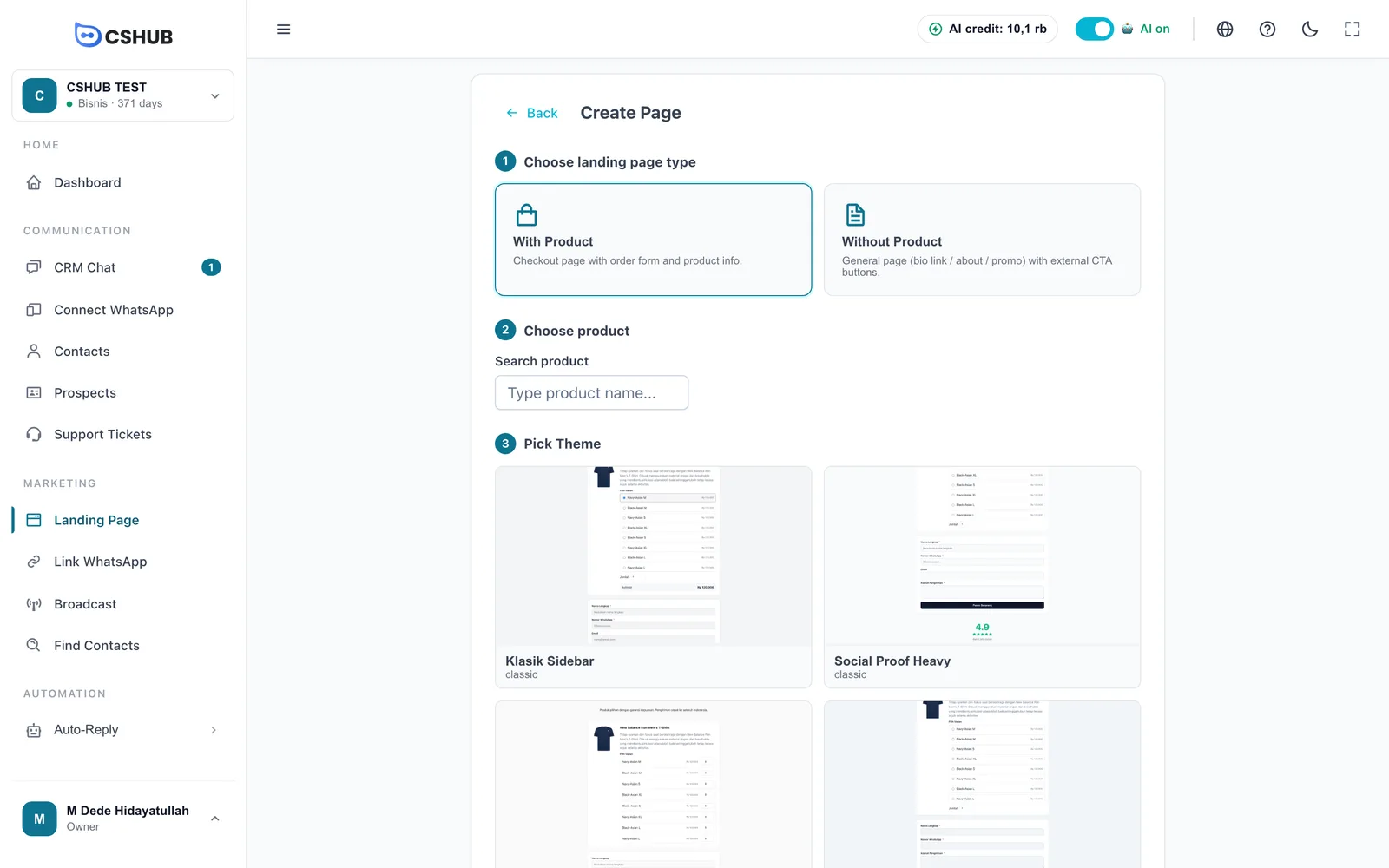
- Choose landing page type — click With Product.
- Choose product — type the product name in Search product. Products are created in Products & stock.
- Pick Theme — choose a checkout theme.
- Name & URL — fill in Page name and URL slug, then click Create Page.
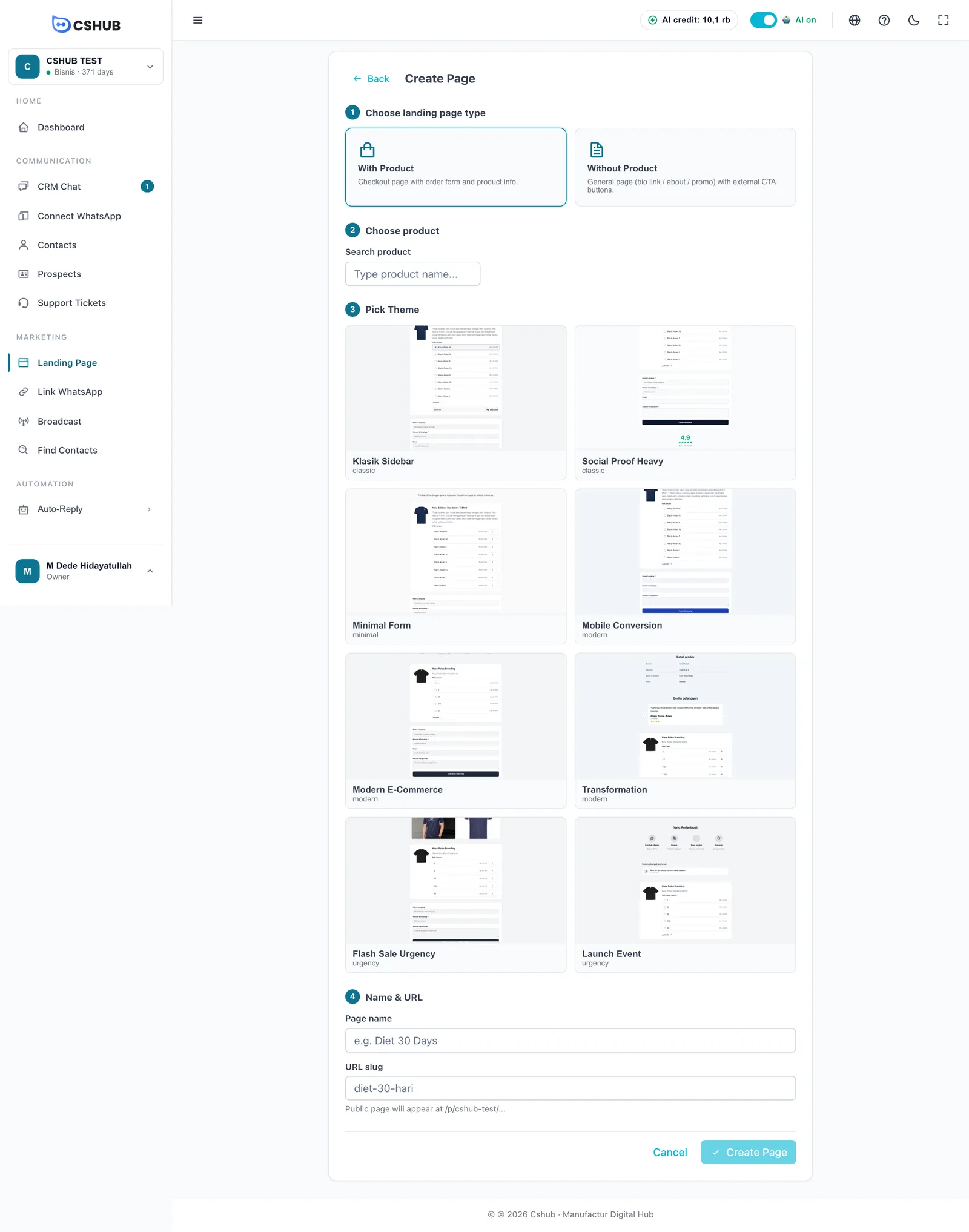
| Checkout theme | Style |
|---|---|
| Klasik Sidebar, Social Proof Heavy | Classic — product info beside the form; Social Proof puts ratings and testimonials up front |
| Minimal Form | Minimal — focused on the order form |
| Mobile Conversion, Modern E-Commerce, Transformation | Modern — mobile-first, online-store look, or a before-and-after story |
| Flash Sale Urgency, Launch Event | Urgency — countdowns and a push to buy now |
You can also create a product page from the product's own page in Products & stock.
Page without a product
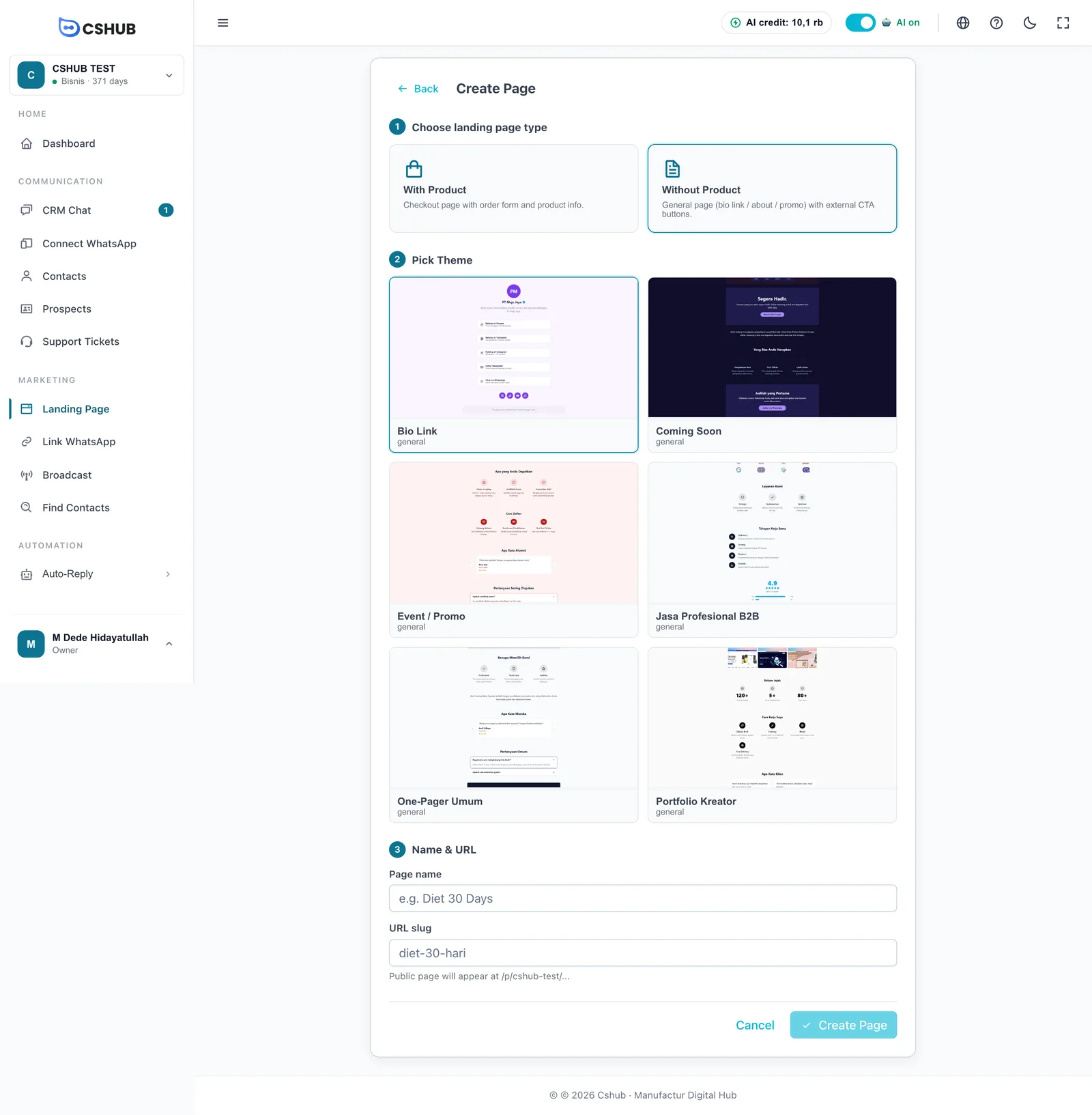
- Choose Without Product.
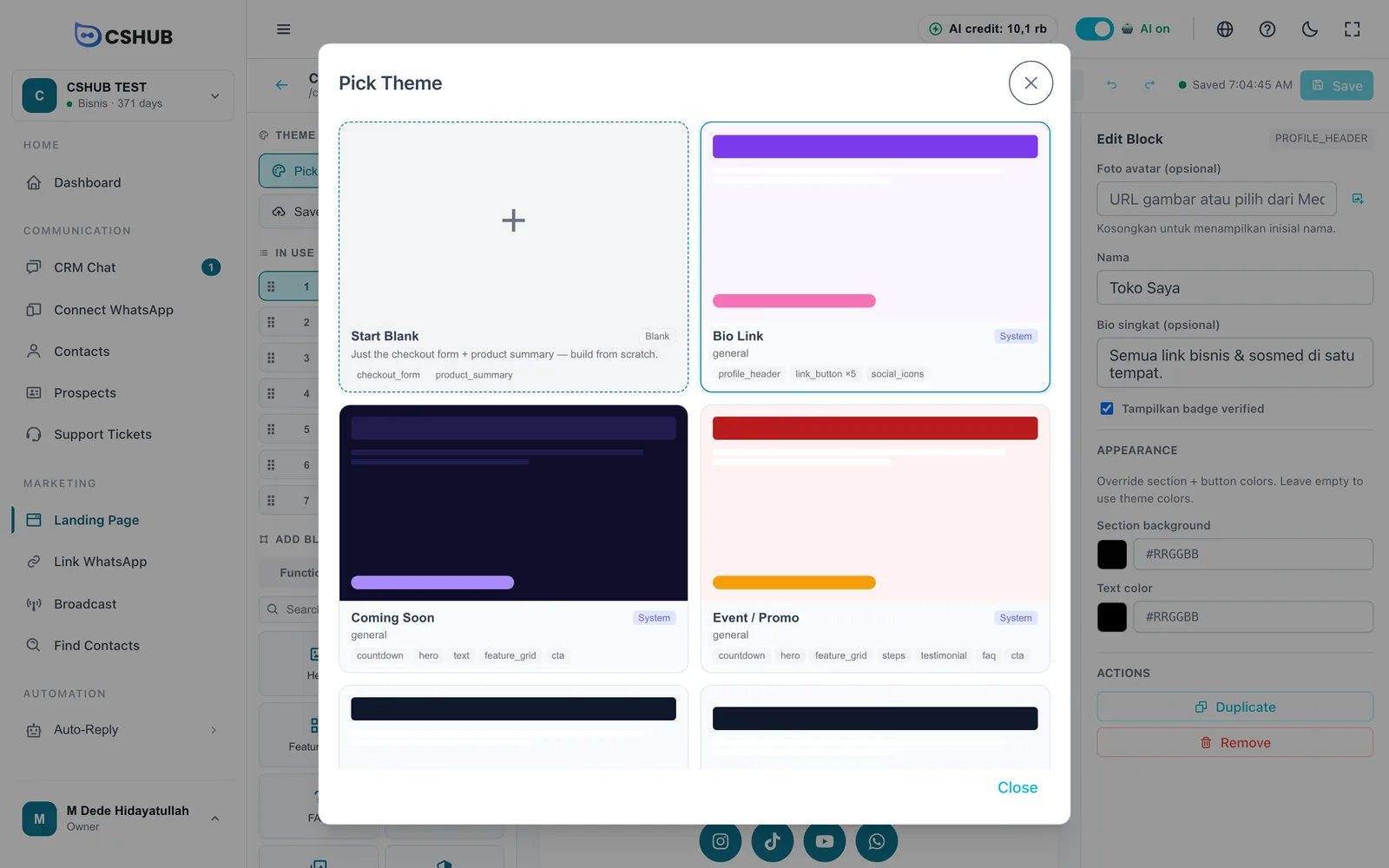
- Pick a theme: Bio Link, Coming Soon, Event / Promo, Jasa Profesional B2B (B2B services), One-Pager Umum (general one-pager), or Portfolio Kreator (creator portfolio).
- Fill in Page name — the URL slug is generated from it and can be edited. The public address is shown underneath.
- Click Create Page.
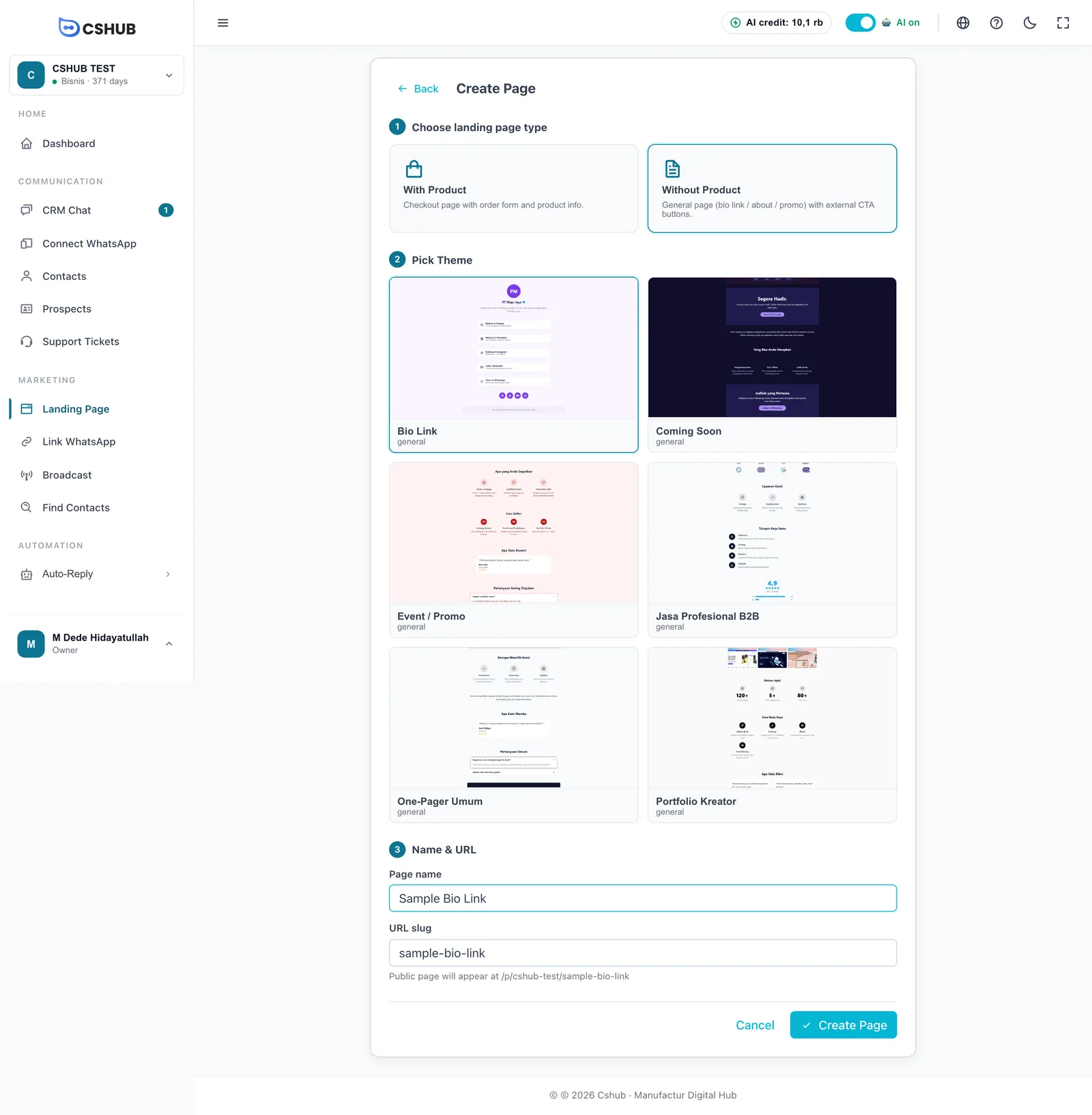
The page is created and the editor opens. How many pages you can create depends on your plan — see Billing & packages.
The page editor
The editor has three areas: the left panel (theme and blocks), the canvas in the middle, and the Edit Block panel on the right.
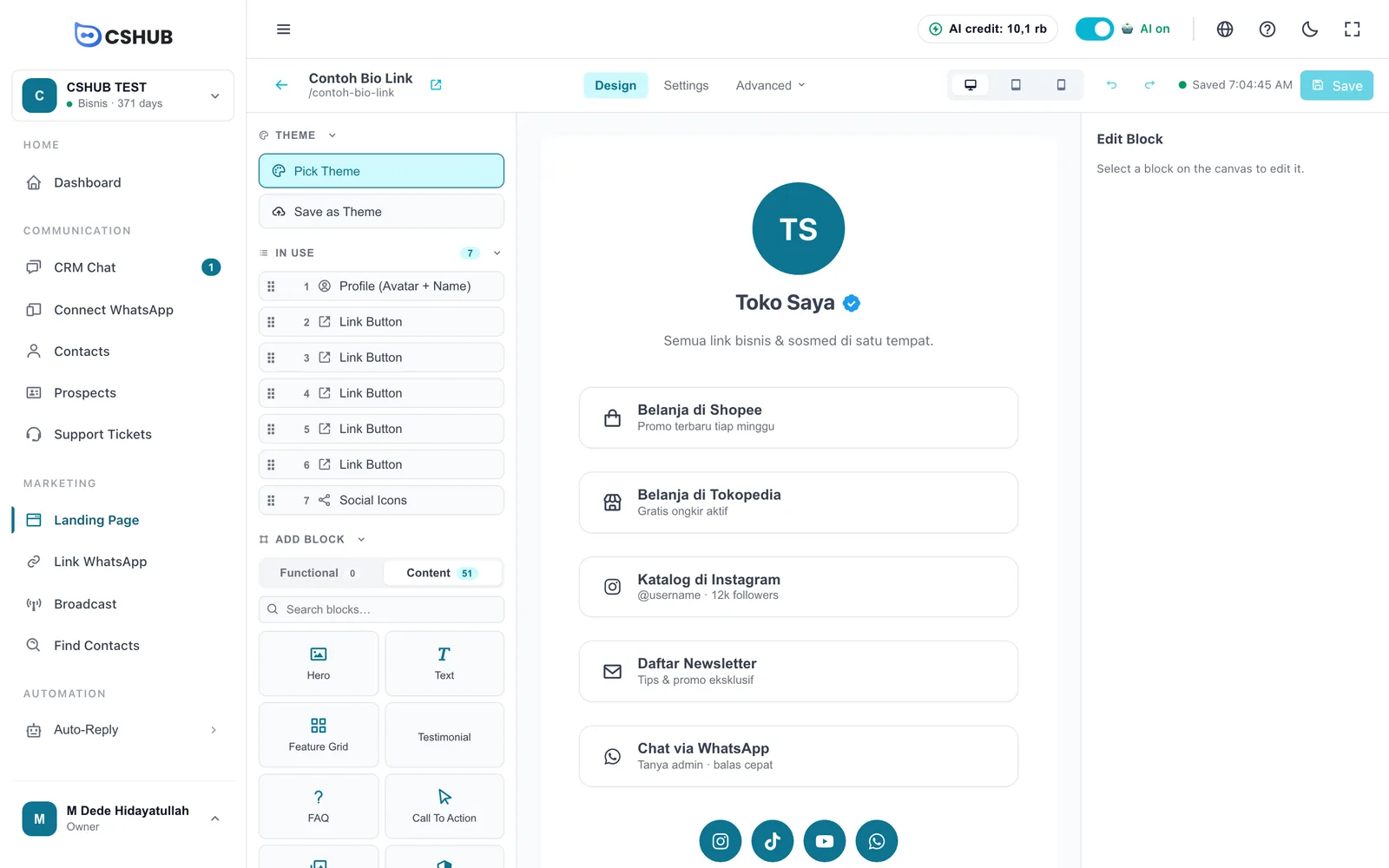
Top toolbar
| Part | What it does |
|---|---|
| ← and page name | Back to the list. The icon next to the name opens the public page |
| Design | Build the page content (default tab) |
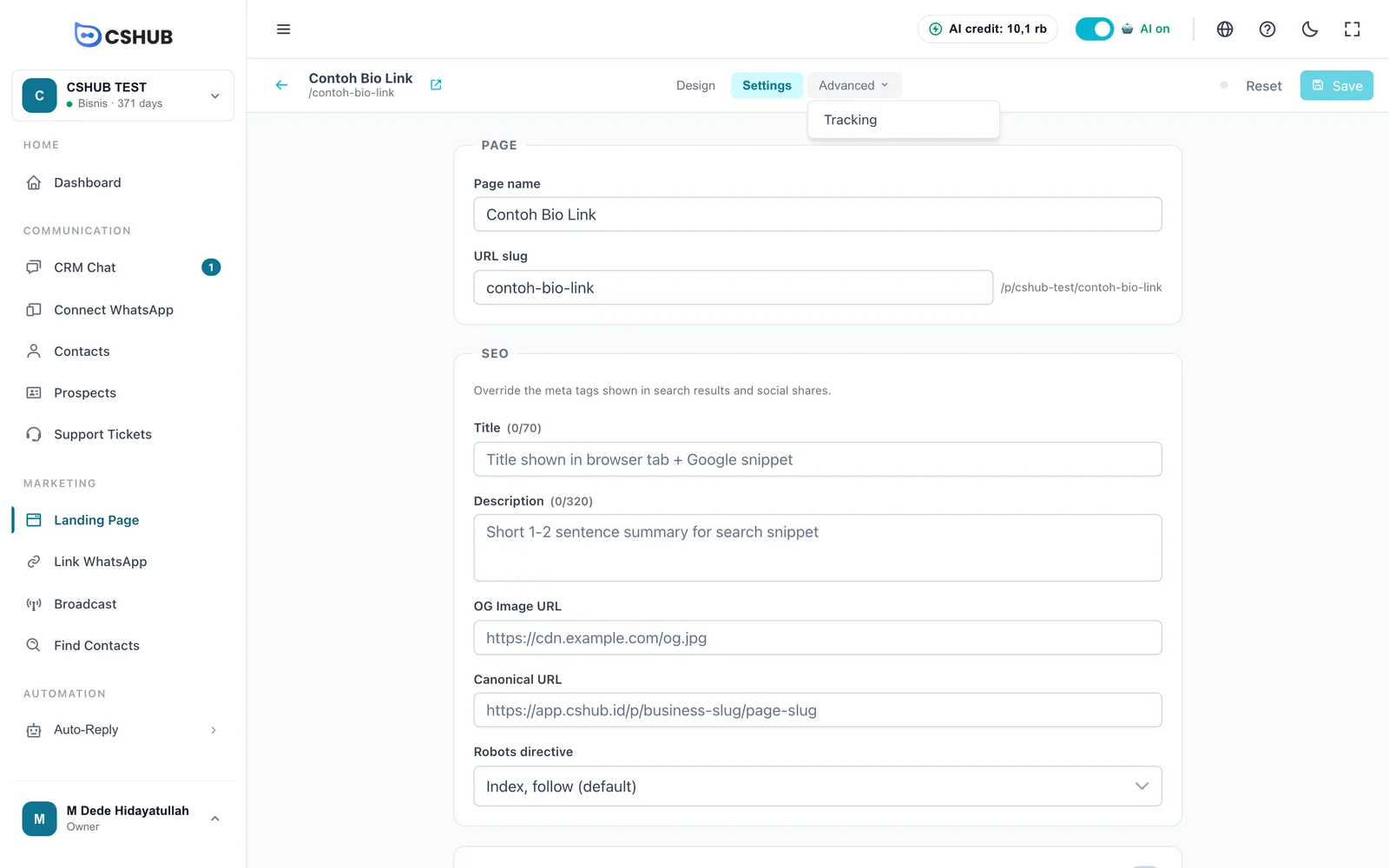
| Settings | Page name, slug, and SEO |
| Advanced | Tracking, plus Success Page and Embed for product pages |
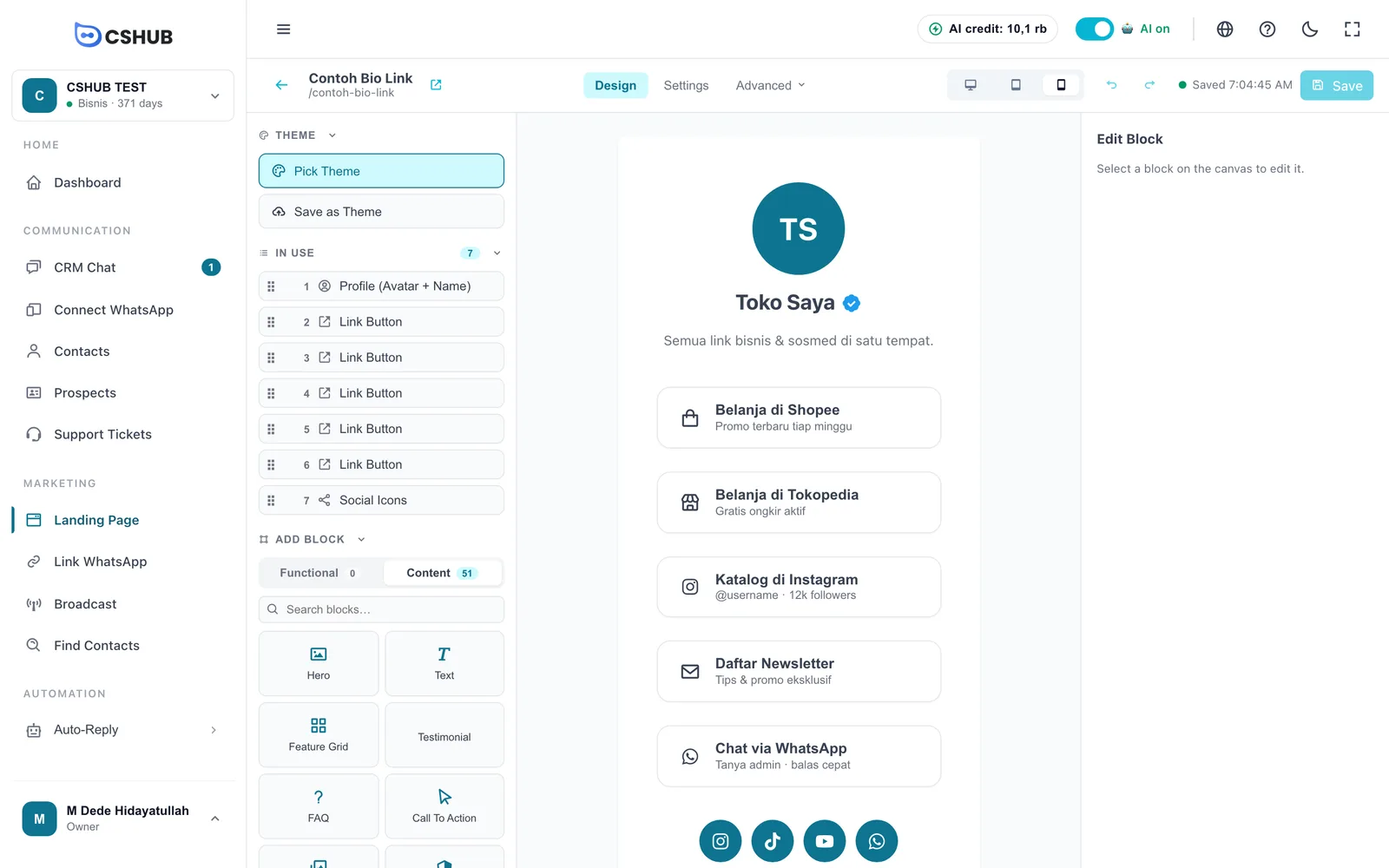
| Desktop / Tablet / Mobile | Change the canvas preview width |
| Undo / Redo | Reverse or repeat the last change |
| Save status | Saved + time, Saving…, or Unsaved changes. Changes are saved automatically 10 seconds after you stop editing |
| Save | Save right now |
Adding and arranging blocks
In the left panel:
- In use — the blocks currently on the page, in order. Drag the dotted handle to reorder them.
- Add Block — the block library, with two tabs:
- Functional — blocks for product pages, such as Checkout Form, Product Summary, Bump Offer, and Shipping Calculator. On pages without a product this tab is empty.
- Content — content blocks such as Hero, Text, Feature Grid, Testimonial, FAQ, Call To Action, Gallery, Video, Countdown, Warranty, Profile (Avatar + Name), Link Button, Social Icons, Divider, and more.
- The Search blocks… box finds a block quickly.
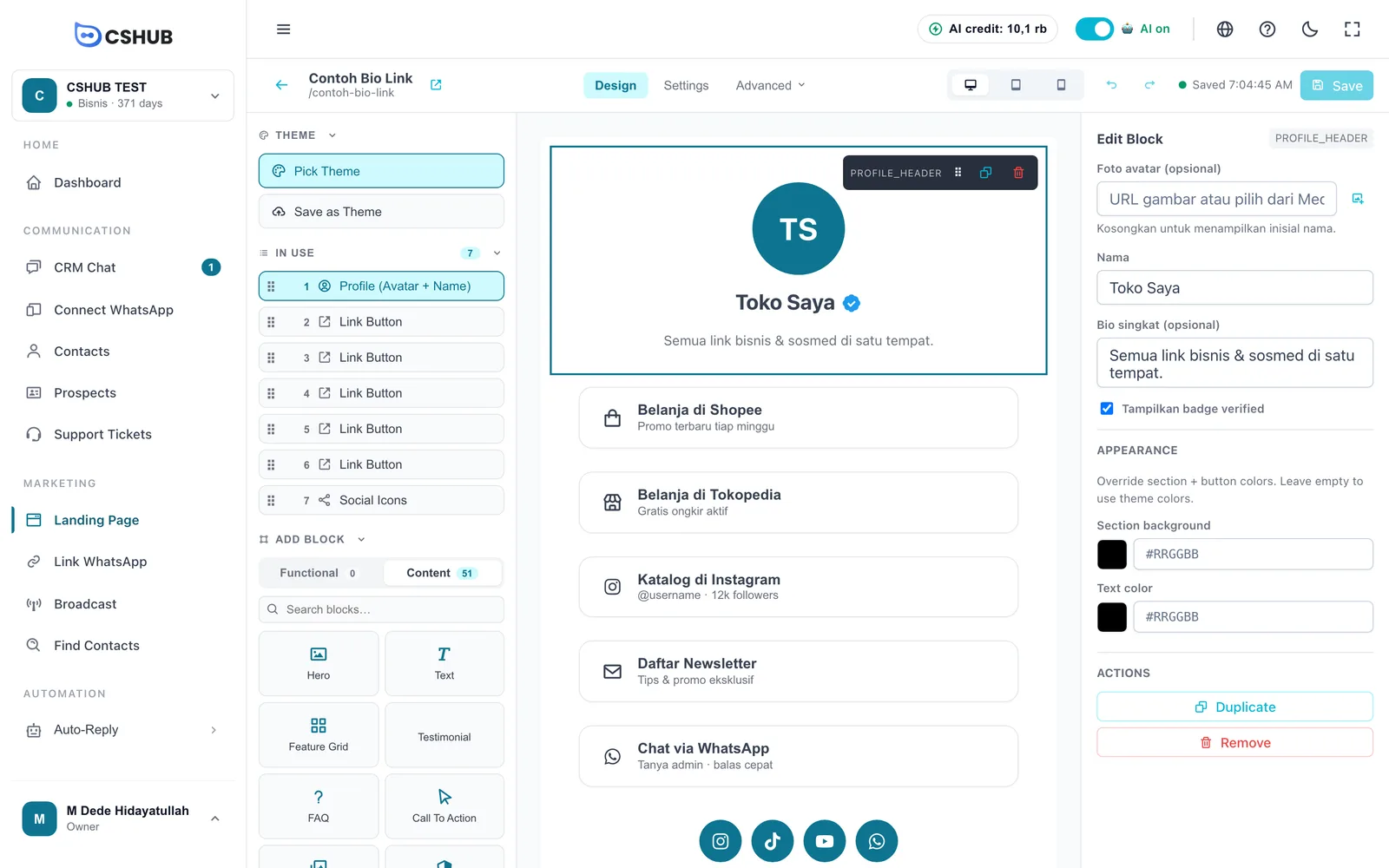
Click a block or drag it onto the canvas to add it.
Editing a block
Click a block on the canvas. It gets a frame with a small toolbar (drag, duplicate, delete), and the Edit Block panel on the right shows its fields.
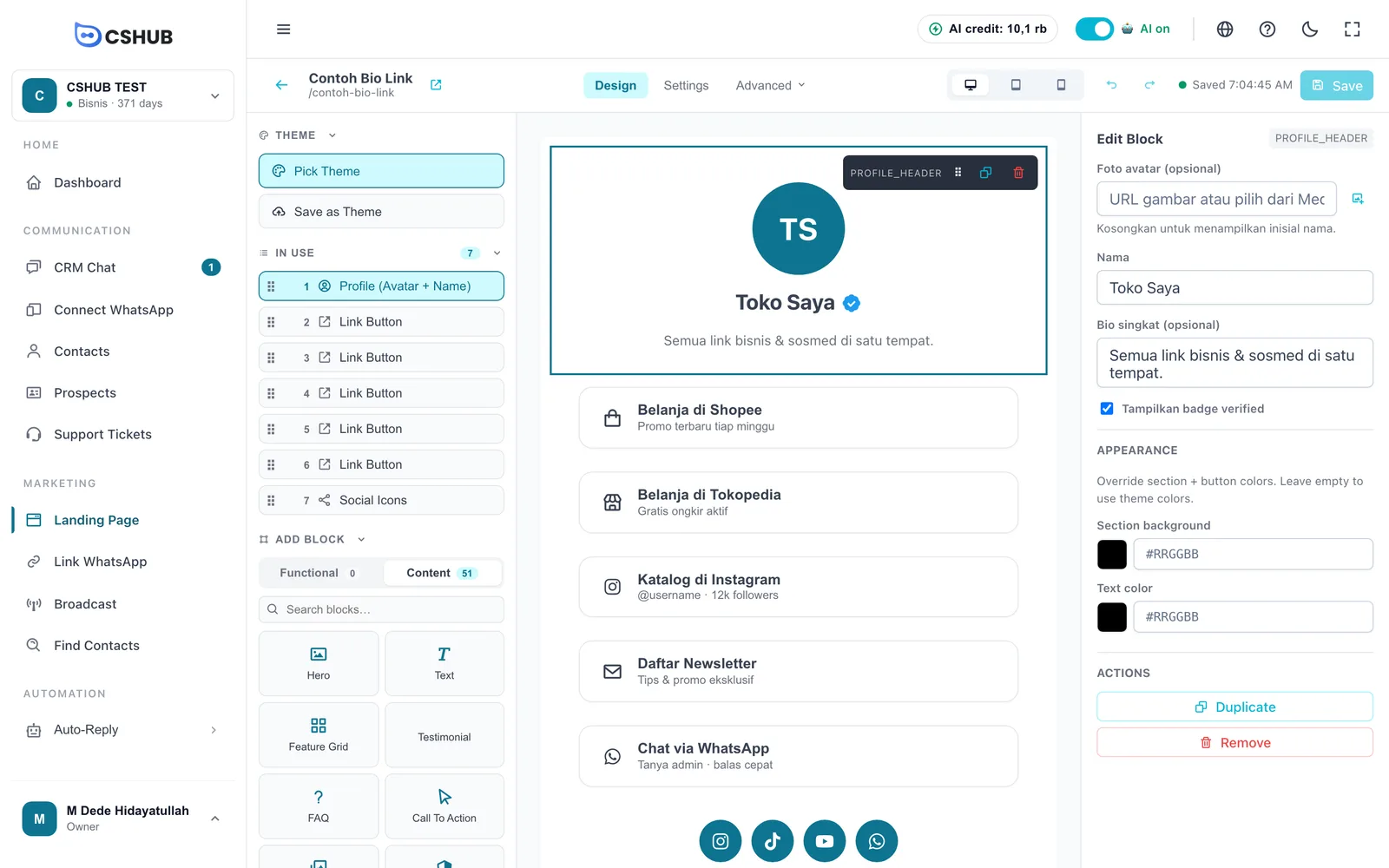
- Fields vary per block — a photo, title, text, button link, FAQ questions, and so on.
- Appearance — change this block's background and text colours only. Leave them empty to follow the theme.
- Images can be picked from the Media Manager or uploaded (JPG, PNG, WEBP, up to 3 MB each).
- Duplicate / Remove — copy or delete the block.
- On product pages, some blocks have a Generate with AI button that writes copy from your product details.
Locked blocks on product pages
The Checkout Form and Product Summary blocks are required on product pages, so they cannot be removed.
Themes
- Pick Theme — open the theme list. Choose Style only (keep the layout, change colours & typography) or Replace layout + style (every block is replaced by the theme's default layout — current content is lost). Product pages also offer Start Blank.
- Save as Theme — save this page's layout and style as your business's own theme, to reuse on other pages.
Settings
The Settings tab controls the page's identity.
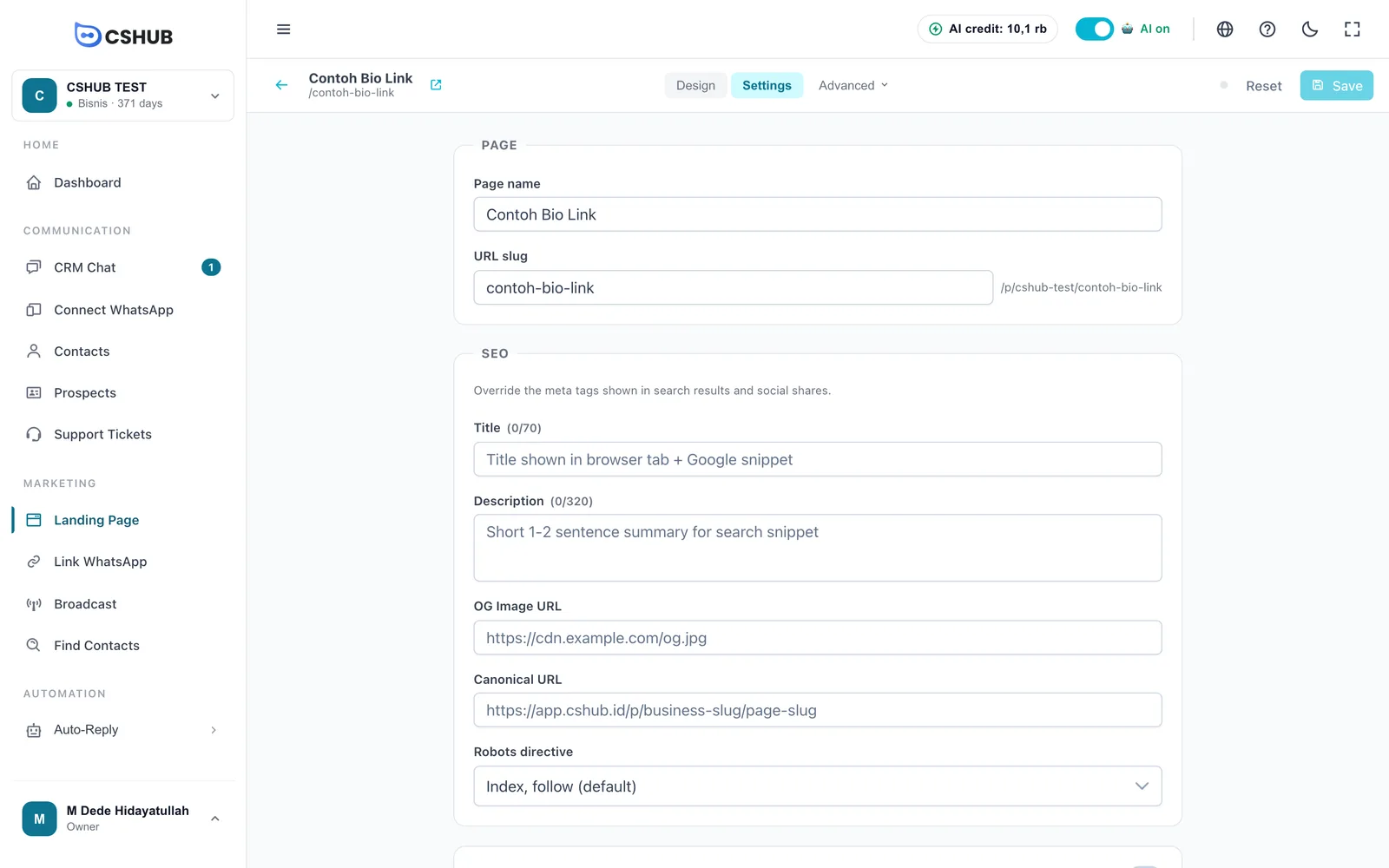
| Field | Description |
|---|---|
| Page name | Internal page name |
| URL slug | The end of the public address. cshub checks availability and suggests an alternative if it is taken |
| WhatsApp number | (Product pages) used when the success page redirects to WhatsApp |
| Enable shipping calculation at checkout | (Product pages) show shipping costs in the form. See Shipping & rates |
| Title | Title in the browser tab and Google (max. 70 characters) |
| Description | Short description for search results (max. 320 characters) |
| OG Image URL | The image shown when the link is shared on social media or WhatsApp |
| Canonical URL | The page's main address, if the same page is available at several addresses |
| Robots directive | Allow or block search engines from indexing the page |
| Custom Head Script | Optional. Add extra code such as a verification tag. Use with care |
Tracking
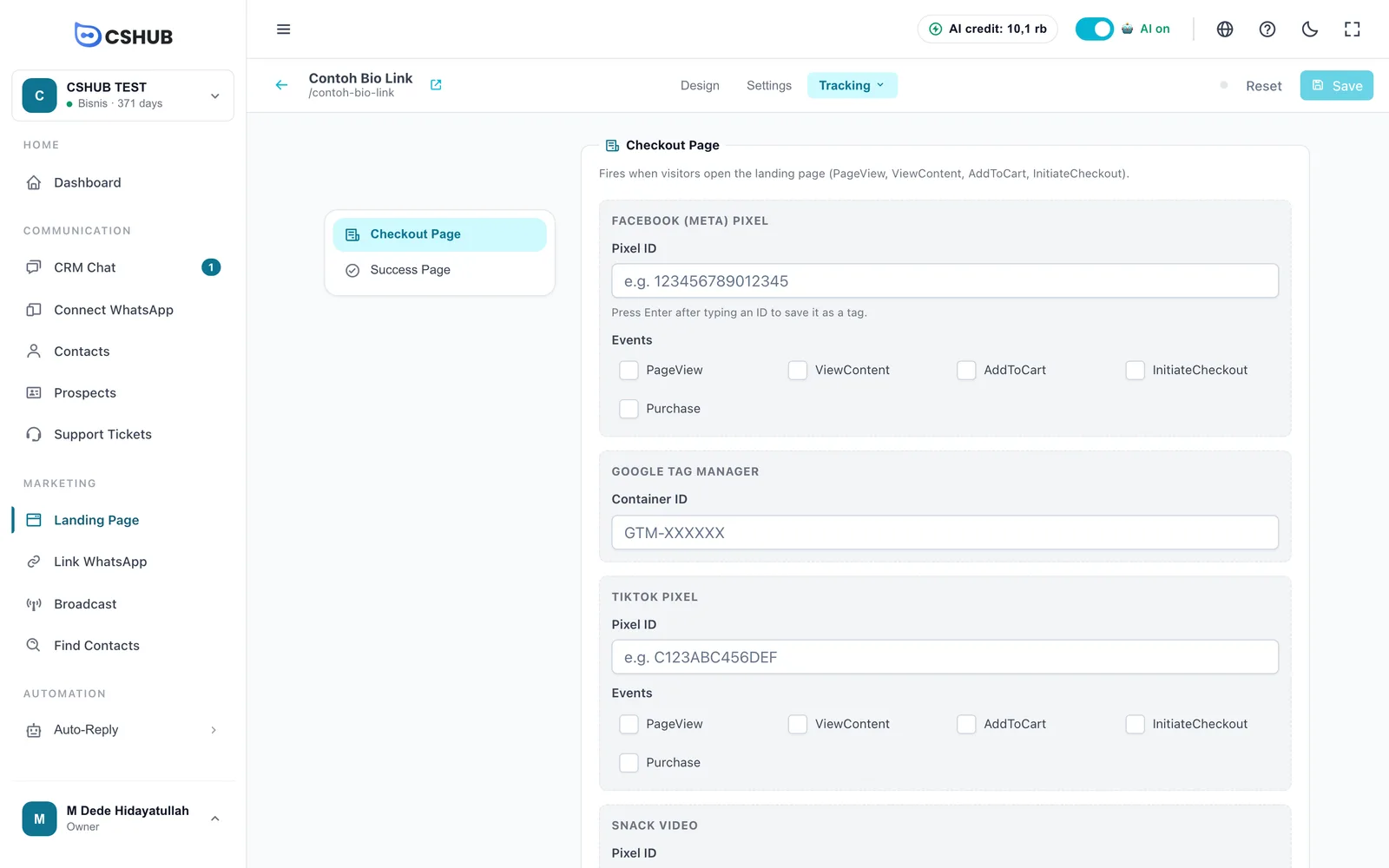
Open Advanced → Tracking to add ad pixels.
| Section | When it fires |
|---|---|
| Checkout Page | When visitors open the landing page (PageView, ViewContent, AddToCart, InitiateCheckout) |
| Success Page | After a successful purchase (Purchase) |
In each section, fill in Facebook (Meta) Pixel, Google Tag Manager, TikTok Pixel, and/or Snack Video. Type an ID and press Enter to save it as a tag — one platform can hold several IDs. Tick the events you want to send, then click Save tracking.
Success Page (product pages)
Open Advanced → Success Page to decide what happens after the buyer clicks Order Now:
| Redirect | Behaviour |
|---|---|
| Custom Success Page | A cshub thank-you page with bank details, an optional video, and a message per payment method |
| Opens a WhatsApp chat with the agent on duty, or a default number if nobody is on duty | |
| Invoice Page | Goes to the invoice page for online payment / virtual account |
| Custom URL | Goes to an external address of your own |
For the Custom Success Page you can set the header title, video link, which bank accounts to show (from Business settings), and messages for Bank Transfer, COD, and E-Payment.
Embed (product pages)
Open Advanced → Embed to put the page on another website:
- Full Page — every block inside an iframe.
- Form Only — only the checkout form, great for pop-ups or small widgets.
Set the iframe width and height, choose which elements appear (payment method picker, footer, price, bump offer), then click Copy snippet.
Tips
- Fill in Title, Description, and OG Image so the link looks appealing when shared on WhatsApp and social media.
- Check the Mobile preview — most visitors open pages on their phones.
- For ads, add pixels in Tracking, or point the ad to a WhatsApp link if you want visitors to start chatting right away.
- Orders from product pages land in Orders, and unfinished checkouts can be followed up in Abandoned carts.