
AI Insight & analyst
cshub gives you two ways to use AI to understand your customer chats: AI analysis reads a single conversation and sums up the lead score, needs, objections, and next step, while the AI Analyst answers open questions about all your leads and your AI Agent's performance — for example "which leads should I follow up now?" or "why do so many customers not end up buying?".
| Feature | Where it lives | Best for |
|---|---|---|
| AI analysis | The Contact Info panel in CRM Chat | Understanding one customer before you reply |
| Custom analysis | A button in the AI analysis section | Asking anything about one conversation |
| AI Analyst | Reports & Logs → AI Analyst | Questions that span many chats |
| AI Agent evaluation | The AI Agent edit page → Evaluation tab | Setting up automatic analysis and judging the quality of AI answers |
Uses AI credit and needs the right package
Everything on this page uses AI credit based on how much conversation is read. The feature also has to be included in your package — if the AI analysis section doesn't appear in the Contact Info panel, check Billing & packages.
AI analysis per conversation
Open CRM Chat, pick a conversation, and open the AI analysis section in the Contact Info panel on the right.
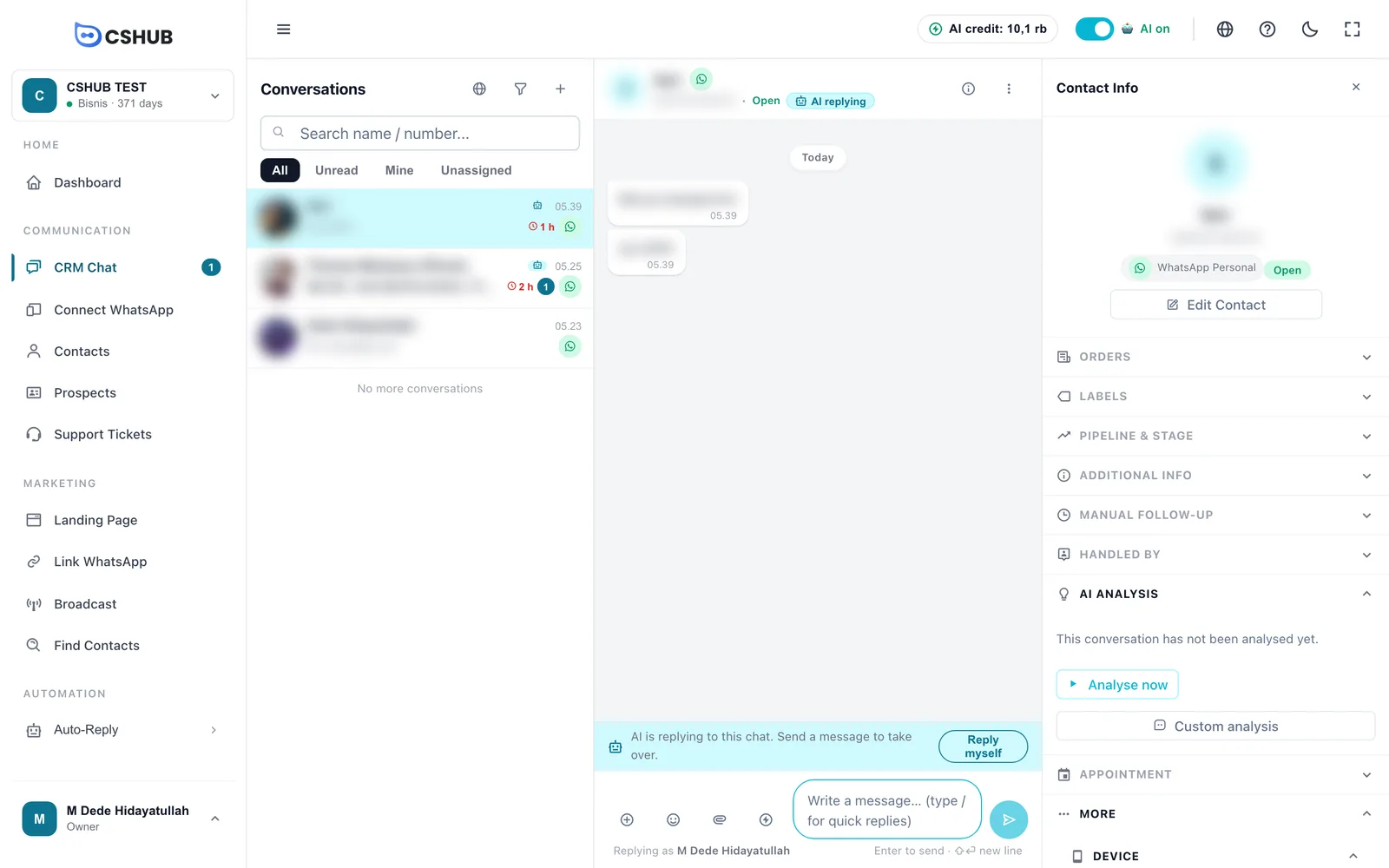
Running an analysis
- Click the AI analysis heading to expand it.
- If it says This conversation has not been analysed yet., click Analyse now.
- Wait until Analysing… disappears — usually a few seconds.
- When the customer has sent new messages, click the circular arrow (Analyse again) next to the score to refresh the result.
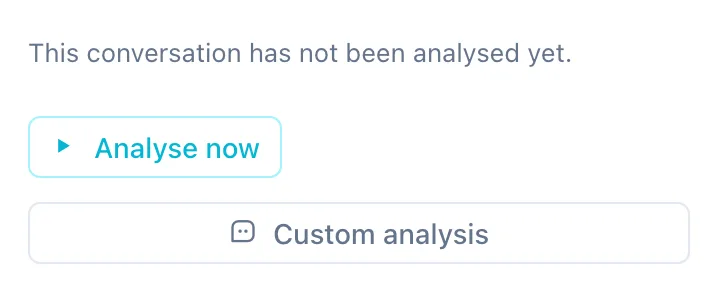
If automatic analysis is on, results fill in by themselves without a click.
Reading the result
| Part | What it shows |
|---|---|
| Lead score | A 0–100 ring with a grade of A, B, C, or D. The higher it is, the more likely the customer is to buy. The score also shows in the section heading, so you can see it even when the section is collapsed |
| Buying stage | Just aware, Considering, Ready to buy, Purchased, or At risk |
| Summary | A sentence or two about where the conversation stands |
| Traits | The customer's character and style (up to 6). Hover to see the evidence from the chat |
| Needs | What the customer is looking for (up to 3) |
| Unanswered | Customer questions that went unanswered or were answered wrongly (up to 3) |
| Objections | Why the customer is hesitating, e.g. price or shipping (up to 3) |
| Risk warning | A red line with a warning icon when the AI spots a risk, e.g. the customer getting frustrated |
| Next step | A suggested action for the agent, sometimes with a draft reply |
At the bottom you'll see when the conversation was analysed and how many messages were read, e.g. Analysed 5 min ago · 18 messages, plus how many of the customer's questions have been answered.
Use this draft puts the draft reply into the reply box. Drafts are never sent automatically — check and adjust before sending.
Stage suggestions
Once you've mapped buying stages to pipeline stages (see Automatic analysis), AI analysis can show a suggestion like Suggested move to [stage name] — see Labels & Stage. The contact is not moved automatically; you decide in the Pipeline & Stage section of the Contact Info panel or with the suggestion button on the Prospects board.
When no result appears
| Message | Meaning | What to do |
|---|---|---|
| The conversation is still too short to analyse. | Not enough messages yet | Wait for the conversation to continue |
| AI credit ran out, analysis skipped. | Not enough AI credit | Click Top up credit |
| Analysis failed. | Something went wrong during analysis | Click Try again |
Custom analysis
The Custom analysis button (under the AI analysis section) opens a dialog where you can ask anything about this conversation. It's always available, even before the conversation has been analysed.
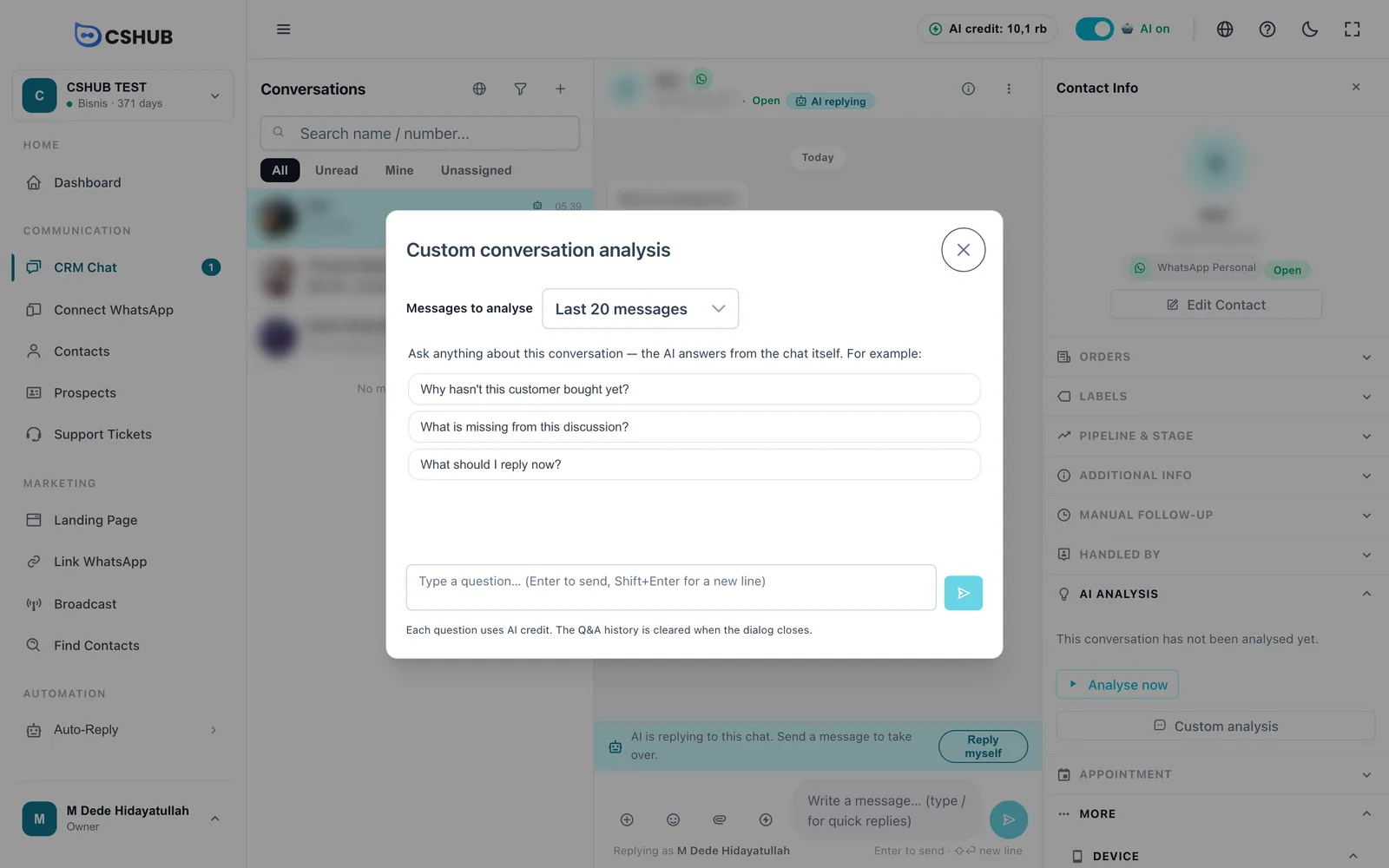
- Pick Messages to analyse: the last 10, 20, 50, or 100 messages, or All messages.
- Click one of the example questions or type your own (up to 1,000 characters). Enter sends, Shift+Enter adds a new line.
- Read the answer. Underneath, it says how many messages were read, e.g. From the last 20 messages (54 total).
- If you asked for a reply suggestion, a Suggested reply box appears with a Use this draft button that puts it in the reply box.
- Keep asking — the AI remembers earlier questions while the dialog stays open.
Save credit
Start with the last 20 messages. Only choose All messages when your question is about the start of the conversation. If a conversation is very long, the oldest messages are left out and the answer notes older messages left out because it is too long.
The Q&A history is cleared when you close the dialog. Copy any answer you want to keep first.
AI Analyst
The AI Analyst is a Q&A space for all your CRM data. Its answers come from what's in the system: AI analysis scores and results, pipeline stages, how long chats have been quiet, transaction status, and the conversations themselves.
Open Reports & Logs → the AI Analyst card.
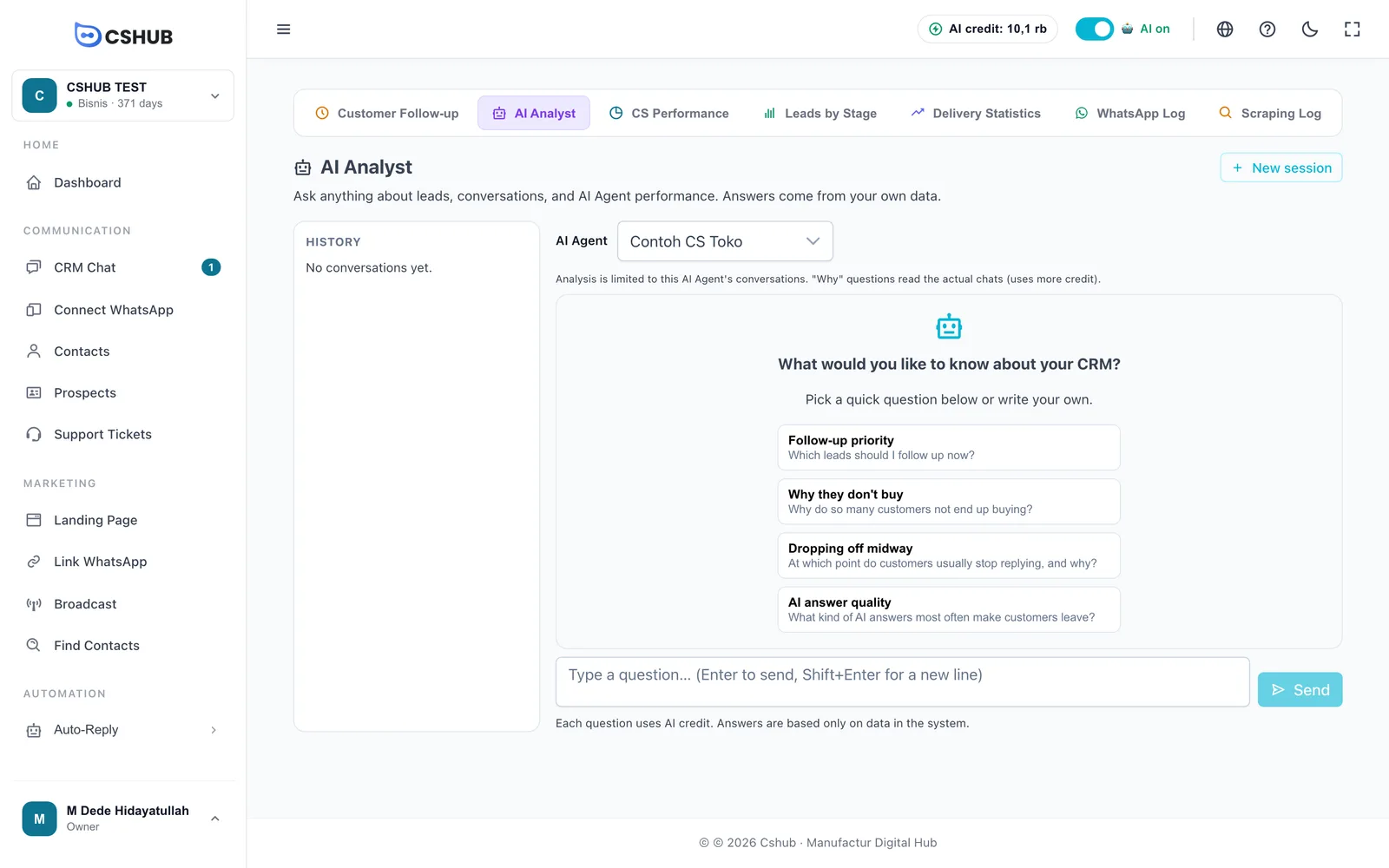
Asking the AI Analyst
- Pick the AI Agent you want to analyse, or Whole business for every chat. If you only have one AI Agent, it's picked for you.
- Click a quick question or type your own (at least 3 characters).
- Click Send or press Enter. While the AI works, you'll see Analysing data….
- Ask follow-up questions in the same session.
Quick questions shown when an AI Agent is selected:
| Quick question | What it asks |
|---|---|
| Follow-up priority | Which leads should I follow up now? |
| Why they don't buy | Why do so many customers not end up buying? |
| Dropping off midway | At which point do customers usually stop replying, and why? |
| AI answer quality | What kind of AI answers most often make customers leave? |
Two kinds of questions
- List or priority questions ("who should I follow up?") are answered from summarised data, so they're quick and light on credit.
- "Why" questions ("why do so many drop off midway?") make the AI read real sample conversations before drawing conclusions. Under the answer you'll see Reviewed N conversations. These use more credit.
Pick an AI Agent for sharper answers
When locked to one AI Agent, the AI Analyst only reads chats from the channels that agent is connected to. The results are more useful for judging and improving that agent. "Why" questions that read the actual chats are only available in this mode.
Sessions & history
- Each run of questions is saved as a session in the History panel, with the agent name and message count. Click a session to reopen it.
- After the first question, the session's AI Agent is locked (The AI Agent is locked for this session. Start a new session for another agent.). Click New session to switch agents or start a new topic.
- The bin icon next to a session (Delete session) deletes it.
| Message | Meaning |
|---|---|
| Not enough AI credit, or the feature is not enabled yet. | Top up credit, or check whether your package includes this feature |
| You do not have access to ask the AI analyst. | Ask the owner for report access in Team, CS & roles |
| AI Agent not found. Choose another agent. | That agent has been deleted |
Answers are only as good as the data
The AI Analyst only knows what's recorded in cshub. If conversations haven't been analysed yet or contacts aren't in a pipeline, answers may be incomplete. Always double-check important numbers in the related reports.
Automatic analysis from the AI Agent
To have AI analysis fill in without a click, turn on automatic analysis per AI Agent. In the sidebar, open Automation → Auto-Reply → AI Agent, edit the agent, then go to the Evaluation tab → the Pengaturan (settings) panel. These settings apply to chats arriving through the channels that agent is connected to. The panels on this tab are currently shown in Indonesian, so the labels below give the Indonesian text with a translation.
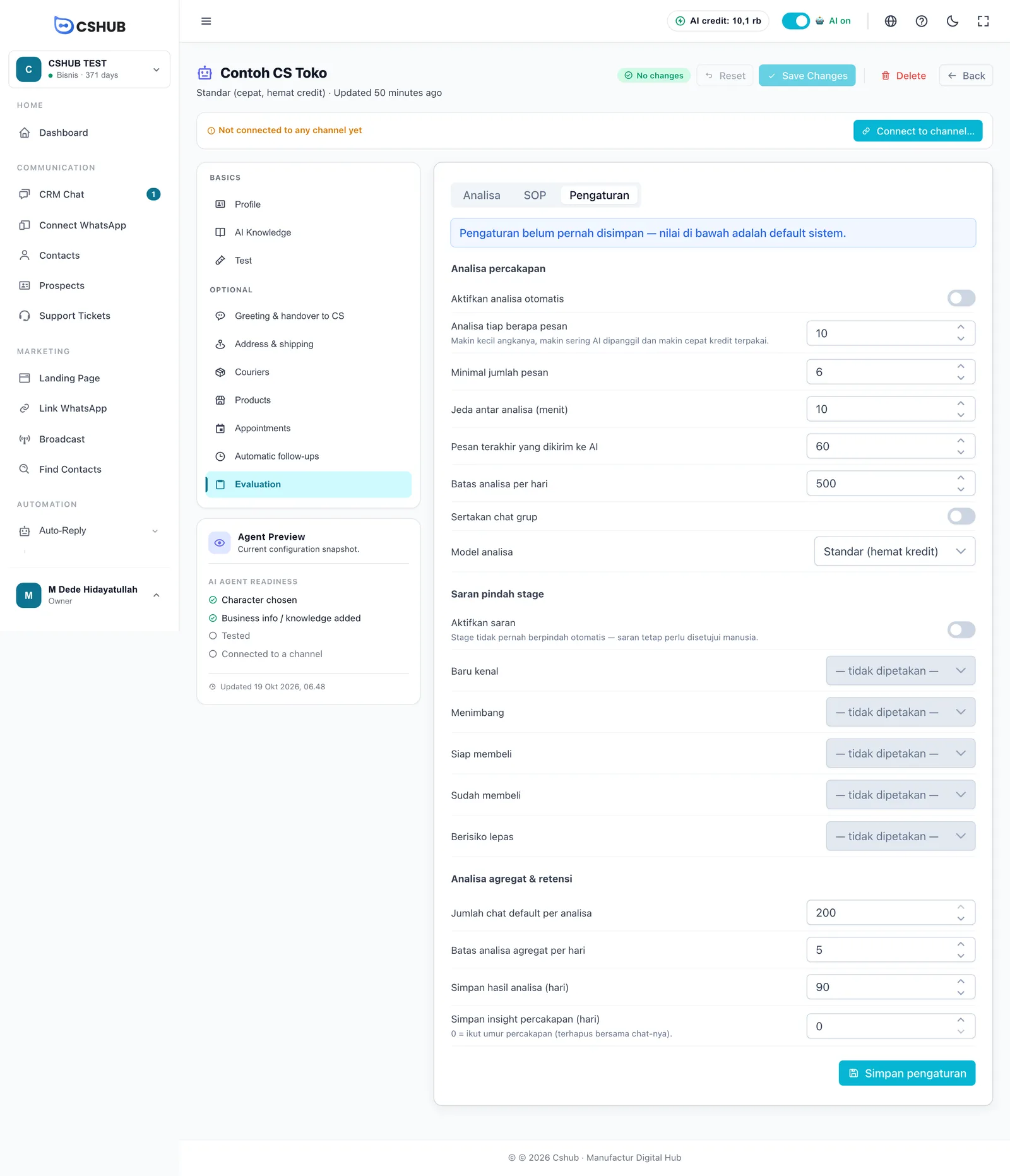
Conversation analysis (Analisa percakapan)
| Field | Default | Description |
|---|---|---|
| Aktifkan analisa otomatis (turn on automatic analysis) | Off | Turn on so conversations are analysed by themselves |
| Analisa tiap berapa pesan (analyse every N messages) | 10 | The analysis reruns after this many new messages. The smaller the number, the more often the AI runs and the faster credit is used |
| Minimal jumlah pesan (minimum messages) | 6 | Shorter conversations aren't analysed |
| Jeda antar analisa (menit) (minutes between analyses) | 10 | Minimum gap between two analyses of the same conversation |
| Pesan terakhir yang dikirim ke AI (latest messages sent to the AI) | 60 | How many recent messages each analysis reads |
| Batas analisa per hari (daily analysis limit) | 500 | A safety cap on automatic analyses per day |
| Sertakan chat grup (include group chats) | Off | Also analyse group chats |
| Model analisa (analysis model) | Standar | Standar (hemat kredit) — standard, credit-saving — or Advanced (akurasi tinggi) — higher accuracy |
Stage suggestions (Saran pindah stage)
Turn on Aktifkan saran (enable suggestions), then pick a pipeline stage for each buying stage — Baru kenal (just aware), Menimbang (considering), Siap membeli (ready to buy), Sudah membeli (purchased), and Berisiko lepas (at risk). For example, map Siap membeli to Sales - Ready to Pay. Stages left on — tidak dipetakan — (not mapped) never trigger a suggestion. Stages never move by themselves; a person still approves each suggestion.
Aggregate analysis & retention (Analisa agregat & retensi)
| Field | Default | Description |
|---|---|---|
| Jumlah chat default per analisa (chats per analysis) | 200 | How many chats are read when you click Jalankan analisa (run analysis) in the Analisa panel |
| Batas analisa agregat per hari (aggregate analyses per day) | 5 | How many aggregate analyses can run per day |
| Simpan hasil analisa (hari) (keep analysis results, days) | 90 | How long aggregate analysis results are kept |
| Simpan insight percakapan (hari) (keep conversation insights, days) | 0 | How long per-conversation AI analysis results are kept. 0 = as long as the conversation (deleted together with the chat) |
Click Simpan pengaturan (save settings) to save.
The Analisa and SOP panels
The same tab has two more panels for judging your AI Agent's overall quality:
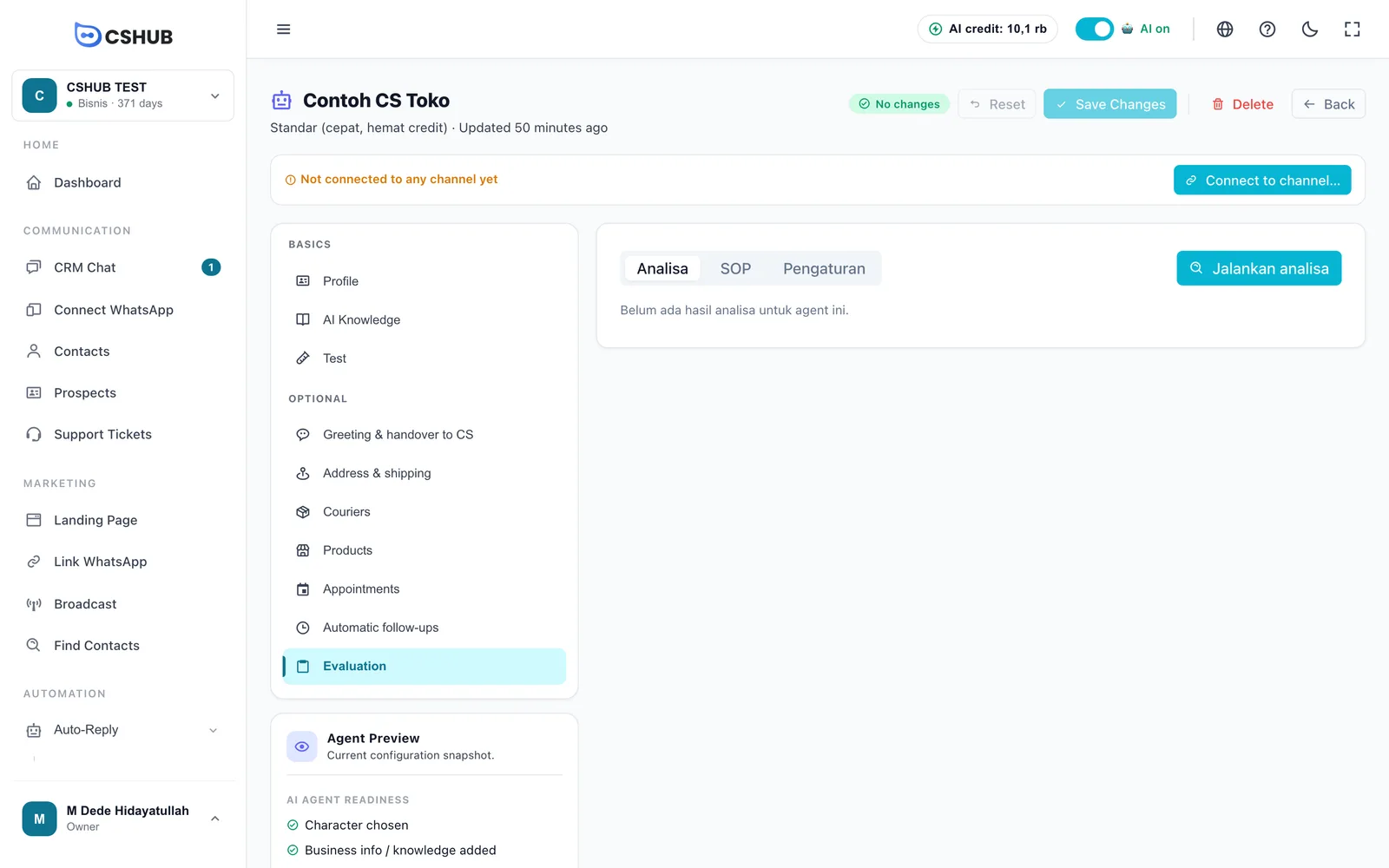
- Analisa (analysis) — click Jalankan analisa to read many conversations at once and get the top topics, frequently unanswered questions, AI answer mistakes, SOP compliance, and recommendations.
- SOP — write your service rules (e.g. always greet the customer by name) so the analysis can score compliance rule by rule.
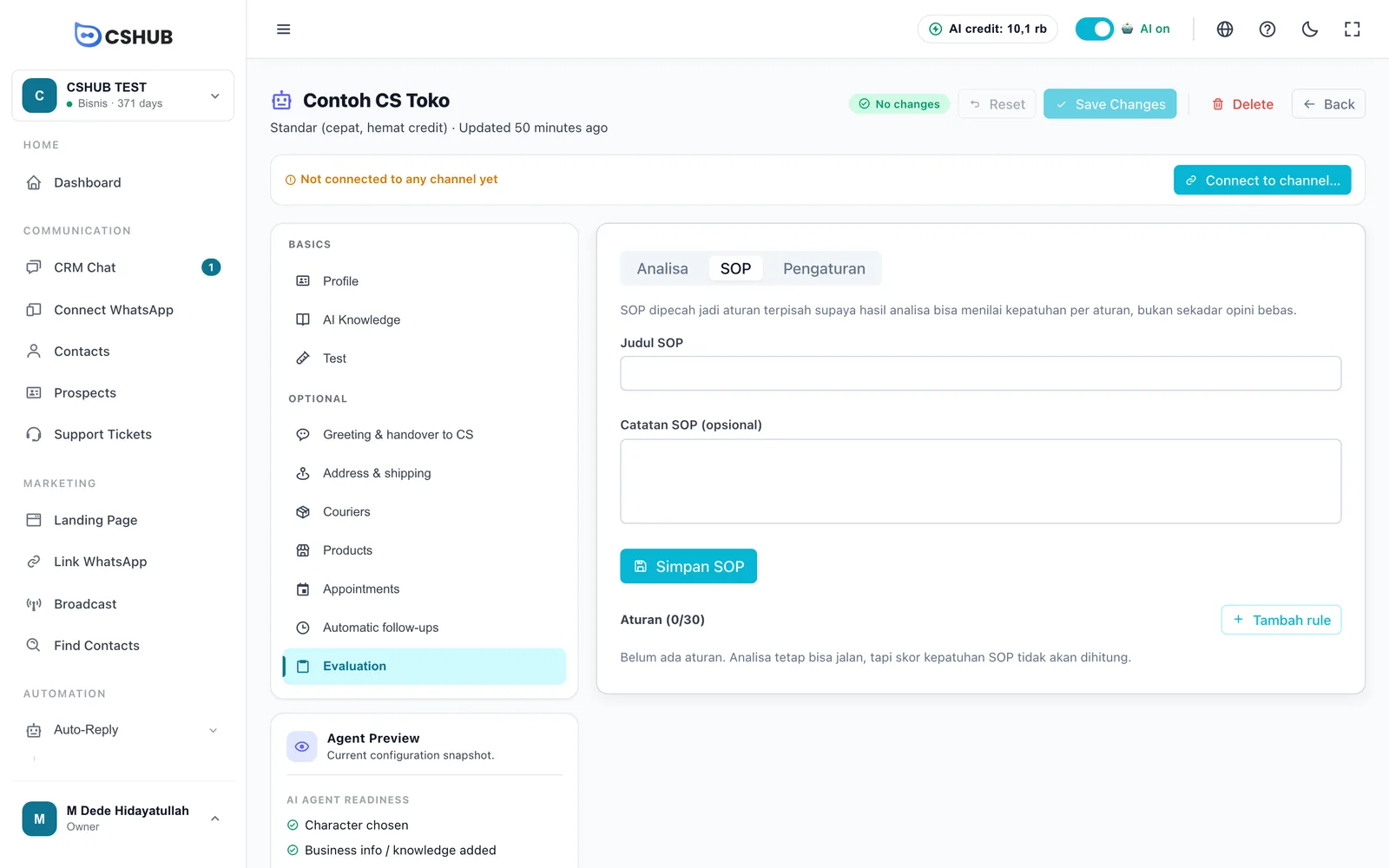
Both panels are explained in full under AI Agent → Evaluation.
Tips for using AI Insight
- Open AI analysis before replying to a returning customer — you'll know their needs and objections without scrolling a long chat.
- Start the morning with the AI Analyst: ask Follow-up priority, then compare it with Unreplied chats.
- Ask "Why they don't buy" every week to spot objection patterns, then improve your AI knowledge or your offer.
- Set "analyse every N messages" sensibly: too small a number burns credit without adding much information.