
Business settings
Business settings is where you set up your business's identity and basic preferences in cshub — name and logo, time zone, language, message signature, bank accounts for customer transfers, and a blocklist — all from one Settings page.
Most pages here can only be opened by the business owner. Other team members only see the cards they're allowed to open, such as CS Team, Team Access, and My Profile.
The Settings page
Click Settings in the sidebar. The cards are grouped into Business, Team, and Advanced.
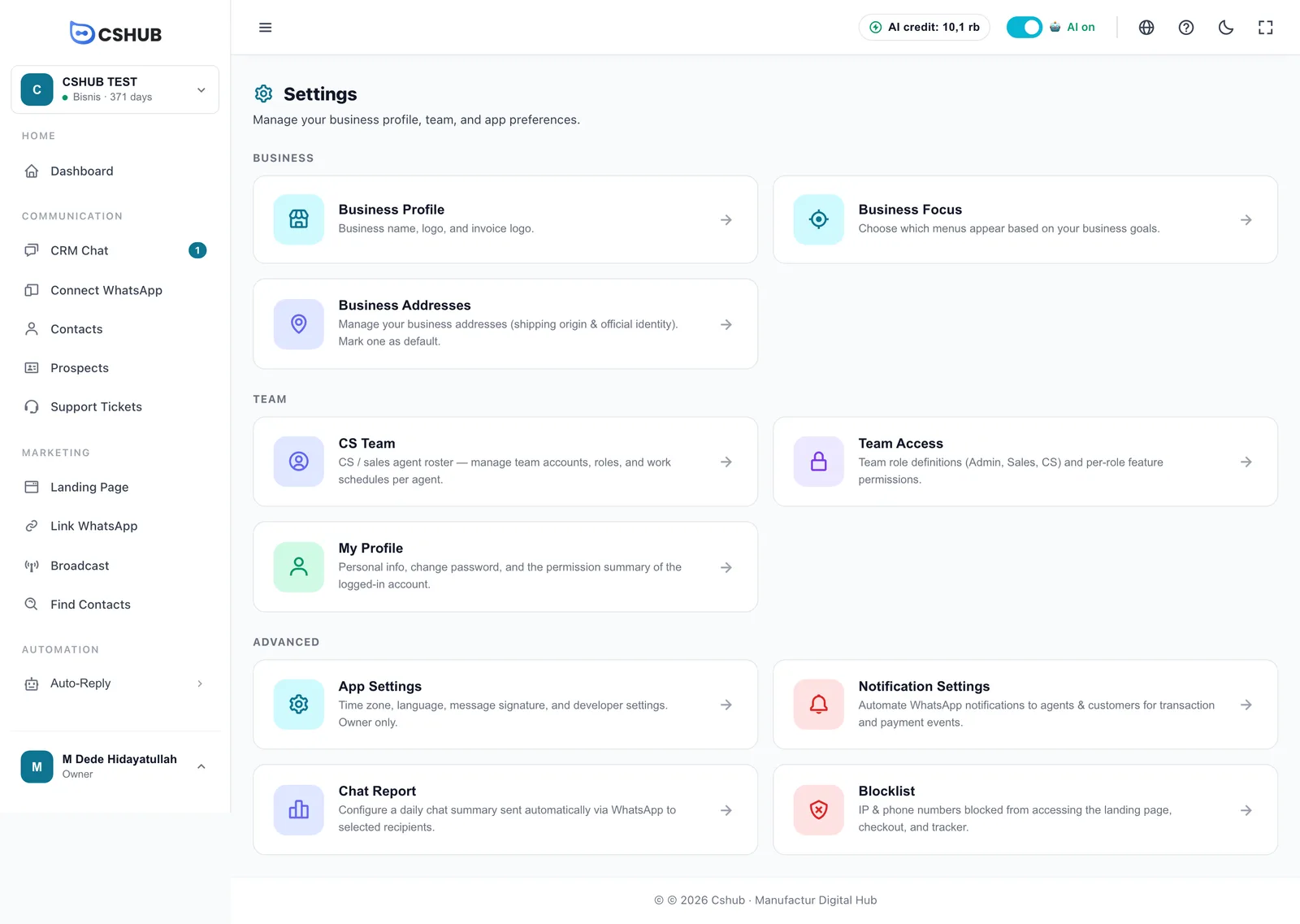
| Card | What's inside | Covered in |
|---|---|---|
| Business Profile | Business name, logo, and invoice logo | Below |
| Business Focus | Which menus appear based on your business goals | Business focus |
| Business Addresses | Shipping origin & official identity | Business addresses |
| Bank Accounts | Bank accounts customers transfer to | Below |
| Shipping | Checklist for origin address, couriers, and shipping rates | Shipping & rates |
| CS Team | Agent accounts, roles, and work schedules | Team, CS & roles |
| Team Access | Roles and per-feature permissions | Team, CS & roles |
| My Profile | Personal info, password, permission summary | Team, CS & roles |
| App Settings | Time zone, language, message signature, developer settings | Below |
| Notification Settings | Automatic WhatsApp notifications for transactions & payments | Notifications |
| Chat Report | Daily chat summary via WhatsApp | Daily chat report |
| Blocklist | IPs & phone numbers blocked from your public pages | Below |
Don't see Bank Accounts or Shipping?
These two cards only appear when your business focus includes Online Selling or Booking / Services. Click Show all features at the bottom of the sidebar to bring them up without changing your focus.
Once you're inside a settings page, the tab bar at the top lets you jump between settings without going back: Business Focus, Business Addresses, CS Team, Team Access, My Profile, App Settings, Notification Settings, Chat Report, and Blocklist.
App settings
Open the App Settings card (or the Business Profile card, which takes you straight to the profile section of the same page). The navigation on the left jumps to each section: Business Profile, General, Signature, and Advanced — for developers.
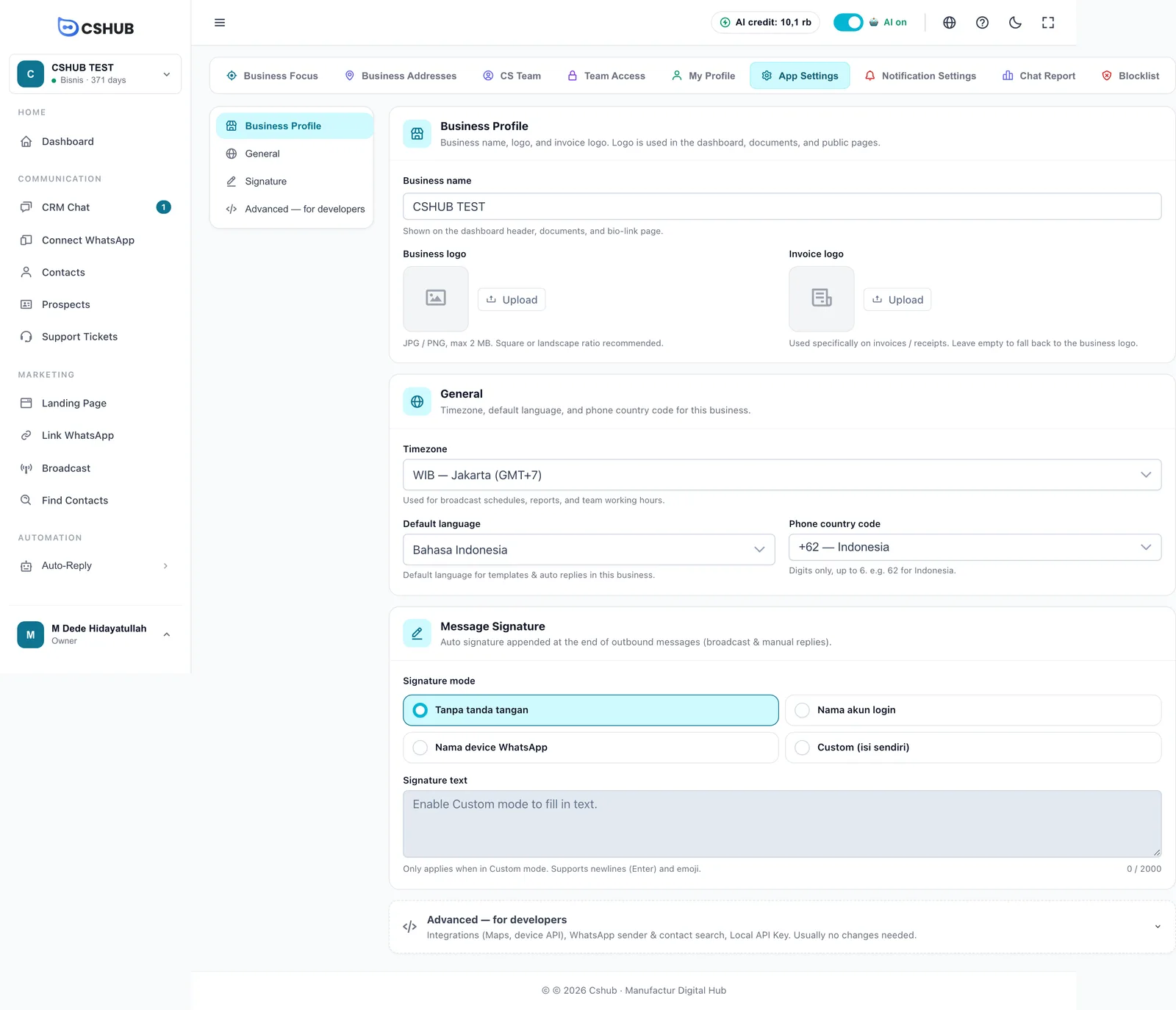
Every section is saved together. As soon as you change something, a bar appears saying You have unsaved changes. with Cancel and Save Changes buttons.
Business profile
| Field | Notes |
|---|---|
| Business name | Shown on the dashboard header, documents, and bio-link page |
| Business logo | JPG / PNG, max 2 MB. Square or landscape ratio recommended. Used on the dashboard, documents, and public pages |
| Invoice logo | Used specifically on invoices / receipts. Leave empty to fall back to the business logo |
Upload picks a file, Replace swaps the current logo, and Remove marks the logo for removal when you save. Clicked by mistake? Hit Undo remove before saving.
General
| Field | Notes |
|---|---|
| Timezone | Your business time zone. Used for broadcast schedules, reports, and team working hours |
| Default language | Default language for templates & auto replies in this business |
| Phone country code | Default country code for phone numbers, e.g. +62 — Indonesia or +60 — Malaysia |
Check the time zone before scheduling anything
With the wrong time zone, scheduled broadcasts, agent working hours, and daily reports all run at the wrong time. Get it right before using any scheduled feature.
Message signature
An automatic signature added to the end of outgoing messages — both broadcasts and manual replies.
| Signature mode | Result |
|---|---|
| Tanpa tanda tangan (no signature) | Messages are sent as they are |
| Nama akun login (login account name) | Adds the name of the team member who sent the message |
| Nama device WhatsApp (WhatsApp device name) | Adds the name of the device (WhatsApp number) used to send |
| Custom (isi sendiri) (custom) | Adds the text you write in Signature text |
The mode options currently appear in Indonesian even in the English interface.
Signature text can only be filled in Custom mode, up to 2,000 characters, and supports line breaks (Enter) and emoji. For example:
— Sales, Maju Store
https://majustore.com
Advanced — for developers
Click the Advanced — for developers panel to expand it. You'll rarely need to change anything here.
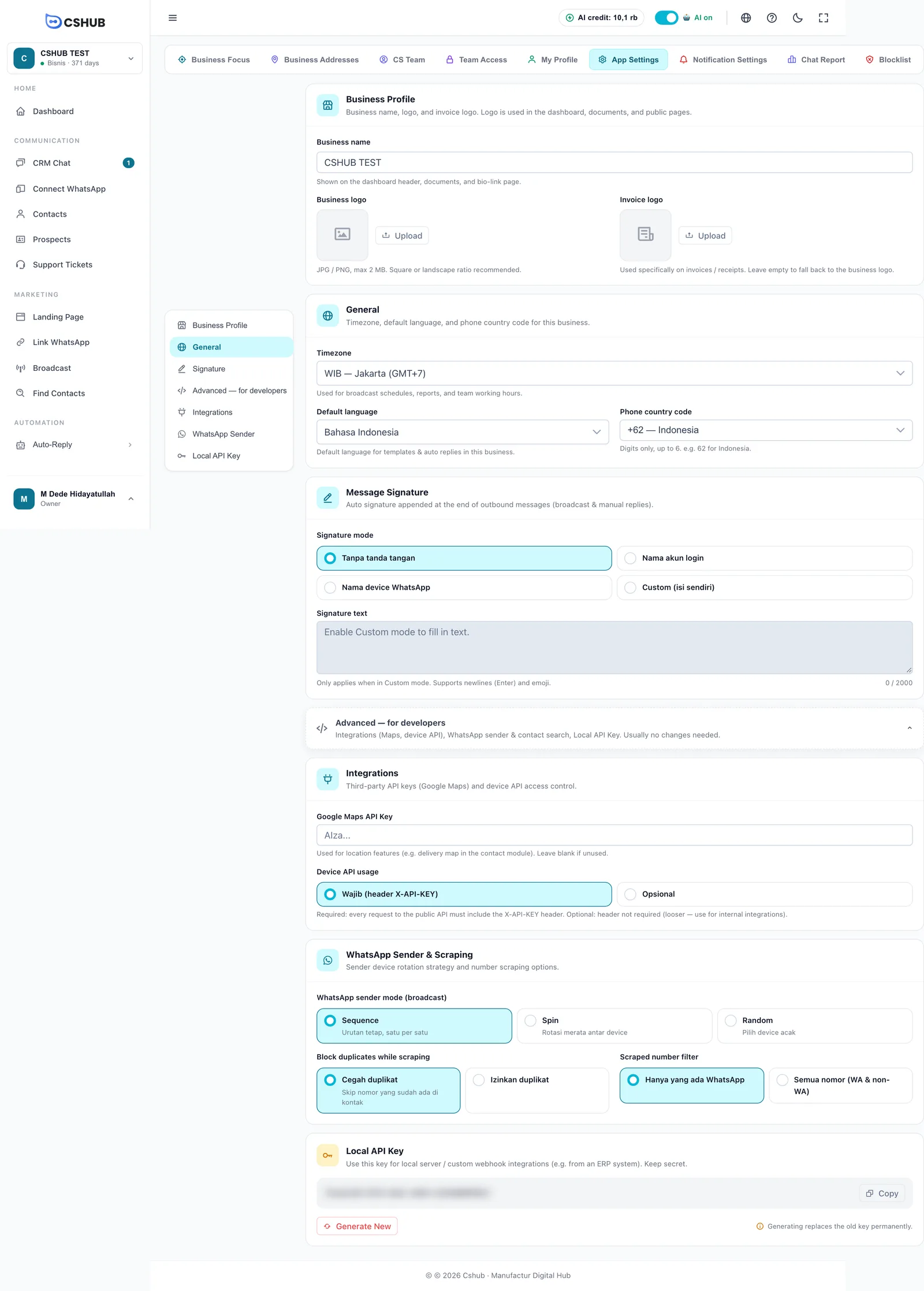
| Section | Field | Notes |
|---|---|---|
| Integrations | Google Maps API Key | Your Google Maps key for location features, such as the delivery map in contacts. Leave blank if unused |
| Device API usage | Wajib (header X-API-KEY) (required): every call to the public API must include the key. Opsional (optional): the key isn't required — only for internal integrations you trust | |
| WhatsApp Sender & Scraping | WhatsApp sender mode (broadcast) | How a device is chosen when a broadcast uses several numbers (see below) |
| Block duplicates while scraping | Cegah duplikat skips numbers already in your contacts; Izinkan duplikat saves them anyway | |
| Scraped number filter | Hanya yang ada WhatsApp (WhatsApp numbers only) or Semua nomor (WA & non-WA) (all numbers) when you find contacts | |
| Local API Key | — | A key for connecting your own systems (an ERP, for example) to cshub. Keep it secret |
| Sender mode | Behavior |
|---|---|
| Sequence | Fixed order, one by one |
| Spin | Rotates evenly across devices |
| Random | Picks a device at random |
Under Local API Key, Copy copies the key and Generate New creates a new one.
Generate New kills the old key immediately
Once you confirm, the old key stops working right away. Any integration still using it must be updated, or it will disconnect.
If the cshub team lets your business use its own shipping-rate account, a Shipping Cost section also appears for entering the rate provider's API key. If you don't see it, rates are handled by the cshub team — see Shipping & rates.
Bank accounts
Bank accounts are where customers send money when they pay for an order by manual transfer — on a landing page, in your online store, or through chat checkout.
Open the Bank Accounts card in the Business group.
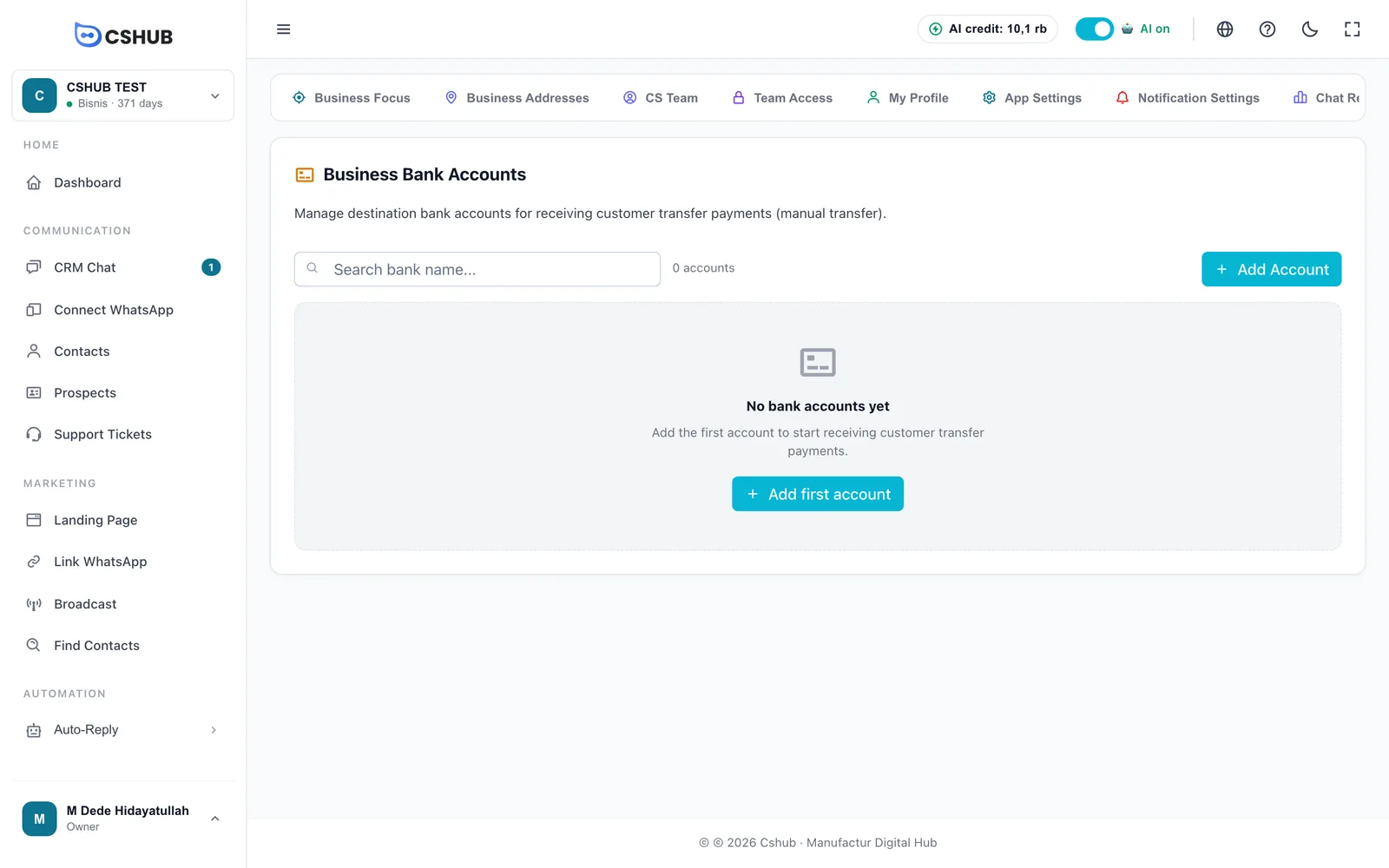
To add an account:
- Click Add Account.
- Fill in the form and save.
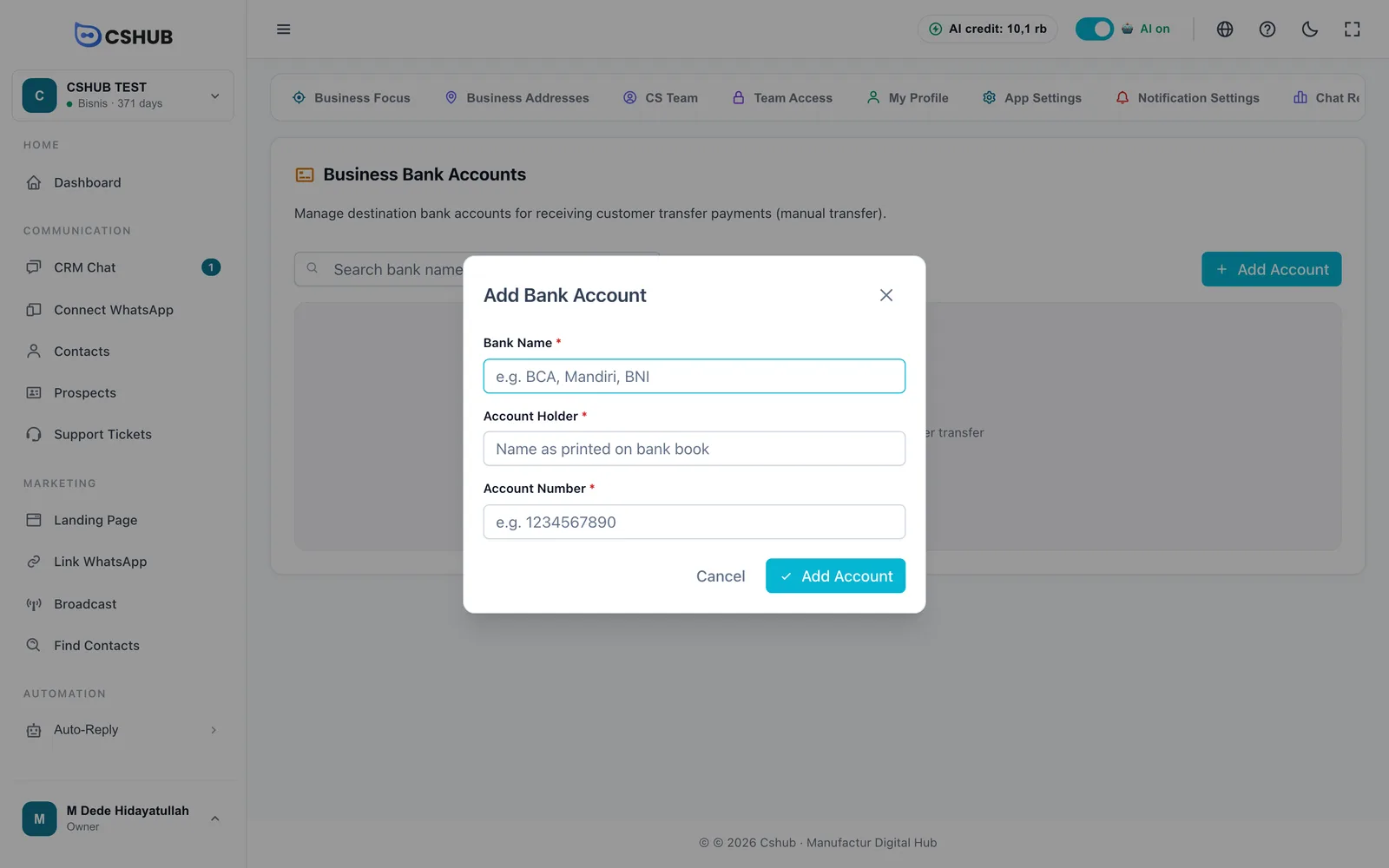
| Field | Notes |
|---|---|
| Bank Name | Required, e.g. BCA, Mandiri, BNI |
| Account Holder | Required. The name exactly as it appears on the account |
| Account Number | Required. Type the number without spaces |
The table lists Bank Name, Account Holder, and Account Number, with edit and delete actions. Deleted accounts no longer appear in the customer transfer options.
Double-check the account number
Customers transfer to exactly the number you enter here. A single wrong digit can send money to the wrong account — check twice before saving.
Blocklist
The blocklist stops specific IPs or phone numbers from reaching your public pages — landing pages, checkout, and the abandoned-cart tracker. Use it to stop form spam or repeated fake orders.
Open the Blocklist card in the Advanced group.
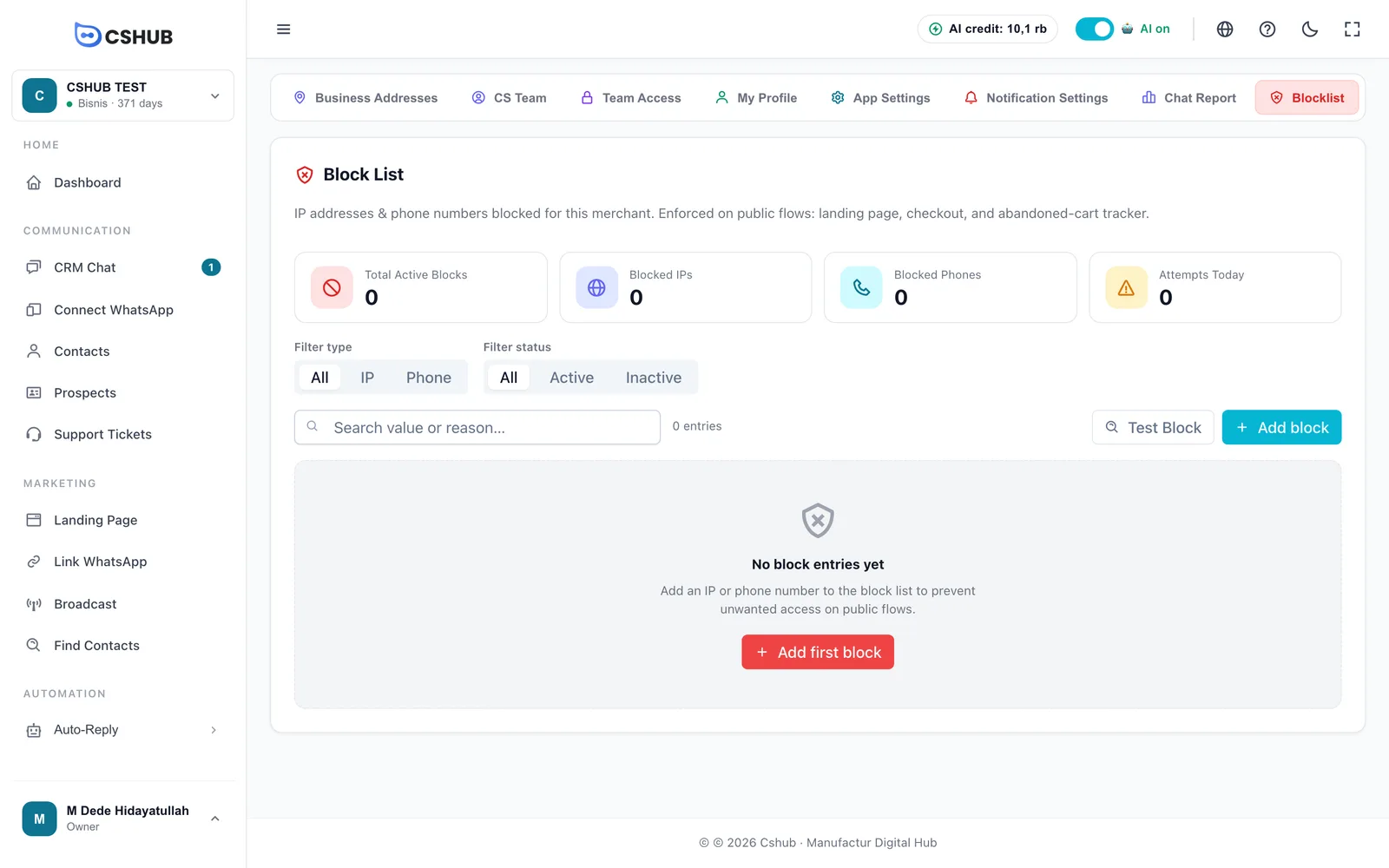
| Summary card | Meaning |
|---|---|
| Total Active Blocks | Number of block entries currently in force |
| Blocked IPs | Number of blocked IP addresses |
| Blocked Phones | Number of blocked phone numbers |
| Attempts Today | How many times a blocked IP or number tried to get in today |
Adding a block
- Click Add block.
- Fill in the form:
| Field | Notes |
|---|---|
| Type | IP or Phone. Can't be changed after saving — delete and recreate if needed |
| Value | An IP address (IPv4 or IPv6) or a phone number. A number like 081234567890 is converted to 6281234567890 automatically |
| Reason | For example Form spam or Fraud |
| Notes | Optional extra notes for your team |
- Save.
Use the type and status filters to narrow the list. Each entry can be paused with Deactivate (without deleting it) and turned back on with Activate. Tick several entries and click Delete Selected to remove them at once. The Attempts column shows how many times that entry has blocked access.
Checking whether something is blocked
Click Test Block, enter an IP or phone number, then click Check. The result is either Blocked for this merchant. or Not blocked. Testing doesn't add to the attempt count.