
Troubleshooting
This page collects the issues people run into most often with cshub — can't sign in, WhatsApp disconnected or won't scan, the AI isn't replying, AI credit has run out, a menu is missing, or features are locked because the plan expired — with the cause and the steps to fix each one, so you can sort it out yourself without waiting for support.
Find the symptom closest to yours. If you've tried every step and it's still not fixed, see Still stuck? at the bottom.
Signing in & your account
"Too many attempts" when signing in
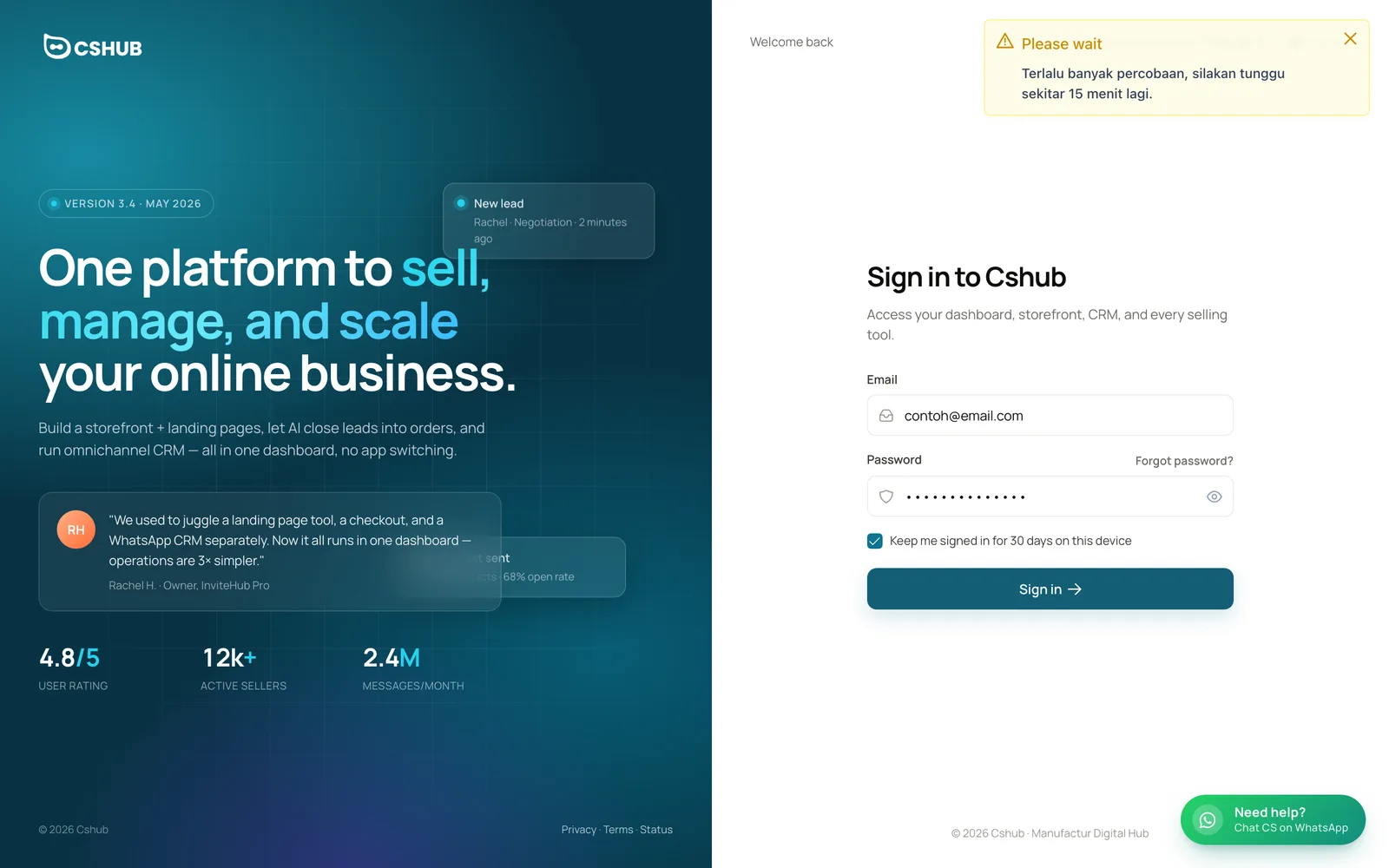
For security, cshub temporarily holds sign-in attempts after the wrong password is entered several times. The notification says how long to wait. (The detail text of this notification currently appears in Indonesian: Terlalu banyak percobaan, silakan tunggu sekitar N menit lagi — "too many attempts, please wait about N minutes".)
- Wait until the time in the notification has passed. Retrying during the wait doesn't speed it up.
- If you're not sure of your password, click Forgot password? on the sign-in page and set a new one by email.
- Make sure the email you typed is correct, with no space at the start or end.
The same limit applies on the forgot-password and reset-password pages.
Suddenly signed out: "Sesi berakhir"
If you see a Sesi berakhir ("Session ended") notification saying your account just signed in on another device, your account was just used to sign in from another browser. One cshub account can be active in one browser and one mobile app at a time; signing in on a second browser automatically signs out the first.
- If it was you (say, you switched laptops), just sign in again.
- If a teammate is using your account, give them their own account in Team, CS & roles so you stop signing each other out.
- If it wasn't you, sign in again right away and change your password from your profile.
The email verification code doesn't arrive
After sign-up, cshub emails you a 6-digit code.
- Check your Spam, Promotions, or Updates folders.
- Click Resend code on the verification page.
- Typed the wrong email? Click Wrong email? Change it, enter the right address, and a new code is sent there.
| Message | What it means |
|---|---|
| Too many attempts | The code was entered wrong several times. Click Resend code for a new one |
| Daily limit reached | You've hit today's code-sending limit. Try again tomorrow |
| Email change too frequent | Wait 1 hour before changing your email again |
WhatsApp disconnected or won't scan
The device shows "Inactive"
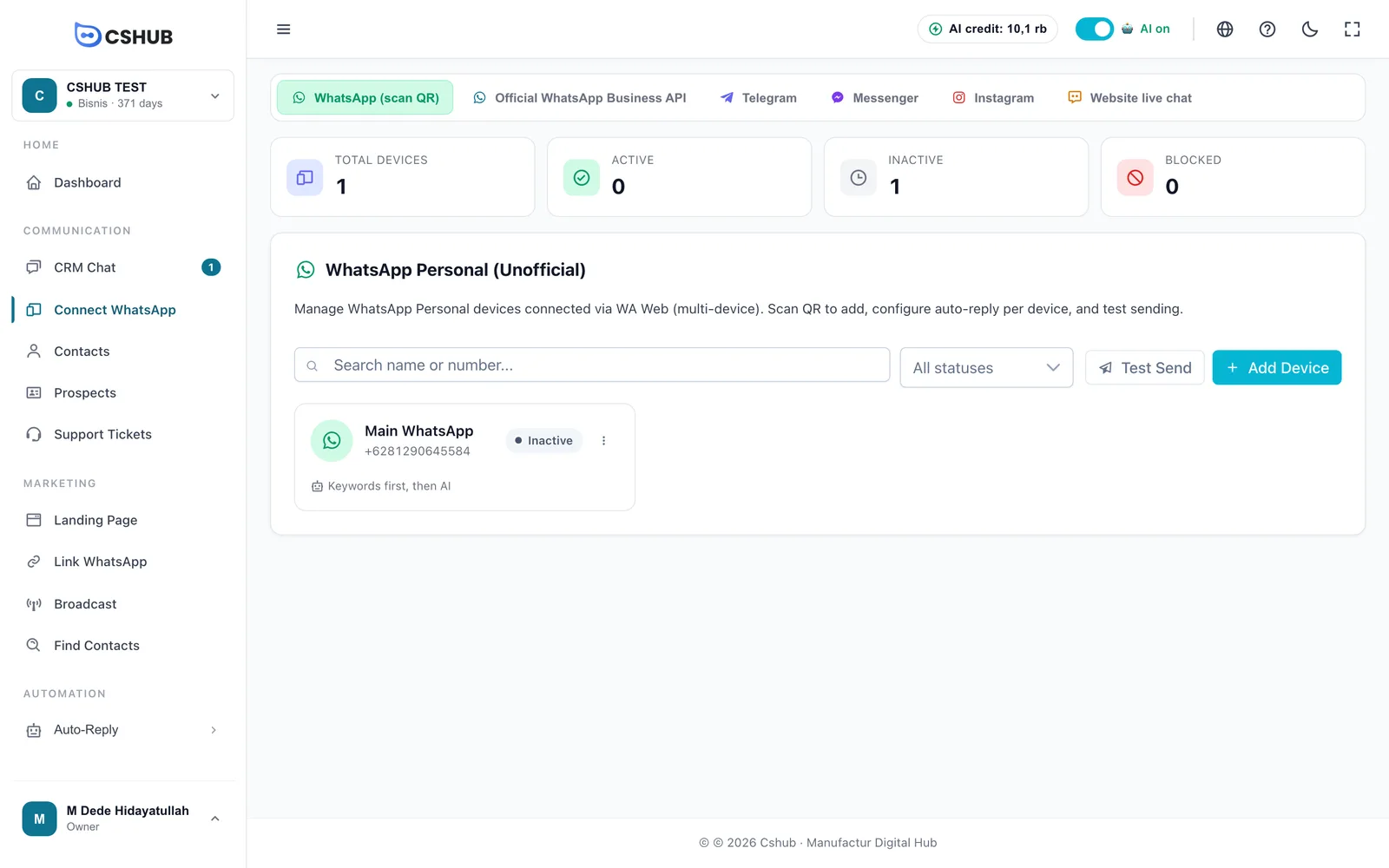
An Inactive device means its WhatsApp session isn't connected: it was never scanned, was logged out, or was unlinked from the phone under Linked devices. While it's inactive, new chats don't reach cshub and the AI can't reply.
- Open Connect WhatsApp → WhatsApp (scan QR) tab.
- On the device card, click ⋮ → Scan QR.
- Click Generate QR, then scan it from your phone (Linked devices → Link a device).
The full steps are in WhatsApp (scan QR).
To avoid frequent disconnects
Open the WhatsApp app on your phone at least once every 14 days. If the phone hasn't opened WhatsApp for a long time, the device link can expire and the device becomes inactive.
The QR won't scan or expires
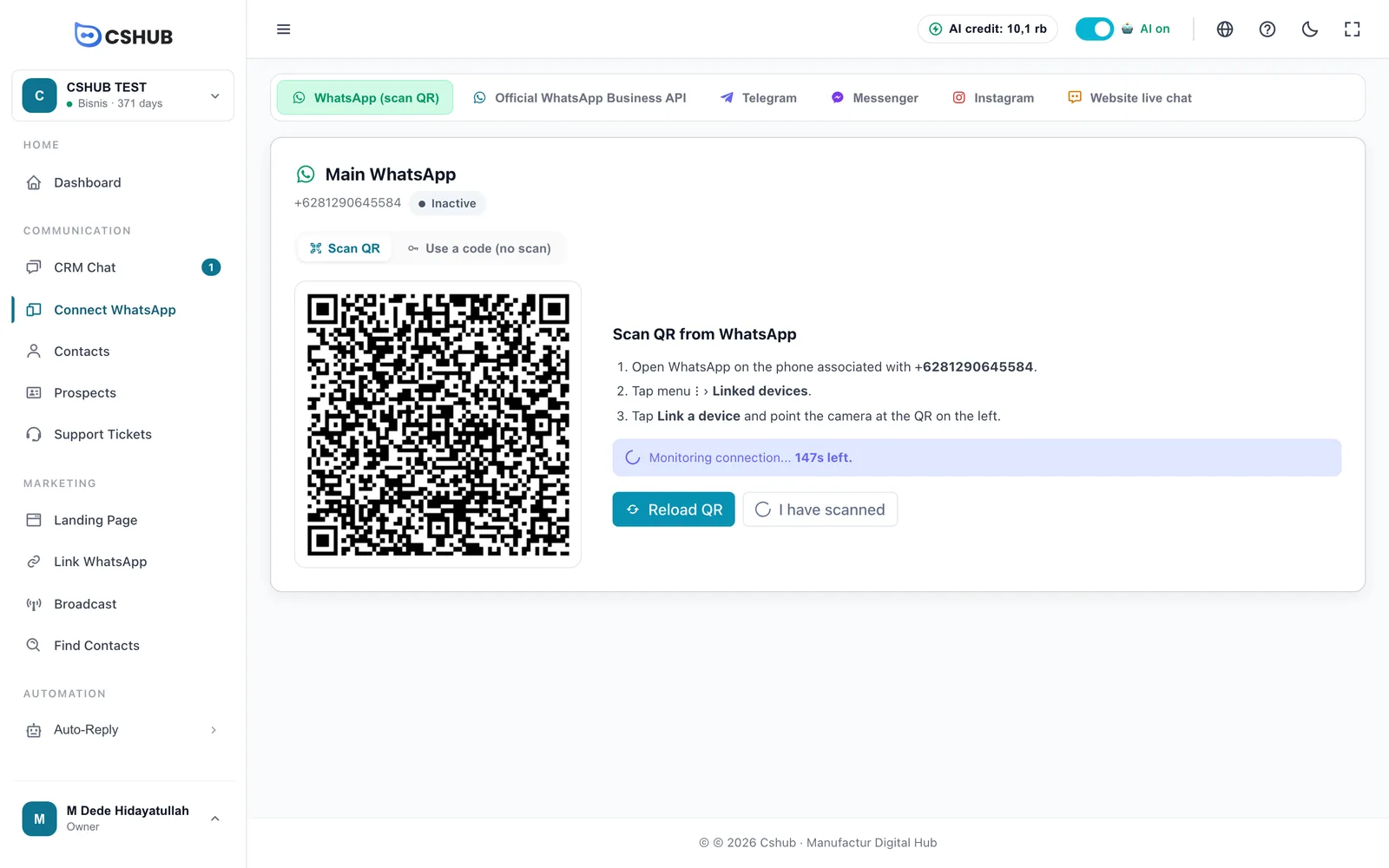
| Symptom | Cause & fix |
|---|---|
| The QR blurs and Reload QR appears | The pairing window ran out. Click Reload QR and scan a little faster |
| Scanned, but the status hasn't changed | Click I have scanned to re-check. Make sure the phone is online |
| Scanning keeps failing | WhatsApp allows only 4 linked devices per number. On the phone, open Linked devices and log out old ones you don't use (including leftovers from failed scans), then scan again |
| You scanned with a different number | The scan must come from WhatsApp on the same number you registered for the device |
| You only have one phone | Use the Use a code (no scan) tab → Get code, then enter the code in WhatsApp via Link with phone number instead |
If you see a message saying the WhatsApp service isn't responding or timed out (shown in Indonesian: Layanan WhatsApp sementara tidak respons / habis waktu (timeout)), the problem is the connection to the WhatsApp service, not your account. Wait a few minutes and try again.
The device shows "Blocked"
WhatsApp has restricted the number, usually because it sent too many messages too quickly or was reported by many recipients. Stop any broadcasts from that number first, check the number's status in the WhatsApp app on the phone, and follow the tips for keeping your number safe. For high volume, consider the official WhatsApp Business API.
Chats aren't arriving or aren't visible
| Cause | How to check |
|---|---|
| The device/channel is inactive | Check the device status under Connect WhatsApp. See above |
| Save chat history is turned off | Open ⋮ → Edit on the device card and make sure it's on. See Device settings |
| You're a team member without access to the device | In the device settings, make sure your name is under CS who can reply. The business owner can set this |
| Filters or tabs in CRM Chat | Check which tab and filters are active in CRM Chat |
| You're in a different business | Check the business name in the business switcher at the top left. See Switching businesses |
The AI isn't replying to chats
Work through the list from the top — it's ordered from the most common cause:

| # | Check | If it's the problem |
|---|---|---|
| 1 | The switch at the top of the screen says AI on, not AI paused | Click the switch to turn it back on. While paused, every auto-reply (AI and keywords) stops for the whole business |
| 2 | The AI credit pill isn't empty | Hover over it to see what's left. If it's empty, top up in AI credit & top-ups |
| 3 | The business plan is still active | If there's a red plan-expired banner, see the expired plan section |
| 4 | The device/channel is Active | See WhatsApp disconnected |
| 5 | The AI Agent is connected to that channel | Open the AI Agent → Connect to channel… and tick the channel. See Connecting to channels |
| 6 | The device's Auto-reply method isn't Keyword replies only | With that method, the AI doesn't answer messages that don't match a keyword. Choose AI Agent or Keywords first, then AI |
| 7 | The chat hasn't been taken over | In CRM Chat, chats showing You are replying aren't answered by the AI. Choose Let AI reply again. See Taking over from the AI |
| 8 | You're inside the Auto-reply schedule | Outside the device's schedule, chats arrive but aren't answered automatically |
| 9 | The device's daily Sending quota isn't used up | Raise the cap in the device settings if you really need to |
| 10 | Chatbot active on matches the chat type | In groups the bot only replies when tagged, and only if the option covers group messages |
| 11 | The AI Agent's Message Limit | If it's set to anything other than 0, the AI stops after that many replies in one chat |
Test without customers first
The Test tab on the AI Agent page shows the AI's answers without messaging anyone. If the AI answers in Test but not on WhatsApp, the problem is in items 1–10 (channel and settings), not the AI Agent itself. See Testing.
The AI replies, but the answers are off
- Fill in your business info and Q&A in AI knowledge, especially prices, address, opening hours, and payment methods.
- In Test, mark Answer not right → Add to Q&A to fix it on the spot.
- Keep an eye on the Evaluation tab to find questions that often go unanswered.
AI credit runs out quickly or is used up
Your remaining credit always shows on the AI credit pill at the top of the screen. When credit is empty or the plan isn't active, its tooltip reads AI Credit unavailable. Activate a plan or top up.
Things that use AI credit include AI Agent replies, AI Agent tests, conversation analysis, and AI Help once its free quota is used up. If credit seems to disappear fast:
- Check the AI Agent's Evaluation settings — automatic analysis that runs too often uses credit too.
- Make sure the AI isn't replying to chats it doesn't need to (groups, for example) with the Chatbot active on option in the device settings.
- Top up or upgrade in AI credit & top-ups. You can also earn free AI credit from Get bonuses.
A menu or feature is missing
| Cause | Fix |
|---|---|
| The menu is hidden by your business focus | Click Show all features at the bottom of the sidebar, or change the focus. See Business focus |
| Your role doesn't have access | Ask the business owner to add the permission to your role in Team, CS & roles |
| The menu has a padlock | The business plan has expired. See the next section |
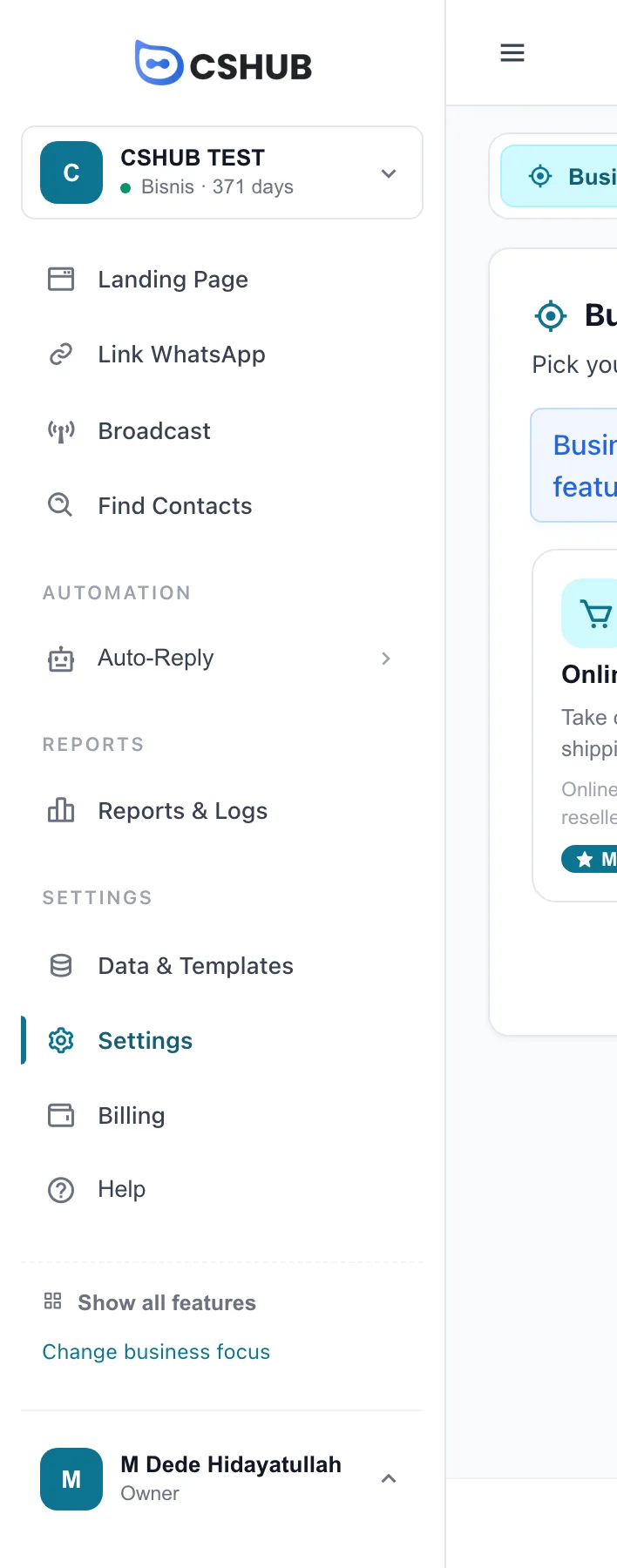
Features locked: plan expired
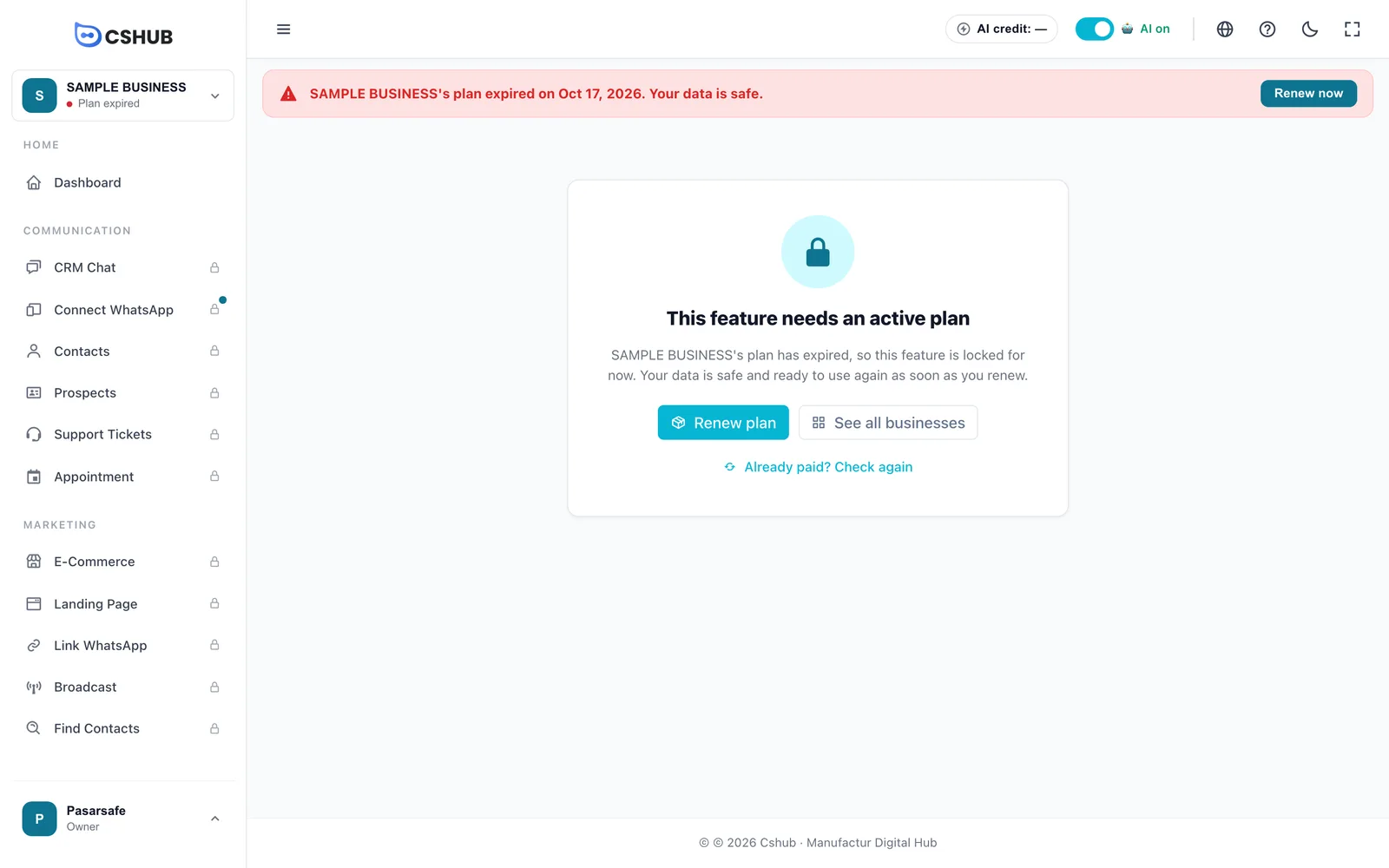
When a plan expires, features are locked for now but all your data stays safe. Click Renew plan (or Renew now on the red banner) to unlock them.
- Paid but still locked? Click Already paid? Check again. Features unlock once the payment status is Success — check it in Billing & plans.
- Team members without payment permission see a message asking them to contact the business owner. Ask the owner to renew.
- Dashboard, Billing, Profile, and AI Help stay available while the plan is expired.
The full details are in When your plan expires.
Keyboard shortcuts don't respond
The Ctrl/Cmd+B, Ctrl/Cmd+I, and Ctrl/Cmd+Shift+M shortcuts are ignored while your cursor is in a text field. Click an empty spot on the page and try again. On a Mac the general guide uses Cmd+Shift+M — Cmd+M without Shift is the system shortcut for minimizing the window. See Keyboard shortcuts.
Still stuck?
Open the Help panel (the Help button in the bottom-right corner, the Help item in the sidebar, the ? icon at the top, or Ctrl/Cmd+B):
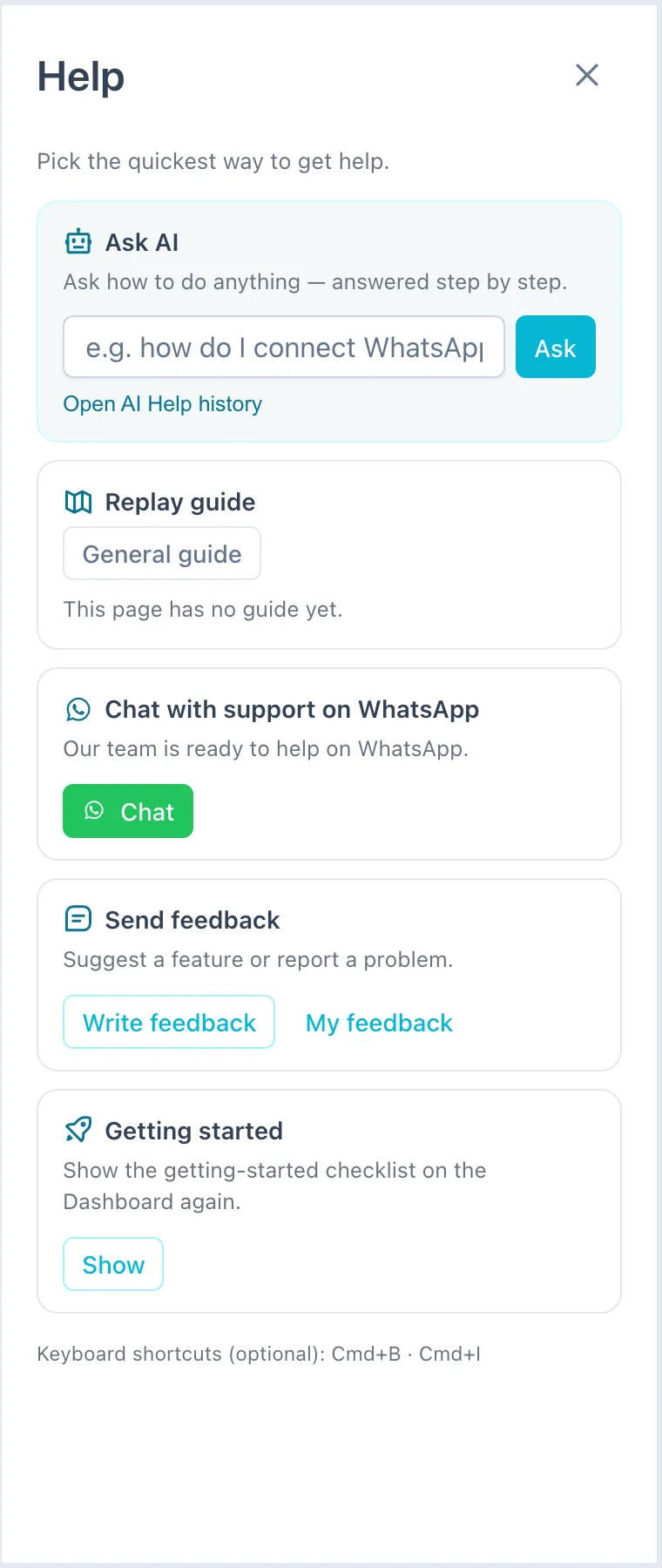
- Ask AI — describe the problem, for example "the AI isn't replying to WhatsApp chats". See AI Help.
- Chat with support — for account and payment issues, or anything AI Help couldn't solve. If you can't sign in at all, the Need help? Chat CS on WhatsApp button in the bottom-right corner of the sign-in page opens the same chat.
- Send feedback — to report something that isn't working as it should, with screenshots. See Sending feedback.
Get help faster
Mention your business name, the page where the problem appears, what you did, and any error message you saw — screenshots help a lot.