
Data & templates
Data & templates is where you set up the shared building blocks used across cshub — contact categories and custom fields, chat labels, ticket statuses and categories, media files, WhatsApp message templates, and quick replies — so your whole team works with the same terms and the same messages.
Everything you create here shows up again in other menus: categories filter your broadcasts, labels tag conversations in CRM Chat, message templates power keyword replies and notifications, and so on.
Opening Data & Templates
Click Data & Templates in the sidebar, under the Settings group.
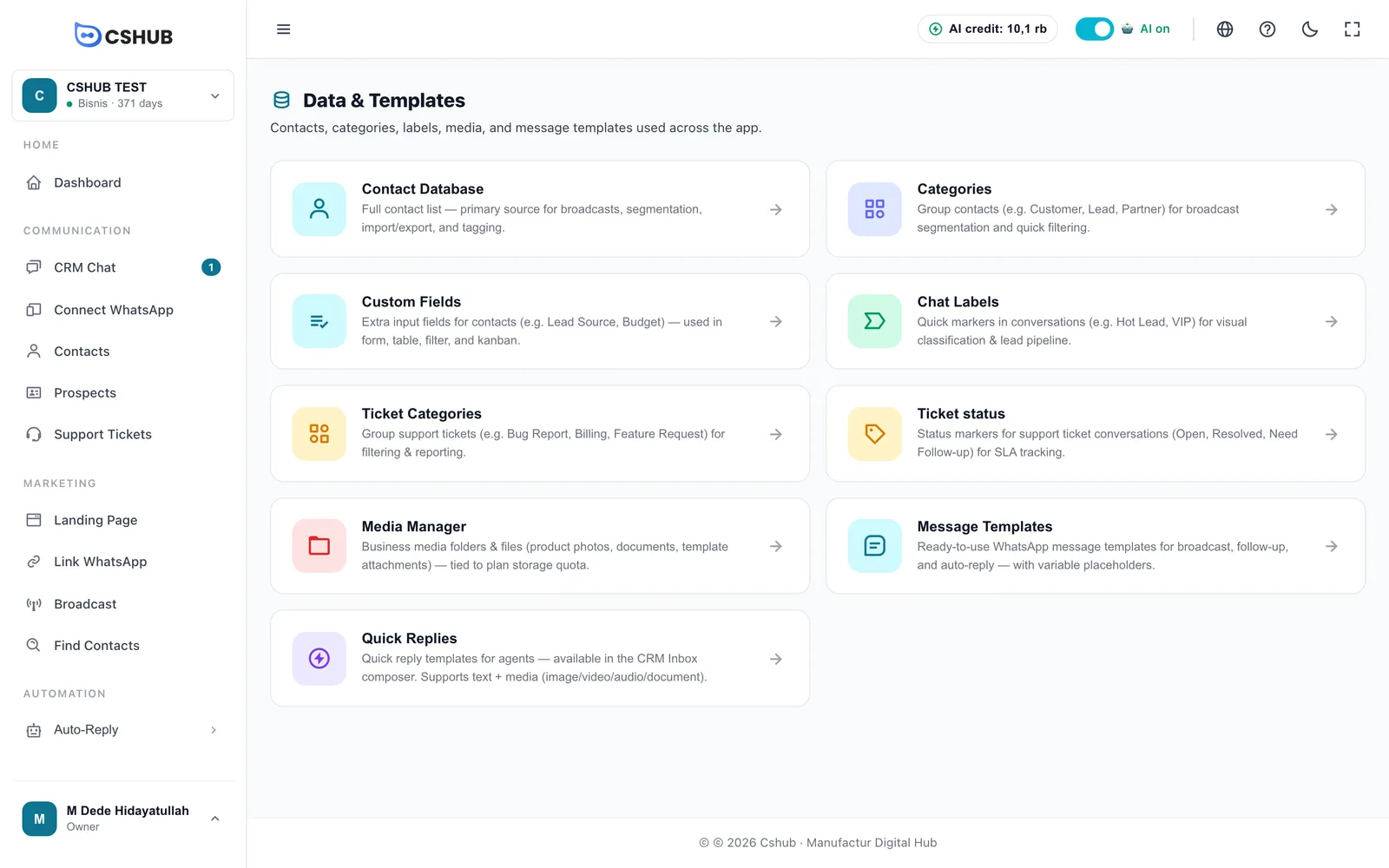
| Card | What it's for | Covered in |
|---|---|---|
| Contact Database | The full contact list | Contacts |
| Categories | Grouping contacts (e.g. Customer, Lead, Partner) | Below |
| Custom Fields | Extra fields on contacts (e.g. Lead Source, Budget) | Below |
| Chat Labels | Quick markers on conversations (e.g. Hot Lead, VIP) | Below |
| Ticket Categories | Types of support issues | Below |
| Ticket status | Stages of a support ticket, shown as columns on the ticket board | Below |
| Media Manager | Business media folders and files | Below |
| Message Templates | WhatsApp templates for broadcasts, follow-ups, auto-replies, and notifications | Below |
| Quick Replies | Ready-made answers for your CS team in CRM Chat | Quick replies |
Once you open a card, the tab bar at the top lets you jump between sections without going back.
Contact categories
Categories group contacts by type, for broadcast segmentation and quick filtering in your contact list.
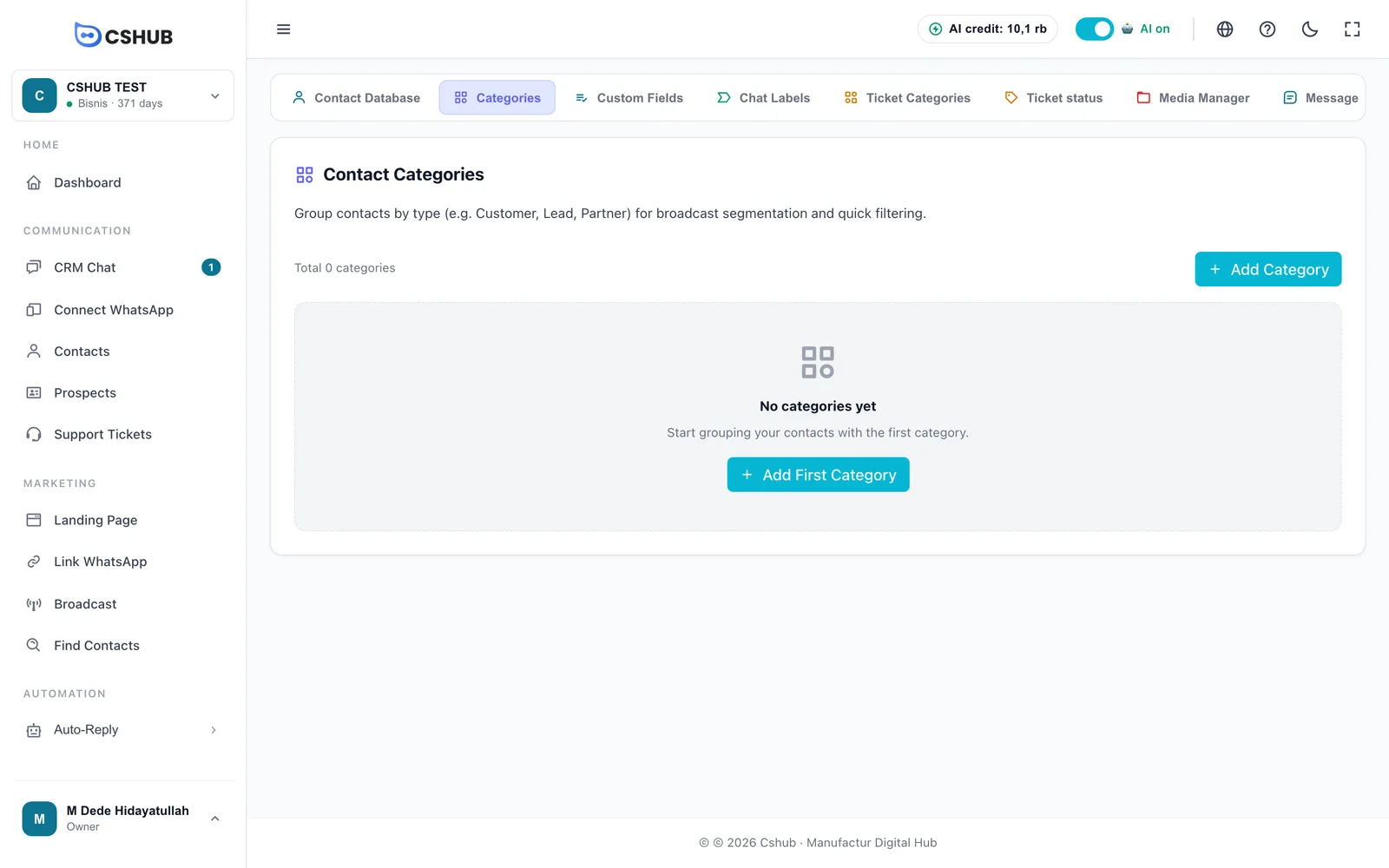
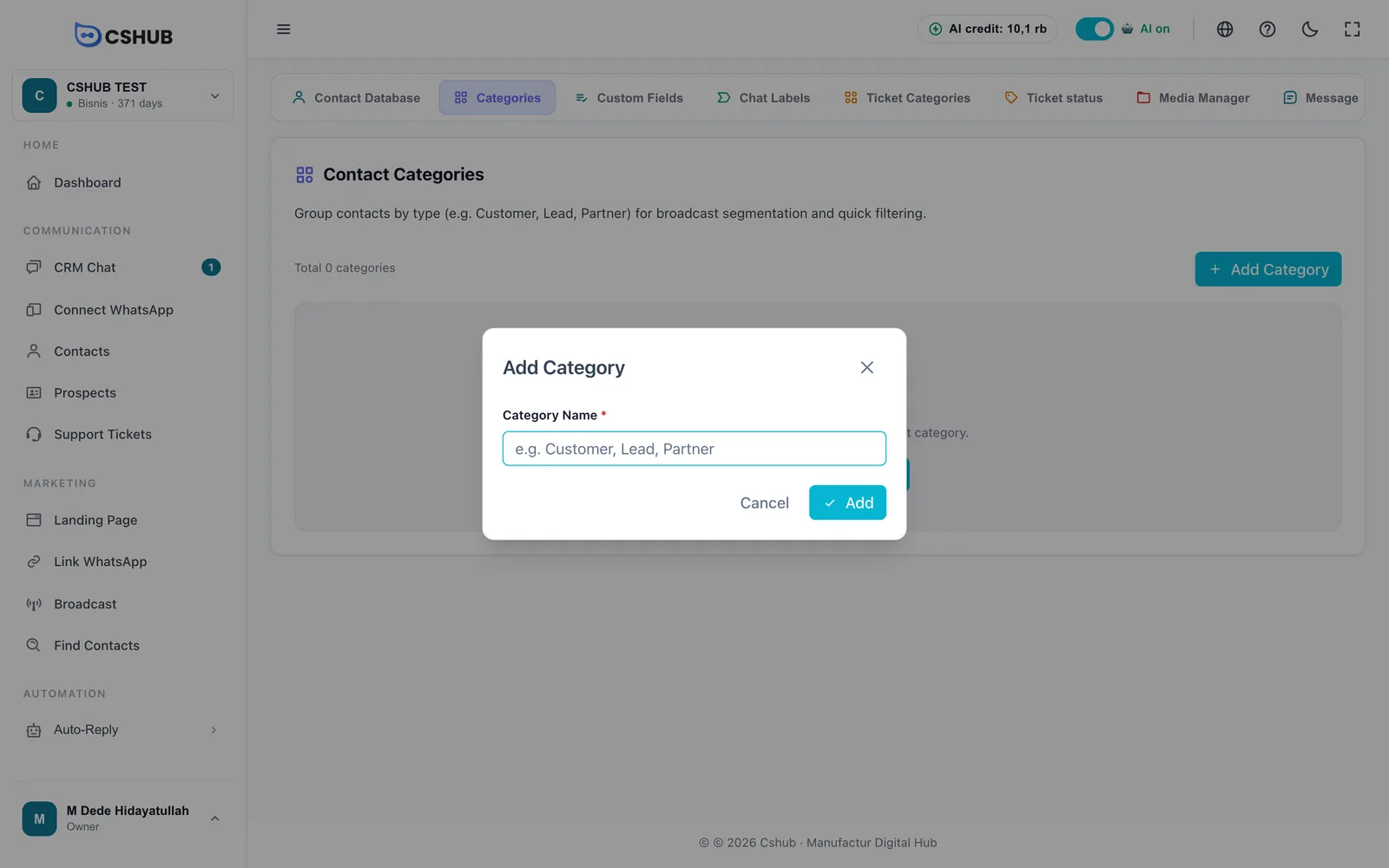
- Click Add Category.
- Enter a Category Name, for example Customer, Lead, or Partner (up to 255 characters).
- Click Add.
The Total Contacts column shows how many contacts use each category.
Categories in use can't be deleted
A category used by active contacts can't be deleted. Move those contacts to another category first in Contacts.
Custom fields
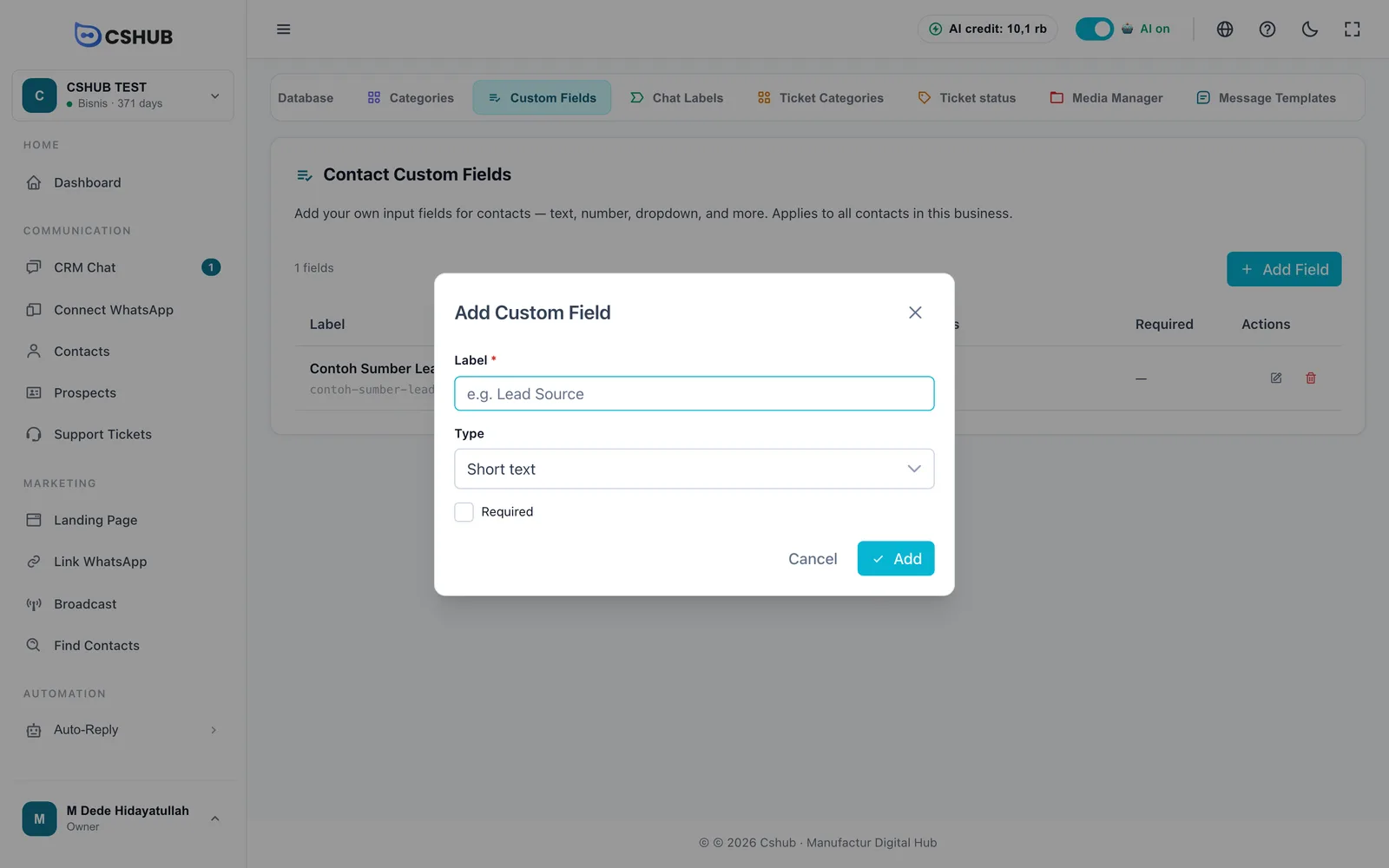
Custom fields add your own fields to contact records — such as Lead Source, Budget, or Child's Birthday. They apply to every contact in the business and appear in the contact form, the table, filters, and the prospects board.
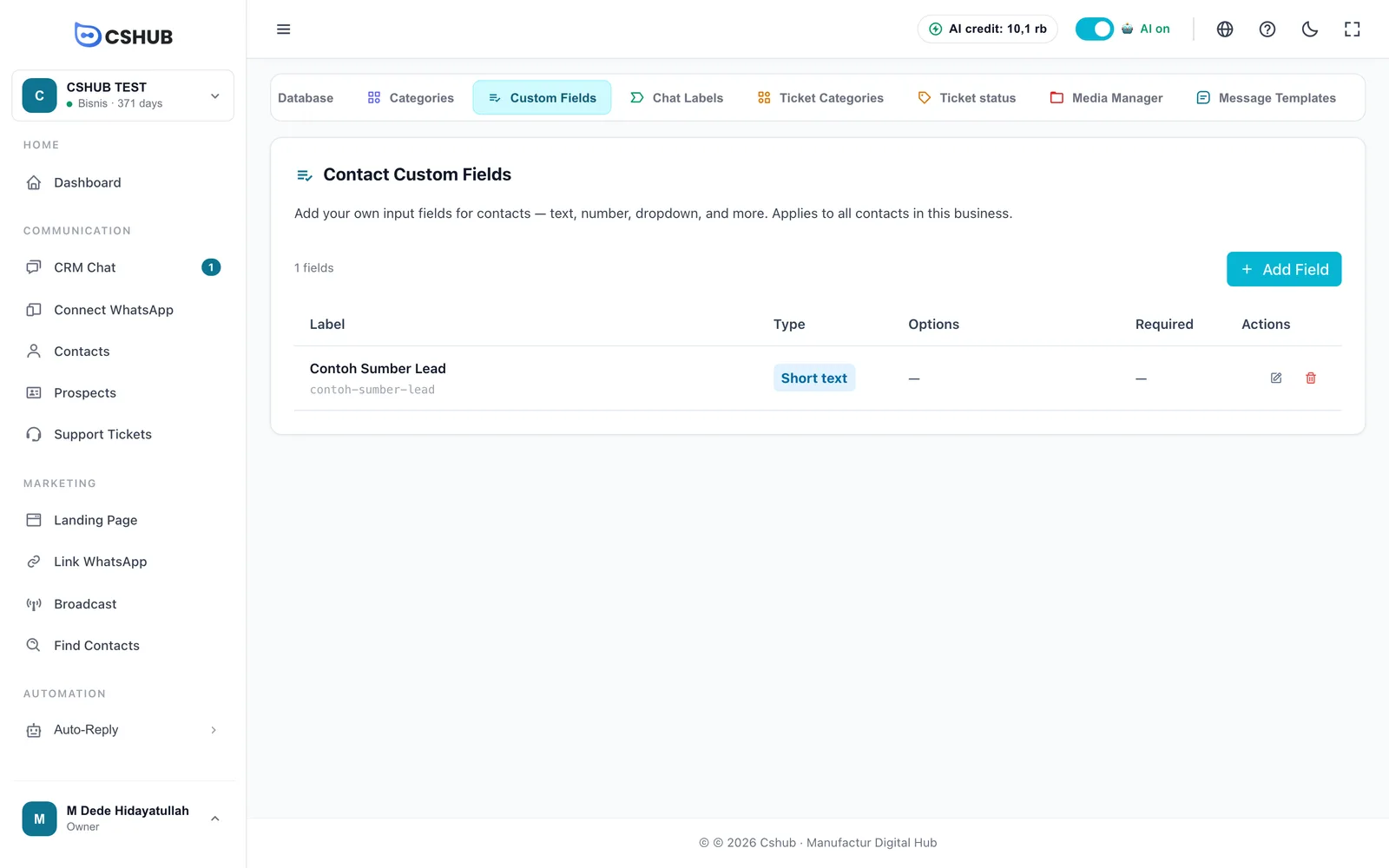
- Click Add Field.
- Fill in the form, then click Add.
| Field | Notes |
|---|---|
| Label | Required. The field name shown on the contact form |
| Type | The kind of field (see below) |
| Choices | Shown for choice types. Click Add Option for each choice |
| Required | Tick if this field must be filled in every time a contact is saved |
| Type | Good for |
|---|---|
| Short text | One line of text, such as a company name |
| Long text | Multi-line notes |
| Number | Budget, household size, and so on |
| Dropdown | One choice from a list, shown as a drop-down menu |
| Radio choice | One choice from a list, with every option visible |
| Checkboxes (multi-select) | More than one option can be picked |
Deleting a custom field
When a field is deleted, values already stored on contacts are no longer shown.
You can also manage custom fields straight from the contact list with the Manage Fields button — see Contacts.
Chat labels
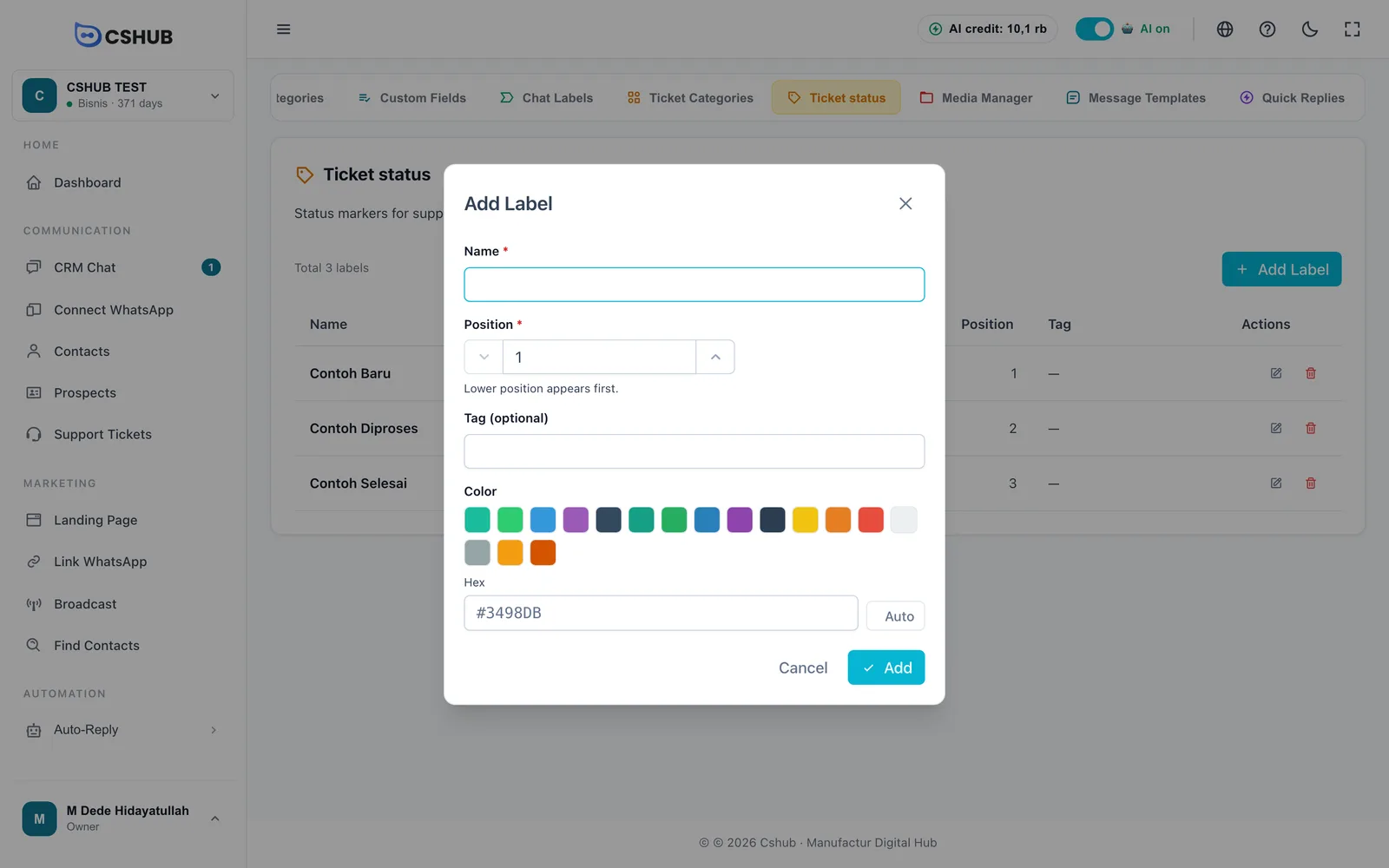
Chat labels are colored markers on conversations, such as Hot Lead, VIP, or Complaint, so your team can spot and filter chats quickly.
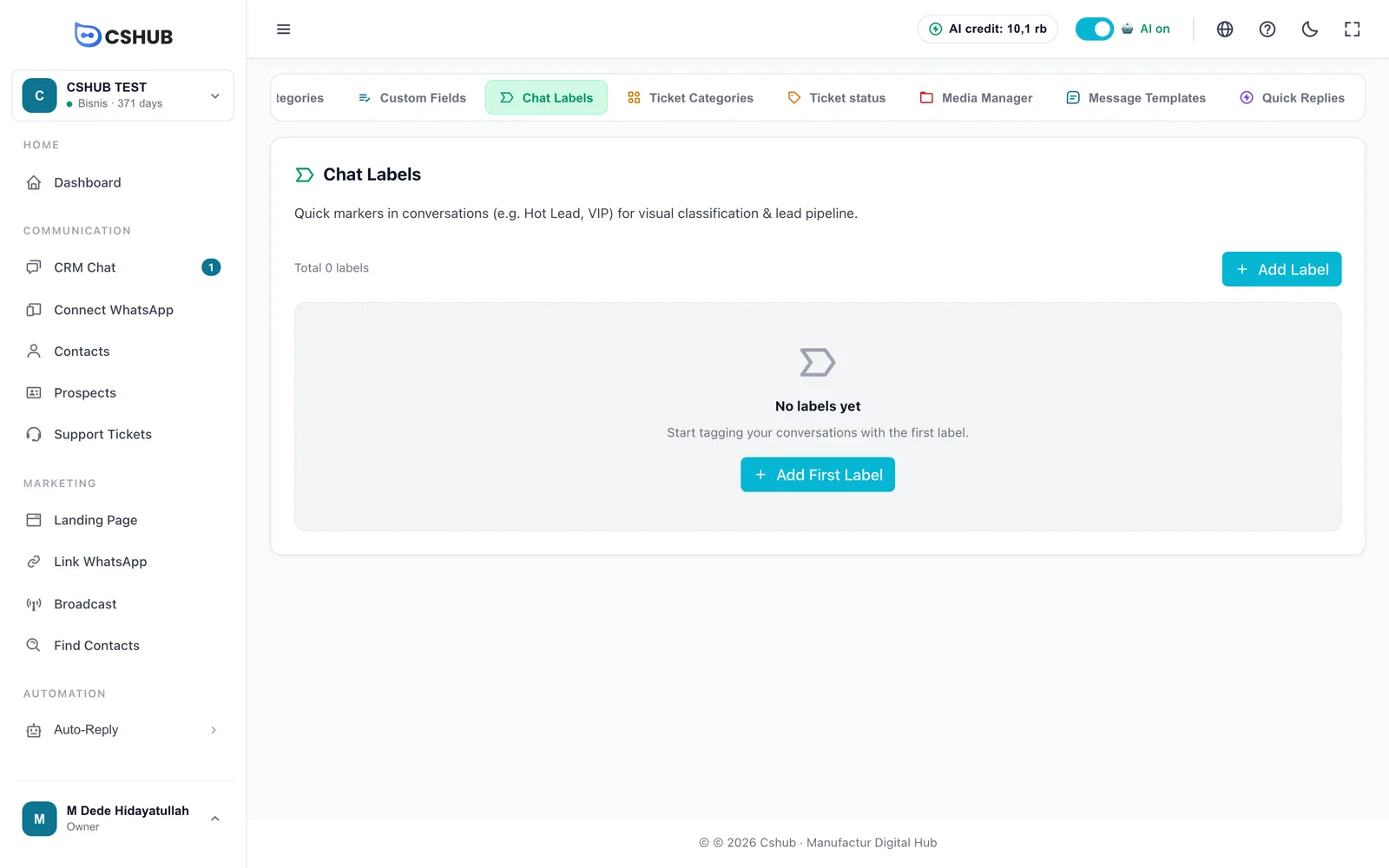
- Click Add Label.
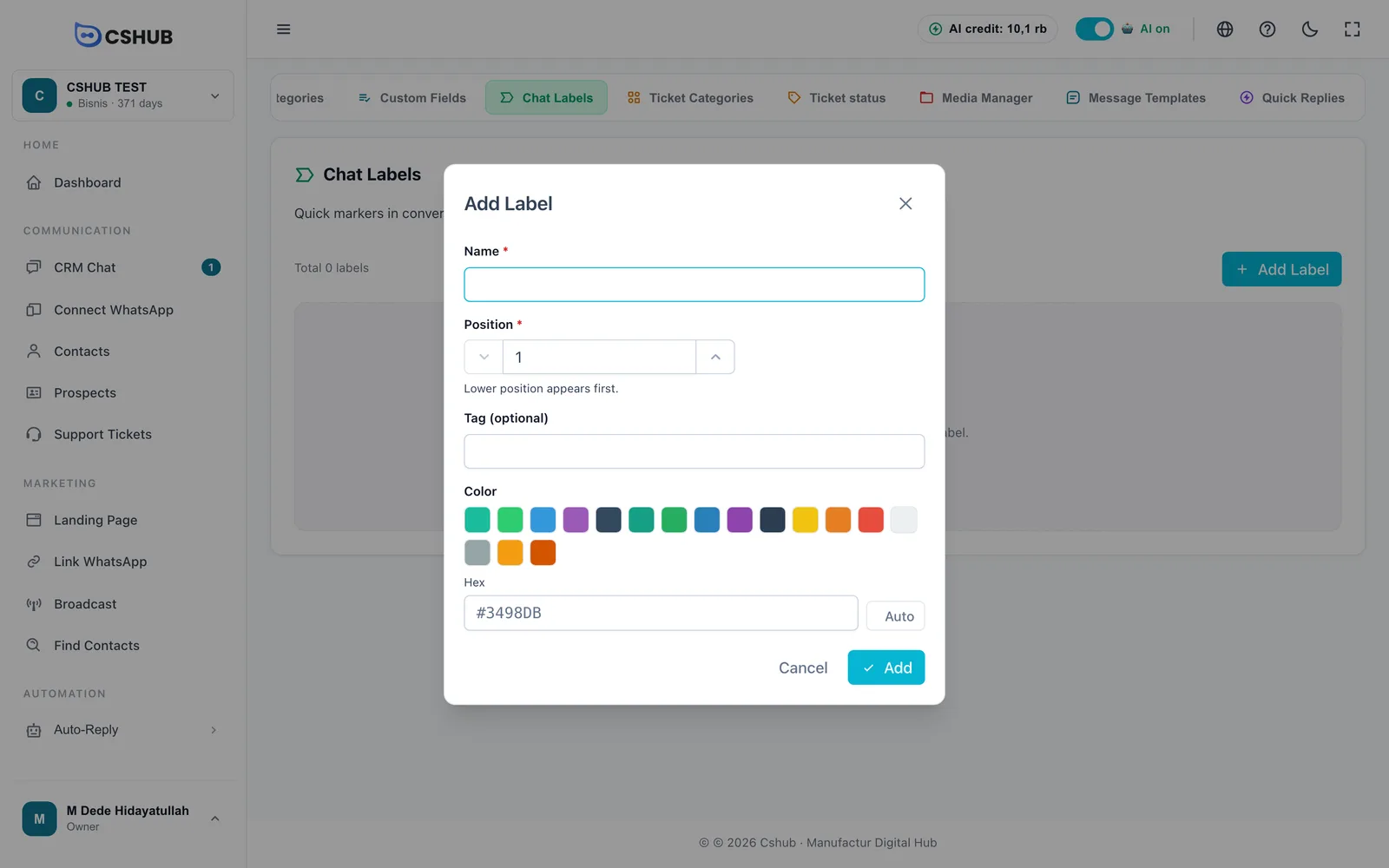
- Fill in the form, then click Add.
| Field | Notes |
|---|---|
| Name | Required, up to 255 characters |
| Position | Required. Display order — lower numbers appear first |
| Tag (optional) | An extra short code for the label |
| Color | Pick from the palette, or type a color code in Hex (#RRGGBB format). Auto picks a color for you |
System default labels are marked and can't be deleted.
How to put labels on a conversation is covered in Replying to conversations.
Ticket statuses and categories
These two sections are used by Support tickets.
- Ticket status becomes the columns on the ticket board, for example New, In progress, Done. The form is the same as for chat labels: Name, Position, Tag (optional), and Color. Position sets the column order on the board.
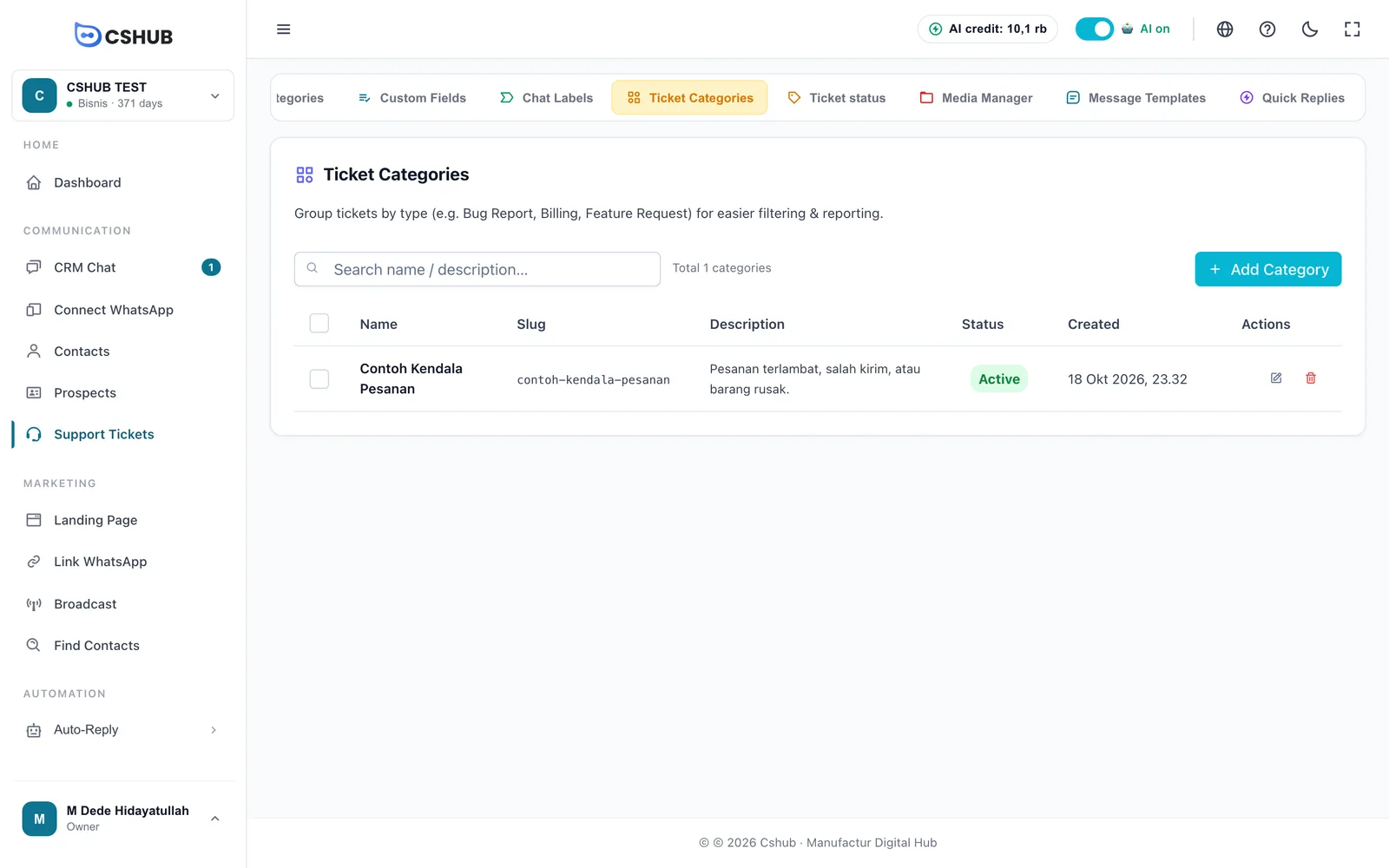
- Ticket Categories group issue types, such as Order problem, Return, or Billing, for filtering and reports. Each category has a name, a description, and an active status.
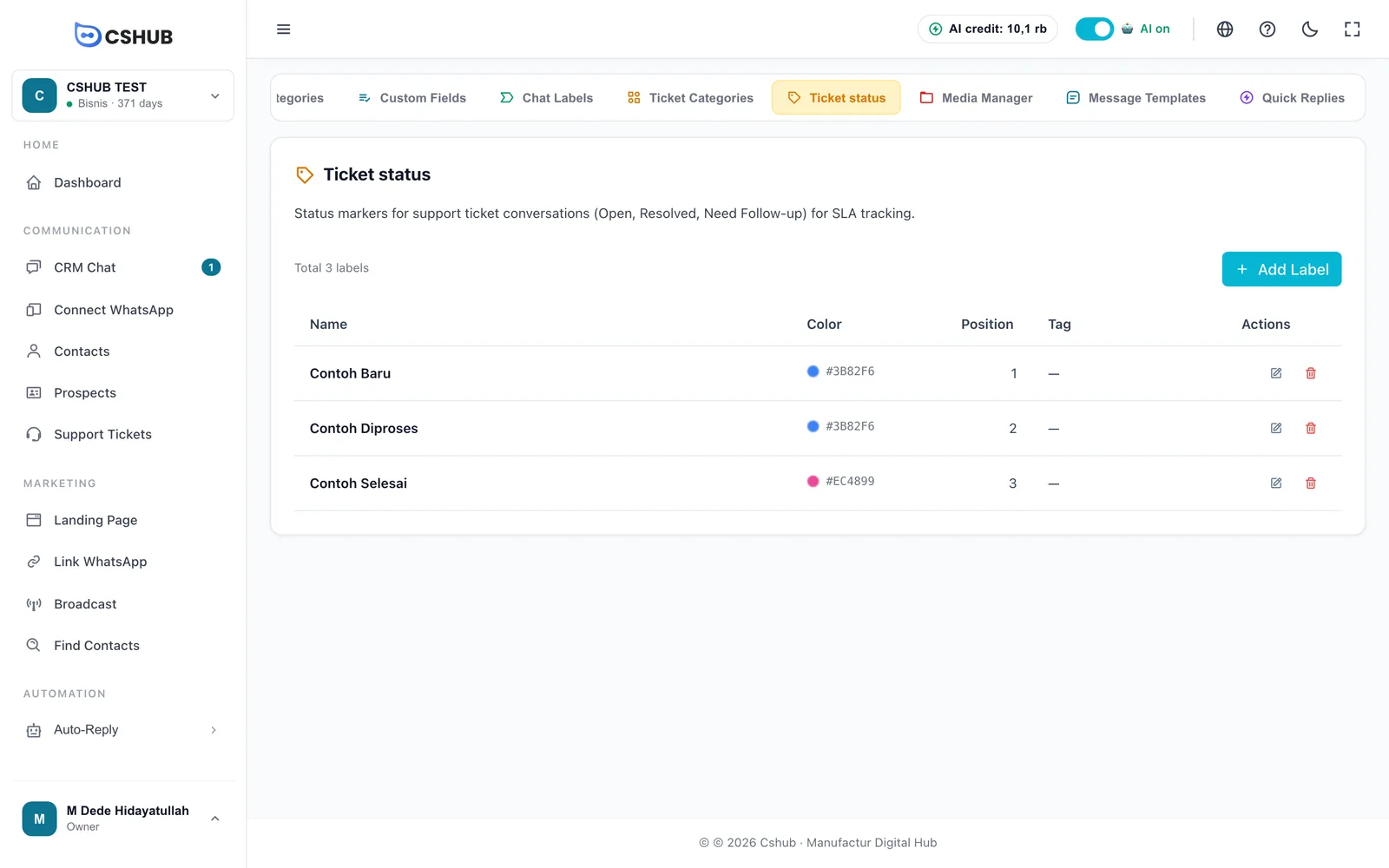
The full guide to using statuses and categories on the ticket board is in Support tickets.
Media Manager
Media Manager stores your business files — product photos, documents, template attachments — in folders. Its space comes from your plan's storage quota.
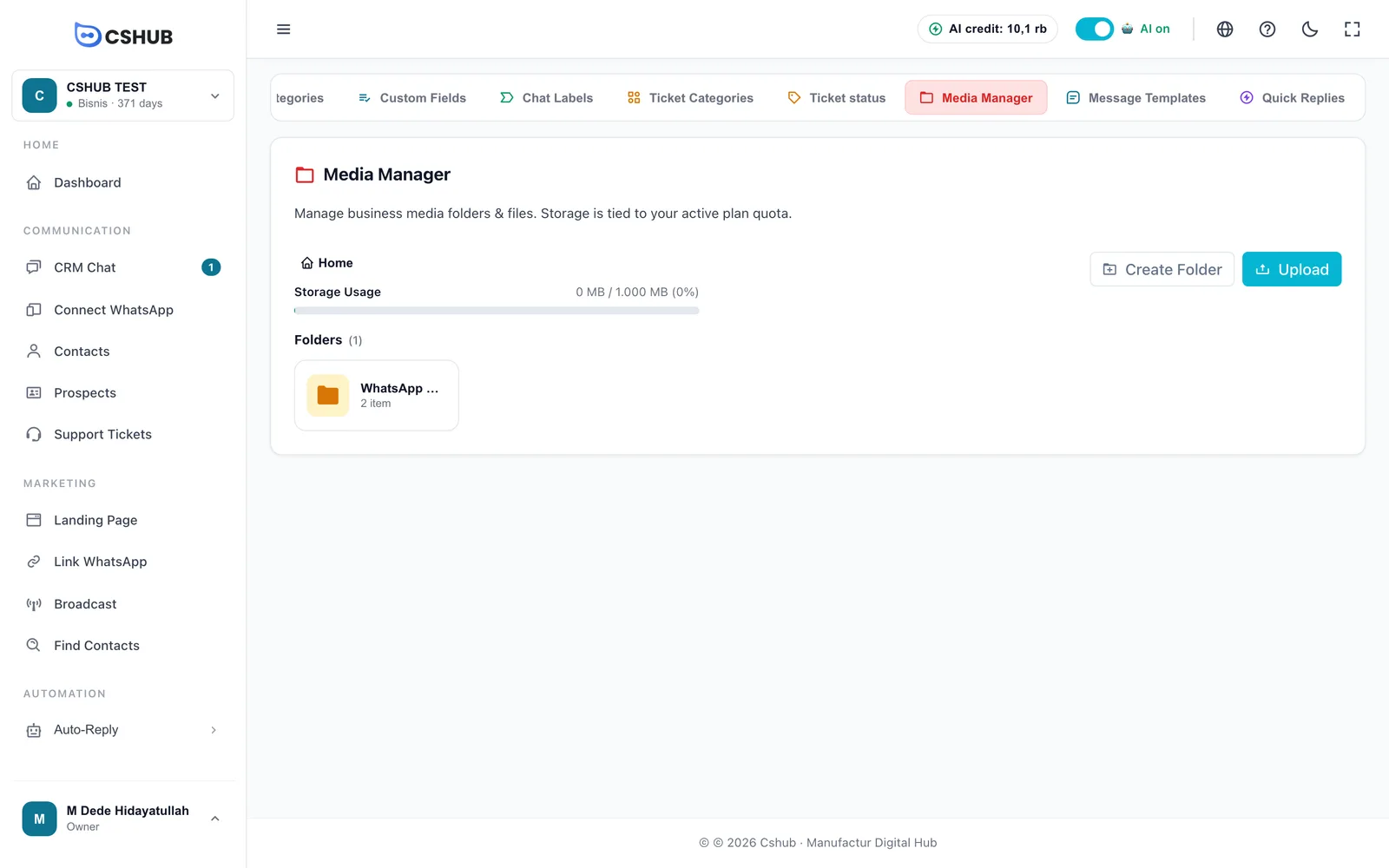
| Element | Notes |
|---|---|
| Folder location | The trail of the folder you're in. Click Home to go back to the top level |
| Storage Usage | Space used out of your plan quota |
| Create Folder | Creates a new folder in the current location |
| Upload | Uploads files into the current folder |
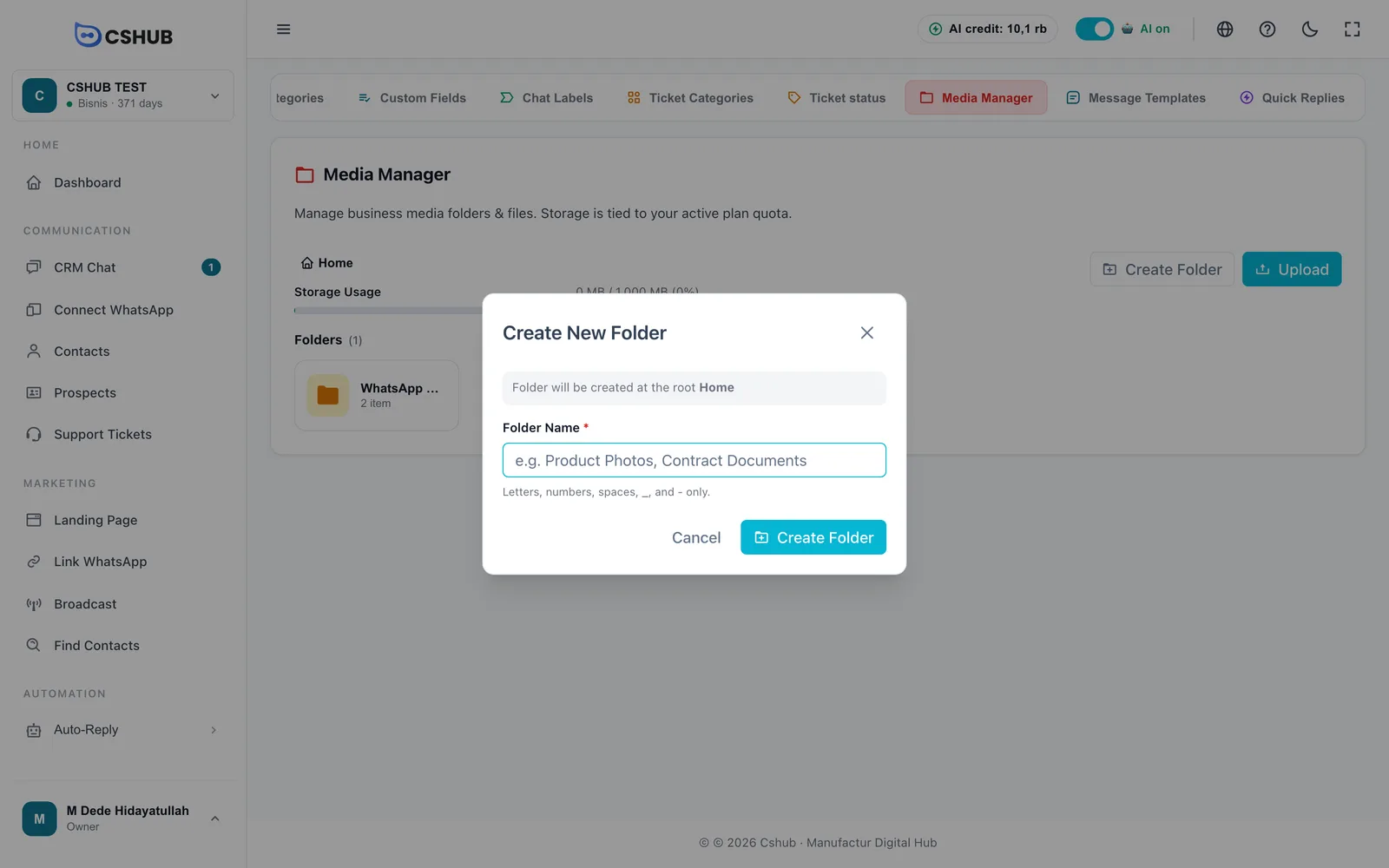
Creating a folder
- Go to where you want the folder (or stay at Home).
- Click Create Folder.
- Enter a Folder Name — letters, numbers, spaces,
_, and-only, up to 100 characters. For example Product Photos or Contract Documents. - Click Create Folder.
Uploading files
Click Upload and choose a file. Limits:
| Limit | Value |
|---|---|
| Maximum size | 3 MB per file |
| File types | Images (PNG, JPG, WEBP), audio (OGG, MP3), video (MP4), PDF, CSV, TXT, and Word, Excel and PowerPoint documents |
Click a file to open Media Preview. From there you can Open in New Tab or Copy URL to paste it elsewhere.
Deletion limits
Folders that still contain files can't be deleted — empty them first. Deleted files can't be recovered.
If your storage plan isn't active, Media Manager says so and rejects uploads until you activate a plan with the Buy Plan button. See Billing & packages.
Message templates
Message templates are ready-to-use WhatsApp messages for broadcasts, follow-ups, auto-replies, and transaction notifications. Create once, reuse many times.
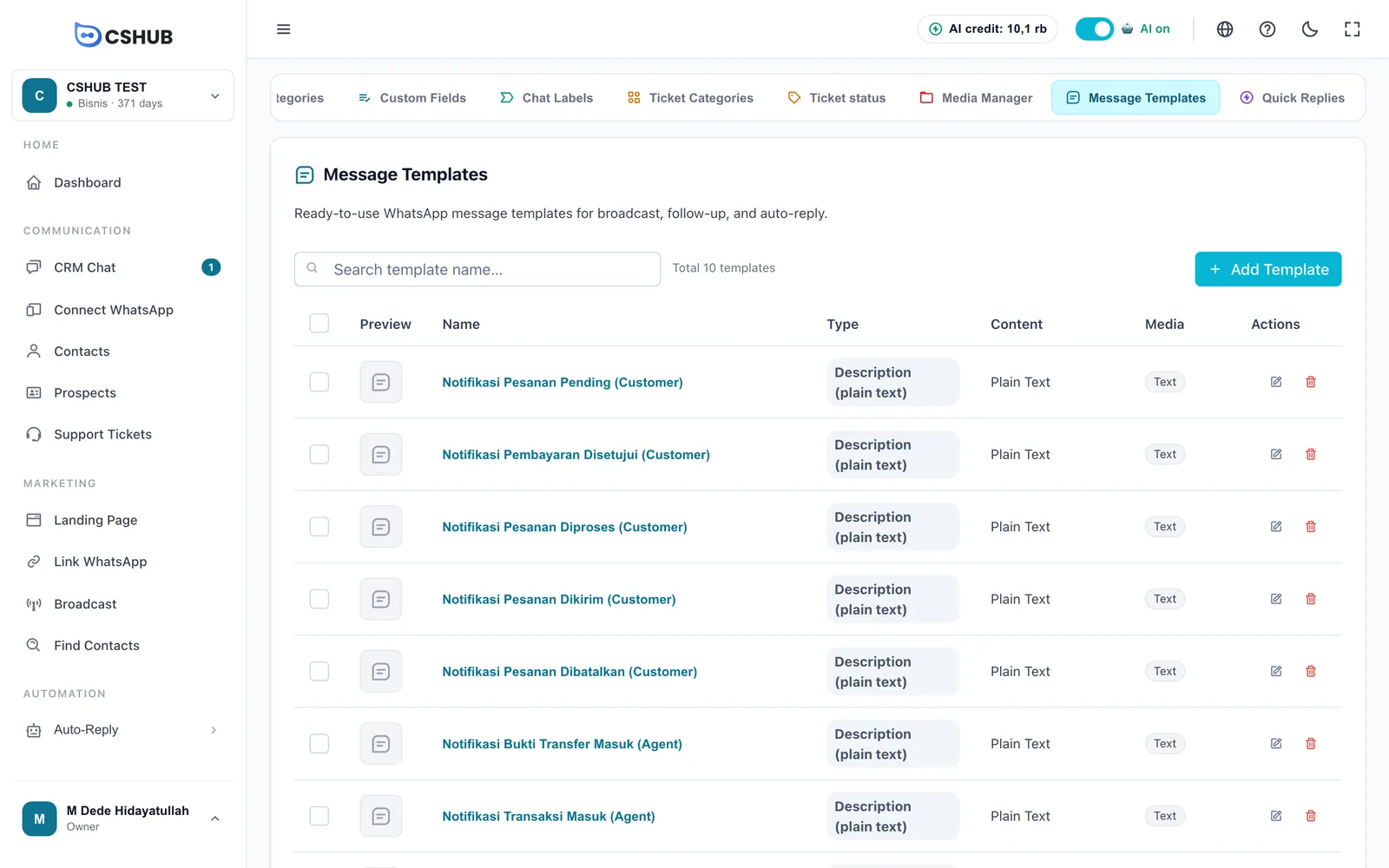
New businesses get 10 built-in notification templates for order and payment events. Their names and text are in Indonesian — rewrite them in your own language and tone as you like.
Tick several templates and use the delete-selected button to remove them at once.
Creating a template
- Click Add Template.
- Pick the type from the tabs at the top.
- Fill in the template details and the message body. The preview on the right shows how it will look in WhatsApp.
- Click Add Template.
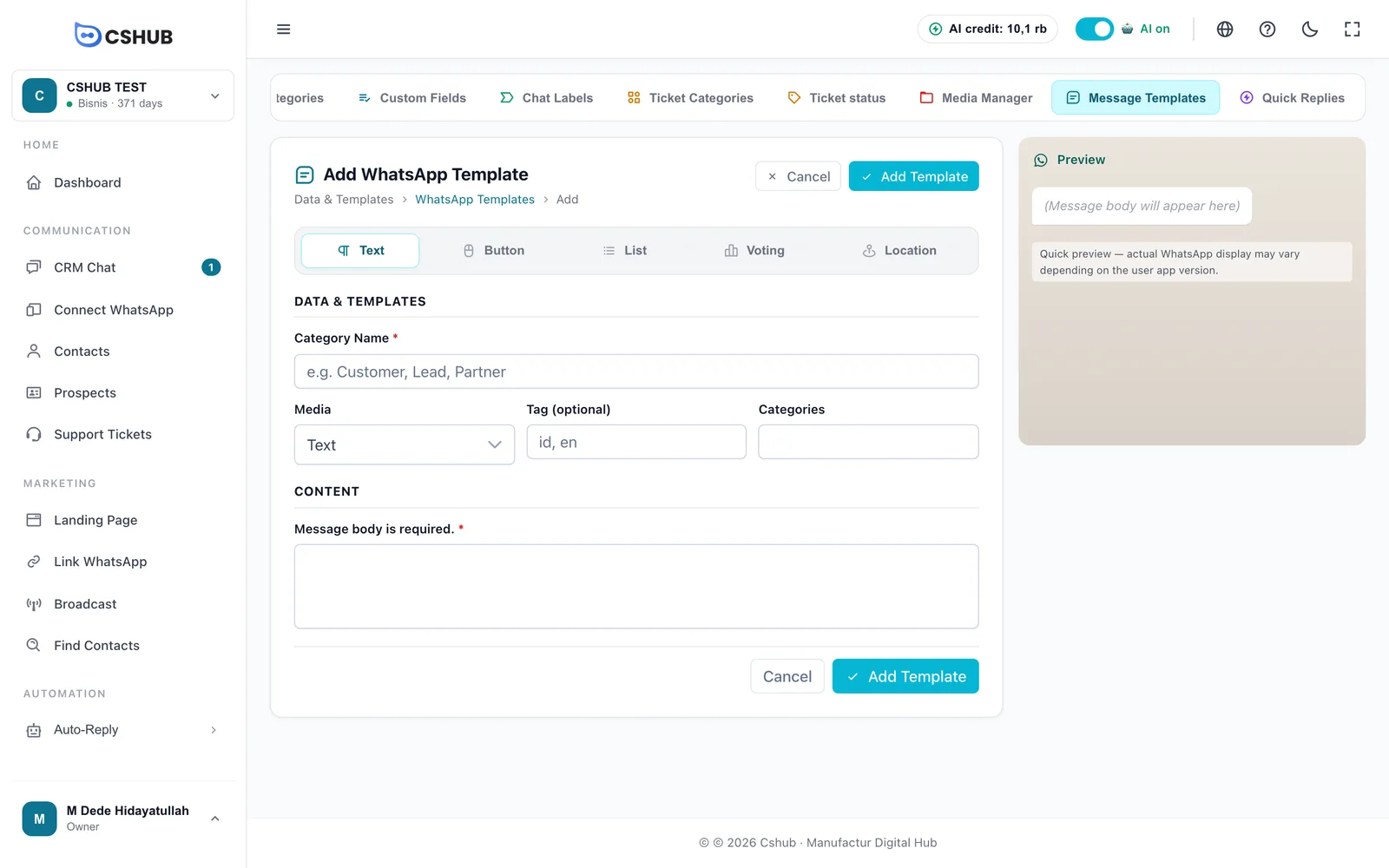
| Type | Contents |
|---|---|
| Text | A plain message (shown in the list as "Description (plain text)") |
| Button | A message with 1–3 buttons. Each button has a name and a kind: Reply (kirim balasan) (sends a reply), URL (buka link) (opens a link), or Telepon (phone call) — these kind labels appear in Indonesian. URL buttons need a link and phone buttons need a number. There's an optional Footer (up to 60 characters) |
| List | A message with a trigger button that opens a list of choices. At least 1 section, and each section needs at least 1 titled item. Optional Footer |
| Voting | A poll with at least 2 options |
| Location | Sends a map pin. Latitude (−90 to 90) and longitude (−180 to 180) are required |
| Field | Notes |
|---|---|
| Category Name | Required. This is actually the template name (the form labels it this way), up to 255 characters. It's the name you pick when using the template |
| Media | Text (no attachment), Image, Video, Document, or Audio. Anything other than Text shows a file upload area |
| Tag (optional) | A short code up to 10 characters, such as a language code id or en |
| Category | Free text to group templates, up to 100 characters |
| Message body | Required. Supports emoji, line breaks, and WhatsApp formatting such as *bold* |
| Media attachment | Formats | Maximum size |
|---|---|---|
| Image | JPG, PNG, WEBP | 2 MB |
| Video | MP4, MKV | 25 MB |
| Document | PDF, DOC, DOCX | 3 MB |
| Audio | MP3, WAV, OGG | 3 MB |
Buttons and lists on scan-QR WhatsApp
Button and List messages often don't display on the recipient's phone when sent from a scan-QR WhatsApp number. To let customers choose an answer, use the Voting type, or write numbered options in a plain text message.
Editing a template
Click a template name or the edit icon to open Edit WhatsApp Template.
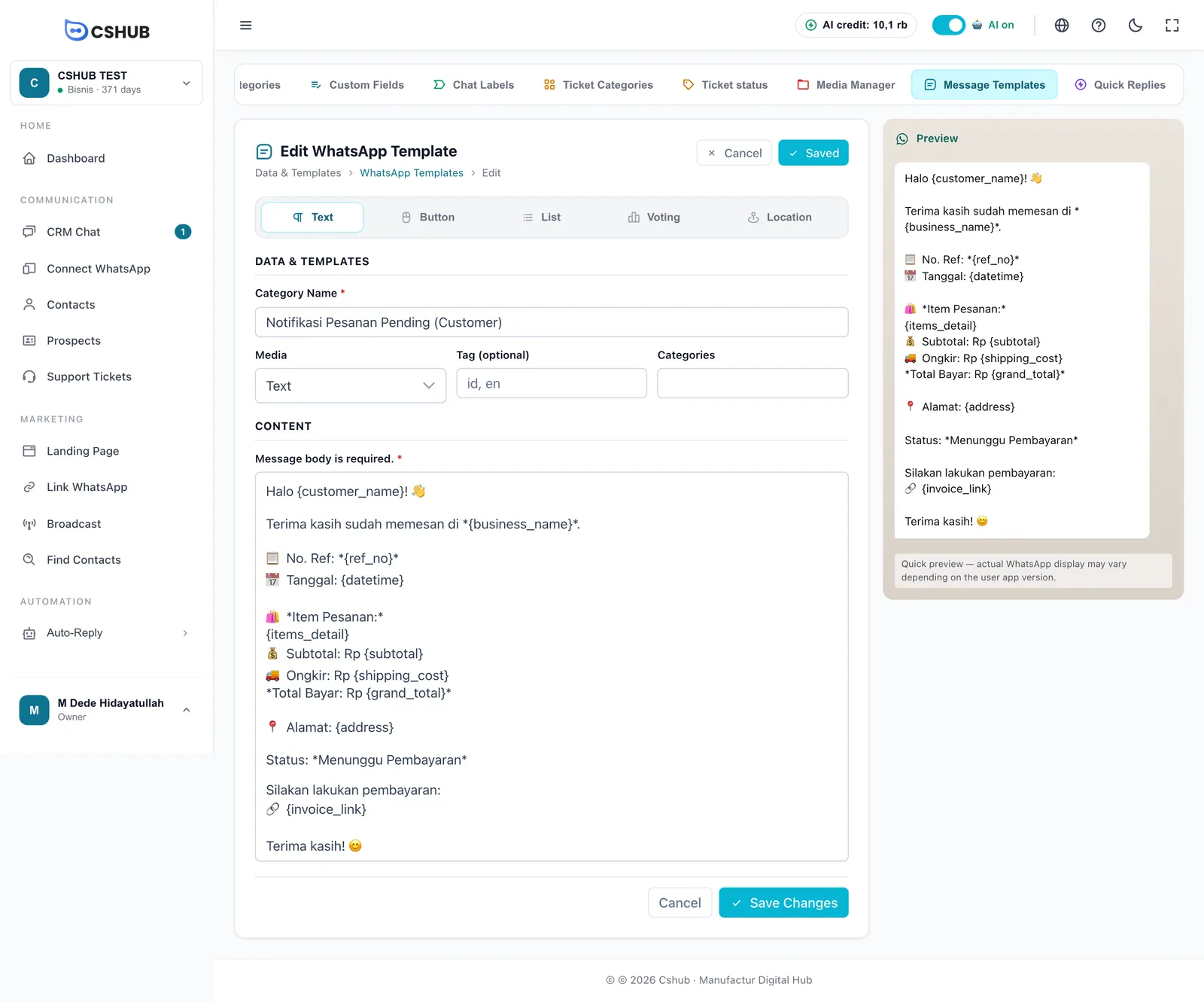
Text in curly braces like {customer_name} is a variable that's replaced automatically when the message is sent. Which variables are available depends on where the template is used — transaction variables are listed under Notifications, and broadcast variables under WhatsApp broadcast.
The preview is an approximation
The Preview panel is a quick sketch. The real WhatsApp display can differ slightly depending on the recipient's app version.
Quick replies
The last tab, Quick Replies, holds ready-made answers your CS team can drop into the CRM Chat reply box — text only, or with an image, video, audio, or document.
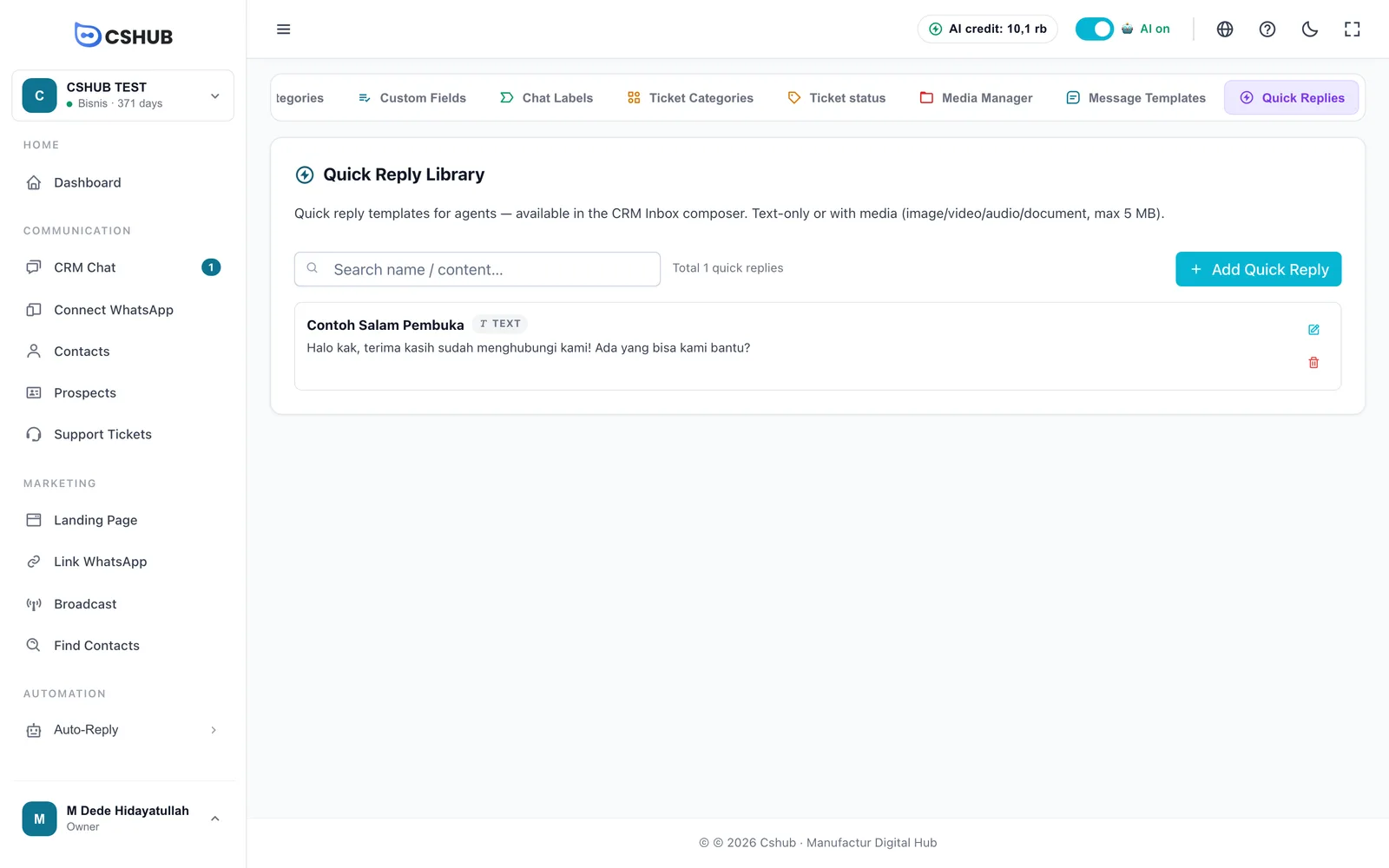
How to create and use them is covered in full in Quick replies.
Message template or quick reply?
Quick replies are used by hand by your CS team while replying to chats. Message templates are used by the automatic features — broadcasts, auto-replies, follow-ups, and notifications.