
AI appointment booking
Your AI Agent can take appointment bookings right in the chat — consultations, site visits, demos, or store visits — by offering open times from your availability schedule, making sure the time doesn't clash, and recording it automatically in Appointments.
You set this up on the Appointments tab of the AI Agent edit page. The tab only opens if your plan includes appointments; otherwise it shows a padlock.
How it works in a chat
- The customer asks, for example "can I book for tomorrow?".
- The AI mentions the available days and hours from your schedule and asks which date and time they'd like.
- The customer names a time — casual phrasing like "tmrw 2pm" is fine.
- The AI checks that the time is within your schedule, not in the past, and not already taken by another appointment.
- If it fits, the AI saves the appointment and sends a confirmation with the date, time, and topic. If not, it offers other open times that day.
| Rule | Details |
|---|---|
| Duration | 1 hour by default (15 minutes to 4 hours if the customer specifies a length) |
| Outside the schedule | Declined; the AI offers available slots |
| Time already passed | Declined |
| Time already booked | Declined — the AI never books two appointments at the same time. Cancelled appointments don't count |
| Plan quota | If your plan's appointment limit is used up, the AI can't create new ones |
Appointments created by the AI appear in Appointments with the status Scheduled, linked to the customer's contact, and you can edit or cancel them like any other appointment. If the customer doesn't mention a topic, the title is Janji Temu via AI ("appointment via AI").
Turning booking on
- Go to Automation → Auto-Reply → AI Agent, then Detail & Edit on your agent.
- Choose the Appointments tab.
The feature starts off, and the availability schedule can't be edited yet.
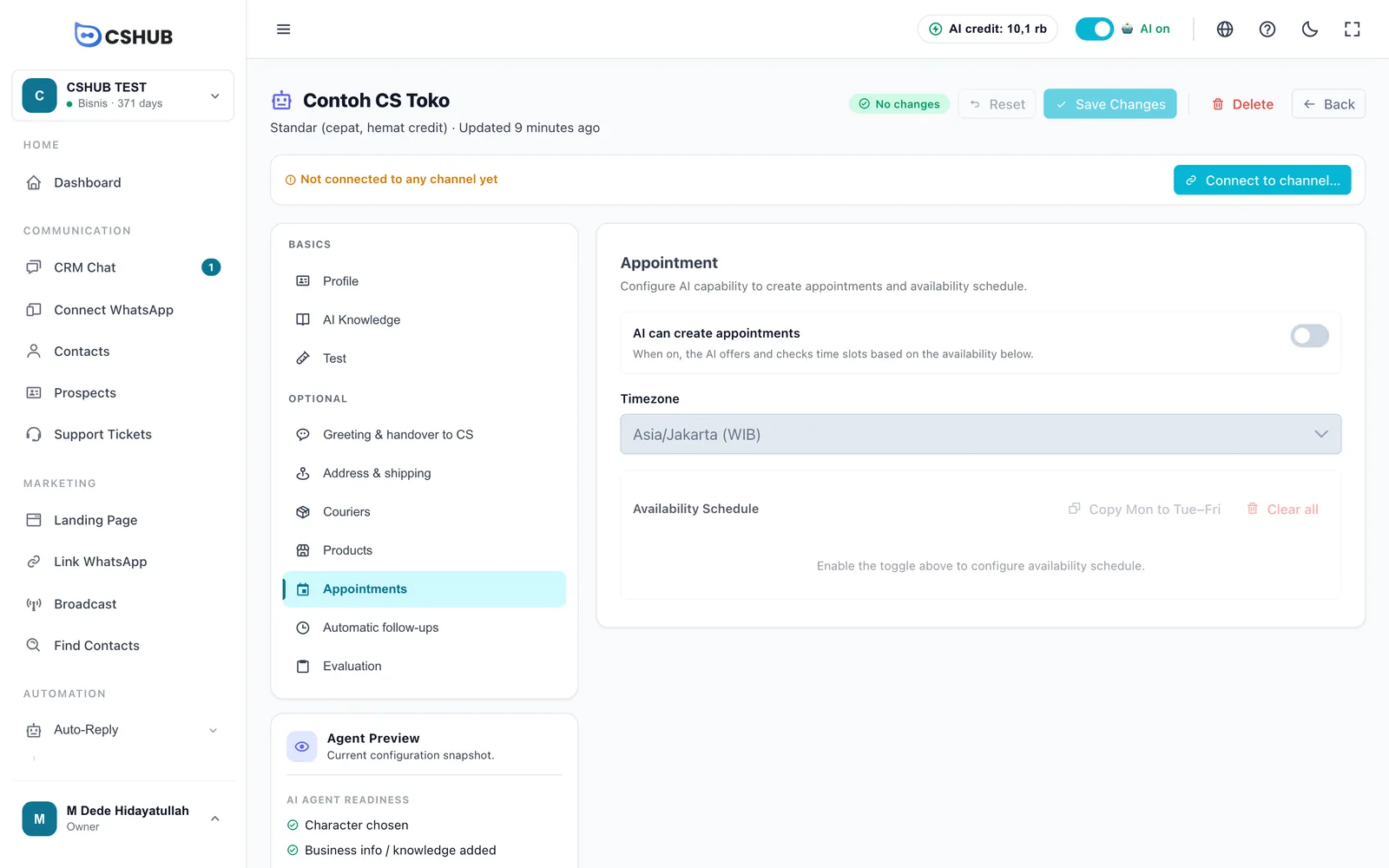
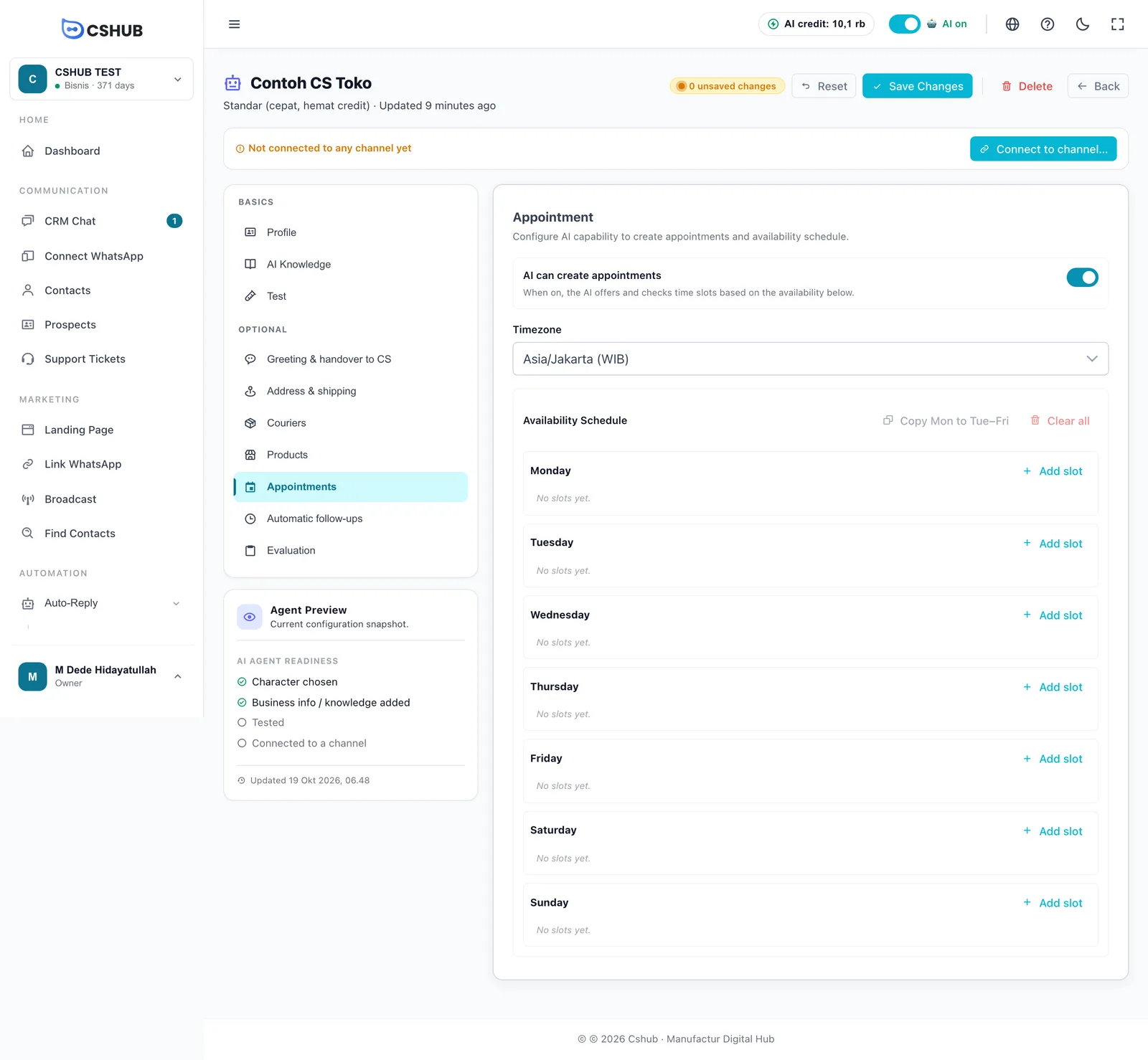
- Switch on AI can create appointments.
- Choose the Timezone where your business operates.
- Set up the Availability Schedule (see below).
- Click Save Changes at the top of the page.
| Field | Details |
|---|---|
| AI can create appointments | When on, the AI offers and checks times against your availability |
| Timezone | Asia/Jakarta (WIB), Asia/Makassar (WITA), Asia/Jayapura (WIT), Asia/Singapore, Asia/Kuala_Lumpur, or UTC. Defaults to WIB |
| Availability Schedule | The hours on each day when appointments can be booked |
Setting your availability
Each day, Monday to Sunday, can have one or more time slots.
- Click Add slot on each day you're open. A new slot starts at 09:00–17:00.
- Adjust the start and end times. The end time must be after the start time.
- For a lunch break, add two slots on the same day — say 09:00–12:00 and 13:00–17:00.
- Remove a slot with the Remove slot button on its row.
A day without slots counts as closed — the AI won't accept bookings that day.
| Button | What it does |
|---|---|
| Copy Mon to Tue–Fri | Copies Monday's slots to Tuesday through Friday. Handy when your weekday hours are the same |
| Clear all | Removes every slot on every day |
Example: a clinic
Monday–Friday 09:00–12:00 and 13:00–17:00, Saturday 09:00–12:00, Sunday no slots. Set up Monday first, click Copy Mon to Tue–Fri, then add the Saturday slot.
Tips
- Describe what can be booked in AI knowledge — e.g. "free 1-hour consultation at the clinic" — so the AI can explain it. See AI knowledge.
- Try it on the Test tab: ask for a closed day, an already-booked time, and use casual language, then check that the AI offers the right times.
- Keep an eye on new bookings in Appointments or in the Contact Info panel in CRM Chat.
- Bookings for rentals or bookable products (such as renting a vehicle by the day) are set up through products, not this tab. See AI selling & chat checkout.