
Contacts
The Contact Database is the list of every customer and prospect in your business — the data behind CRM Chat, the prospects board, broadcasts, and appointments — with search, filters by region and by pipeline stage, Excel import and export, and custom fields to store whatever extra info your business needs.
Contacts are added automatically whenever a new customer chats through a connected channel. You can also add them by hand, import an Excel file, or bring them in from Find contacts.
Opening the Contact Database
Click Contacts in the sidebar, under Communication. The same page is also the first tab, Contact Database, in Data & templates.
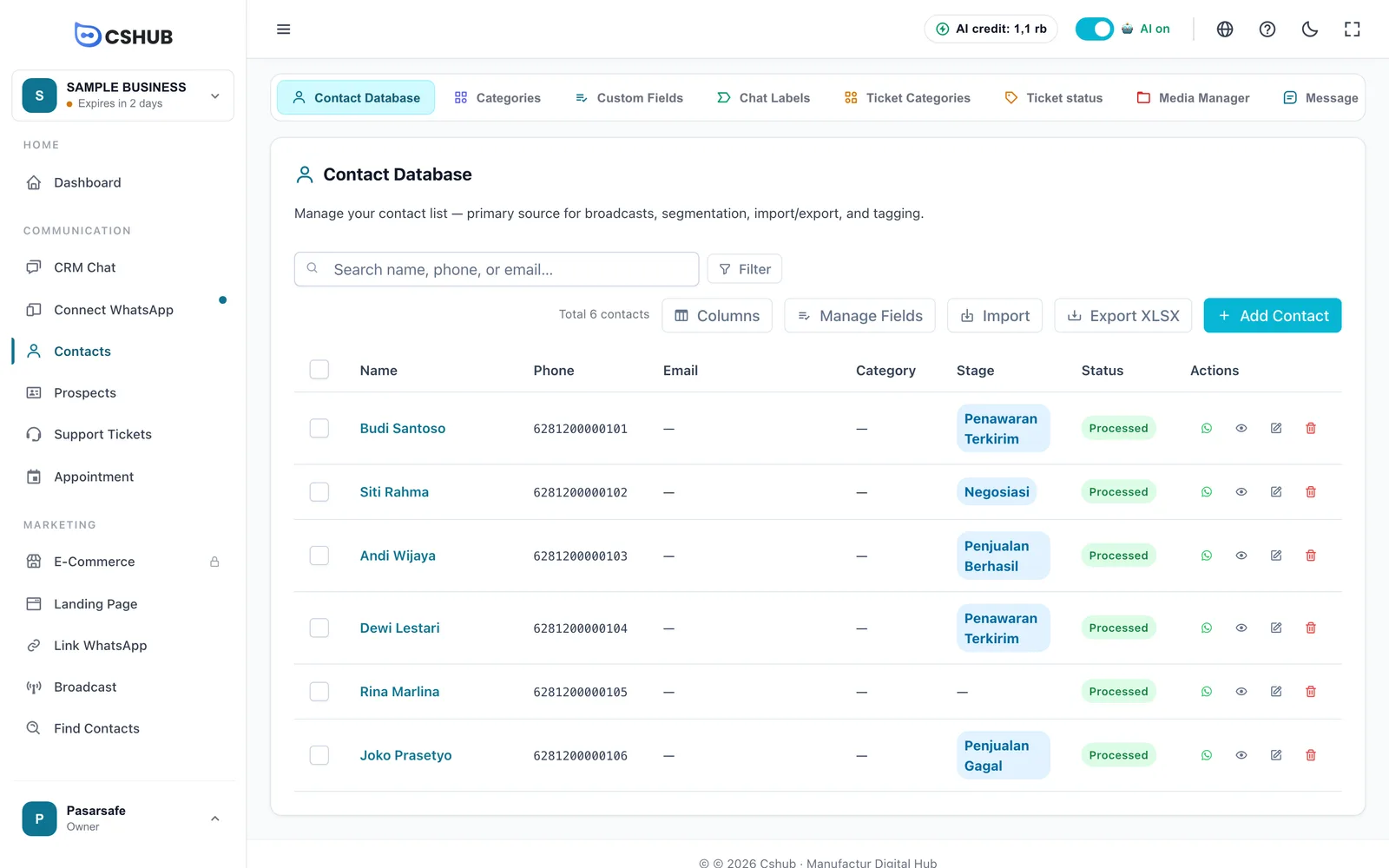
Table columns
| Column | What it shows |
|---|---|
| Name | The contact name. If another team member owns the contact, Owner: … appears below |
| Phone | The number with country code |
| Email address, if any | |
| Category | The contact group, e.g. Reseller or Regular customer |
| Stage | The contact's stage on the Prospects & pipeline board, e.g. Negosiasi. Shows — when the contact isn't in any pipeline |
| Status | Unprocessed or Processed — whether you have followed up on the contact. Contacts from Find contacts come in as Unprocessed |
| Actions | WhatsApp icon (start a chat), eye (view details), pencil (edit), and bin (delete) |
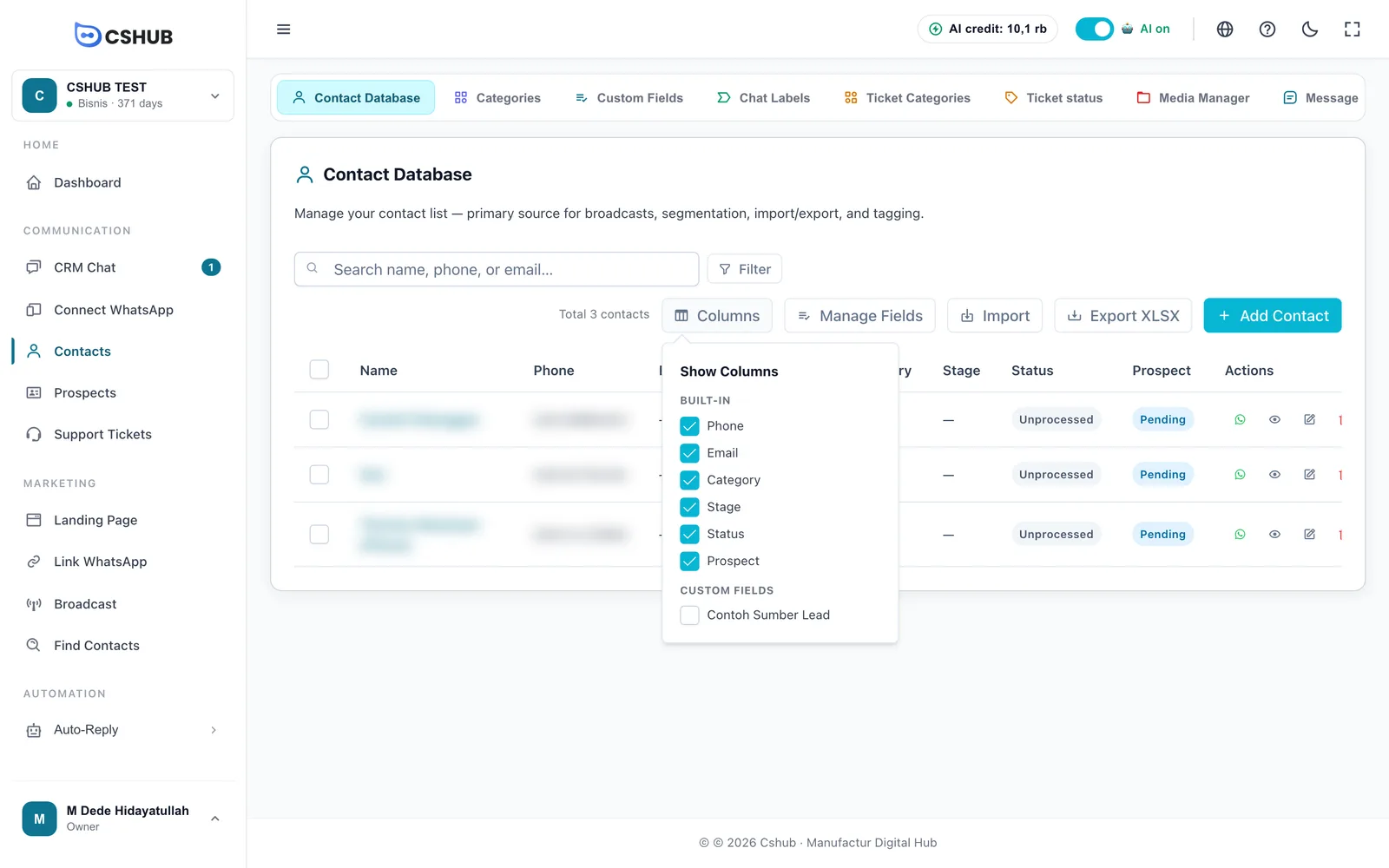
Choosing which columns show
Columns opens Show Columns, split into Built-in and Custom Fields. Tick the columns you want in the table.
Searching & filtering
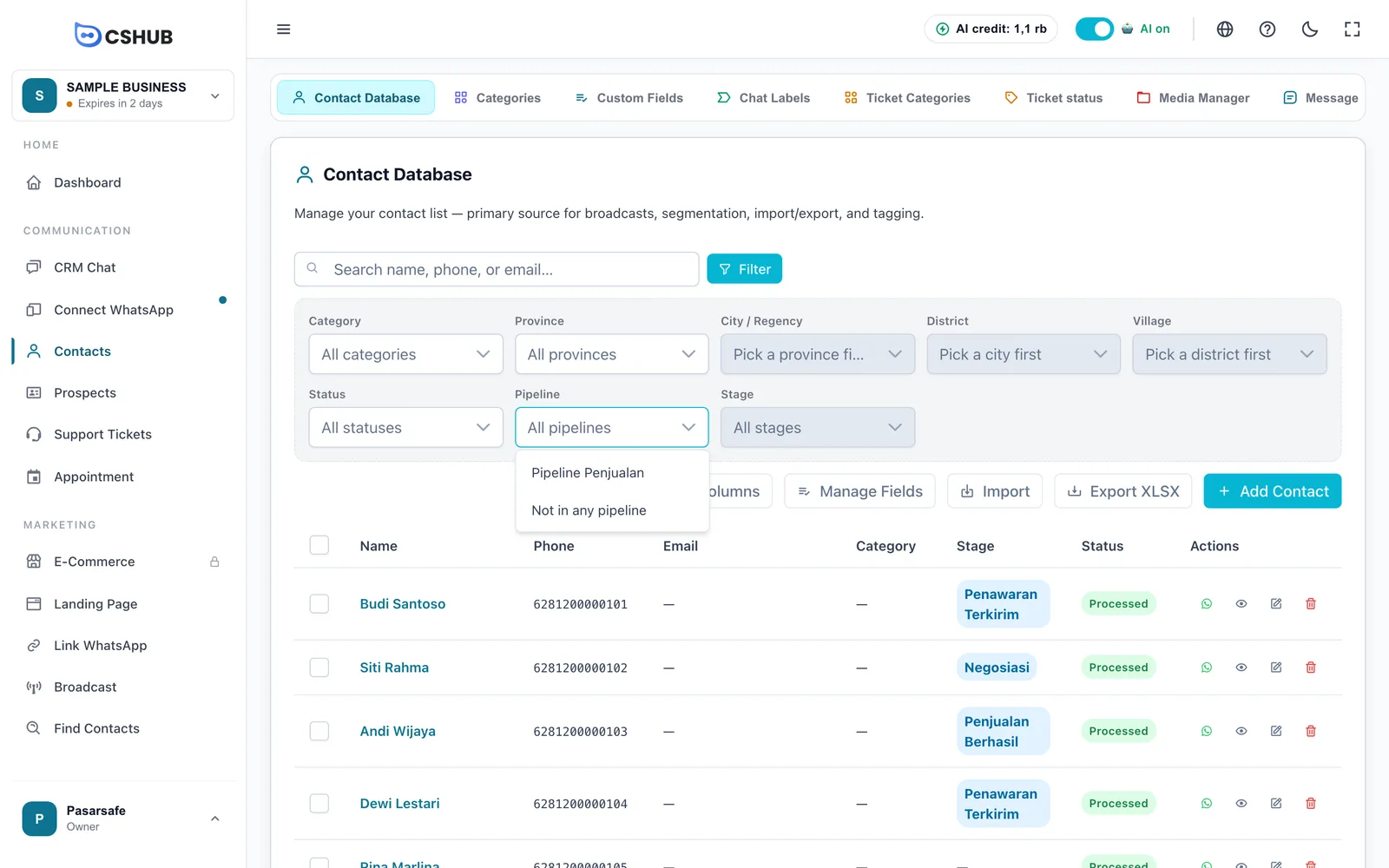
Type a name, phone, or email in the search box. For finer filtering, click Filter.
| Filter | Description |
|---|---|
| Category | Contacts in one category |
| Province → City / Regency → District → Village | Filter by region. Start from the top level |
| Status | Unprocessed or Processed |
| Pipeline | Contacts in one pipeline, or Not in any pipeline for contacts that haven't been placed on any prospects board |
| Stage | Contacts at one stage of the chosen pipeline, e.g. Negosiasi. Available only after you pick a pipeline |
| Custom fields | Every custom field you create also appears as a filter |
The button changes to Filter (n) while filters are active. Reset clears them all.
Filtering by pipeline & stage
Use this to see the contacts sitting at a particular point on the Prospects & pipeline board — for example everyone still at Negosiasi — and then export them or follow up one by one.
- Under Pipeline, pick the pipeline you want. To find contacts that have never been put on a prospects board, pick Not in any pipeline.
- Under Stage, pick one stage, or leave All stages to show every contact in that pipeline.

Changing the pipeline clears the stage you picked, because every pipeline has its own list of stages. If you pick Not in any pipeline, the Stage filter stays disabled.
The Prospect filter and column are gone
There used to be a Prospect column and filter (Pending, Hot, Warm, Cold). Both have been removed. To filter contacts by where they are in your sales process, use the Pipeline and Stage filters.
Pipeline list empty?
If the Pipeline dropdown only shows Not in any pipeline, your business doesn't have a pipeline yet or your account can't access the Prospects menu. Create a pipeline in Prospects & pipeline, or ask the business owner to grant the permission in Team & roles.
Adding a contact
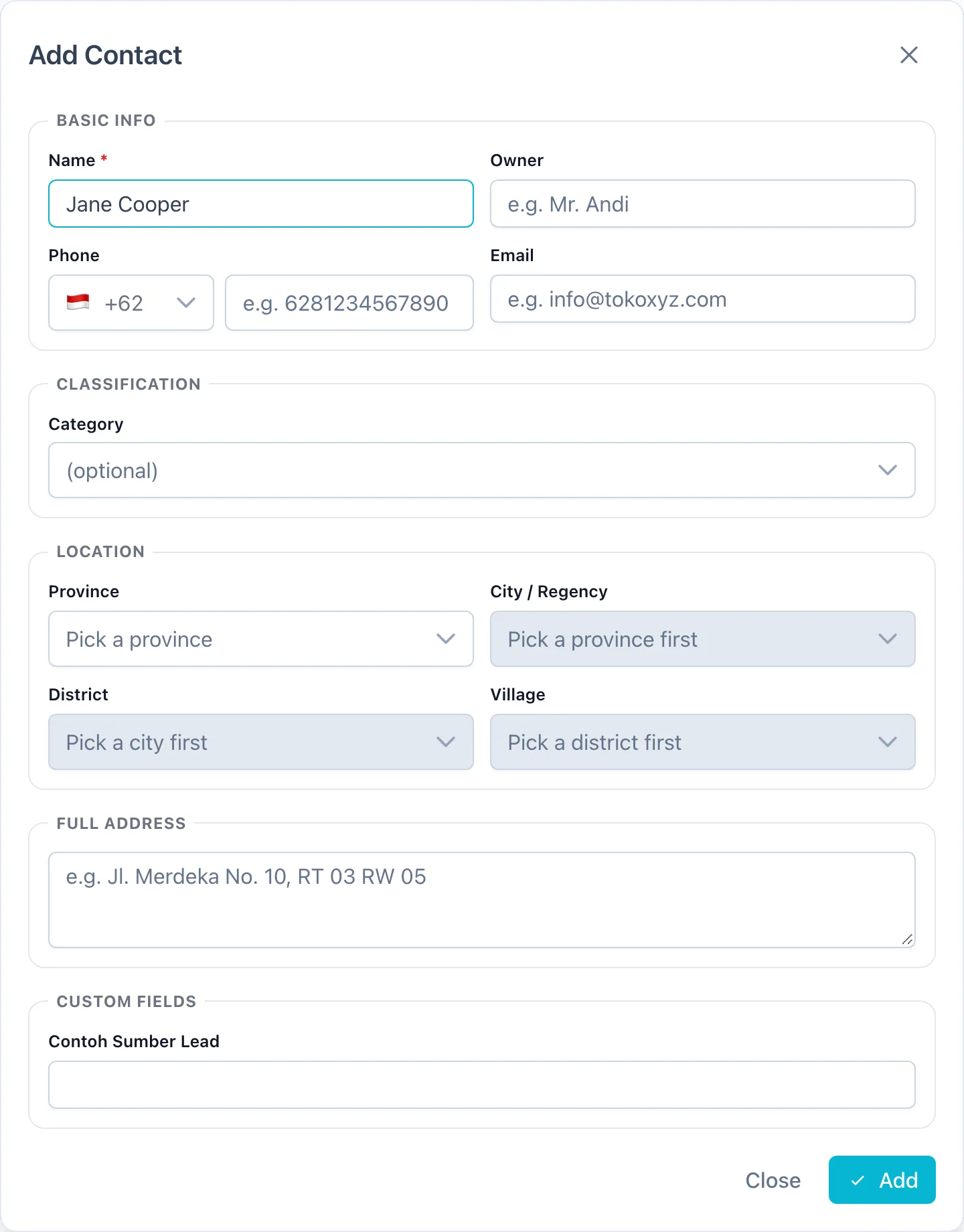
Click Add Contact, fill in the form, then click Add.
Contact fields
| Section | Field | Description |
|---|---|---|
| Basic Info | Name | Required, up to 255 characters. A person or a shop name |
| Owner | The business owner or person to contact, e.g. for a shop contact | |
| Phone | Pick the country code, then type the number. This is the number used for WhatsApp chats | |
| Optional, must be a valid email | ||
| Classification | Category | Optional when adding, required when editing. Categories are created in Data & templates → Categories |
| Prospect stage | Appears when adding a contact from the Prospects board. Leave empty to land in the Initial Contacts column | |
| Location | Province → City / Regency → District → Village | Picked level by level. Useful for region filters and shipping rates |
| Full Address | Street, house number, neighbourhood | |
| Custom Fields | Every custom field you've created. Required ones must be filled |
Order addresses are saved too
When a customer places an order, the shipping address is saved to their contact automatically, so you don't have to type it again.
Viewing, editing & deleting
In the Actions column:
- WhatsApp — start or open a conversation with the contact in CRM Chat.
- View details — opens a read-only Contact Detail. Click Edit in the dialog to change it.
- Edit — opens Edit Contact, then Save.
- Delete — deletes the contact after you confirm.
To delete several contacts at once, tick the boxes on the left of each row, then click Delete Selected in the bar that appears.
Contacts with chat history
Contacts that have chatted with you can't be deleted, so conversation history and reports stay intact.
Importing from Excel
Click Import to add many contacts at once from an Excel (.xlsx) file.
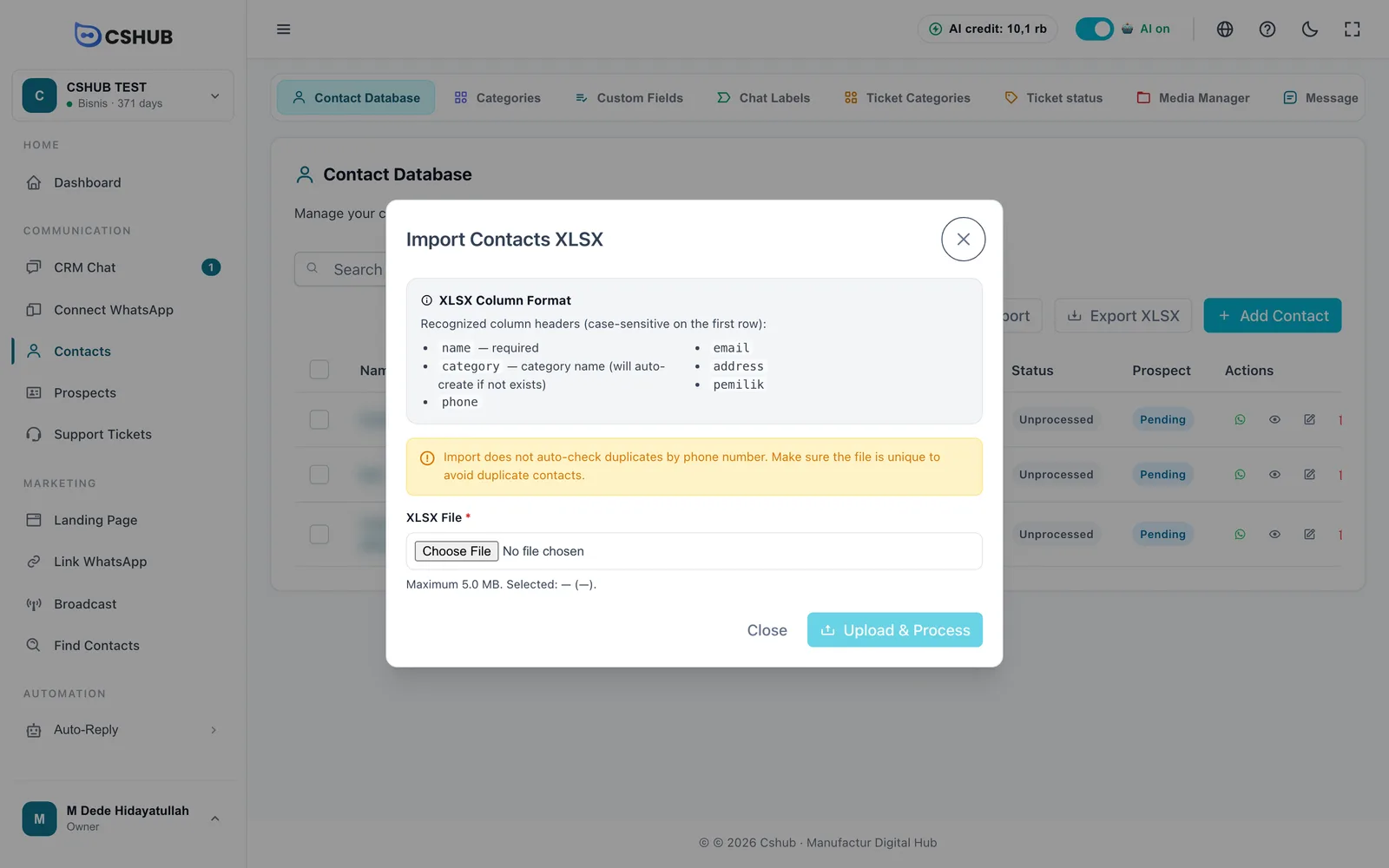
- Prepare your Excel file. The first row holds the column headers exactly as in the table below (lowercase).
- Click Import and choose the file in XLSX File.
- Click Upload & Process and keep the dialog open until it finishes.
- The import result shows Processed, Success, and Failed counts, plus the failed rows and why.
| Column header | Content |
|---|---|
name | Contact name — required |
phone | Phone number with country code, e.g. 6281234567890 |
email | Email address |
category | Category name. Created automatically if it doesn't exist |
address | Full address |
pemilik | Business owner's name |
Check for duplicates yourself
Import doesn't check for repeated phone numbers. Make sure the file has no duplicates so you don't end up with double contacts. The file can be up to 5 MB and must be .xlsx.
Exporting to Excel
Click Export XLSX to download contacts as an Excel file. Keep the tab open while the file is being built.
The export follows the search and filters that are currently active. With no filters, every contact is included. If you're filtering — say pipeline Pipeline Penjualan, stage Negosiasi — the file only contains the contacts at that stage. Click Reset first if you want to download everything.
Custom fields
Custom fields add your own fields to every contact — e.g. Lead source, Budget, or Size. They appear in the contact form, can become table columns, work as filters, and can be shown on prospects board cards.
Click Manage Fields on the contacts page, or open the Custom Fields tab in Data & Templates.
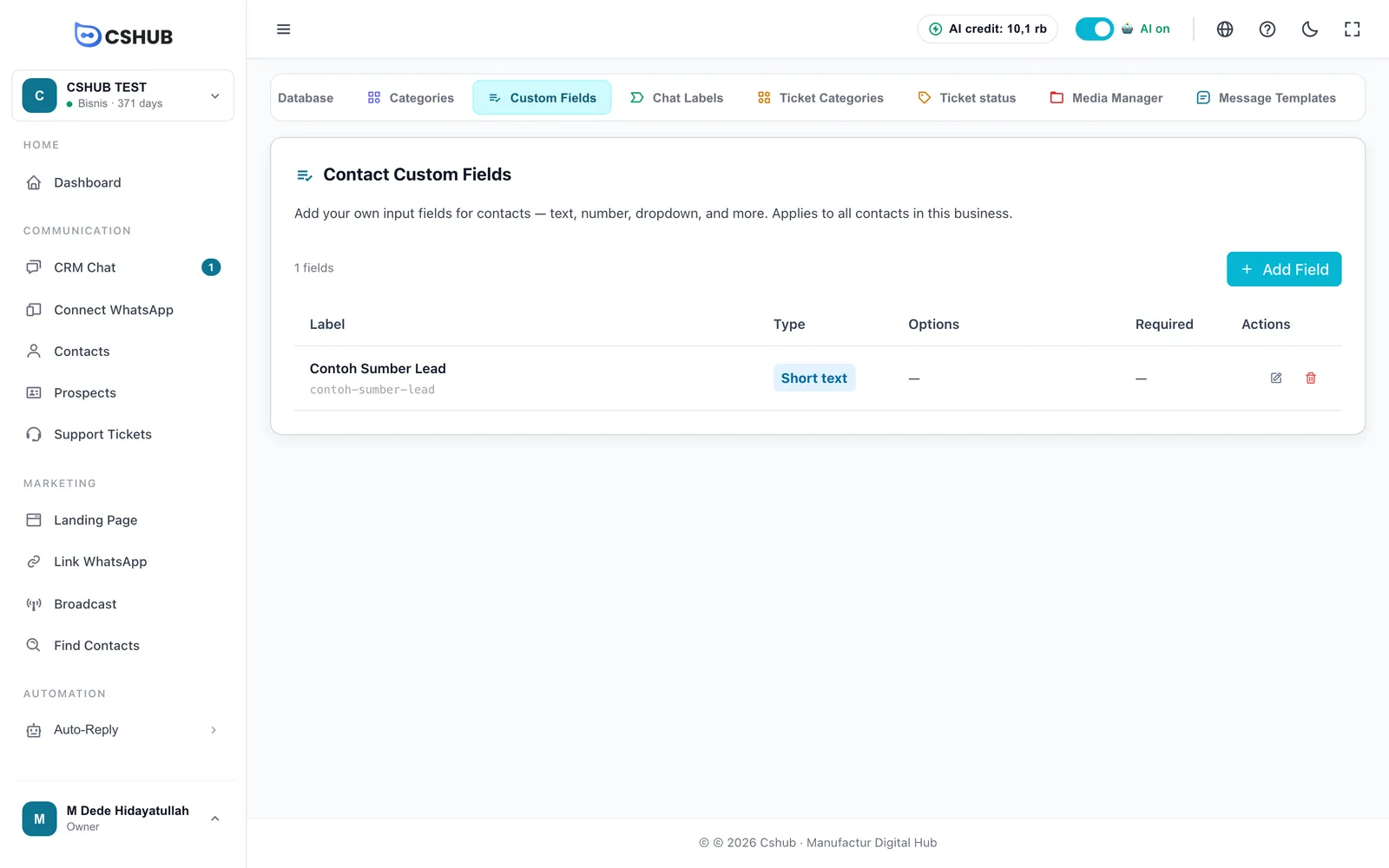
Click Add Field:
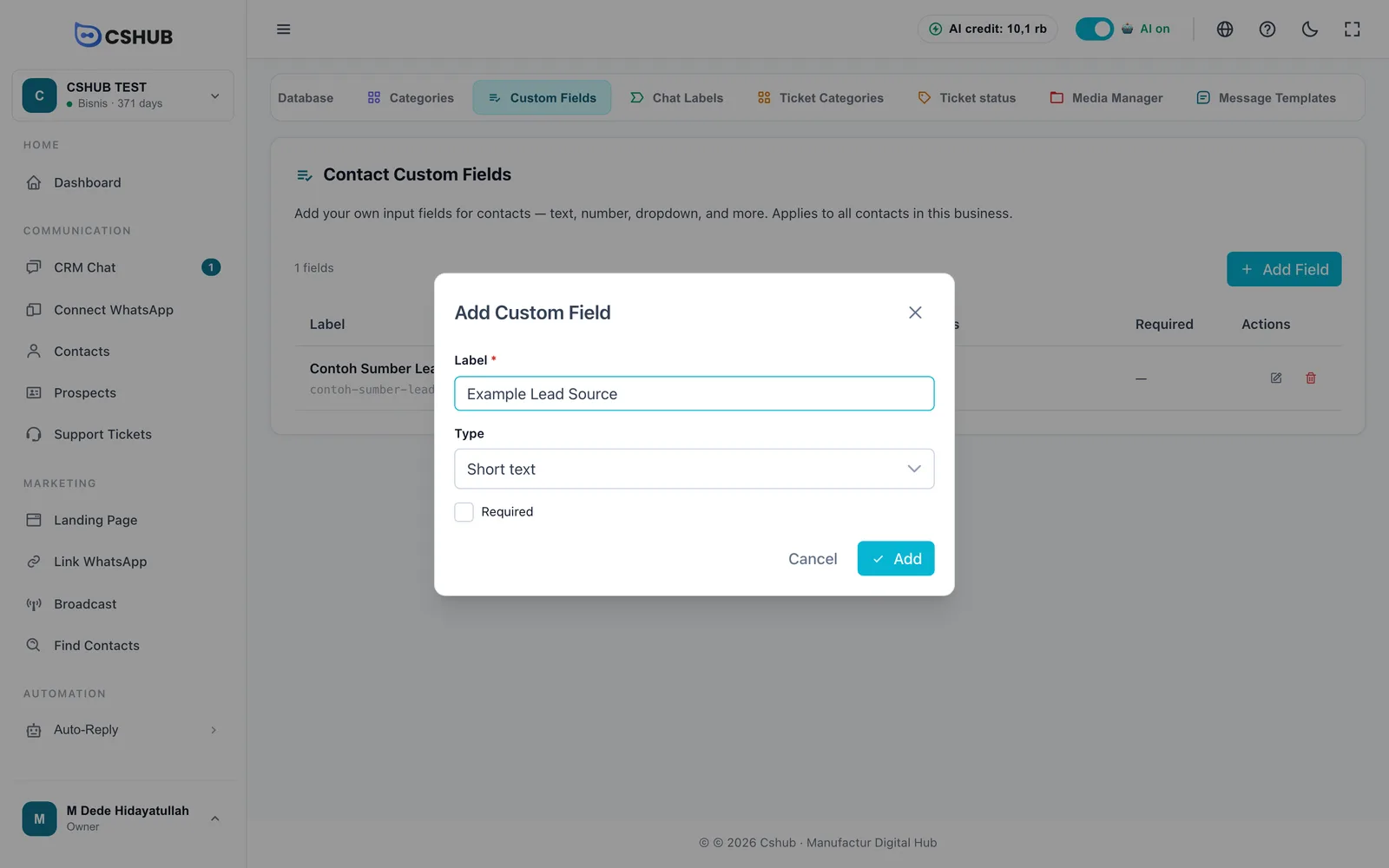
| Field | Description |
|---|---|
| Label | The field name shown on the form, e.g. Lead source. Required |
| Type | The kind of input (see below) |
| Choices | Shown for Dropdown, Radio choice, and Checkboxes. Click add for each choice; at least one is needed |
| Required | When ticked, the contact form can't be saved until this field is filled |
| Type | Good for |
|---|---|
| Short text | One line of text, e.g. a member code |
| Long text | Notes over several lines |
| Number | Budget, headcount |
| Dropdown | Pick one from a long list |
| Radio choice | Pick one from a few options |
| Checkboxes (multi-select) | Pick several, e.g. product interests |
Deleting a custom field doesn't erase the values already stored, but they are no longer shown.