
Quickstart: AI replies on WhatsApp
Follow this guide to connect your WhatsApp number to cshub, create your first AI Agent, give it knowledge about your business, and watch it answer a real customer chat, all in about 15 minutes.
Before you start, make sure:
- You already have a cshub account and business. If not, follow Sign up & onboarding.
- The phone with WhatsApp (Messenger or Business) for the number you want to connect is nearby.
- You have another WhatsApp number to send a test chat as a customer.
- Your plan still has AI credit. The trial plan includes a credit allowance.
| Step | What you do | Approx. time |
|---|---|---|
| 1 | Connect a WhatsApp number | 2 minutes |
| 2 | Create an AI Agent | 3 minutes |
| 3 | Add AI knowledge | 5 minutes |
| 4 | Test the AI's answers | 3 minutes |
| 5 | Make sure the AI is connected to WhatsApp | 1 minute |
| 6 | Try it from another phone & watch in CRM Chat | 2 minutes |
Step 1: Connect a WhatsApp number
- In the sidebar, open Connect WhatsApp (in the Communication group). If no channel is connected yet, you can also click Connect WhatsApp on the dashboard or Start on the Connect WhatsApp / channel checklist step.
- Click Add Device.
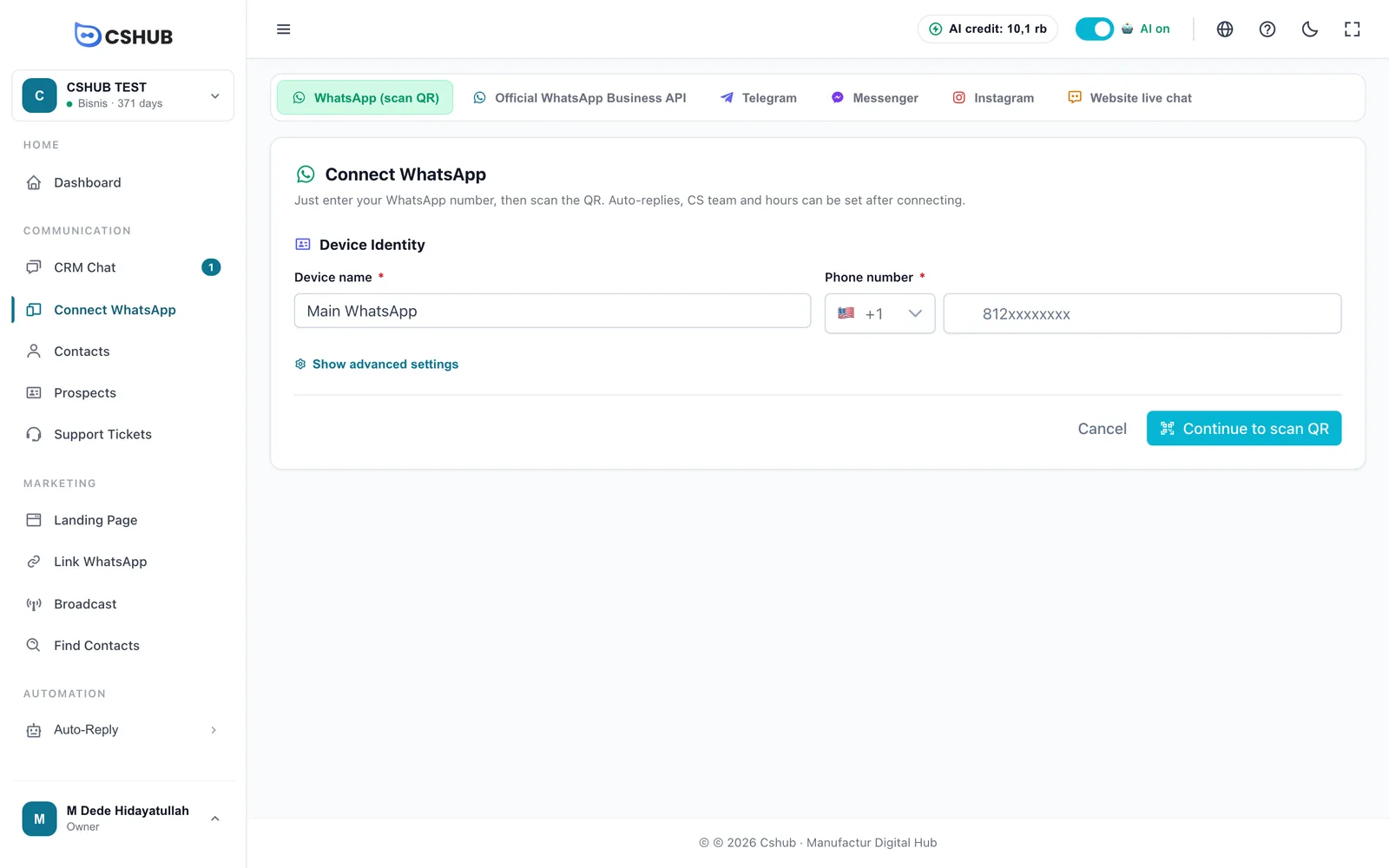
- Fill in a Device name (e.g. Main WhatsApp) and the Phone number you'll scan, then click Continue to scan QR.
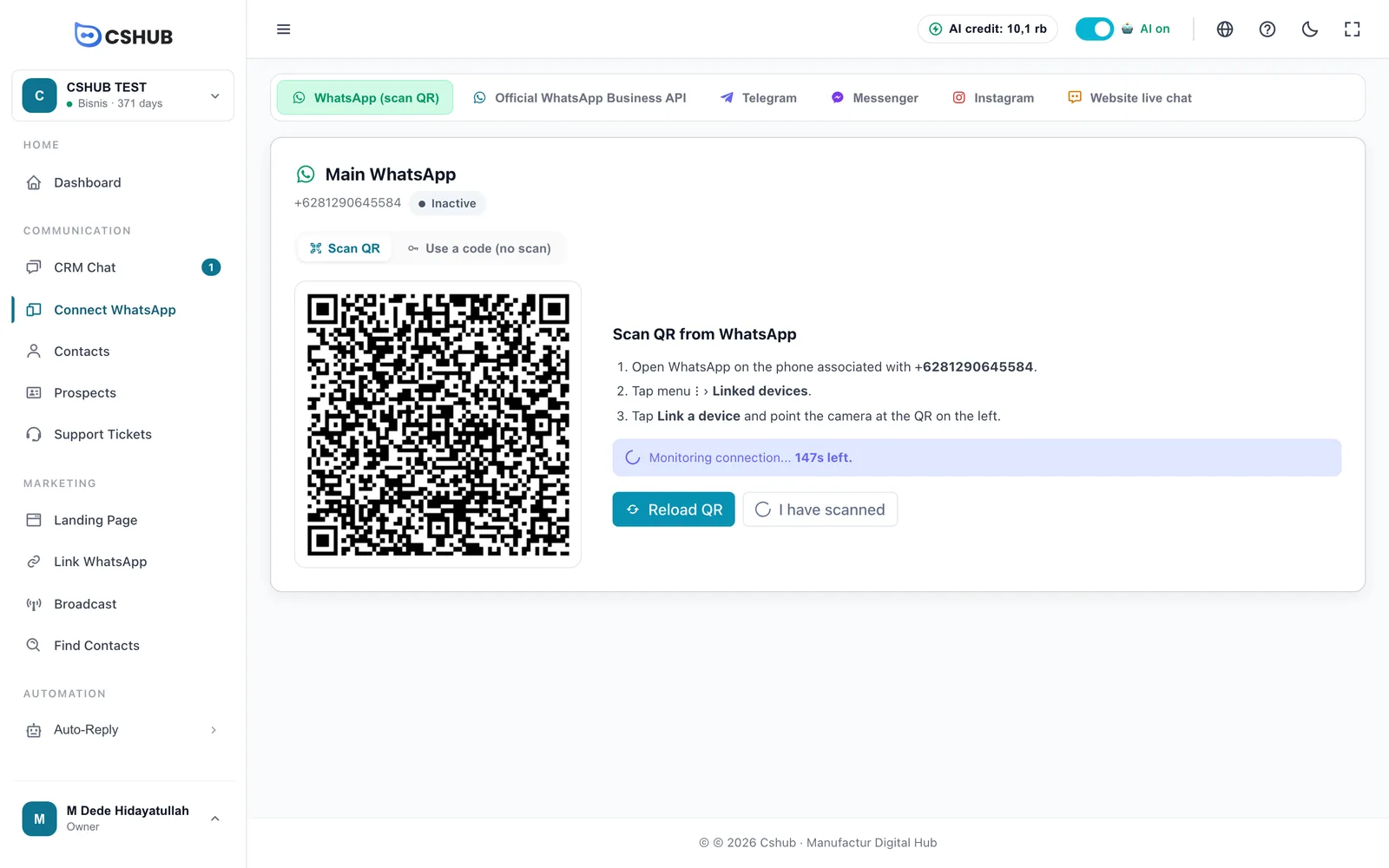
- If no QR code is showing, click Generate QR.
- On your phone: open WhatsApp → ⋮ (Android) or Settings (iPhone) → Linked devices → Link a device, then point the camera at the QR code.
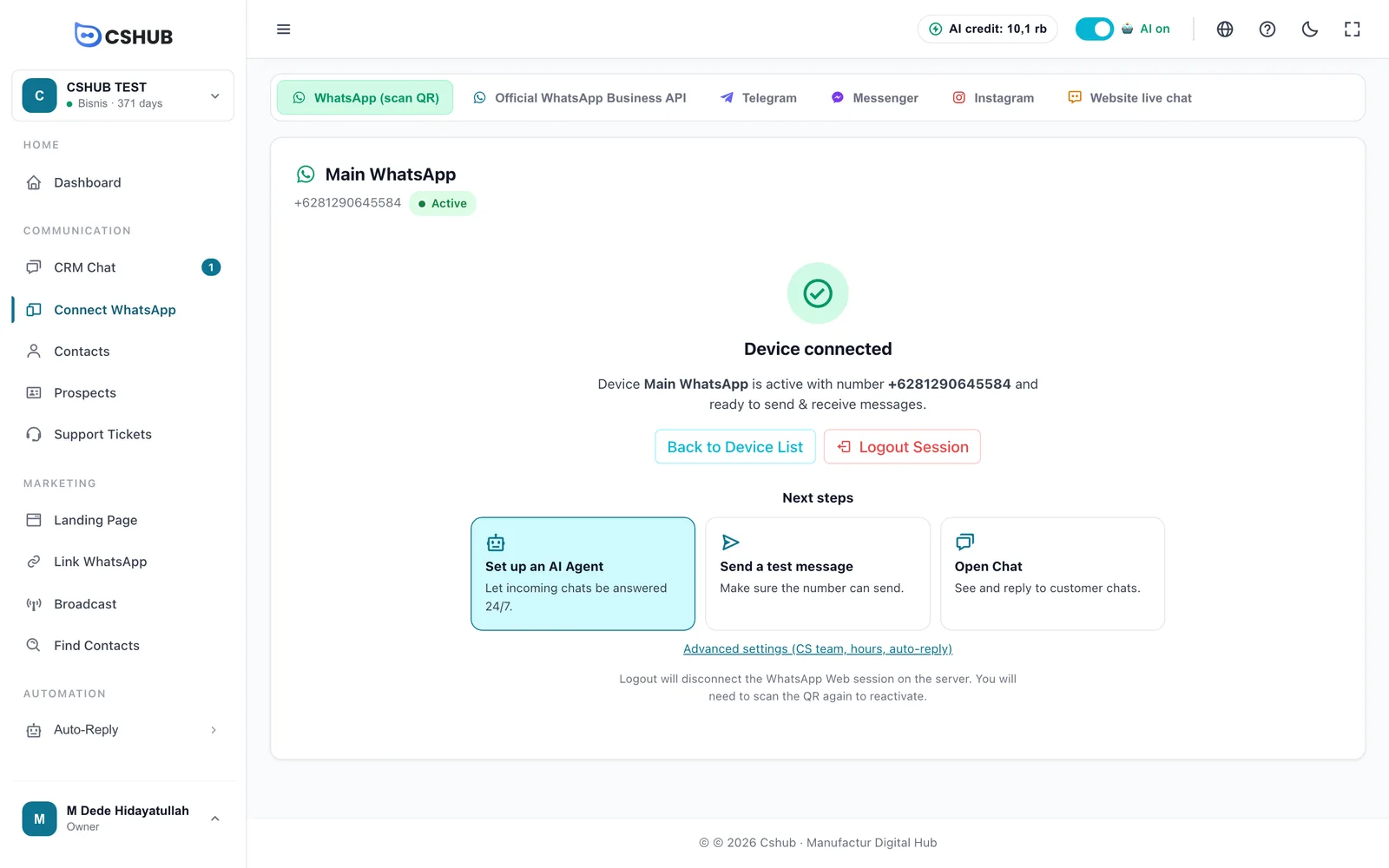
- Wait a few seconds until Device connected appears.
Only have one phone?
Use the Use a code (no scan) tab: cshub creates an 8-character code that you enter in WhatsApp via Link with phone number instead. Full details and fixes for failed scans are in WhatsApp (scan QR).
Step 2: Create an AI Agent
On the Device connected screen, click the Set up an AI Agent card. This is the easiest route: the AI Agent you create is automatically connected to the number you just linked.
Other ways to get here
- The One more step: set up your AI pop-up that appears after your first channel connects → Set it up myself.
- Sidebar Automation → Auto-Reply → AI Agent → Add AI Agent. With this route you connect the agent to a channel yourself in step 5.
Pick a character
The character sets the AI's tone. Choose the one closest to what you need, then click Pick This Character.
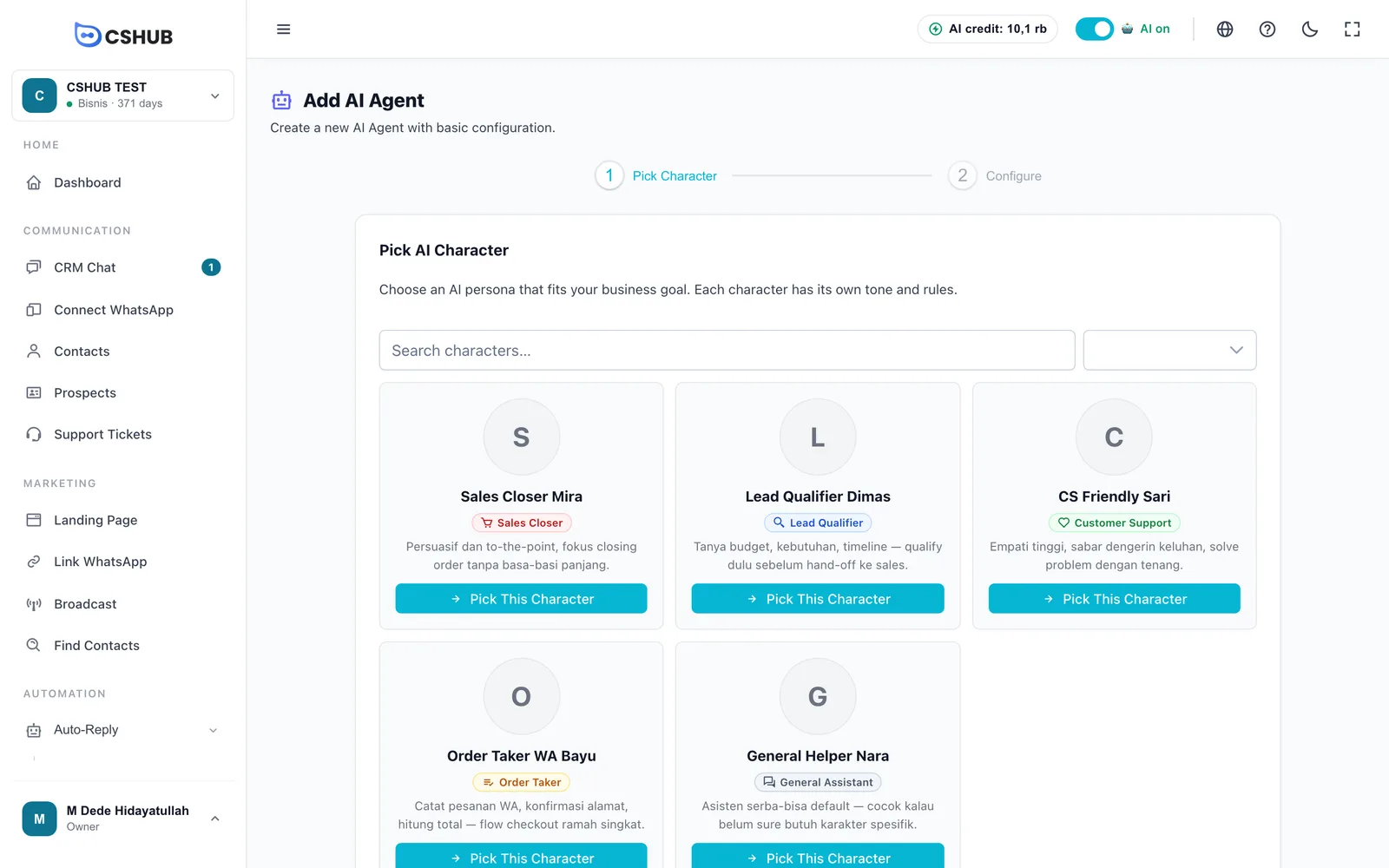
| If your business… | Pick the role |
|---|---|
| Wants the AI to actively pitch and close sales | Sales Closer |
| Wants the AI to learn what the customer needs before handing off to sales | Lead Qualifier |
| Mostly answers questions and complaints | Customer Support |
| Takes orders over chat | Order Taker |
| Isn't sure yet | General Assistant |
Configure
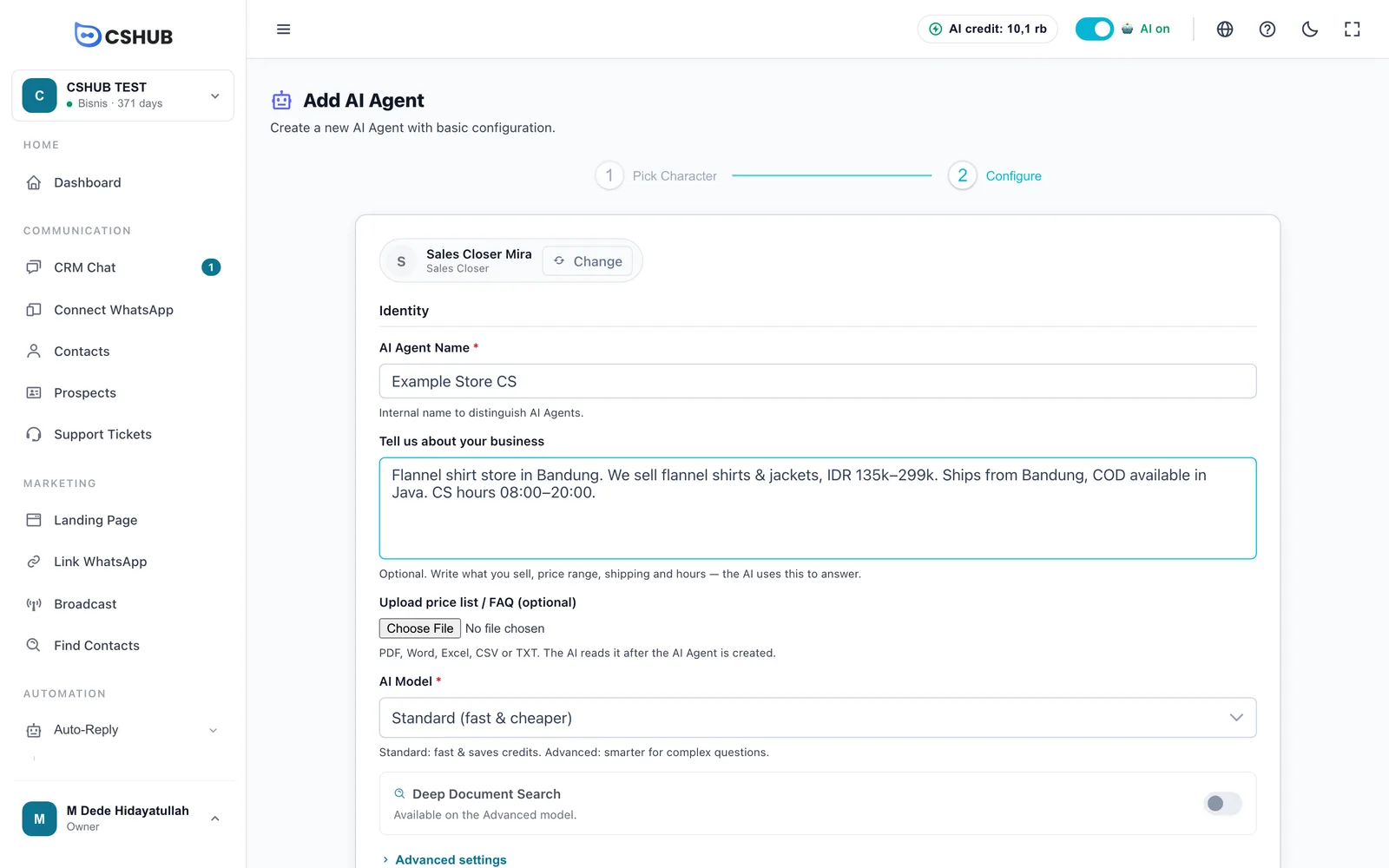
AI Agent Name: an internal name, e.g. Rina's Store CS. Customers never see it.
Tell us about your business: briefly write what you sell, the price range, where you ship, and your opening hours. For example:
Rina's Store sells hijabs and dresses, priced Rp75,000–Rp350,000. We ship across Indonesia with JNE and J&T, and offer cash on delivery in Jakarta. Admins are online Monday–Saturday, 8am–8pm. Payment by BCA transfer or QRIS.
Upload price list / FAQ (optional): upload a PDF, Word, Excel, CSV, or TXT file if you have one.
AI Model: start with Standard (fast & cheaper). Switch to Advanced later if your customers ask complex questions.
Click Create & Continue.
If you came from Set up an AI Agent, the agent's edit page opens straight on the Test tab.
Step 3: Add AI knowledge
The AI only knows what you write down. Open the AI Knowledge tab in the Basics group.
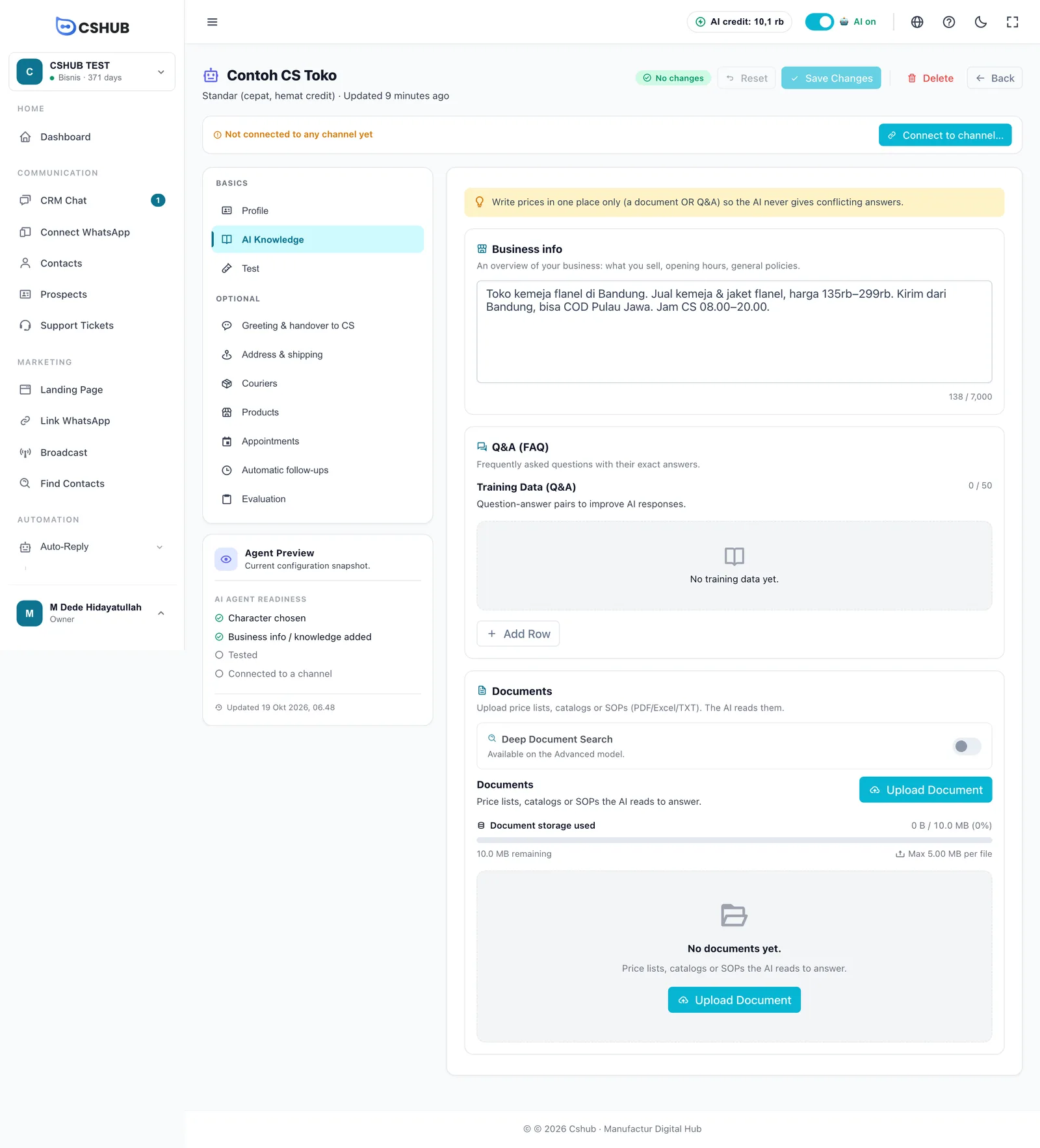
| Section | Minimum to get started |
|---|---|
| Business info | Already filled in from Tell us about your business. Add key policies, such as returns or warranty |
| Q&A (FAQ) | The 5–10 questions you get most, with exact answers. For example: store address, whether you offer cash on delivery, how to pay |
| Documents | Your latest price list or catalog (optional) |
Click Save Changes at the top of the page. Document uploads are saved immediately.
Write prices in one place only
If a price appears in a document and in the Q&A with different numbers, the AI may quote the wrong one. Tips for writing good knowledge are in AI knowledge.
Step 4: Test the AI's answers
Open the Test tab. Here you play the customer, and nothing is sent to anyone.
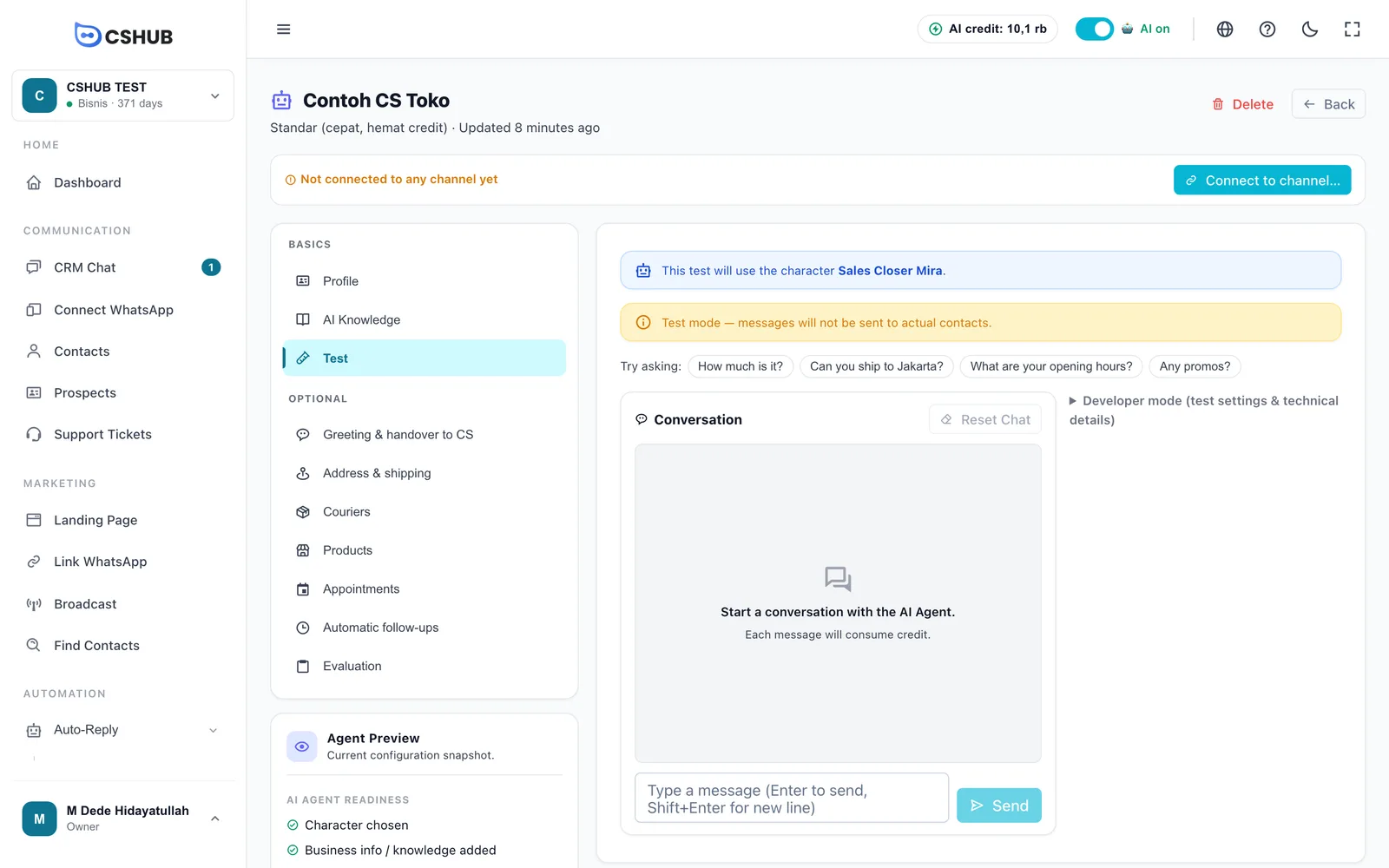
- Click a sample question, or type something your customers usually ask, then Send.
- If an answer isn't right, choose Answer not right → Add to Q&A, enter the correct answer, then Save Changes.
- Repeat with 3–5 questions until you're happy. Reset Chat starts a fresh conversation.
Every test message uses AI credit, just like a real chat.
Step 5: Make sure the AI is connected to WhatsApp
Look at the strip at the top of the agent's edit page:
- If it says Not connected to any channel yet, click Connect to channel….
- If you came from Set up an AI Agent in step 2, the agent is already connected. You can still open Connect to channel… to check its reply mode.
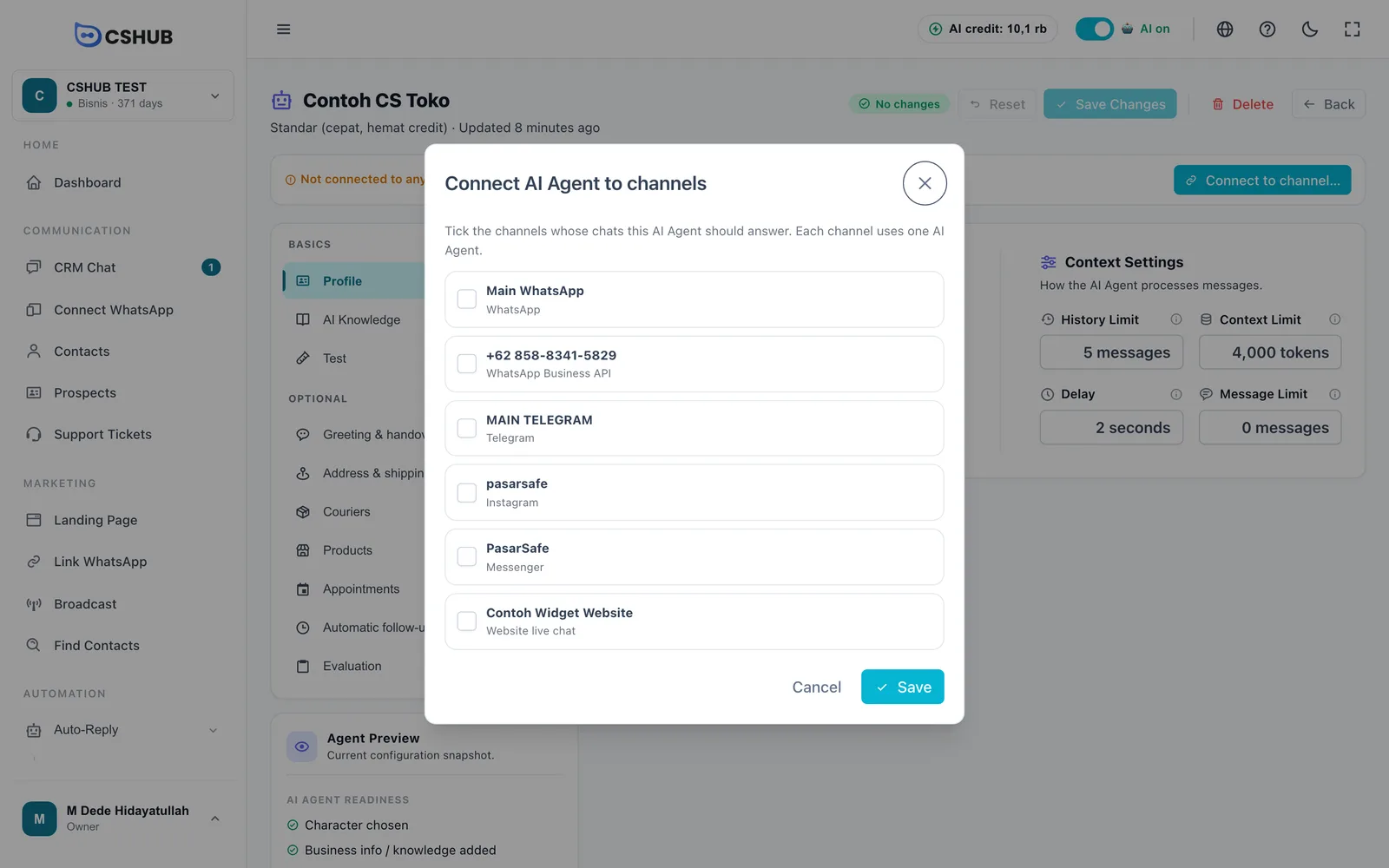
- Tick the WhatsApp number you just connected.
- Choose a mode:
- AI replies to every chat: every message is answered by the AI.
- Keywords first, then AI: messages matching your keyword replies get your fixed text, everything else goes to the AI.
- Click Save.
Also check that the switch in the top bar says AI on. If it says AI paused, click it to turn it back on.
Step 6: Try it from another phone & watch in CRM Chat
- From a different WhatsApp number, send a message to the number you connected, e.g. "Hi, is the dress available in size L?".
- After a short delay (2 seconds by default), the AI replies on WhatsApp.
- In cshub, open CRM Chat. The new conversation shows up in the list, and its header shows the AI replying pill.
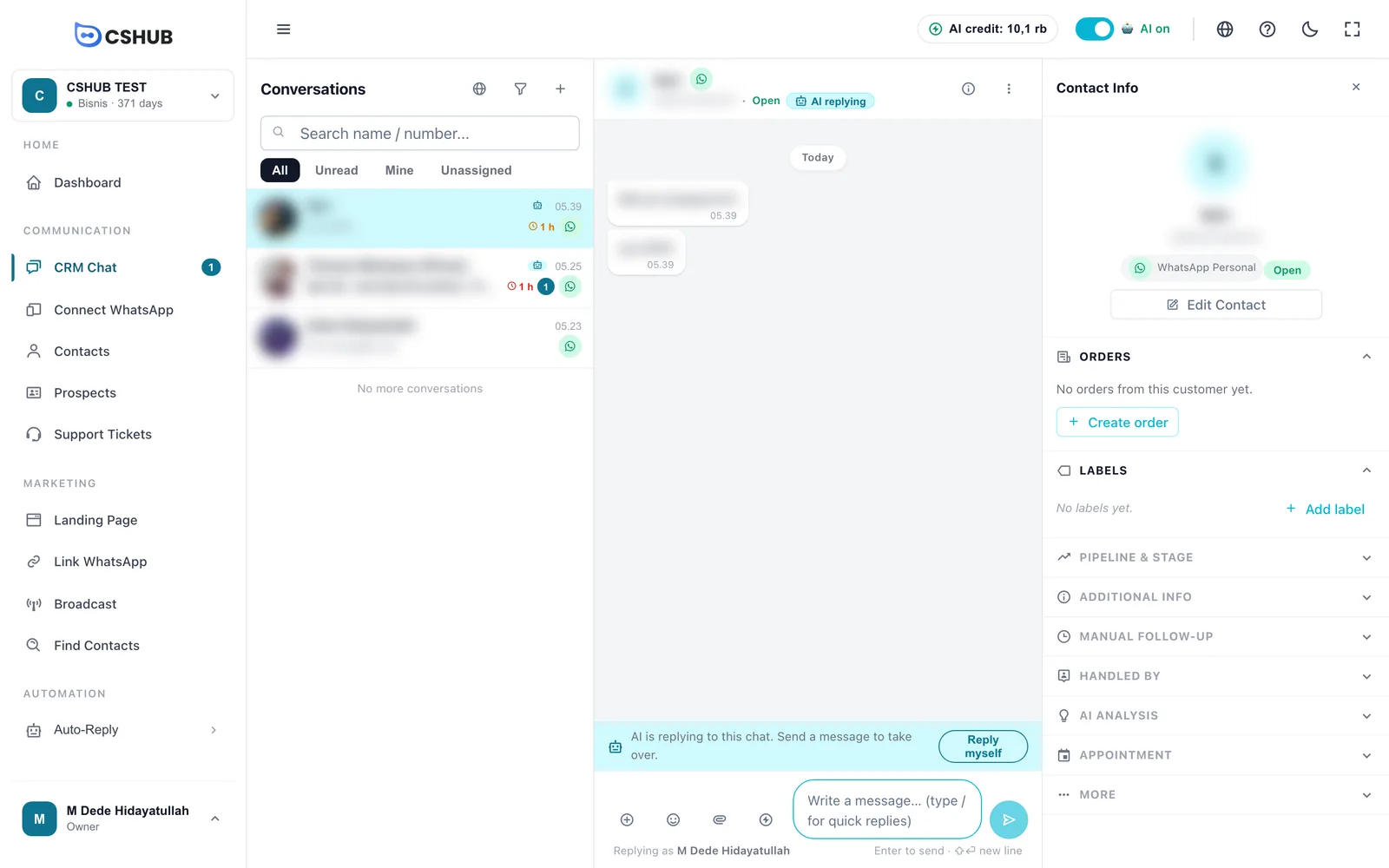
To reply yourself, just send a message from CRM Chat or click Reply myself. The AI automatically stops replying in that chat. See Replying to conversations.
AI not replying?
Check in this order:
- The device is Active in Connect WhatsApp.
- The top-bar switch says AI on.
- The AI Agent is connected to that number (the Not connected to any channel yet strip is gone).
- You still have AI credit.
- You're messaging from a different number than the connected one.
- If the device has an Auto-reply schedule, make sure the current time is within it.
Still stuck? See Troubleshooting.
What's next
| If you want to… | Read |
|---|---|
| Have the AI hand chats over to your team when needed | AI Agent, the Greeting & handover to CS tab |
| Have the AI create orders and calculate shipping | AI selling & chat checkout |
| Have the AI book appointments | AI appointment booking |
| Invite your CS team | Team, CS & roles |
| Get alerted when chats wait too long | Escalation to your team |
| Message many contacts at once | WhatsApp broadcast |