
Prospects & pipeline
The Prospects board shows every potential buyer as a card arranged by sales stage — from first contact, offer, and negotiation through to won or lost — so you can see at a glance how many prospects sit in each stage, who is starting to stall, and what share has already closed.
Each sequence of stages is called a pipeline. A new business gets one default pipeline straight away, and you can add more — say, one for sales and one for onboarding new customers.
Opening the Prospects board
Click Prospects in the sidebar, under Communication.
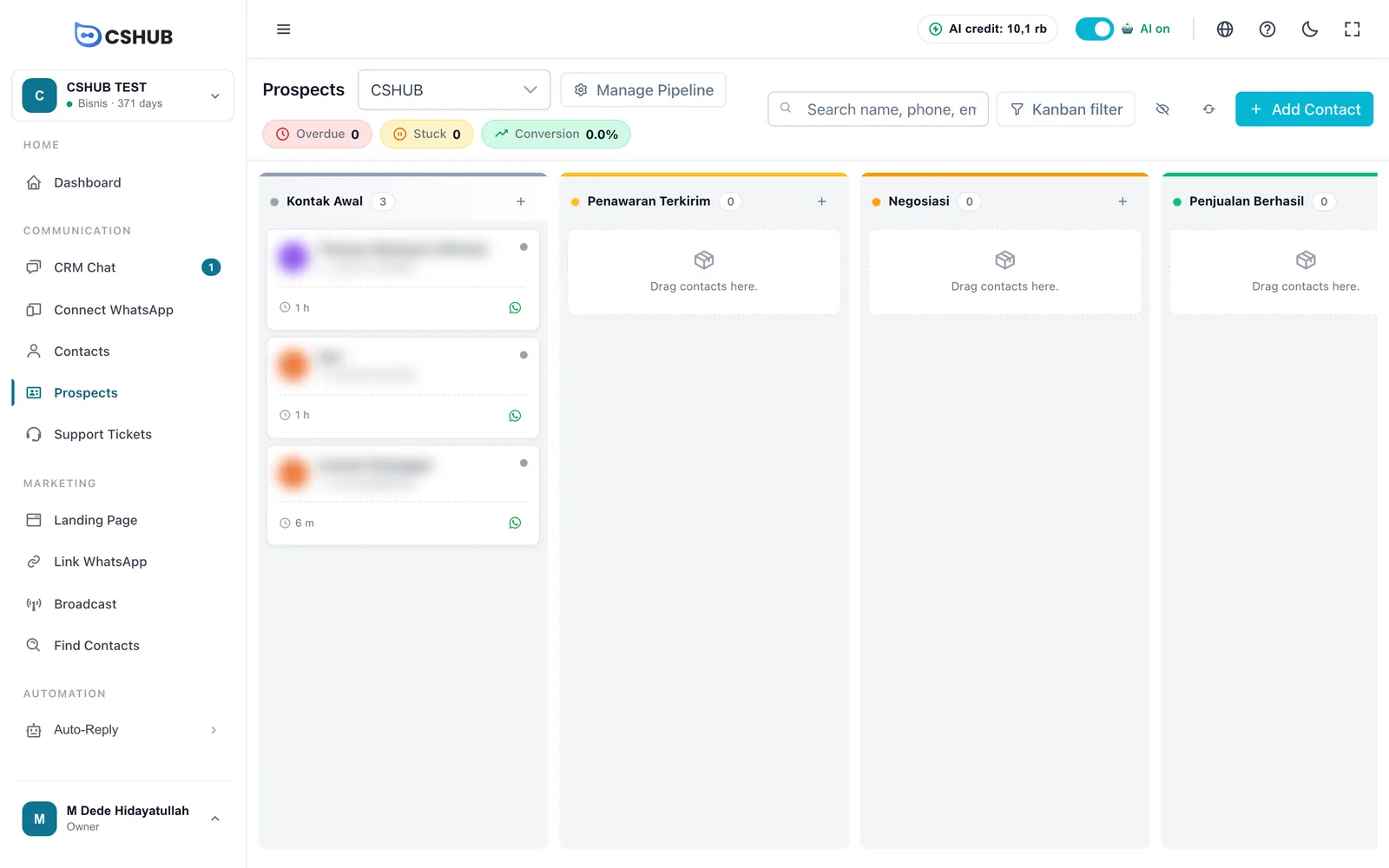
The top of the board
| Part | What it does |
|---|---|
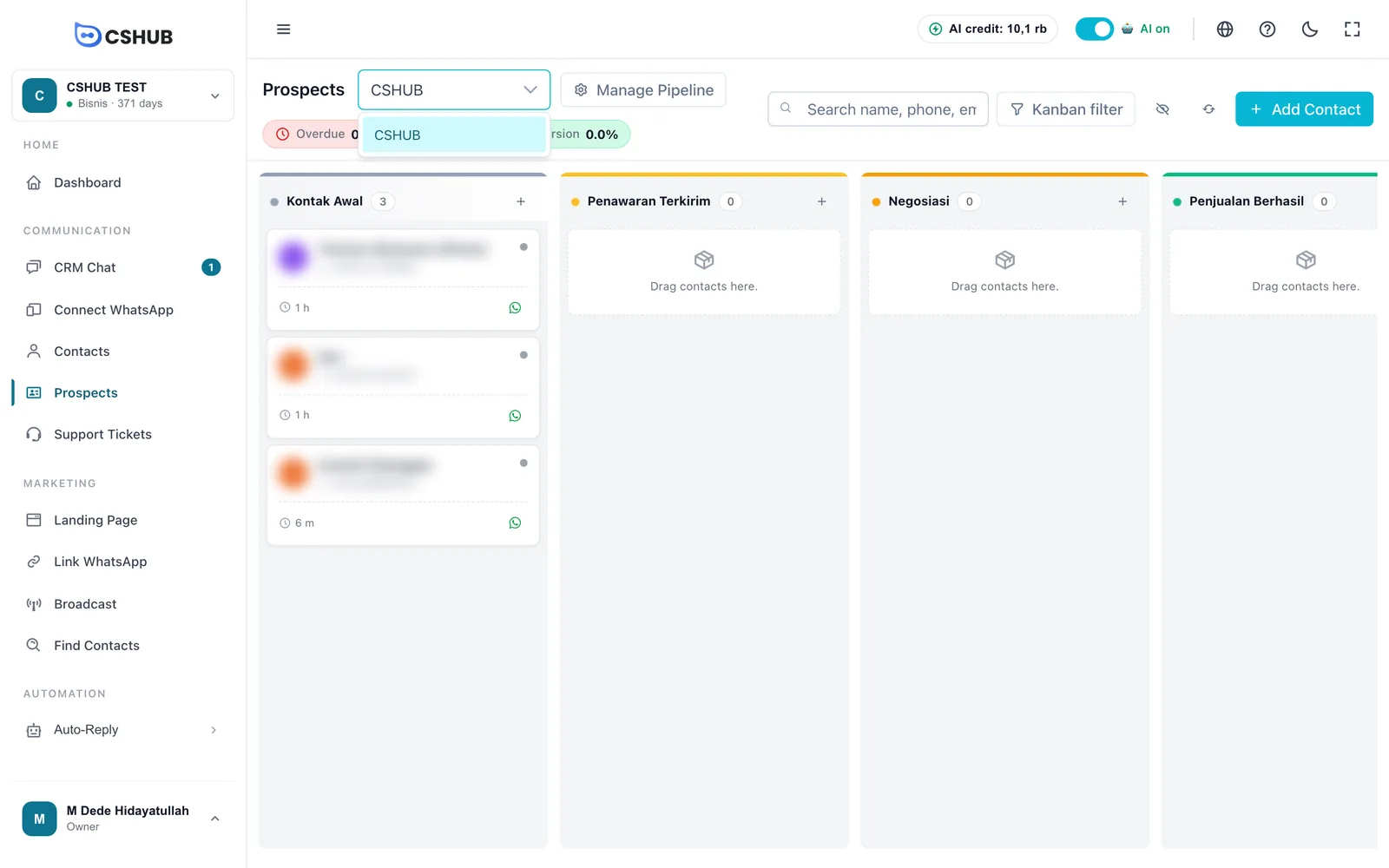
| Pipeline selector | Switch between pipelines. The board shows one pipeline at a time |
| Manage Pipeline | Create, edit, and delete pipelines and their stages |
| Overdue | Contacts with no progress for more than 7 days — follow up right away |
| Stuck | Contacts with no progress for 3–7 days — time to check in |
| Conversion | The share of contacts that reached a final stage (won or lost) out of all contacts in the pipeline |
| Search | Find a contact by name, phone, or email |
| Filter kanban | Advanced filtering (see below) |
| Eye icon | Show or hide custom fields on cards |
| Refresh icon | Reload the board |
| Add Contact | Add a new contact straight onto the board |
Columns and cards
The first column, Initial Contacts, is always there: it holds contacts not yet placed in any stage. The following columns are the pipeline's stages, in order.
Each column header shows the stage name, the number of contacts, and a + button to add a contact straight into that stage. When contacts are stalling, a stuck count and a conversion percentage appear below the header.
Each card shows:
| Card part | Description |
|---|---|
| Photo / initials & name | Who the contact is |
| Status dot | Red = SLA exceeded (overdue), amber = No new response (stuck), green = Active, grey = No activity |
| Time in stage (clock icon) | How long the contact has been in this stage: m minutes, h hours, d days, mo months, y years |
| WhatsApp icon | Start a chat with the contact |
| Custom fields | Shown when the eye icon above the board is on |
Columns load part of the cards first; click Load more at the bottom of a column for the rest.
Moving prospects between stages
Drag a card onto another stage column and drop it. The change saves right away; if it fails, the card snaps back. You can also reorder cards inside a column by dragging them up or down.
A contact's stage can also be changed from the CRM Chat right panel, in Pipeline & stage — see Replying to conversations.
Let the AI move them
With AI lead qualification, the AI can move a contact to your prospect stage automatically when the chat shows they're serious about buying. AI analysis results can also suggest stage moves — when there are some, a … stage suggestions button appears on the board so you can review and apply them.
Opening details & starting a chat
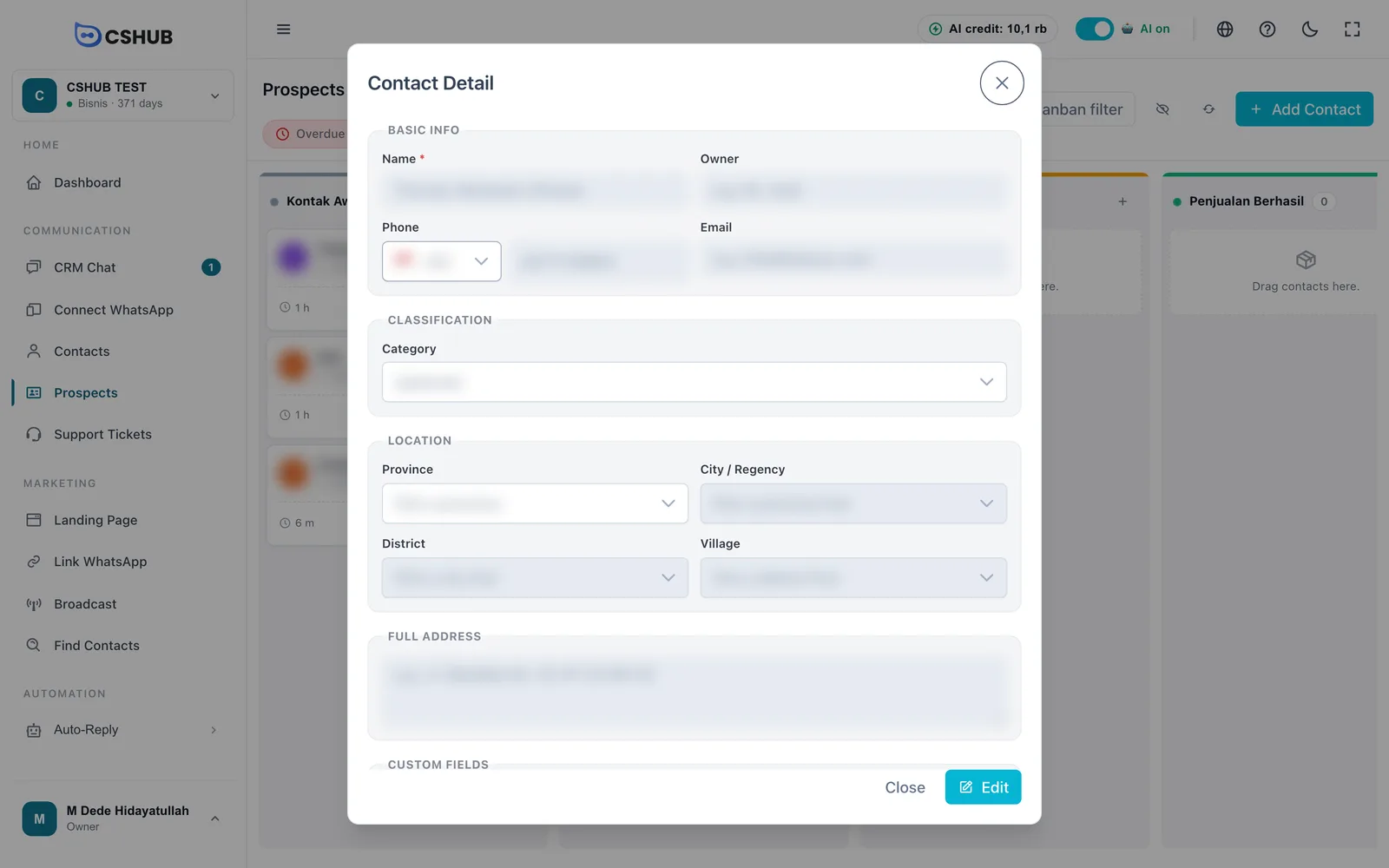
- Click a card to open Contact Detail. Click Edit to change the contact's data.
- Click the WhatsApp icon on a card to open Start Conversation: pick a Channel and a Device (optional — leave empty to use the first available device), then Start Chat. If a conversation with the contact already exists, it is reopened.
Adding contacts to the board
Click Add Contact above the board, or + on a column header to drop the contact straight into that stage.
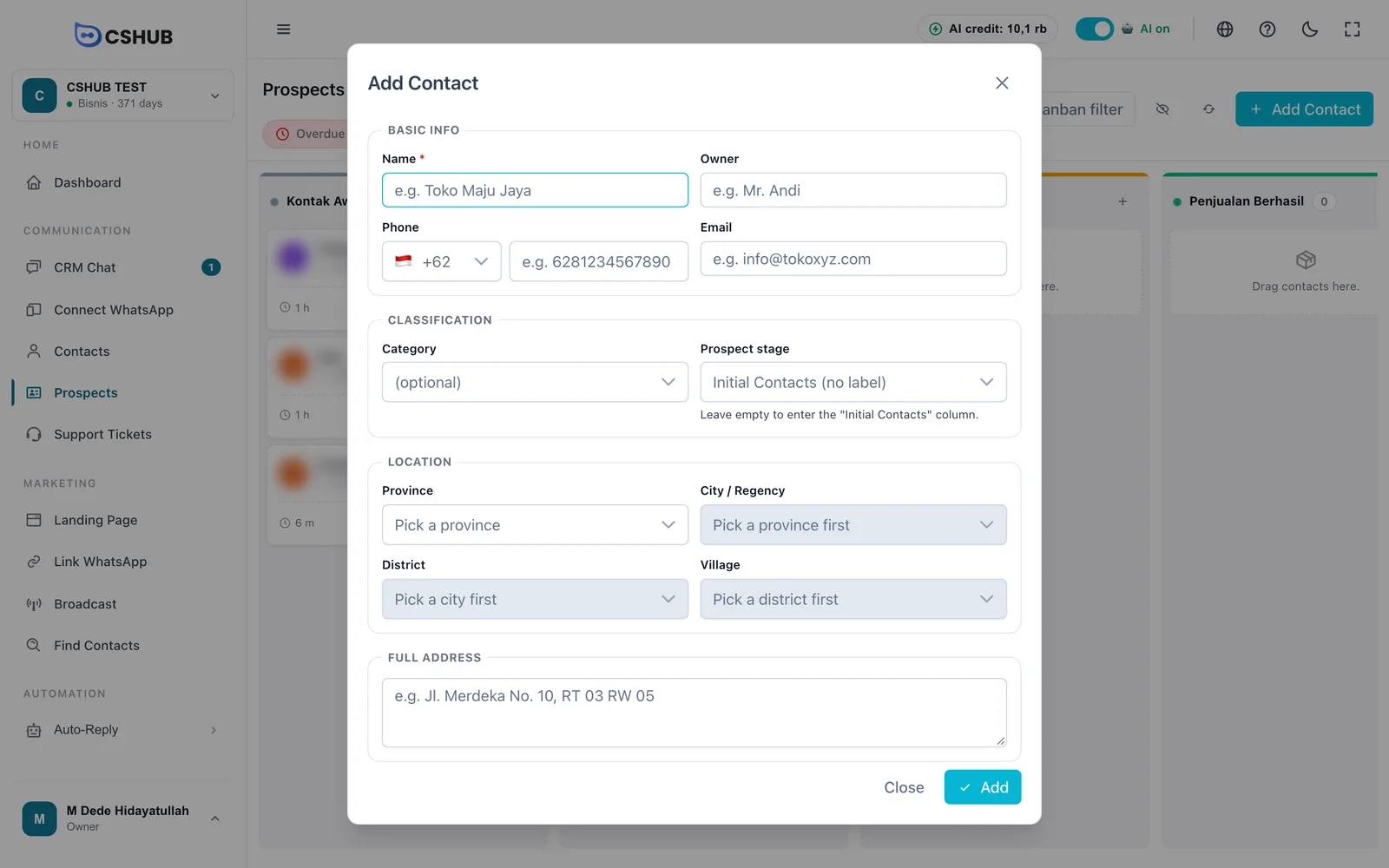
The form is the regular contact form plus a Prospect stage field. Leave it empty to put the contact in Initial Contacts. Every field is explained in Contacts.
Filtering the board
Click Filter kanban.
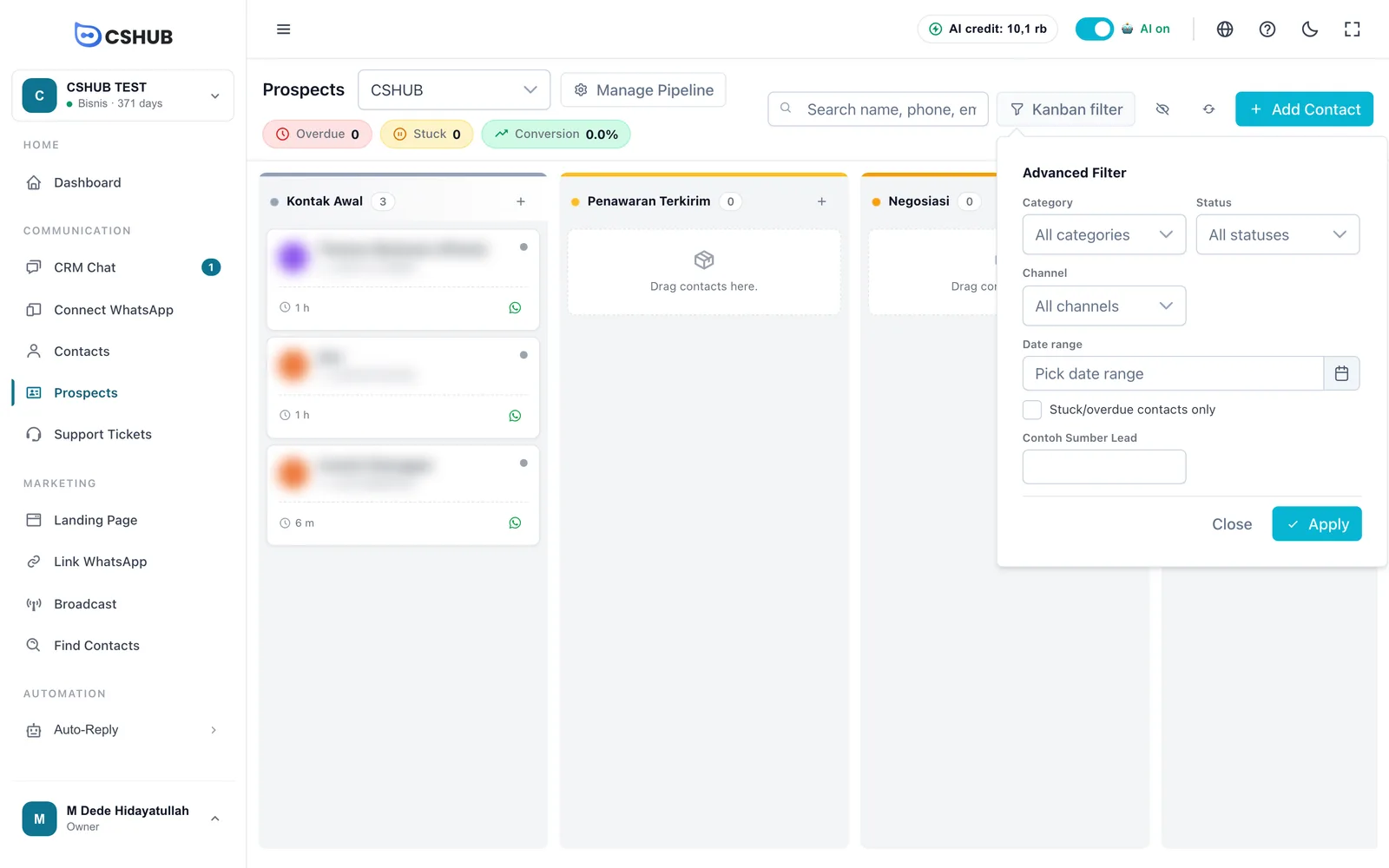
| Filter | Description |
|---|---|
| Category | Contacts in a given category |
| Status | The contact's conversation status: Open, Pending, Resolved, or Closed |
| Channel | The channel the contact came from |
| Date range | Filter by date |
| Stuck/overdue contacts only | Focus on prospects that need a nudge |
| Custom fields | Every contact custom field is available as a filter |
Managing pipelines & stages
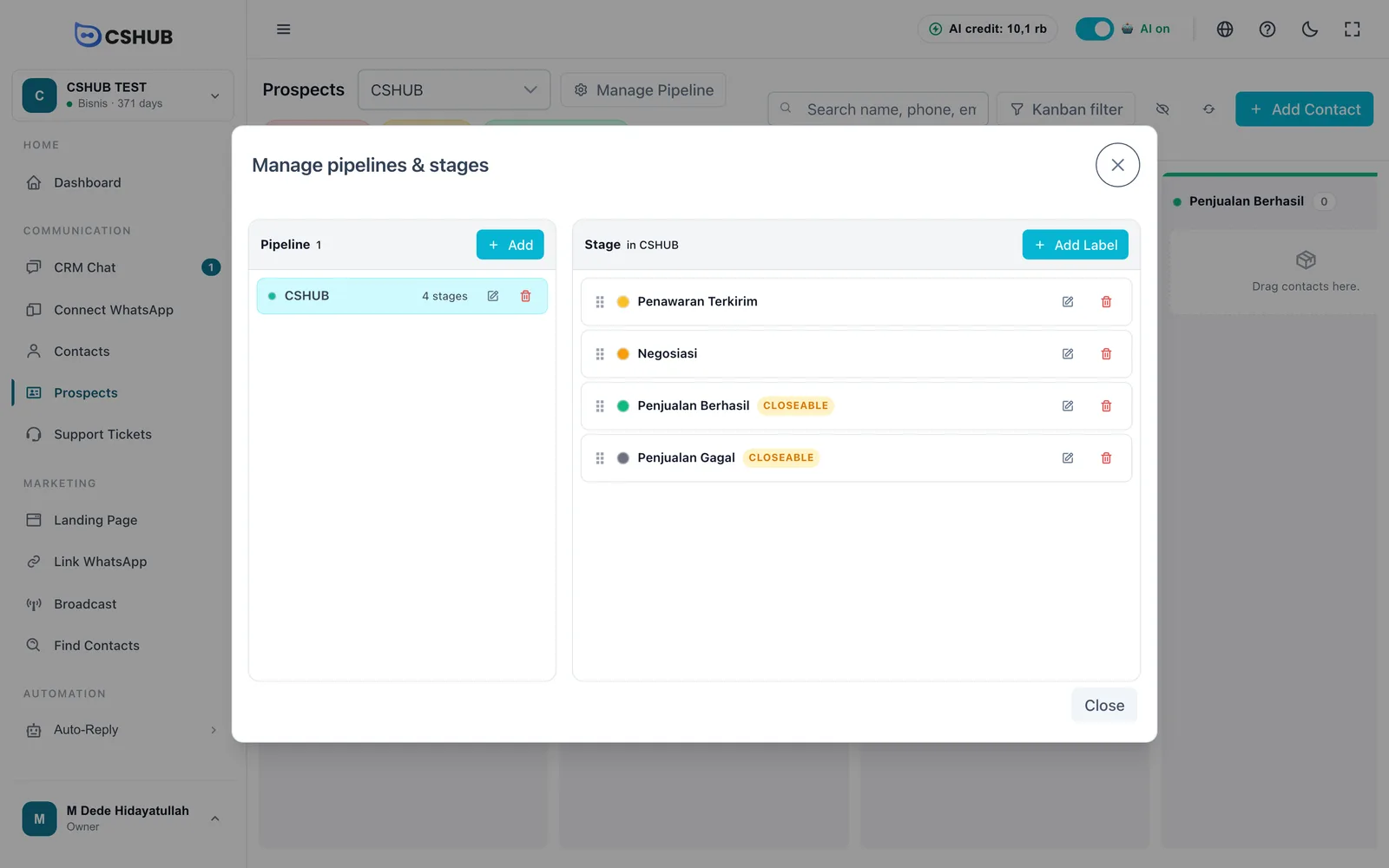
Click Manage Pipeline to open Manage pipelines & stages.
Creating a pipeline
- In the Pipeline column, click Add.
- Enter the Pipeline Name, e.g. Sales Pipeline.
- Choose a Template to generate stages automatically:
| Template | Stages created |
|---|---|
| Default | Offer Sent → Negotiation → Won → Lost |
| Sales | Qualified → Proposal → Closing → Won → Lost |
| Service | New Ticket → In Progress → Waiting Response → Resolved → Closed |
| Custom | An empty pipeline; you create the stages yourself |
- Click Add.
Template stage names follow your business language (Indonesian businesses get Indonesian names), and every stage can be renamed afterwards.
Managing stages
Pick a pipeline on the left, then in the Stage column:
- Add Label — a new stage with a Label Name and Color.
- Pencil icon — rename or recolour the stage.
- Drag handle (⋮⋮) — drag to reorder stages. This order is the column order on the board.
- Bin icon — delete the stage.
Stages with a CLOSEABLE badge are final stages (won or lost). Contacts in them count as closed prospects for the Conversion figure and are no longer counted as stuck or overdue.
Deleting limits
- CLOSEABLE stages and stages that still hold contacts can't be deleted.
- A pipeline that still holds contacts can't be deleted. Deleting a pipeline also deletes all its stages.
Related
- Contacts
- Replying to conversations
- AI lead qualification
- Reports & logs — prospect reports by stage