
Shipping & rates
Set up shipping once, and delivery costs are calculated automatically every time a buyer checks out — on your landing pages, your online store, or when the AI handles a purchase in chat. This page covers the three things to prepare: your origin address, the couriers you offer, and automatic shipping rates.
How shipping is calculated
Shipping cost is worked out from four pieces of data:
| Data | Taken from |
|---|---|
| Origin address | Your main business address in Business addresses |
| Destination | The sub-district the buyer picks at checkout |
| Weight | Product weight (or per-variant weight) × quantity, plus the bump weight if taken. See Products & stock |
| Courier | The couriers you picked on each product that are active for your business |
The buyer then picks one of the available couriers and services, and the cost is added to the total.
Shipping checklist
Open Settings → Shipping. Only the business owner can open this page.
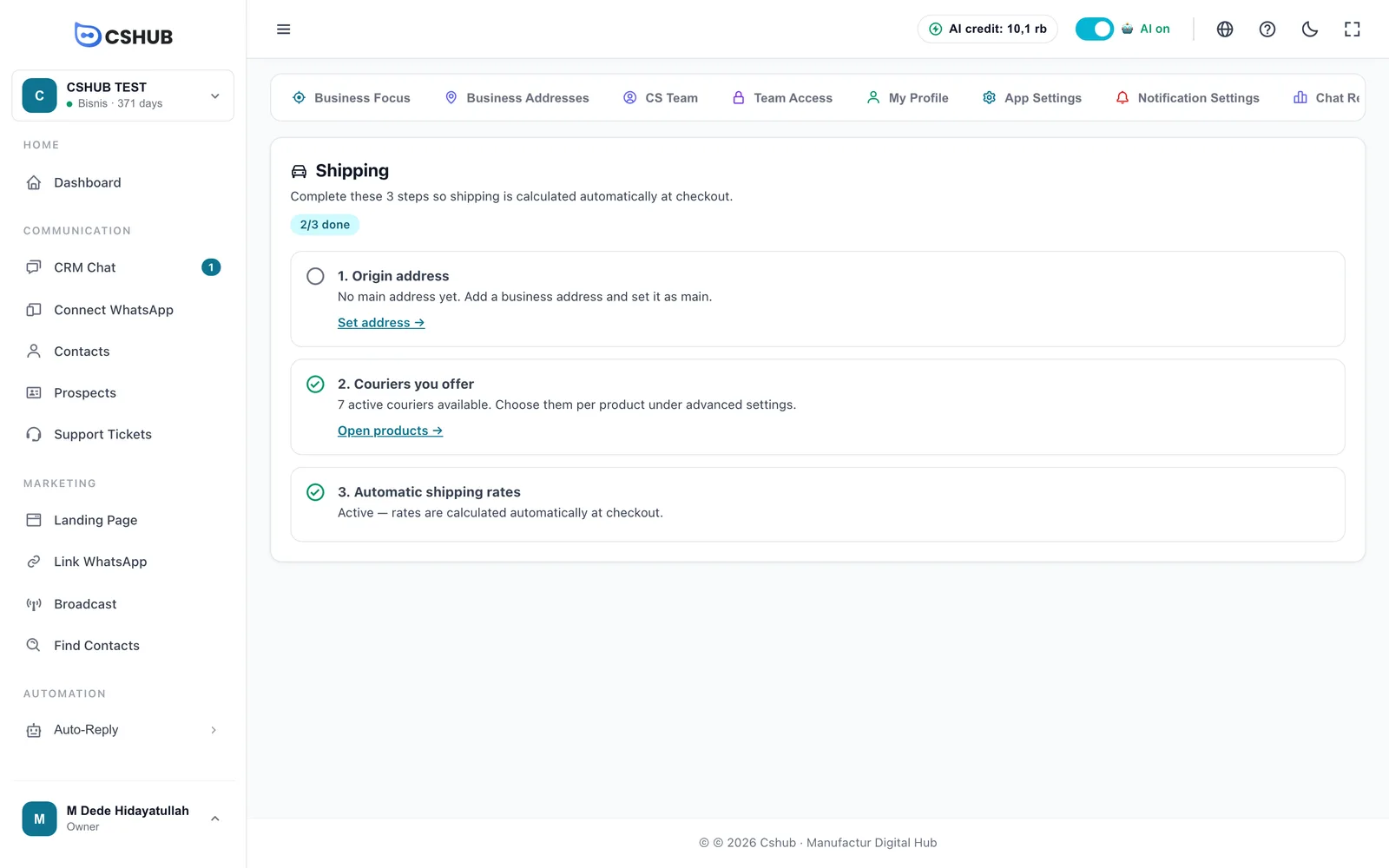
The page is a three-step checklist. The counter at the top shows how many steps are done.
1. Origin address
Your store and orders ship from your main address. If you don't have one yet, this step is unticked and says there's no main address.
- Click Set address →.
- Add your warehouse or shop address, down to the sub-district and postal code.
- Set it as the main address.
Once done, the step shows the name of the address in use. How to add addresses is covered in Business addresses.
2. Couriers you offer
This step shows how many couriers are active for your business. Couriers are enabled by the cshub team — if there are none, click Contact support to request activation over WhatsApp.
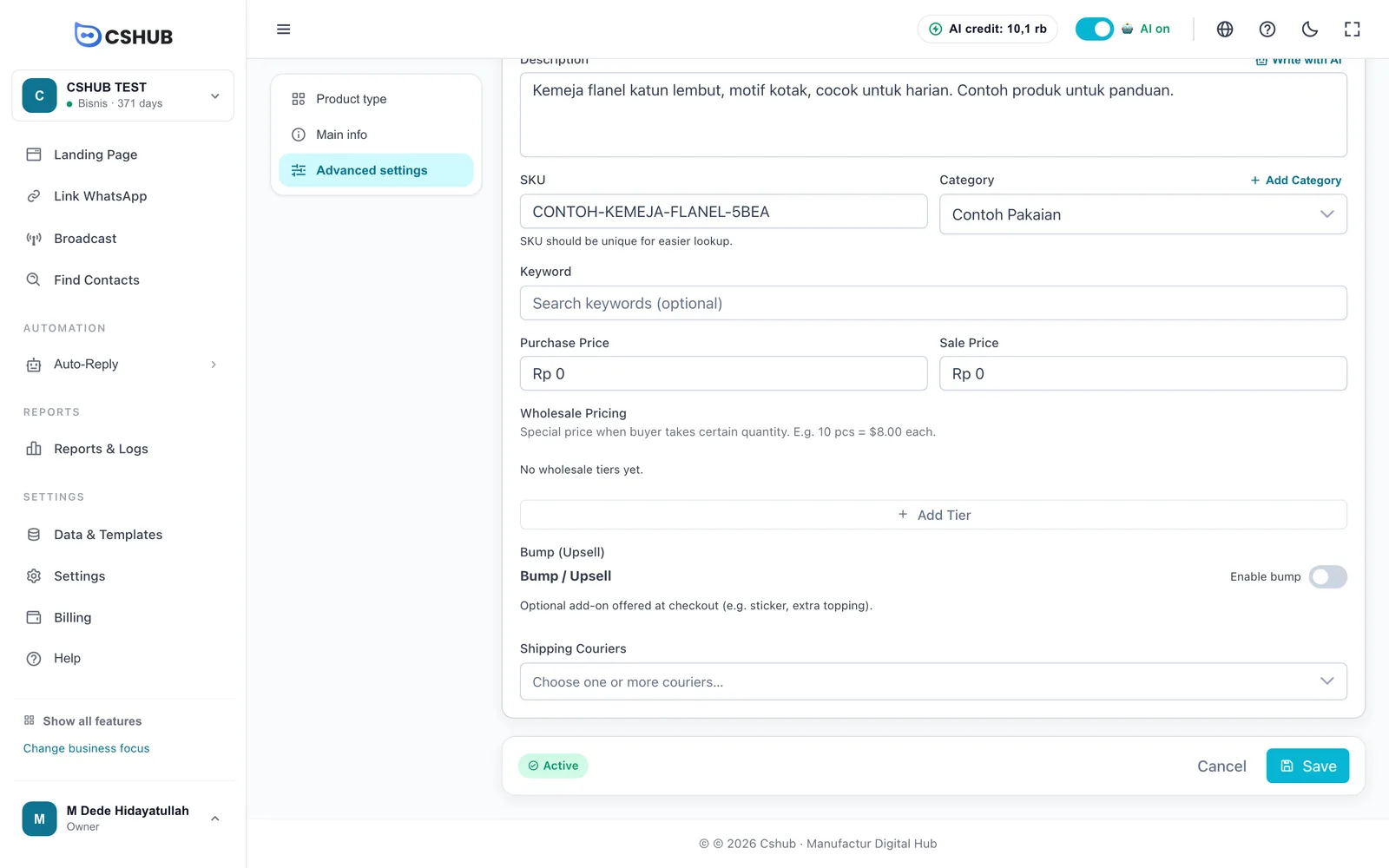
Couriers are chosen per product: click Open products →, edit a product, and pick couriers under Advanced settings → Shipping Couriers. Only couriers picked on the product appear as shipping options at checkout.
3. Automatic shipping rates
Shows whether automatic rate calculation is active for your business. You don't need to install an API key or subscribe to a shipping service yourself — if it isn't active yet, click Contact support and the cshub team will enable it.
Turning on shipping for each sales channel
Once the checklist is done, switch on shipping calculation wherever you sell:
| Channel | How to enable |
|---|---|
| Landing page | In the product page's Settings tab, turn on Enable shipping calculation at checkout. You can also add a Shipping Calculator block. See Landing pages |
| Online store | In the Settings tab, turn on Require shipping at checkout. The store ships from your main address. See Online store |
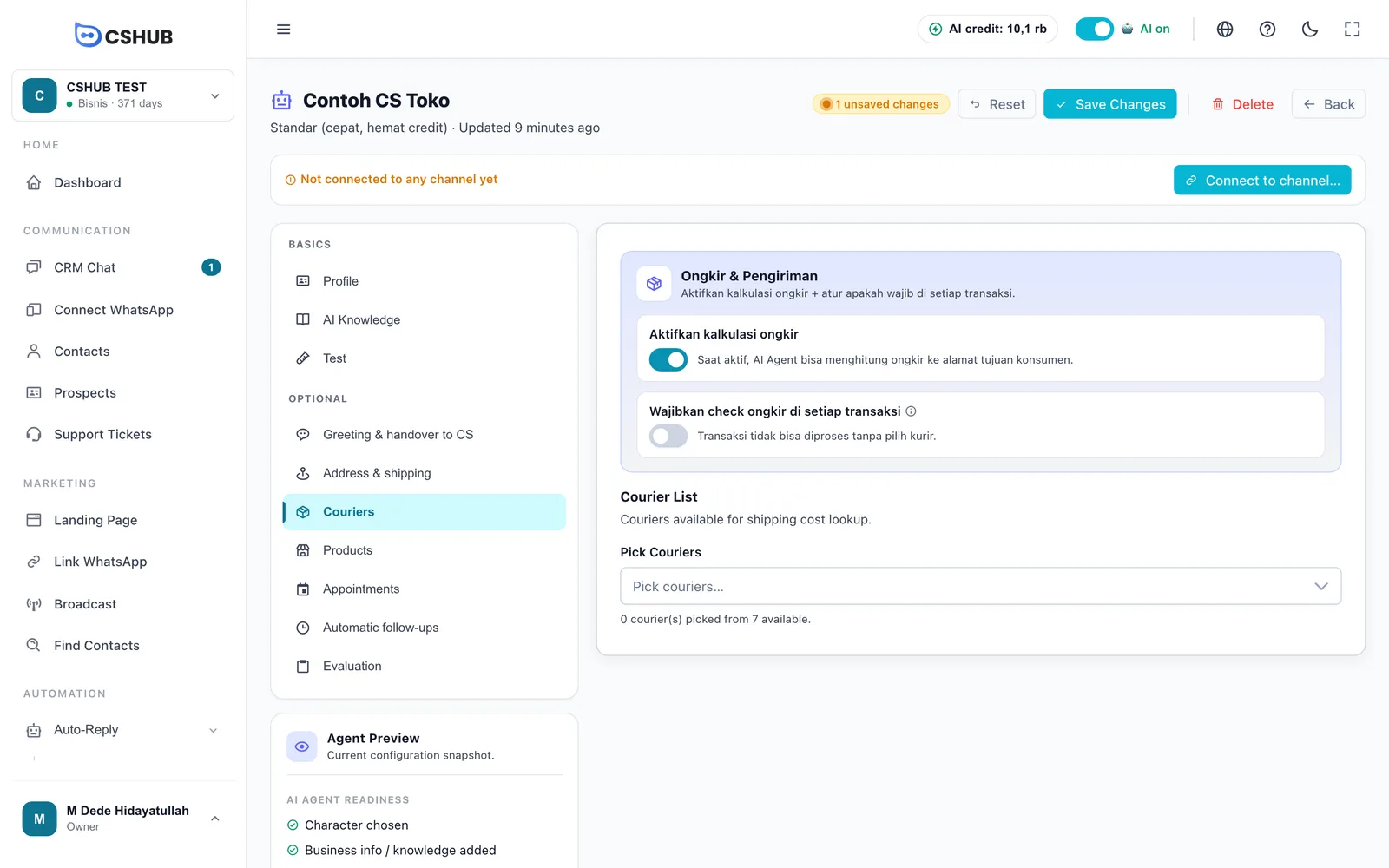
| AI Agent | In the AI Agent settings, turn on shipping calculation, choose the origin address, and tick the couriers the AI may offer. See AI selling & chat checkout |
| Manual orders | Enter the cost yourself in the Expedition card or when marking the order as Shipping. See Orders |
Shipping an order
When an order is ready, open it and click Ship order. Choose the courier, service, cost, and tracking number — the cost calculated at checkout is already filled in.
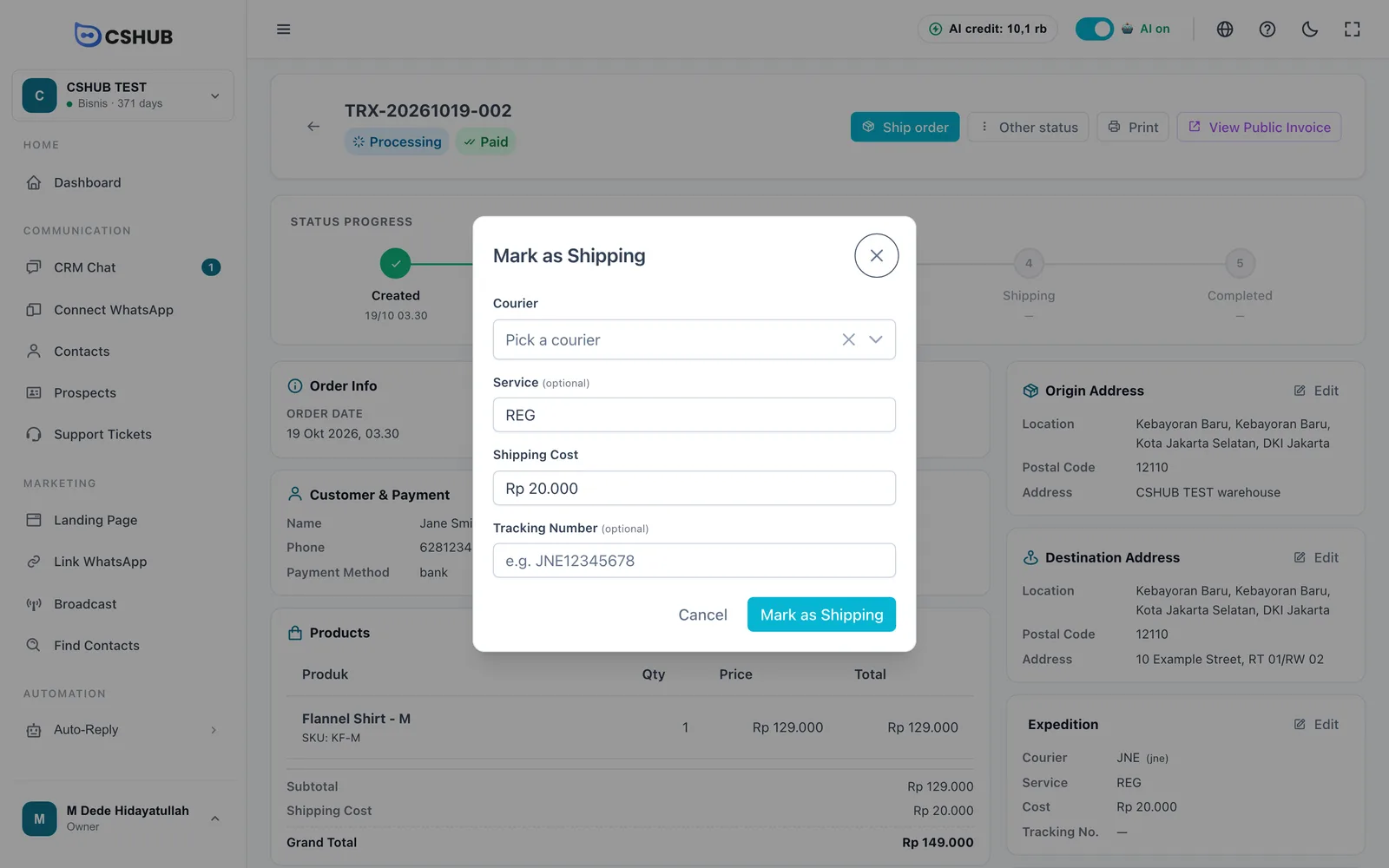
For orders that don't use a courier, pick Own delivery or Store pickup in the Courier field. You can add the tracking number later from the Expedition card, and it shows on the customer's public invoice automatically. The full flow is in Orders.
Businesses outside Indonesia
Automatic shipping rates are only available for businesses with an address in Indonesia, for domestic routes. If your business address is in another country:
- The Shipping page shows a note that automatic rates aren't available instead of the checklist.
- The courier picker in the product form is hidden.
- Buyers enter their own address and postal code, and the shipping cost is confirmed by you as the seller.
- You can still enter shipping costs manually on each order.
For international buyers in the online store, turn off Require shipping at checkout.
Troubleshooting
| Symptom | Cause & fix |
|---|---|
| No shipping options at checkout | No main address, automatic rates not active, or the product has no couriers. Check the checklist under Settings → Shipping |
| The courier list in the product form is empty | No couriers are active for your business. Click Contact support on the Shipping page |
| Shipping is too cheap or too expensive | The product weight is wrong. Check Weight (gram) on the product or the Weight (g) column per variant |
| A courier never shows up | It isn't ticked on the product (or in the AI Agent's courier list) |
| Digital products or services still ask for shipping | In the online store, turn off Require shipping at checkout. On manual orders, turn off Needs shipping? |