
Reports & logs
The Reports & Logs menu puts all your business numbers in one place — which customers need a follow-up, how fast each CS agent replies, how many leads sit in each stage, how your broadcasts went, all the way to product sales and abandoned carts — so you can decide your next move from data instead of guesswork.
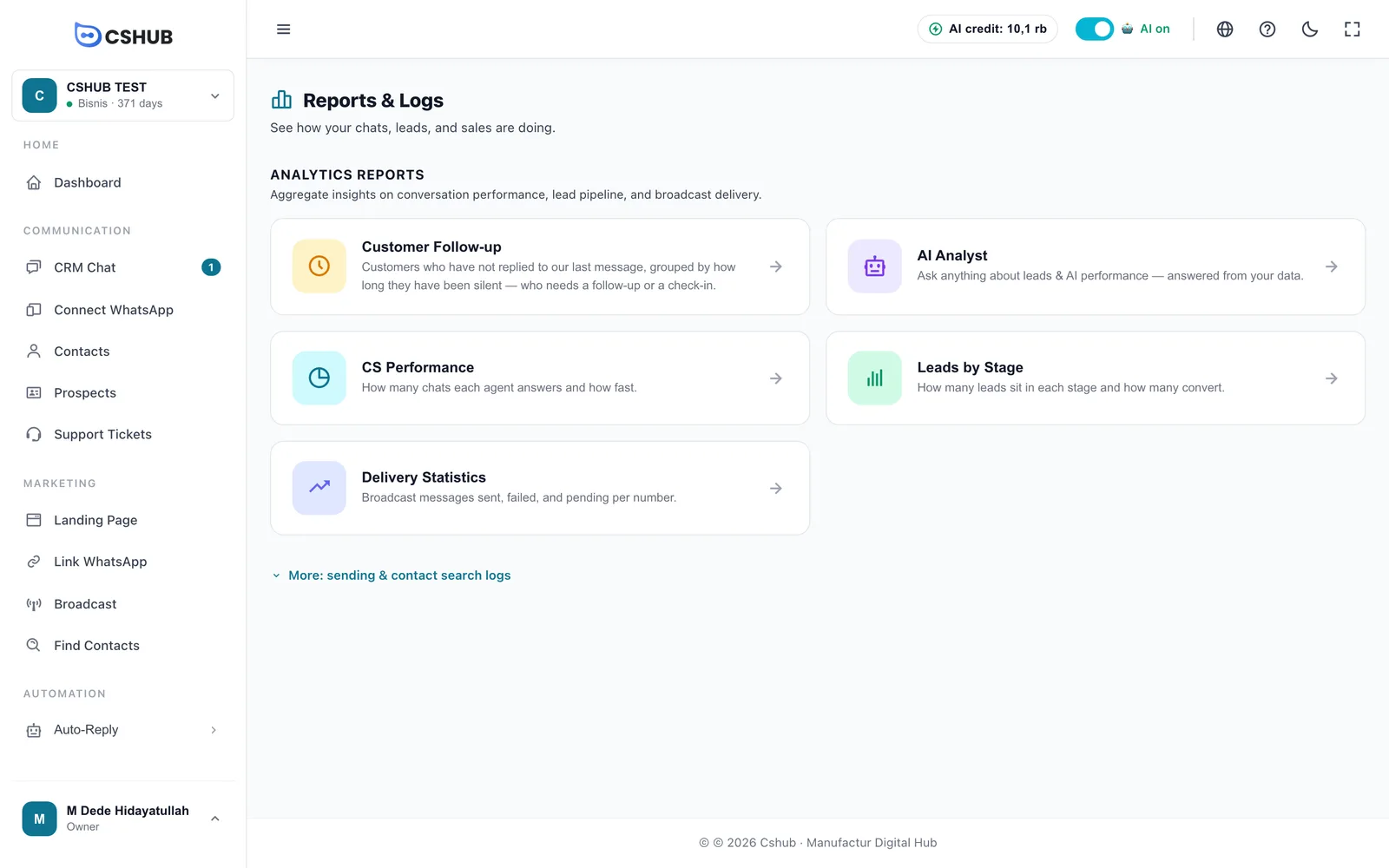
Open Reports & Logs in the sidebar, under the Reports group. The first page is a set of report cards; click one to open it.
Once you're inside a report, the row of tabs at the top lets you jump to another report without going back to the cards.
Report groups
| Group | What's in it | When it shows |
|---|---|---|
| Analytics Reports | Customer Follow-up, AI Analyst, CS Performance, Leads by Stage, Delivery Statistics | Always |
| Commerce Reports | Best Sellers, Top Revenue Products, Product Trend, Transaction Report, Period Analysis, Transaction Timeline, Abandoned Cart | Only when your business focus includes selling and your package includes the transactions feature |
| Activity Logs | WhatsApp Log, Scraping Log | Click More: sending & contact search logs to show them |
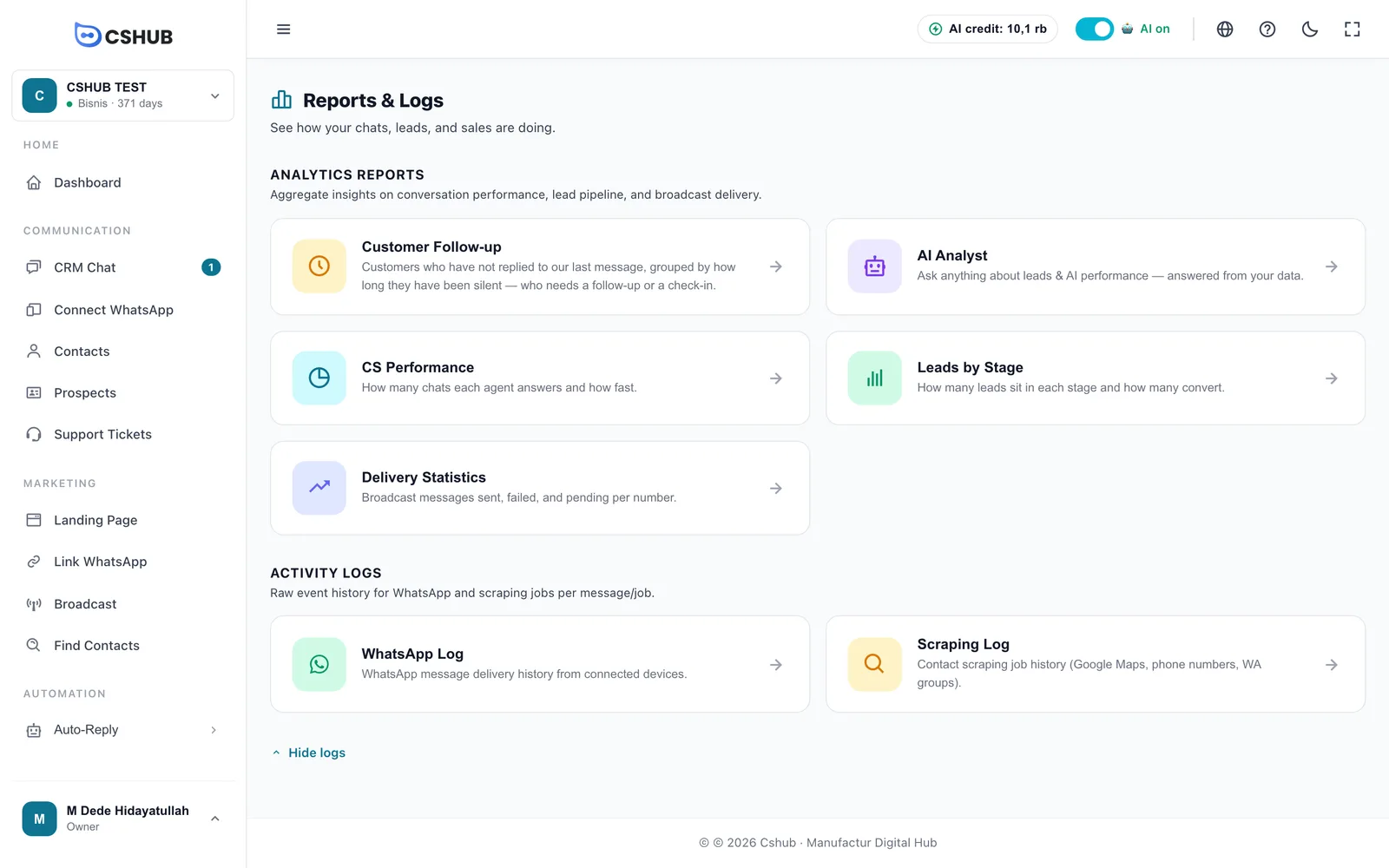
Three reports have their own guide because they're the ones you'll use every day:
| Report | Guide |
|---|---|
| Customer Follow-up — chats left hanging, grouped by how long they've been silent | Unreplied chats |
| AI Analyst and per-conversation AI analysis | AI Insight & analyst |
| Daily Chat Report — a chat summary sent to WhatsApp every day | Daily chat report |
Who can open reports?
The menu only appears for team members with report access (set it in Team, CS & roles). Reports also need an active package — if yours has lapsed, you'll see Your business package is inactive or has expired. with a Manage Package button. See When your package expires.
CS Performance
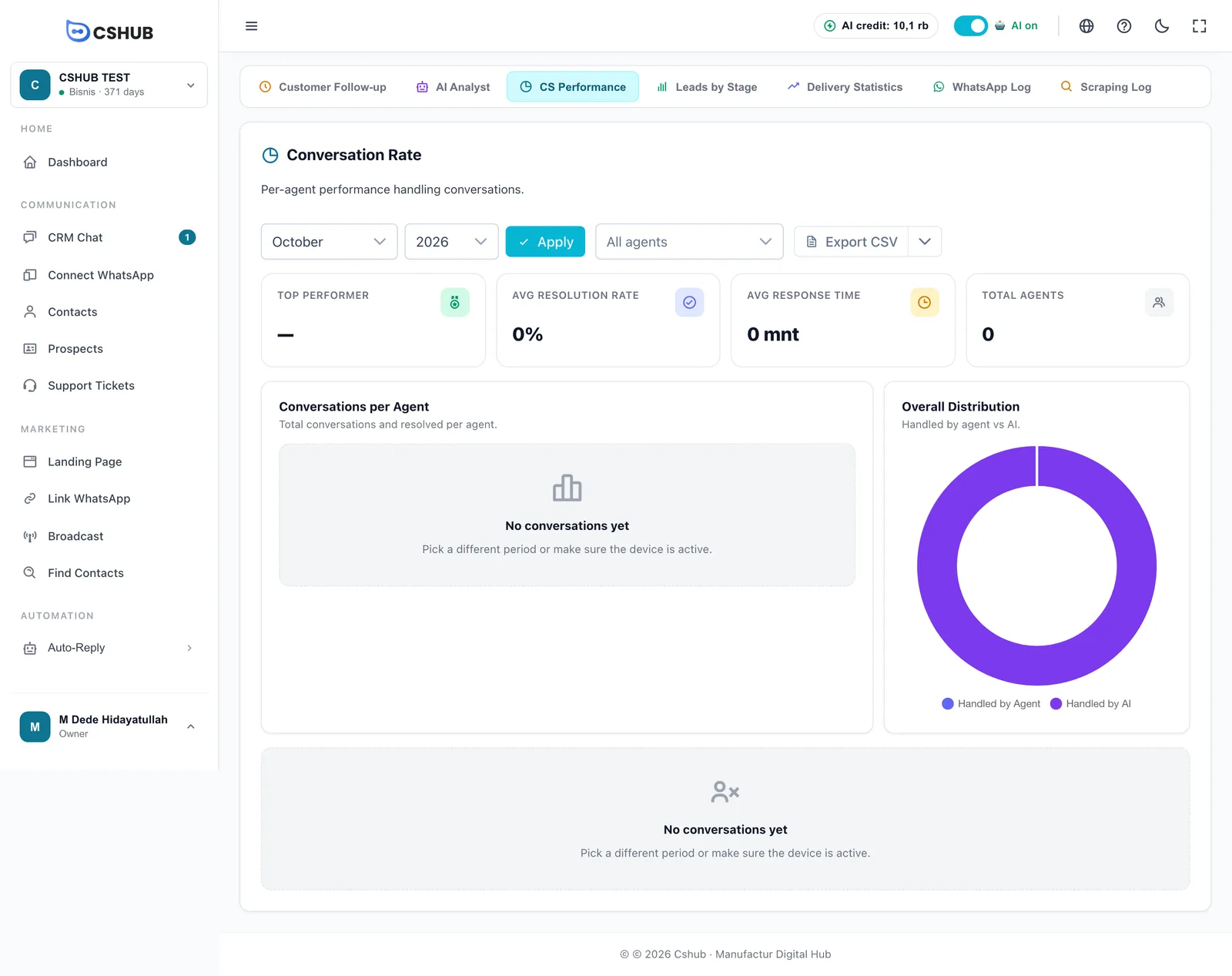
The CS Performance card (the page is titled Conversation Rate) shows how many chats each agent handled, how many were resolved, and how quickly they replied.
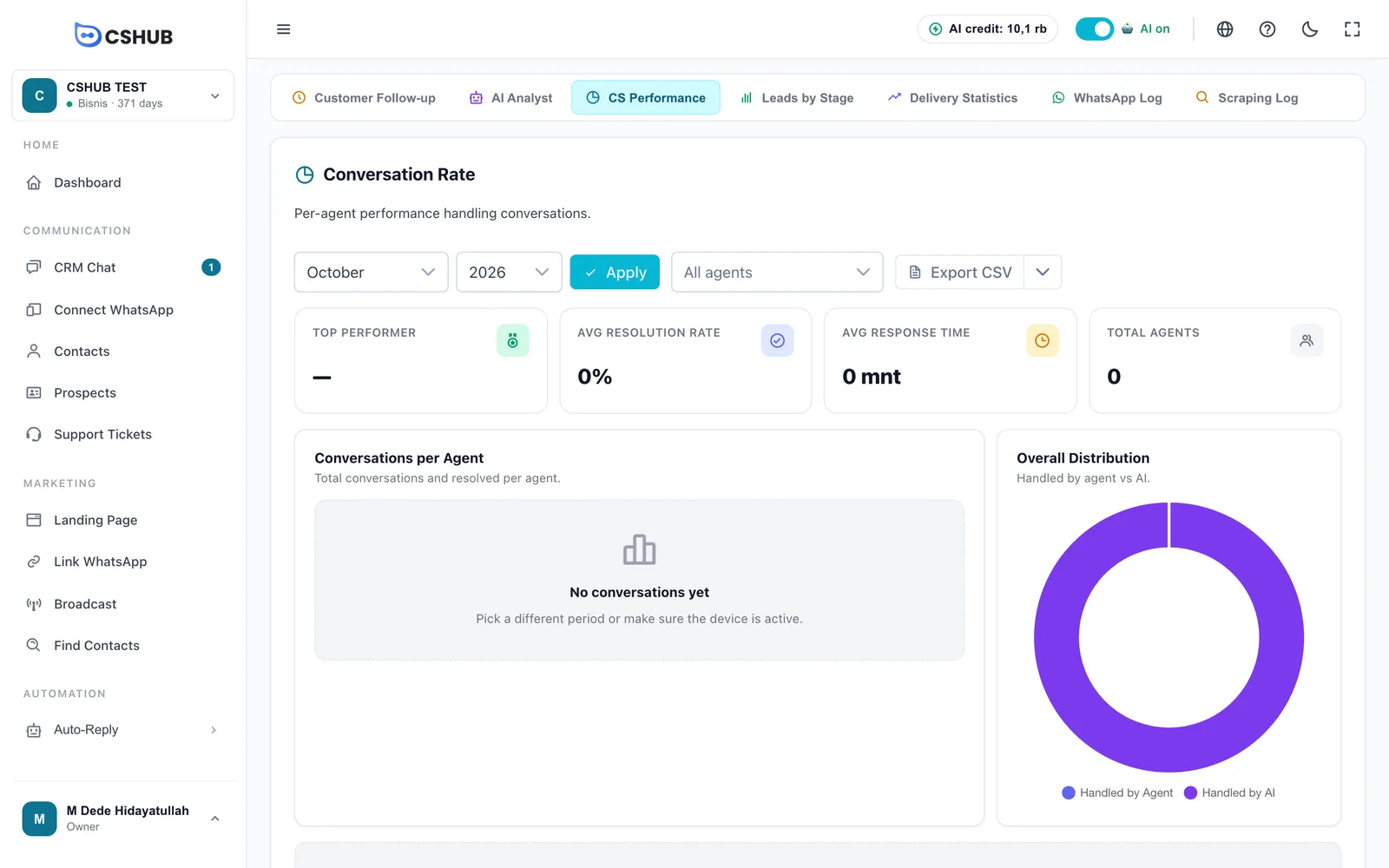
- Pick the Month and Year, then click Apply.
- (Optional) Pick one agent to see only their numbers, or leave All agents.
- Read the number cards, charts, and the table below.
| Part | Meaning |
|---|---|
| Top Performer | The agent with the best results that month |
| Avg Resolution Rate | Average share of conversations marked resolved |
| Avg Response Time | Average time agents take to reply to a customer |
| Total Agents | How many agents handled chats in the period |
| Conversations per Agent | Total and resolved conversations, per agent |
| Overall Distribution | Chats handled by your team (Handled by Agent) vs by AI (Handled by AI) |
The Per-agent detail table has the columns Agent, Total, % Resolved, Messages, Avg Response (min), and % Engagement. Click an agent's row to open their detail page: a Yearly tab with a 12-Month Trend chart, and a This Month (Detail) tab with Total Conversations, % Resolution, Messages Sent, Avg First Response, Avg Response, and Engagement Rate.
Export CSV downloads the report; the arrow next to it offers Export XLSX for Excel. Keep the tab open while the file is being built.
Leads by Stage
The Leads by Stage card (the page is titled Lead Conversation) shows how many leads are in each pipeline stage and how many end up buying.
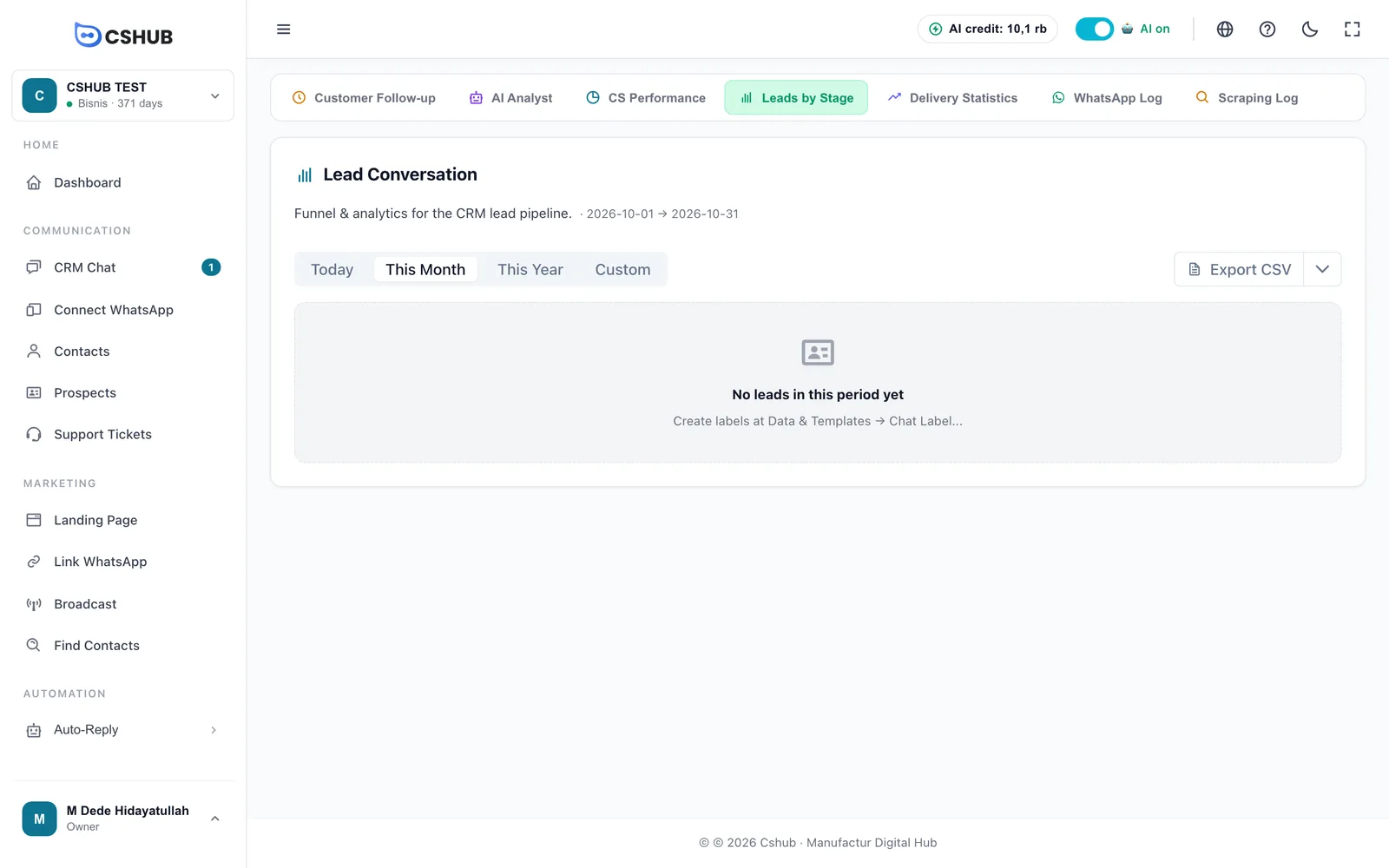
Pick Today, This Month (the default), This Year, or Custom (choose a start and end date, then Apply). The range in use is shown next to the title.
| Part | What it shows |
|---|---|
| Total Leads, Closed Leads, Closing Rate | Number of leads, how many closed, and the percentage |
| Avg Time to Close | Average days from entering the pipeline to closing |
| Total Labels, Active Pipeline Value | Number of stages and the value of leads still in progress |
| Funnel — Leads by Label | How leads are spread across stages, top to bottom of the funnel |
| Pipeline Segments | A summary per pipeline; stages that count as a close get a Closeable badge |
| Conversion Rate per Stage | How many move on and how many drop off at each stage |
| Velocity Metrics | Avg Days in Pipeline, Active Leads, Fastest (days), Slowest (days) |
| Trend | Lead count over time for the chosen period |
There are two export options: Export CSV downloads straight away, while Export JSON opens a Preview Export JSON window with copy and Download .json buttons.
Report still empty?
This report reads your contacts' pipeline stages. If you see No leads in this period yet, create your stages (chat labels) first and add contacts to the Prospects board. AI lead qualification can move contacts into stages automatically.
Delivery Statistics
The Delivery Statistics card sums up your broadcast results per WhatsApp number: how many were delivered and how many failed.
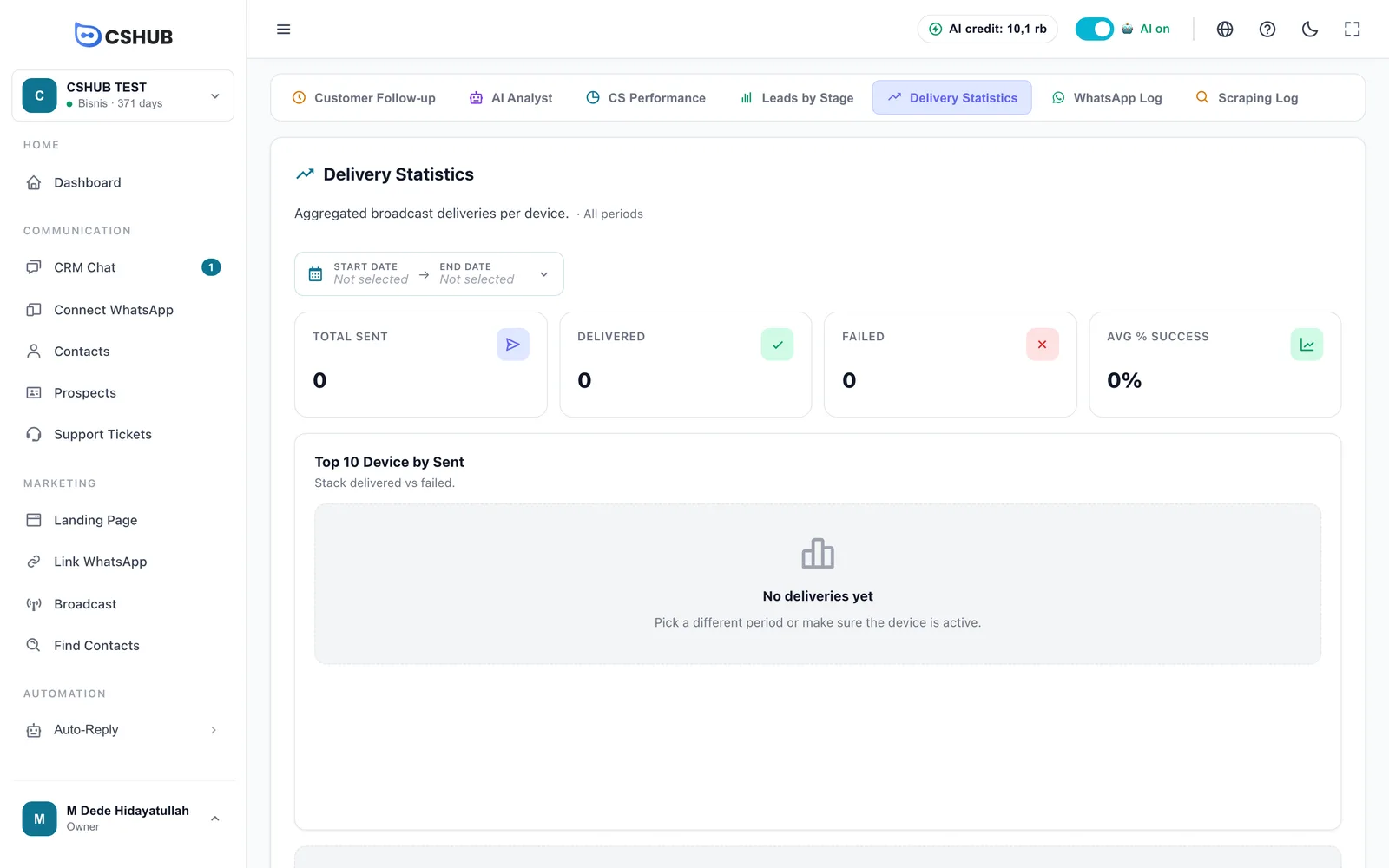
The report starts on All periods. To narrow it down, click the date picker, click a start date and then an end date, and click Apply.
| Part | Meaning |
|---|---|
| Total Sent | Every broadcast message processed |
| Delivered | Messages that got through |
| Failed | Messages that didn't go out |
| Avg % Success | Average success rate |
| Top 10 Device by Sent | The 10 numbers that sent the most, with delivered and failed stacked |
| Per-device detail | A table per number: Device, Sent, and % Success |
If a number has a high failure rate, check its status in WhatsApp (scan QR) and slow down your broadcast pacing.
Commerce Reports
If you sell through cshub, these seven reports read your orders and products. The cards only show when your business focus includes selling and your package includes the transactions feature.
| Card | Page title | What you can see |
|---|---|---|
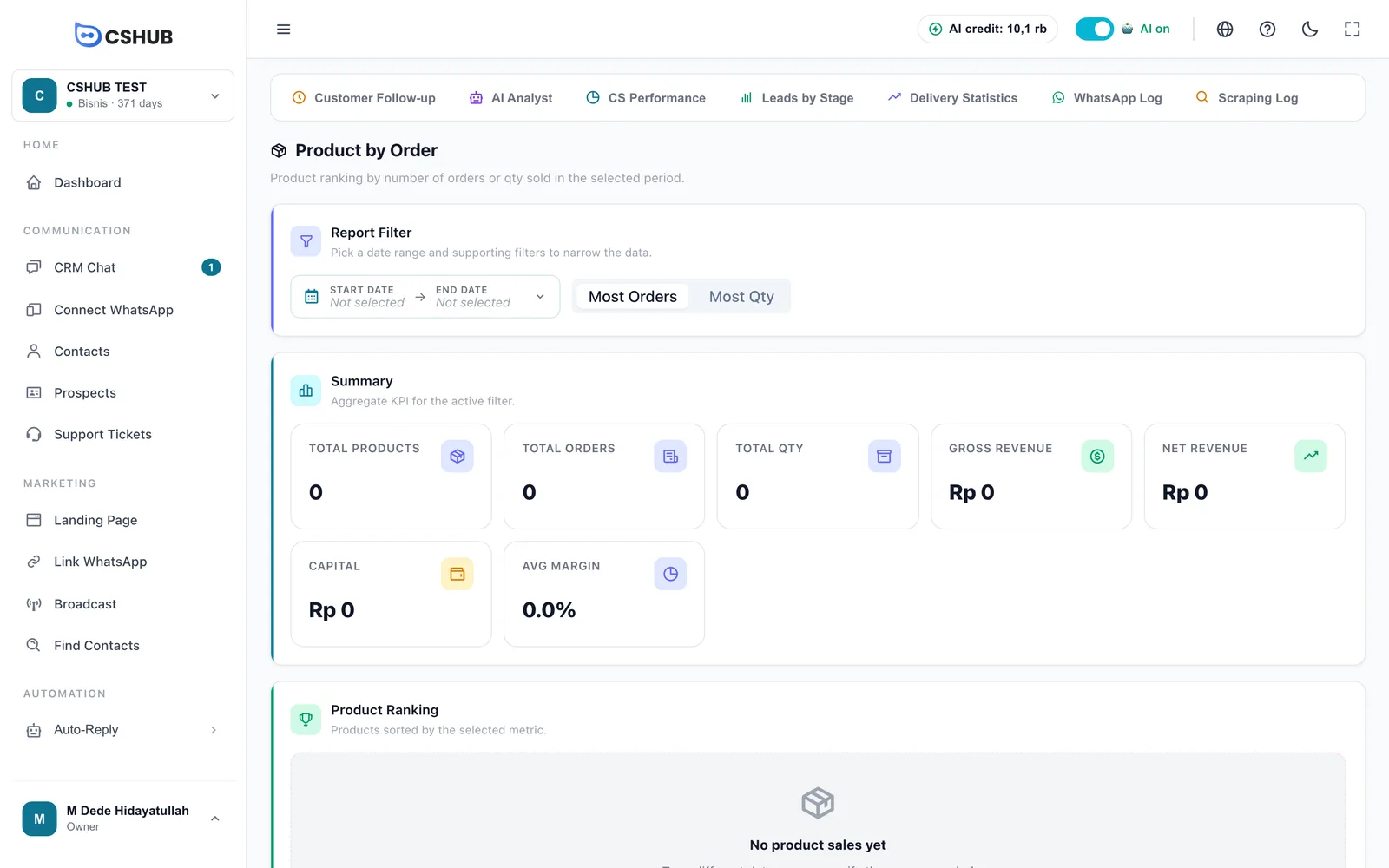
| Best Sellers | Product by Order | Products ranked by number of orders (Most Orders) or units (Most Qty), plus Total Orders, Total Qty, Gross Revenue, Net Revenue, Capital, and Avg Margin |
| Top Revenue Products | Product by Net Revenue | Products ranked by net revenue, filterable by Paid / Due. Click a product to see its per-variant breakdown (Variation Breakdown) |
| Product Trend | Product Trend Analysis | Compare up to 10 products in one chart by Qty, Revenue, or Orders, grouped Daily / Weekly / Monthly, with an Up / Down / Stable direction |
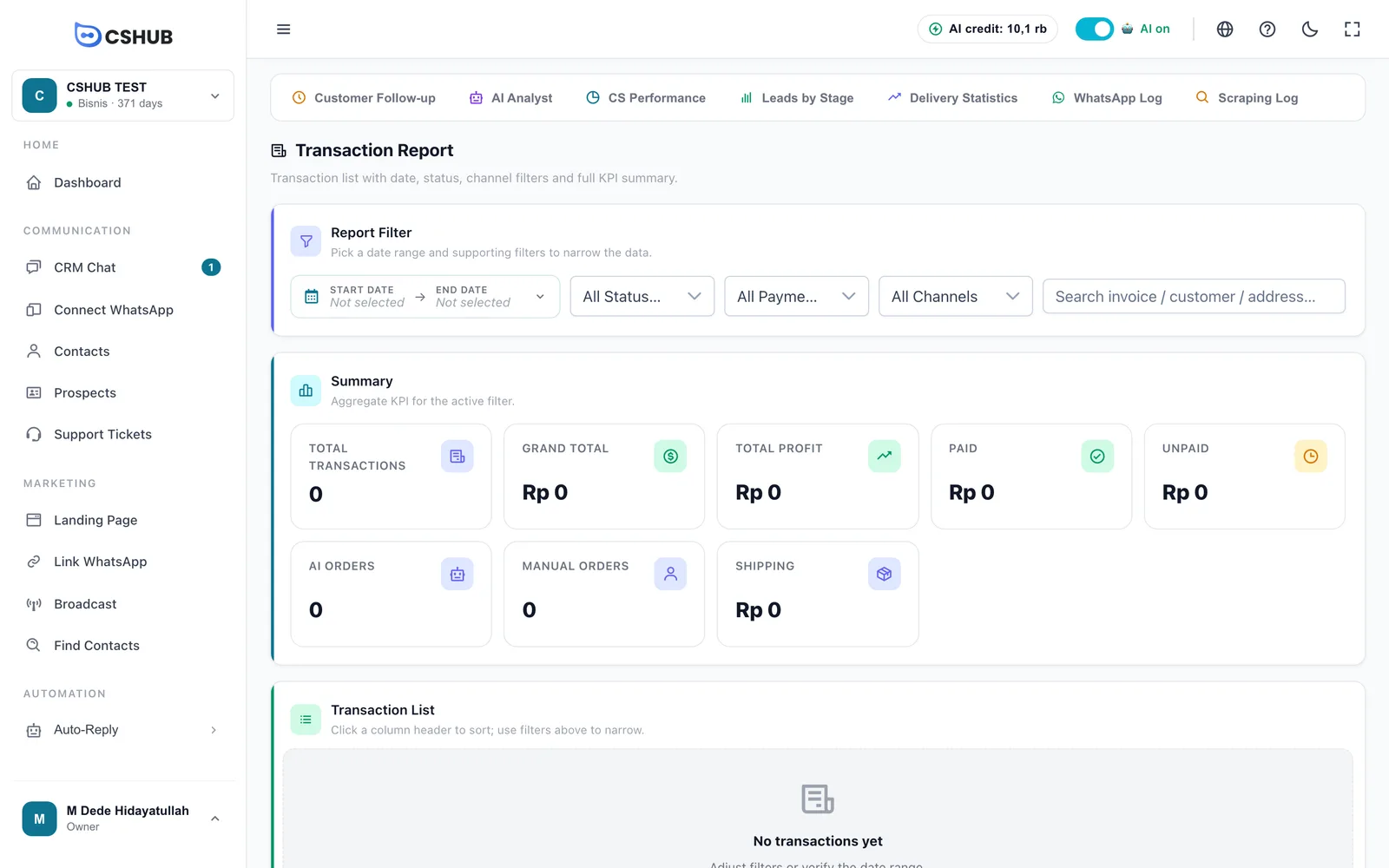
| Transaction Report | Transaction Report | The full order list with filters and a summary |
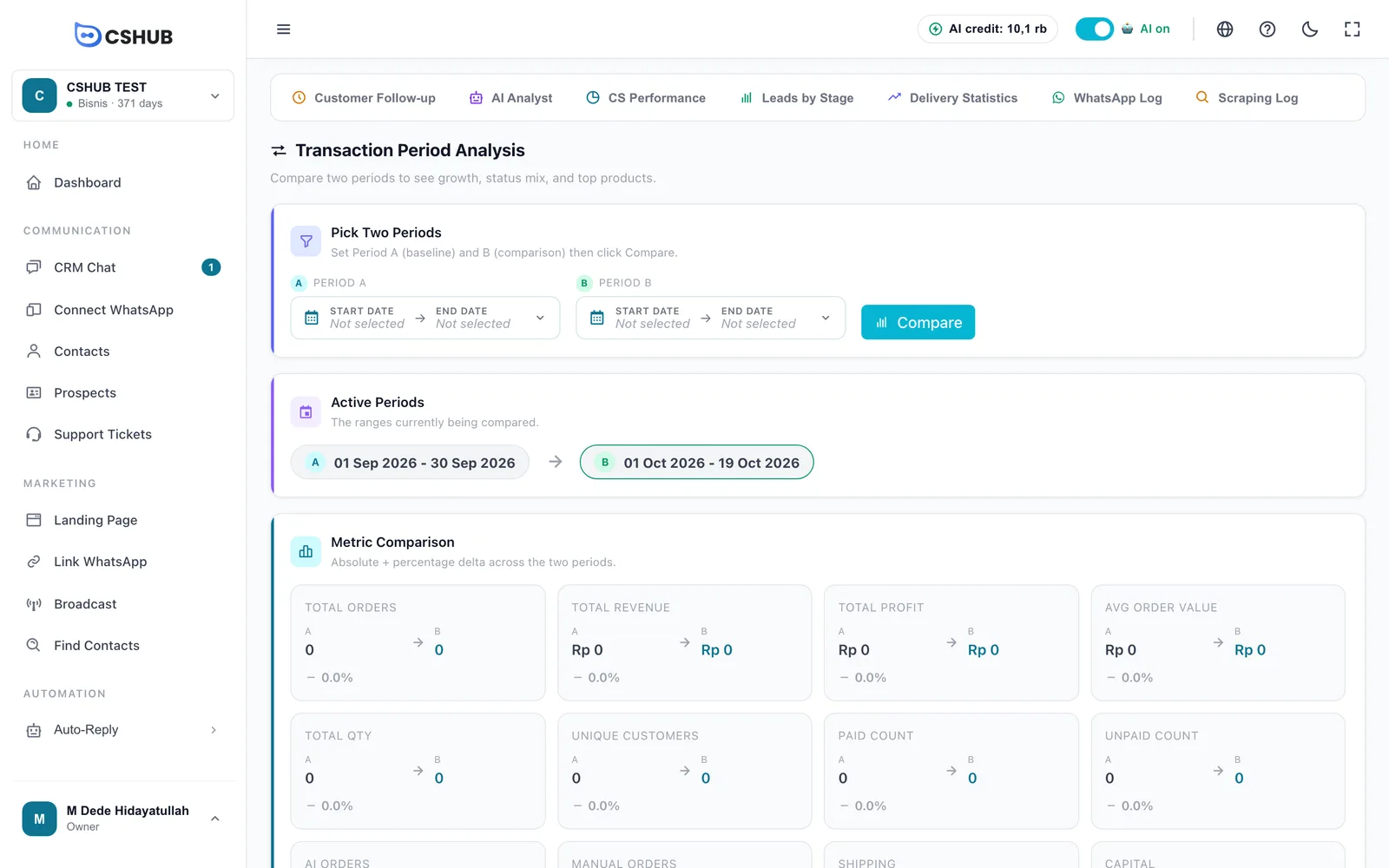
| Period Analysis | Transaction Period Analysis | Compare Period A with Period B (e.g. this month vs last month), then click Compare |
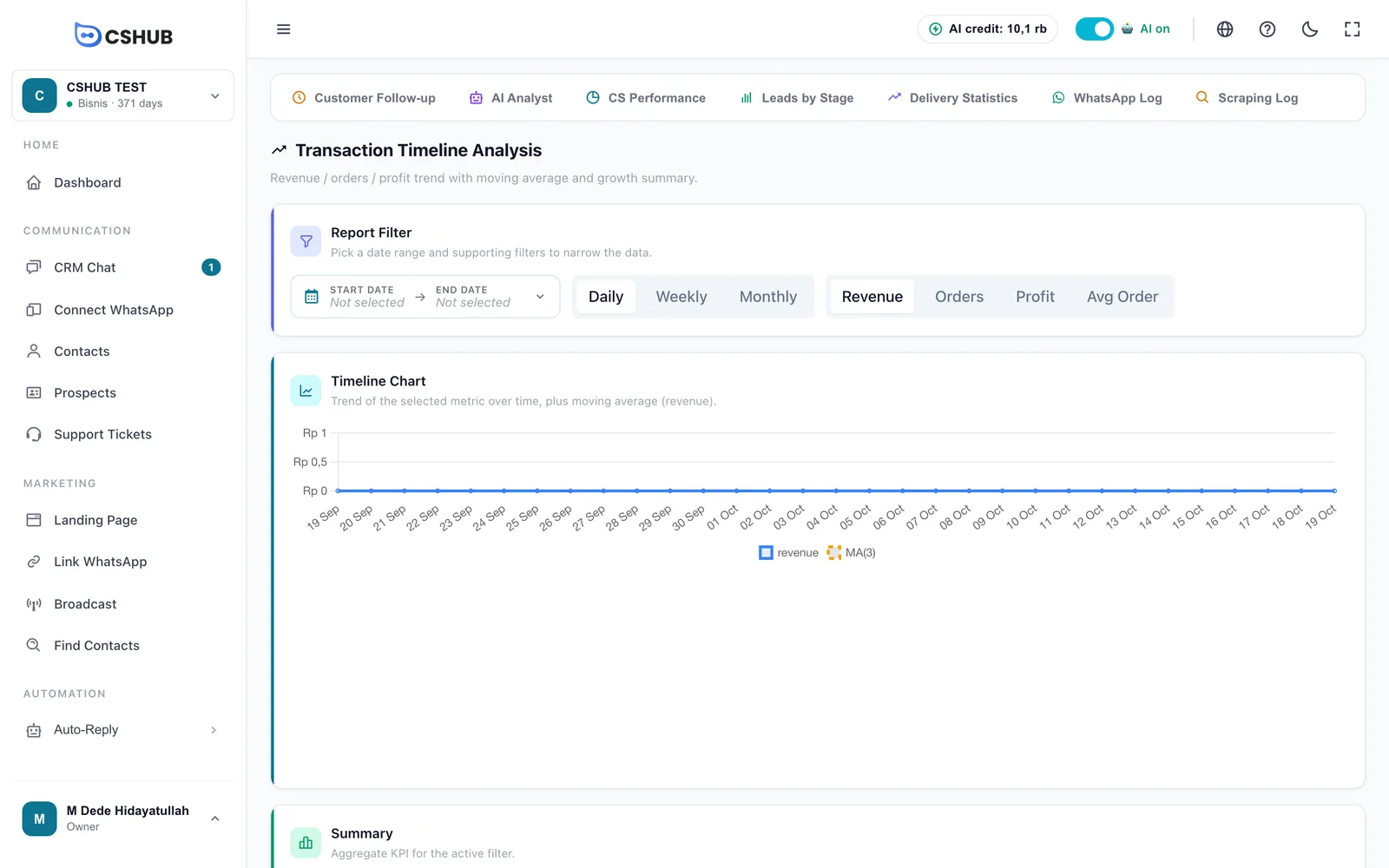
| Transaction Timeline | Transaction Timeline Analysis | Revenue, Orders, Profit, or Avg Order over time, with Growth, Peak Period, and Profit Margin |
| Abandoned Cart | Abandoned Cart | Shoppers who left checkout midway and how many were recovered |
Transaction Report
| Filter | Options |
|---|---|
| Date range | Start and end date |
| Status | All Statuses, Pending, Process, Shipping, Complete, Rejected, Refund |
| Payment | All Payments, Paid, Due |
| Channel | All Channels, AI Chatbot (orders the AI created from chat), Manual |
| Search | Invoice number, customer name, or address |
The Transaction List table has the columns Invoice, Customer, Items, Grand, Profit, Status, Payment, and Channel. Click a column header to sort.
Abandoned Cart
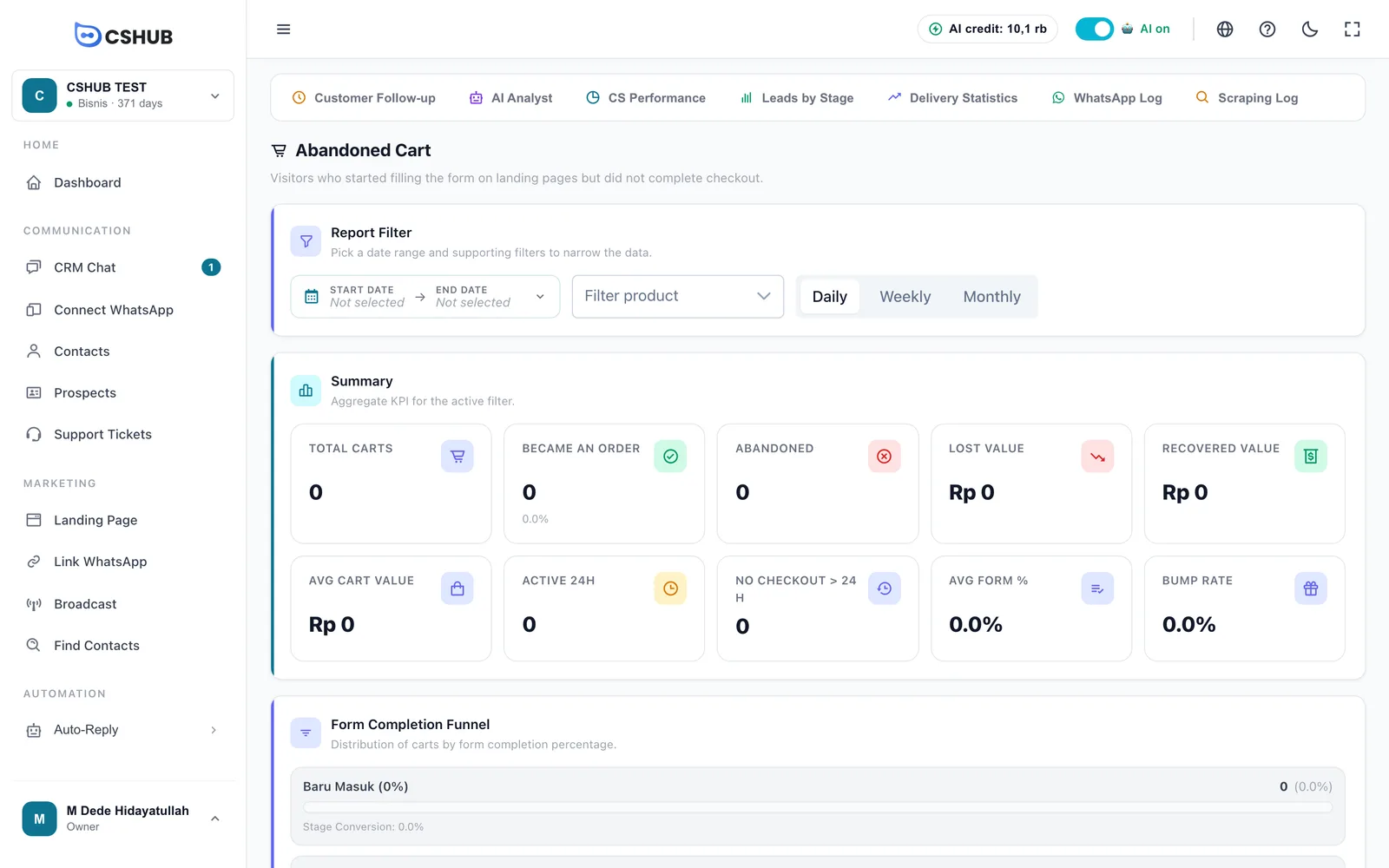
| Number | Meaning |
|---|---|
| Total Carts | Visitors who started filling in the checkout form |
| Became an order / Abandoned | Those who completed the order vs those who stopped |
| Lost Value / Recovered Value | Cart value lost vs value won back |
| Active 24h / No checkout > 24 h | Fresh carts vs carts that have gone quiet |
| Avg Form % | How far the form was filled in, on average, before it was left |
| Bump Rate | Share of carts that also picked the add-on offer (order bump) |
Further down you'll find the Form Completion Funnel, Abandoned vs Converted Trend, breakdowns By Product, By Device, and By Payment Method, CS Recovery with a CS Leaderboard, Hourly Distribution, and Top Abandoned (Highest Value). How to win carts back is covered in Abandoned carts.
No cart data?
If you see No abandoned carts yet, make sure the cart tracker is installed on your landing page or online store.
Activity Logs
Logs record events one by one — handy when you need to find out why a particular message didn't go out.
| Log | What's in it |
|---|---|
| WhatsApp Log | Delivery history of WhatsApp messages from connected devices |
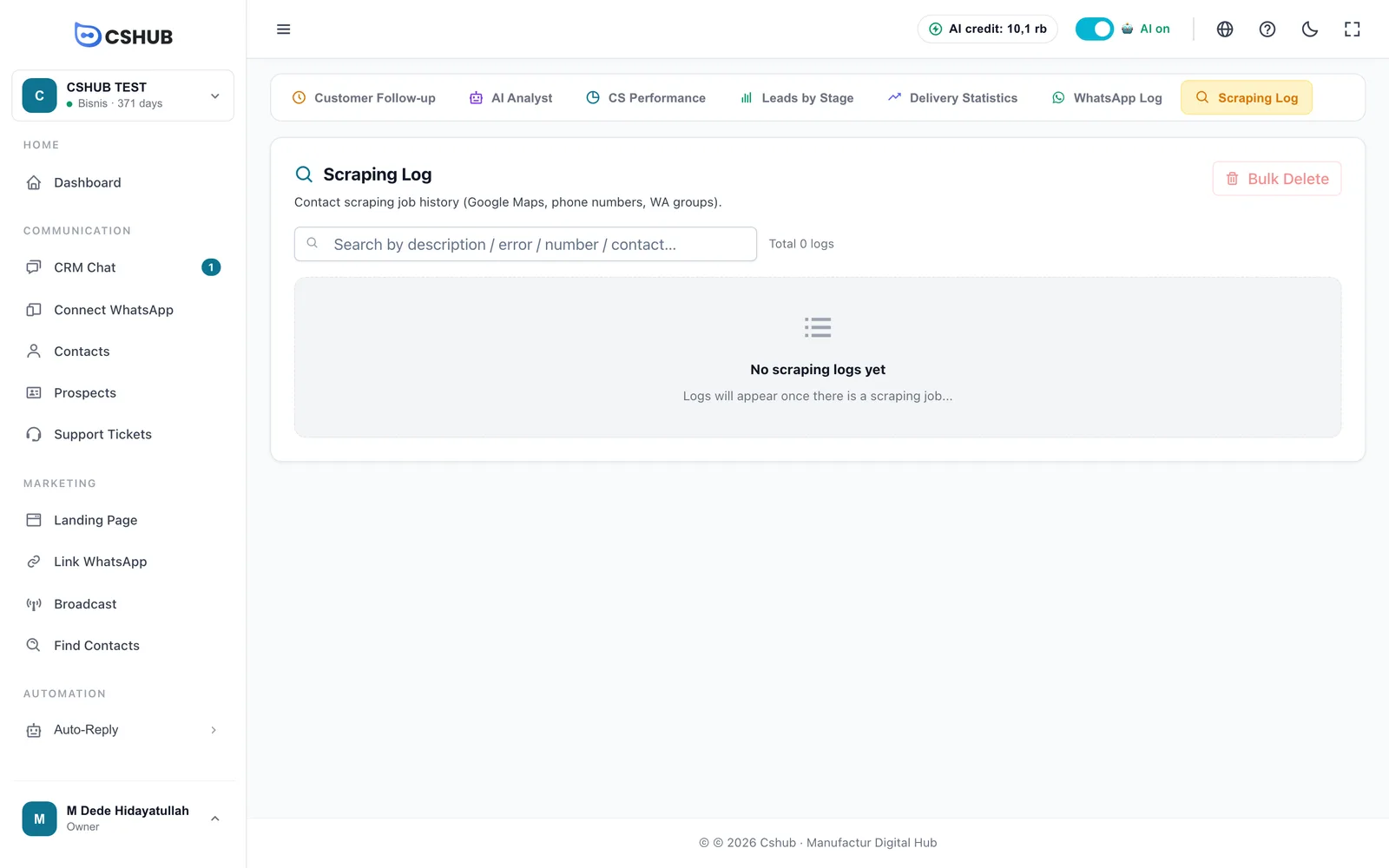
| Scraping Log | History of contact search jobs (Google Maps, phone numbers, WA groups) |
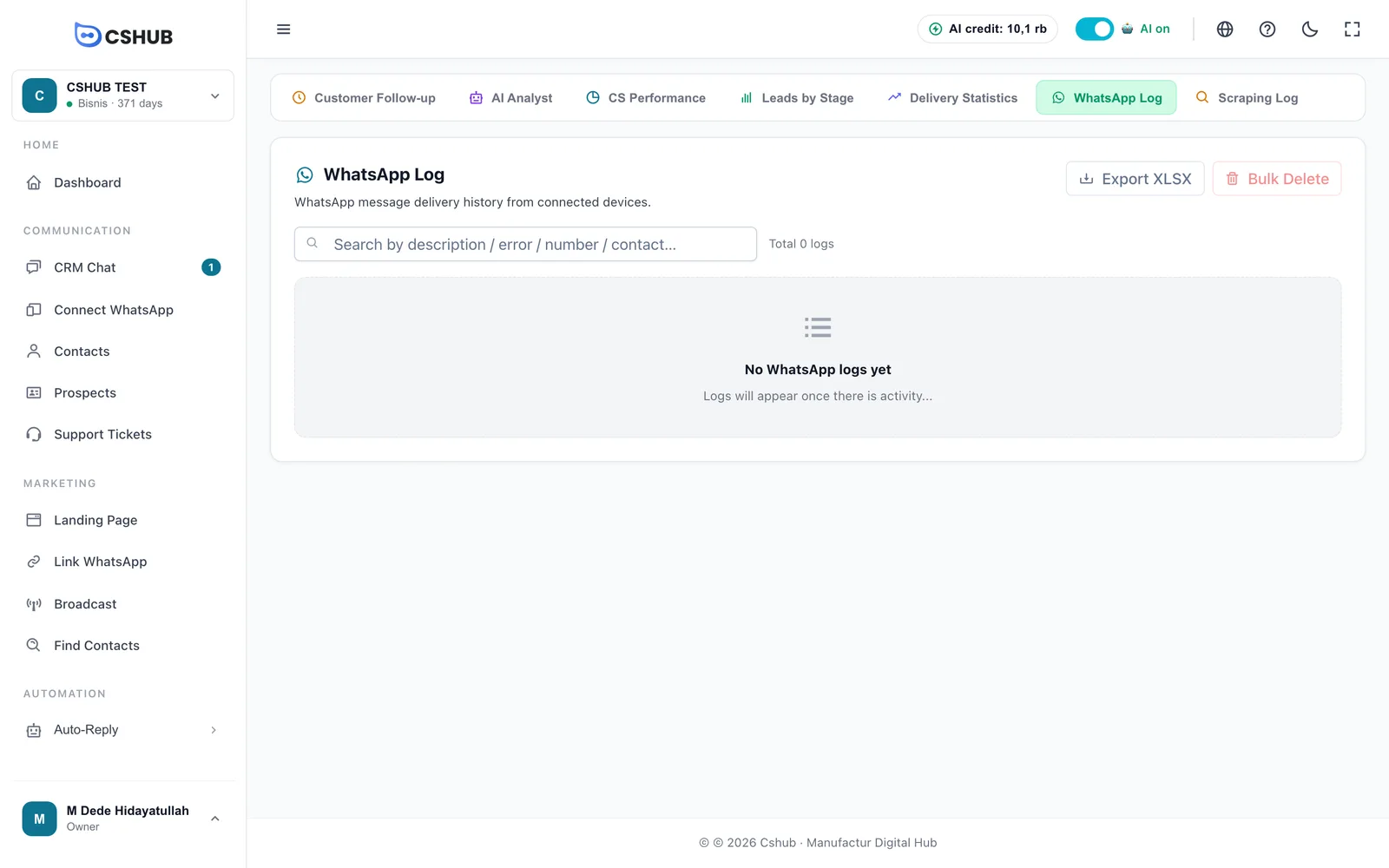
- Search by description, error, number, or contact name.
- Each row shows the Status (PENDING, SENT, or FAILED), Contact, Message, Date, Device, and Error.
- Click a row to open Log Detail: type, contact, number, sent and created time, device, description, message body, and error.
- Export XLSX (WhatsApp Log only) downloads the logs matching your search.
Bulk Delete can't be undone
Bulk Delete removes every log of that type — or only the ones matching your search keyword if you're searching. Check the keyword in the confirmation window before you go ahead.
Tips for reading reports
- Start your day with Customer Follow-up. It shows straight away who needs a nudge — see Unreplied chats.
- Compare CS Performance month to month, not day to day, so one quiet day doesn't skew the numbers.
- A high broadcast failure rate usually means a number needs a rest or the sending gap is too tight.
- Use the AI Analyst when you have a "why" question the numbers don't answer — see AI Insight & analyst.