
My Account & all businesses
My Account is the area outside any single business where you manage everything tied to your login: your list of businesses, creating a new business, comparing plans, the payment history of every business, and the affiliate dashboard. One cshub account can own several businesses — each with its own plan, team, WhatsApp numbers, and data.
Inside a business you work in the main app (CRM Chat, AI Agent, broadcasts, and so on). You come to My Account when you need to switch businesses, add a business, or handle something that applies to your whole account.
After signing in, you land in your last business
cshub remembers the last business you opened. If you only have one business, you go straight to its dashboard. My Account only opens automatically when you have several businesses and cshub doesn't know which one you want.
Opening My Account
From inside a business there are two doors:
- The user menu at the bottom left (click your name) → Account & all businesses.
- The business switcher at the top left (click the business name) → View all businesses.
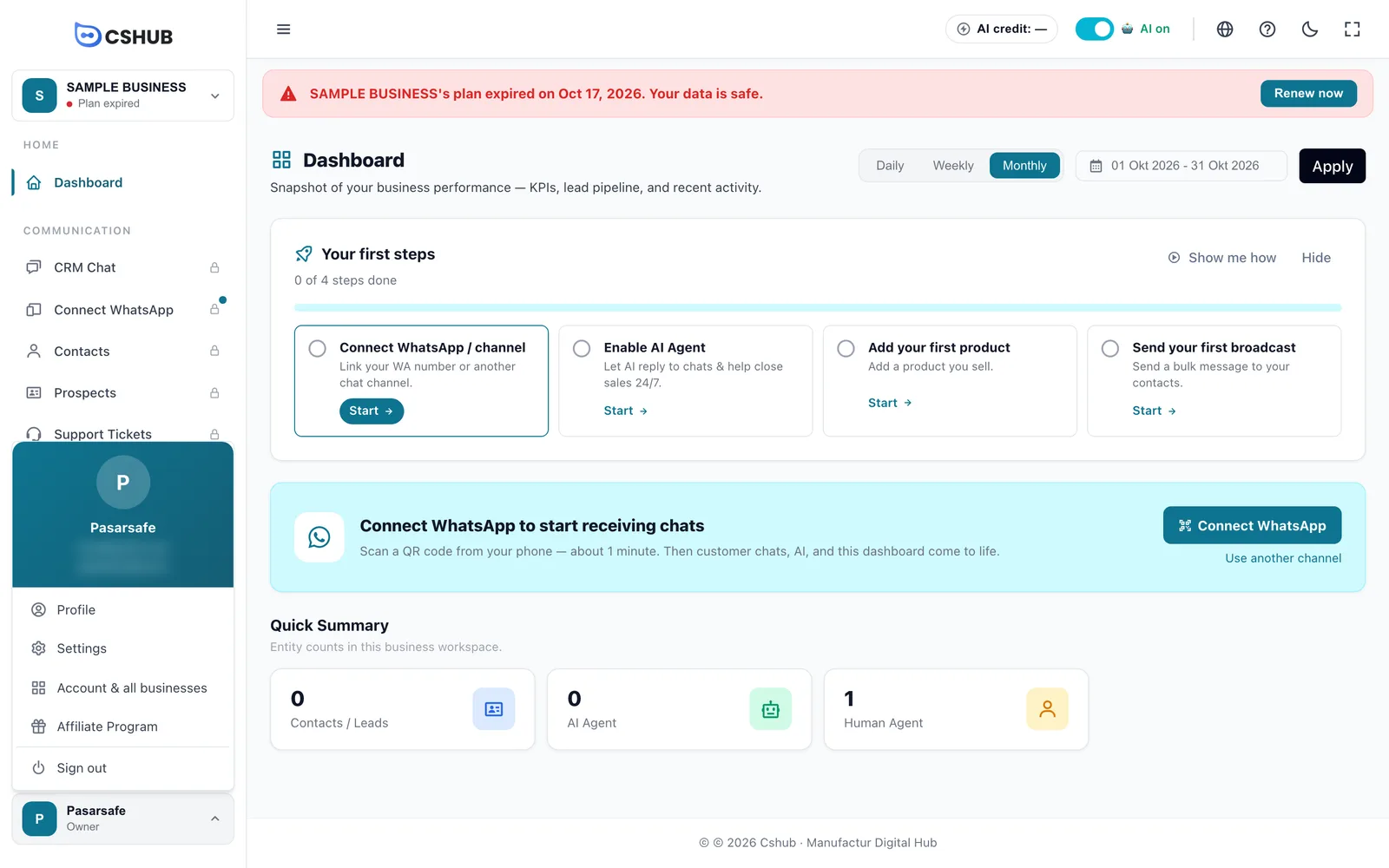
| User menu item | What it's for |
|---|---|
| Profile | Edit your personal details (photo, name, email, phone, gender) and change your password |
| Settings | Settings for the business you're in. See Business settings |
| Account & all businesses | Opens My Account |
| Affiliate Program | Goes straight to the affiliate dashboard. See Affiliate program |
| Sign out | Logs you out of cshub |
Switching businesses with the business switcher
Click the business name at the top of the sidebar to open the Your businesses list. Every business carries a plan status badge.
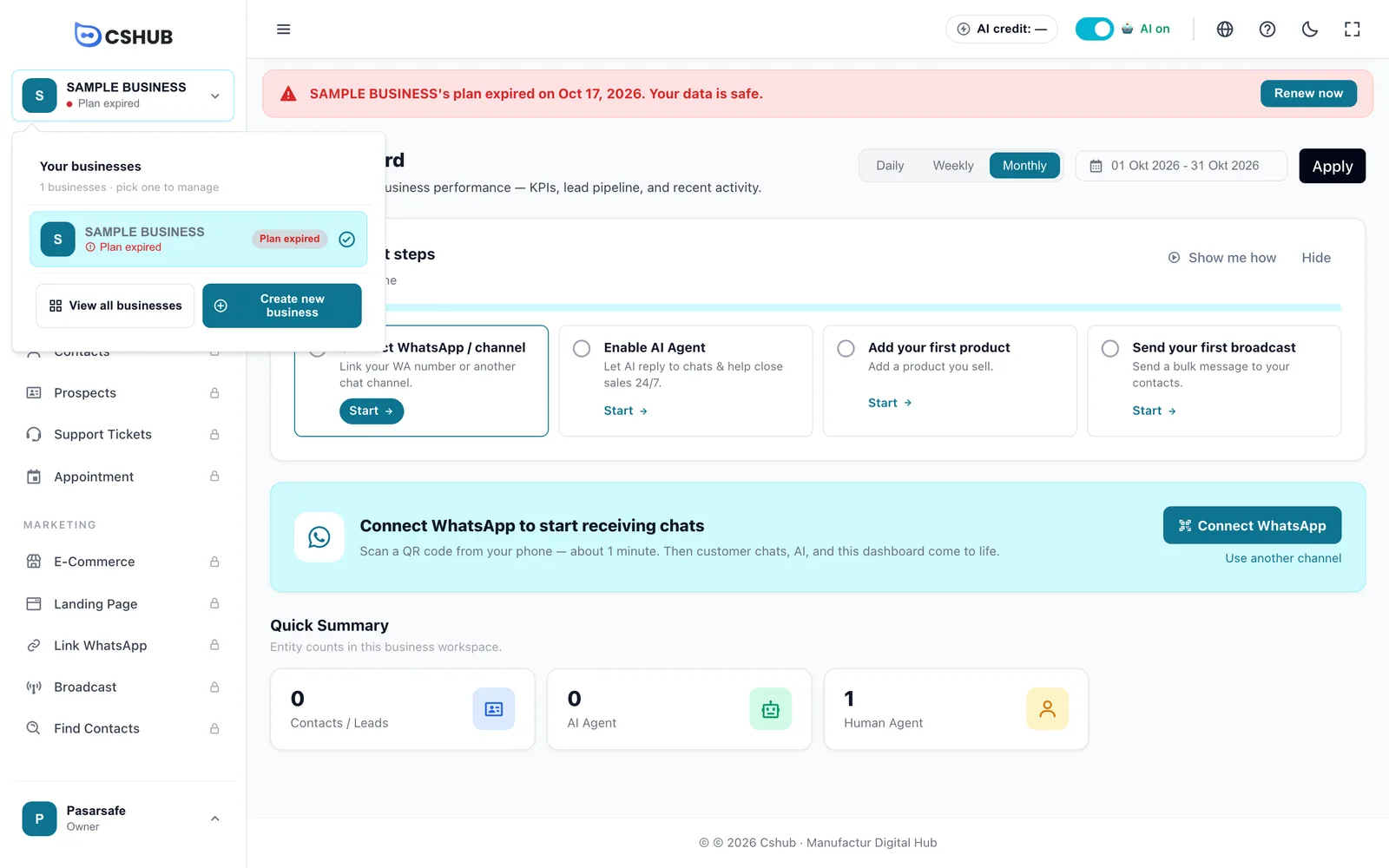
| Badge | Meaning |
|---|---|
| Active | The plan is running normally |
| Expires in N days | A paid plan has 7 days or fewer left — time to renew |
| Plan expired | The active period has passed. You can still open the business, but features are locked. See When your plan expires |
| No plan yet | The business has never had an active plan |
Click another business to switch. Businesses with an expired plan can still be picked, so you can renew from inside.
My Account home
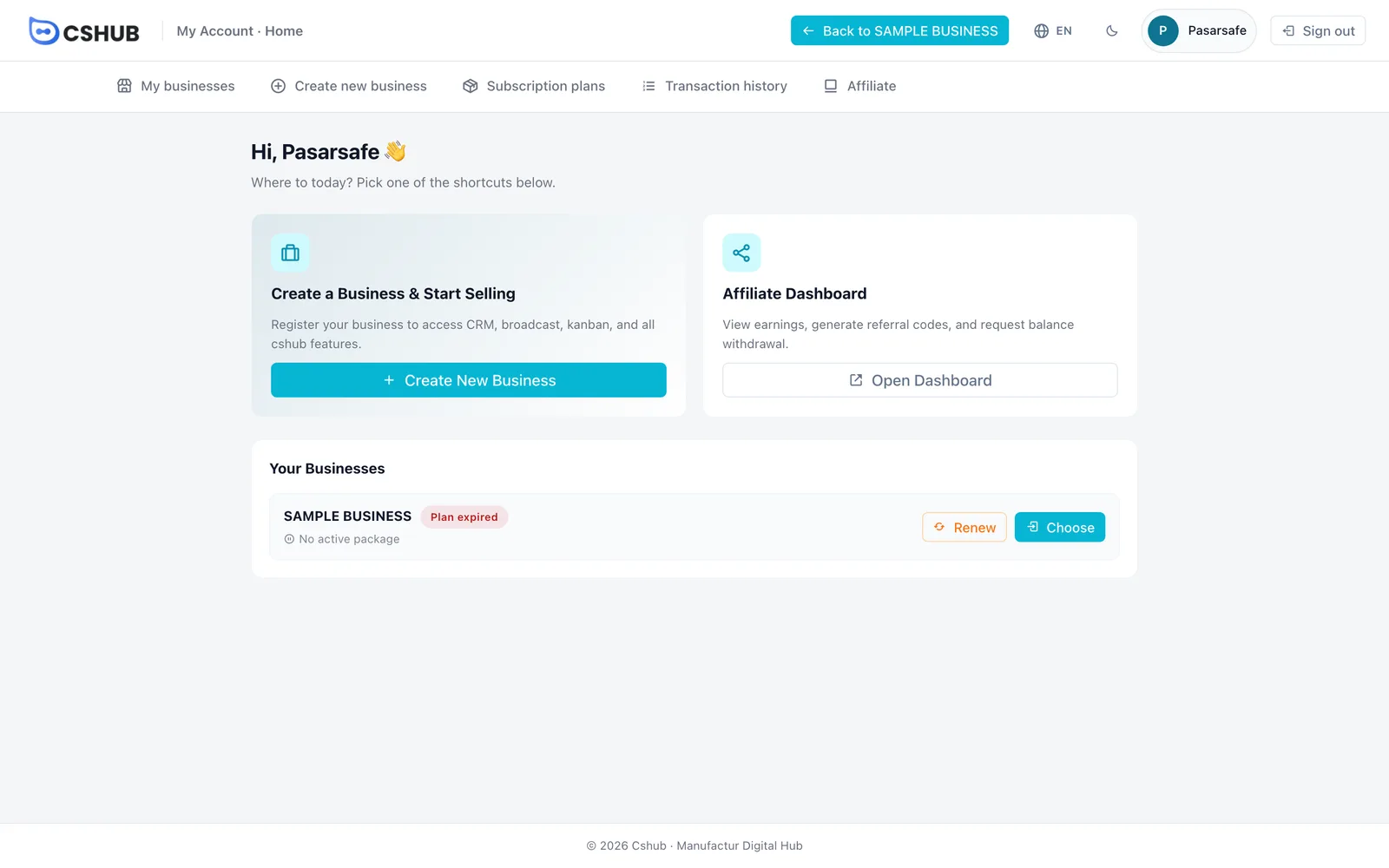
What's on this screen:
| Part | What it does |
|---|---|
| Back to <business name> | The blue button at the top right takes you back to the dashboard of the business you last opened |
| Language switch (globe icon) | Changes the display language |
| Top menu | My businesses, Create new business, Subscription plans, Transaction history, Affiliate |
| Create a Business & Start Selling | Shortcut to the new-business form |
| Affiliate Dashboard | Shortcut to the affiliate dashboard — handy if you also refer cshub to others |
| Your Businesses | A quick list of your businesses. Choose opens one; Renew (shown when a plan has expired or is about to) takes you straight to that business's plan page |
My businesses
The My businesses menu shows a full card for each business.
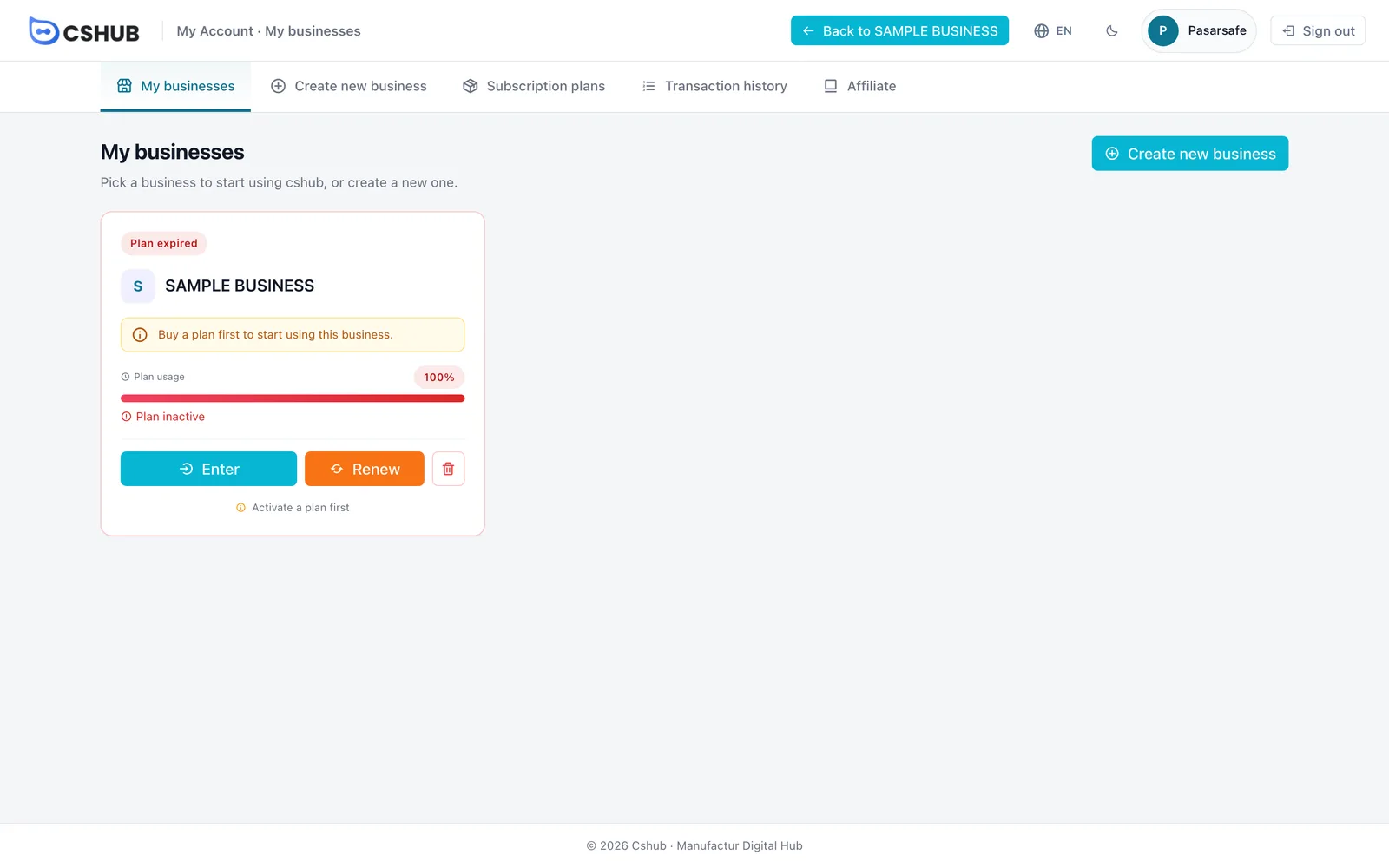
| Card element | Description |
|---|---|
| Status badge | Same as the badge in the business switcher |
| Plan usage | A bar showing how much of the active period is used up. Below it you see the days remaining, Almost expired, or Plan inactive. Lifetime plans show Lifetime plan |
| Enter | Opens the business. Works even when the plan has expired |
| Renew / Buy plan | Goes to the plan purchase page for this business |
| Trash icon | Deletes the business |
Deleting a business
Deleting a business also removes all data tied to it. cshub asks you to confirm first, and in some situations a business can't be deleted (you'll see Cannot be deleted). Make sure you really no longer need its data.
Creating a new business
Click Create new business in the top menu or in the business switcher.
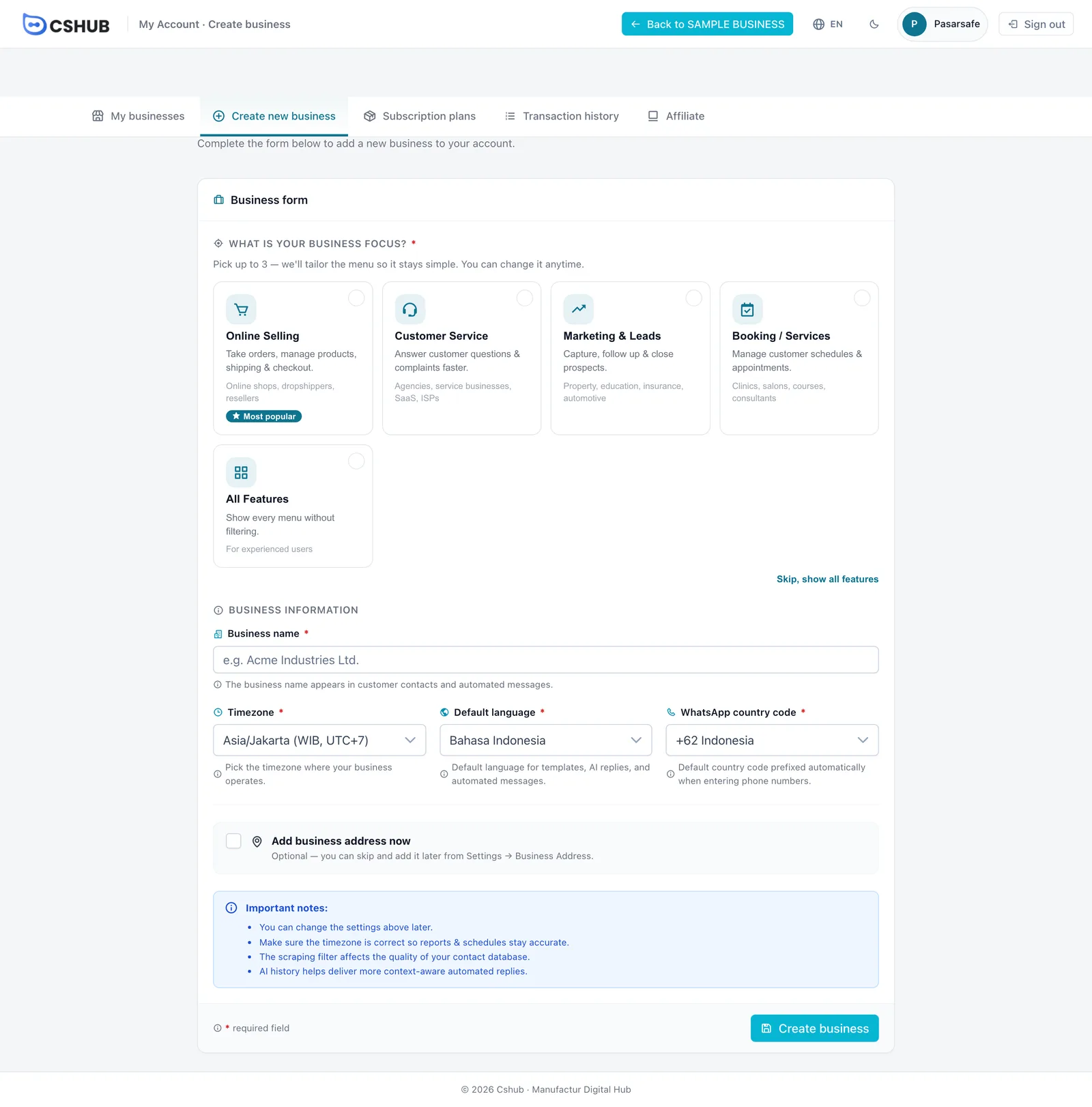
| Field | Description |
|---|---|
| What is your business focus? (required) | Pick up to 3. The sidebar menu is tailored to these so it stays simple. Choose All Features or click Skip, show all features to see every menu. You can change this anytime in Business focus |
| Business name (required) | Shown in customer contacts and automated messages. Up to 255 characters |
| Timezone (required) | The timezone your business operates in — used for reports and schedules |
| Default language (required) | Language for templates, AI replies, and automated messages |
| WhatsApp country code (required) | Country code added automatically when you type phone numbers |
| Add business address now | Optional. Tick it to fill in the address label, full address, province, city/regency, district, sub-district, and postal code right away. You can also add it later in Business addresses |
Click Create business. You're then taken to choose a plan. For your first business, cshub usually grants a free trial plan right away.
Everything can be changed later
Name, timezone, language, and other settings can be changed anytime in Business settings.
Subscription plans (comparison)
The Subscription plans menu in My Account shows a comparison table of every plan — price, active period, and the quota for each feature.
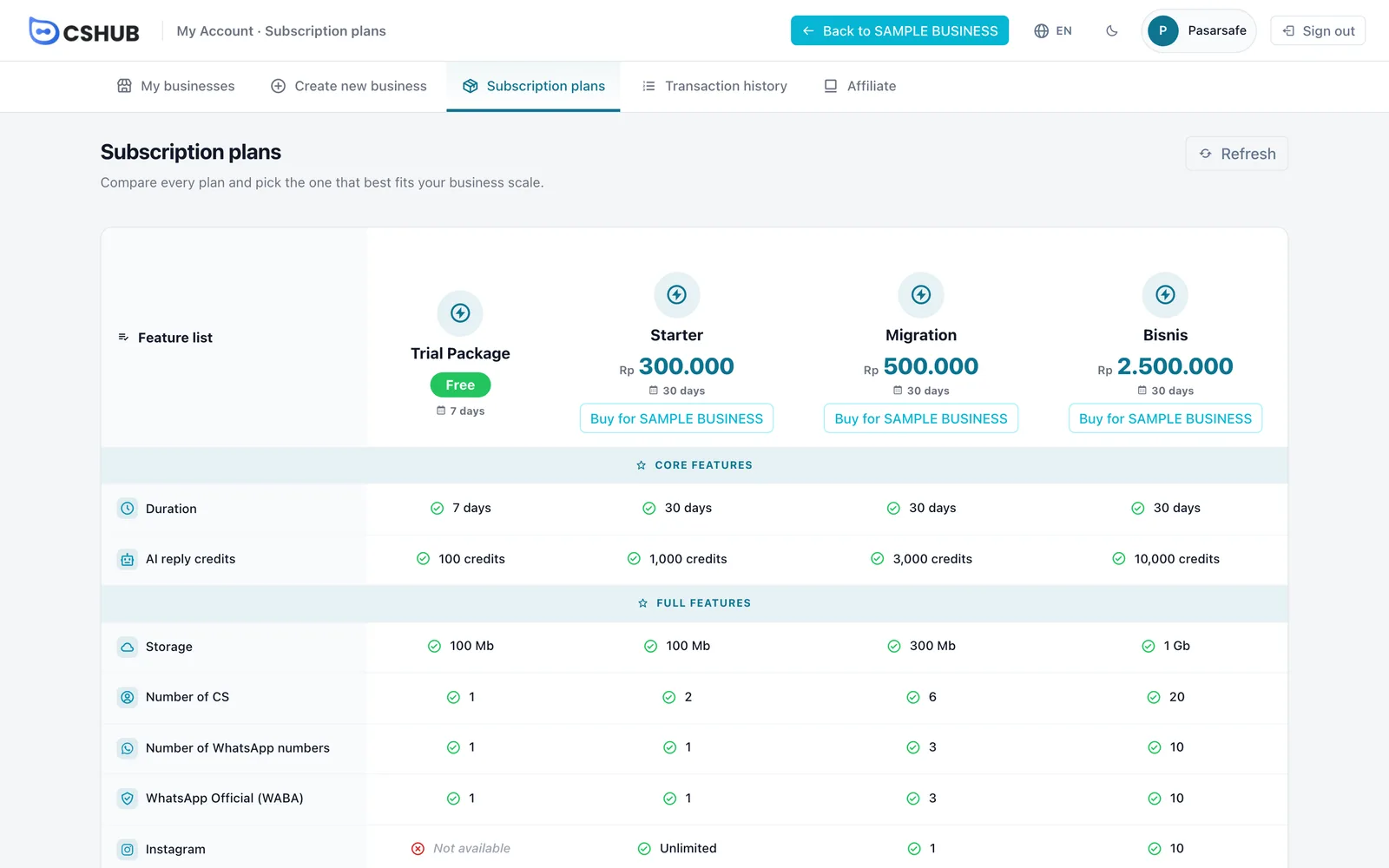
Buy for <business name> takes you to the plan page inside the business you're currently in. Buying for a different business? Use the Another business option. The full purchase flow is in Billing & plans.
Transaction history
Transaction history gathers plan transactions from all your businesses in one place.
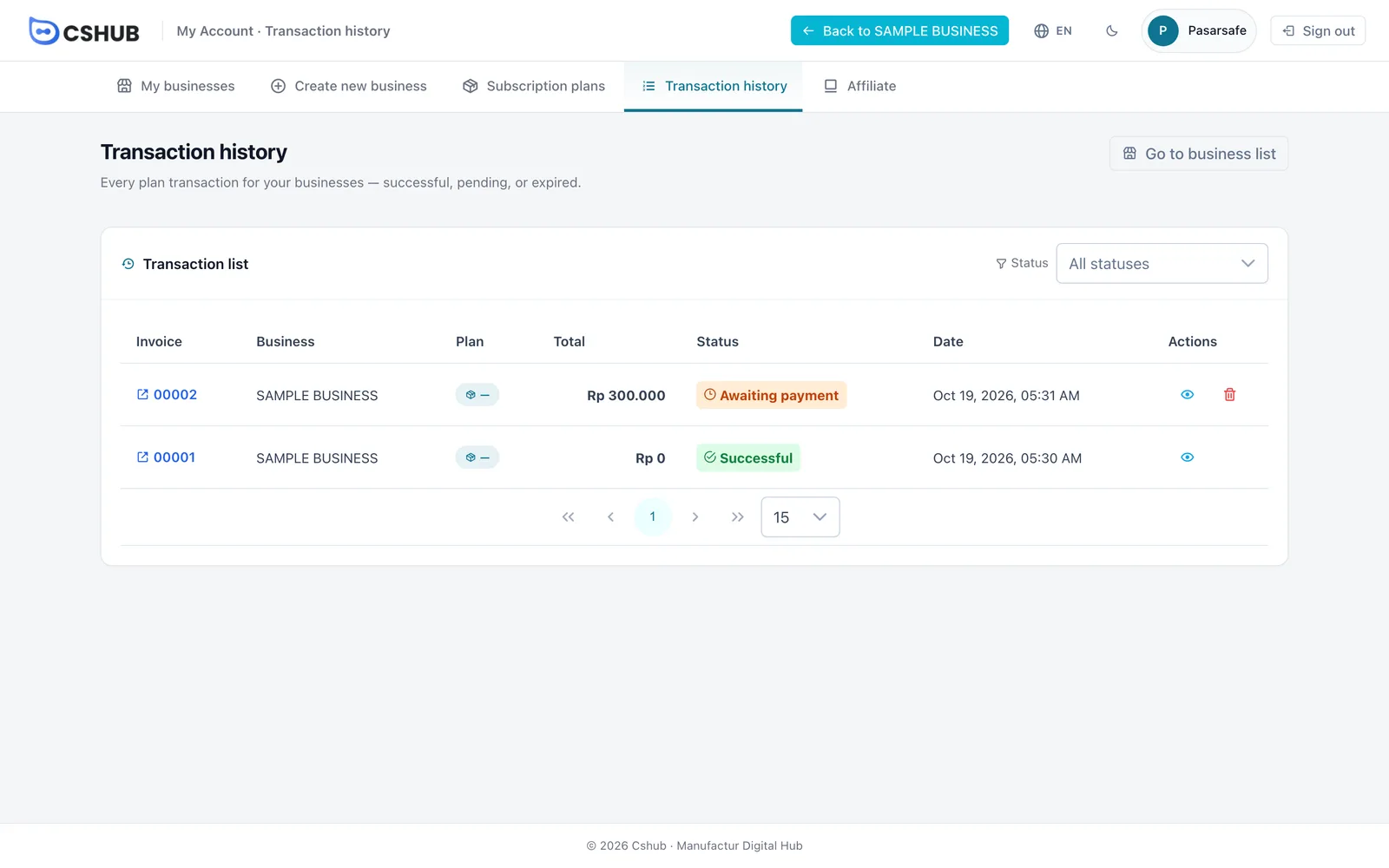
| Status | Meaning |
|---|---|
| Awaiting payment | The transaction exists but hasn't been paid. You can pay or delete it |
| Admin verification | A manual transfer proof was sent and is being checked by the cshub team |
| Successful | Payment received, the plan is active |
| Rejected | The transfer proof was rejected. Create a new transaction |
| Expired | The payment window passed. Create a new transaction |
Use the Status filter to narrow the list. Click the invoice number or the eye icon to open the details and continue paying; the trash icon deletes an unpaid transaction.
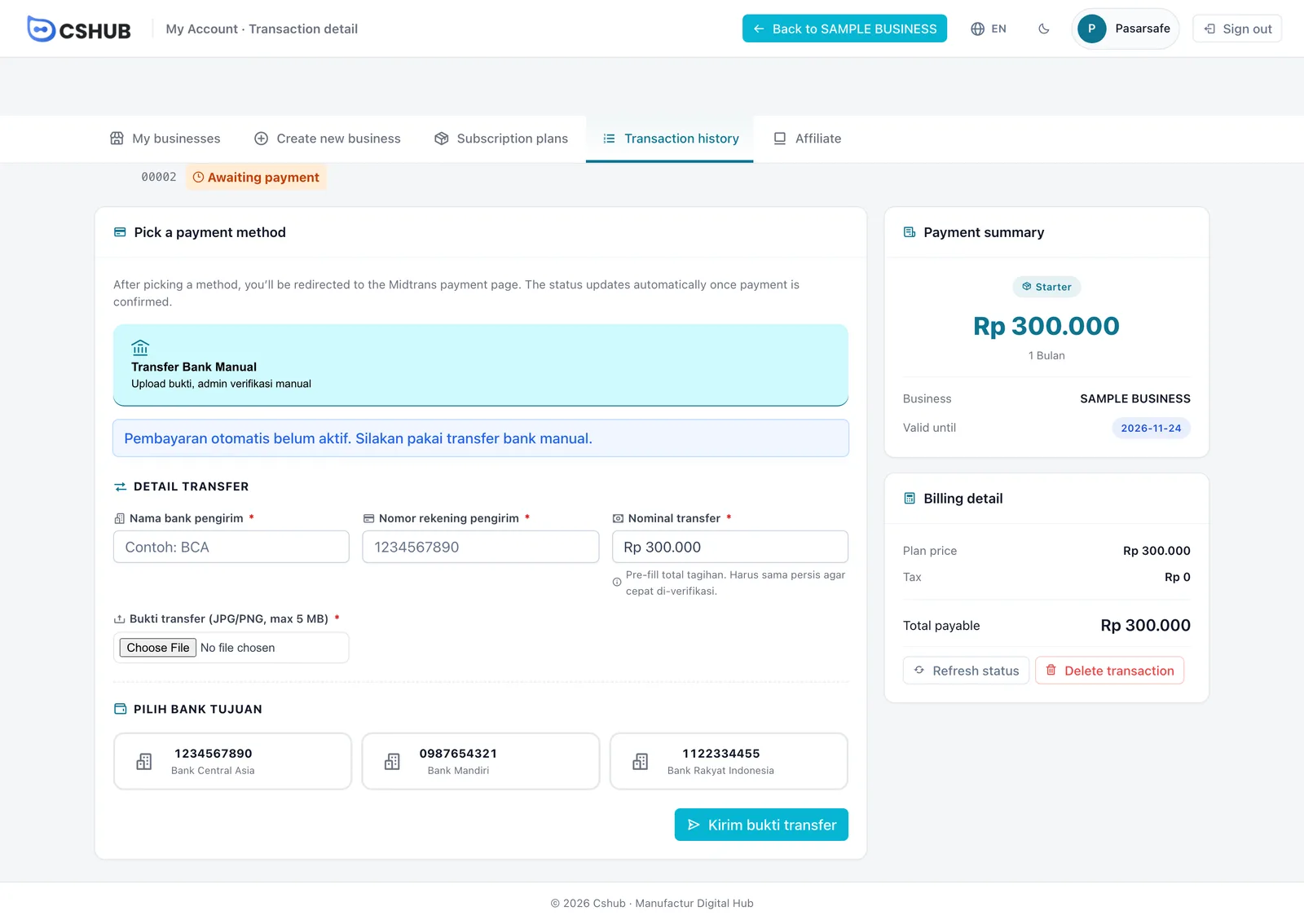
Some labels stay in Indonesian
A few labels on the payment screen (such as the manual bank transfer option and its note) currently appear in Indonesian even when the app is set to English.
Step-by-step payment instructions are in Billing & plans → Paying a transaction.
Your profile
User menu → Profile opens your profile page. Here you can:
- Change your profile photo (JPG/PNG, up to 2 MB).
- Edit your full name, email, phone number (with country code), and gender, then save your changes. If you change your email, you'll need to verify the new address.
- Change your password: enter your current password, a new password (at least 8 characters), and confirm it. You stay signed in on this device.
- See your access rights — the permissions attached to your role in this business. Business owners automatically have full access.
Your profile stays available even when the business plan has expired.
Next steps
- Billing & plans — choose, pay for, and renew a plan
- AI credit & top-ups — add AI credit, monthly active users, and storage
- Affiliate program — earn commission by referring cshub
- When your plan expires — what happens and how to unlock