
Sign up & onboarding
This guide walks you from creating a cshub account and verifying your email through the four-step onboarding wizard that automatically creates your first business with a free trial plan, so within a few minutes you're on the dashboard and ready to connect WhatsApp.
The flow is short:
- Create an account on the sign-up page.
- Verify your email with a 6-digit code.
- Onboarding wizard: pick your goal, your business focus, the business name, and (optionally) an address.
- Land on the dashboard with the trial plan active.
No credit card needed
Signing up is free and doesn't ask for payment details. The trial plan starts as soon as your first business is created.
1. Create an account
Open the cshub sign-up page (the Sign up link on the sign-in page). Its heading reads Create your Cshub account, with the note Free 14-day trial · no credit card required.
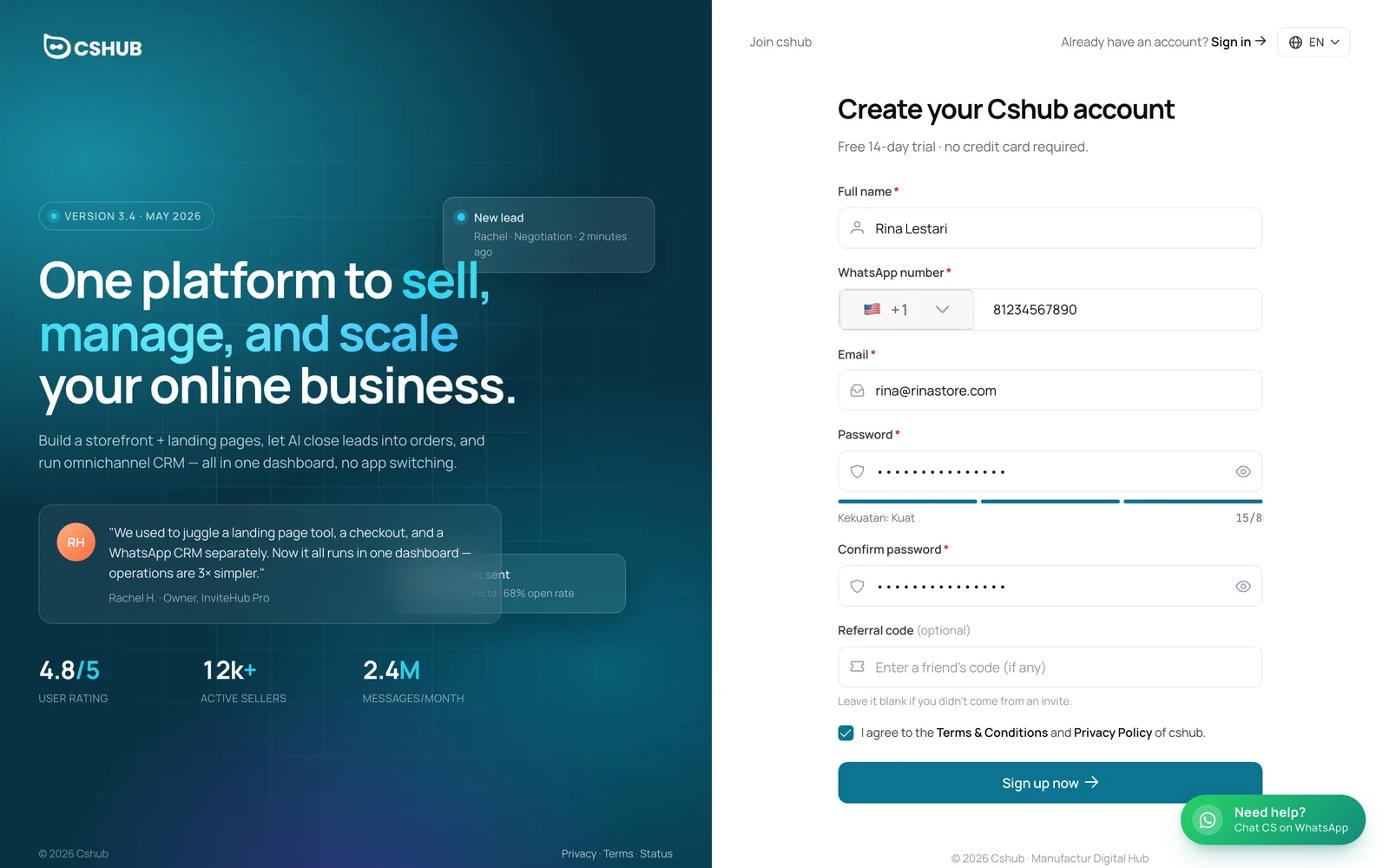
| Field | Details |
|---|---|
| Full name (required) | Your name as the account owner. Shown in the account menu and to your team |
| WhatsApp number (required) | Pick the country code, then type the number. This is your personal number as the account owner; it is not automatically connected to receive customer chats (you do that later in Connect WhatsApp). The country you pick also becomes the default country for the business address in the wizard |
| Email (required) | Used to sign in and to receive the verification code. One email per account |
| Password (required) | At least 8 characters. The meter below shows how strong it is |
| Confirm password (required) | Type the same password again |
| Referral code (optional) | A code from the friend who invited you. Leave it blank if you don't have one |
| Agreement | Tick the box to accept the Terms & Conditions and Privacy Policy |
Click Sign up now. If it works, a Sign-up successful notice appears and you're taken straight to email verification.
Signing up through a friend's link
If you open a sign-up link shared by an affiliate, their referral code is filled in automatically and a strip says You signed up using referral code …. No need to type it.
Errors you might see
| Message | Cause |
|---|---|
| name is required | Full name is empty |
| invalid email format | The email is mistyped, e.g. missing @ |
| phone number is required | WhatsApp number is empty |
| password must be at least 8 characters | The password is too short |
| password confirmation does not match | Confirm password differs from Password |
| Email already in use | That email already has an account. Use Forgot password if you can't remember the password |
2. Verify your email
cshub emails a 6-digit code to the address you signed up with. The Verify your email page shows which address it went to.
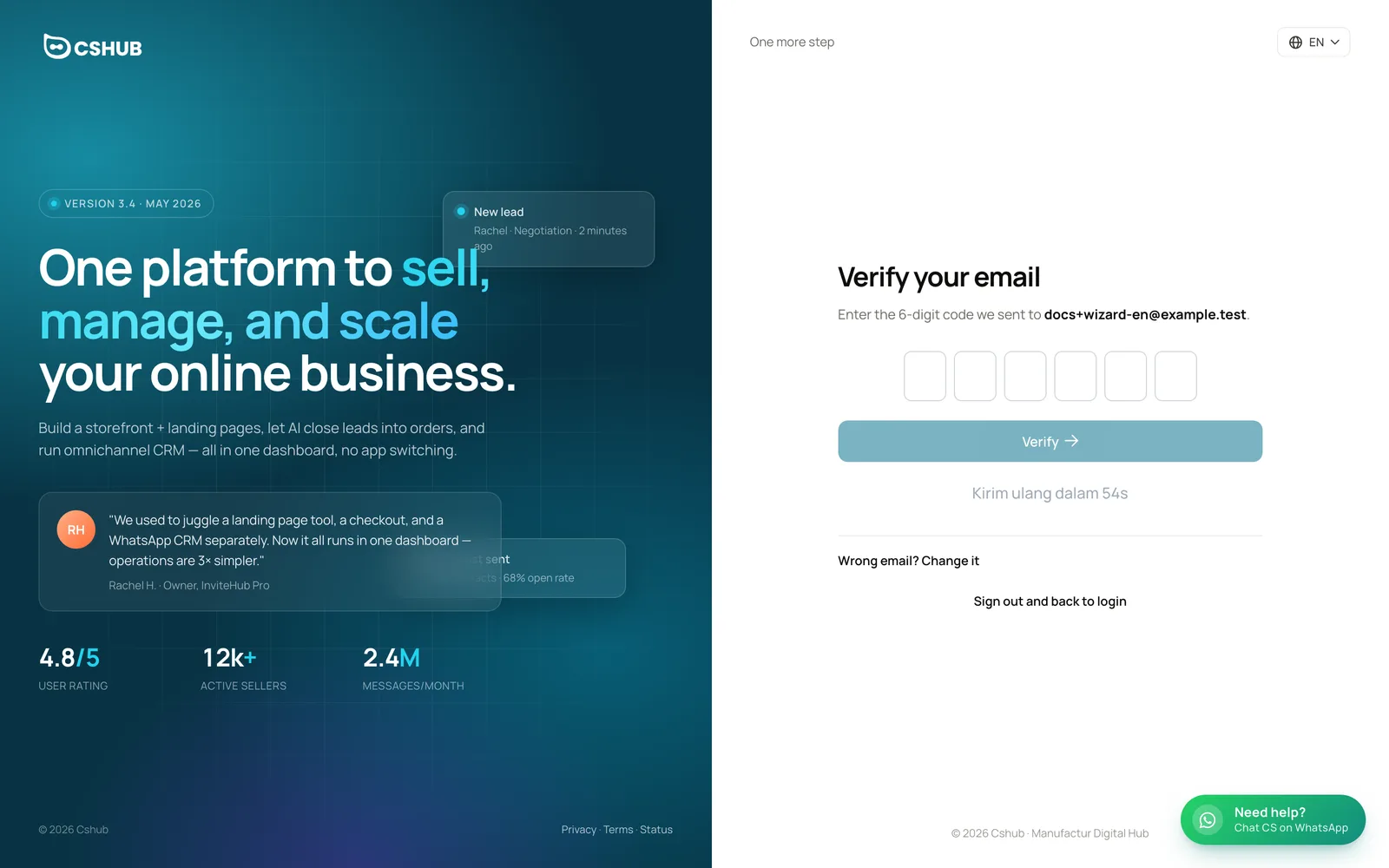
- Open the email from cshub (check your Spam or Promotions folder too).
- Type the 6 digits into the boxes.
- Click Verify. An Email verified notice appears and you're taken to the onboarding wizard.
| Button / link | What it does |
|---|---|
| Resend code | Sends a new code. Available once the 60-second countdown ends |
| Wrong email? Change it | Changes the destination address if you mistyped it. A new code goes to the new address |
| Sign out and back to login | Signs you out and returns to the sign-in page |
Attempt limits
- Too many wrong codes temporarily lock verification. Click Resend code to get a new one.
- Code sending has a daily limit. If you see Daily limit reached, try again tomorrow.
- You can change the email only once an hour (Email change too frequent).
Until your email is verified, every sign-in brings you back to this page.
3. Onboarding wizard
Once your email is verified, you land in a full-screen wizard at /welcome. It's required for new accounts without a business, and apart from finishing it there are only two ways out: the Contact support link (chat with the cshub team on WhatsApp) and Log out, both at the bottom of every step.
| Wizard feature | Details |
|---|---|
| Step indicator | Step N of 4 and four progress bars at the top |
| Language | The globe button at the top right. Options: ID, EN, AR, DE, ES, FR, JA, MS, PT, VI |
| Next / Back | The main buttons at the bottom. Next only turns on once required fields are filled. Pressing Enter does the same as Next |
| Auto-saved | If the page reloads, the wizard resumes at the last step with your answers intact |
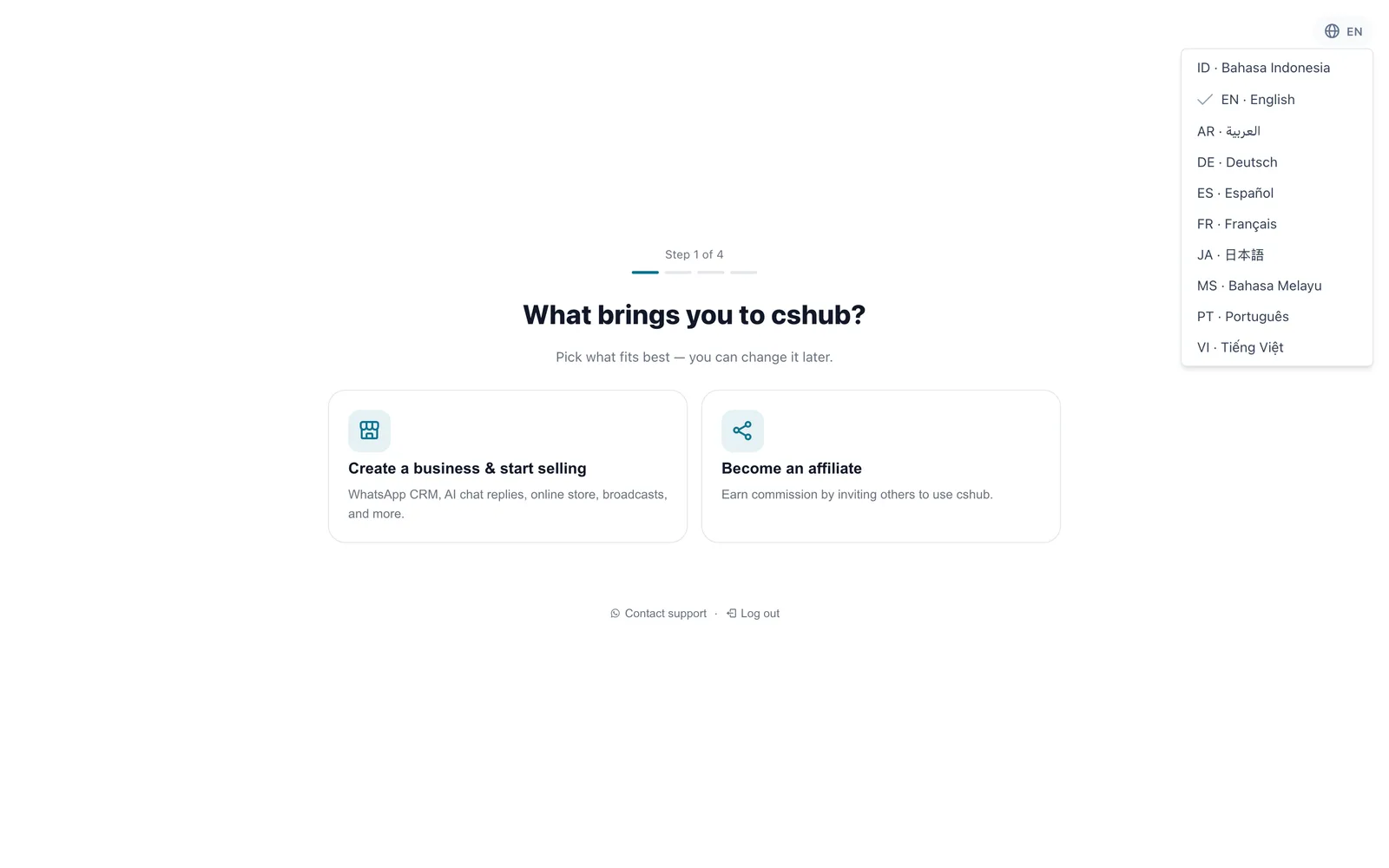
Step 1: What brings you to cshub?
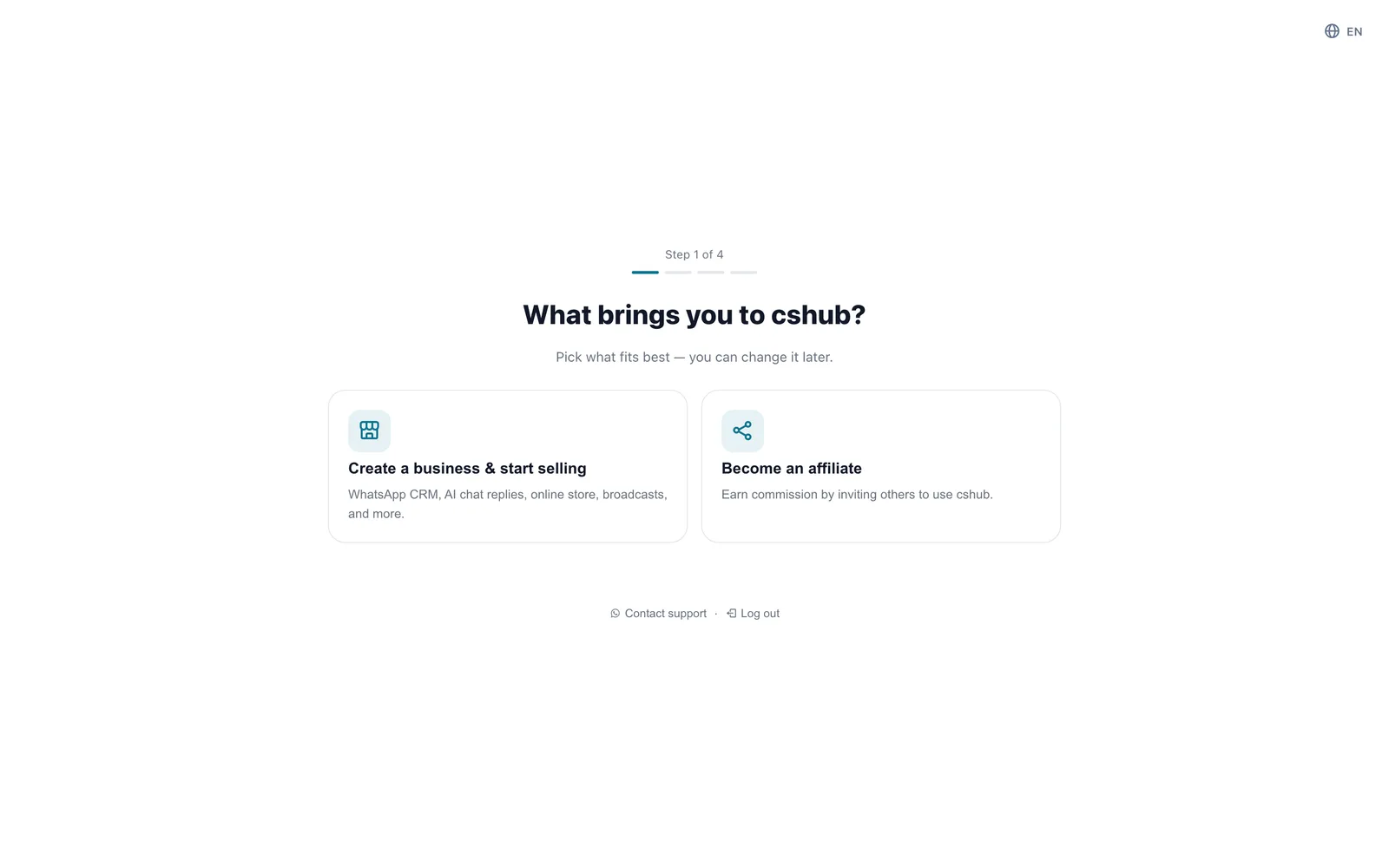
| Option | What happens |
|---|---|
| Create a business & start selling | Continues to step 2 to create a business. Choose this to use the CRM, AI, online store, broadcasts, and everything else |
| Become an affiliate | cshub creates your affiliate code right away and opens the Affiliate Dashboard. The wizard ends here, without creating a business. See Affiliate program |
Affiliates can still create a business later
If you pick Become an affiliate and later want to use cshub for your own business, create one any time from My Account.
Step 2: What is your business focus?
Pick up to 3. The sidebar menu and the Your first steps checklist on the dashboard are tailored to your choice.
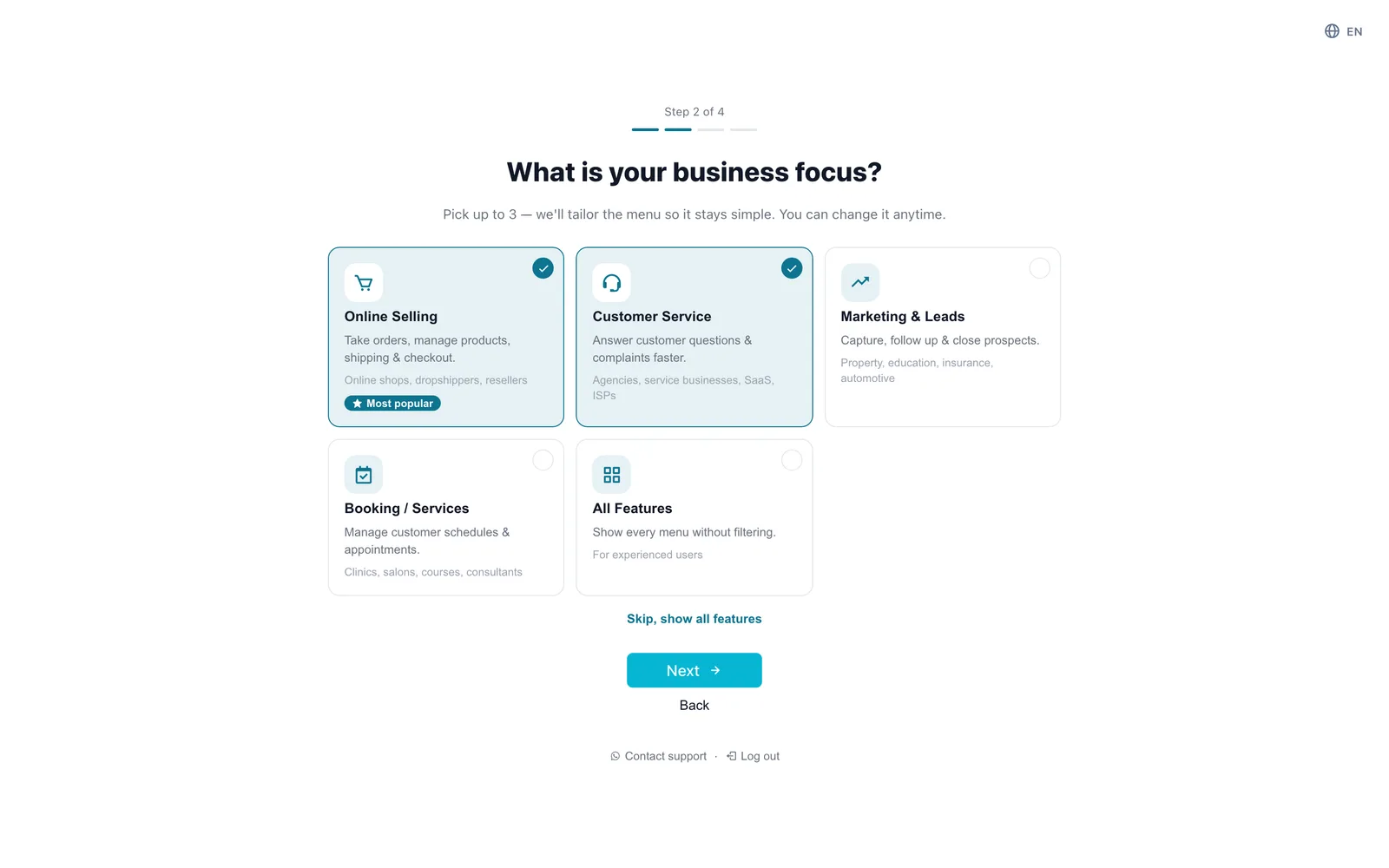
| Focus | Best for | Examples |
|---|---|---|
| Online Selling (Most popular) | Take orders, manage products, shipping & checkout | Online shops, dropshippers, resellers |
| Customer Service | Answer customer questions & complaints faster | Agencies, service businesses, SaaS, ISPs |
| Marketing & Leads | Capture, follow up & close prospects | Property, education, insurance, automotive |
| Booking / Services | Manage customer schedules & appointments | Clinics, salons, courses, consultants |
| All Features | Show every menu without filtering | For experienced users |
- Once you've picked 3, the other cards can't be selected until you untick one.
- All Features can't be combined with others: picking it clears the rest, and vice versa.
- Skip, show all features is the same as picking All Features and jumps straight to step 3.
Business focus only controls which menus show. Every feature in your plan stays available, and you can change the focus any time in Business focus.
Step 3: Tell us a bit about your business
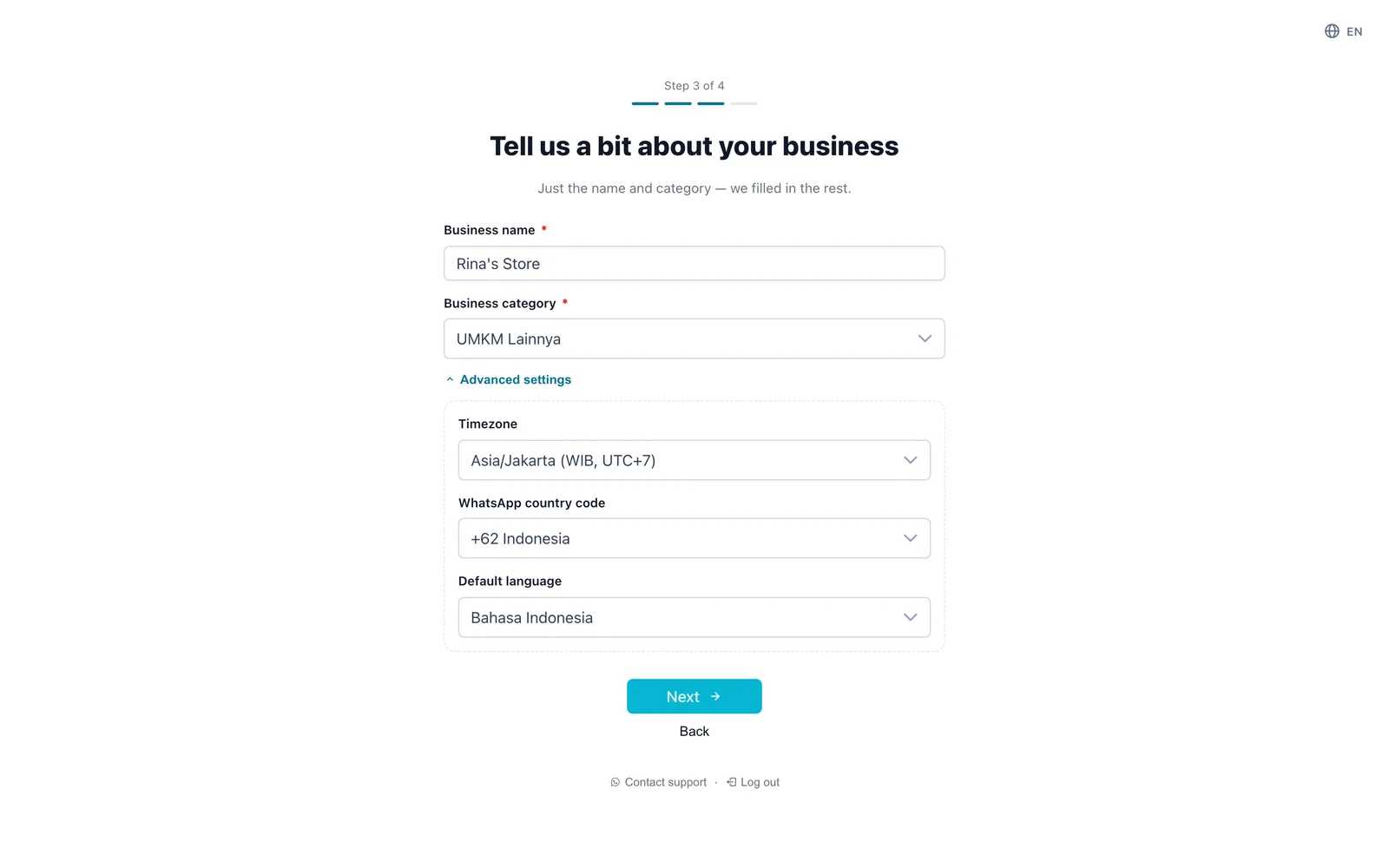
| Field | Details |
|---|---|
| Business name (required) | Shown in customer contacts and automated messages. Up to 255 characters |
| Business category (required) | Your type of business. Type to search the list. If nothing fits, pick the closest "other" category |
Advanced settings are pre-filled. Open them only if your business isn't in Indonesia or needs another language:
| Advanced setting | Default | Details |
|---|---|---|
| Timezone | Asia/Jakarta (WIB) | Where your business operates. Used for schedules, reports, and opening hours |
| WhatsApp country code | +62 Indonesia | Added automatically when you type a customer's number |
| Default language | Bahasa Indonesia | Language for templates, AI replies, and automated messages |
All of these can be changed later in Business settings.
Step 4: Business address (optional)
The address is used for shipping costs and invoices. You can skip this step.
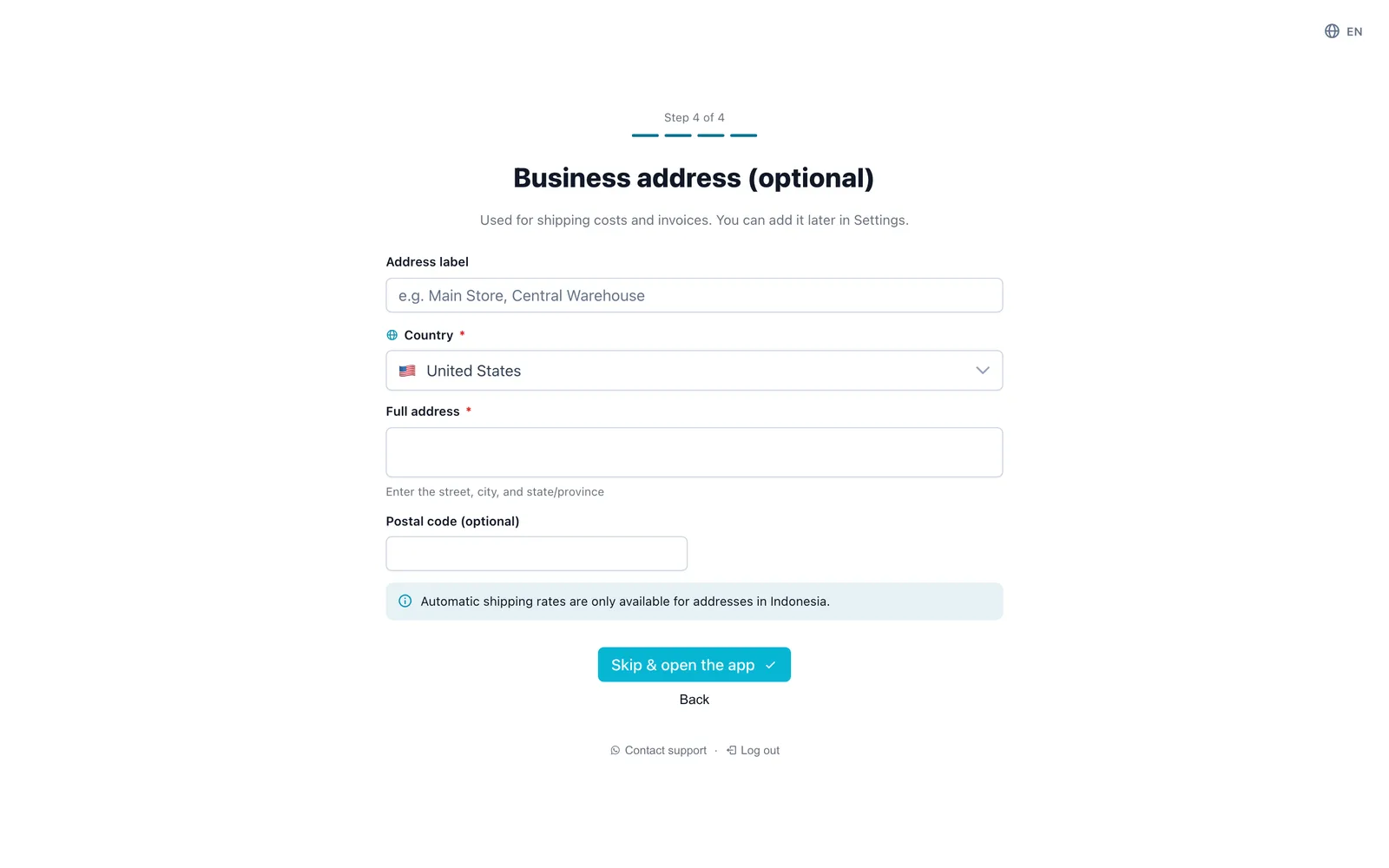
| Field | Details |
|---|---|
| Address label | A nickname, e.g. Main Store or Central Warehouse. Required once you start filling in an address |
| Country | Follows the country code of the WhatsApp number you signed up with. You can change it |
| Province → City/Regency → District → Sub-district | Indonesian addresses only. Pick them in order from the top |
| Full address | Street, building number, and landmarks |
| Postal code | Optional |
For countries other than Indonesia, you only get Full address and Postal code, plus the note Automatic shipping rates are only available for addresses in Indonesia.
The button on this step changes with what you enter:
- Skip & open the app while every address field is empty. The business is created without an address.
- Finish & open the app as soon as you start typing an address. Required address fields must then be completed.
You can add or edit addresses any time in Business addresses.
Setting up your business
After the last button, a Setting up your business… screen appears. cshub creates the business, activates the trial plan, and opens that business's dashboard. It usually takes a few seconds.
Seeing an error?
If a field is rejected, the wizard jumps back to that step and highlights the field. If your connection drops, don't rush to start over: cshub first checks whether your business was actually created, so you don't end up with a duplicate.
4. Your first day on the dashboard
To avoid a pile of pop-ups, cshub brings in its guides one at a time:
| Order | When | What appears |
|---|---|---|
| 1 | First visit to the dashboard | The Your first steps card with a checklist based on your focus. If no channel is connected yet, a Connect WhatsApp to start receiving chats card appears too |
| 2 | After at least 1 channel is connected and the business has no AI Agent | The One more step: set up your AI pop-up |
| 3 | 3 or fewer trial days left | The N days left on your trial banner with an Upgrade now button |
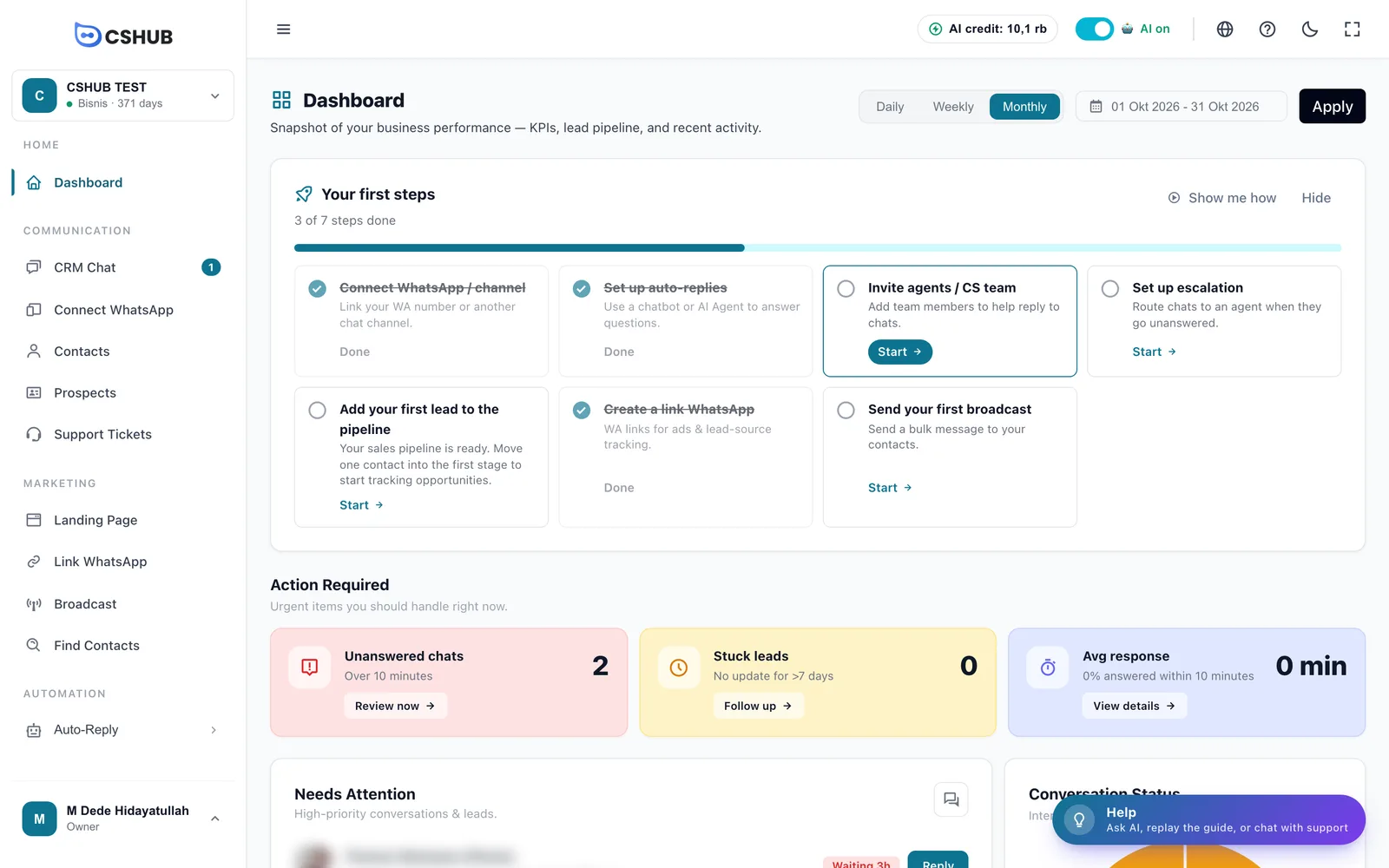
The "Your first steps" checklist
The checklist depends on the focus you chose. A step shared by several focuses appears only once.
| Focus | Checklist steps |
|---|---|
| Online Selling | Connect WhatsApp / channel, Add your first product, Create a checkout page, Enable AI Agent |
| Customer Service | Connect WhatsApp / channel, Set up auto-replies, Invite agents / CS team, Set up escalation |
| Marketing & Leads | Connect WhatsApp / channel, Add your first lead to the pipeline, Create a link WhatsApp, Send your first broadcast |
| Booking / Services | Connect WhatsApp / channel, Enable AI booking, Create your first appointment, Send your first broadcast |
| All Features | Connect WhatsApp / channel, Enable AI Agent, Add your first product, Send your first broadcast |
- Steps tick themselves automatically once you've actually done them. No manual checking.
- Start opens the page where that step is done.
- Show me how plays a short guide to the app layout.
- Hide closes the card for this business. A slim Getting started strip appears under the top bar instead. Bring the card back from the Help panel → Getting started → Show.
- The card disappears by itself once every step is done.
More about the Getting started strip in Interface tour.
The "Set up your AI" pop-up
Once your first channel is connected, cshub offers help setting up an AI Agent:
| Option | What happens |
|---|---|
| Get help from our team (FREE) | Optionally describe how your AI should behave, then Send to team on WhatsApp opens WhatsApp with a message containing your business name, business focus, and email. The cshub team helps you set up the AI over chat |
| Set it up myself | Opens the AI Agent creation page. Follow Quickstart: AI replies on WhatsApp |
| Later | Closes the pop-up; it comes back tomorrow until the business has an AI Agent |
| I won't use AI | The pop-up never shows again for this business |
The pop-up only appears for the owner or team members allowed to create AI Agents.
Signing in next time
Open the sign-in page, enter your Email and Password, then click Sign in.
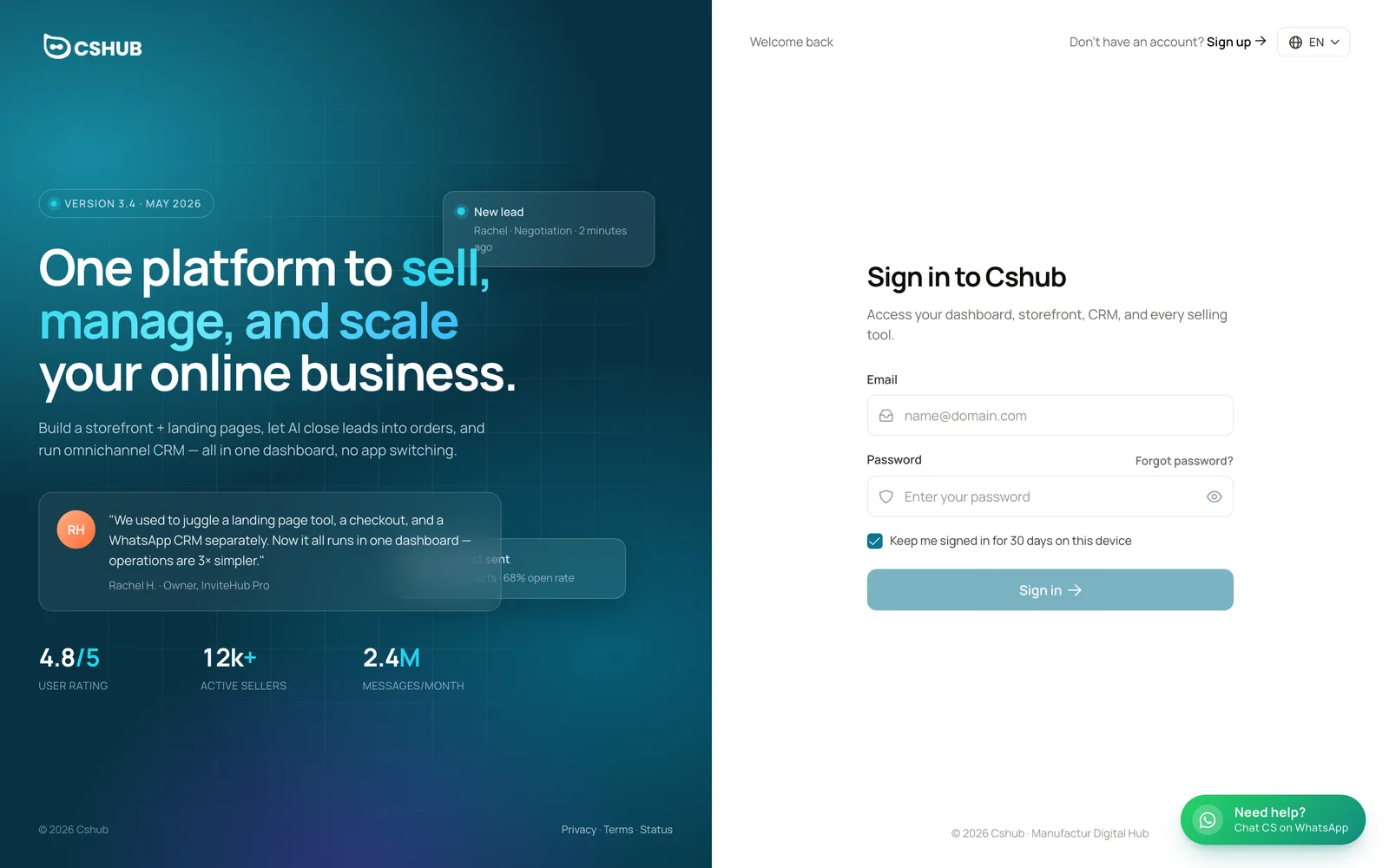
| Element | What it does |
|---|---|
| Keep me signed in for 30 days on this device | Keeps you signed in on this browser for 30 days. Don't tick it on a shared computer |
| Forgot password? | Opens password reset (see below) |
| Language picker | Changes the language of the sign-in and sign-up pages |
| Need help? | Chat with cshub support on WhatsApp |
After signing in, cshub opens the business you used last. If you have several businesses and cshub can't tell which one you want, you're taken to My Account to pick one.
Forgot password
- On the sign-in page, click Forgot password?.
- Enter your account email and click Send reset code.
- On the Create a new password page, enter the 6-digit OTP code from the email, a New password (at least 8 characters), and Confirm new password.
- Click Change password, then sign in with the new password.
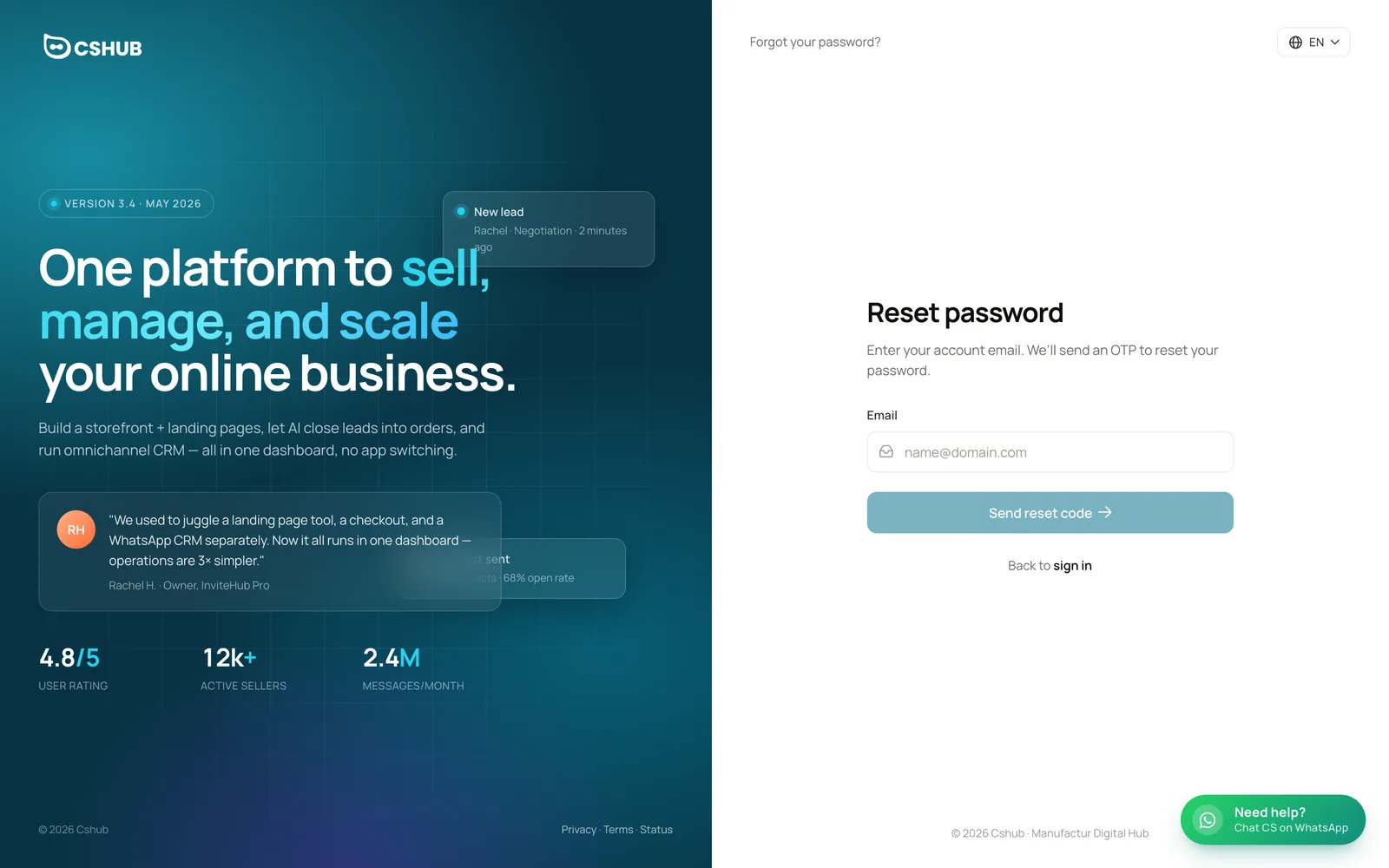
If you enter the code wrong too many times, click Request new code for a fresh OTP. If the email isn't registered, you'll see email is not registered.
Related
- Interface tour — the sidebar, top bar, and dashboard
- Quickstart: AI replies on WhatsApp — connect WhatsApp and set up your first AI
- Business focus — change your focus and visible menus
- Billing & packages — the trial period and choosing a plan
- Troubleshooting — if the verification email doesn't arrive or you can't sign in