
AI credit & top-ups
Every cshub plan comes with an allowance of AI credit, monthly active users, and storage. When one of them starts running low, you can add more at any time with a top-up instead of switching plans — all from the Billing menu inside the business.
| Top-up | What it's for | How you buy it |
|---|---|---|
| Top-up AI Credit | Credit used by AI features: AI Agent, automated replies, and analysis | Per unit (credits per unit shown on the page) |
| Monthly active users (MUA) | The cap on how many different contacts chat with your business in 30 days | Per unit (users per unit shown on the page) |
| Extra storage | Space for media: images, files, WhatsApp audio | Pick a storage package |
All three are paid the same way as a subscription plan: automatic payment (when enabled), manual bank transfer, or an international card (USD) when that option is enabled. See Billing & plans → Paying a transaction.
Needs an active plan
Top-ups can only be bought while the business plan is active. When the plan has expired, these cards are disabled and show Activate a plan first. Renew first in Billing & plans.
AI credit
Checking your balance
Your remaining AI credit is always shown at the top of the app, for example AI credit: 10,1 rb. Hover over it to see remaining, total, and the percentage used.
For the full breakdown, open Billing → Top-up AI Credit.
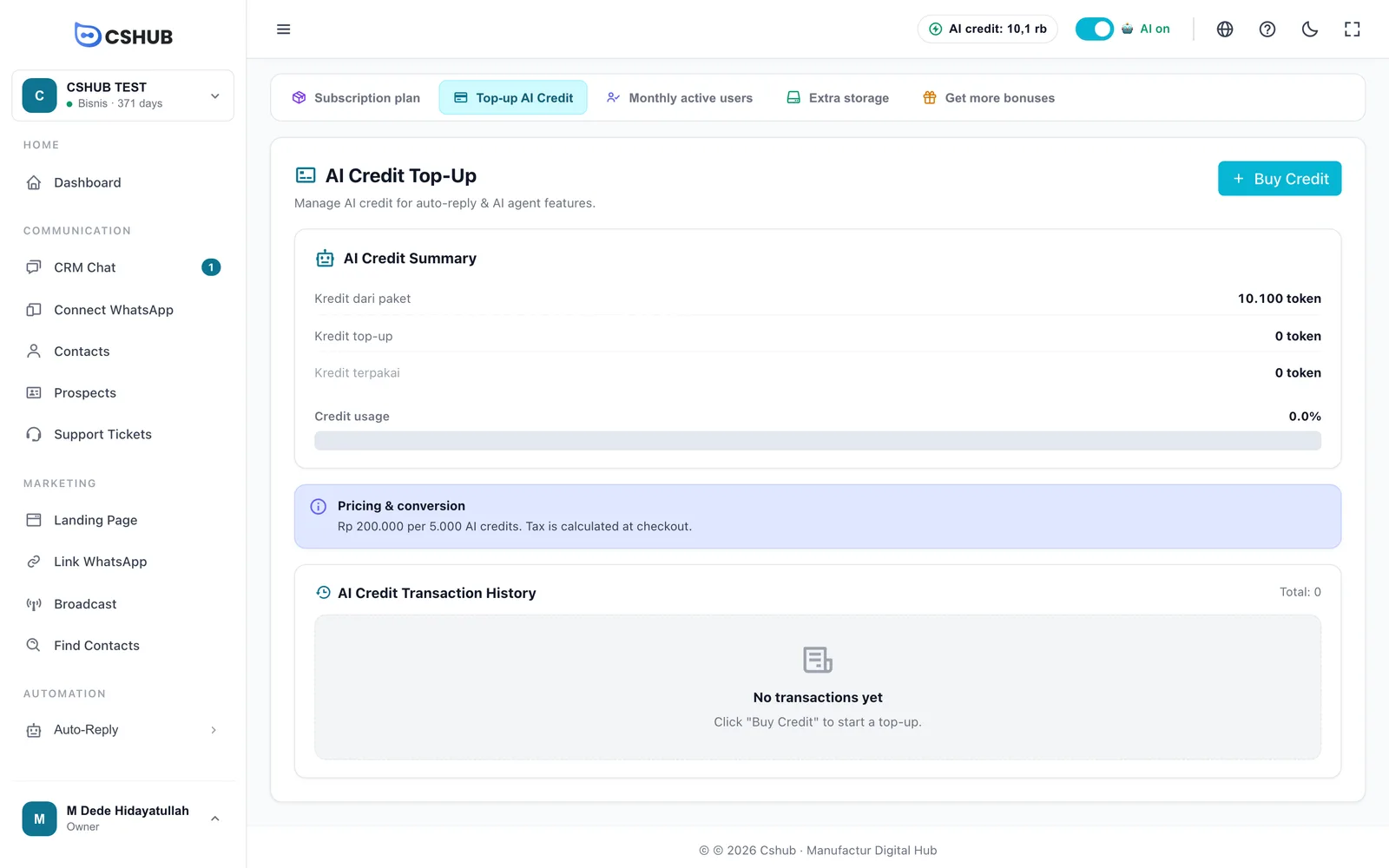
| Row | Meaning |
|---|---|
| Credit from plan | The credit included in your plan. On a subscription plan it's restored every month; on a Lifetime plan it's granted once |
| Top-up credit | Credit you bought separately |
| Credit used | Credit already consumed by AI features |
| Credit usage | The percentage of credit used |
| Pricing & conversion | The current price per credit pack |
Labels in Indonesian
In the English app, the summary rows (credit from plan, top-up credit, credit used) currently still appear in Indonesian: Kredit dari paket, Kredit top-up, Kredit terpakai.
AI credit on a Lifetime plan
If your business is on a Lifetime plan (LTD), the plan's AI credit is granted once at purchase and is not refilled every month the way a subscription plan's is. Keep an eye on the balance at the top of the app, and top up anytime it runs low — the steps are exactly the same as below.
When you upgrade to a higher Lifetime tier, your remaining credit carries over and the credit difference between the tiers is added.
Buying AI credit
- Click Buy Credit.
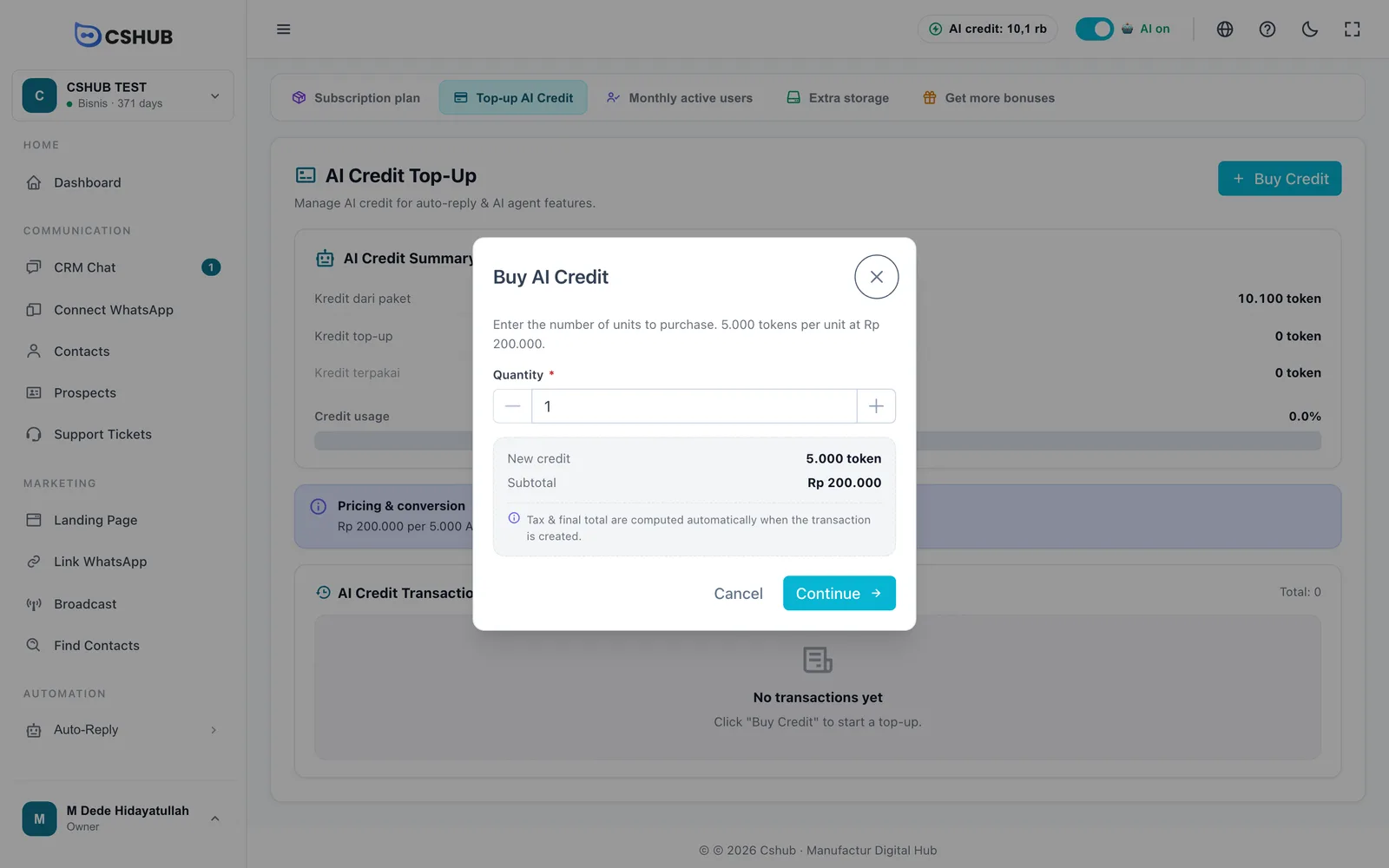
- In the Buy AI Credit window, set the Quantity with the − / + buttons (minimum 1).
- Check New credit and Subtotal. Tax and the final total are calculated automatically when the transaction is created.
- Click Continue. The transaction is created and you're taken to its payment page.
- Pay with any available method. The credit is added once the transaction is Successful.
Leftover credit isn't lost
When you top up, any unused credit from your previous top-up is carried over into the new one.
You can also earn free AI credit by filling in a review on Get bonuses.
Monthly active users (MUA)
MUA (monthly active users) is the number of different contacts who chatted with your business in the last 30 days. Every plan has an MUA cap; if your business serves more contacts, add quota here.
Open Billing → Monthly active users.
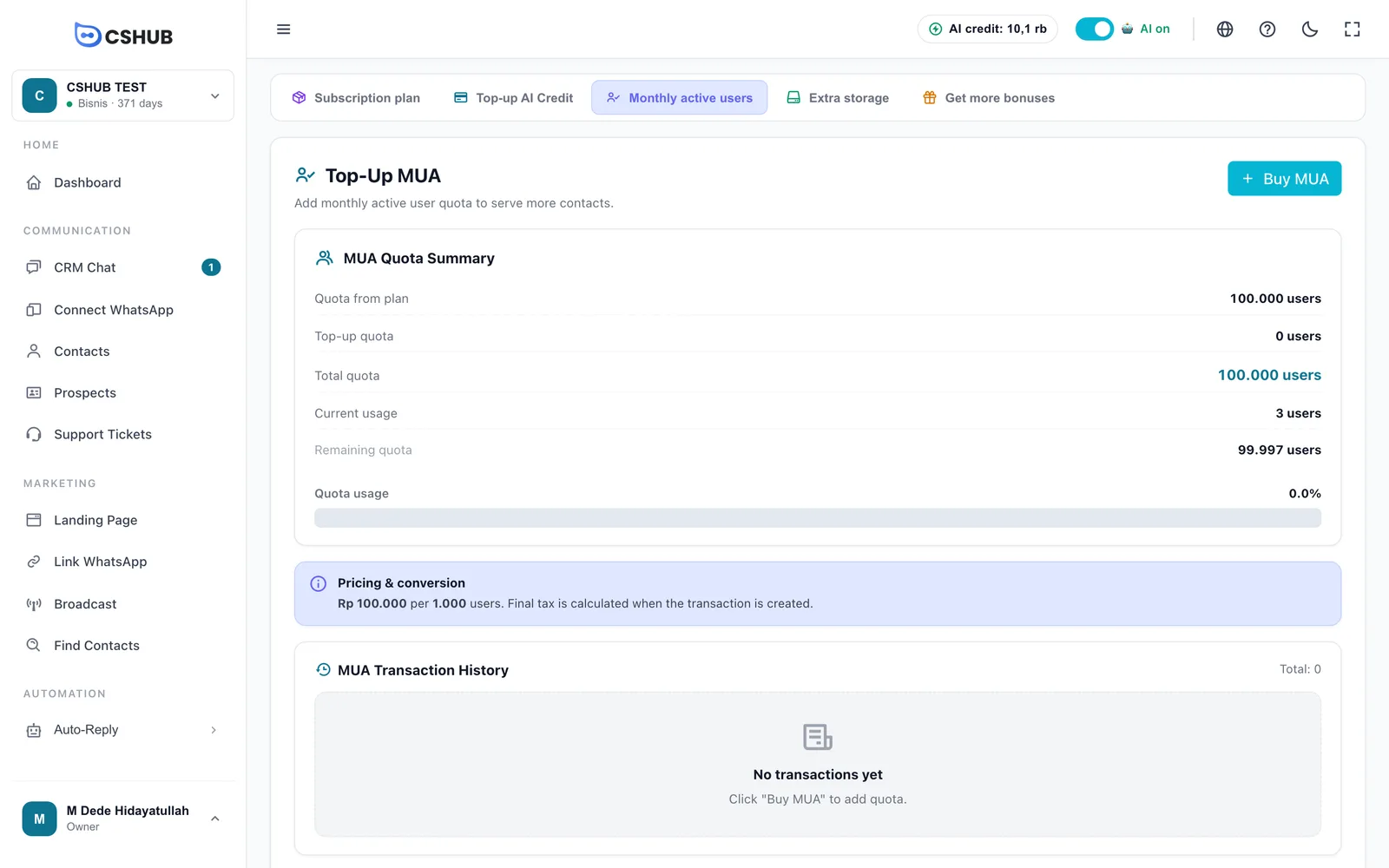
| Row | Meaning |
|---|---|
| Quota from plan | The MUA cap included in your plan |
| Top-up quota | Extra quota you bought |
| Total quota | Plan + top-up |
| Current usage | Different contacts who chatted in the last 30 days — counted live |
| Remaining quota | Total quota minus usage |
Buying MUA quota
- Click Buy MUA.
- In the window that opens, set the number of units.
- Check the new MUA quota and subtotal, then continue.
- Complete the payment. The quota is added once the transaction is Successful.
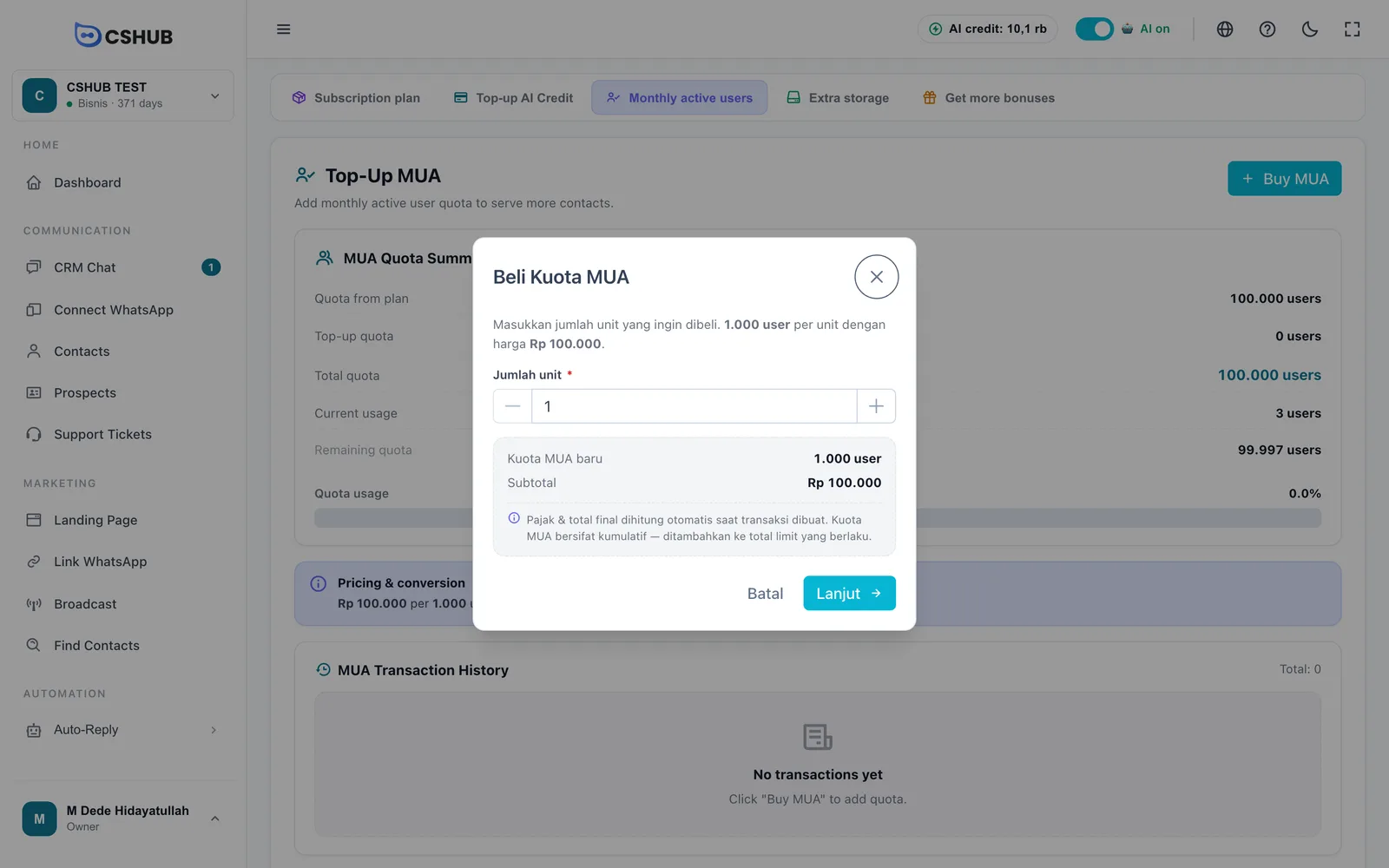
This window is in Indonesian
The MUA purchase window currently appears in Indonesian even in the English app: the title is Beli Kuota MUA, the unit field is Jumlah unit, and the buttons are Batal (Cancel) and Lanjut (Continue).
MUA quota is cumulative: every purchase is added to the cap currently in force.
Extra storage
Every piece of media that comes in or that you upload — product photos, files, WhatsApp audio, template attachments — uses the business's storage. Open Billing → Extra storage.
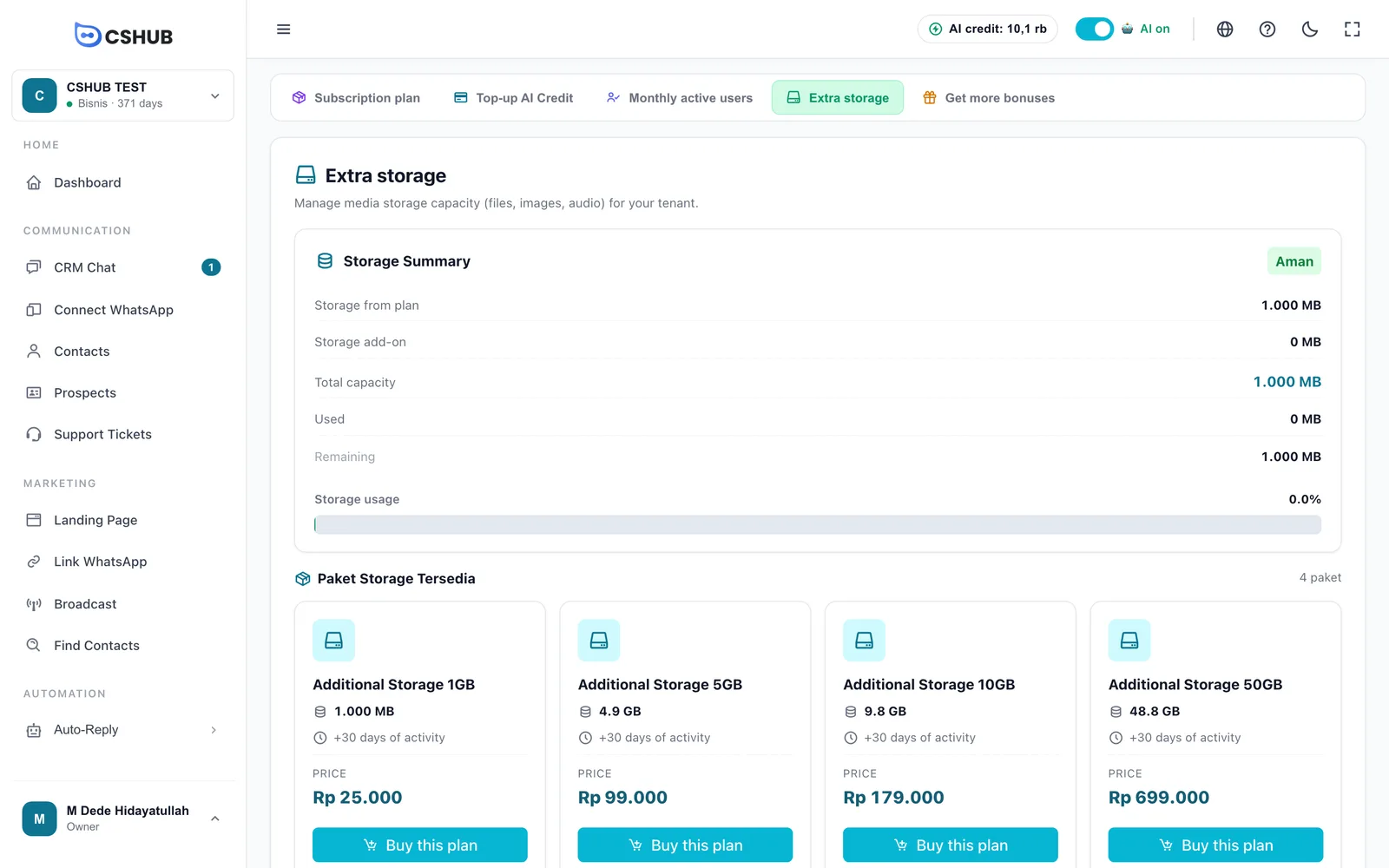
| Row | Meaning |
|---|---|
| Storage from plan | Capacity included in your subscription plan |
| Storage add-on | Extra capacity you bought |
| Total capacity | Plan + add-on |
| Used / Remaining | Space already used and still free |
| Status badge | Safe, Attention, or Critical depending on usage (shown in Indonesian: Aman, Perhatian, Kritis) |
When usage gets high, the page shows a warning. At the critical level, add storage before media uploads start failing.
Buying a storage package
- Under the available storage packages, pick the size you need and click Buy this plan.
- A confirmation window shows the package name, capacity, duration, and base price. Confirm the purchase.
- Complete the payment on the transaction page.
Each storage package adds to the add-on's active period (for example +30 days of activity). If you already have an active storage package, its validity is extended, not replaced.
Top-up history & statuses
Each top-up page has its own history table with Invoice, the amount bought, Total, Status, Date, and Actions (view details or delete an unpaid transaction).
| Status | Meaning |
|---|---|
| Awaiting payment | Created, not paid yet |
| Admin verification | A manual transfer proof is being checked |
| Successful | Credit, quota, or storage has been added |
| Failed | The payment didn't go through — create a new transaction |
One pending transaction per type
If a top-up is still Awaiting payment, finish or delete it before creating another top-up of the same type. When you open that page, cshub reminds you to continue the pending invoice.
Next steps
- Billing & plans
- Get bonuses — free AI credit from reviews
- AI Agent — the feature that uses AI credit