
AI selling & chat checkout
Your AI Agent can sell right inside the chat: it offers products from your catalog with the correct prices and variants, adds items to the cart, asks for the delivery address, calculates shipping with the couriers you choose, then creates the order and sends an invoice link where the customer picks how to pay — without your CS team stepping in.
You set this up on three tabs of the AI Agent edit page: Products, Address & shipping, and Couriers. Without products, the AI can still answer questions from its AI knowledge, but it won't create orders.
Before you start
- Have active products in Products & stock — the AI only offers products from your catalog.
- To calculate shipping, save your shipping origin in Business addresses.
- The Products and Couriers tabs only open if your plan includes products and shipping quotes. Locked tabs show a padlock.
Some of these screens are currently shown in Indonesian even when the app is in English; the tables below give the original label with an English explanation.
How the AI handles a purchase
Once products and shipping are set up, a chat usually goes like this:
- The customer asks — "what do you sell?", "how much is the plain tee?", "is the black one in L?". The AI searches your catalog and answers with the right name, price, and variants, and can send product photos.
- The customer chooses — "I'll take 2 black, size L". The AI adds them to the cart and can tell them the total.
- Moving to payment — the AI offers to continue to payment. If shipping is on, it asks for the full address and postal code.
- Choosing a courier — the AI lists courier options with their shipping cost; the customer picks one.
- Summary — the AI sends an order recap and the total (price × quantity + shipping).
- Order created — once the customer agrees, the AI creates the order and sends an invoice link. On that page the customer chooses a payment method.
Orders created by the AI land in Orders like any other order, and the delivery address is saved to the contact. Customers can also ask about an order's status by quoting the invoice number.
The AI never gives out bank account numbers
When a customer asks "where do I transfer?", the AI points them to the invoice link — it never invents account numbers or payment methods. Payment methods are only offered on the invoice page.
Pick a matching character
The Sales Closer and Order Taker characters are designed for this kind of selling. See Pick a character.
Which products the AI may offer
Open the Products tab. In the Mode Produk (product mode) section, choose one:
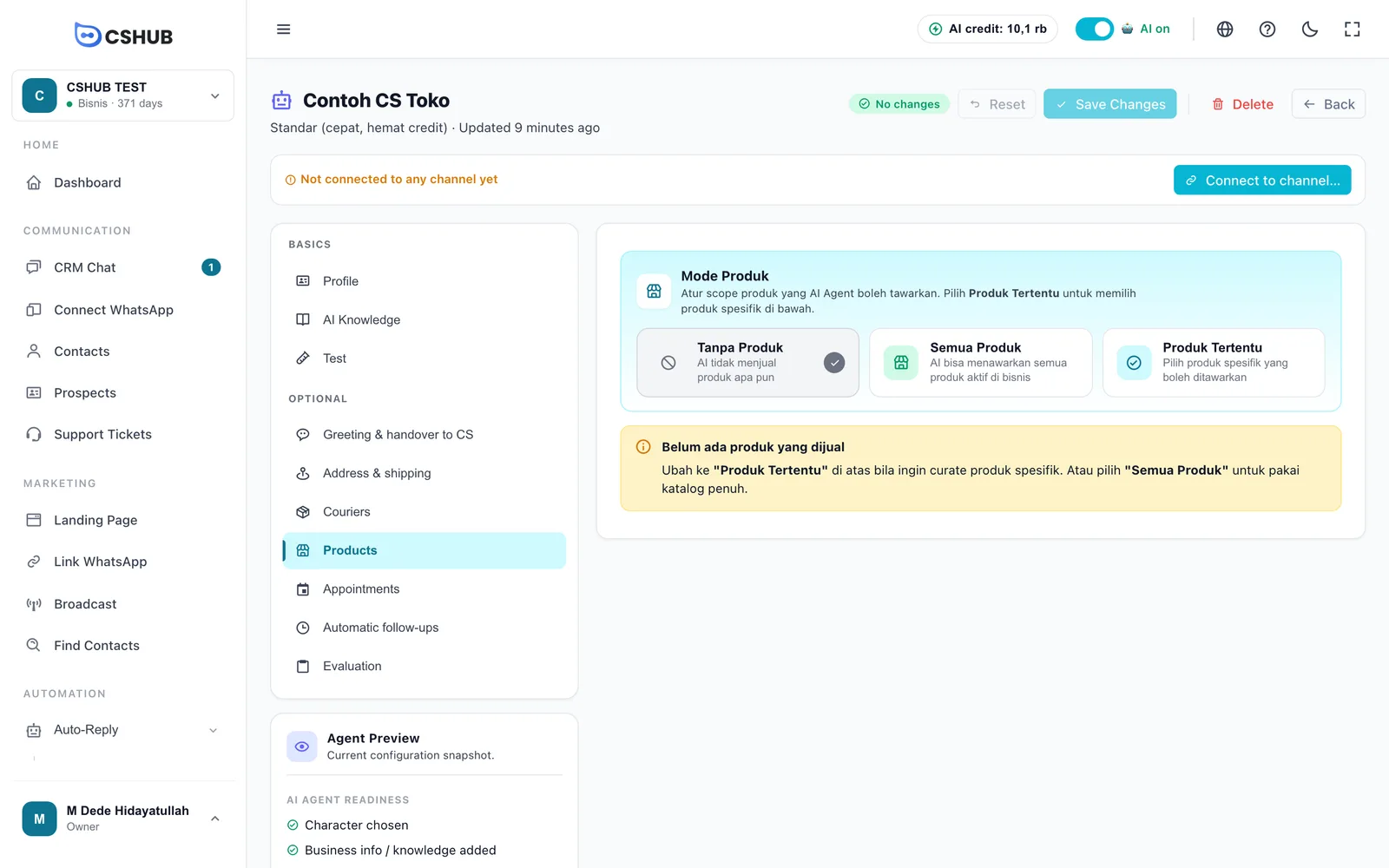
| Mode | What the AI does |
|---|---|
| Tanpa Produk (no products) | The AI doesn't sell anything. Good for a pure customer-service agent |
| Semua Produk (all products) | The AI may offer every active product in your business, including ones you add later |
| Produk Tertentu (specific products) | The AI only offers the products you pick in the Produk Terpilih (selected products) list |
Choosing specific products
- Choose Produk Tertentu. The Produk Terpilih section appears.
- Click Tambah Produk (add product).
- In the dialog, search by name or SKU, tick the products you want, then click Tambah ke Agent (add to agent). Products already added are greyed out.
- Click Save Changes at the top of the page.
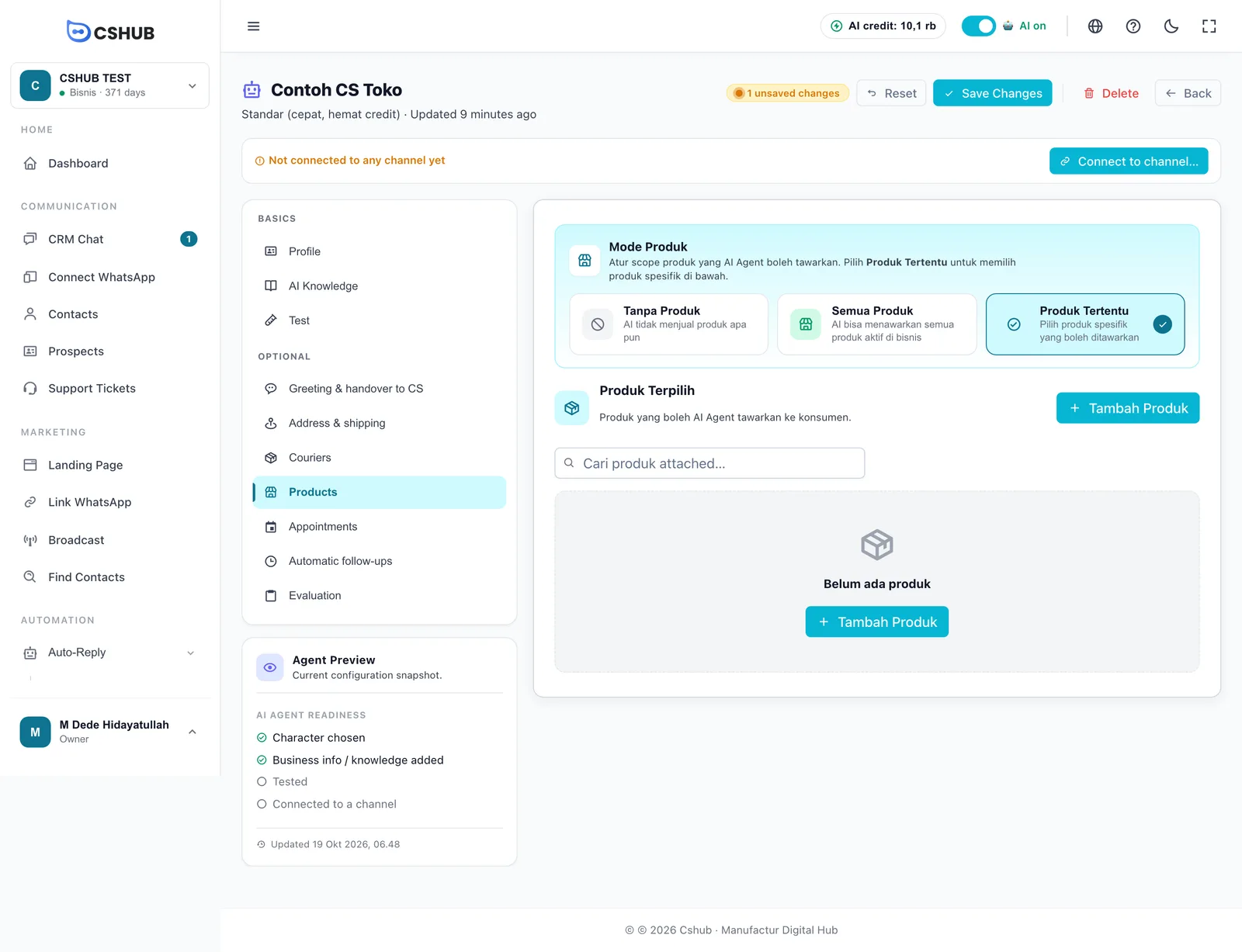
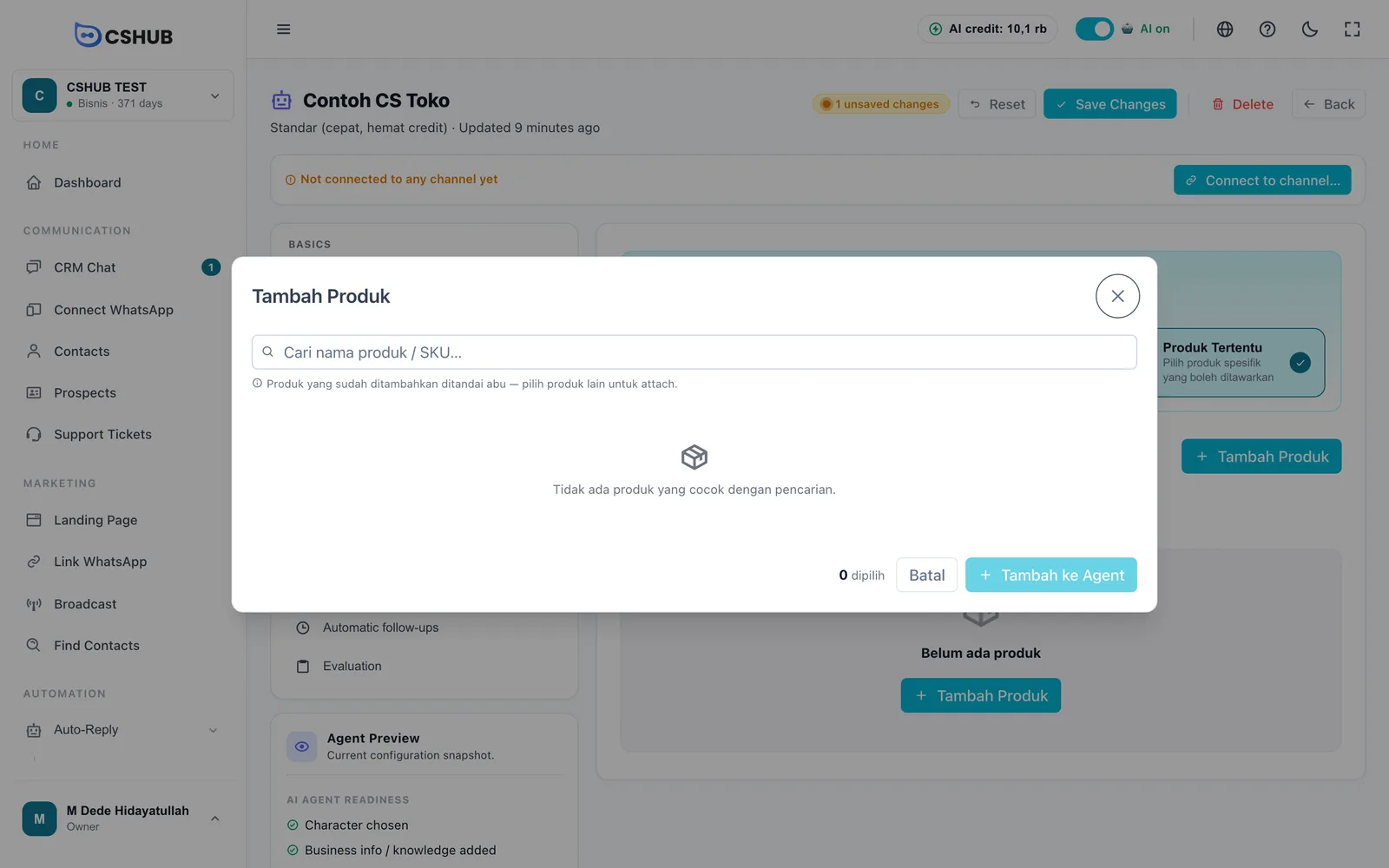
Newly added products are tagged Baru · belum disimpan (new, not saved) until you save. Inactive products are tagged Inactive. To remove a product, click the × on its row — the change applies after saving.
Changing the mode clears the selected list
If you switch from Produk Tertentu to Semua Produk or Tanpa Produk while products are selected, cshub asks you to confirm. Once saved, the selected product list is cleared.
Prices, variants, and photos used by the AI come straight from Products & stock, so you only update them there — no need to repeat prices in AI knowledge.
Shipping & origin address
Open the Address & shipping tab. The Ongkir & Pengiriman (shipping cost & delivery) card sits at the top.
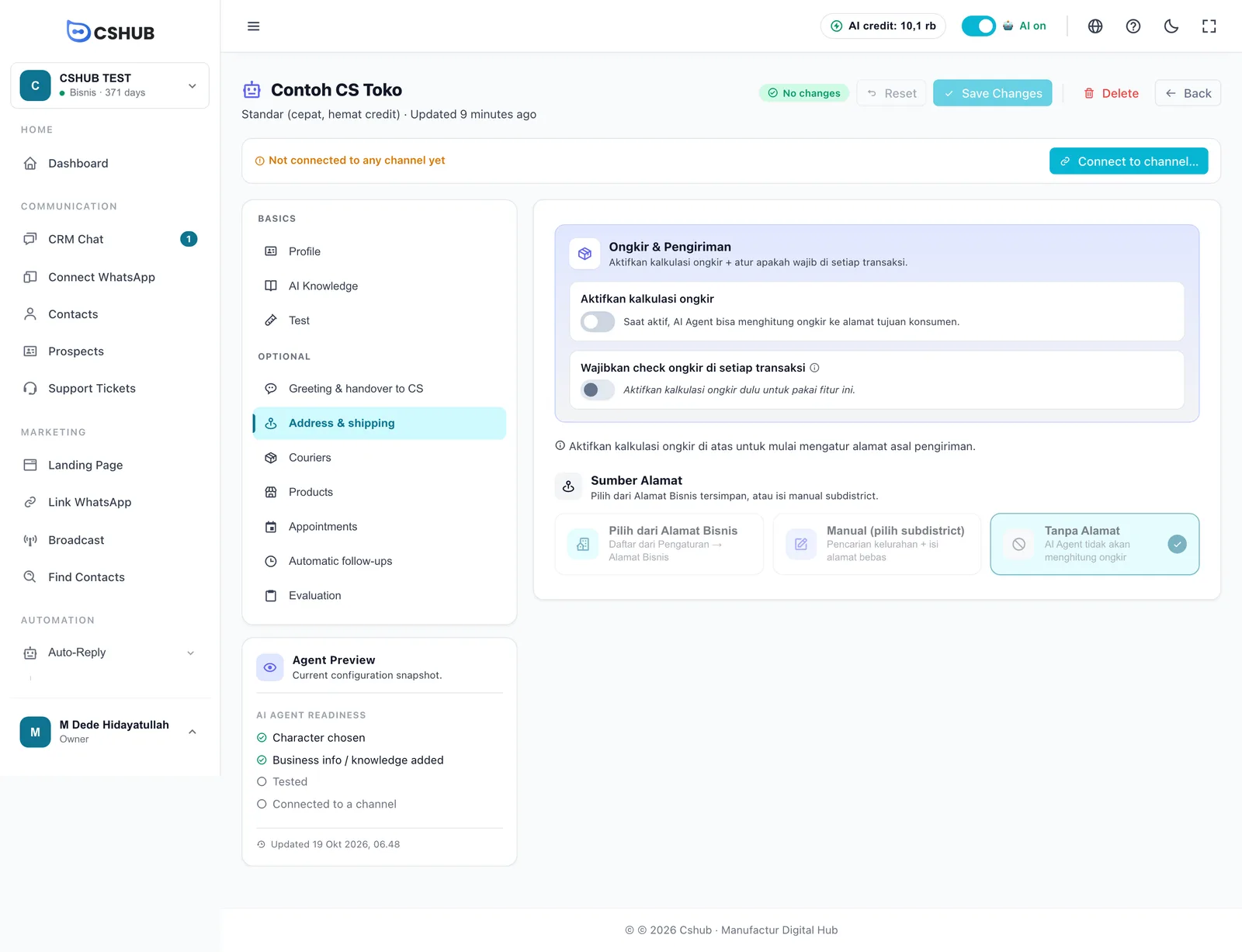
| Switch | What it does |
|---|---|
| Aktifkan kalkulasi ongkir (turn on shipping calculation) | When on, the AI can calculate shipping to the customer's address |
| Wajibkan check ongkir di setiap transaksi (require shipping check on every order) | When on, the AI asks the customer to choose a courier before confirming — orders can't go through without one. Useful when shipping is significant compared with the product price. Only available once shipping calculation is on |
Once shipping calculation is on, choose the Sumber Alamat (address source) — where orders ship from:
| Source | Details |
|---|---|
| Pilih dari Alamat Bisnis (from business addresses) | Pick one of the addresses saved in Business addresses. Address, postal code, and subdistrict fill in automatically. If the list is empty, add one in Settings first |
| Manual (pilih subdistrict) | Search for the subdistrict (type at least 2 characters), then fill in Postal Code and Full Address if needed |
| Tanpa Alamat (no address) | The AI stays on but doesn't calculate shipping during checkout |
Click Save Changes when you're done.
Businesses outside Indonesia
Automatic shipping quotes are only available for businesses in Indonesia. For other countries, the shipping switch is turned off and the Couriers tab is hidden.
Choosing couriers
Open the Couriers tab. The same Ongkir & Pengiriman card appears here too, followed by the Courier List.
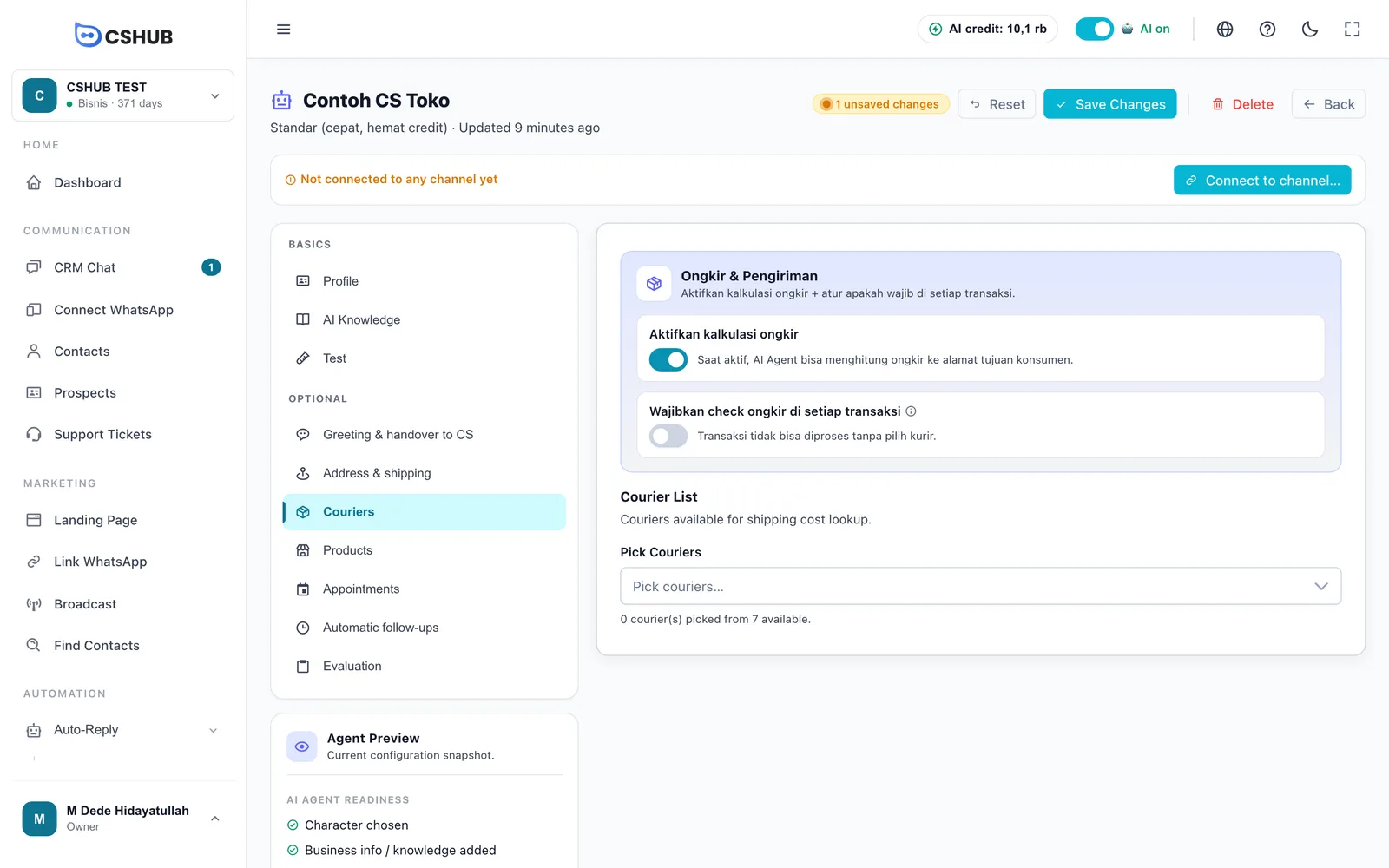
- Click the Pick Couriers box.
- Tick the couriers you want to offer customers. Use the search box to find them faster.
- Click Save Changes.
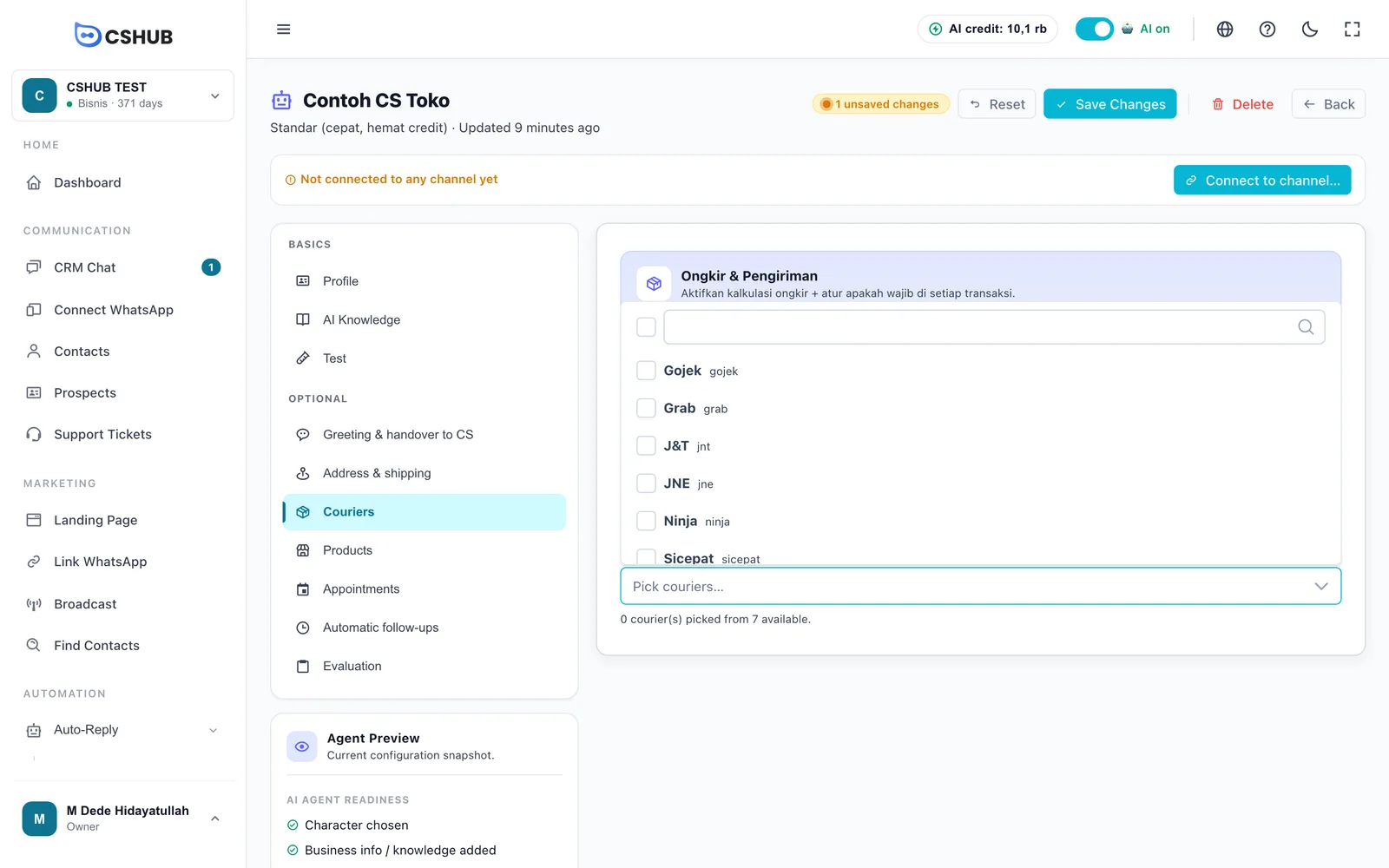
The AI only offers the couriers you tick. The note under the box shows how many are picked out of those available. General shipping settings for your business are covered in Shipping & rates.
Checking the result
- Open the Test tab and play the buyer: ask about a product, pick a variant, ask to pay, send a sample address, then choose a courier.
- Make sure the prices, shipping, and total in the recap are correct.
Testing uses AI credit just like a real chat.
Troubleshooting
| Symptom | What to check |
|---|---|
| The AI says there are no products | Product mode is still Tanpa Produk, or the products aren't active in Products & stock |
| The AI doesn't ask for an address / doesn't calculate shipping | Aktifkan kalkulasi ongkir is off, or the address source is Tanpa Alamat |
| No couriers are offered | No couriers are ticked on the Couriers tab |
| Products/Couriers tab has a padlock | Your plan doesn't include that feature. See Billing & packages |
| Changes don't take effect | You haven't clicked Save Changes |
Related
- AI Agent
- Products & stock
- Orders
- Shipping & rates
- Abandoned carts
- Send a product, payment link, or order from a chat — the manual version for your CS team