
Online store
Build your own online store with all your products — catalogue, categories, search, cart, and checkout with automatic shipping rates — with no code and no hosting to rent. The store is assembled from ready-made themes and blocks you arrange yourself, and orders from it go straight to Orders.
Each business has one online store. Its address looks like /s/your-store-name, ready to share in your social bio, ads, or chats.
Online store or landing page?
The online store is for a storefront with many products, a cart, and a catalogue. To sell a single product with a focused sales page, use a Landing page.
Before you start
- Set up your products in Products & stock. Only Active products appear in the store.
- Create categories if you want buyers to browse by category.
- Complete your shipping setup so rates are calculated automatically at checkout — see Shipping & rates.
Opening the store editor
Open E-Commerce in the Marketing section of the sidebar. You go straight into the store editor.
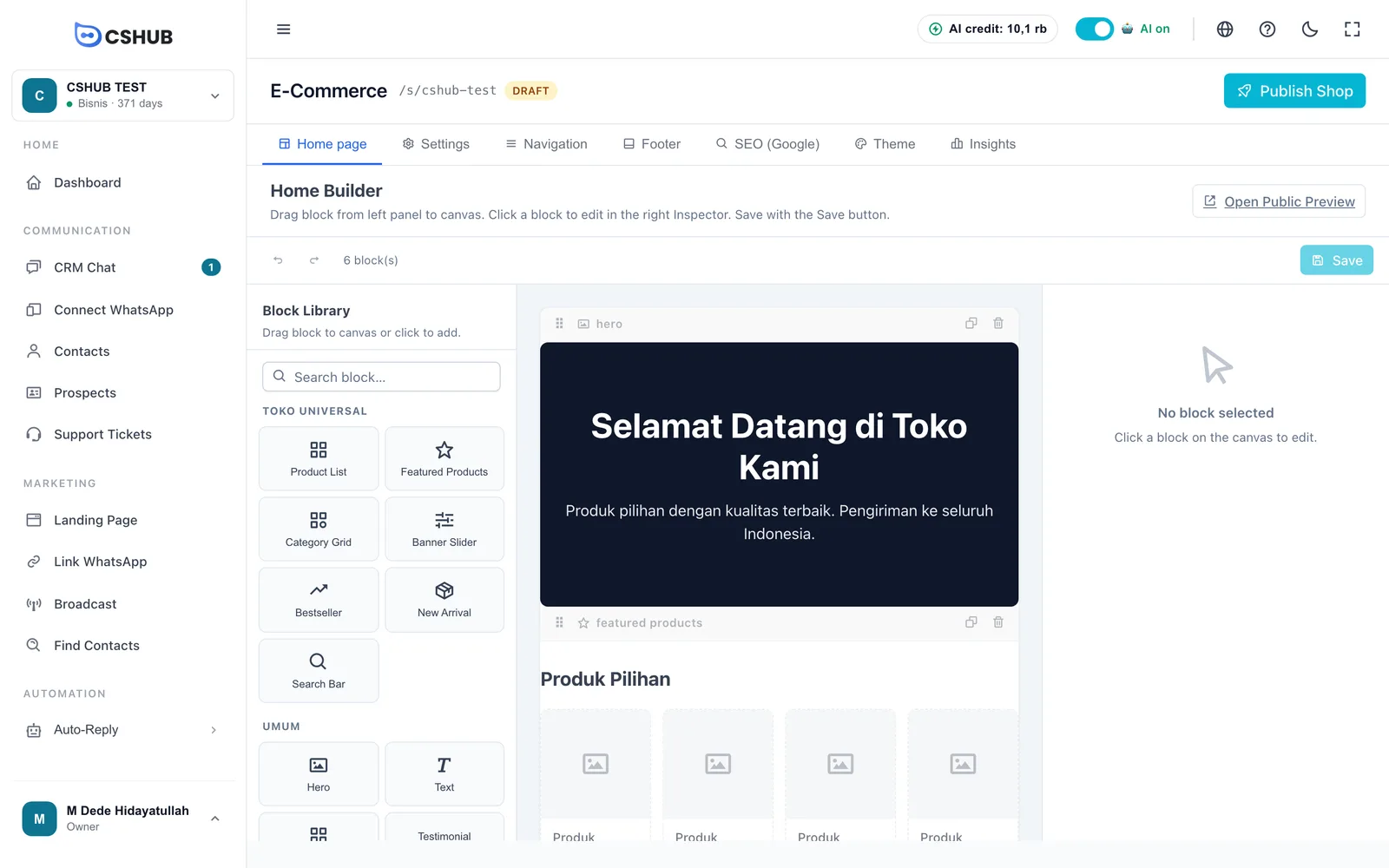
The top of the editor:
| Element | What it does |
|---|---|
| Store address | Your store's public address, e.g. /s/cshub-test |
| Status badge | Draft (not public yet) or Live (published) |
| Publish Shop / Unpublish | Puts the store live or takes it offline |
| Copy Public URL | Appears once the store is live — copies the address to your clipboard |
The editor has seven tabs:
| Tab | Contents |
|---|---|
| Home page | Arrange the blocks on your store's front page |
| Settings | Name, logo, store address, contact, shipping, pixels, and the WhatsApp chat button |
| Navigation | The menu at the top of the store |
| Footer | Link columns, social media, and copyright at the bottom of the store |
| SEO (Google) | Title and description for Google results and link previews |
| Theme | The store's visual theme |
| Insights | A summary of orders, revenue, and top products |
Suggested order
Settings → Theme → Home page → Navigation & Footer → SEO (Google) → Publish Shop.
Store settings
Open the Settings tab.
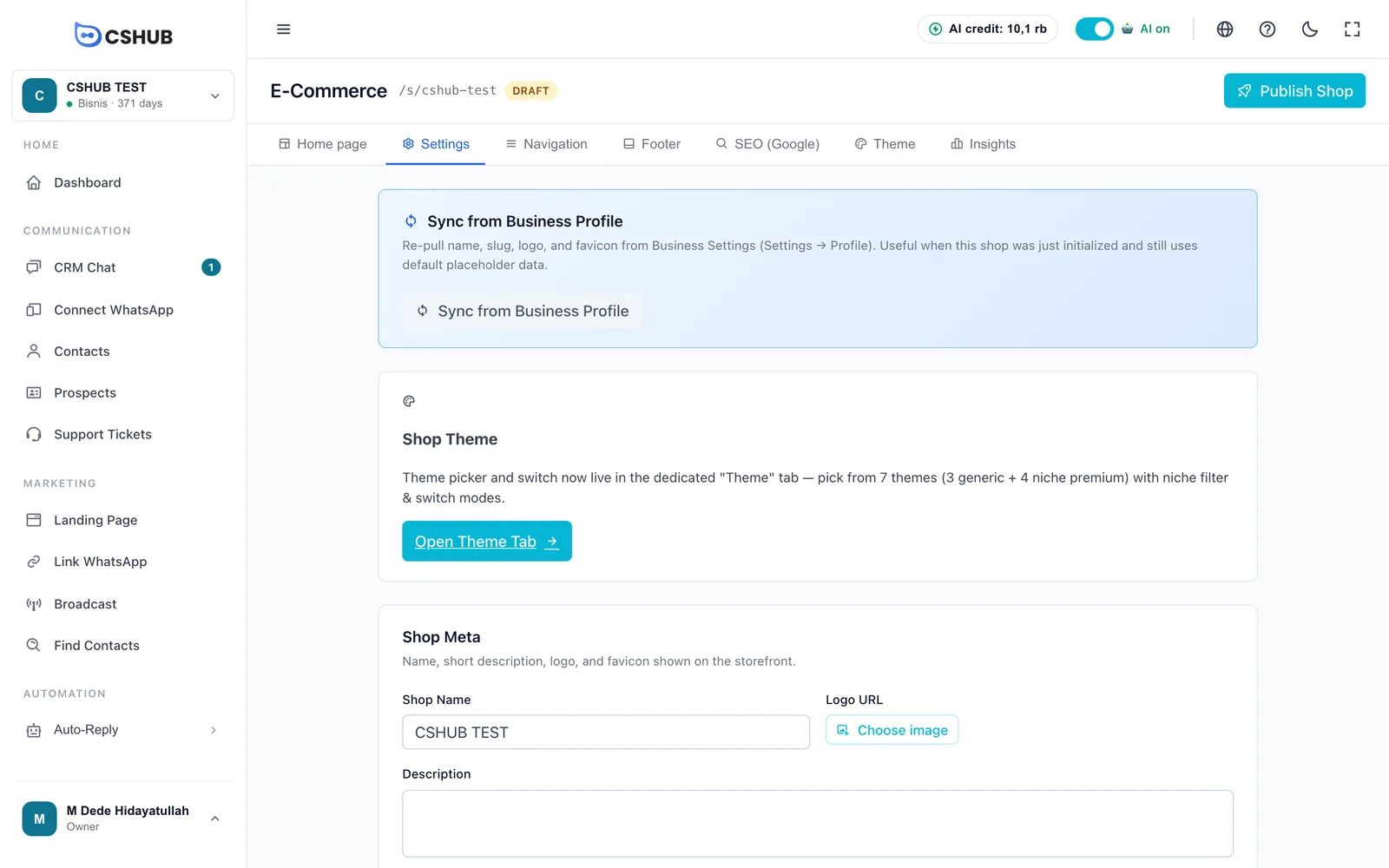
Sync from Business Profile
Click Sync from Business Profile to re-pull the name, store address, logo, and favicon from your business settings. Useful when the store is new and still uses placeholder data.
Shop Meta
| Field | Details |
|---|---|
| Shop Name | The name shown in the store, e.g. Healthy Store |
| Logo URL | Click Choose image to pick a logo |
| Description | A short store description |
| Favicon URL | The small icon shown in the browser tab |
Click Save on this card.
Shop address
The address buyers use to open your store; it must be unique. Use lowercase letters, numbers, and dashes, 3–60 characters. Availability is checked as you type: Available, Already taken, or This address is reserved. If it's taken, click Use suggestion for an alternative. The full address is shown below the field. Click Save.
Changing the store address
Old links you've shared stop working once you change the address. Settle on it before you promote the store.
E-Commerce settings
| Field | Details |
|---|---|
| Currency | The currency for store prices |
| Ships from | Information only — the store ships from your main business address. Change it in Business addresses |
| CS Phone / CS Email | Customer service contact shown in the store |
| WhatsApp Link | Your store's WhatsApp link |
| Require shipping at checkout | Buyers must pick a courier and rate before ordering. Turn off for digital products, services, or if you arrange delivery outside the system. International buyers also need this off, since shipping rates only cover domestic Indonesian routes |
| Enable Product Search | Show search in the store |
| Enable Categories Page | Show the category list page |
Analytics & Pixels — enter pixel IDs so visits across the store (home, product list, detail, checkout) are tracked for your ads: Facebook Pixel ID, Google Tag Manager ID, TikTok Pixel ID, and Snack Pixel ID.
WhatsApp Chat Button — show a chat button on product detail pages so buyers can ask questions right away:
| Field | Details |
|---|---|
| Enabled | Turn on to show the button |
| WhatsApp Type | WA Unofficial (a number connected by QR scan) or WA Official (WABA) (WhatsApp Business API) |
| WhatsApp Device / Meta Account | The number to use |
| WhatsApp Number | Filled in from the selected device. You can override it (international format, no +) |
| Button Label | Button text, e.g. Chat on WhatsApp |
| Initial Message | The message pre-filled when the buyer opens WhatsApp. Insert [pname] (product name), [pprice] (price), [purl] (product link), or [psku] (SKU) |
Click Save at the bottom.
Choosing a theme
Open the Theme tab.
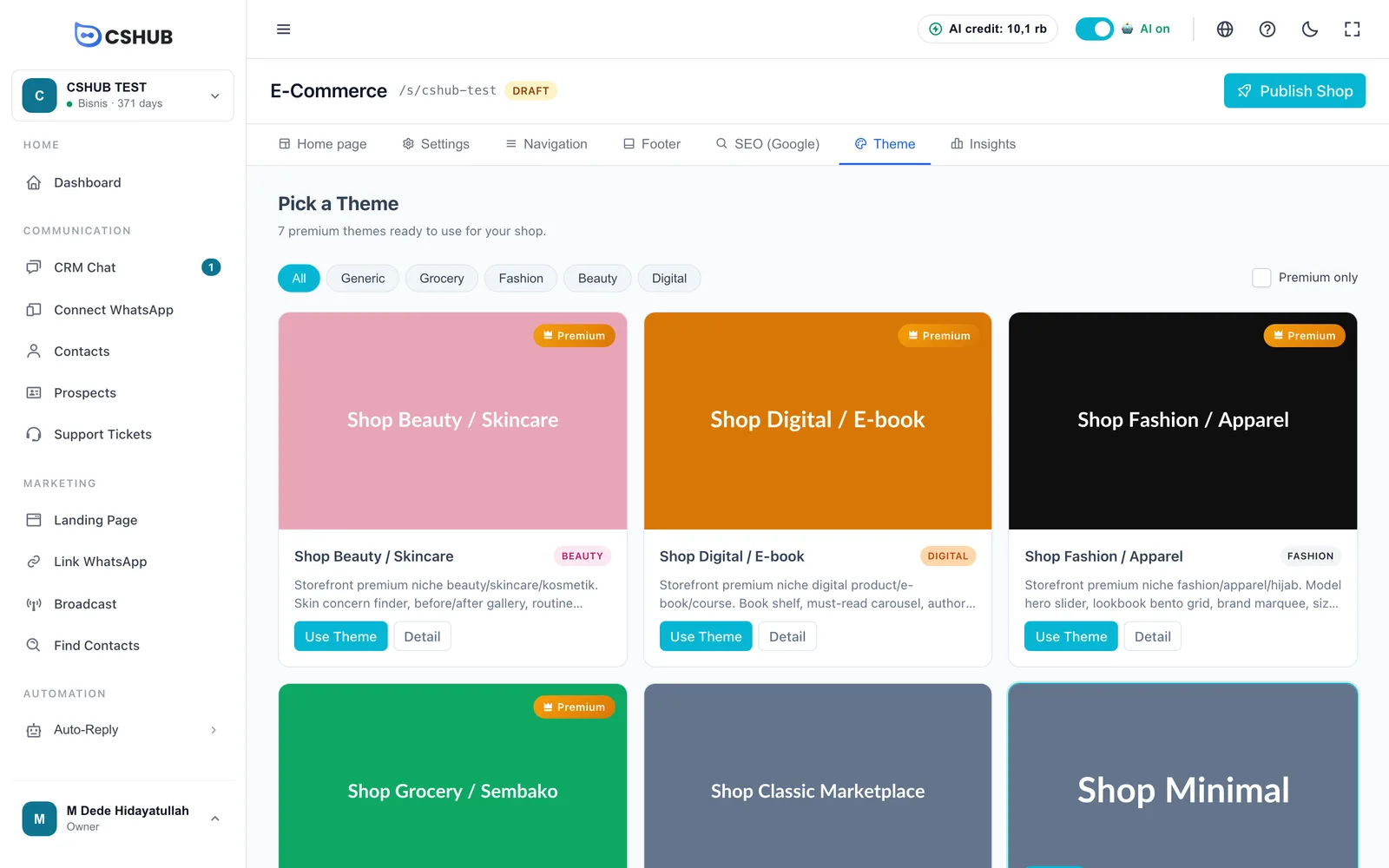
There are 7 themes: 3 generic ones and 4 premium themes for specific kinds of business — Grocery, Fashion, Beauty (skincare/cosmetics), and Digital (e-books/courses). Use the filter chips or tick Premium only to narrow them down. Click Detail for theme info, then Use Theme.
When switching themes, you choose what happens to the home page you've already arranged:
| Option | Result |
|---|---|
| Preserve (recommended) | Your existing blocks are kept. Blocks that don't fit the new theme are swapped for generic ones automatically |
| Reset to theme default | The home page is replaced with the new theme's default layout. Your previous arrangement is lost |
After the theme is applied, an Undo button appears briefly in case you want the previous theme back.
Arranging the home page
Open the Home page tab. The screen has three panes: the Block Library on the left, the canvas in the middle, and the block inspector on the right.
- Add blocks — drag a block from the Block Library onto the canvas, or click it to add it. Use Search block… to find one.
- Reorder — drag blocks on the canvas by their handle.
- Edit a block — click it on the canvas and change its content in the right pane. Copy duplicates the block; Delete removes it.
- Click Save. The toolbar shows Unsaved or Saved, plus the block count and undo/redo buttons.
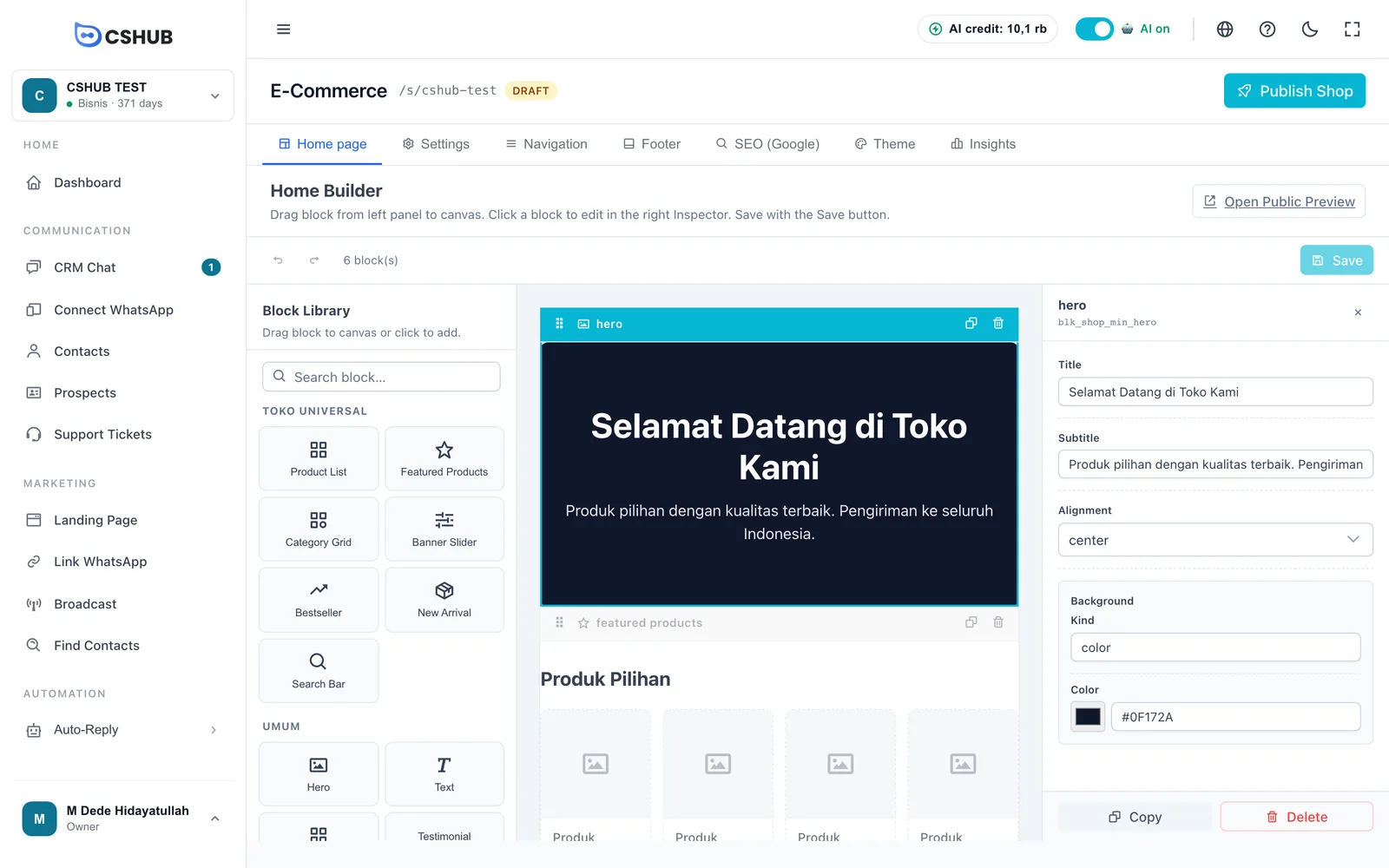
Blocks in the Block Library are grouped under these headings (the group names currently show in Indonesian):
| Group | Example blocks |
|---|---|
| Toko Universal (universal store) | Product List, Featured Products, Category Grid, Banner Slider, Bestseller, New Arrival, Search Bar |
| Umum (general) | Hero, Text, Call to Action, FAQ, Testimonial, Feature Grid, Gallery, Countdown, Video Embed |
| Grocery / Fashion / Beauty / Digital | Blocks for a specific kind of business, such as a recipe finder, lookbook grid, before/after gallery, or book shelf. They only appear when the matching theme is in use |
Featured Products and Category Grid have a product/category picker — search and tick the ones you want to show.
Click Open Public Preview to view the store in a new tab.
Errors when saving?
If a block has an invalid field, a list of errors appears. Click Fix this Block to jump to the problem block — the invalid field is highlighted in red in the right pane.
Navigation & footer
Navigation
The Navigation tab sets the menu at the top of the store, up to 12 items. Click Add Item, enter a menu label, and choose a link type:
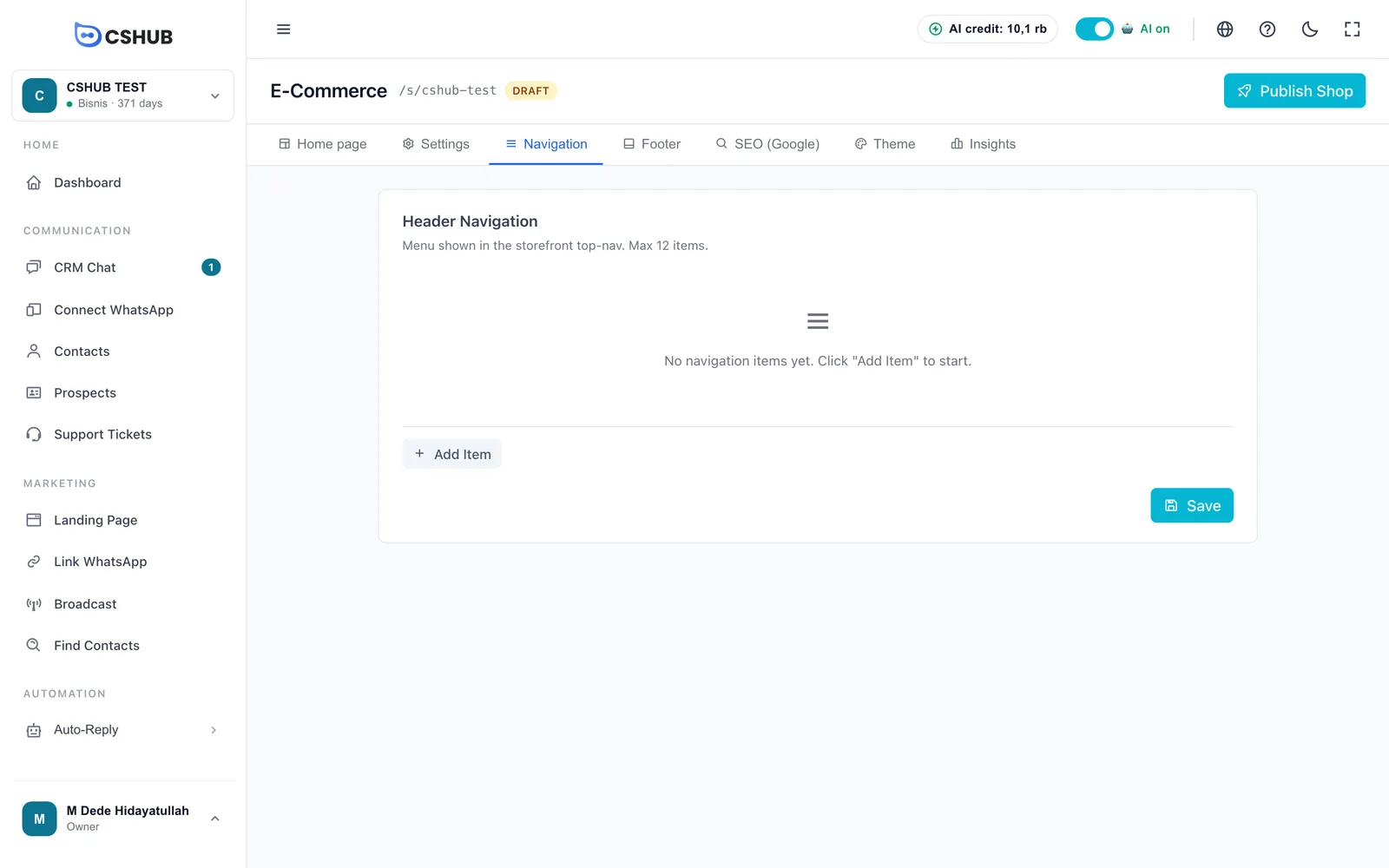
| Link type | Goes to |
|---|---|
| Category | A single product category page |
| Page | Home, All Products, Categories, or Cart |
| External URL | Another web address |
Footer
The Footer tab sets the bottom of the store.
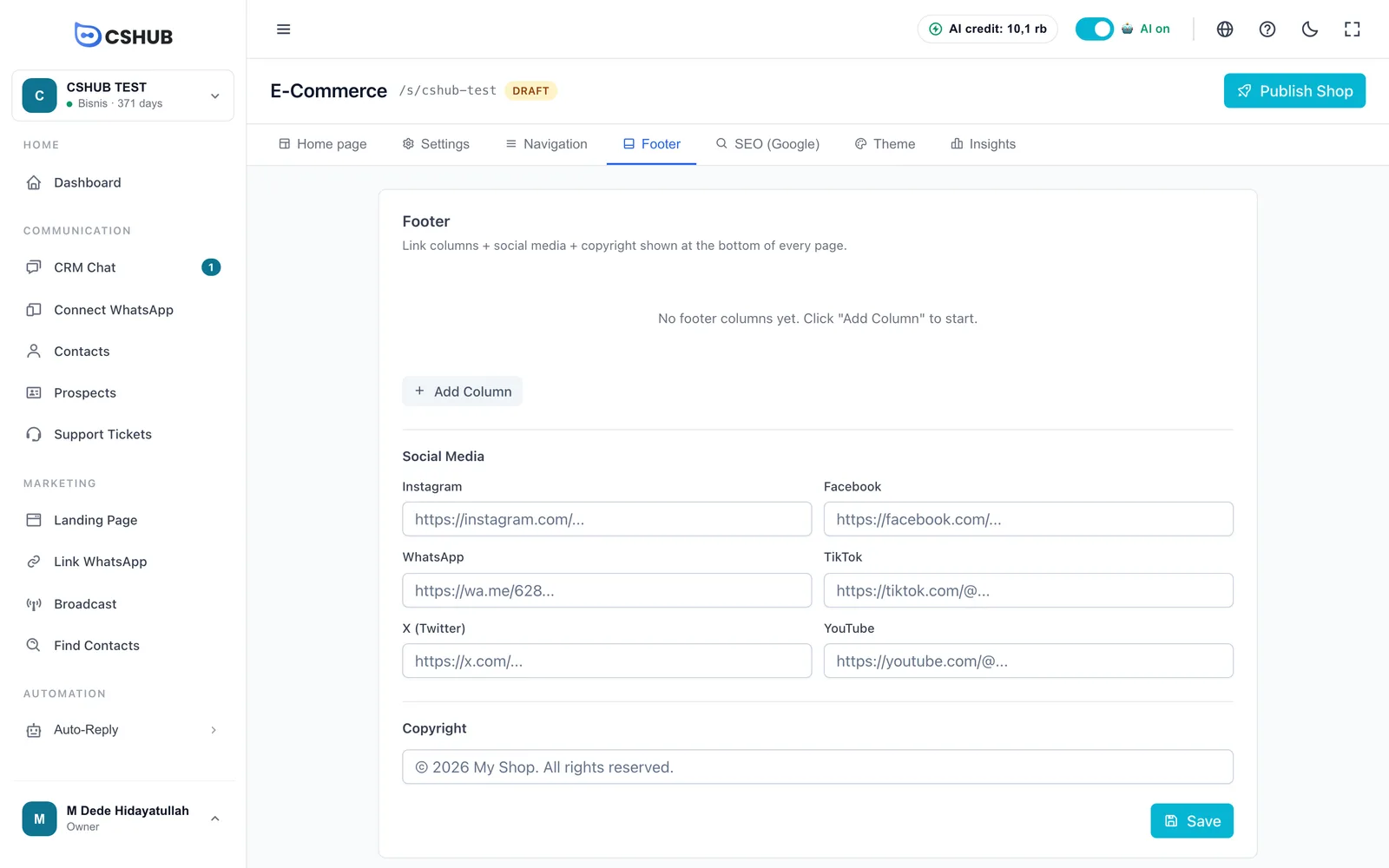
- Link columns — click Add Column (up to 4), enter a column title, then Add Link.
- Social Media — enter your Instagram, Facebook, WhatsApp, TikTok, X (Twitter), and YouTube links.
- Copyright — e.g. © 2026 My Shop. All rights reserved.
Click Save on each tab.
SEO (Google)
The SEO (Google) tab controls how your store appears in Google results and when its link is shared on WhatsApp or social media.
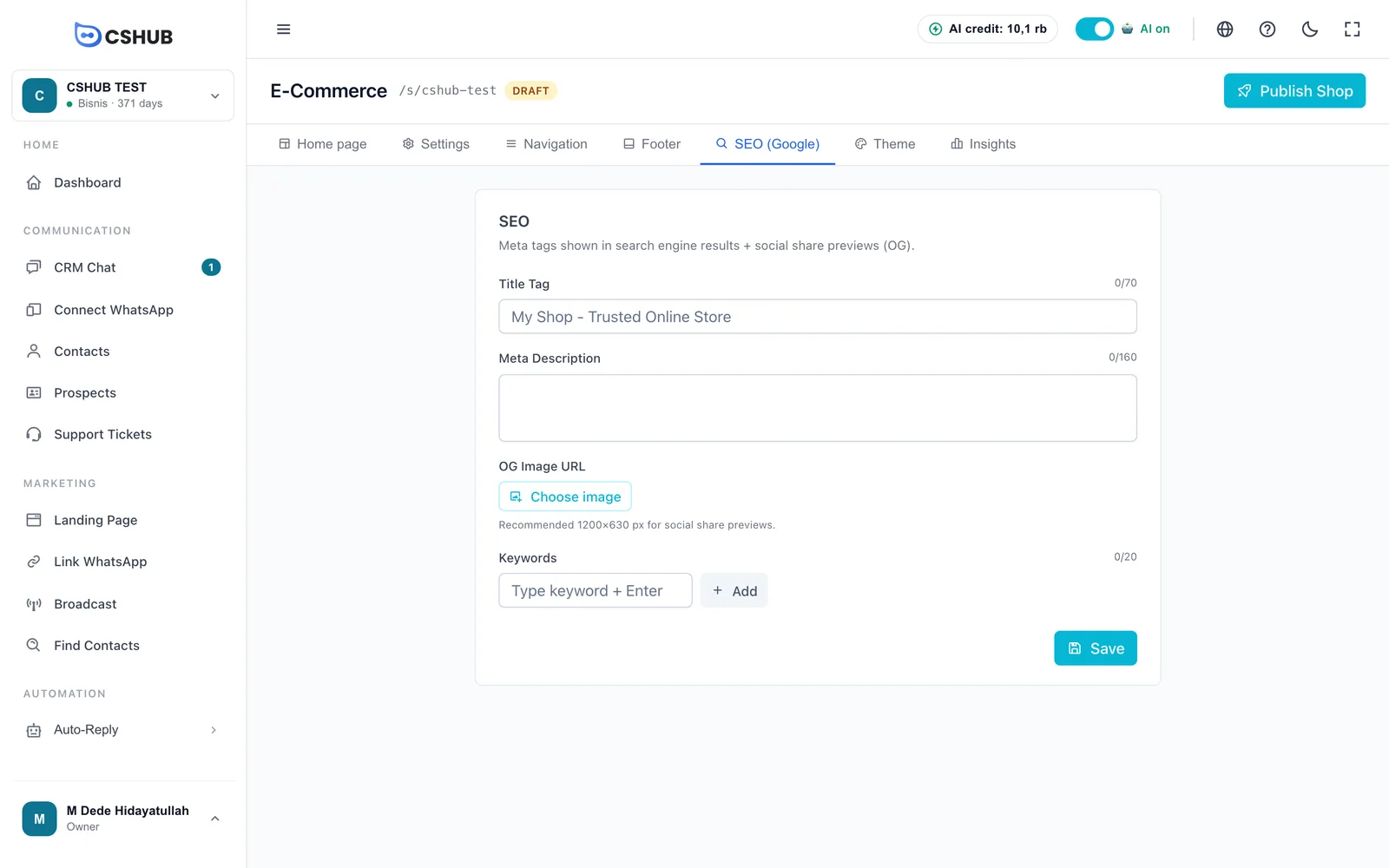
| Field | Details |
|---|---|
| Title Tag | The title in search results, up to 70 characters |
| Meta Description | The short description under the title, up to 160 characters |
| OG Image URL | Click Choose image for the preview image used when the link is shared. 1200×630 px recommended |
| Keywords | Type a keyword and press Enter (or click Add), up to 20 |
Publishing the store
When everything is ready, click Publish Shop at the top right and confirm. The badge changes to Live and anyone can open the store. Click Copy Public URL to copy its address.
To close the store temporarily, click Unpublish — the store goes offline, but all settings and products are kept.
What buyers see
Once live, your store has a home page, an all-products list, product detail pages, a category list, per-category pages, search, a cart, and checkout.
At checkout, buyers enter their Name, WhatsApp Number, Full Address, and an optional email, pick their destination sub-district, then click Calculate Shipping and choose a courier. After they click Place Order, it appears in Orders with the source Online Store.
Insights
The Insights tab summarises store performance over a date range. Pick a start and end date, then click Apply.
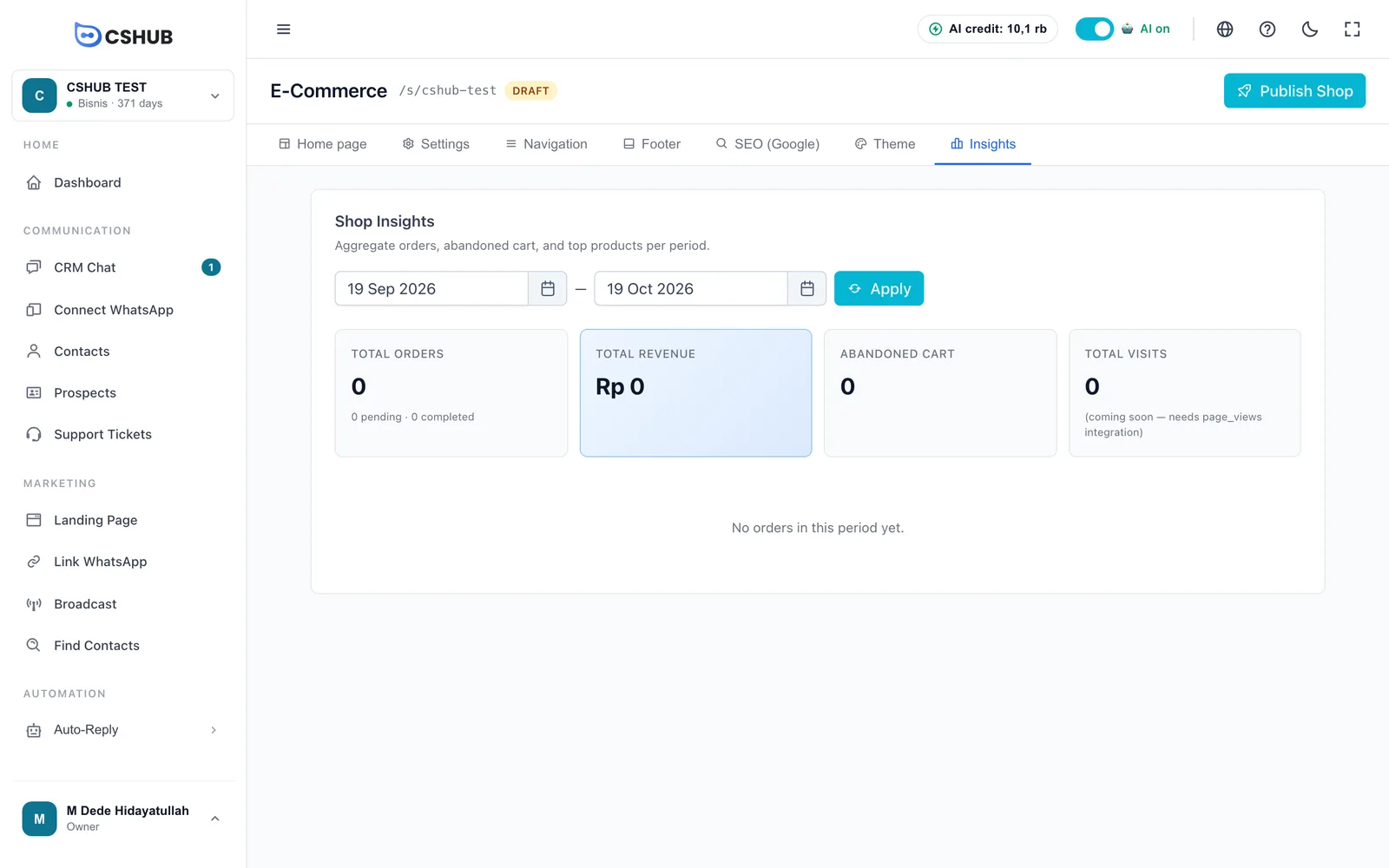
| Figure | Meaning |
|---|---|
| Total Orders | Orders from the store, split into pending and completed |
| Total Revenue | Total revenue from store orders |
| Abandoned Cart | Carts that weren't carried through to payment |
| Total Visits | Visit count — coming soon |
| Top Products | Product name, quantity sold, and revenue per product |
Tips
- Fill in product photos and descriptions — the store shows your Products & stock data directly.
- Turn on the WhatsApp Chat Button so hesitant buyers can ask, and let your AI Agent answer.
- Check the mobile view with Open Public Preview before publishing — most buyers shop on their phones.
- The online store is only available if your package includes E-Commerce. Check Billing & packages.