
AI Help & the Help center
When you're not sure how to use a feature, you don't have to leave cshub: the Help panel puts every shortcut in one place — ask AI Help for a step-by-step answer, replay the interactive guide for the page you're on, chat with support on WhatsApp, send feedback to the cshub team, and bring the getting-started checklist back to your Dashboard.
This page covers what's in the Help panel, how to ask AI Help (including its free quota), how to replay guides, and how to send and track feedback.
Opening the Help panel
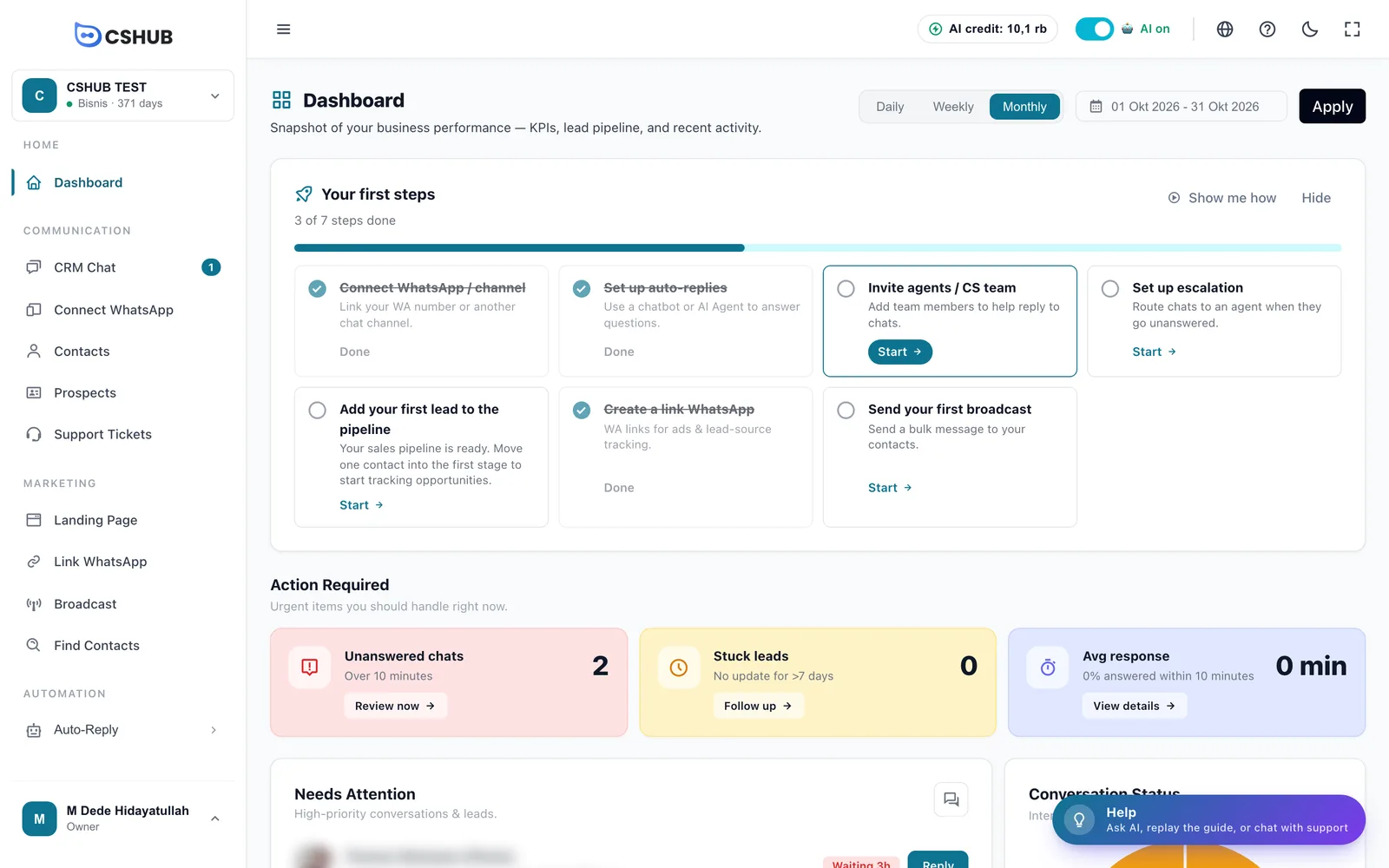
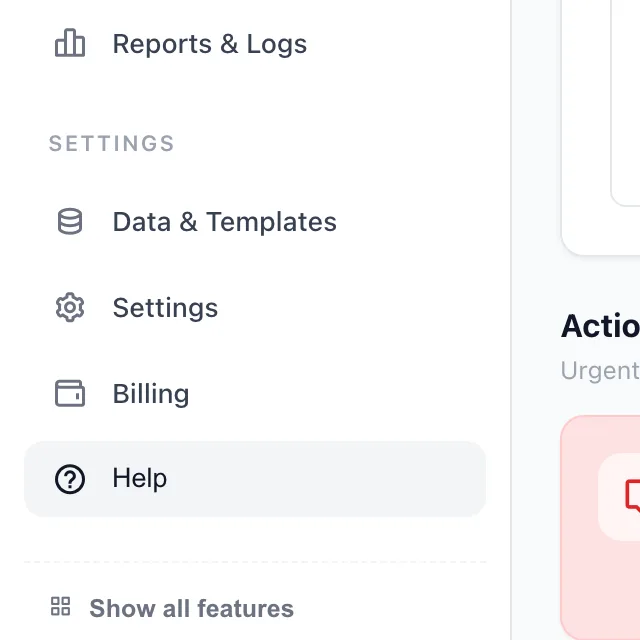
You can open the Help panel from four places — use whichever is closest:
| Where | How |
|---|---|
| Floating button | The Help button with a light-bulb icon in the bottom-right corner, captioned Ask AI, replay the guide, or chat with support |
| Sidebar | The Help item (question-mark icon) at the bottom of the sidebar, below Data & Templates, Settings, and Billing |
| Top bar | The ? icon next to the language picker |
| Keyboard | Press Ctrl+B (Windows) or Cmd+B (Mac) |

What's in the Help panel
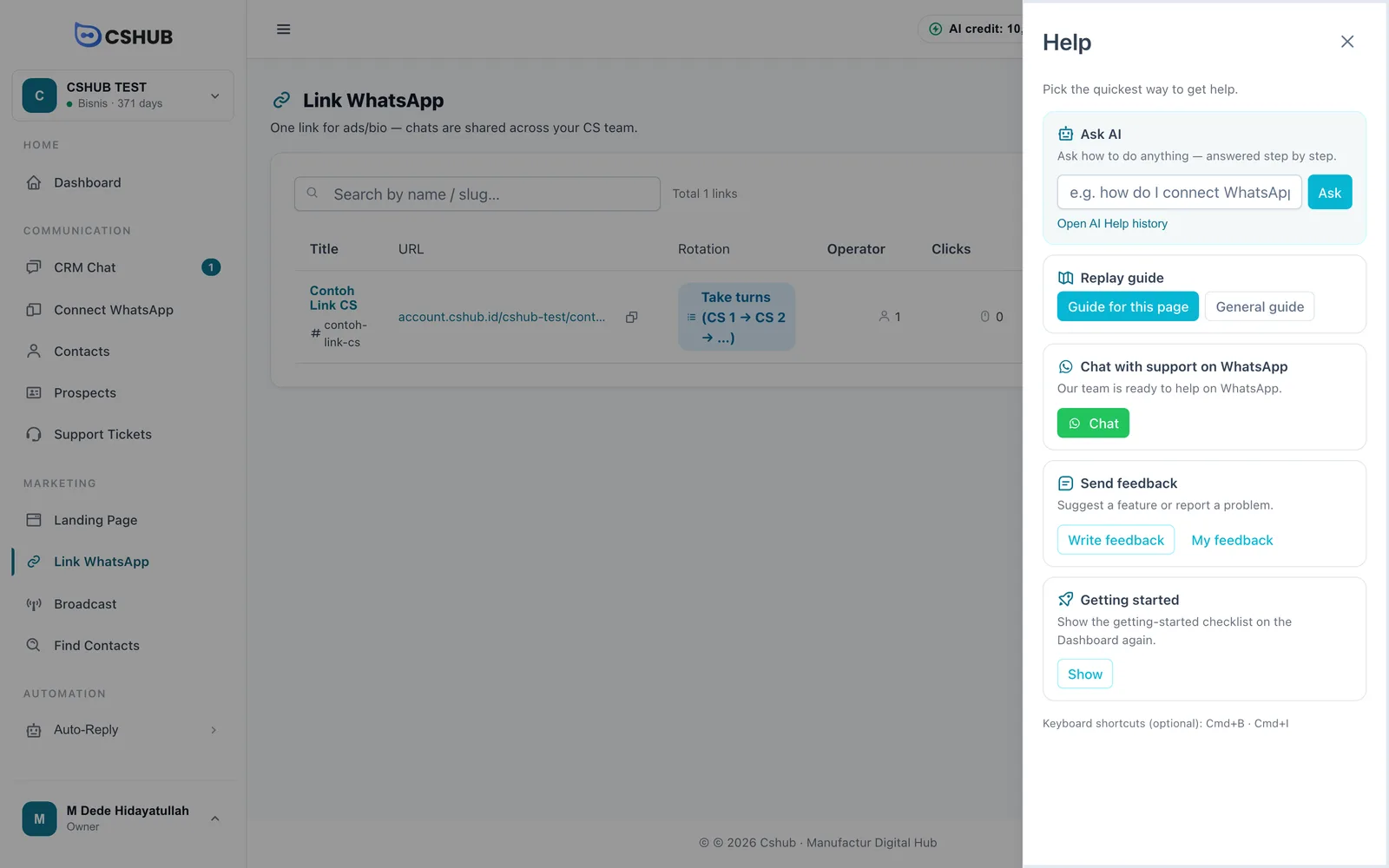
The panel slides in from the right with the title Help and the line Pick the quickest way to get help. It holds five cards:
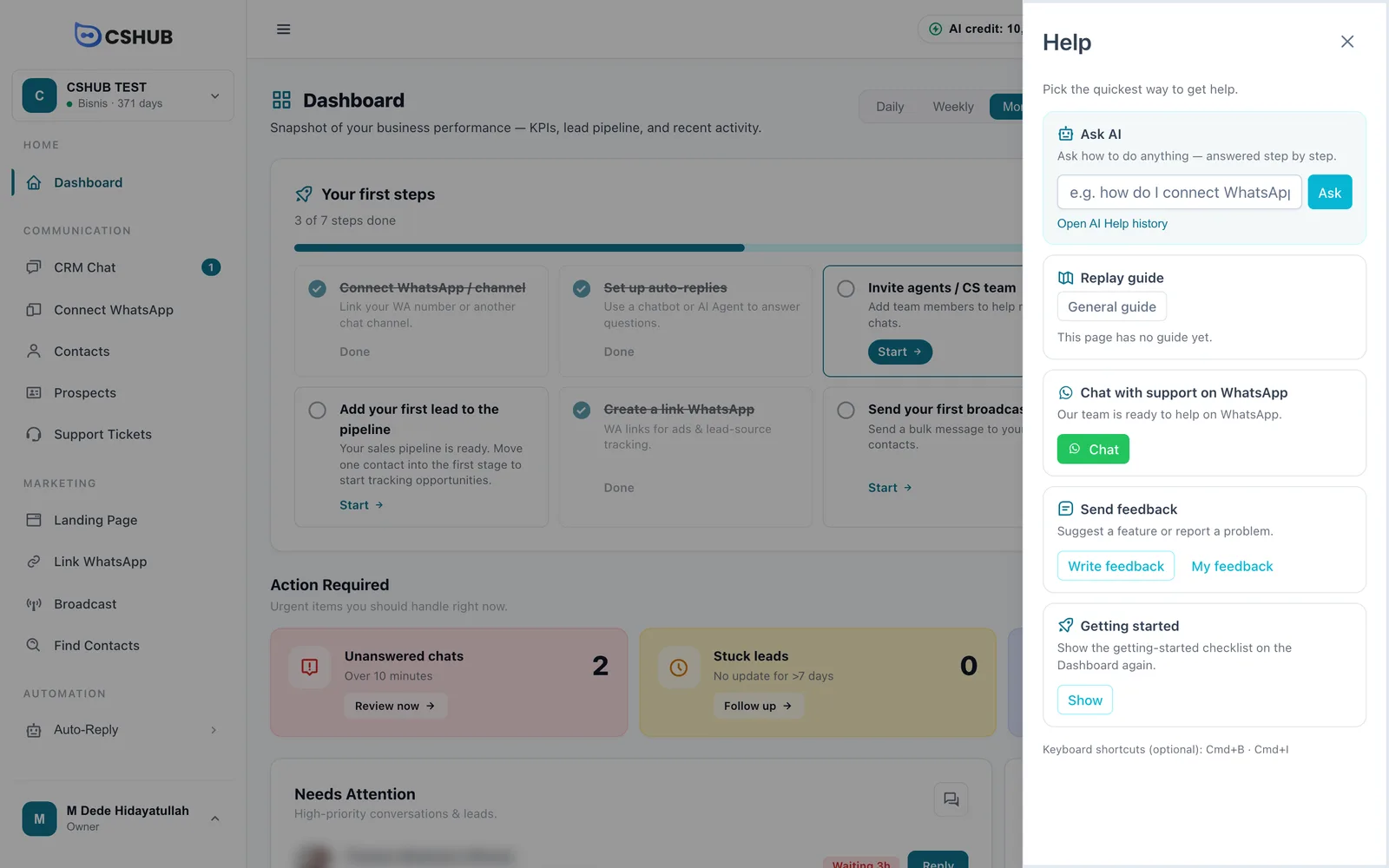
| Card | What it's for | Buttons |
|---|---|---|
| Ask AI | Ask how to do anything — answered step by step | Question box + Ask, Open AI Help history link |
| Replay guide | Replay the interactive guide that highlights menus and buttons on screen | Guide for this section, Guide for this page, General guide (depending on the page) |
| Chat with support on WhatsApp | Talk to the cshub team directly | Chat |
| Send feedback | Suggest a feature or report a problem to the cshub team | Write feedback, My feedback |
| Getting started | Show the getting-started checklist on the Dashboard again | Show |
Missing cards
The Ask AI and Send feedback cards only appear if your role has access to those features. If you're a team member and a card is missing, ask the business owner to add the access in Team, CS & roles.
AI Help
AI Help is a chat assistant that knows how cshub works. Ask how to use a feature ("how do I broadcast?") or describe what you need ("I want a daily chat summary sent to me"), and it answers step by step and points you to the right feature.
Not the AI Agent for your customers
AI Help only answers your questions about using cshub. It doesn't reply to customer chats. The AI that replies to customers is set up in AI Agent.
Asking a question
There are two ways:
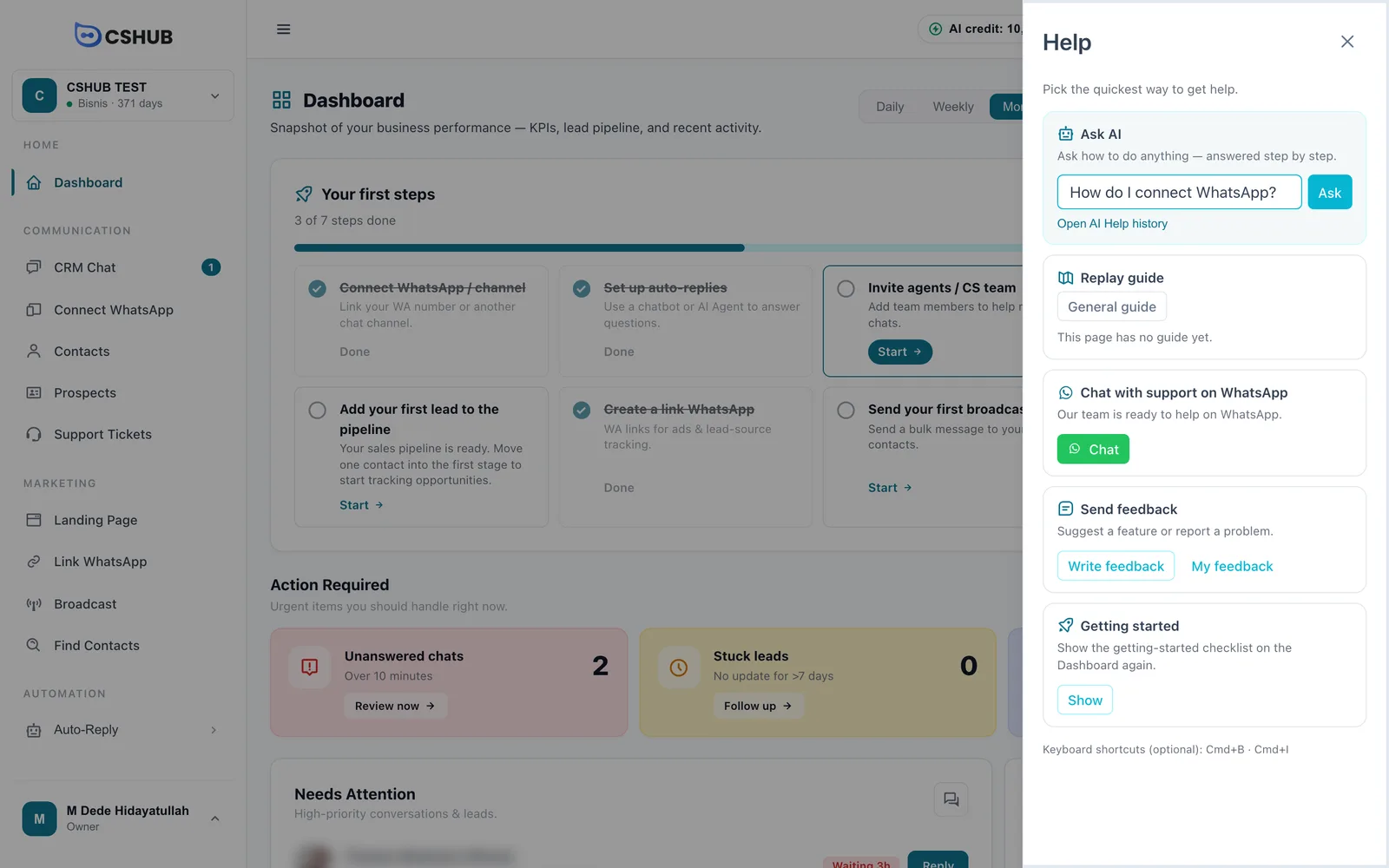
From the Help panel (fastest)
- Open the Help panel.
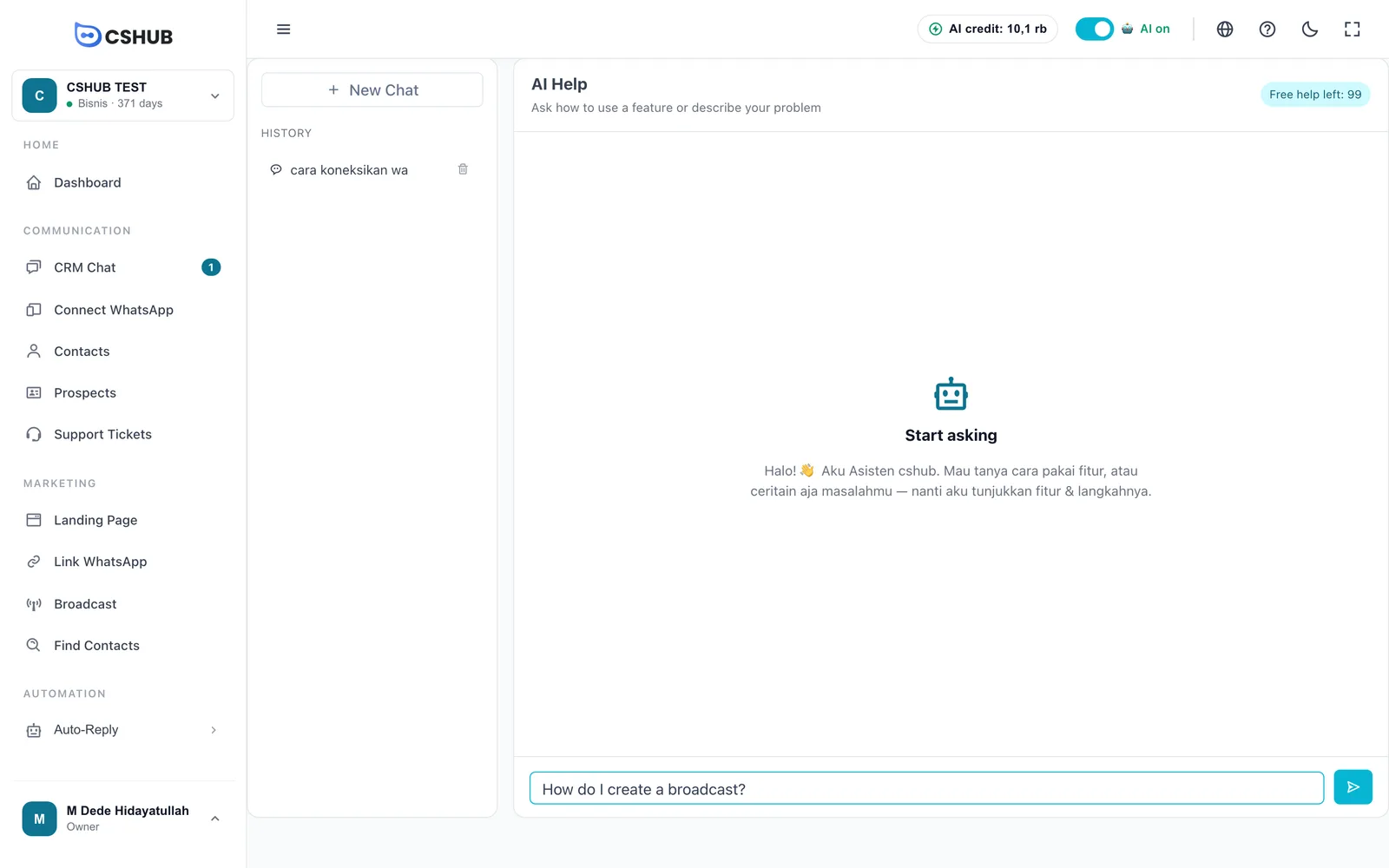
- Type your question in the Ask AI card, for example how do I connect WhatsApp?
- Click Ask or press Enter.
cshub opens the AI Help page, starts a new chat, and sends your question right away — just wait for the answer.
From the AI Help page
- In the Help panel, click Open AI Help history.
- Type your question in the box at the bottom. Enter sends, Shift+Enter adds a new line.
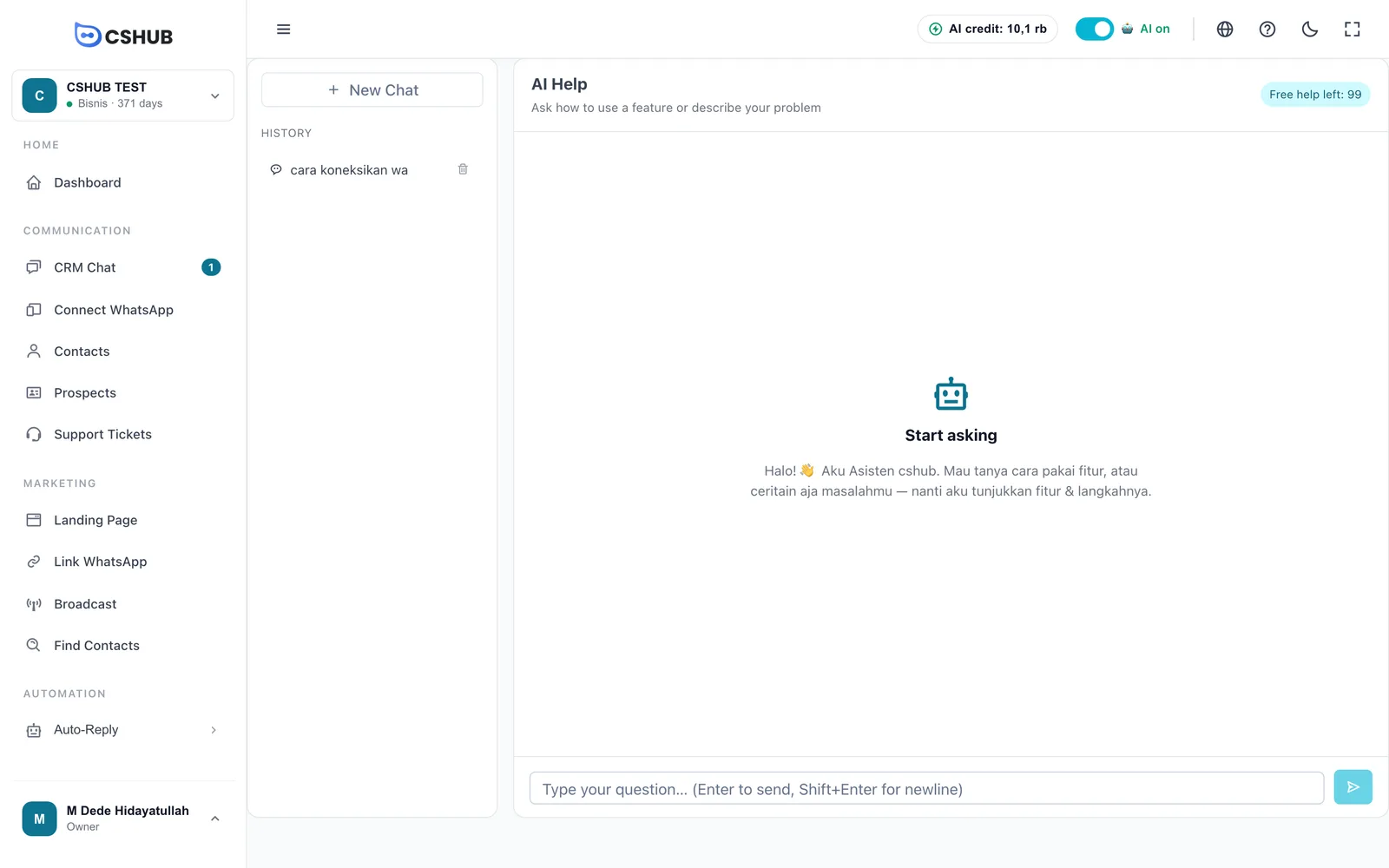
While the assistant prepares its answer, a Typing… bubble appears. The answer shows up as a regular chat bubble.
The "Open & Guide" button
When an answer mentions a specific feature, an Open & Guide: <feature name> button can appear under the answer bubble. Click it and cshub:
- Opens that feature's page.
- Starts that page's interactive guide right away (when there is one), so you're shown exactly which buttons to click.
The button only appears for features your role is allowed to open. If the target page can't be found, you'll see Target page not found.
Chat history
The left column of the AI Help page keeps all your chats:
| Element | What it does |
|---|---|
| New Chat | Start a fresh conversation. Use it when you switch topics so answers don't get mixed up |
| History | Your previous chats. Click one to reopen it. Chats without a title show as Untitled |
| Trash icon | Deletes that chat. It's deleted immediately, with no confirmation |
History is saved per user — other team members can't see your chats.
Free quota & AI credit
Each business gets 100 free AI Help answers. What's left shows in the Free help left: N badge at the top right of the page.
| Situation | What happens |
|---|---|
| Free quota left | Each answer uses 1 from the free quota. Your plan's AI credit isn't touched |
| Free quota used up | Each answer uses your business's AI credit |
| Free quota used up and not enough AI credit | The assistant replies that the free quota is used up and suggests upgrading your plan or topping up AI credit |
The quota is per business, not per person
The 100 answers are shared by everyone on the same business, and they don't reset monthly. A clear, specific question is usually answered in one go.
When AI Help isn't available
| Message | What it means |
|---|---|
| AI Help is off | The feature has been switched off by the cshub team. Try again later, or use Chat in the Help panel |
| Failed to send message. Try again. | The connection dropped or there was a brief glitch. Send the question again |
The welcome message on an empty chat is set by the cshub team and may appear in Indonesian even when your app is in another language. You can still ask in your own language.
Interactive guides (tours)
An interactive guide dims the screen and highlights menus or buttons one at a time with a short explanation. Use Next and Back to move between steps, and Done on the last one. The Step X of Y counter shows where you are.
Guide types
| Guide | What it covers | When it's available |
|---|---|---|
| General guide | A tour of cshub's main menus: Connect WhatsApp, Inbox, AI Agent, then menus that match your business focus (Products & Orders, Tickets, or Leads & Broadcast), and finally the Help menu | Always, on any page |
| Guide for this page | Explains the parts of the page you have open | Only on pages that have their own guide |
| Guide for this section | Explains the window/dialog that's currently open, such as the process-order dialog | Only while a dialog with its own guide is open |
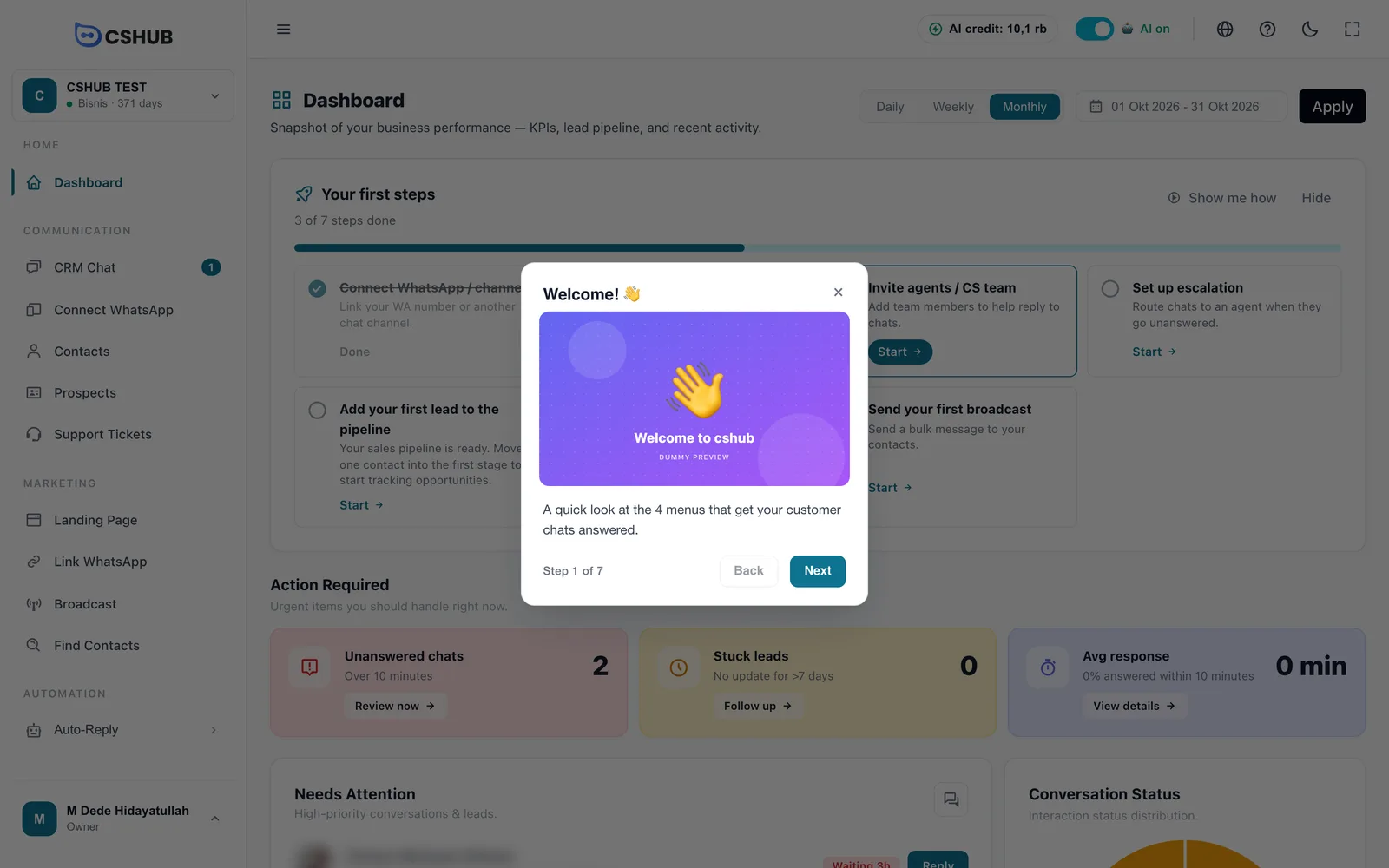
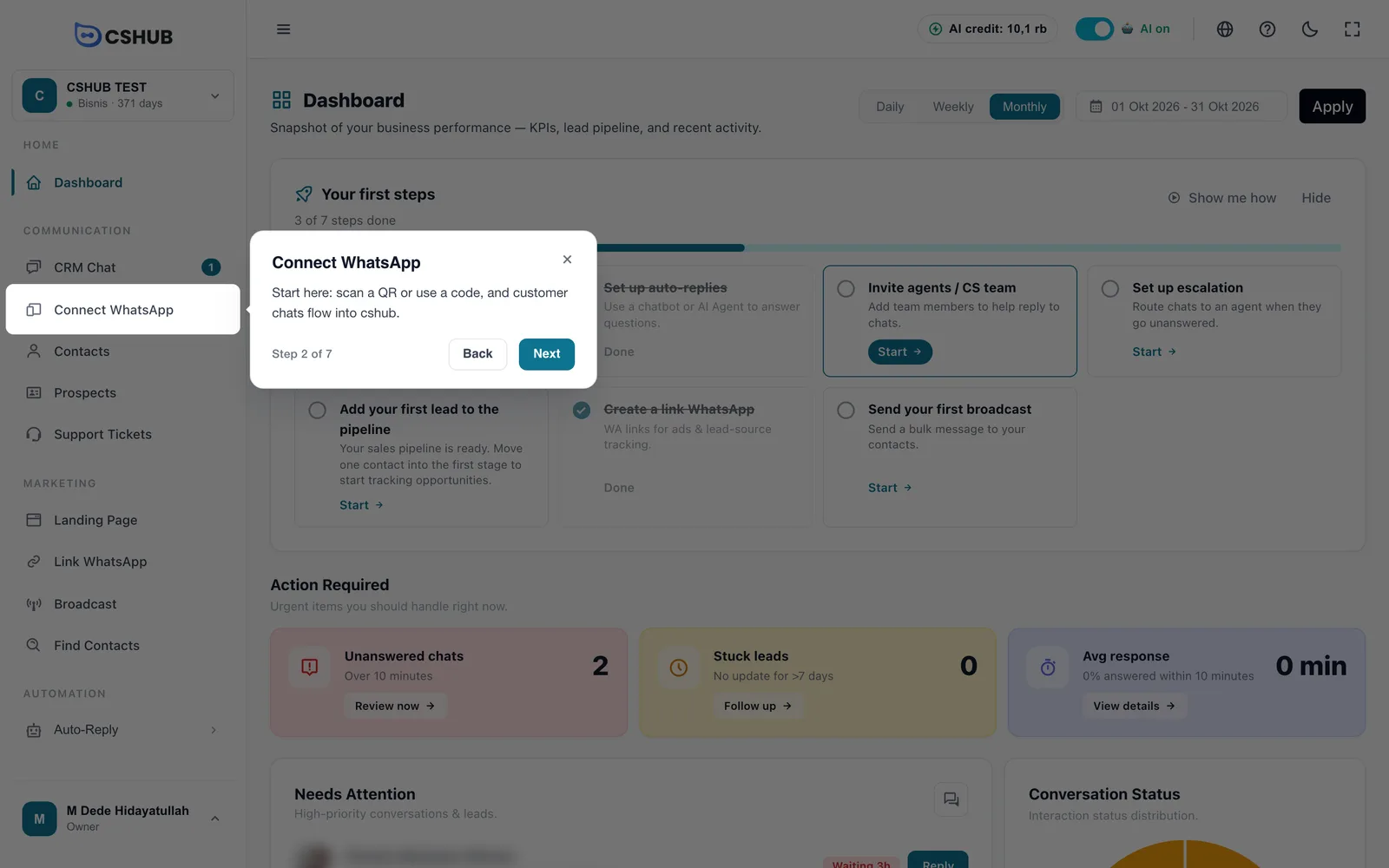
Some guide illustrations still carry a DUMMY PREVIEW label — that's how the product currently shows them.
Replaying a guide
- Open the page you want to learn.
- Open the Help panel.
- In the Replay guide card, click Guide for this page (or Guide for this section if a dialog is open). For a tour of the main menus, click General guide.
If the page has no guide of its own, the card only shows General guide with the note This page has no guide yet.
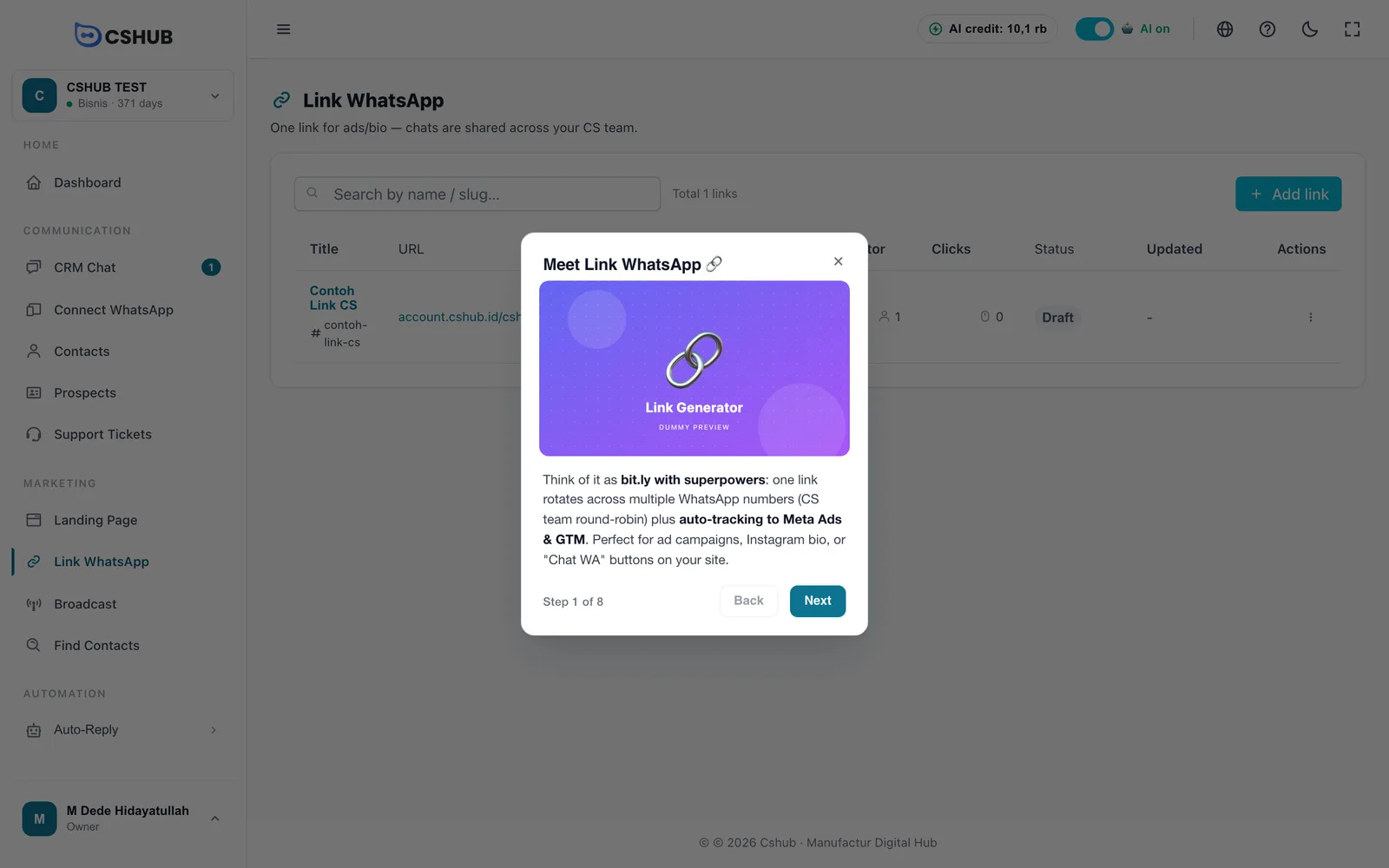
Pages with their own guide include CRM Chat, Prospects (kanban), Support Tickets, Appointments, Landing Page, Link WhatsApp, Online store, Auto-Reply (keyword replies and AI Agent), Find Contacts, Products, Orders, Abandoned carts, Broadcast, every Connect WhatsApp/channel page, and Settings.
Keyboard shortcuts
Shortcuts are optional — everything is also available in the Help panel.
| Shortcut (Windows / Mac) | What it does |
|---|---|
| Ctrl+B / Cmd+B | Opens the Help panel |
| Ctrl+I / Cmd+I | Plays the guide for this section/page. If there isn't one, you'll see No tour for this page yet |
| Ctrl+Shift+M / Cmd+Shift+M | Plays the general guide |
Shortcut not responding?
Shortcuts are ignored while your cursor is in a text field (such as the chat reply box) so they don't get in the way of typing. Click an empty spot on the page and try again. On a Mac, Cmd+M without Shift isn't used because it's the system shortcut to minimize the window.
Chat with support on WhatsApp
Click Chat in the Help panel. WhatsApp opens in a new tab (WhatsApp Web on a computer, the WhatsApp app on a phone) with the opening message Halo, saya butuh bantuan untuk akun cshub already filled in — just send it and describe your issue.
Use support chat for anything that needs the cshub team directly: your account, payments and plans, or a problem AI Help couldn't solve. On the sign-in and sign-up pages, the Need help? Chat CS on WhatsApp button in the bottom-right corner opens the same chat.
Sending feedback
Have a feature idea, found a confusing screen, or something isn't working as it should? Send it through Feedback & Help — the cshub team reads every submission, and you can track its status.
Writing feedback
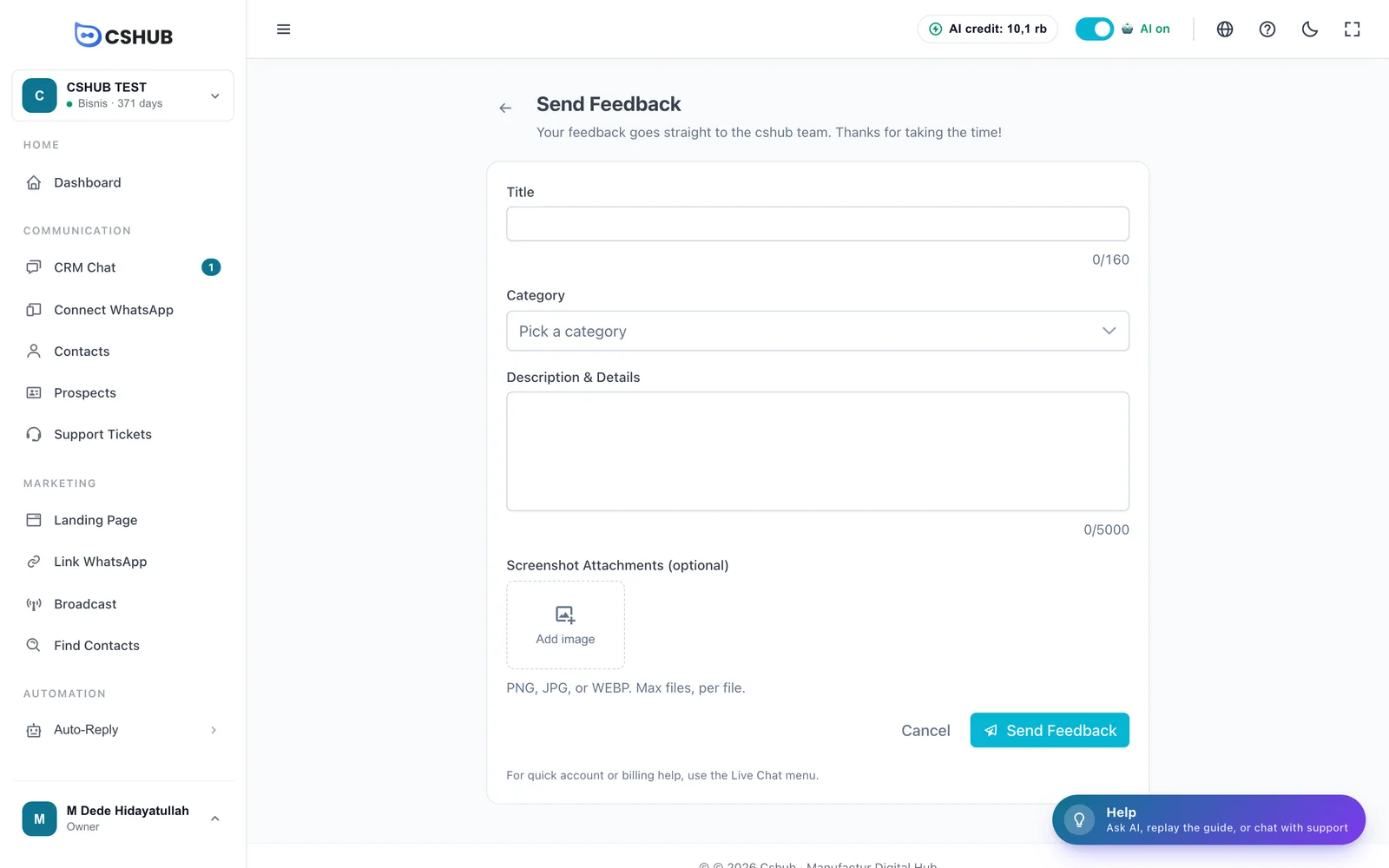
- Open the Help panel → Send feedback card → Write feedback.
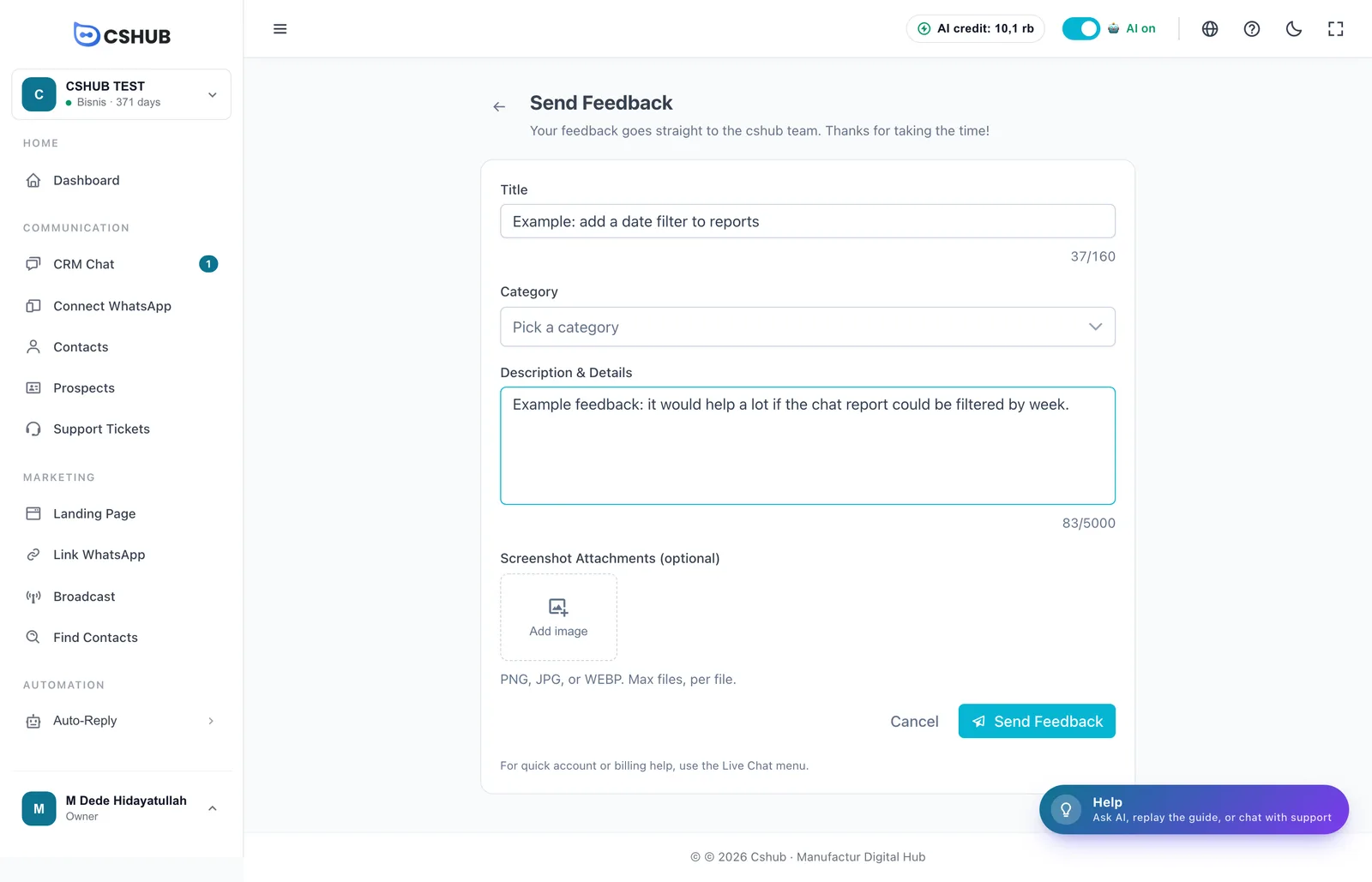
- Fill in the form.
- Click Send Feedback. A Feedback sent notification appears.
| Field | Notes |
|---|---|
| Title | A short summary, 5–160 characters |
| Category | Pick one (see the table below). Required |
| Description & Details | The full story, 10–5,000 characters. For a problem report, include what you did, what happened, and what you expected |
| Screenshot Attachments (optional) | Click Add image. PNG, JPG, or WEBP, up to 5 files, 5 MB each |
| Category | Use it for |
|---|---|
| UI Feedback (UI / UX) | Confusing screens, unclear wording, hard-to-find buttons |
| Existing Feature Feedback (Feature Idea) | Improvements to a feature that already exists |
| Future Feature Request (Future Feature) | New features cshub doesn't have yet |
Need a quick answer?
Feedback is read by the team, but it isn't the channel for urgent questions. For account or billing issues, use Chat in the Help panel.
Tracking your feedback
Open the Help panel → My feedback to see the Feedback & Help page.
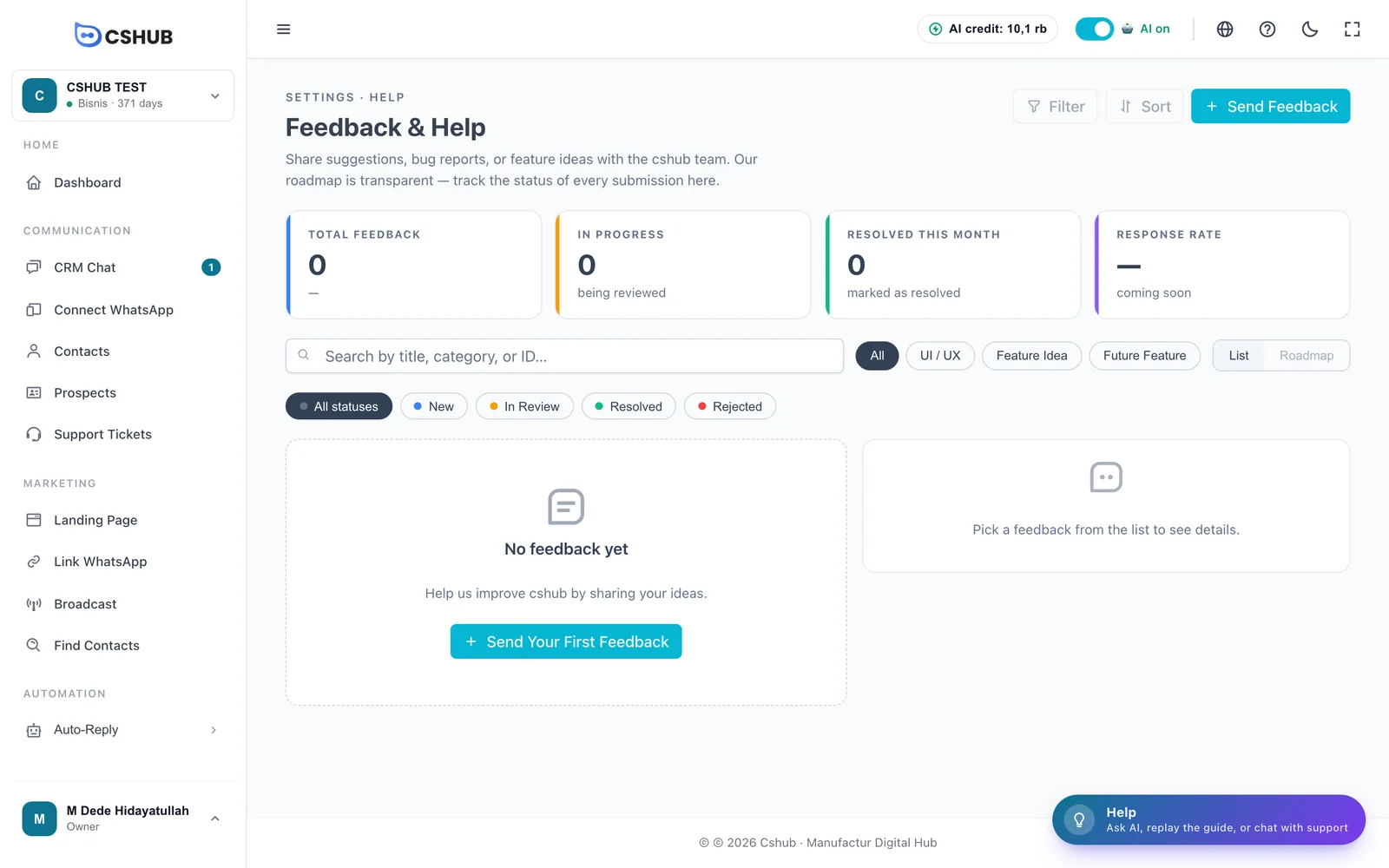
| Section | What's there |
|---|---|
| Summary cards | Total Feedback, In Progress (being reviewed), Resolved This Month, and Response Rate (not available yet) |
| Search | Search by title, category, or feedback ID |
| Category chips | Filter the list by category |
| List / Roadmap | The list view. The roadmap view is still Coming soon |
| Status chips | Filter by status |
| Detail panel | Click a submission to see its category, status, sent date, attachments, description, and timeline. Open full page opens the detail on its own page |
The cshub team updates each submission's status:
| Status | Meaning |
|---|---|
| New | Received, not reviewed yet |
| In Review | The team is looking into it or working on it |
| Resolved | It's been acted on |
| Rejected | Won't be worked on for now |
You only see feedback sent from your business.
Getting started
The Getting started card → Show brings the Your first steps checklist back to the Dashboard — handy if you hid it earlier. If you're on another page, cshub takes you to the Dashboard automatically.
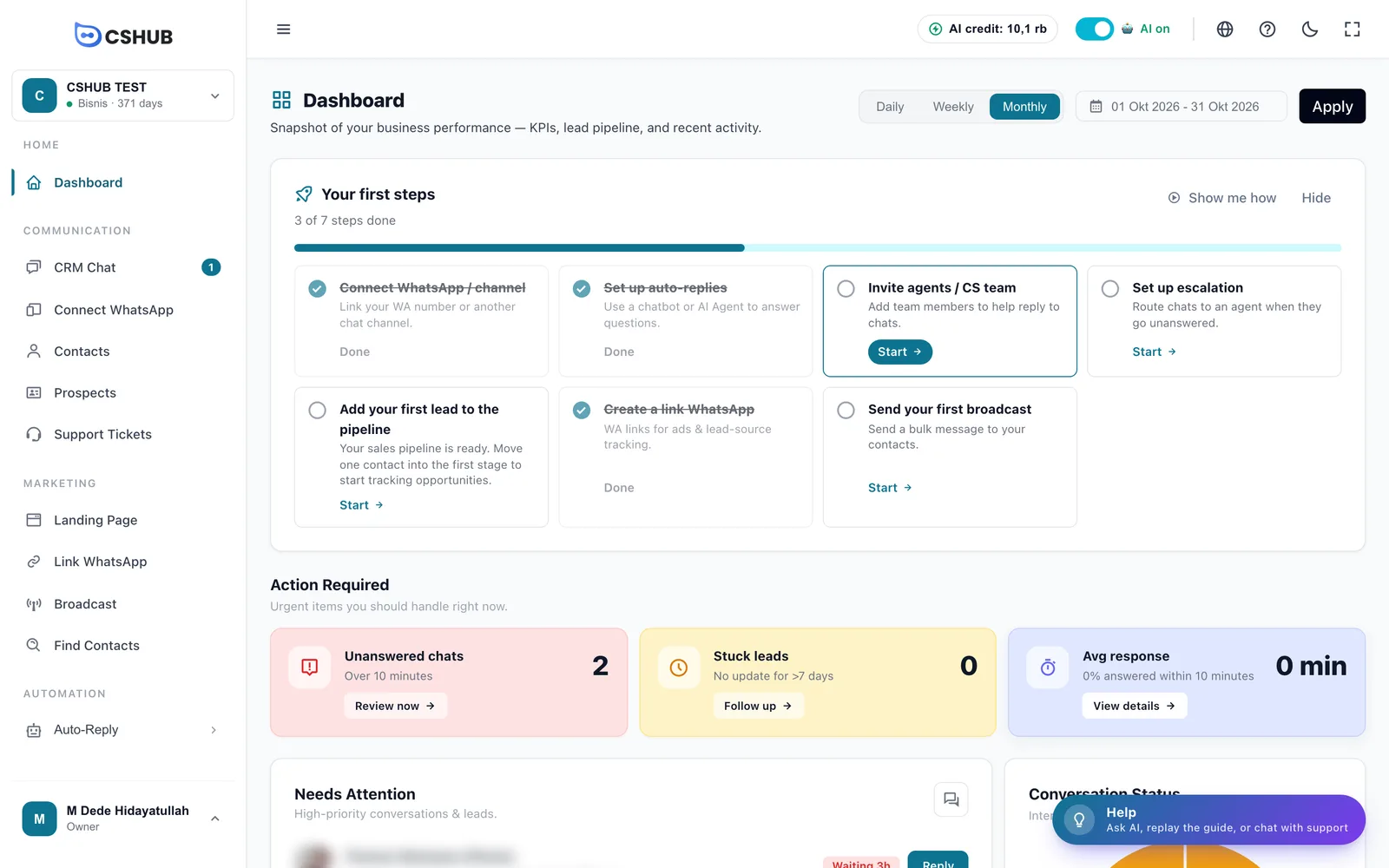
The checklist adapts to your business focus. Each step has a Start button that takes you to the right page and a Show me how link that plays its guide. Hide hides the checklist until you show it again from the Help panel.
Related
- Troubleshooting — quick fixes for the most common issues
- AI credit & top-ups — when the free AI Help quota runs out
- Business focus — choose which menus and first steps appear
- Team, CS & roles — give team members access to AI Help and feedback