
Scheduled broadcast
A scheduled broadcast sends a WhatsApp message to selected contacts on repeat — once, on chosen weekdays, every month, or every year — without you having to recreate it. It suits monthly bill reminders, a Friday greeting, a store anniversary message, or a regular weekend promo.
Recipients are filtered by contact category and labels, and the message can be a template or written by AI for each contact.
How it differs from similar features
- WhatsApp broadcast — sent once, with more filters (region, group, pipeline stage).
- Automatic follow-ups — sent automatically when a customer stops replying in a chat, not on a calendar.
Scheduled broadcast list
Open Broadcast in the sidebar, then click the Scheduled Broadcast card (or its tab at the top of any broadcast page).
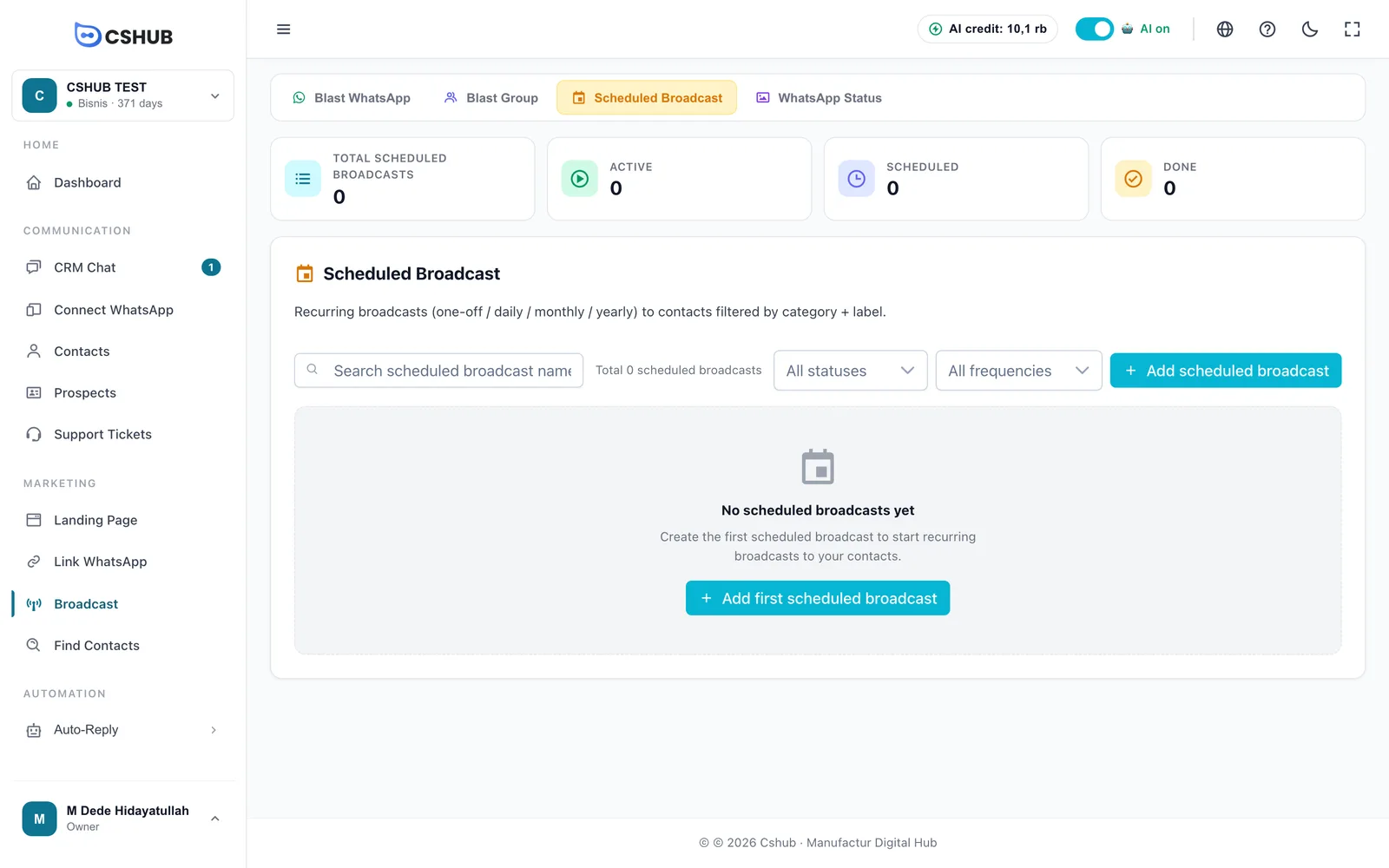
| Counter card | Counts |
|---|---|
| Total scheduled broadcasts | Every scheduled broadcast ever created |
| Active | Those that still have a next run within their active period |
| Scheduled | Those waiting for their next run |
| Done | Those with no more runs left |
The table shows Name, Status, Frequency, Start, and Actions. Filter by status and frequency, or search by name.
Creating a scheduled broadcast
Click Add scheduled broadcast.
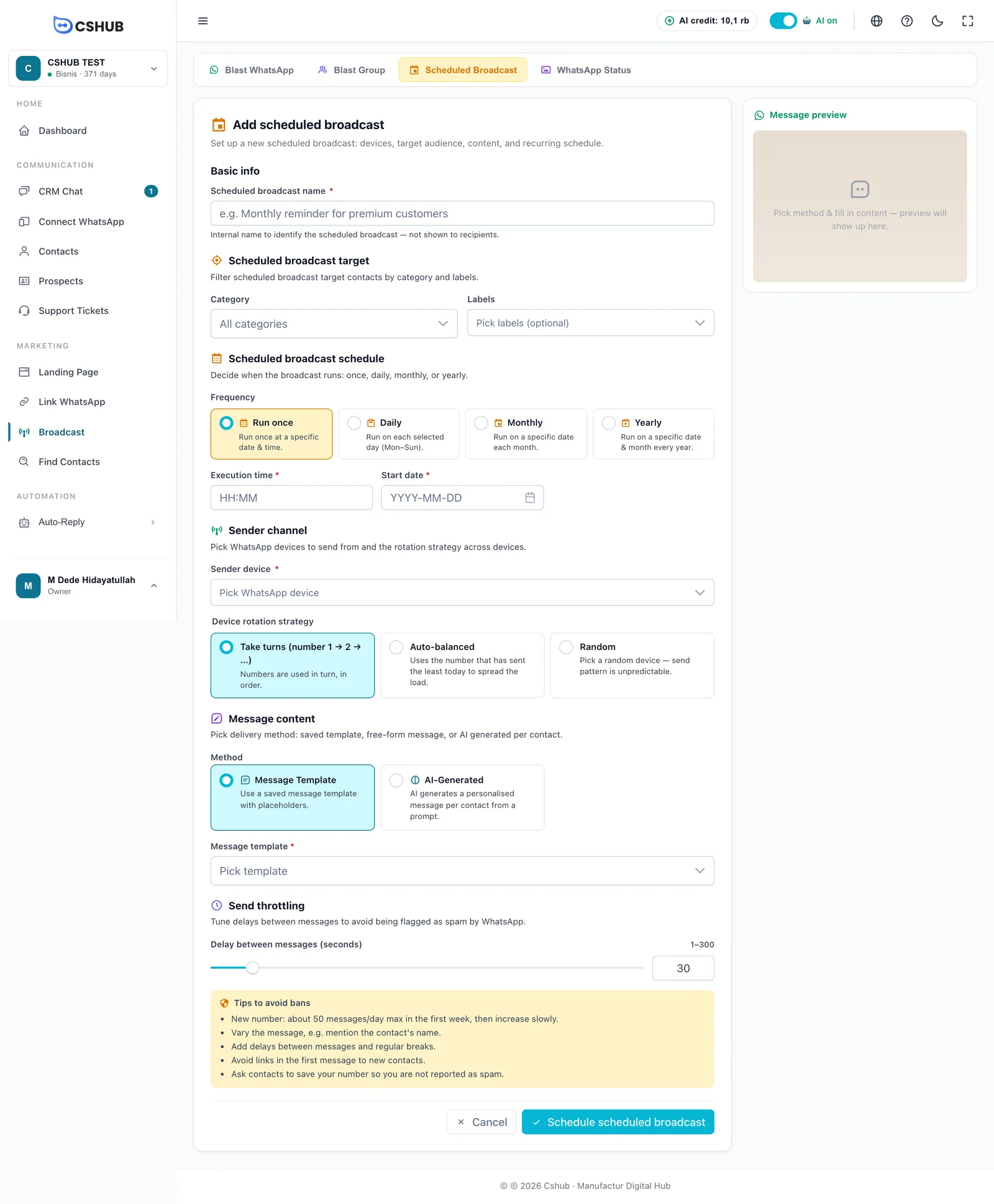
1. Basic info and target
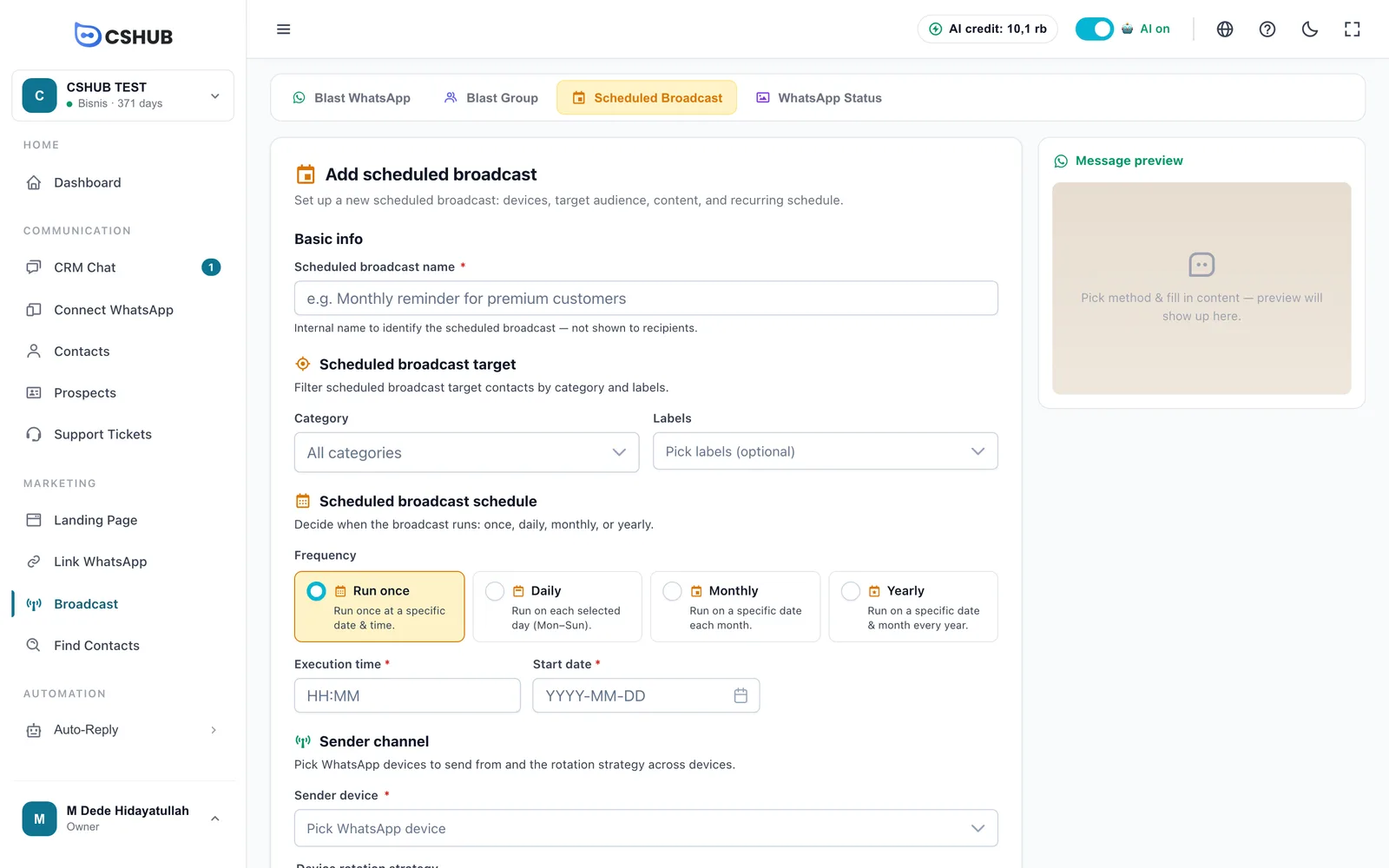
| Field | Description |
|---|---|
| Scheduled broadcast name | Internal name, never shown to recipients |
| Category | Recipients' contact category. Leave All categories to skip this filter |
| Labels | Optional. Pick one or more labels to narrow the recipients |
Categories and labels are managed in Data & templates and attached to contacts from Contacts or CRM Chat.
2. Schedule
Pick a Frequency, then fill in its schedule:
| Frequency | Fields shown |
|---|---|
| Run once | Execution time + Start date — sent once on that date and time |
| Daily | Active days (Mon–Sun, at least one) + Execution time + Start date + End date |
| Monthly | Date (1–28 or End of month) + Execution time + Start date + End date |
| Yearly | Month + Date (1–28) + Execution time + Start date + End date |
- Execution time uses the
HH:MMformat (24-hour). - End date is optional — leave it blank to run indefinitely. If you fill it in, it must be after the start date.
Why do monthly dates stop at 28?
So the schedule still runs in short months like February. For the last day of every month, pick End of month.
3. Sender channel
Pick the Sender device (one or more WhatsApp numbers connected via scan QR) and the Device rotation strategy: Take turns, Auto-balanced, or Random. Each strategy is explained in WhatsApp broadcast.
4. Message content
| Method | Description |
|---|---|
| Message Template | Use a saved template from Data & templates |
| AI-Generated | Write an AI prompt (10–2,000 characters). Every time the schedule runs, AI writes a personal message for each contact |
The Message preview panel on the right shows the template content or the prompt you chose.
5. Send throttling
Set the Delay between messages (seconds) between 1 and 300 (default 30). The Tips to avoid bans box below applies here too.
6. Save
Click Schedule scheduled broadcast. It is saved as Waiting until the first run.
Credit is checked when you save
cshub checks that your plan is active and has enough credit for one run to the current recipients. If not, you will see Insufficient balance with a Manage plan button. See Billing & packages.
How recurring broadcasts run
- When the time comes, cshub messages every contact matching the category and labels at that moment — new contacts that joined the category/label are included.
- Once everything is sent, cshub works out the next run and puts the status back to Waiting.
- If there is no next run (frequency Run once, or the End date has passed), the status becomes Completed.
Details and management
Click View details in the Actions menu. The detail page shows the schedule summary (for example Monthly — day 1 · 09:00, the start date, and the end date or No end date), the number of devices and labels, and the Recipient list from the latest run with Name / Phone, Status, Send result, and Sent at.
- Pause / Resume — stop or continue the recurring schedule.
- Edit — change the schedule, target, or message.
- Export XLSX — download the sending results.
- Delete — permanently removes the recurring schedule and its recipient list.