
Automatic follow-ups
Automatic follow-ups are messages your AI Agent sends when a customer stops replying — a friendly nudge an hour later, then a small offer the next day — so prospects who asked a question don't just slip away, and your CS team doesn't have to remember to chase each one.
Follow-ups are set per AI Agent, on the Automatic follow-ups tab of the AI Agent edit page. They apply to every chat that agent answers.
Other kinds of follow-up
- To remind one specific customer at a set time, use Manual Follow-Up in the Contact Info panel of CRM Chat.
- To send scheduled messages to many contacts at once, use Scheduled broadcast.
Opening the Automatic follow-ups tab
- Go to Automation → Auto-Reply → AI Agent, then Detail & Edit on your agent.
- Choose the Automatic follow-ups tab in the Optional group.
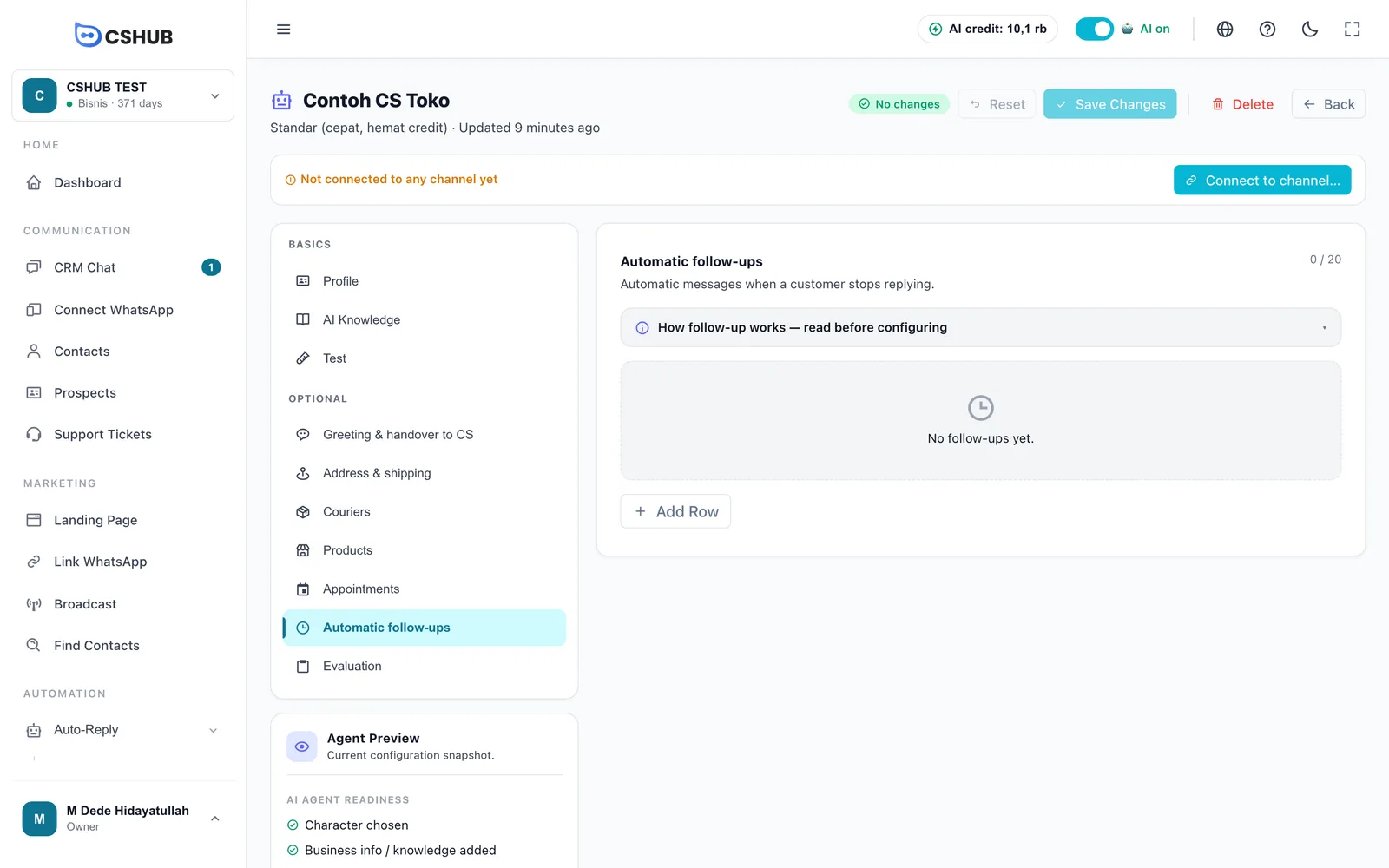
Click How follow-up works — read before configuring to open a short explanation.
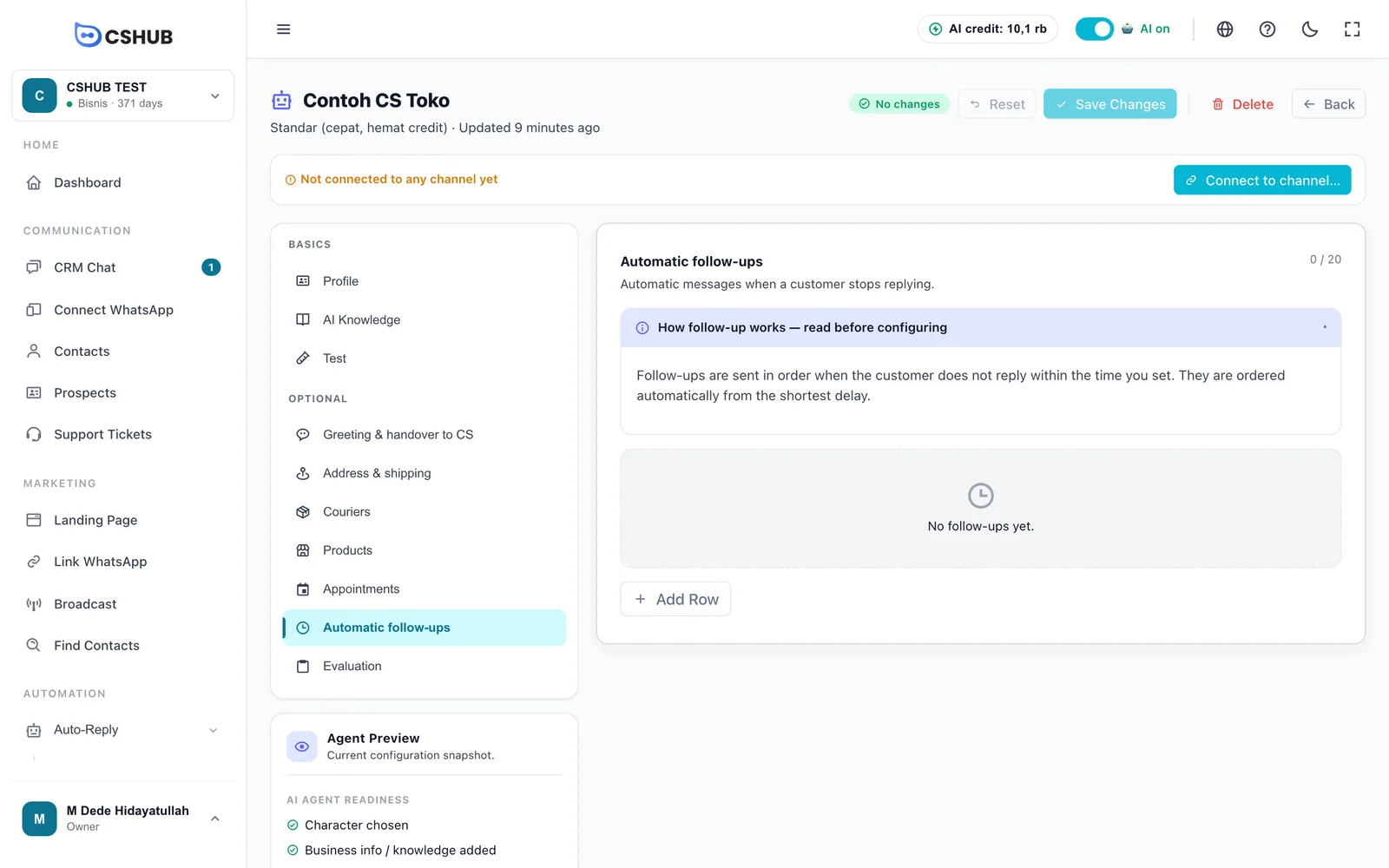
How it works
- Follow-ups are sent in order, from the shortest delay to the longest. The order is sorted automatically, so you can add rows in any order.
- Delays are counted from the AI's first reply in that conversation.
- A follow-up is only sent if the customer hasn't replied — the last message in the chat is still from your side. If the customer is actively chatting, follow-ups wait.
- Each follow-up is sent once per conversation. Once they've all gone out, there are no more follow-ups for that chat.
- Follow-ups are not sent if CS has taken over the chat or it has been marked resolved.
Example sequence
- #1 — delay 1 hour: "Hi! Anything else you'd like to know about the product?"
- #2 — delay 1 day: "The size you asked about is almost sold out — want me to place the order for you?"
- #3 — delay 3 days, with Hand over to CS ticked: "If you have any other questions, our team is happy to help."
Since delays are counted from the AI's first reply, make each delay longer than the one before.
Adding a follow-up
- Click Add Row.
- Fill in the Follow-up Message.
- Set Send if the customer is silent for — a number and a unit (minutes, hours, or days).
- Choose the Message text option: send exactly, or let the AI adapt it.
- (Optional) Tick Hand over to CS after this message.
- Repeat for the next message, then click Save Changes at the top of the page.
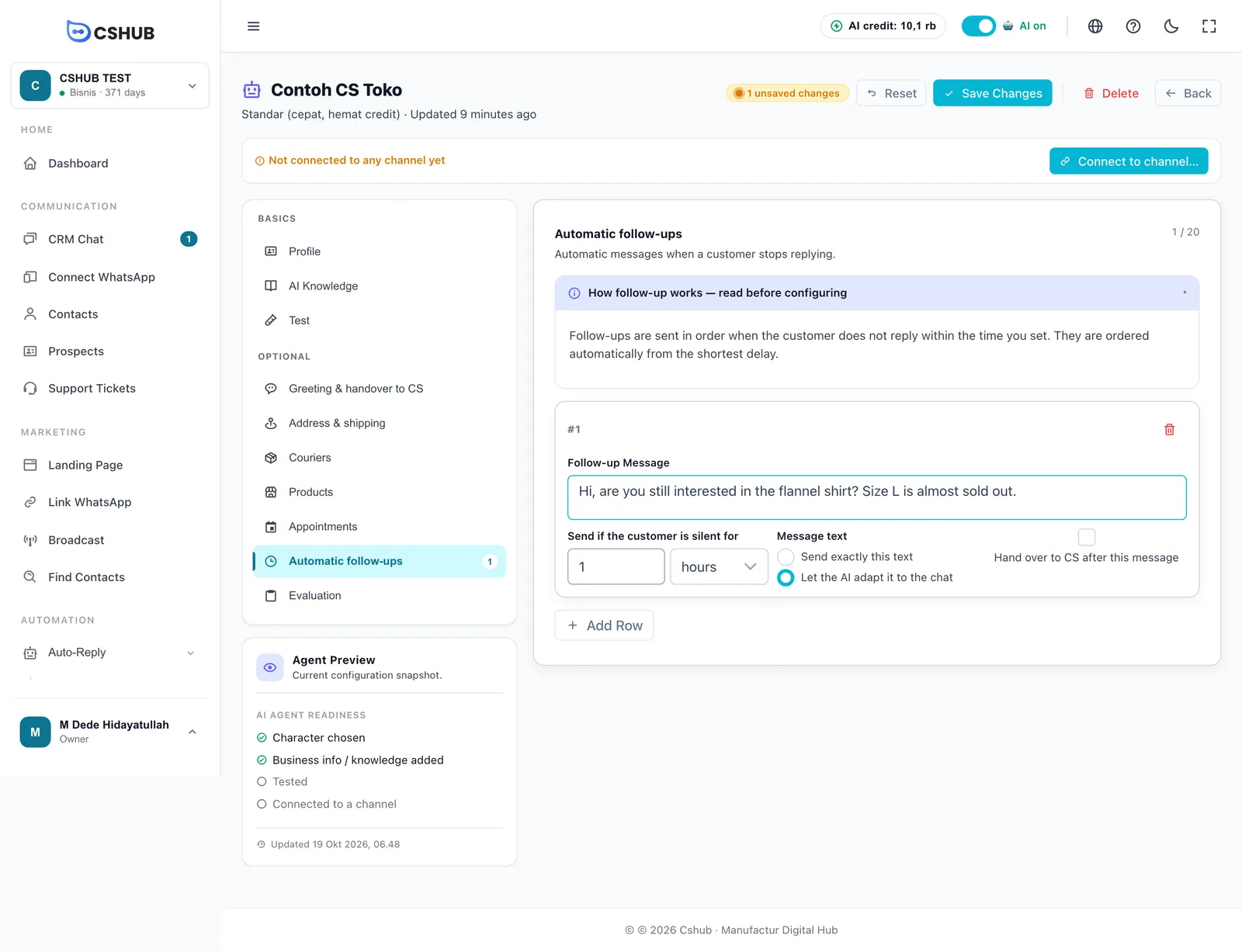
| Field | Details |
|---|---|
| Follow-up Message | The follow-up text, up to 2,000 characters |
| Send if the customer is silent for | The delay, in minutes, hours, or days. At least 1 |
| Message text → Send exactly this text | The text is sent as written. Uses no AI credit |
| Message text → Let the AI adapt it to the chat | The AI rewrites your message to fit the conversation — for example, mentioning the product the customer asked about. Uses AI credit |
| Hand over to CS after this message | After this message is sent, the chat is handed to CS and the AI stops replying in it. Good for the last message in a sequence |
| Rule | Details |
|---|---|
| Limit | Up to 20 follow-ups per AI Agent (the 0 / 20 counter) |
| Remove | Click the remove icon on the row, then Save Changes |
| Channels | Applies to chats the agent answers on WhatsApp, the WhatsApp Business API, Telegram, Instagram, and Messenger. Website live chat conversations don't get follow-ups |
Mind the channel rules
On the WhatsApp Business API, Instagram, and Messenger, free-form messages can only be sent within a set window after the customer's last message (usually 24 hours). Follow-ups with longer delays may fail to send on those channels.
Tips
- Don't overdo it. Two or three follow-ups are usually enough — too many can lead customers to block your number.
- Add value in each message: stock news, an answer to a common question, or a small promo — not just "hello?".
- Use "Let the AI adapt it" for messages that should reference the chat, and "Send exactly" for standard messages that save credit.
- Keep an eye on unanswered chats in Unreplied chats.