
Support tickets
Support tickets record each customer complaint or help request as its own ticket — with level, priority, category, responsible agents, internal notes, and an activity history — so issues that take more than one chat stay tracked until they are truly resolved.
Use tickets for cases like order hasn't arrived, damaged item, or can't log in: things that need handing to another team, waiting on news, or watching against an SLA.
About the sample data in the screenshots
The screenshots on this page come from our Indonesian test account, so the sample records are in Indonesian: the statuses Contoh Baru / Contoh Diproses / Contoh Selesai (Sample New / In progress / Done), the category Contoh Kendala Pesanan (Sample Order issue), the contact Contoh Pelanggan (Sample Customer), and the ticket title Pesanan #1024 belum diterima pelanggan (Order #1024 not yet received by the customer). Your own tickets show whatever names you give them.
Before you start: set up statuses and categories
Tickets rely on two pieces of master data you create once:
| Data | Purpose | Where to create it |
|---|---|---|
| Ticket status | Becomes the columns on the ticket board, e.g. New, In progress, Done | The Manage Labels button on the board, or Data & templates → Ticket status |
| Ticket category | The type of problem, e.g. Order issue, Returns, Billing | The Manage Categories button on the board, or Data & templates → Ticket Categories |
Until there's at least one ticket status, the board shows No ticket statuses yet with a button to create one.
Creating a ticket status
In Ticket status, click Add Label and fill in:
| Field | Description |
|---|---|
| Name | The column name, e.g. New. Required |
| Color | The column's colour marker |
| Position | Column order on the board — lower numbers appear first |
| Tag (optional) | Extra description |
System default labels are marked and can't be deleted.
Creating a ticket category
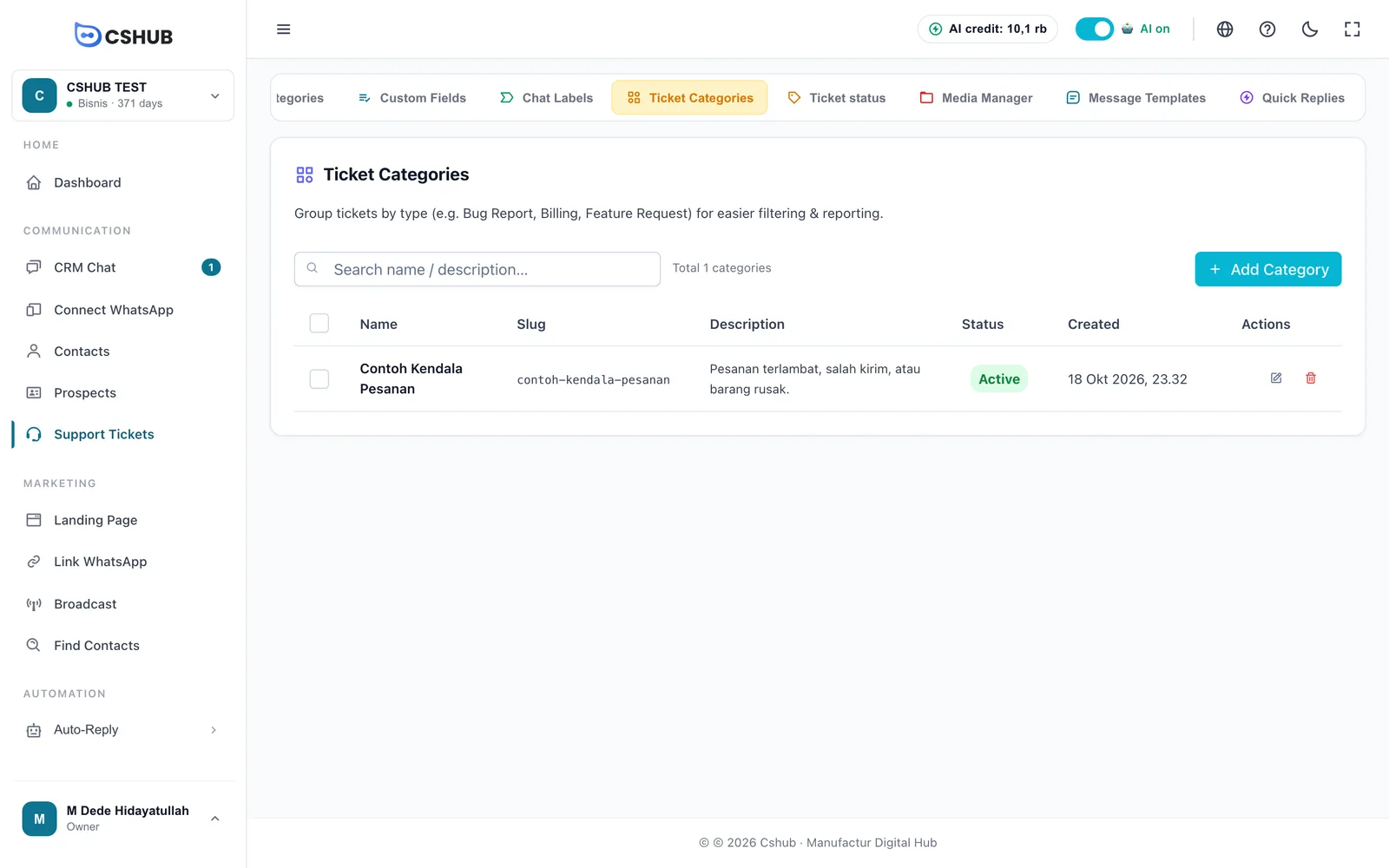
Click Add Category:
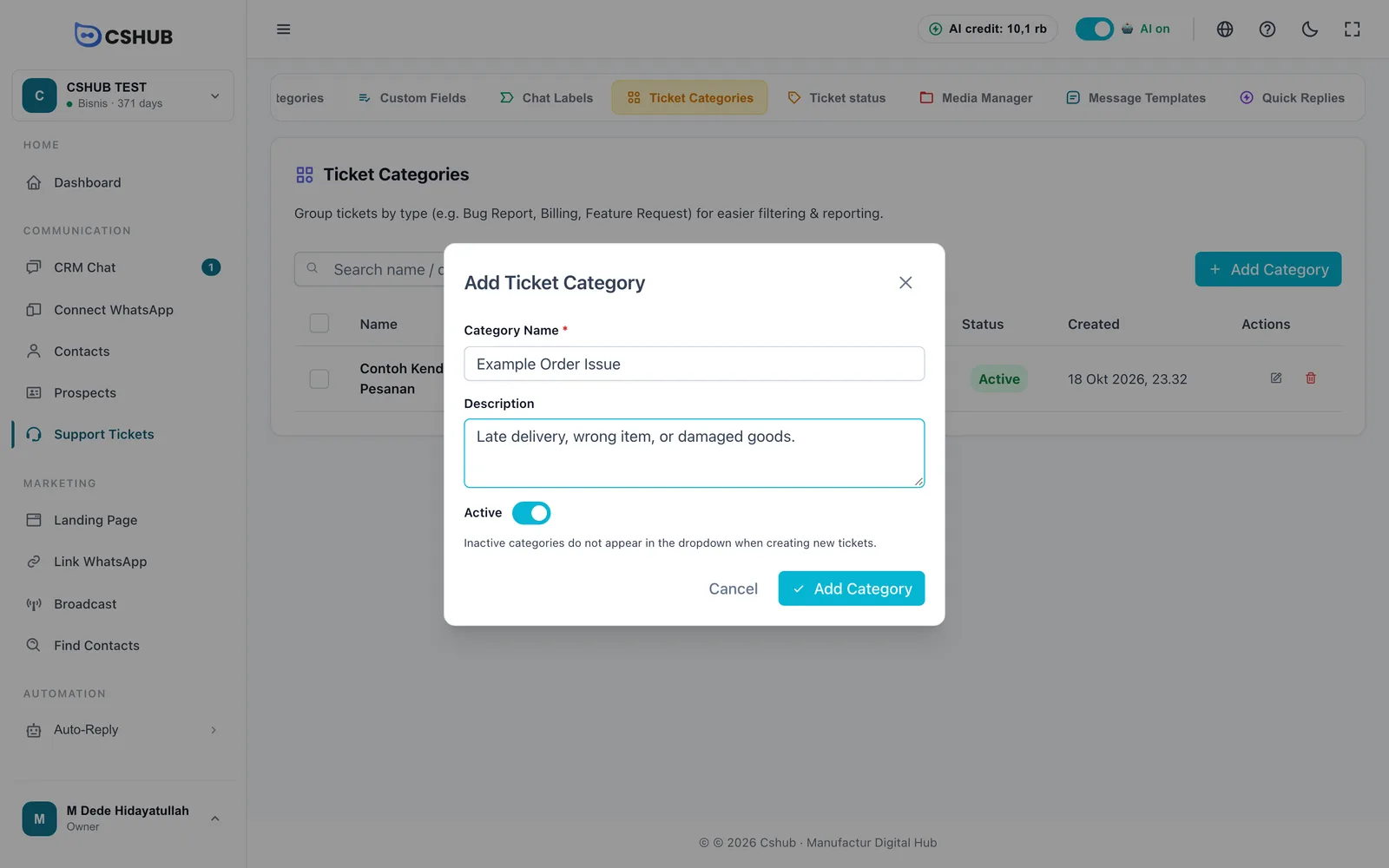
| Field | Description |
|---|---|
| Category Name | Required, e.g. Bug Report, Billing |
| Description | A short explanation (optional) |
| Active | Inactive categories don't appear when creating a new ticket |
Categories used by active tickets can't be deleted.
The ticket board
Click Support Tickets in the sidebar, under Communication.
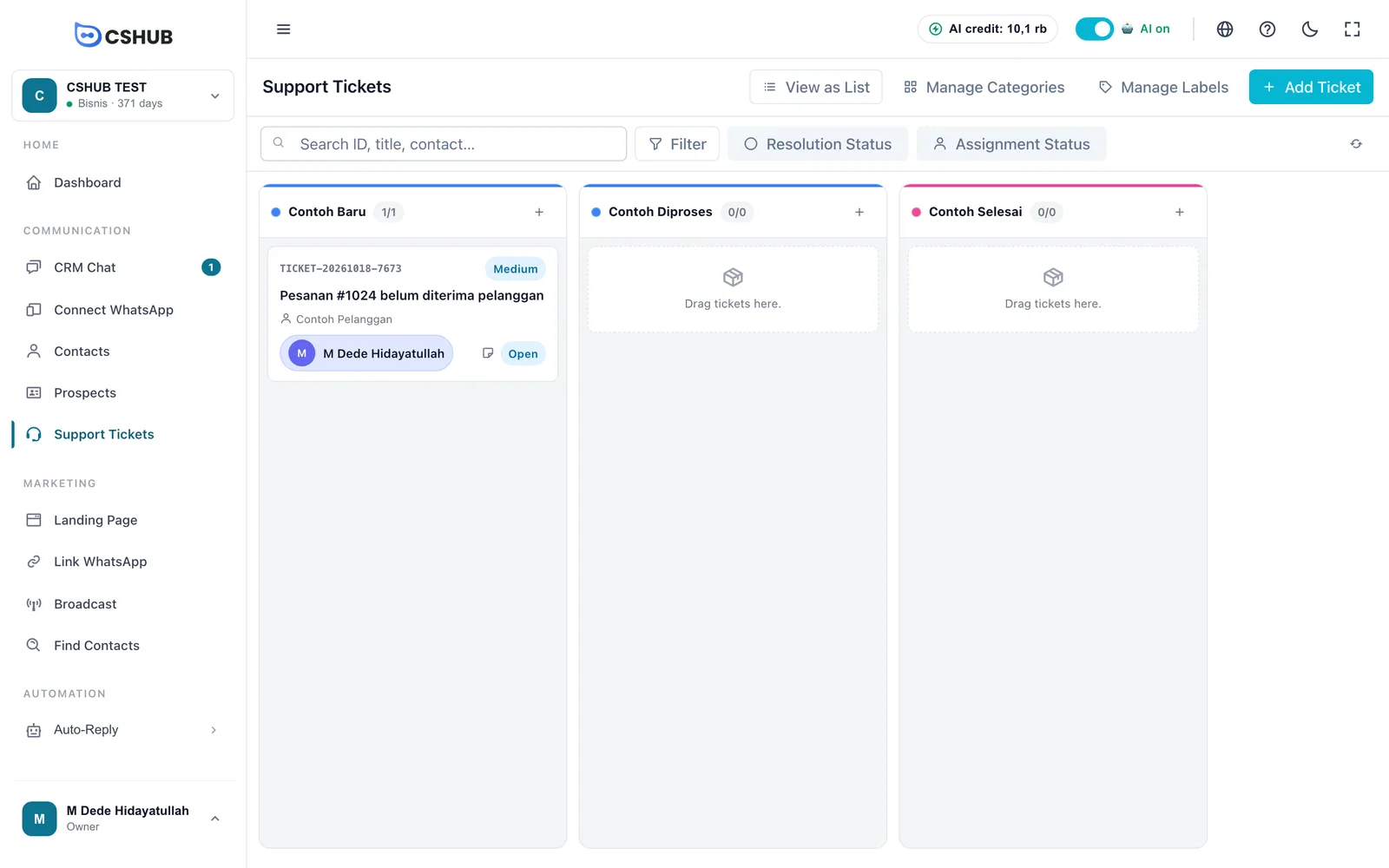
Each column is one ticket status. A ticket card shows:
| Card part | Description |
|---|---|
| Ticket ID | A unique number, e.g. TICKET-20261018-7673 |
| Level badge | Low, Medium, High, or Urgent |
| Title | A summary of the problem |
| Contact | The customer who reported it |
| Agent | The responsible agent, or Unassigned |
| Status pill | The work status (see below). Click it to change it quickly |
Drag a card to another column to move the ticket to that ticket status. The + button on a column header creates a new ticket straight in that column. Click a card to open its details.
Work status
Besides the ticket-status columns you define, every ticket has a built-in work status:
| Status | Meaning |
|---|---|
| Open | New ticket, not worked on yet |
| In Progress | Being handled |
| Pending | Waiting on the customer or someone else |
| Resolved | Fixed. The resolved date and resolver are recorded automatically |
| Closed | The ticket is closed |
Searching & filtering
- Search — by ID, title, or contact.
- Resolution Status — Resolved or Not Resolved.
- Assignment Status — Assigned or Unassigned.
- Filter — opens Filter Tickets:
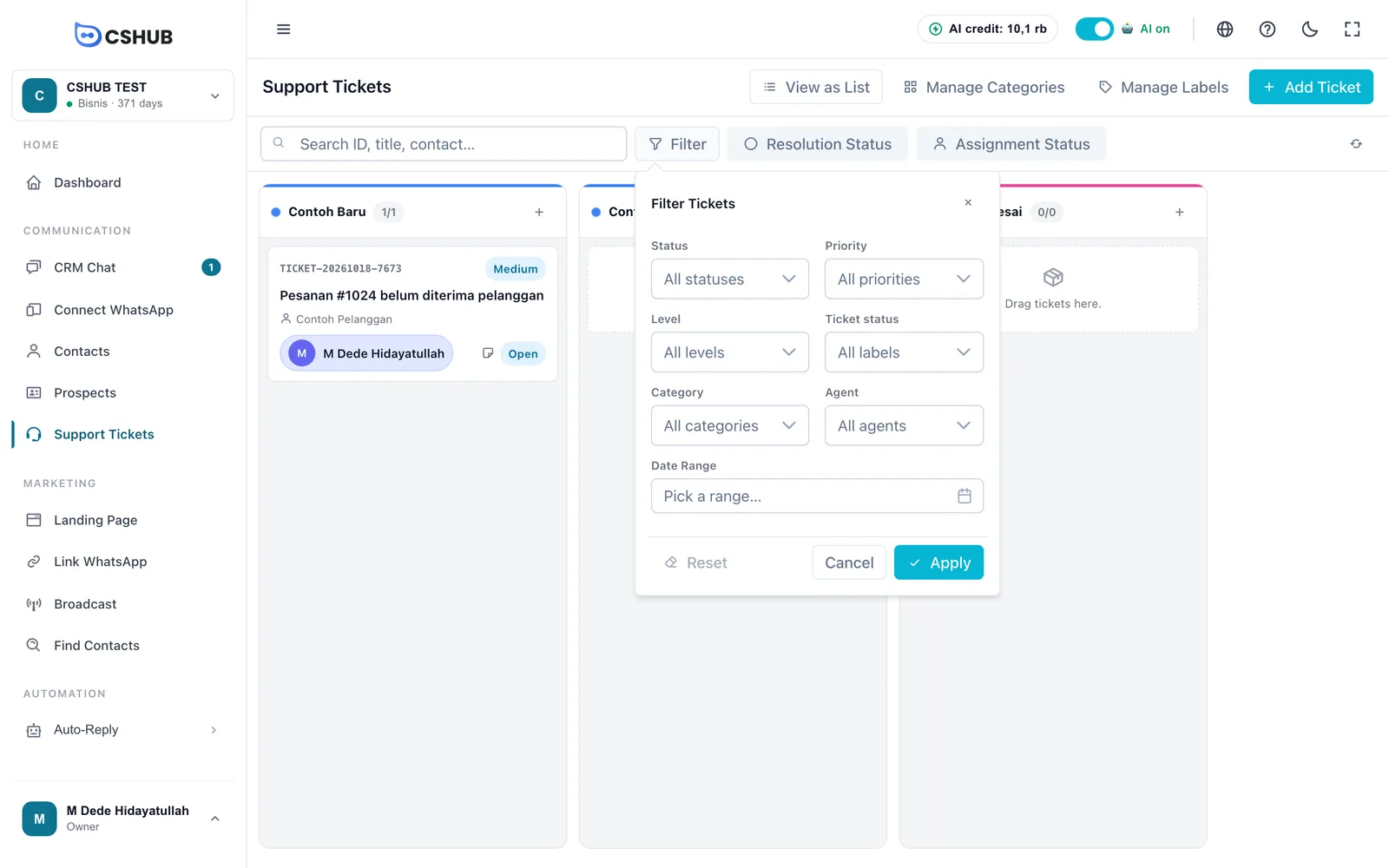
| Filter | Options |
|---|---|
| Status | The work status |
| Priority | Low, Medium, High, Urgent |
| Level | Low, Medium, High, Urgent |
| Ticket status | The ticket-status column |
| Category | Ticket category |
| Agent | Responsible agent |
| Date Range | When the ticket was created |
Creating a ticket
Click Add Ticket.
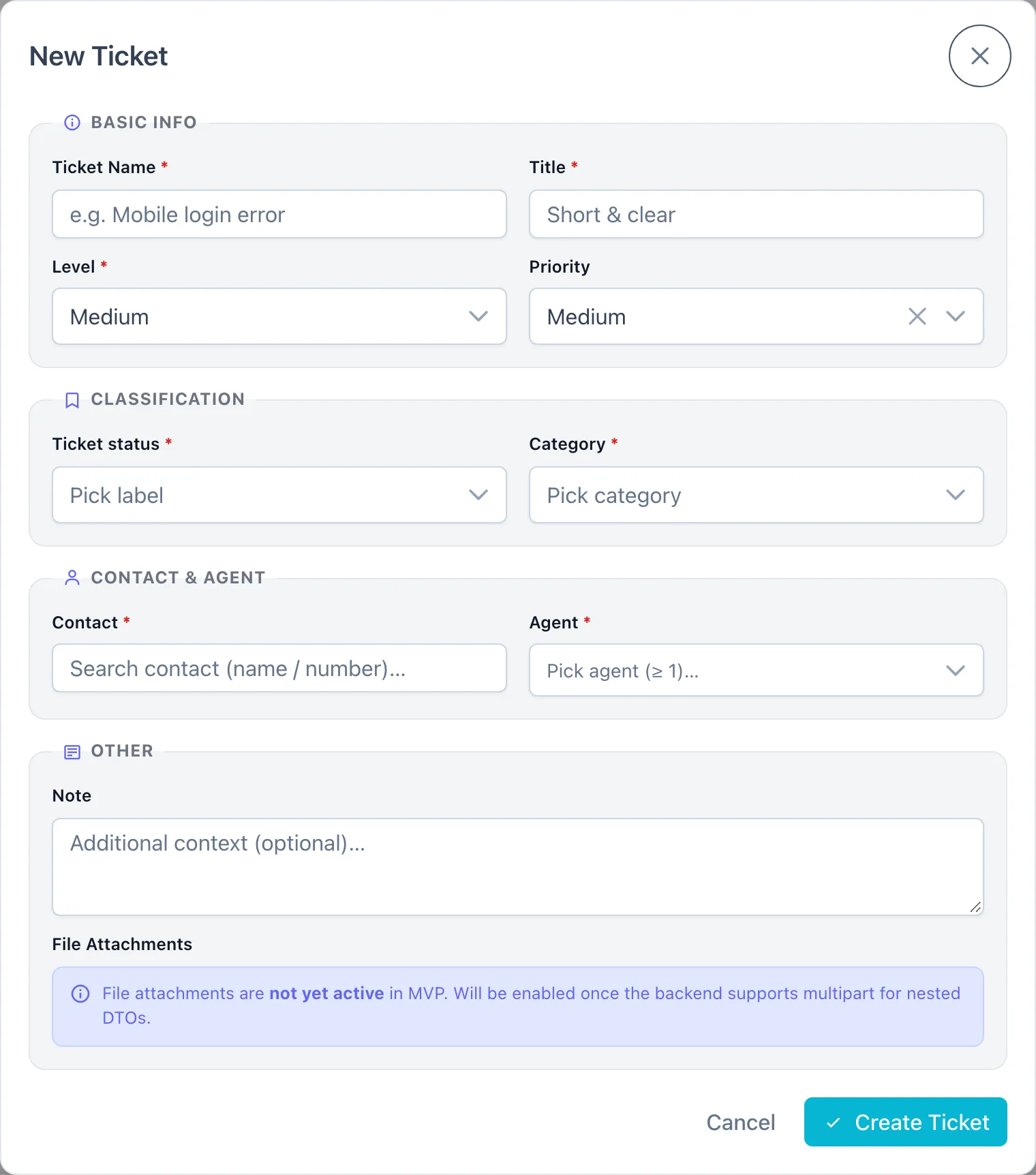
| Section | Field | Description |
|---|---|---|
| Basic Info | Ticket Name | Required. A short name, e.g. Login error mobile |
| Title | Required. A short, clear summary of the problem | |
| Level | Required: Low, Medium, High, or Urgent | |
| Priority | Optional: Low, Medium, High, or Urgent | |
| Classification | Ticket status | Required — the board column the ticket appears in |
| Category | Required — the type of problem. Only active categories appear | |
| Contact & Agent | Contact | Required. Search the customer by name or number |
| Agent | Required, at least one. The first agent automatically becomes the primary handler | |
| Other | Note | Extra context (optional) |
| File Attachments | Not available yet |
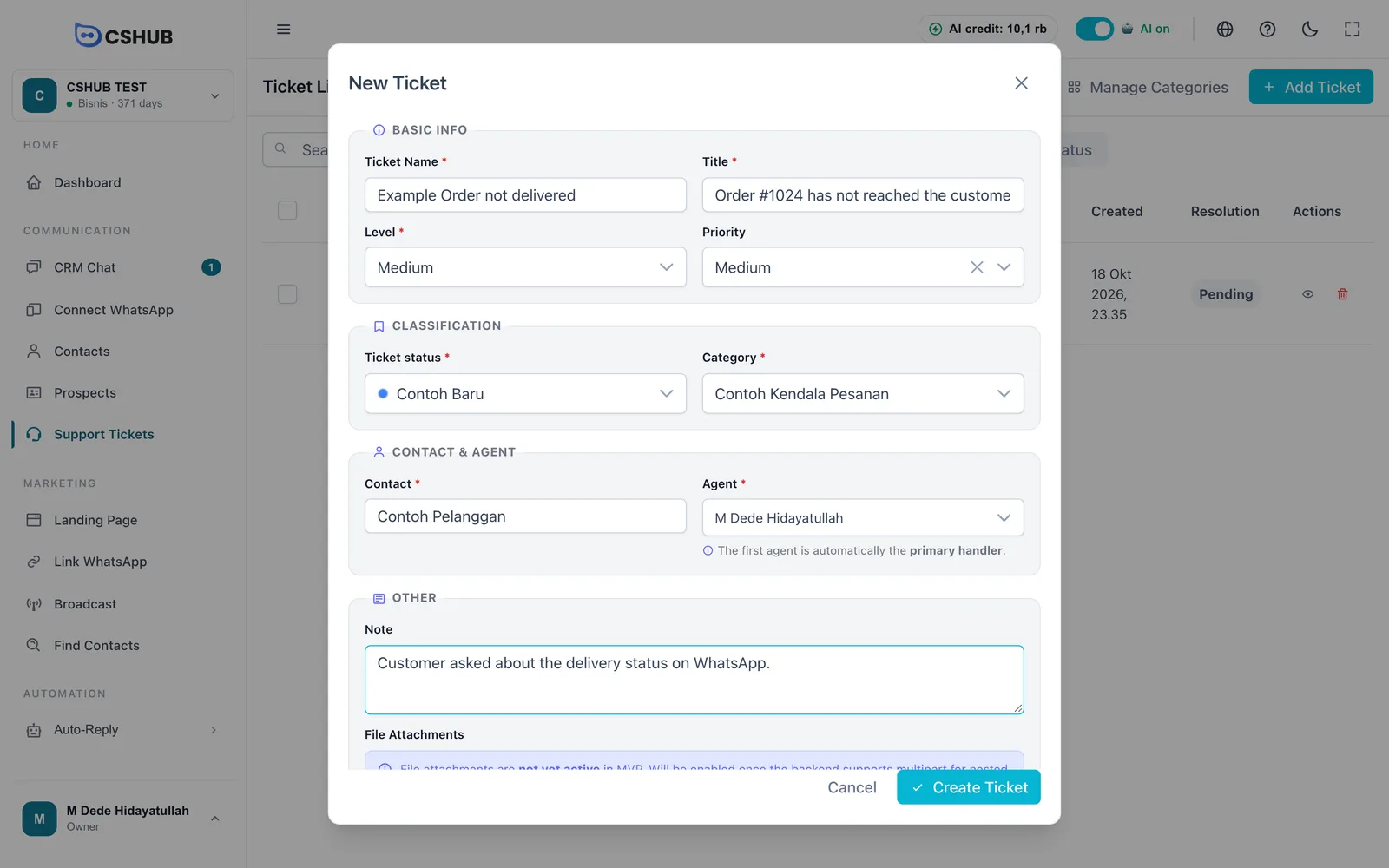
Click Create Ticket. The ticket appears in the chosen ticket-status column right away.
Ticket details
Click a card or a ticket row to open its detail page.
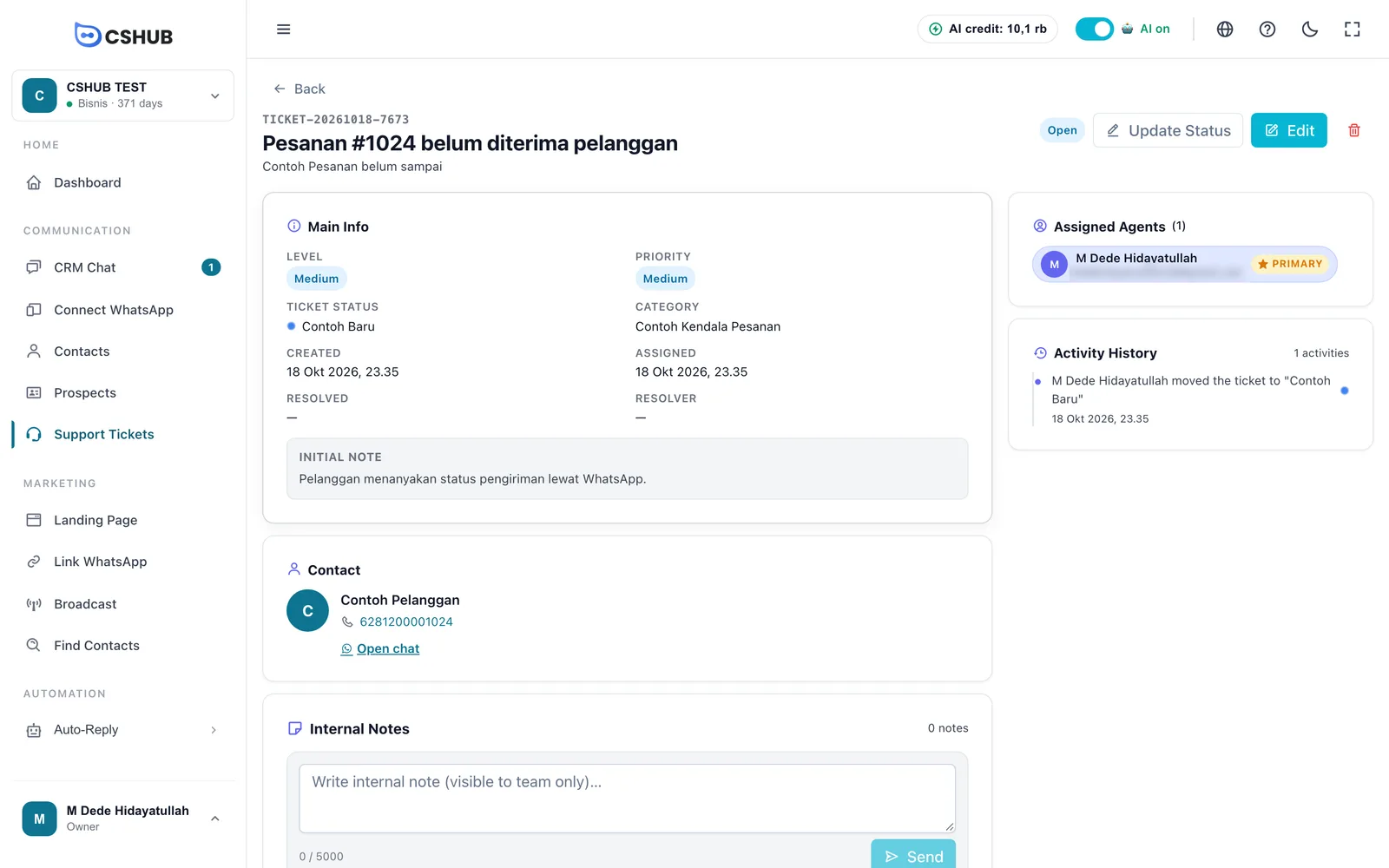
| Part | What it holds |
|---|---|
| Main Info | Level, priority, ticket status, category, created, assigned, resolved times, resolver, and initial note |
| Contact | The customer's name and number. Open chat opens the conversation in CRM Chat |
| Internal Notes | Notes only your team can see, up to 5,000 characters each. Click Send to save |
| Assigned Agents | The agents and their roles: Primary, Assigned, or Support |
| Activity History | A trail of every change, e.g. … moved the ticket to "In progress" |
Buttons at the top right:
- Update Status — change the work Status and the Ticket status (column) together. Choosing Resolved fills in the resolved date and resolver automatically.
- Edit — change any ticket field.
- Bin icon — delete the ticket along with its notes and history.
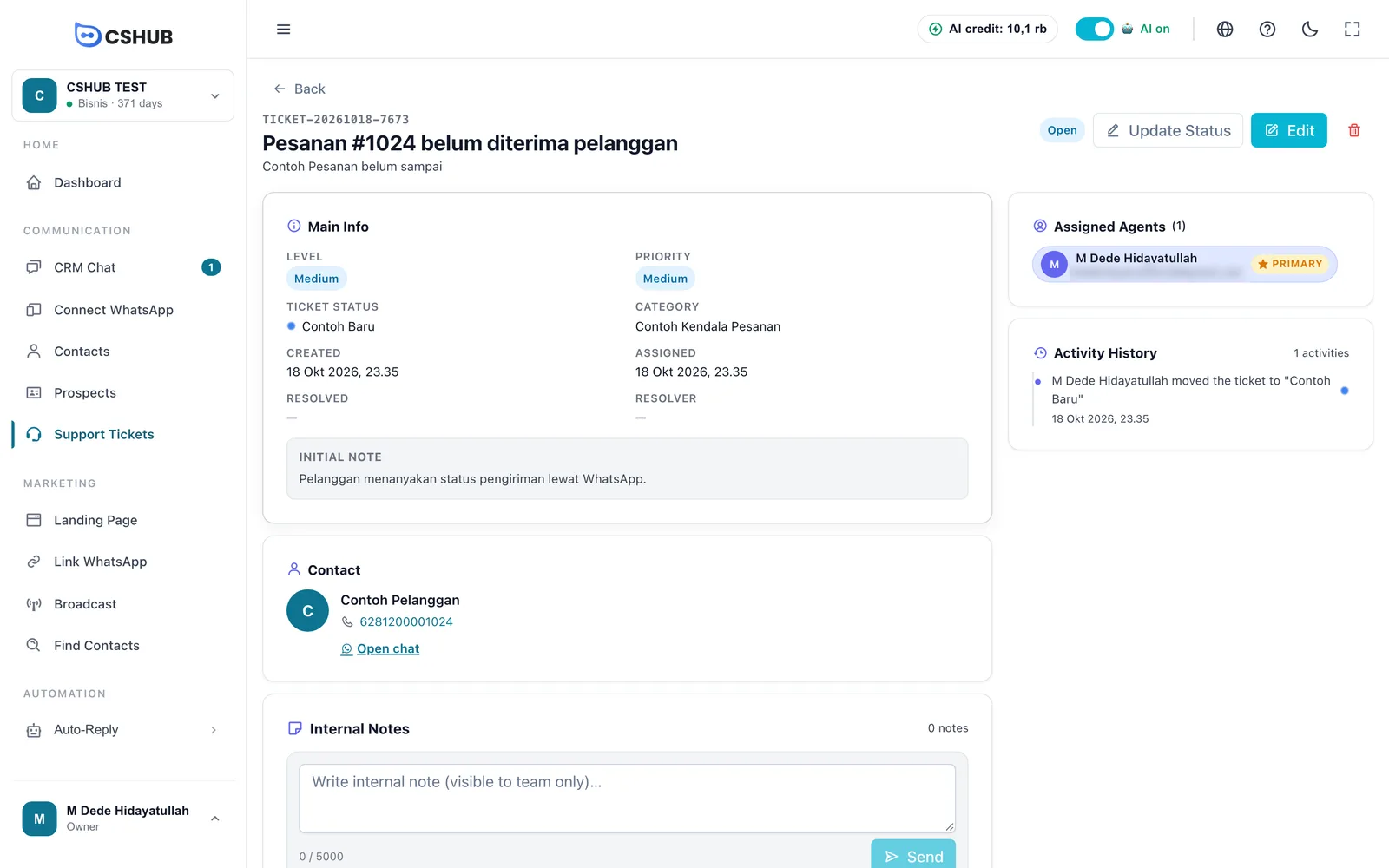
List view
Click View as List to see tickets in a table — easier when there are many.
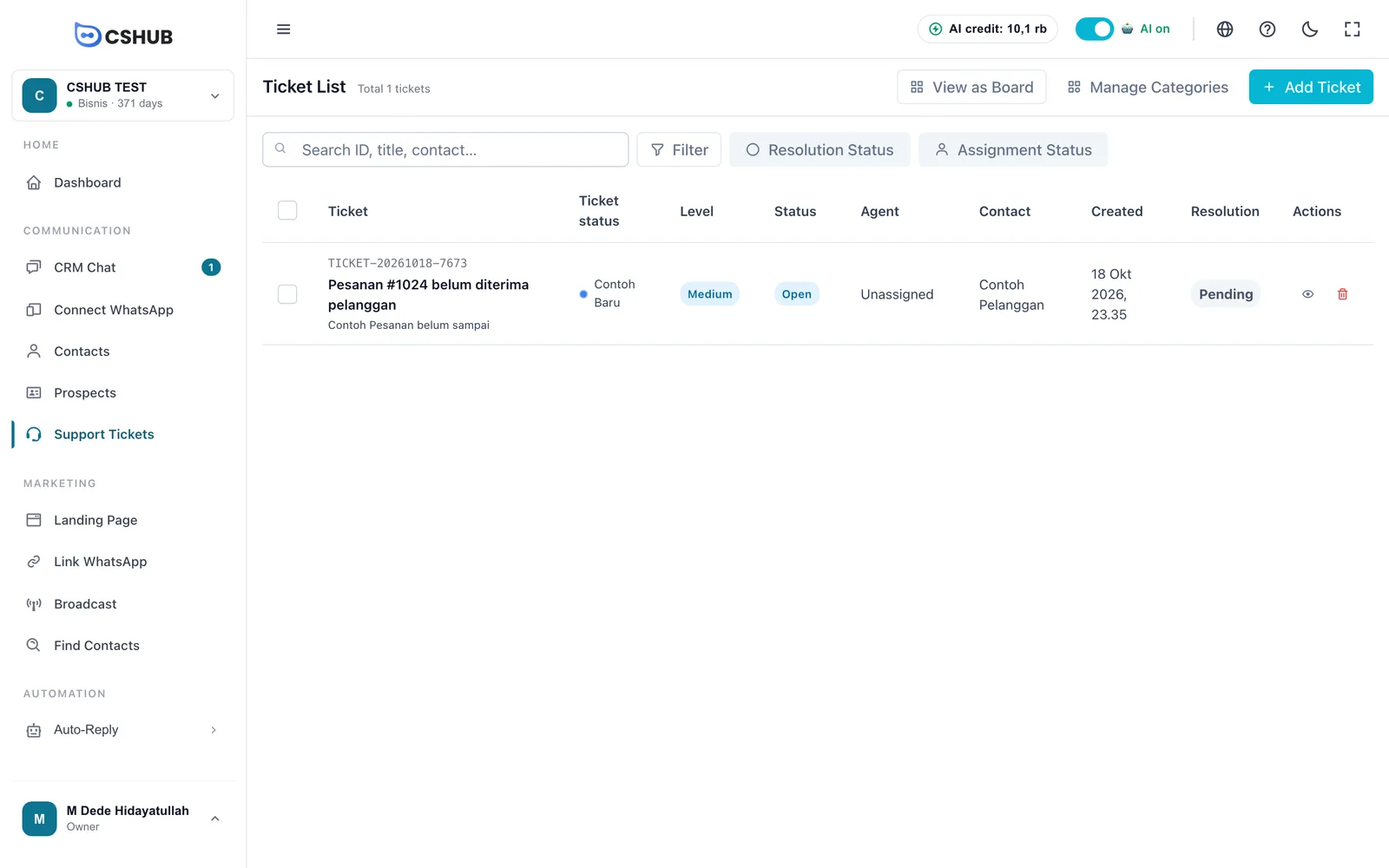
Columns: Ticket, Ticket status, Level, Status, Agent, Contact, Created, Resolution (Resolved or Pending), and Actions. Tick several rows and click Delete Selected to delete them in one go. Click View as Board to go back to the board.
Tips
- Keep ticket statuses simple and in order, e.g. New → In progress → Waiting on customer → Done.
- Log progress in Internal Notes, not in the customer chat, so teammates can pick up without asking again.
- Check the Unassigned filter every morning so no ticket slips through.