
Affiliate program
The cshub affiliate program pays you a commission whenever someone who signed up through your referral link buys a paid plan — not just on their first purchase, but every time they renew. Everything lives in the Affiliate dashboard in My Account: your referral link and code, commission balance, tier, customer list, analytics, and withdrawals.
You don't need an active business to be an affiliate. Accounts that only want to refer cshub can still use this dashboard.
How it works
- Share your link — send your referral link to friends or your audience via WhatsApp, social media, or email.
- They sign up — anyone who registers with your link or code is automatically recorded as your customer.
- They subscribe — once they pay for a plan, your commission lands in your balance.
- Withdraw — request a payout to a bank account or e-wallet whenever you like.
Opening the affiliate dashboard
Use either:
- The user menu (bottom left) → Affiliate Program.
- My Account → the Affiliate menu, or the Affiliate Dashboard card → Open Dashboard.
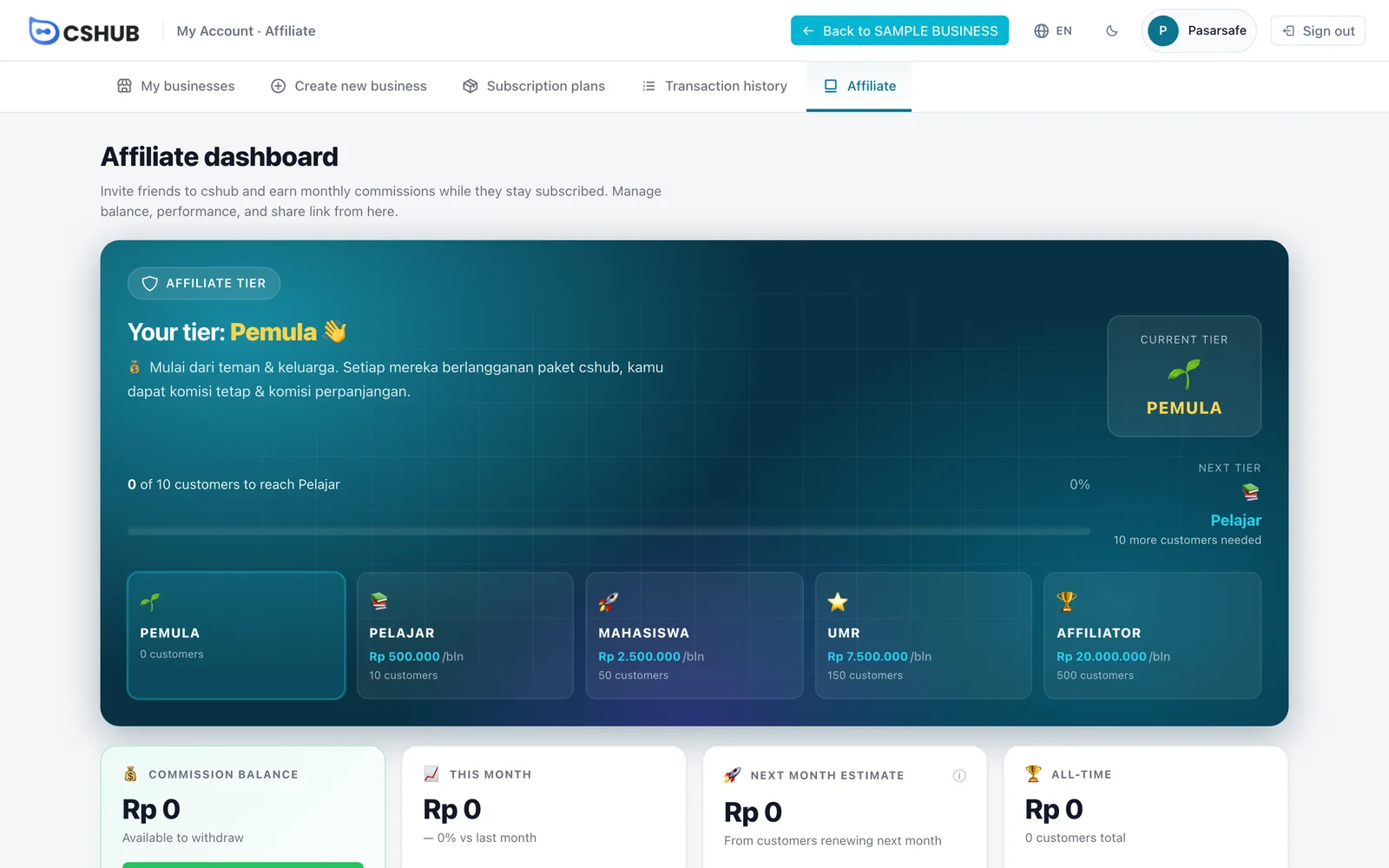
Affiliate tiers
The Affiliate Tier card shows your current tier, how many active customers you need to reach the next one, and the monthly earning target at each tier. The more active customers you have, the higher your tier. Tier names and requirements are set by the cshub team and may change.
Stat cards
| Card | Meaning |
|---|---|
| Commission Balance | The balance available to withdraw. Withdraw opens the withdrawal form |
| This month | Commission earned this month, compared with last month |
| Next month estimate | Projected commission if every customer due next month renews. The real figure may be lower |
| All-time | Total commission since you started, plus your total customer count |
If some of your customers' plans expire within 14 days, the dashboard shows a reminder so you can reach out to them.
Every part of the dashboard
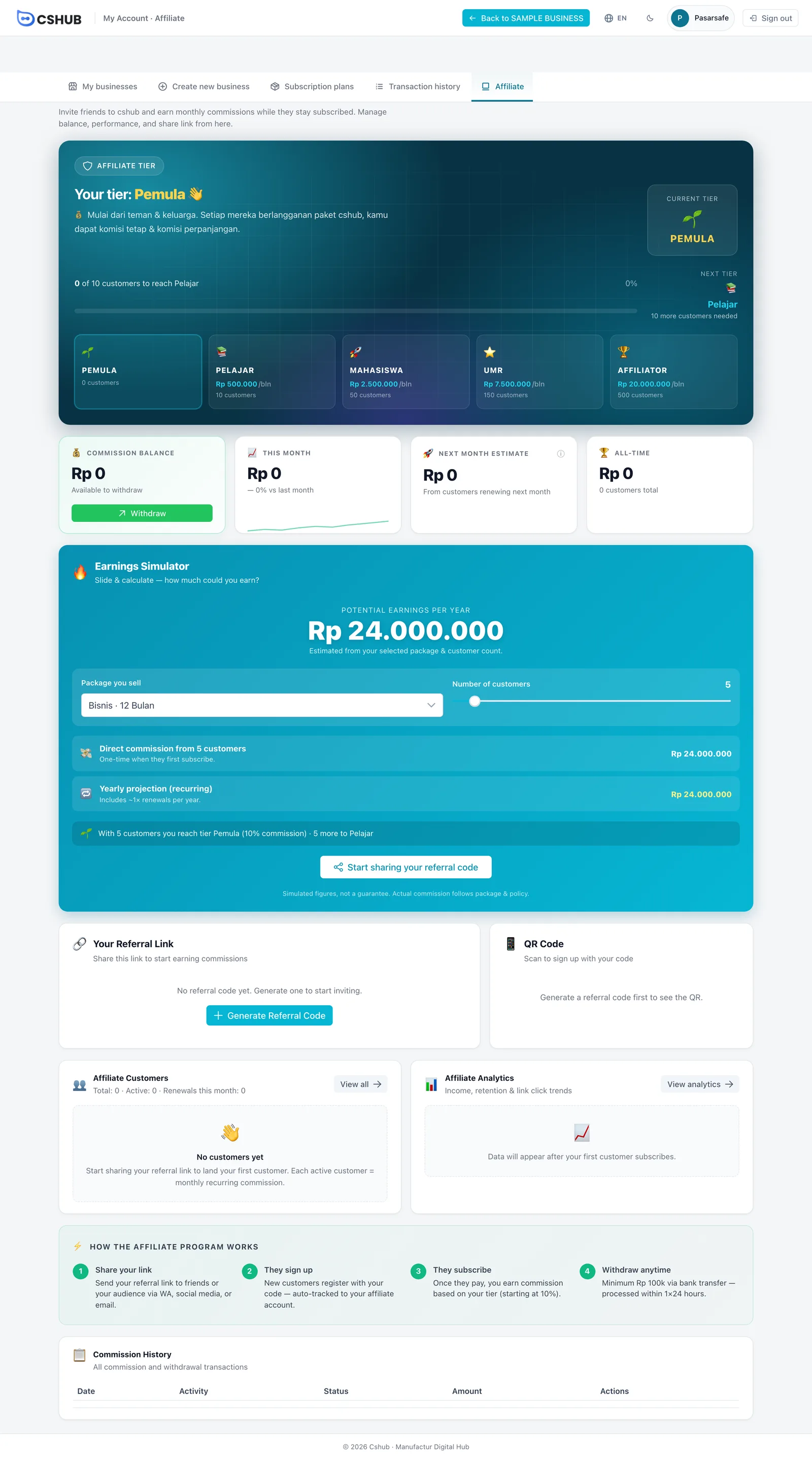
| Part | What's inside |
|---|---|
| Earnings Simulator | A calculator: choose the Package you sell and slide the Number of customers to see the potential direct commission, yearly projection including renewals, and network bonus (if enabled for your account). These are simulated figures, not a guarantee |
| Your Referral Link | Your link and referral code, with Copy, Copy Link, and Share buttons |
| QR Code | A QR people can scan to sign up with your code. Download PNG or Print it for flyers or your counter |
| Your Referral Voucher | Only appears if the cshub team enables it for your account. See Referral voucher |
| Affiliate Customers | Totals for all customers, active customers, and renewals this month. View all opens the full list |
| Affiliate Analytics | Income and retention trends. View analytics opens the full page |
| Commission History | Every incoming commission and withdrawal |
Creating your referral code
- In the Your Referral Link card, click Generate Referral Code.
- Your code and referral link appear right away, along with the QR code.
- Click Copy Link and share it, or use the Share button.
Your referral code is permanent
The referral code is created once and can't be changed. Make sure you're ready before clicking Generate Referral Code.
Referral voucher
If this feature is enabled for your account, a Your Referral Voucher card appears on the dashboard. You can create one voucher code of your own (at least 3 characters, e.g. SAVE5) with a 1–5% discount.
- The voucher only works for people who signed up with your referral code.
- Your commission is calculated from the price after the discount.
- You can change the discount (Save discount) or delete the voucher. The card also shows how many times it has been used.
Customer list
Click View all on the Affiliate Customers card.
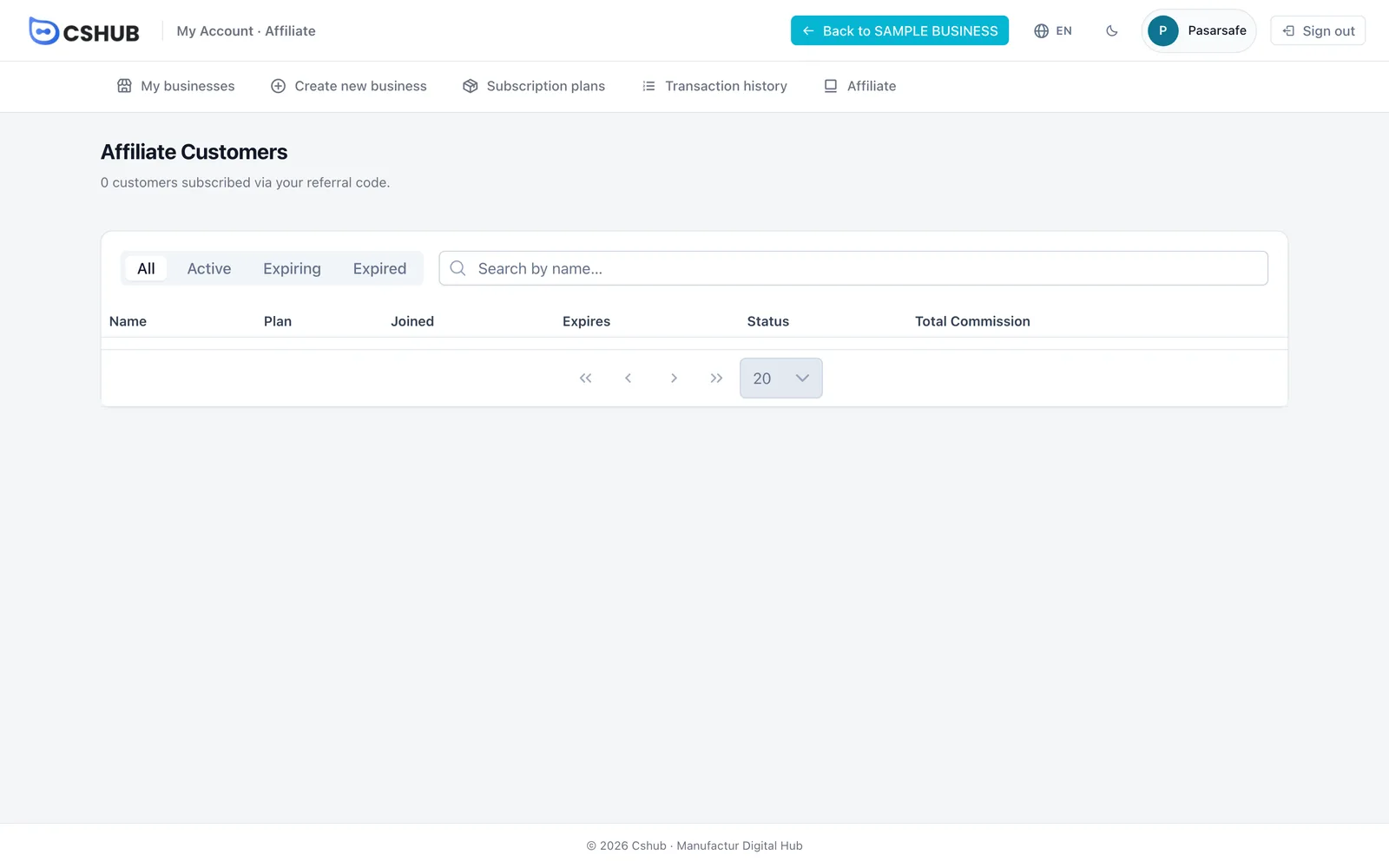
| Column | What it shows |
|---|---|
| Name | The customer's name (searchable) |
| Plan | The plan they're on |
| Joined / Expires | When they subscribed and when their plan ends |
| Status | Active, Expiring, or Expired. Customers who have renewed are marked "Renewed Nx" |
| Total Commission | The total commission you've earned from this customer |
Use the Expiring tab to see who needs a renewal reminder — every renewal means another commission for you.
Analytics
Click View analytics on the Affiliate Analytics card.
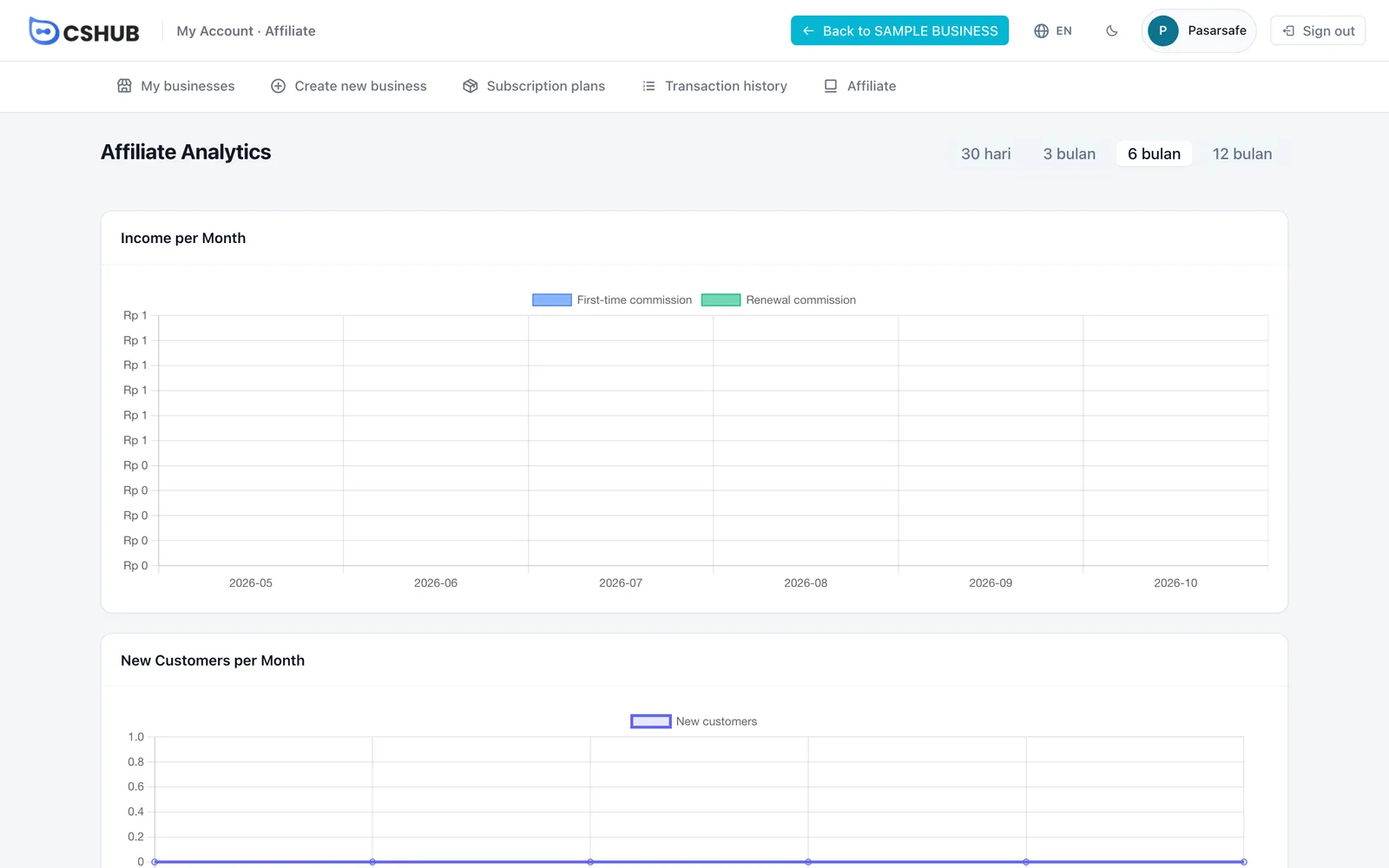
| Part | What it shows |
|---|---|
| Income per Month | Split into First-time commission and Renewal commission |
| New Customers per Month | New customers each month |
| This Month Growth | New customers versus lost customers this month |
| Cohort Retention | What share of customers from each sign-up month are still subscribed in the following months |
Data starts to appear once your first customer subscribes.
Withdrawing your balance
- Click Withdraw on the Commission Balance card.
- Fill in the Withdraw affiliate balance form.
- Check the Summary panel on the right, then click Submit withdrawal.
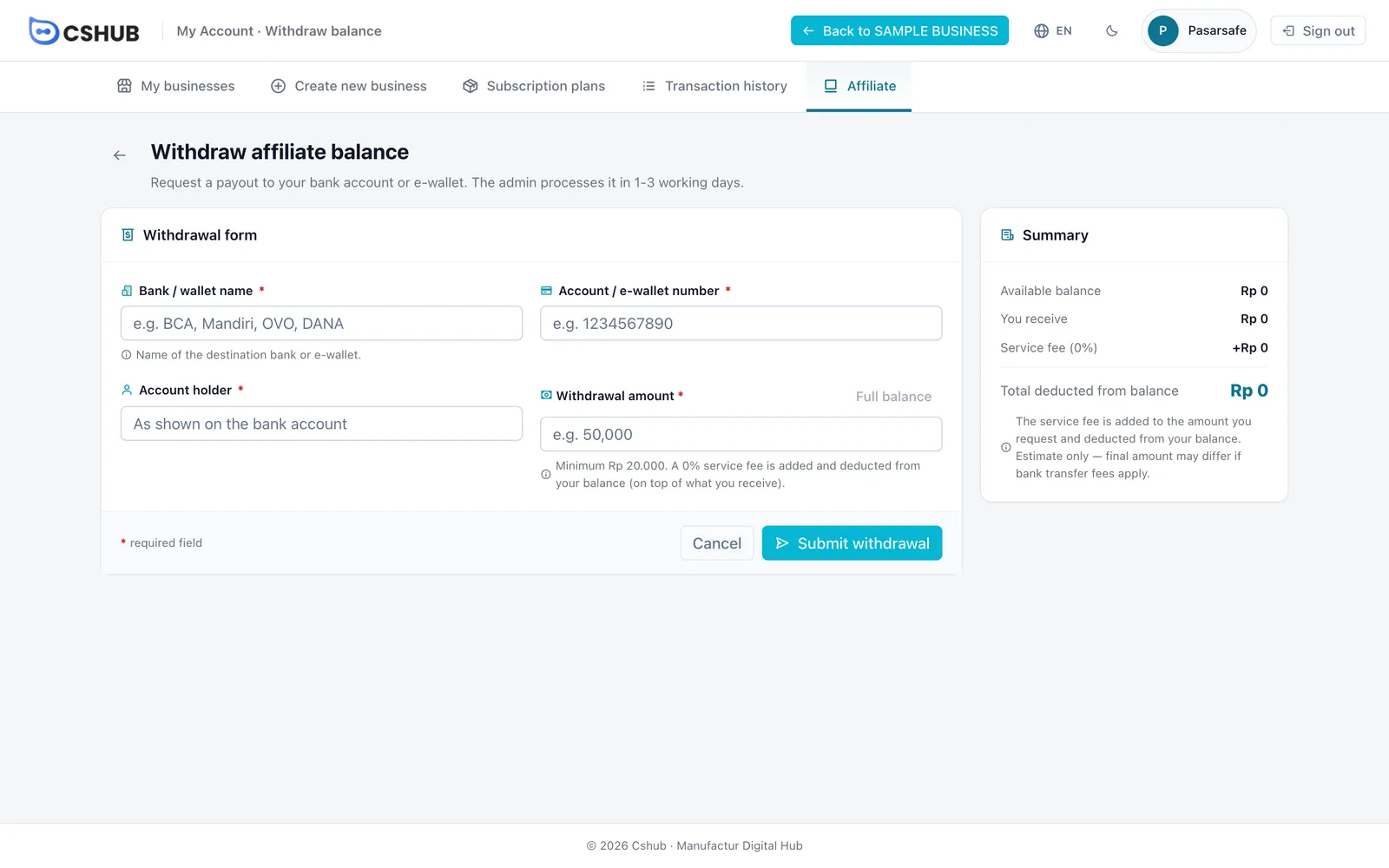
| Field | Description |
|---|---|
| Bank / wallet name | E.g. BCA, Mandiri, OVO, DANA |
| Account / e-wallet number | The destination number |
| Account holder | As shown on the bank account or e-wallet |
| Withdrawal amount | How much you want to receive. Full balance fills in the maximum you can withdraw |
The minimum amount and the service fee percentage are shown under the amount field. The service fee is added to the amount you request and deducted from your balance at the same time, so you still receive the full amount you asked for. The Summary panel shows the Total deducted from balance.
The cshub team processes withdrawals within 1–3 working days. Until a request is processed, you can cancel it from the Commission History.
Statuses in Commission History
| Status | Meaning |
|---|---|
| Commission received | Commission from a customer's purchase has been added to your balance |
| Awaiting settlement | Commission recorded but not yet withdrawable |
| Awaiting transfer | Withdrawal requested, waiting for the cshub team to transfer it |
| Paid | The withdrawal has been transferred. You can download the transfer proof from the transaction details |
| Rejected | The request was rejected — the reason is in the transaction details |
Click the detail icon on a history row to see the plan and buyer business (for commissions), or the method, account holder, destination number, and transfer time (for withdrawals).
Next steps
- My Account & all businesses
- Billing & plans — the plans your customers buy