
About channels
A channel is a door customers use to reach your business — WhatsApp, Instagram, Messenger, Telegram, or a chat button on your website. In cshub you can connect all of them at once, and every message lands in one place: CRM Chat, where your CS team replies or an AI Agent answers automatically.
This page helps you pick the right channels and explains the settings every channel shares, so each channel page can focus on how to connect it.
The Connect WhatsApp & Channels page
Open Connect WhatsApp in the sidebar. The first page you see is the hub for every channel.
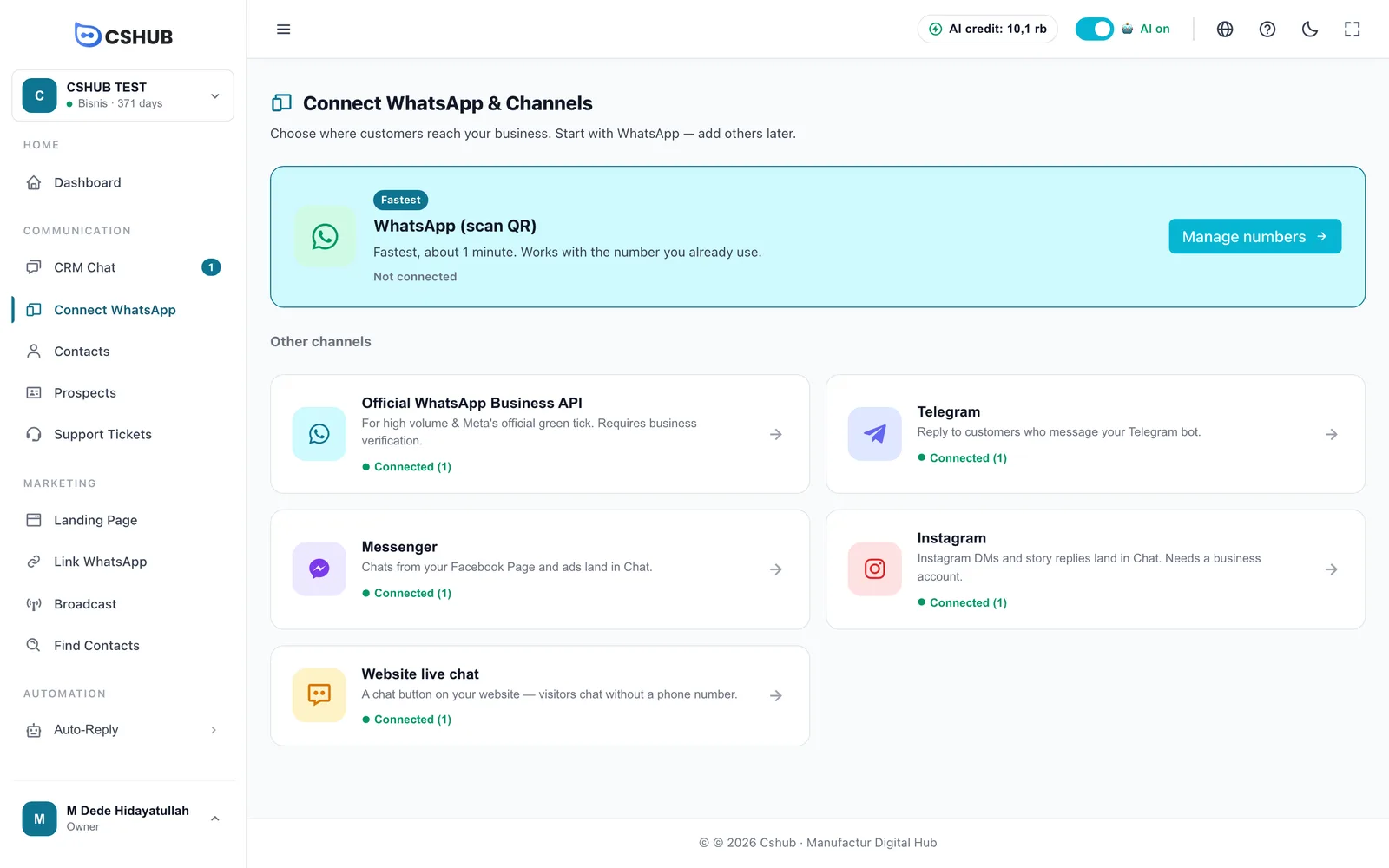
- The WhatsApp (scan QR) card sits at the top because it's the quickest to set up (about 1 minute). Its button reads Connect now when you have no number yet, or Manage numbers once you do.
- Other channels shows a card per channel with its status. Click a card to open that channel.
| Card status | Meaning |
|---|---|
| Not connected | No account or number for this channel yet |
| Connected (n) | n accounts or numbers are connected |
| n added, not connected yet | The number exists in cshub but its session isn't active yet (for example, not scanned) |
Inside any channel, the tab row at the top (WhatsApp (scan QR), Official WhatsApp Business API, Telegram, Messenger, Instagram, Website live chat) lets you jump between channels without going back to the hub.
Which channel fits?
| Channel | Best for | What you need | Setup time |
|---|---|---|---|
| WhatsApp (scan QR) | The WhatsApp number you already use every day | A phone with WhatsApp / WhatsApp Business | About 1 minute |
| Official WhatsApp Business API | High volume, official template broadcasts, green tick | A Meta Business account + a number registered on the WhatsApp Business Platform | 10–30 minutes (plus Meta review) |
| Telegram | Customers who prefer chatting on Telegram | A Telegram bot from @BotFather | About 5 minutes |
| Instagram DMs and story replies | An Instagram Business/Creator account linked to a Facebook Page | About 2 minutes | |
| Messenger | Chats from your Facebook Page and Facebook ads | Admin access to that Facebook Page | About 2 minutes |
| Website live chat | Website visitors who want to ask without sharing a phone number | Access to paste code into your website | About 5 minutes |
Where to start?
Most businesses start with WhatsApp (scan QR) — it's the fastest and you keep using the number on your phone. Add other channels once your customers actually come from there.
WhatsApp scan QR vs official WhatsApp Business API
| WhatsApp (scan QR) | Official WhatsApp Business API | |
|---|---|---|
| How you connect | Scan a QR from your phone, like WhatsApp Web | Facebook login (Embedded Signup) or Meta credentials |
| Meta business verification | Not needed | Needed |
| Keep using the number on your phone | Yes | Only with Coexistence mode |
| First message / broadcasts | Free-form (keep a steady pace to avoid restrictions) | Must use Meta-approved templates |
| Meta messaging fees | None | Per Meta's conversation pricing |
| Risk of the number being restricted | Exists if bulk sending is too aggressive | Low, monitored via the Quality Rating |
Settings every channel shares
Almost every channel has the same set of settings. They're explained once here.
Auto-reply method
| Method | Behaviour |
|---|---|
| No auto-reply | Your CS team replies to every chat manually from Chat |
| Keyword replies | Replies automatically when a message matches your keywords. Others go to your CS team. See Keyword replies |
| AI Agent | The AI Agent answers every chat using your business knowledge. See AI Agent |
| Keywords first, then AI | Keyword matches get your fixed answer; everything else is answered by the AI Agent |
Not every channel shows all four — Instagram and Messenger have no Keyword replies, while Telegram and Website live chat have no No auto-reply. Each channel page has the details.
Who can reply & chat access
Every channel has a list of agents (team members) who can see and answer its chats. Your own account is added automatically with access to all chats. For each agent you choose (these options currently show in Indonesian in the app):
| Access | Meaning |
|---|---|
| Lihat semua chat (see all chats) | Sees every incoming message from this channel |
| Hanya yang di-assign & kolaborasi (assigned & collaborations only) | Only sees chats assigned to them or that they collaborate on |
Team members are managed in Team, CS & roles.
Agent assignment method
Decides whether new chats are handed to your CS team automatically:
| Option | Behaviour |
|---|---|
| No auto-assign | Incoming chats aren't assigned — every agent can see them |
| Round robin | Turns are distributed evenly across on-shift agents |
| Sequential (priority) | Always the top on-shift agent; cascades down when they're off-shift |
| Random | A random on-shift agent |
Escalation (SLA)
When enabled, agents are notified automatically if a chat waits too long for a human reply. Escalation rules are set up in Escalation to your team.
Schedules & daily limits
- Active days / active hours for auto-reply — auto-replies run only on certain days and hours. Outside the schedule, chats still arrive in CRM Chat but wait for your team.
- Daily limit — a safety cap on automatic messages per day so the account isn't flagged as spam.
Removing a channel
When you delete an account or number that already has conversation history, cshub first asks what to do with that history:
- Move / transfer it to another account on the same channel — nothing is lost.
- Permanently delete it along with the history — this can't be undone.
If there's no history yet, the account is deleted straight away.
How many channels you can connect
The number of WhatsApp numbers, bots, accounts, and widgets you can connect depends on your plan. When you hit the cap, cshub shows a Limit reached message with an upgrade prompt. See Billing & packages.
Next steps
- Connect your first number: WhatsApp (scan QR)
- Set up automatic replies: AI Agent
- Start replying to customers: CRM Chat