
WhatsApp (scan QR)
Connect a regular WhatsApp number — WhatsApp Messenger or WhatsApp Business on your phone — to cshub just by scanning a QR code, exactly like opening WhatsApp Web. Once connected, every chat sent to that number shows up in CRM Chat, can be answered by your CS team, and can be replied to automatically by an AI Agent.
In cshub, one WhatsApp number is called a device. You can connect more than one — say, one number for sales and one for customer service — up to your plan's quota.
Scan QR or WhatsApp Business API?
Scanning a QR is the fastest route: no Meta verification, no paid templates, and you keep using the number on your phone. If you need high volume, a green tick, or official interactive buttons, use the official WhatsApp Business API. See the full comparison in About channels.
Device list
Open Connect WhatsApp in the sidebar, then the WhatsApp (scan QR) tab.
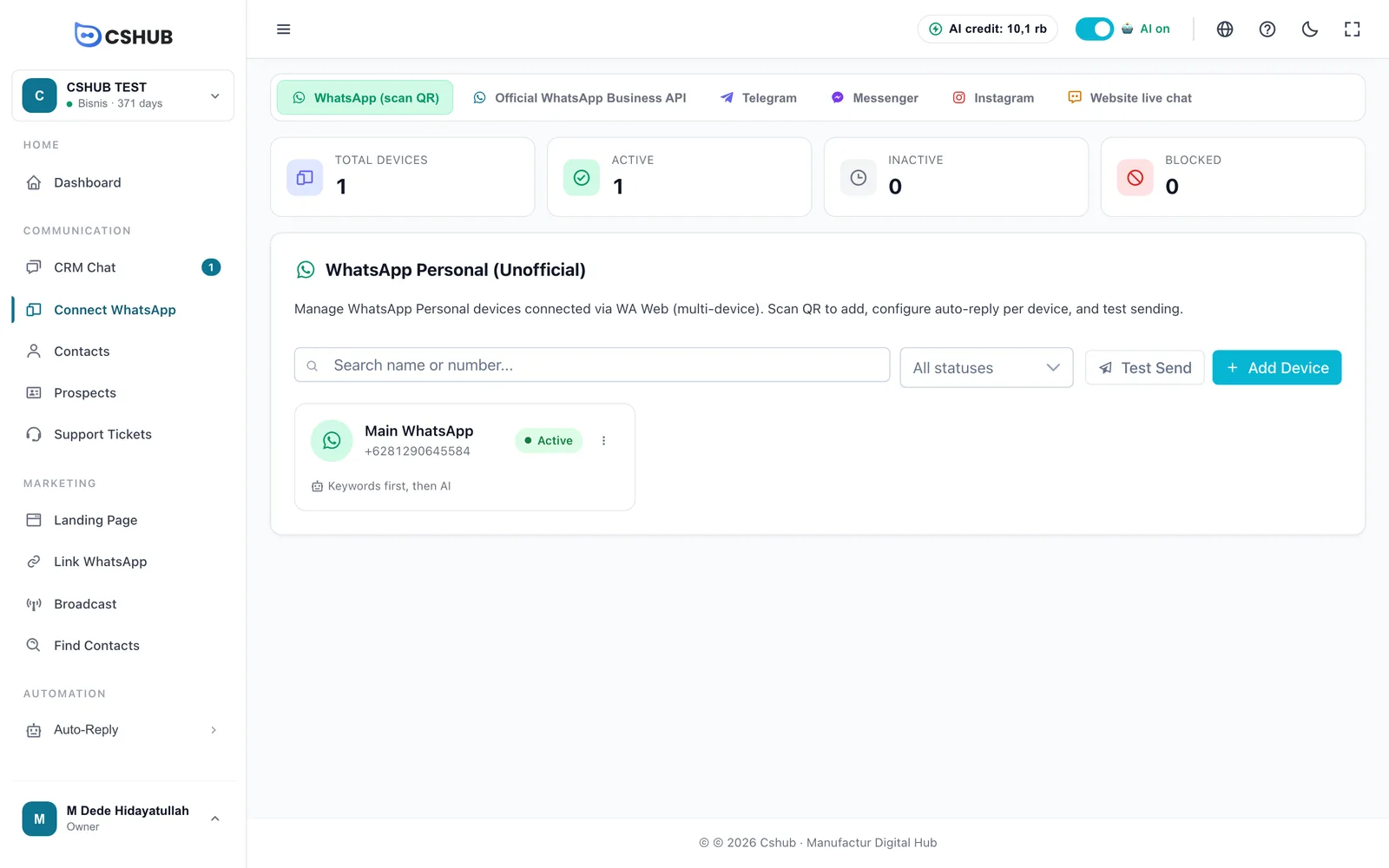
The summary cards count devices by status:
| Status | Meaning |
|---|---|
| Active | The WhatsApp session is connected — messages flow in and out |
| Inactive | Never scanned, logged out, or unlinked from the phone. Scan again to reconnect |
| Blocked | WhatsApp has restricted the number. Pause bulk sending before using it again |
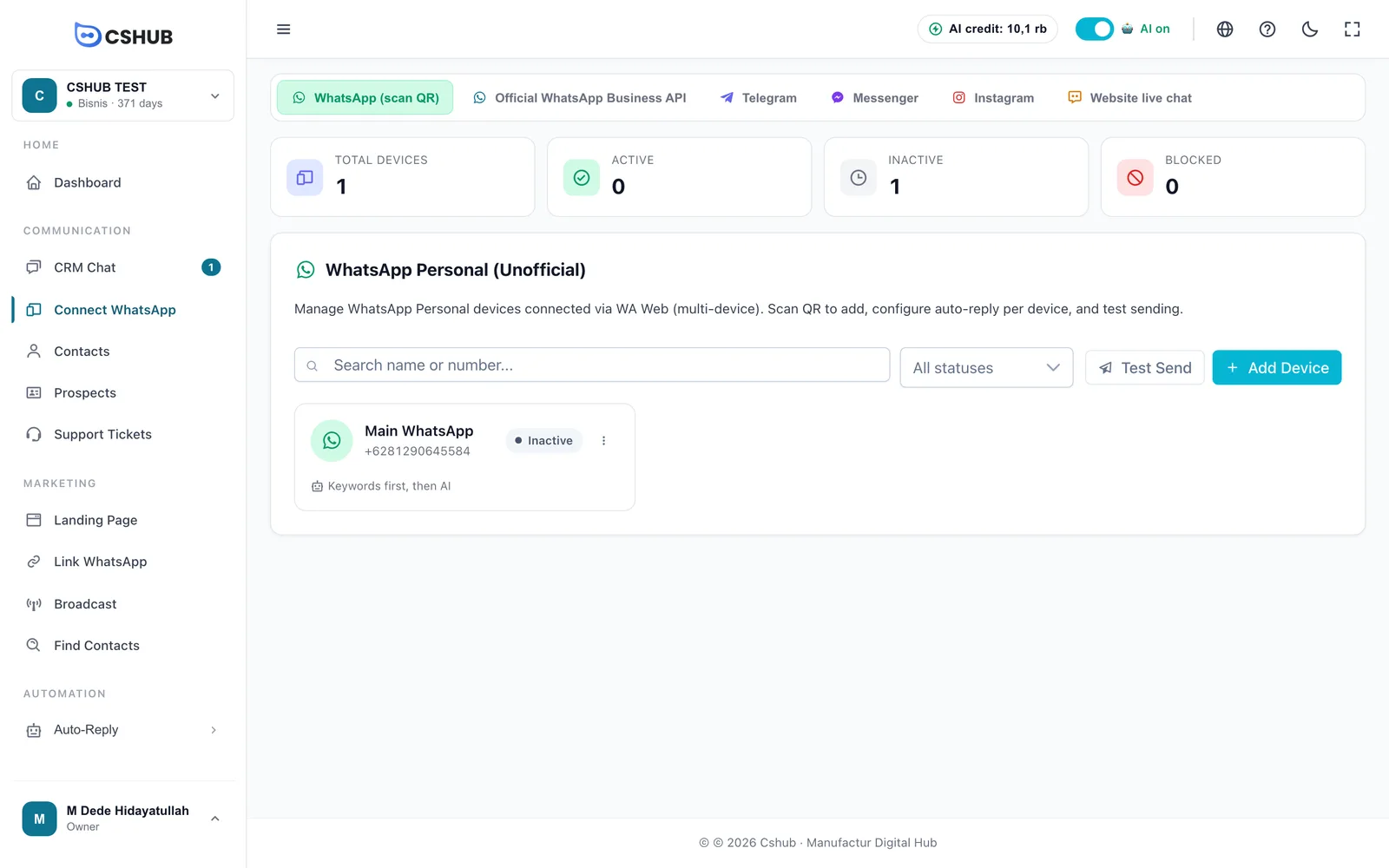
Each device card shows the name, number, status, and the auto-reply method in use. The ⋮ button opens Scan QR, Edit, Auto-Reply, and Delete.
Connecting a new number
1. Add a device
Click Add Device. The form is deliberately short — just two fields:
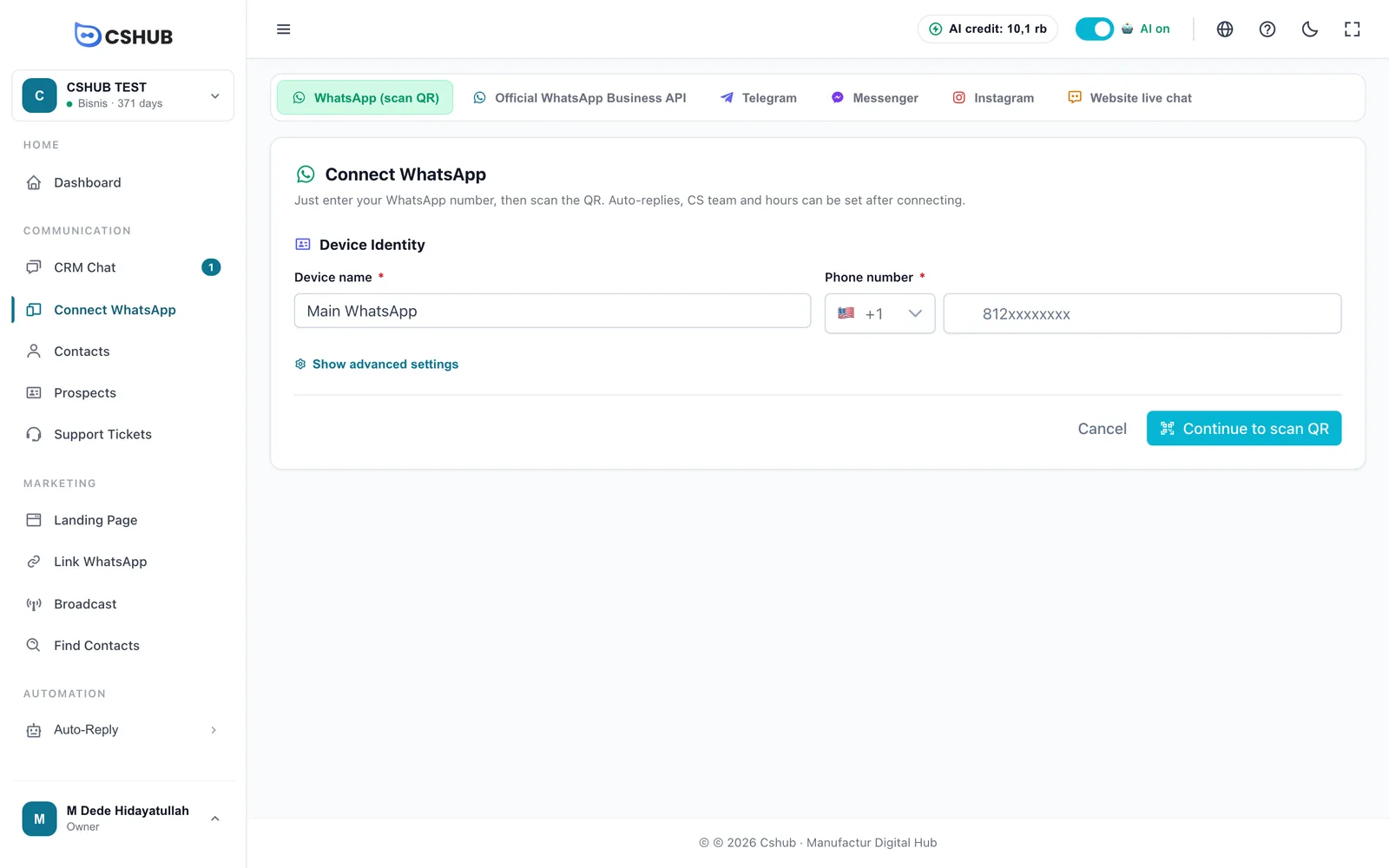
| Field | Notes |
|---|---|
| Device name | Any name that tells numbers apart, e.g. Admin WA, CS Marketing, Sales Team 1 |
| Phone number | Pick the country code, then type the number without the leading 0. It must be the same number as the WhatsApp you are about to scan. It can't be changed after saving |
Show advanced settings reveals every device option (see Device settings). All of it can be configured later, so feel free to skip it for now.
Click Continue to scan QR.
2. Scan the QR with your phone
On the next screen, if no QR is showing yet, click Generate QR.
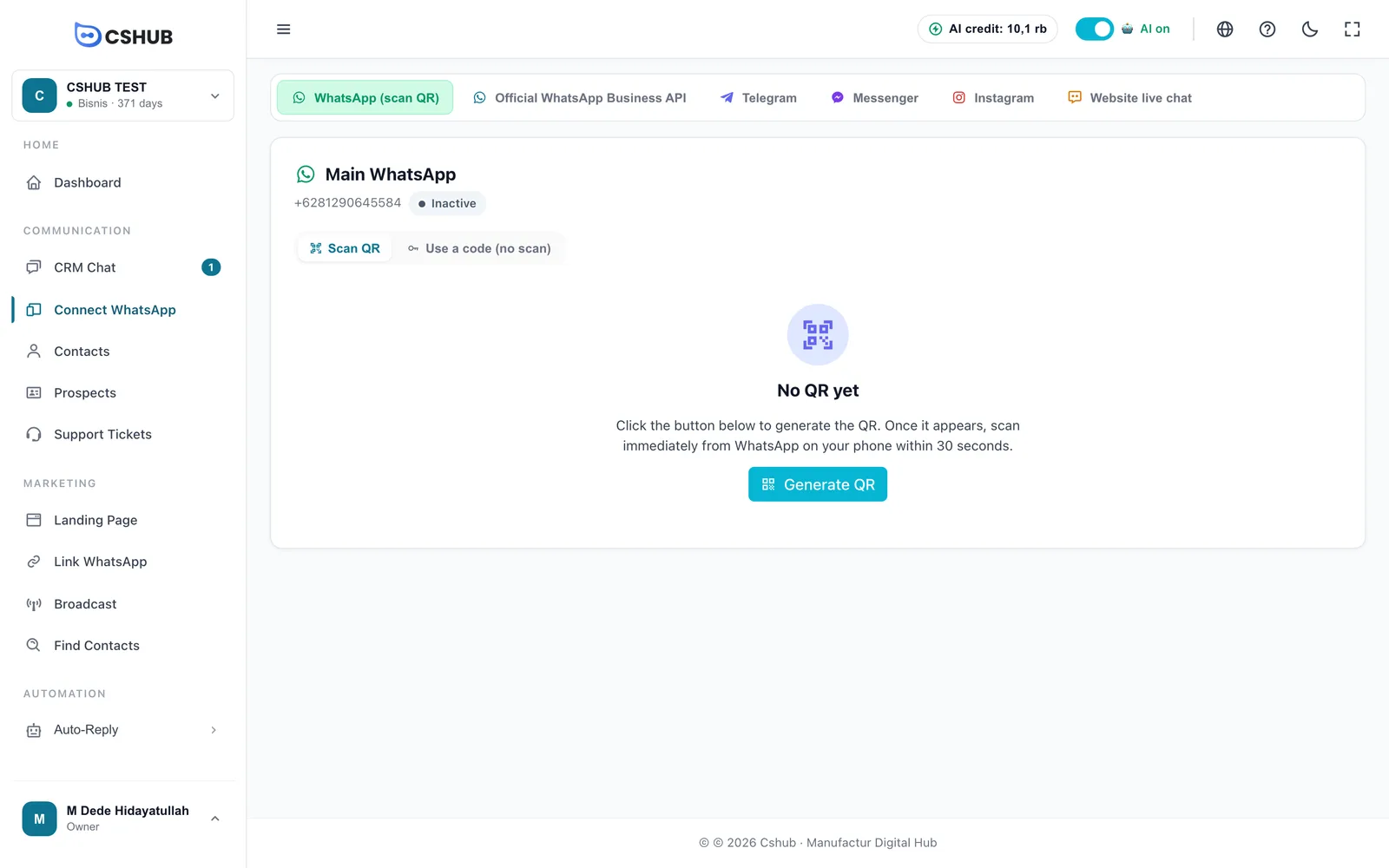
The QR code appears. On the phone with the number you entered:
- Open WhatsApp.
- Tap ⋮ (Android) or Settings (iPhone).
- Choose Linked devices → Link a device.
- Point the camera at the QR on the cshub screen.
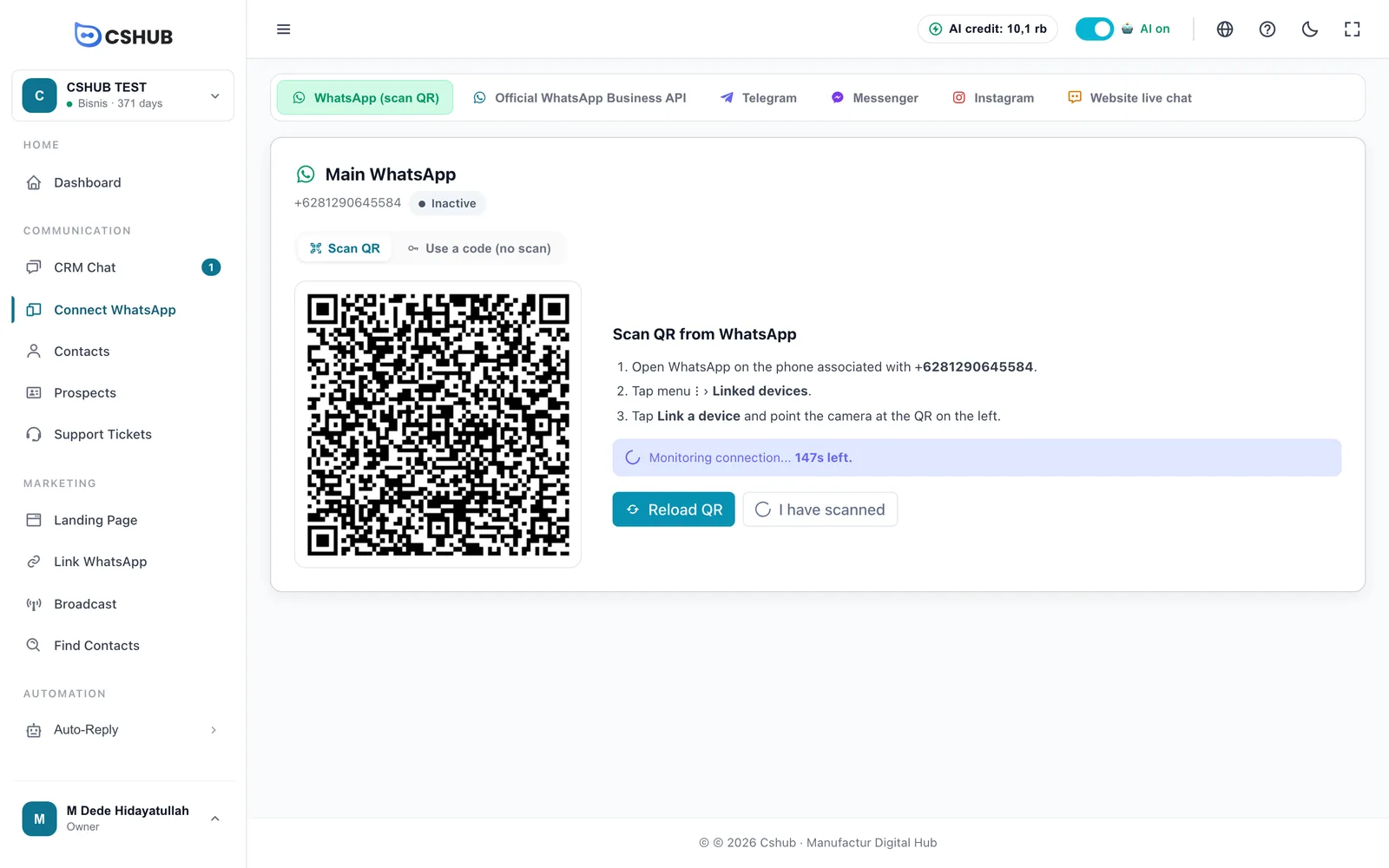
The QR refreshes about every 20 seconds and the page watches the connection by itself — you don't need to press anything after scanning (the I have scanned button re-checks on demand). If the pairing window runs out, the QR blurs and a Reload QR button appears.
Only have one phone?
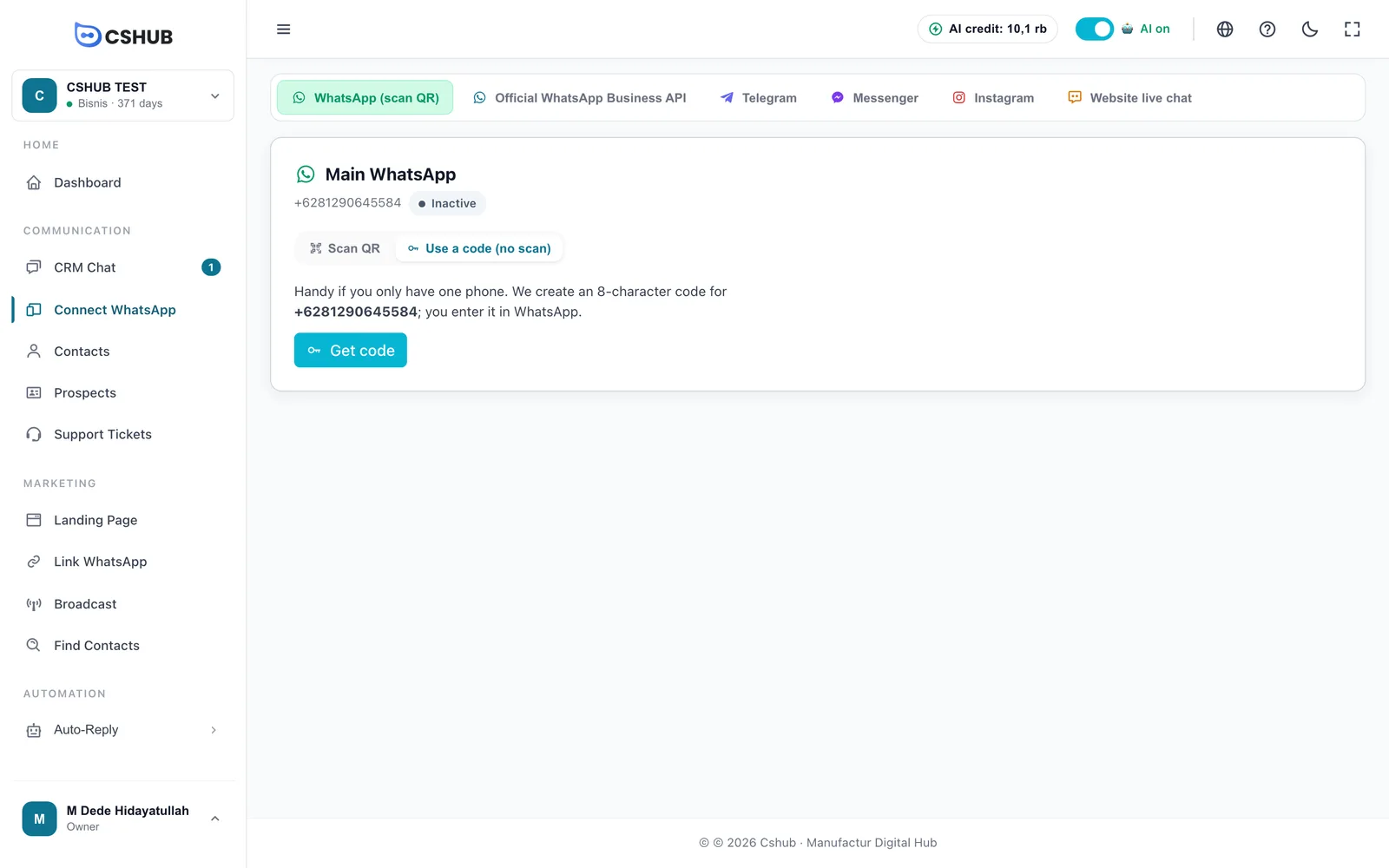
Switch to the Use a code (no scan) tab and click Get code. cshub generates an 8-character code for your number; in WhatsApp choose Link a device → Link with phone number instead, then enter the code.
3. Device connected
As soon as it connects, the status turns Active and the next-step cards appear.
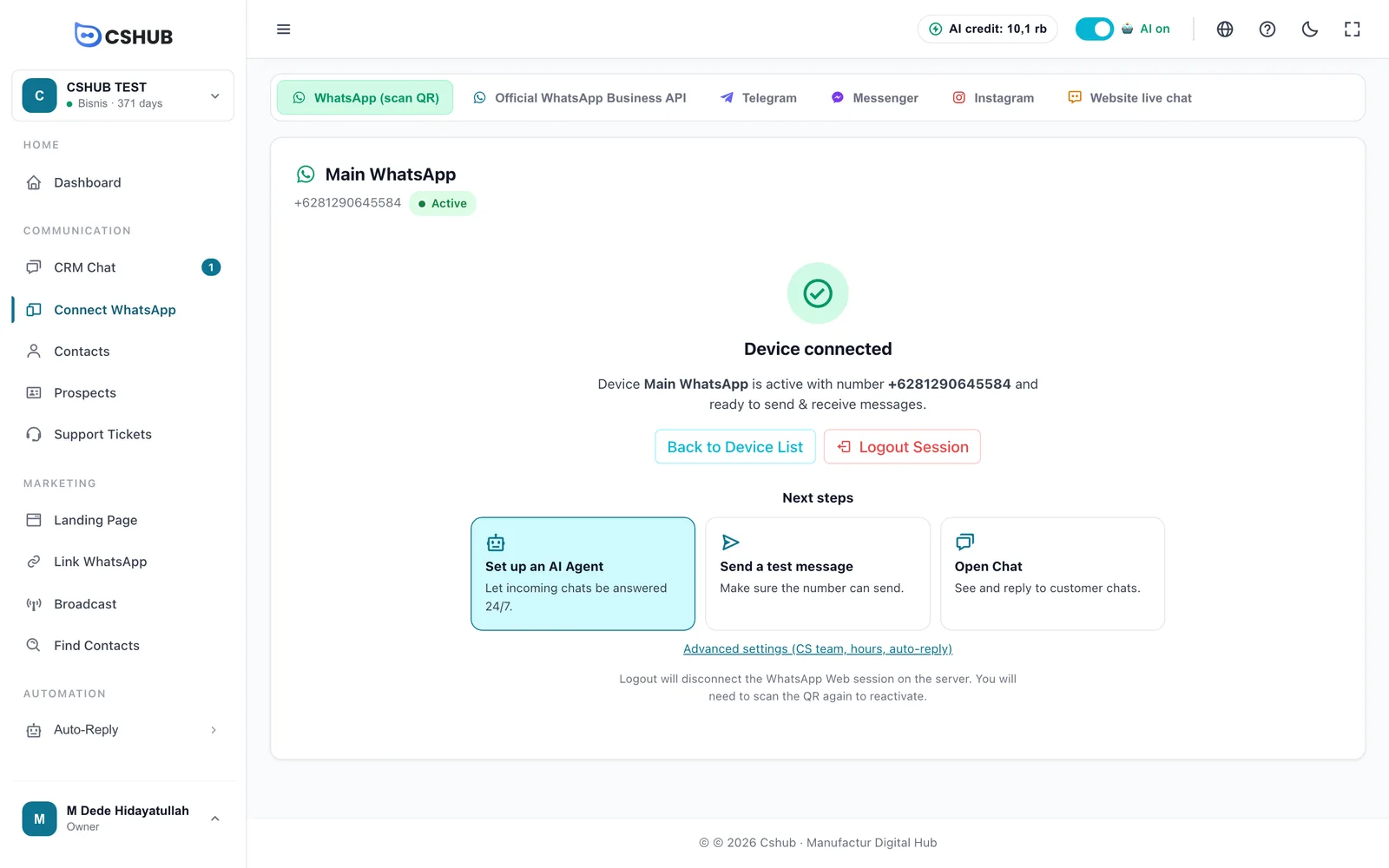
| Next step | What for |
|---|---|
| Set up an AI Agent | Answer incoming chats automatically, 24/7. See AI Agent |
| Send a test message | Confirm the number can send. See Test send |
| Open Chat | Go straight to CRM Chat to reply to customers |
The Advanced settings link underneath opens CS team, opening hours, and auto-reply settings.
Device settings
Open ⋮ → Edit on the device card (or Show advanced settings while creating a device).
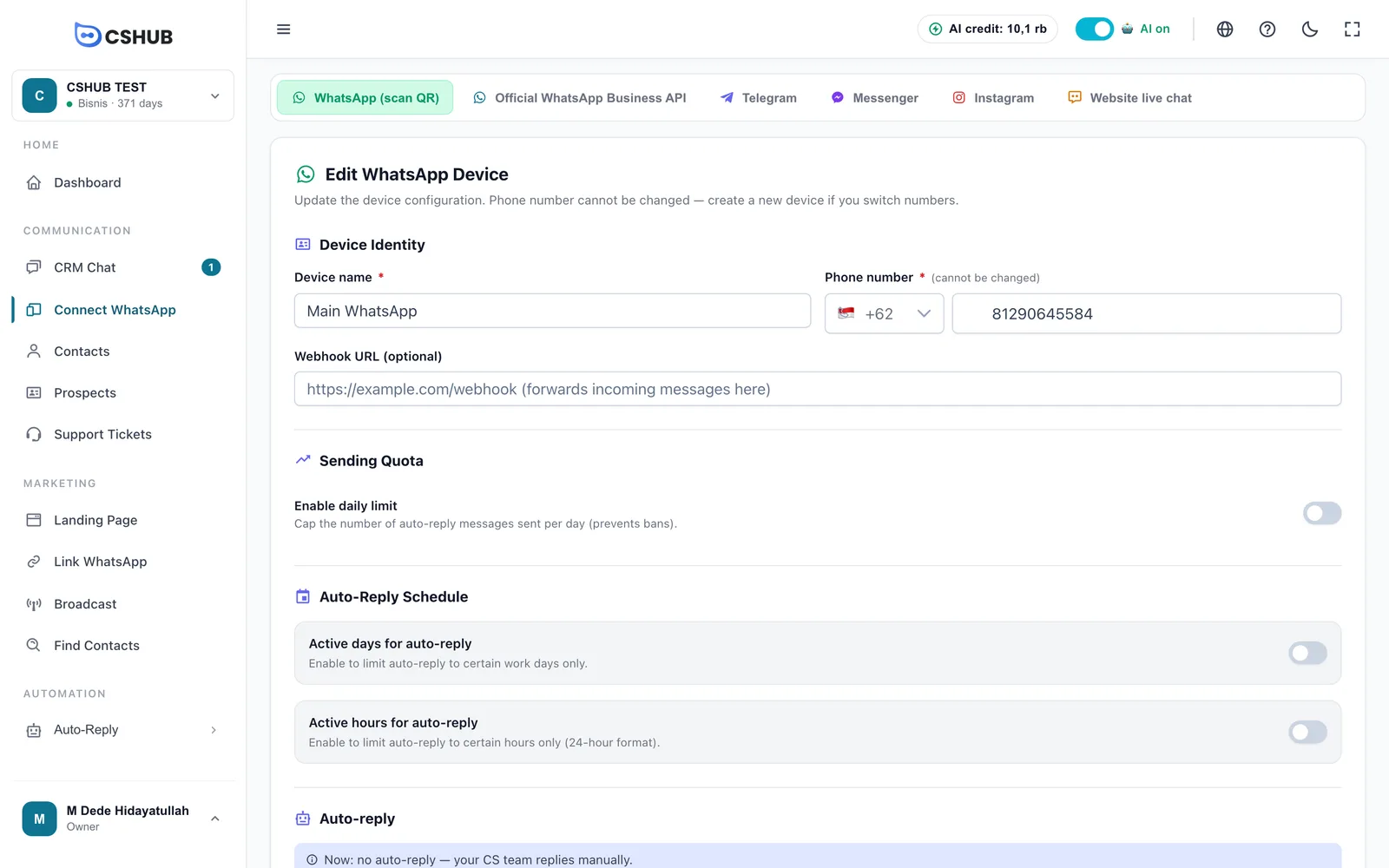
| Section | What it does |
|---|---|
| Webhook URL (optional) | Forward a copy of every incoming message to your own system |
| Sending quota | Cap on automatic replies per day (1–10,000) — a safety brake so the number isn't flagged as spam |
| Auto-reply schedule | Days and hours when auto-replies are on. Outside them, chats still arrive but the bot stays quiet |
| Auto-reply method | How chats are answered automatically (see the table below) |
| Chatbot active on | Personal Chats Only, Group Messages Only (when tagged), or All. In groups the bot only replies when tagged |
| Escalation (SLA) | Notify your CS team when a chat waits too long for a human. See Escalation |
| How new chats are assigned | Spread new chats across your team (round-robin, sequential, or random) |
| CS who can reply | Team members allowed to see and answer chats from this number |
| Mark message as read before auto-respond | Show blue ticks on the customer's phone before the bot replies |
| Save chat history | Keep conversations so they can be opened in CRM Chat and reports |
Auto-reply methods
| Method | Behaviour |
|---|---|
| Keyword replies | Only replies to messages that match a keyword. See Keyword replies |
| AI Agent | Every chat is answered by the AI Agent you pick |
| Keywords first, then AI | Keyword matches get their template; everything else goes to the AI |
Per-device auto-reply
⋮ → Auto-Reply sets one simple automatic reply for the device — handy for a welcome message or opening hours.
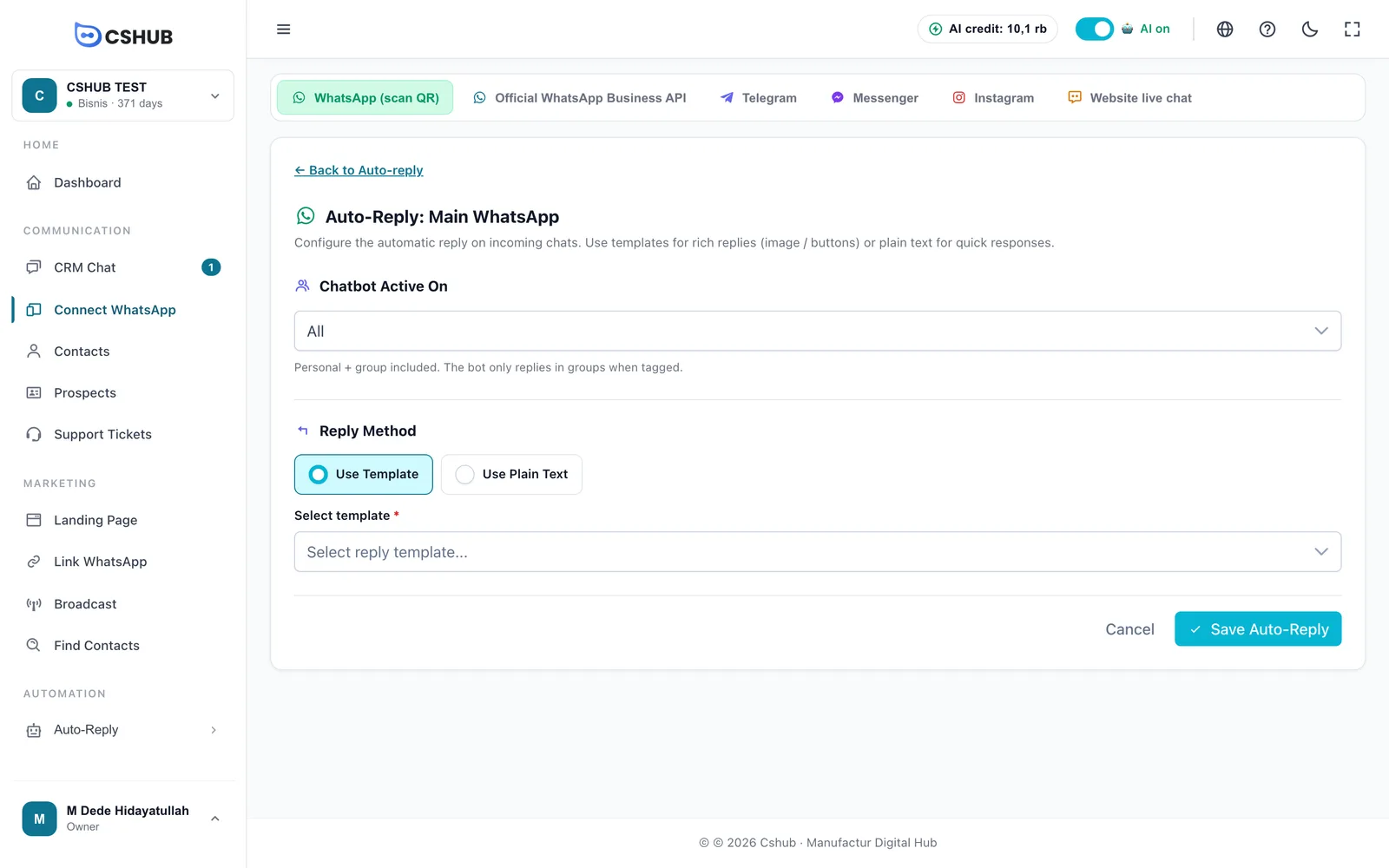
- Use template — send a message template (it can include an image). Templates live in Data & templates.
- Use plain text — type the reply directly.
Send a test message
The Test Send button on the device list sends one template message to a number of your choice — a quick way to confirm the device is live and the template is valid, especially before running a broadcast.
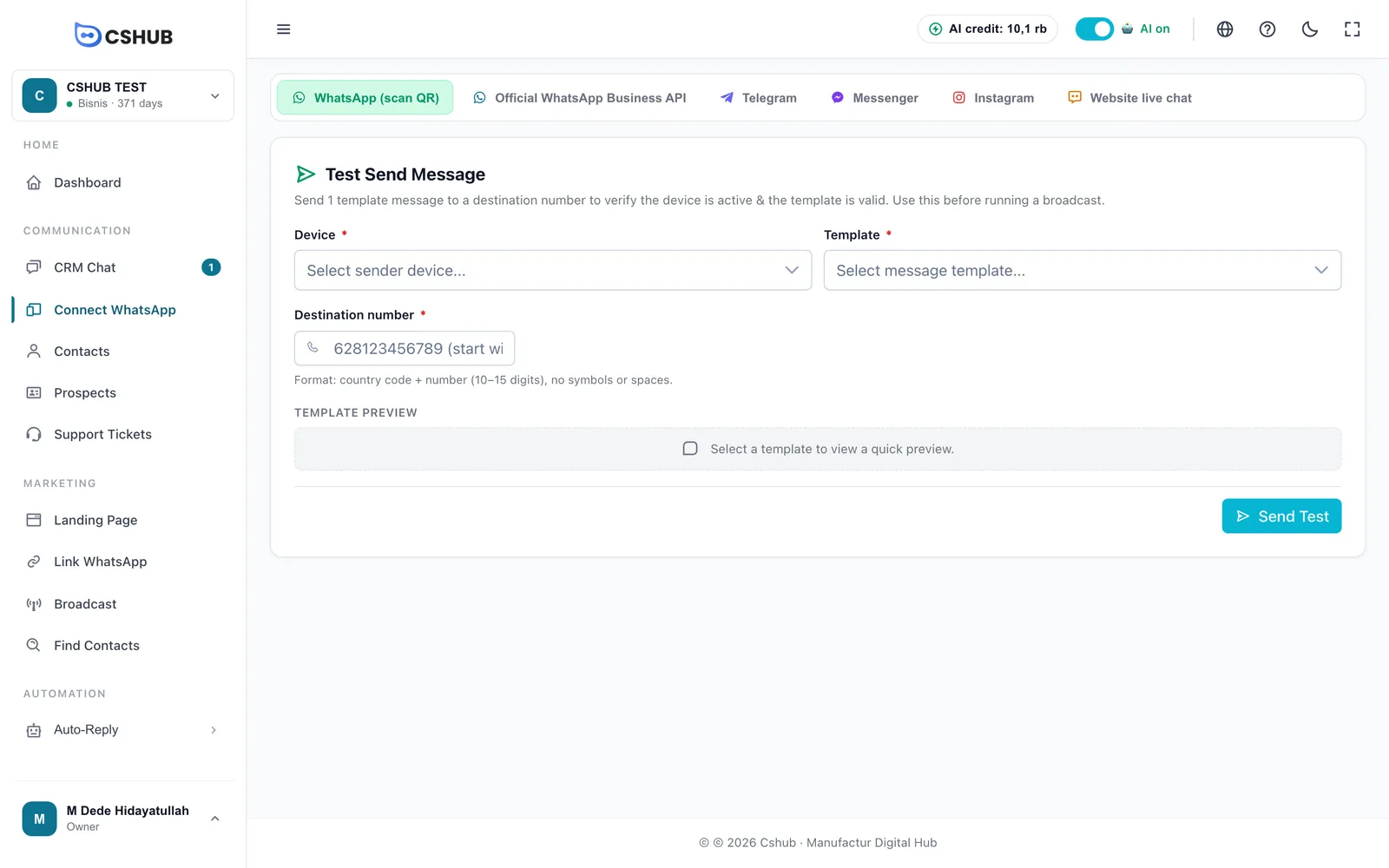
Write the destination with the country code and no symbols, e.g. 628123456789.
Disconnecting & deleting a device
- Logout Session (on the scan page) ends the WhatsApp Web session on the server. The device becomes Inactive; chat history is kept. Scan again to reuse it.
- Unlinking from the phone (Linked devices → pick the device → Log out) has the same effect.
- Delete removes the device from cshub. If it still has conversation history, you can move that history to another device or delete it permanently.
Keeping your number safe
- Warm up new numbers. A brand-new number that immediately sends hundreds of messages is likely to be restricted by WhatsApp.
- Turn on the daily quota and set delays in broadcasts.
- Linked-device limit. WhatsApp allows up to 4 linked devices per number. If scanning keeps failing, check Linked devices on the phone and remove old ones you no longer use.
- The phone doesn't need to stay online, but open WhatsApp on it at least once every 14 days so the link doesn't expire.
More connection issues are covered in Troubleshooting.