
AI knowledge
AI knowledge is everything your AI Agent reads before answering a customer — an overview of your business, a list of questions with exact answers, and documents such as price lists, catalogs, or SOPs — so the AI answers from your real business facts instead of making things up.
Knowledge is set per AI Agent, on the AI Knowledge tab of the AI Agent edit page. If you have several agents, each has its own knowledge.
Opening AI Knowledge
- Go to Automation → Auto-Reply → AI Agent.
- Click Detail & Edit on the agent you want to set up.
- Choose the AI Knowledge tab in the Basics group.
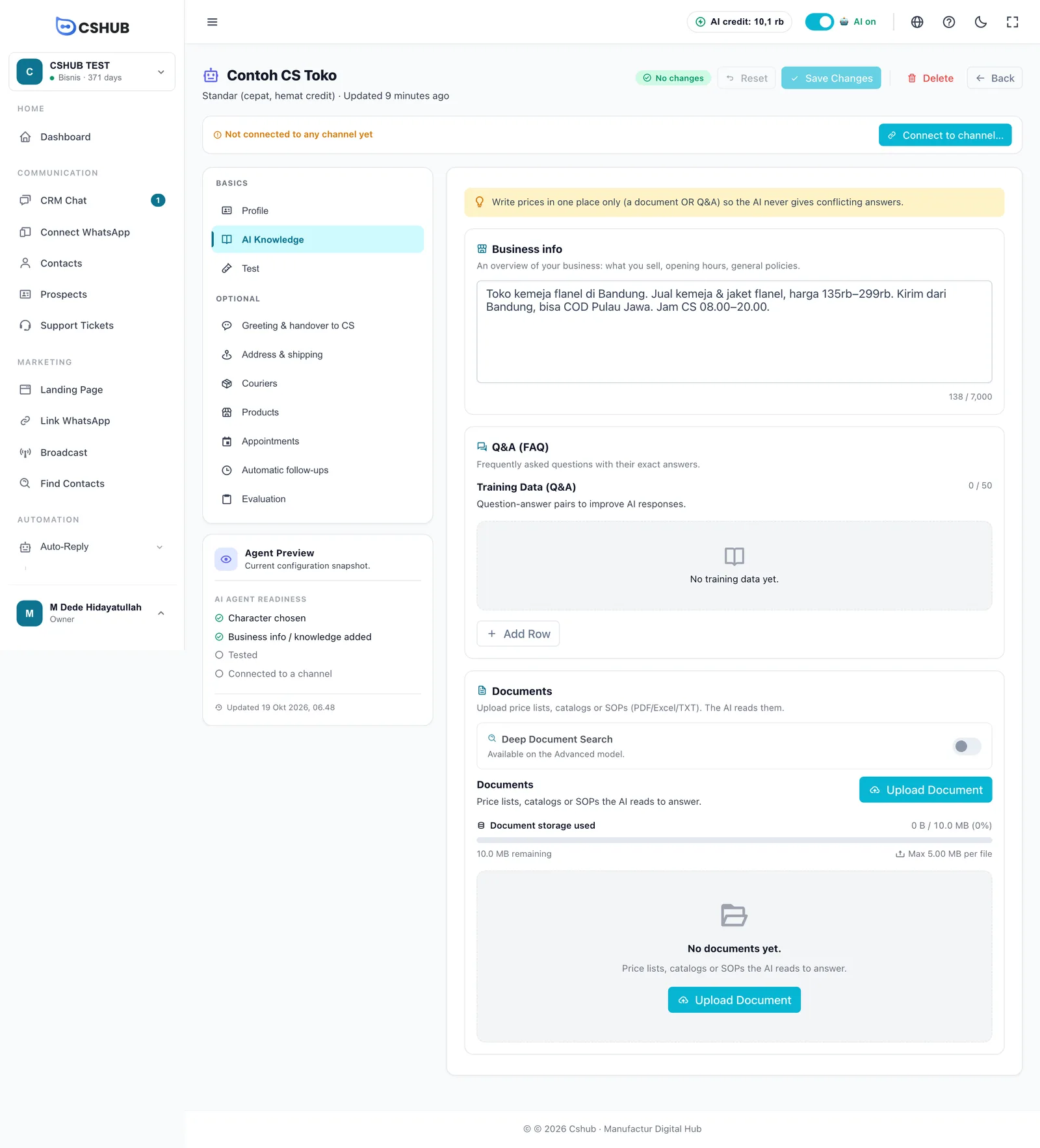
The tab has three parts. Put each kind of information in the right place:
| Part | Best for | Example |
|---|---|---|
| Business info | A general overview: what you sell, opening hours, general policies | "Flannel shirt shop in Bandung, ships nationwide, CS open 08:00–20:00" |
| Q&A (FAQ) | Frequent questions whose answer must be exact | Store address, payment methods, whether you offer cash on delivery |
| Documents | Longer material the AI reads when relevant | Price list, catalog, SOP, this month's promo |
Keep prices in one place
If the same price appears in two places with different numbers — say an old document and your Q&A — the AI may pick up both and quote the wrong one. Keep prices in one document OR in your Q&A, not both.
Business info
A free-text box to describe your business in everyday language. The AI reads it with every reply, so put the things that are most often relevant here.
- Up to 7,000 characters; the counter at the bottom right shows how many you've used.
- If you filled in Tell us about your business when creating the agent, that text is already here.
- Click Save Changes at the top of the page after editing.
Shorter is better
Stick to the essentials — main products, price range, delivery area, hours, and general rules. Long details like a full price list belong in an uploaded document.
Q&A (FAQ)
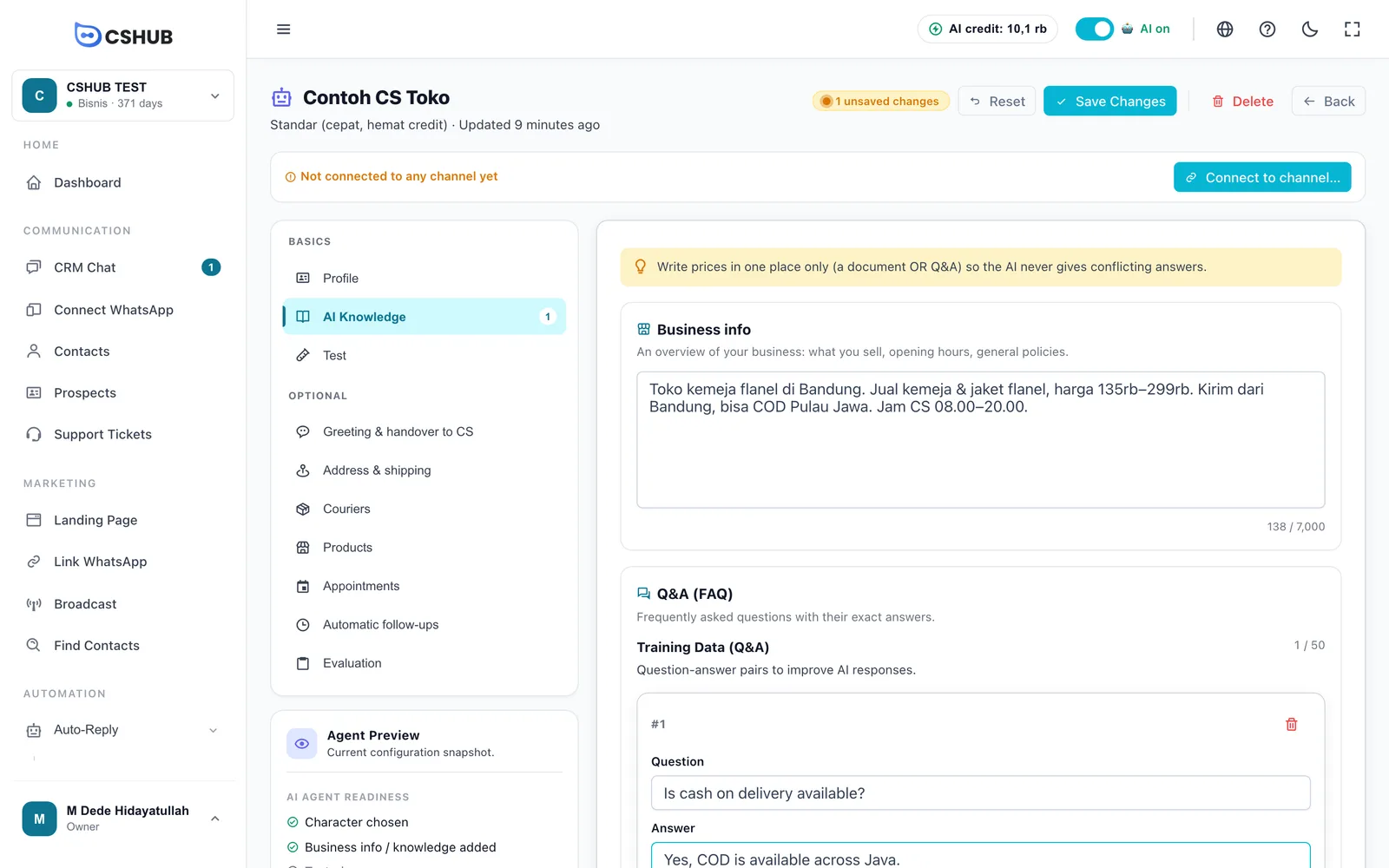
Question-and-answer pairs the AI must answer precisely. Ideal for information that must never be wrong.
- Click Add Row.
- Fill in the Question — write it the way a customer would ask.
- Fill in the Answer you want the AI to give.
- Repeat for other questions, then click Save Changes.
| Rule | Details |
|---|---|
| Limit | Up to 50 Q&A pairs per AI Agent (the 0 / 50 counter) |
| Remove a row | Click the remove icon on the right of the row, then Save Changes |
| From testing | On the Test tab, a wrong answer can become a new row via Add to Q&A |
Documents
Upload files you want the AI to read. The AI doesn't read the whole document every time — it looks for the parts most relevant to the customer's question and answers from those.
Uploading a document
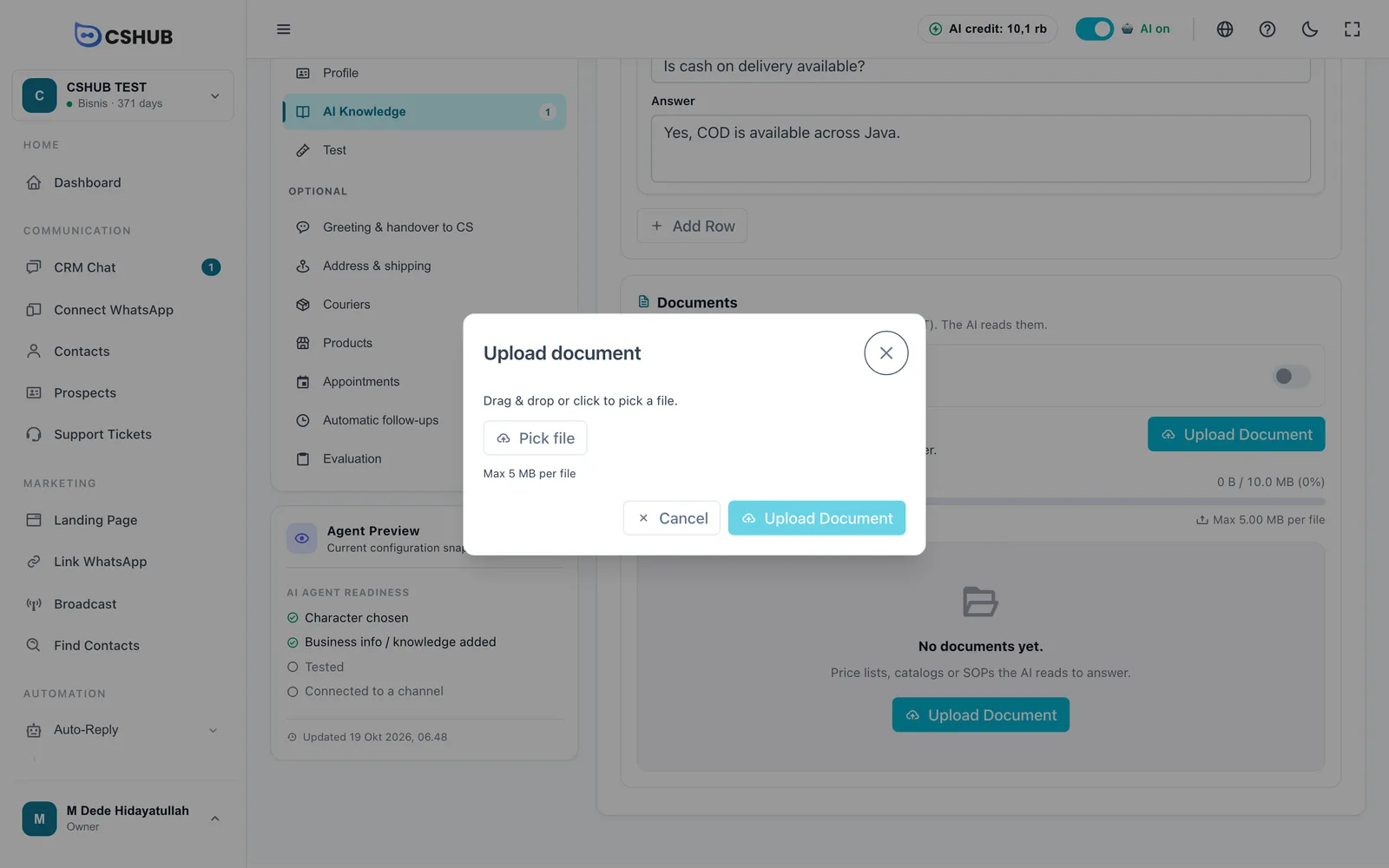
- Click Upload Document.
- Drag a file into the box, or click Pick file.
- Click Upload Document in the dialog.
| Rule | Details |
|---|---|
| File types | PDF, DOCX, XLSX, XLS, CSV, and TXT |
| Size per file | Shown on the storage bar, e.g. Max 5.00 MB per file |
| Document storage | Total capacity depends on your plan and is shown as Document storage used (e.g. 0 B / 10.0 MB). When it's full, delete other documents first |
| Saved immediately | Uploading and deleting documents doesn't need Save Changes |
Document status
After uploading, the AI reads the document in the background. The status next to the file updates by itself:
| Status | Meaning |
|---|---|
| Processing… | The AI is reading the document. Give it a moment, especially for large files |
| Ready | The content can now be used for answers |
| Failed | The document couldn't be read. Try Reprocess document, or upload it in another format (e.g. a text PDF, not a scan) |
The Reprocess document icon re-reads the same file without uploading it again — useful for documents processed before an improvement in how files are read. The delete icon removes a document; the AI stops using its content.
Deep Document Search
The switch above the document list. When on, the AI searches your documents step by step before answering — more accurate with many or long documents, but replies are a bit slower and use more credit.
It can only be turned on when the agent uses the Advanced model (set on the Profile tab). On the Standard model it says Available on the Advanced model.
Writing documents the AI understands
The AI looks for the passages that best match the question. To help it find the right ones:
- One topic per paragraph or section. Separate topics with a blank line or a heading.
- Make each section stand on its own. Repeat the product or service name in each section instead of writing "this product".
- Use the words customers type. For example, add a line like "Related questions: shipping cost, delivery fee, courier" in your shipping section.
- Put promos in their own file, so when the promo period changes you only replace one small file.
- Don't upload internal data — customer data, transaction codes, or notes customers shouldn't see.
- Tables in Word and Excel are read, but text inside images or scanned PDFs is not.
Testing your knowledge
After adding or changing knowledge, open the Test tab and ask about what you just added. Open Developer mode to see which documents the AI read for its answer — if it says Documents don't contain the answer, that information is missing or hard to find in your documents.
Related
- AI Agent
- AI selling & chat checkout — product prices come straight from your catalog, no need to repeat them in documents
- AI credit & top-ups
- Billing & packages — document storage capacity