
Unreplied chats (Customer Follow-up)
The Customer Follow-up report lists every conversation left hanging — customers who never answered our last message, or customers whose message we haven't answered yet — and groups them by how long the chat has been silent, so your team knows who to check in with today and no potential buyer slips through the cracks.
Open Reports & Logs in the sidebar and click the Customer Follow-up card (the first card under Analytics Reports). From another report, click the Customer Follow-up tab in the row of tabs at the top.
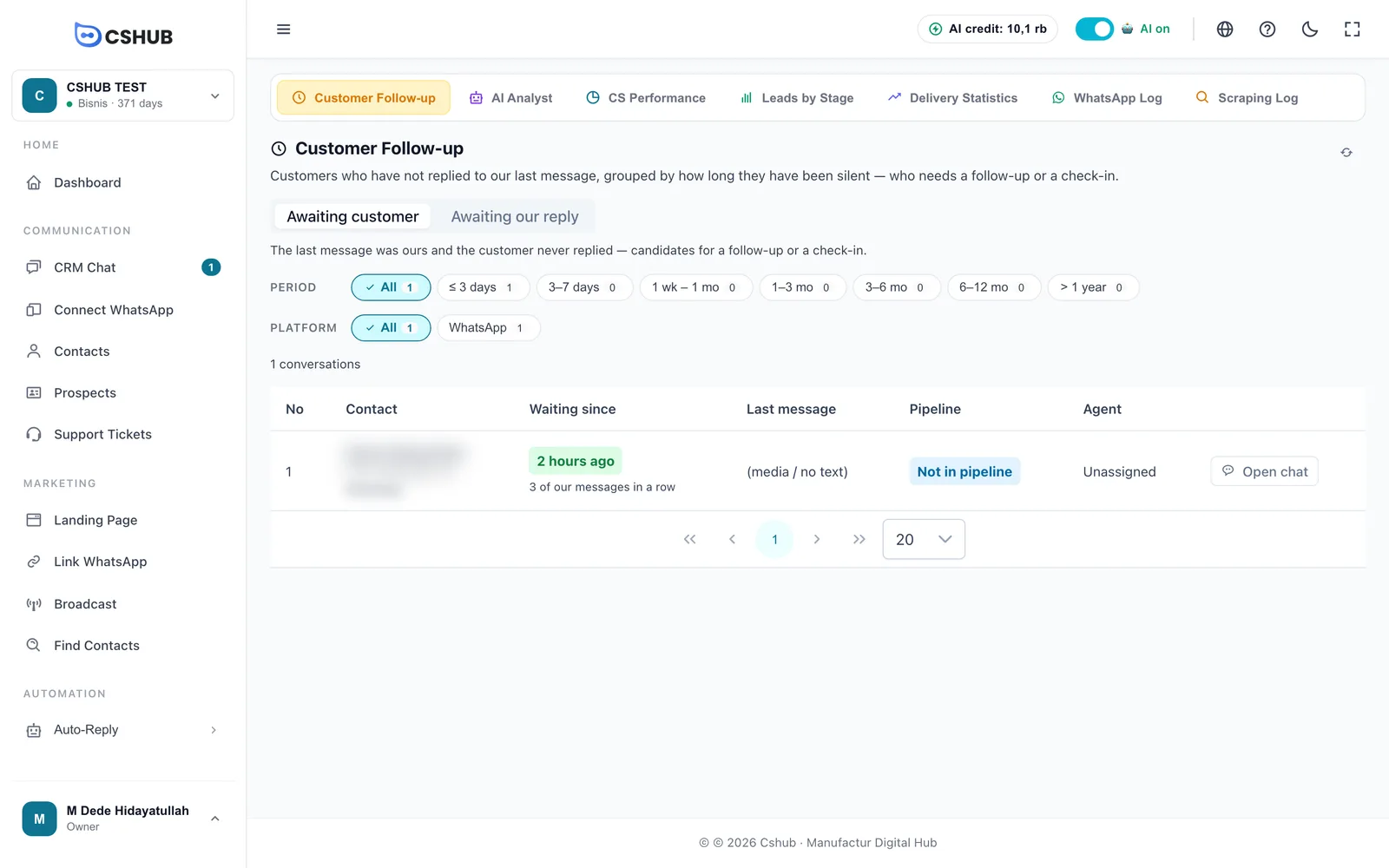
Two directions: who hasn't replied?
The switch under the title picks the point of view:
| Option | What it lists | Best for |
|---|---|---|
| Awaiting customer (default) | The last message came from us (an agent, the AI, or the device) and the customer never replied | Finding potential buyers to follow up or check in with |
| Awaiting our reply | The last message came from the customer and hasn't been answered by an agent, bot, or device | Making sure no customer is left waiting |
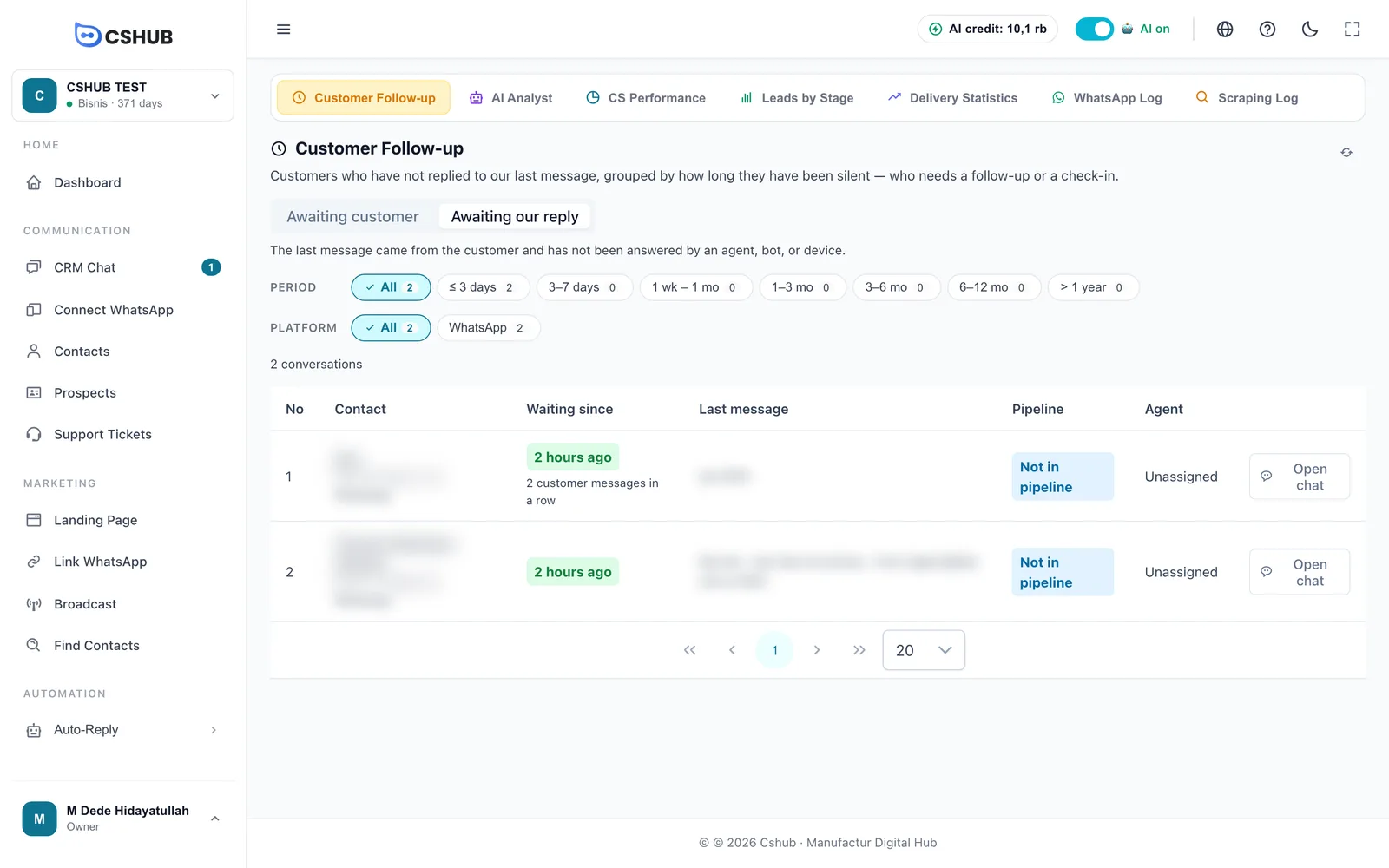
The report only counts personal chats — group chats are left out.
Filtering by how long it's been
The Period row groups chats by the time of the last message. The small number on each chip is how many chats fall in that range, so you can see at a glance which pile is biggest.
| Chip | Last message sent |
|---|---|
| All | Any time |
| ≤ 3 days | Within the last 3 days |
| 3–7 days | 3 to 7 days ago |
| 1 wk – 1 mo | 1 week to 30 days ago |
| 1–3 mo | 1 to 3 months ago |
| 3–6 mo | 3 to 6 months ago |
| 6–12 mo | 6 months to 1 year ago |
| > 1 year | More than a year ago |
The ranges don't overlap — each chat lands in exactly one chip (besides All).
The Platform row filters by channel: WhatsApp, WhatsApp Business API, Telegram, Instagram, Messenger, or live chat. It only appears when hanging chats come from more than one channel.
Changing a filter always takes you back to page one. The circular arrow at the top right (Refresh) loads the latest data.
Reading the table
| Column | What it shows |
|---|---|
| No | Row number |
| Contact | The contact's name (or No name) and number. Click the number to copy it |
| Waiting since | How long since the last message, e.g. 2 hours ago. Hover to see the exact date and time |
| Last message | The text of the last message. Shows (media / no text) for images, videos, or files |
| Pipeline | The contact's pipeline stage, or Not in pipeline |
| Agent | The agent handling the chat, or Unassigned |
| Open chat | Opens that conversation directly in CRM Chat |
The colour of the Waiting since badge helps you prioritise:
| Colour | Silent for |
|---|---|
| Green | Less than 3 days |
| Orange | 3 to 30 days |
| Red | 30 days or more |
Under the badge you may see a note like 3 of our messages in a row (in Awaiting customer) or 2 customer messages in a row (in Awaiting our reply) — that many messages were sent back to back with no answer from the other side.
The table shows 20 rows per page; switch to 10, 50, or 100 with the picker under the table.
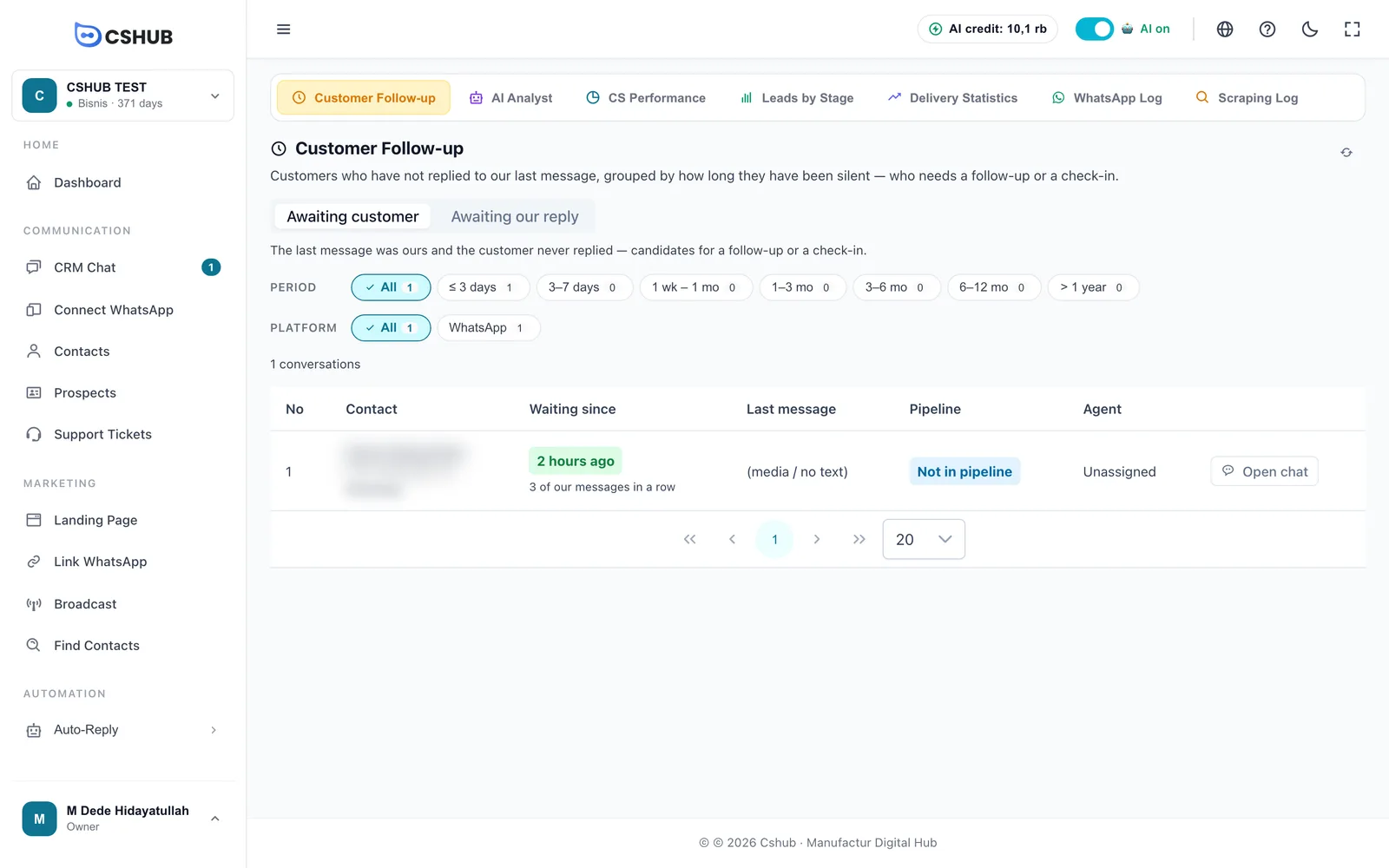
Following up from this report
- Choose Awaiting customer.
- Click the ≤ 3 days chip first — customers who went quiet recently are the easiest to bring back.
- On each row, check the Pipeline column to see how far along the customer is, then click Open chat.
- Send a check-in message that fits the customer's stage. Use quick replies to go faster.
- Repeat for the older ranges. For chats that have been quiet for months, consider a broadcast with a special offer.
Then switch to Awaiting our reply to make sure nobody is still waiting for an answer.
Let follow-ups run on their own
This report helps you find hanging chats. If you want a check-in sent automatically after a set number of hours without a reply, use Automatic follow-ups. If you want agents reminded when a chat goes unanswered too long, use Escalation to your team.
Who sees what
- Owners and admins see every hanging chat.
- Other team members only see chats they can also see in CRM Chat: chats they handle, chats where they're a collaborator, or chats from channels they're allowed to see in full. Set access in Team, CS & roles.
If you see No hanging conversations, every chat in that filter has been answered. Click Reset filter to go back to all periods and platforms.