
Business focus
Business focus filters the cshub sidebar to match what your business does — online selling, customer service, marketing & leads, or booking services — so you only see the menus that matter, without changing any feature in your plan.
cshub has a lot of menus. Showing all of them on day one can feel overwhelming. With a business focus, an online shop doesn't have to look at support tickets, and a clinic doesn't have to look at inventory — unless they actually need them.
It only changes what you see
Business focus doesn't lock any feature. Everything in your plan stays active, and you can always open it through Show all features at the bottom of the sidebar.
Where to set it
You first pick a business focus when you create a business (see Sign up & onboarding). To change it later:
- Click Settings in the sidebar.
- Open the Business Focus card in the Business group.
Or click the Change business focus link at the bottom of the sidebar.
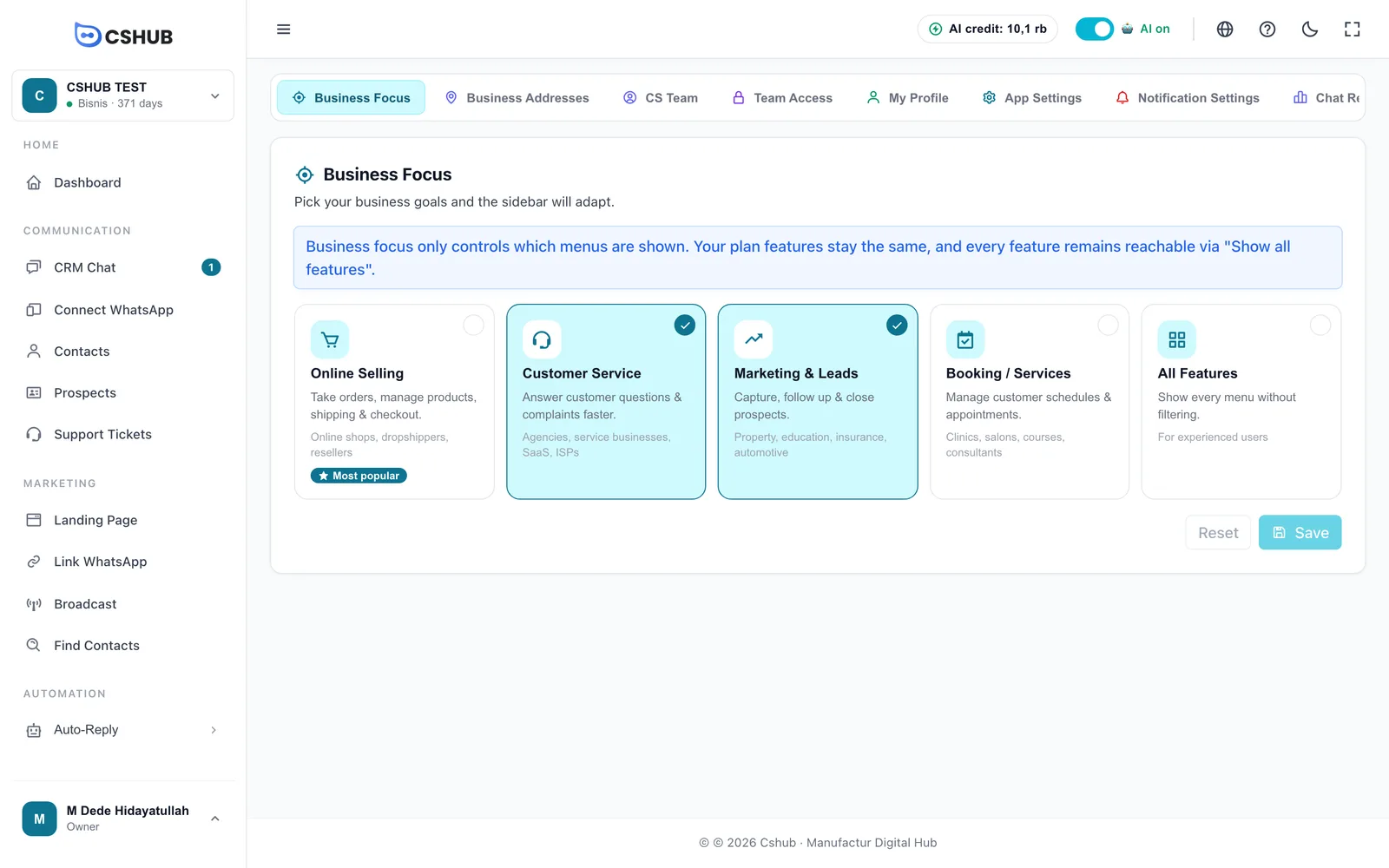
Only the business owner can open this page. Other team members don't see the card in Settings.
Focus options
| Option | Best for | Example businesses |
|---|---|---|
| Online Selling | Taking orders, managing products, shipping & checkout | Online shops, dropshippers, resellers |
| Customer Service | Answering customer questions & complaints faster | Agencies, service businesses, SaaS, ISPs |
| Marketing & Leads | Capturing, following up & closing prospects | Property, education, insurance, automotive |
| Booking / Services | Managing customer schedules & appointments | Clinics, salons, courses, consultants |
| All Features | Showing every menu without filtering | For experienced users |
Selection rules:
- You can pick up to 3 at once, for example Customer Service + Marketing & Leads. Once you have 3, the other cards are disabled ("Up to 3 choices").
- All Features stands alone: picking it clears the others, and picking any other focus clears All Features.
- At least 1 choice is required — Save stays disabled if every card is cleared.
Changing your focus
- Click a card to tick or untick it.
- Click Save. A Saved notice appears — "The menu now matches your business focus." The sidebar updates right away, no page reload needed.
- Changed your mind before saving? Click Reset to go back to the saved selection.
Which menus appear
Some menus always show, whatever the focus: Dashboard, CRM Chat, Connect WhatsApp, Contacts, Auto-Reply (Manual Chatbot and AI Agent), Reports & Logs, Data & Templates, Settings, Billing, and Help.
The rest depend on the focus you pick:
| Menu | Online Selling | Customer Service | Marketing & Leads | Booking / Services |
|---|---|---|---|---|
| Prospects | ✓ | |||
| Support Tickets | ✓ | |||
| Appointment | ✓ | |||
| E-Commerce | ✓ | |||
| Landing Page | ✓ | ✓ | ||
| Link WhatsApp | ✓ | |||
| Broadcast | ✓ | ✓ | ✓ | |
| Find Contacts | ✓ | |||
| Inventory | ✓ | |||
| Orders | ✓ | |||
| Escalation (under Auto-Reply) | ✓ |
If you pick more than one focus, the menus from all of them are combined. All Features shows everything.
The focus also affects the cards on the Settings page: Bank Accounts and Shipping only appear for Online Selling or Booking / Services.
One business, one set of menus
The focus applies per business, not per person. The owner and every team member in the same business see the same set of menus — minus anything their permissions don't allow.
Showing all features temporarily
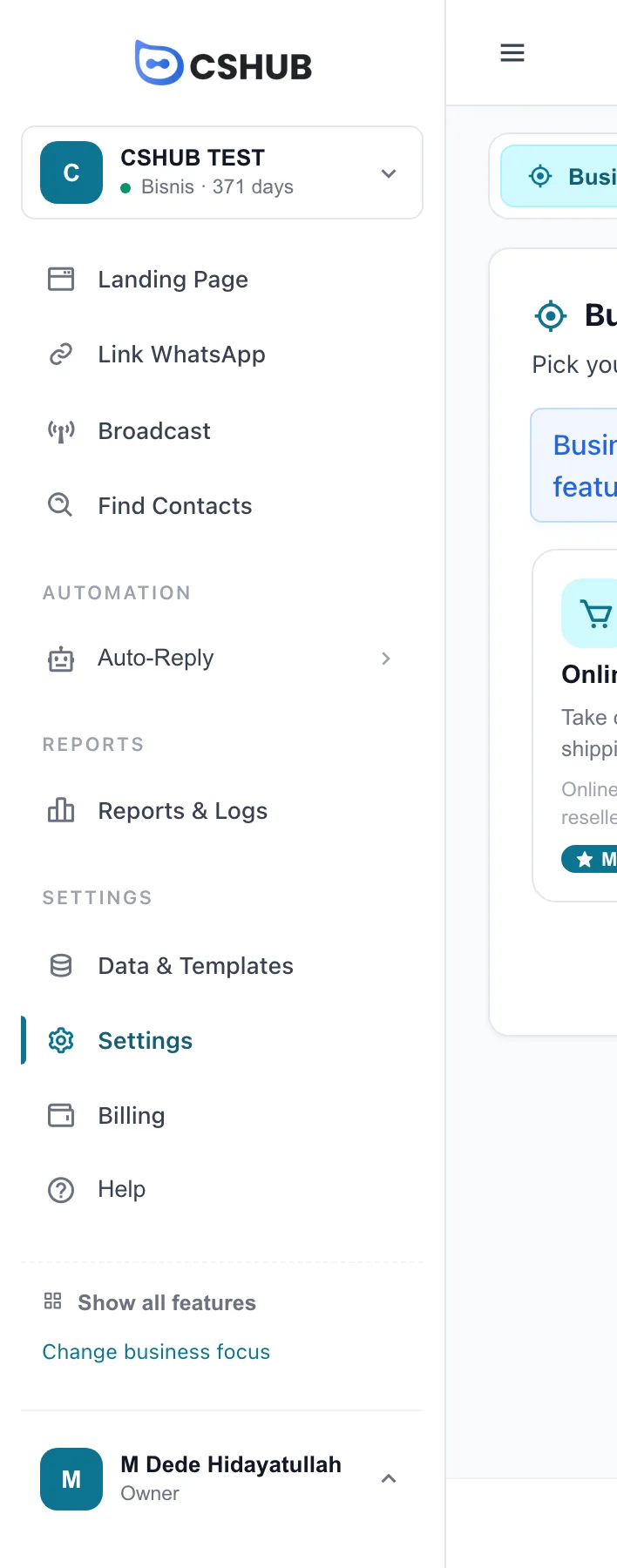
While a business focus is active (anything other than All Features), the bottom of the sidebar shows two links:
| Link | What it does |
|---|---|
| Show all features | Opens every menu temporarily, without changing your business focus. Once clicked, it turns into Show by focus so you can go back to the filtered menu |
| Change business focus | Goes straight to the Business Focus page |
Show all features is only remembered in the browser you're using, for the active business. Other team members aren't affected, and on another device the menu goes back to your focus.
Opening a hidden menu from a direct link
Hidden menus can still be opened from a direct link — a bookmark, for example, or a link in these docs. Business focus only hides the menu item in the sidebar; it doesn't block the page.
First steps per focus
Your business focus also decides the Your first steps checklist on the Dashboard. Each step ticks itself as soon as you actually do it.
| Focus | First steps |
|---|---|
| Online Selling | Connect WhatsApp / channel → Add your first product → Create a checkout page → Enable AI Agent |
| Customer Service | Connect WhatsApp / channel → Set up auto-replies → Invite agents / CS team → Set up escalation |
| Marketing & Leads | Connect WhatsApp / channel → Add your first lead to the pipeline → Create a link WhatsApp → Send your first broadcast |
| Booking / Services | Connect WhatsApp / channel → Enable AI booking → Create your first appointment → Send your first broadcast |
| All Features | Connect WhatsApp / channel → Enable AI Agent → Add your first product → Send your first broadcast |
If you pick several focuses, their steps are combined and any shared step appears only once.