
Messenger
Connect your business's Facebook Page to cshub so Messenger messages — including chats from Facebook ads — land in CRM Chat, where your CS team or an AI Agent can answer them. Connecting only takes a Meta login; there are no tokens to copy.
What you connect is a Facebook Page, not a personal profile. One cshub account can connect many Pages at once, and each Page is configured separately.
Before you start
- You're an admin of the Facebook Page you want to connect.
- Your browser allows popups for cshub, since the Meta login opens in a new window.
Messenger Page list
Open Connect WhatsApp in the sidebar, then the Messenger tab.
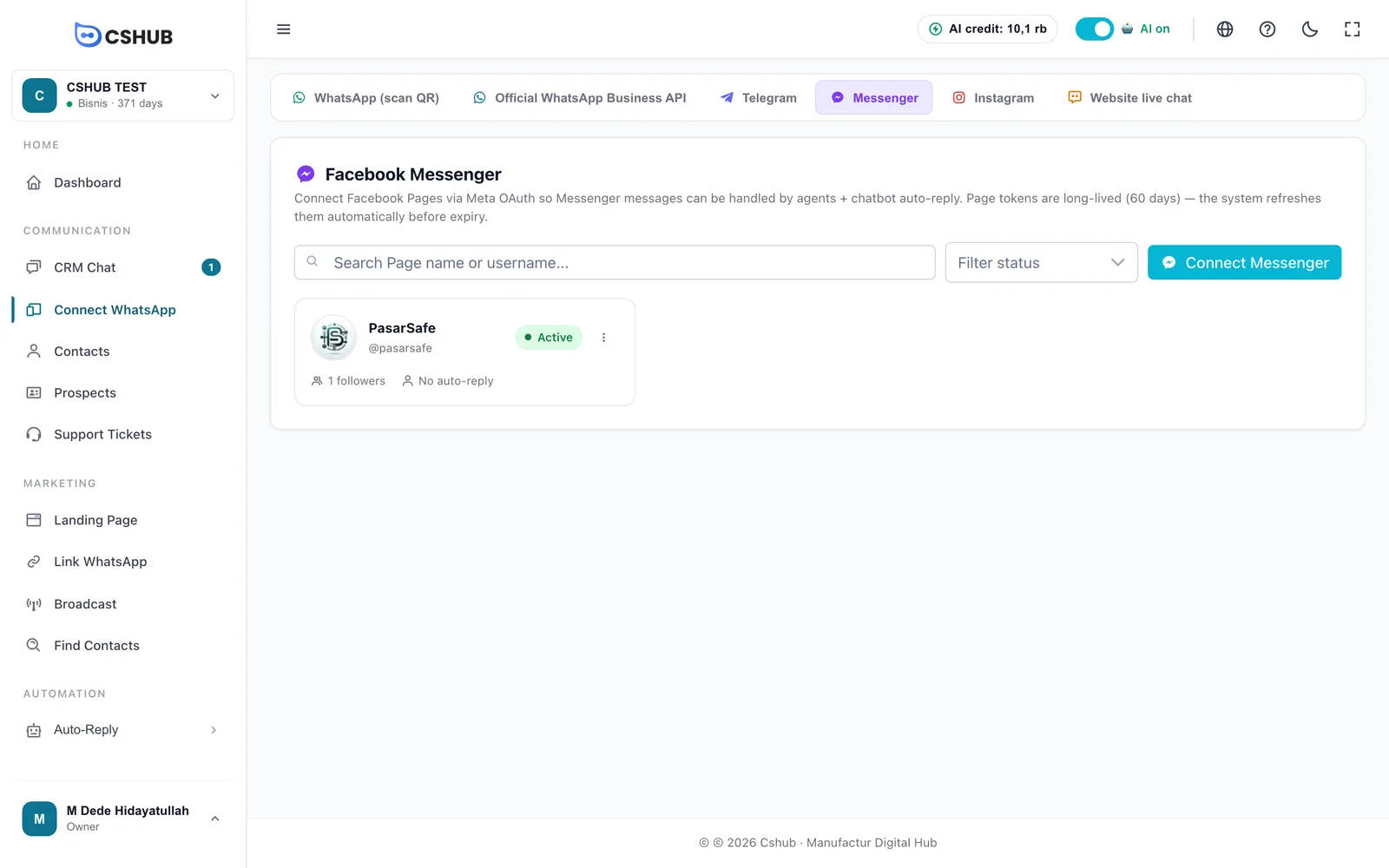
Each card shows the Page photo and name, status, fan count, auto-reply method, and daily quota (if enabled). Click a card to open its settings.
| Status | Meaning |
|---|---|
| Active | Connected — messages arrive and can be answered |
| Token Expired | Meta's permission has run out. Choose ⋮ → Reconnect |
| Error | Meta rejected a request. The detailed message shows on the card |
| Inactive | The Page is switched off |
Page permission lasts 60 days and cshub refreshes it automatically before it runs out.
Connecting a Page
- Click Connect Messenger. A Meta login window opens.
- Log in with a Facebook account that's an admin of the Page.
- Choose the Pages to connect — several at once is fine — and approve the permissions.
- The window shows "Messenger Page connected" and closes by itself. Every selected Page appears in the list.
Popup blocked?
If you see Popup blocked, allow popups for the cshub site in your browser settings, then try again.
Card menu
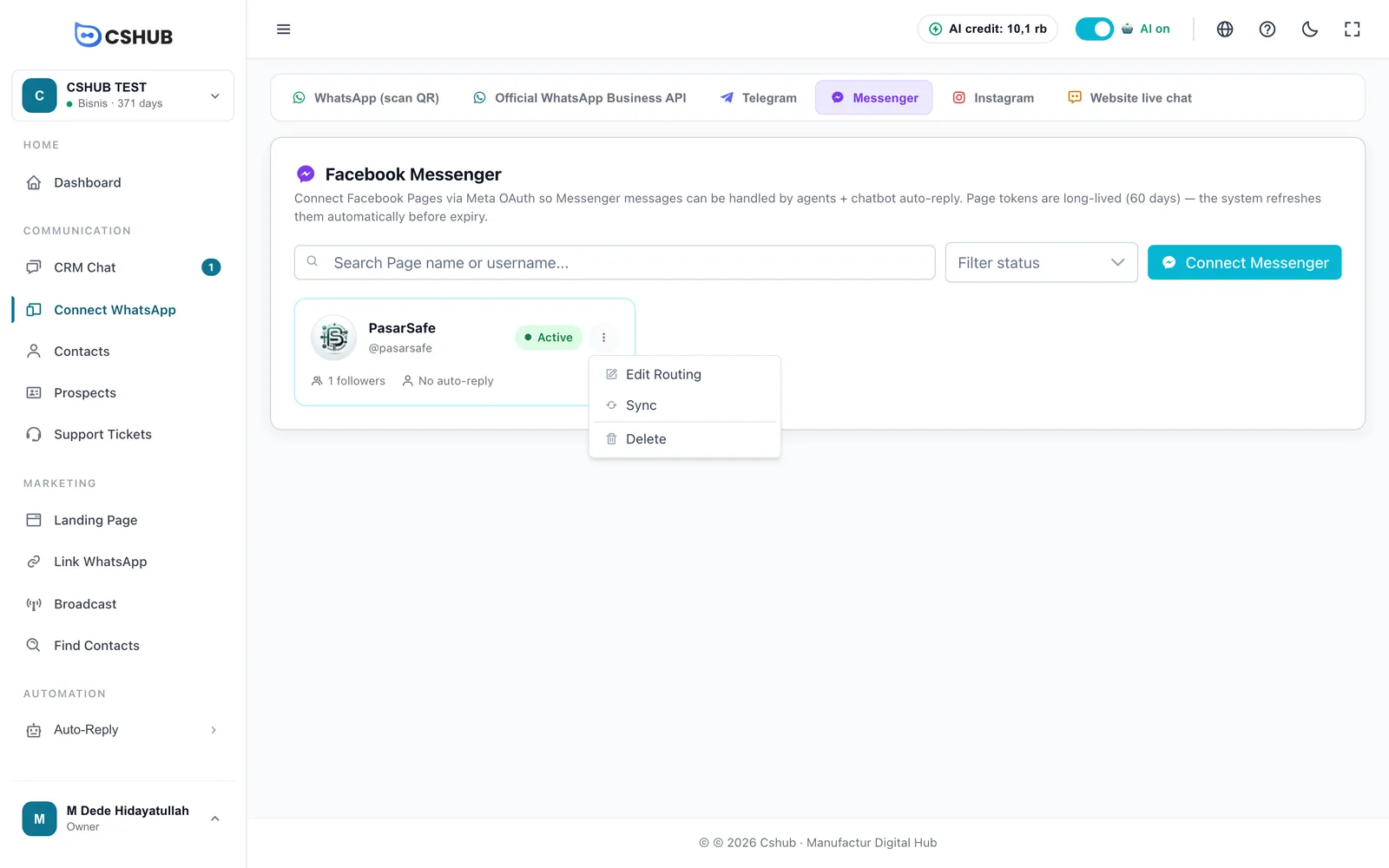
| Menu | What it does |
|---|---|
| Edit Routing | Set agents, auto-replies, schedule, and daily limit |
| Sync | Pull the latest Page data from Meta |
| Reconnect | Appears when the token has expired — log in to Meta again |
| Delete | Disconnect the Page from cshub. Other connected Pages keep working |
Edit Routing
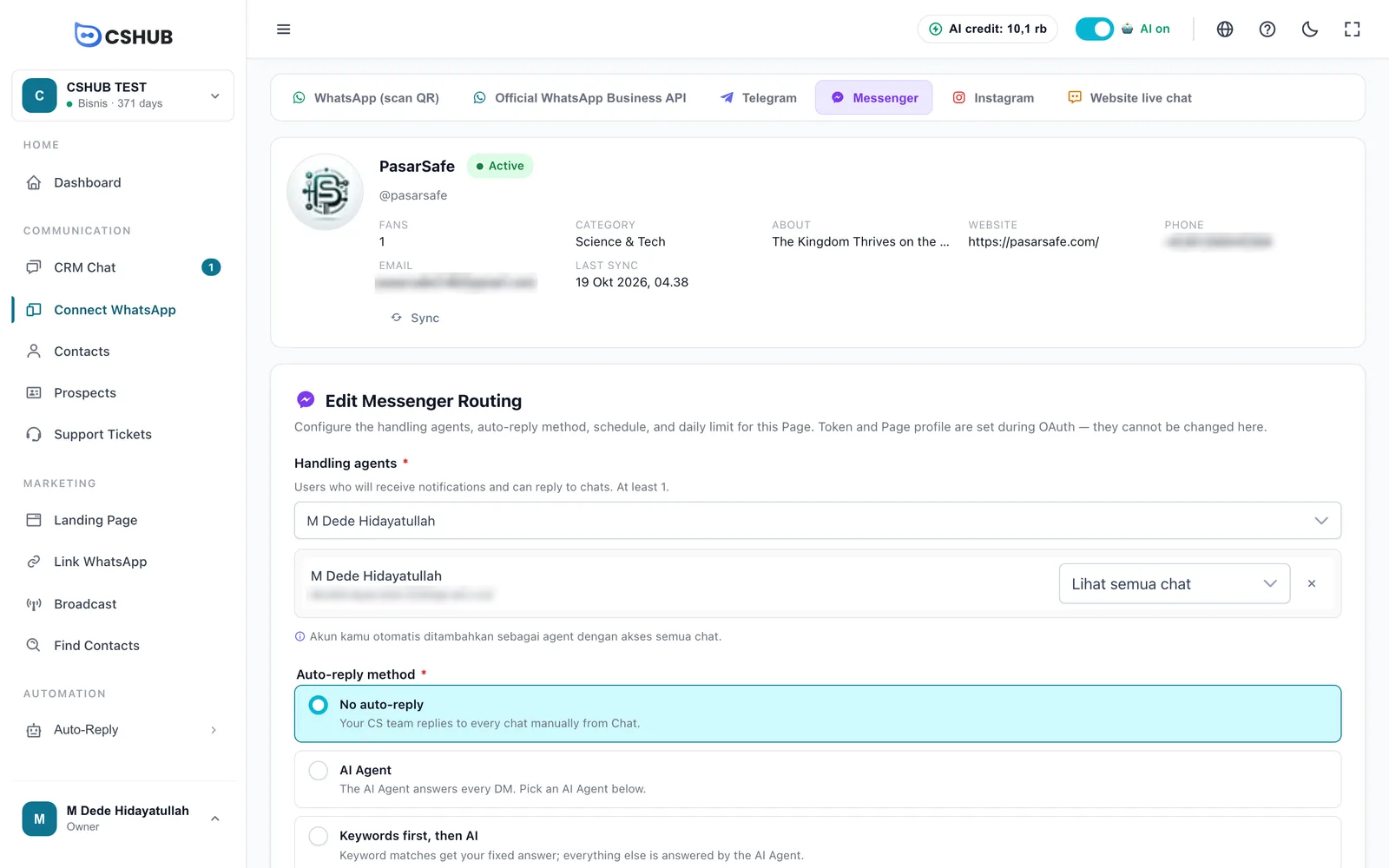
The profile section at the top (fans, category, about, website, phone, email, last sync time) is read-only. If something changes on Facebook, click Sync.
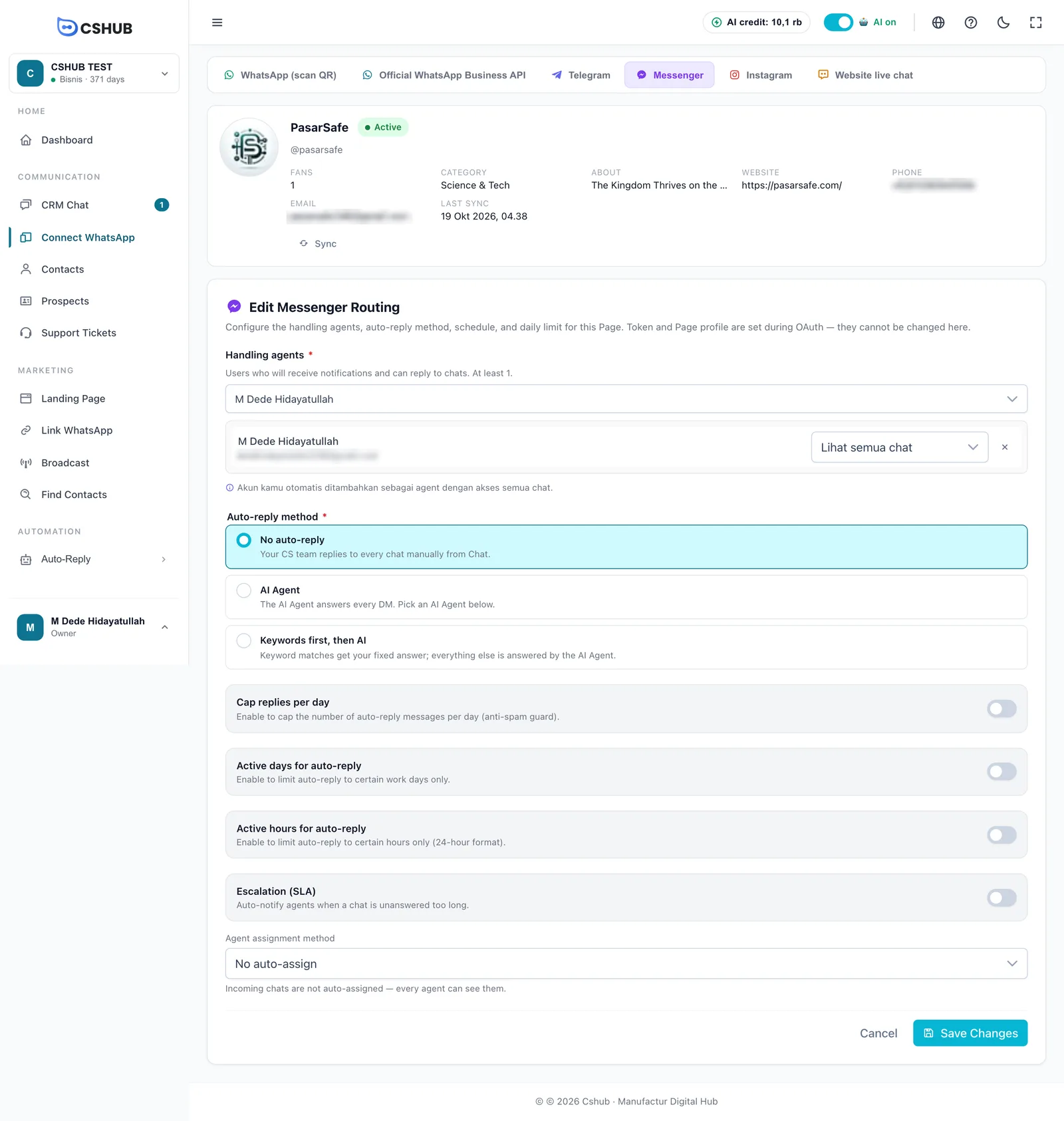
| Setting | Notes |
|---|---|
| Handling agents * | Team members who get notifications and can reply. At least 1. Set their access: see all chats, or only assigned chats & collaborations |
| Auto-reply method * | No auto-reply, AI Agent, or Keywords first, then AI |
| AI Agent * | Appears and is required when the method uses AI |
| Account-specific prompt | Extra instructions for the AI Agent on this Page only. Up to 500 characters |
| Cap replies per day | Daily cap on automatic messages (1–10,000) |
| Active days / Active hours for auto-reply | Auto-replies only on certain days/hours (24-hour format) |
| Escalation (SLA) | Notifies agents when a chat waits too long for a human. See Escalation to your team |
| Agent assignment method | How new chats are handed to your team. See About channels |
Click Save Changes.
Deleting a Page
Choose ⋮ → Delete on the card. If the Page has chat history, choose Transfer history to another account or Permanently delete + history (can't be restored). Without history, the Page is deleted right away.
Tips
- Turn on an AI Agent for Messenger if you run Facebook ads — prospects from ads often ask questions outside working hours.
- An Instagram account linked to the same Page is connected separately through Instagram.
More issues are covered in Troubleshooting.