
Telegram
Connect your business's Telegram bot to cshub so customers who message you on Telegram can be answered from CRM Chat, replied to automatically with keywords, or served around the clock by an AI Agent. Just paste the bot token — cshub wires up the rest automatically.
You can connect more than one bot (say, one for sales and one for support), up to your plan's quota.
Before you start: create a bot with @BotFather
Telegram bots are created through Telegram's official account, @BotFather:
- In the Telegram app, search for and open @BotFather.
- Send the
/newbotcommand. - Follow the prompts: give the bot a name (e.g. Your Store CS) and a username ending in
bot(e.g.yourstore_cs_bot). - BotFather replies with a token that looks like
1234567890:AAAaa-bb.... Copy it.
Treat the token like a password
Anyone with the token can control your bot. Don't share it. If it leaks, ask @BotFather for a new one (/revoke) and update it in cshub.
Bot list
Open Connect WhatsApp in the sidebar, then the Telegram tab.
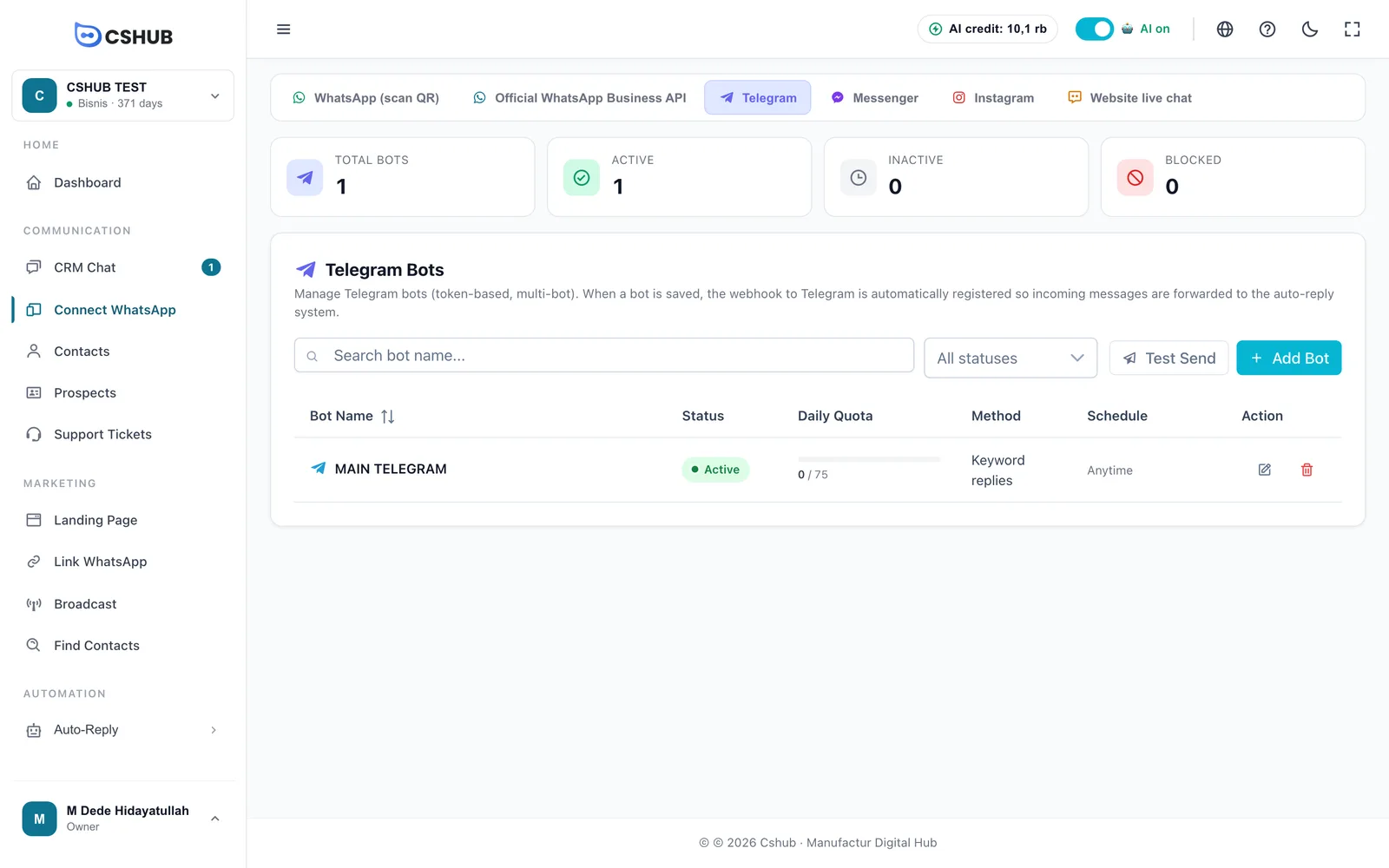
| Column | What it shows |
|---|---|
| Bot Name | The name you gave it in cshub |
| Status | Active, Inactive, or Blocked |
| Daily Quota | Automatic messages sent today versus the cap, or No limit |
| Method | The auto-reply method in use |
| Schedule | Anytime, or certain days/hours |
| Action | Edit and delete the bot |
Adding a bot
Click Add Bot.
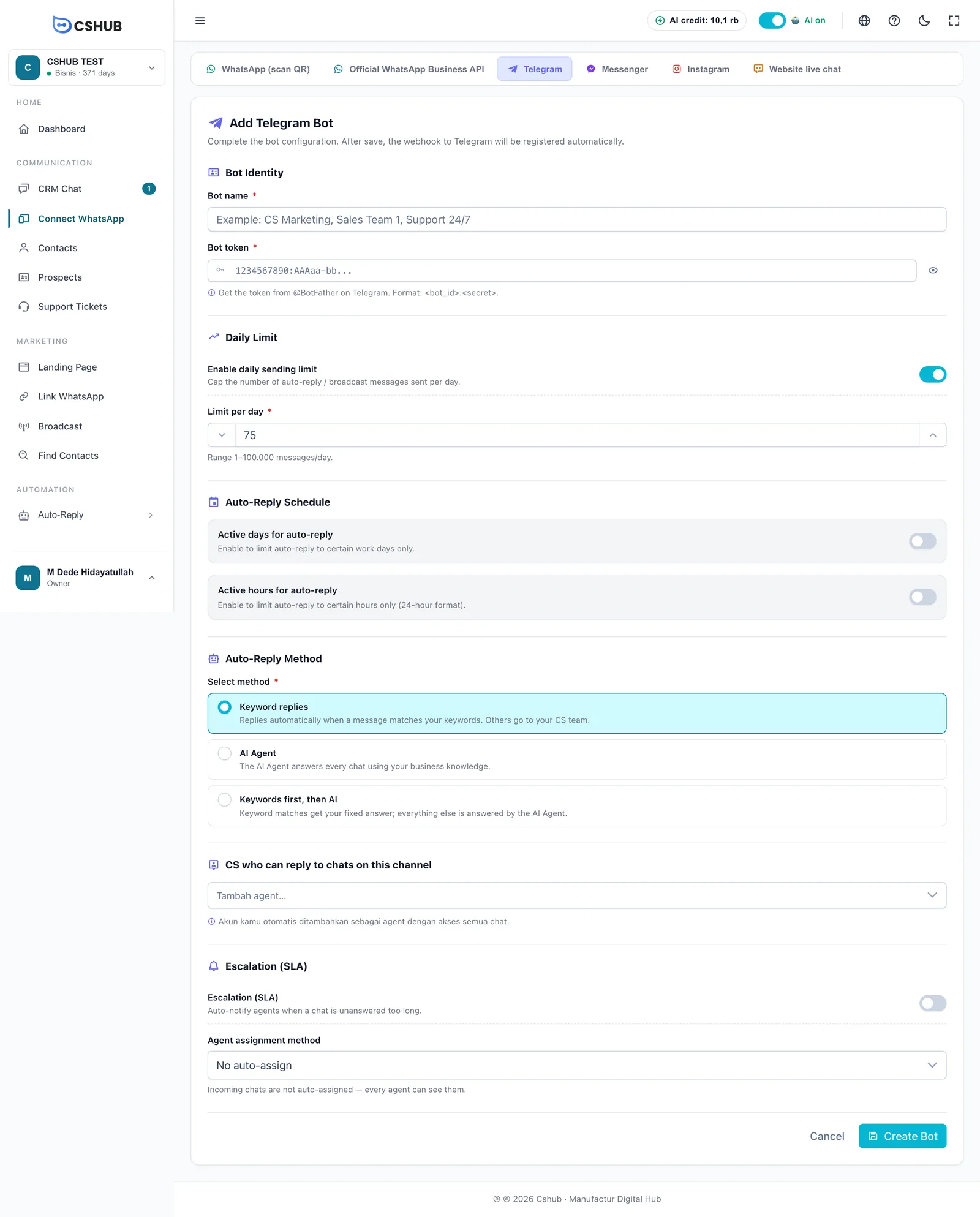
Bot Identity
| Field | Notes |
|---|---|
| Bot name * | A name to tell bots apart in cshub, e.g. CS Marketing or Support 24/7 |
| Bot token * | The token from @BotFather, format <bot_id>:<secret>. Click the eye icon to reveal it. cshub warns you if the format looks unusual |
Daily Limit
Enable daily sending limit caps how many auto-replies and broadcasts the bot sends per day. Set Limit per day anywhere from 1 to 100,000 messages. Turn the toggle off for no cap.
Auto-Reply Schedule
| Setting | Notes |
|---|---|
| Active days for auto-reply | Auto-replies run only on the days you choose |
| Active hours for auto-reply | Auto-replies run only within set hours (24-hour format, e.g. 08:00 – 17:00) |
Outside the schedule, chats still arrive in CRM Chat but wait for your team.
Auto-Reply Method
| Method | Behaviour |
|---|---|
| Keyword replies | Replies automatically when a message matches your keywords. Others go to your CS team. See Keyword replies |
| AI Agent | The AI Agent answers every chat using your business knowledge |
| Keywords first, then AI | Keyword matches get your fixed answer; everything else is answered by the AI Agent |
For AI Agent and Keywords first, then AI, pick the AI Agent and (optionally) fill in AI Agent Prompt — a persona or extra instructions just for this bot. No AI Agent yet? Create one in AI Agent first.
Team, escalation & assignment
| Section | Notes |
|---|---|
| CS who can reply to chats on this channel | Team members who can see and answer this bot's chats. Your account is added automatically with access to all chats |
| Escalation (SLA) | Notifies agents when a chat waits too long for a human. Pick the escalation rule once the toggle is on. See Escalation to your team |
| Agent assignment method | No auto-assign, Round robin, Sequential (priority), or Random. See About channels |
Click Create Bot. The button changes to "Registering webhook to Telegram…" while cshub connects the bot. Once done, the bot can receive messages right away.
Customers have to start the chat
On Telegram, a bot can't message someone who hasn't opened it and pressed Start. Share your t.me/your_bot link on your website, Instagram, or packaging so customers start chatting.
Editing a bot
Click the edit icon on the bot's row.
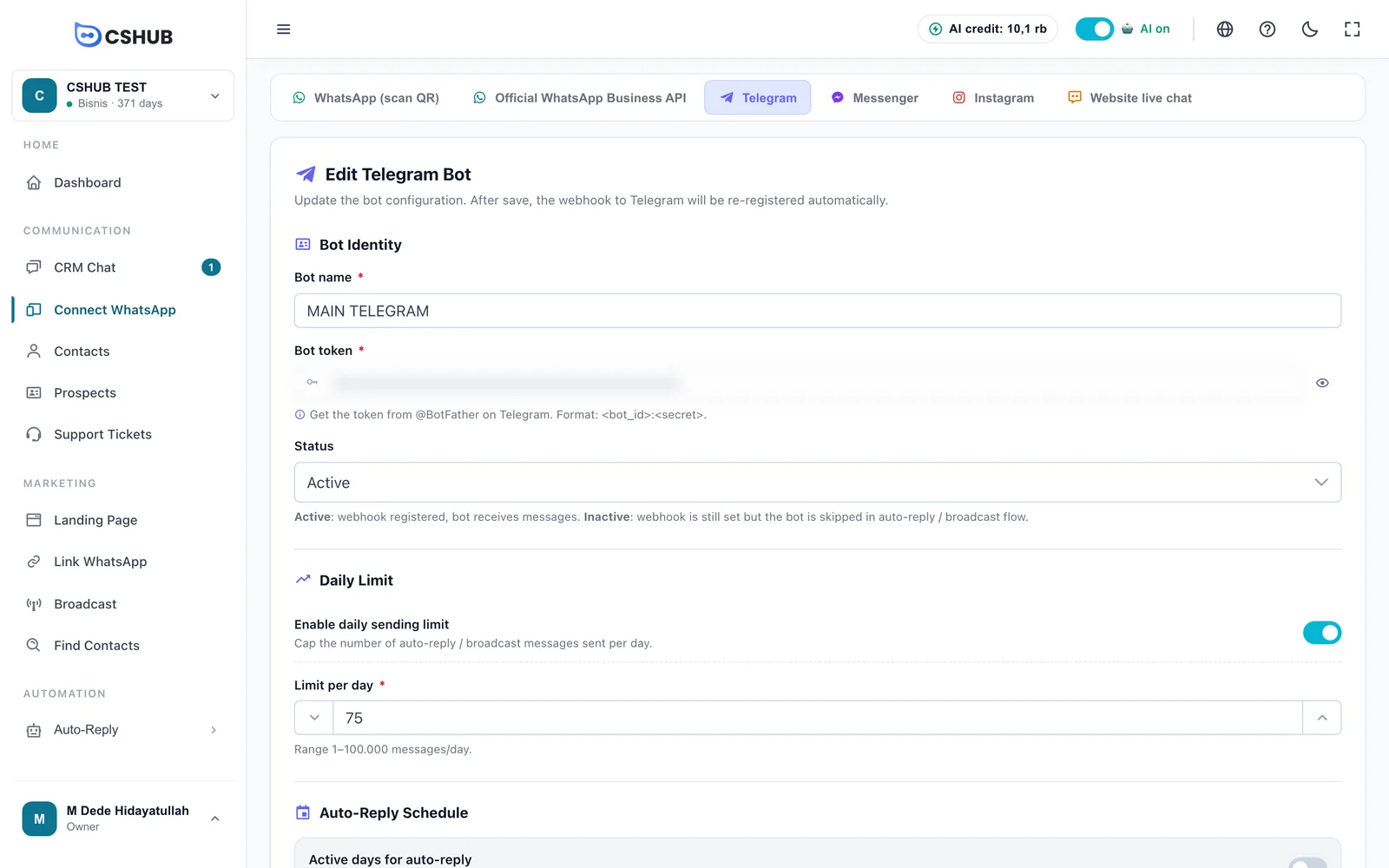
The edit form matches the add form, plus a Status option:
| Status | Meaning |
|---|---|
| Active | The bot is connected and receives messages |
| Inactive | The connection stays, but the bot is skipped by auto-replies and broadcasts |
Only change the Bot token if you generated a new one in @BotFather. Click Save Changes — the Telegram connection is re-registered automatically.
Sending a test message
The Test Send button on the bot list sends one template message to a specific Telegram chat — a quick way to confirm the bot is active and connected.
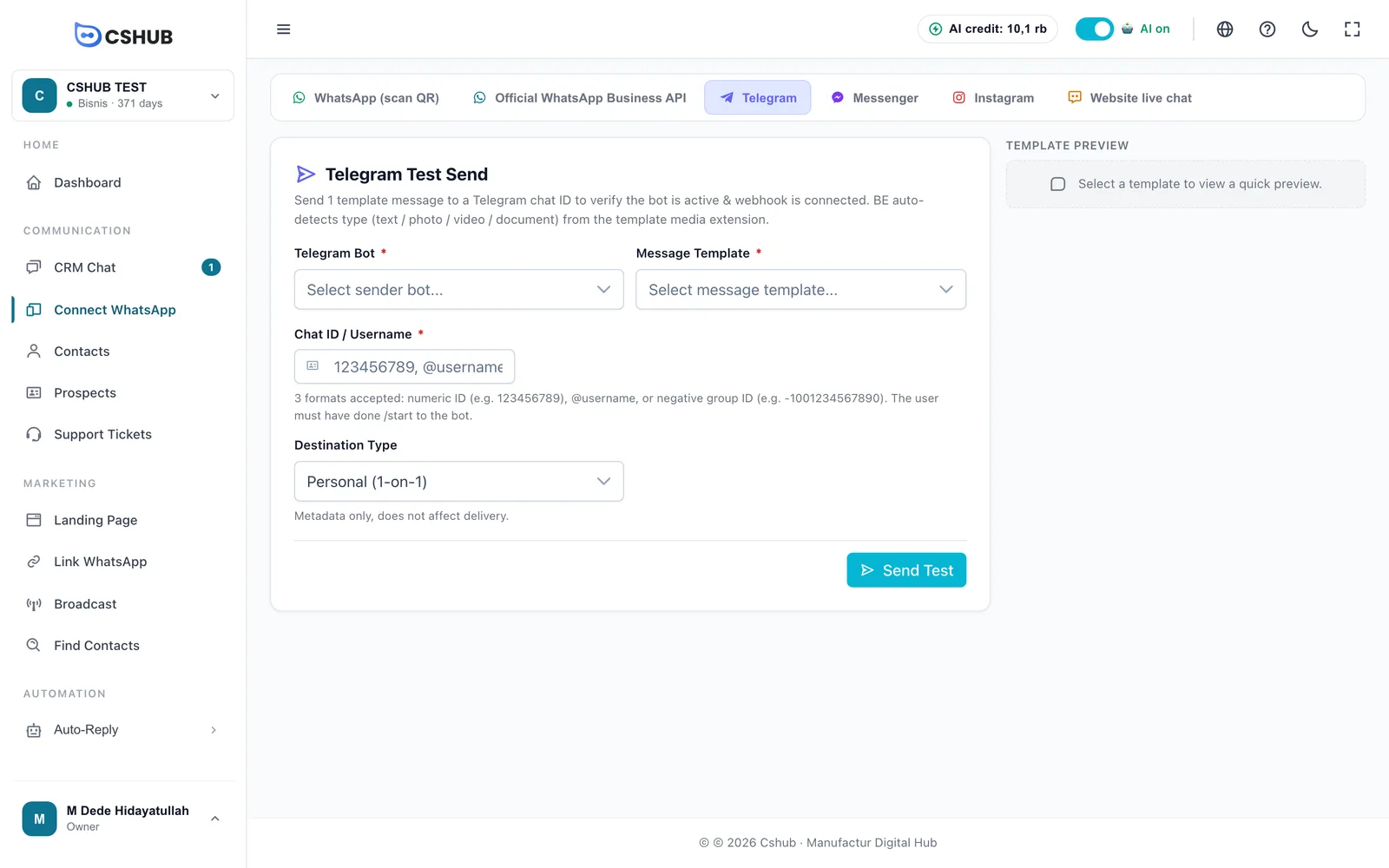
| Field | Notes |
|---|---|
| Telegram Bot | The sending bot. Only Active bots are listed |
| Message Template | A template from Data & templates. Its preview shows on the right |
| Chat ID / Username | One of: a numeric ID (123456789), @username, or a negative group ID (-1001234567890) |
| Destination Type | Personal (1-on-1) or Group — just a note, it doesn't affect delivery |
Click Send Test. The recipient must have pressed /start on your bot already, otherwise Telegram rejects the message.
Deleting a bot
Click the delete icon on the bot's row.
- No conversation history yet — the bot can be deleted right away, and its Telegram connection is removed too.
- Has history — choose Move to another bot (history moves over, nothing is lost) or Force delete. For force delete, you're asked to type the bot's exact name to confirm.
When something goes wrong
| Message | Fix |
|---|---|
| Bot token rejected by Telegram | The token is wrong or revoked. Copy it again from @BotFather |
| Webhook registration to Telegram failed | Try saving again in a moment |
| Limit reached | Your plan's bot quota is used up. See Billing & packages |
More issues are covered in Troubleshooting.