
Interface tour
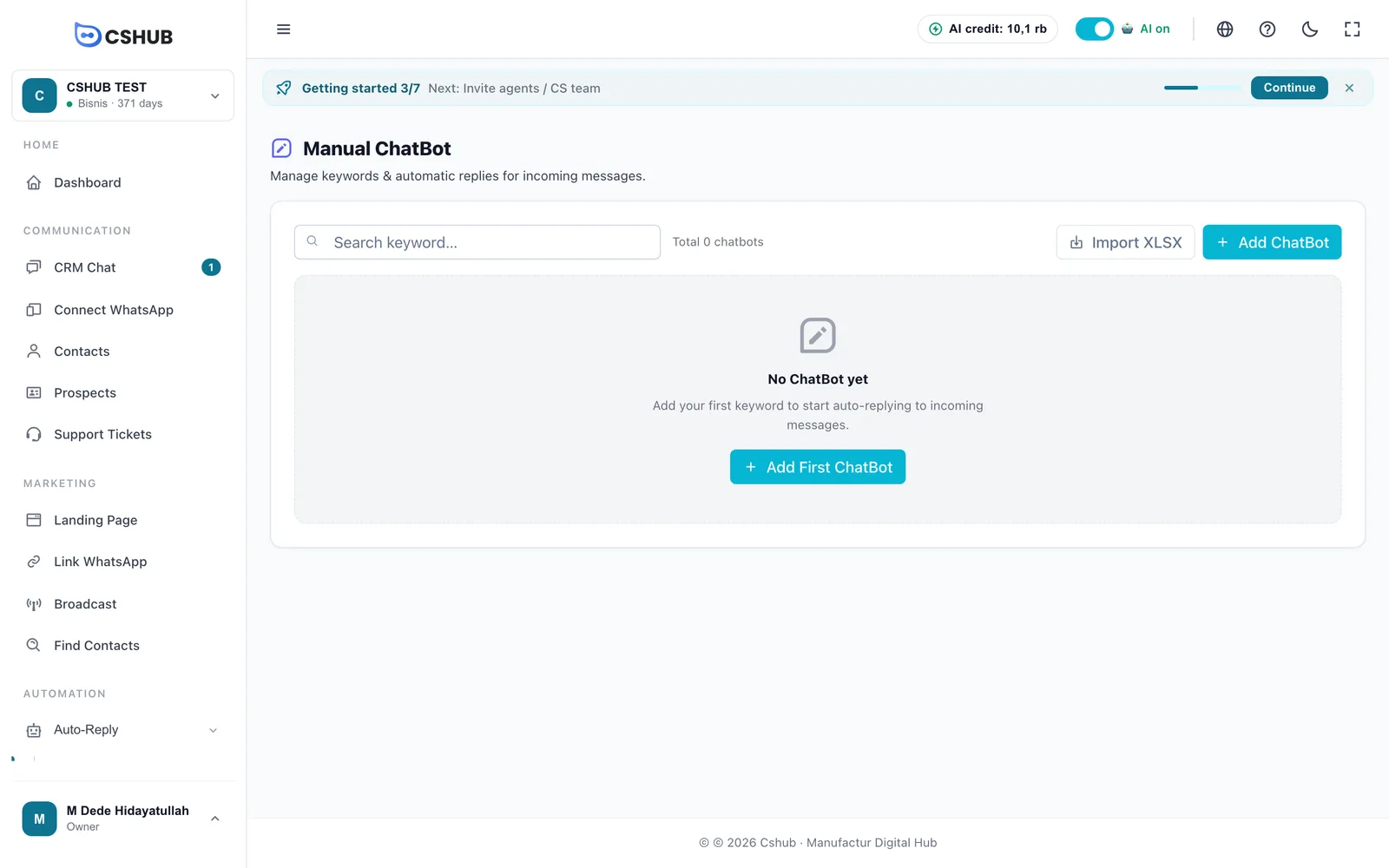
This page introduces the main layout of the cshub app (the sidebar on the left, the top bar, the Getting started strip, the content area, and the Help button) plus what's on the dashboard, so you know where every menu lives and what each number means.
Every page inside a business uses the same layout:
| Part | Where | What's in it |
|---|---|---|
| Sidebar | Left | Business switcher, every menu, and your account menu |
| Top bar | Top | AI credit, the AI switch, language, help, dark mode, fullscreen |
| Getting started strip | Under the top bar | Progress on the starter checklist and a button to the next step |
| Content area | Middle | The page you have open |
| Help button | Bottom-right corner | AI help, guide replays, chat with support |
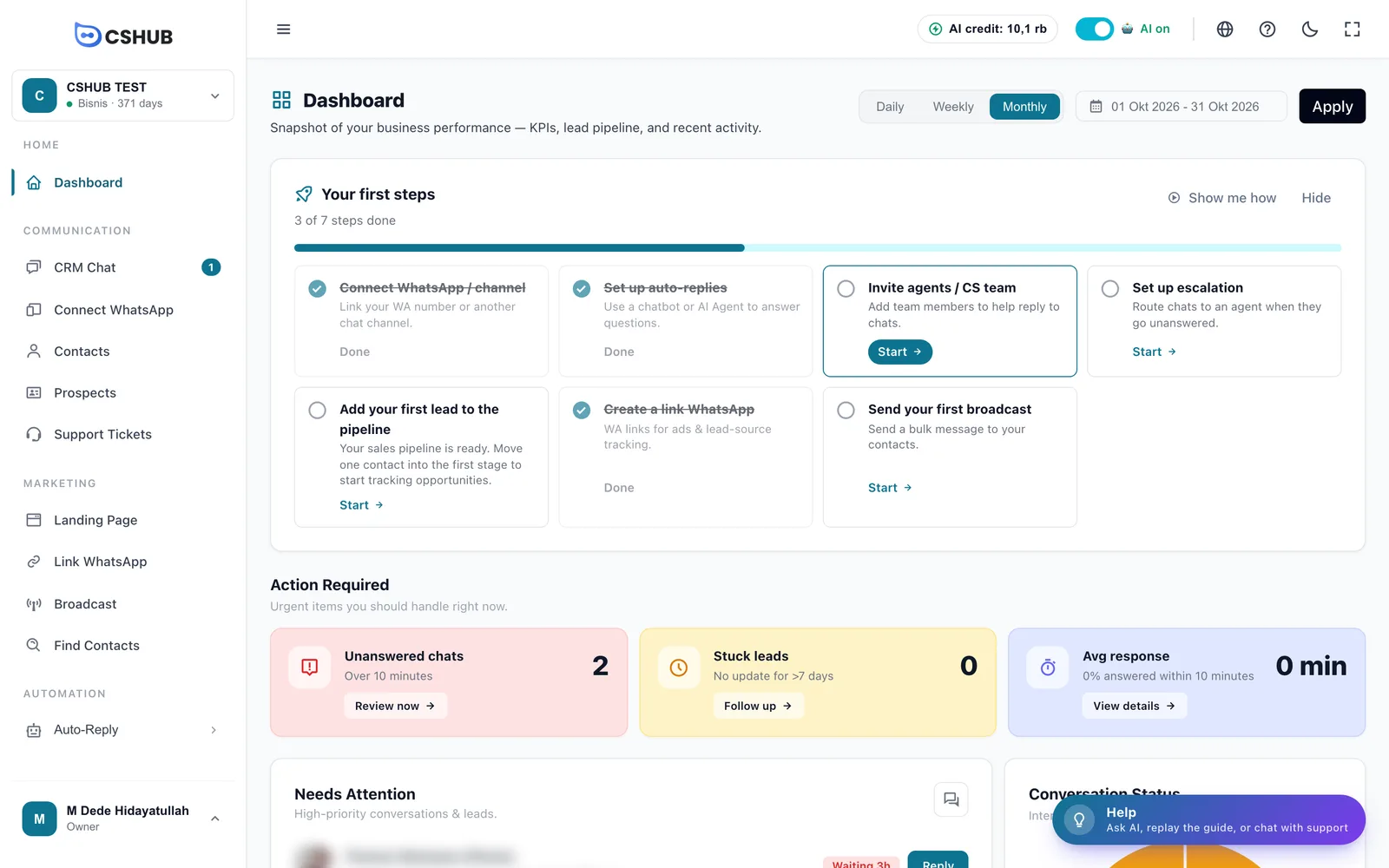
Sidebar
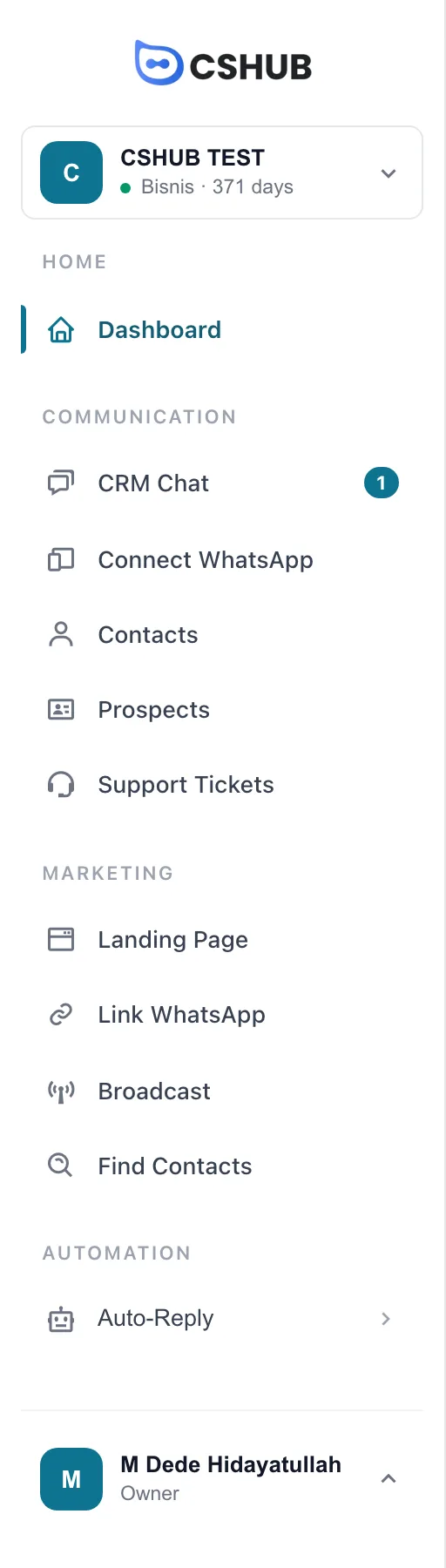
Business switcher
The box at the very top shows the active business, its plan name, and how many days are left on the plan (e.g. Bisnis · 371 days). Click it to open Your businesses:
| Element | What it does |
|---|---|
| Business row | Click to switch to that business. The one you have open is marked Active |
| View all businesses | Opens My Account with your full list of businesses |
| Create new business | Creates an extra business with its own plan and data |
A business whose plan has expired can still be opened so you can renew it. See When your package expires.
Menus
Menus are grouped. Which groups and items appear depends on the business focus you picked, your role's permissions, and your plan's features.
| Group | Menus | Guides |
|---|---|---|
| Home | Dashboard | Dashboard |
| Communication | CRM Chat, Connect WhatsApp, Contacts, Prospects, Support Tickets, Appointment | CRM Chat, About channels, Contacts, Prospects & pipeline, Support tickets, Appointments |
| Marketing | E-Commerce, Landing Page, Link WhatsApp, Broadcast, Find Contacts | Online store, Landing pages, WhatsApp links, Broadcast, Find contacts |
| Products & Orders | Inventory, Orders (Transactions, Abandoned Cart) | Products & stock, Orders, Abandoned carts |
| Automation | Auto-Reply (Manual Chatbot, AI Agent, Escalation) | Keyword replies, AI Agent, Escalation |
| Reports | Reports & Logs | Reports & logs |
| Settings | Data & Templates, Settings, Billing, Help | Data & templates, Business settings, Billing & packages, AI help assistant |
| Marker | Meaning |
|---|---|
| Number next to CRM Chat | How many messages are unread |
| Arrow (›) | The menu has sub-items. Click to expand |
| Lock icon | The feature isn't in your plan (Available on another plan). Click to see which plans unlock it |
Can't find a menu?
It's most likely filtered out by your business focus. Click Show all features at the bottom of the sidebar to bring every menu back, or change the focus in Business focus.
Account menu
The block at the very bottom of the sidebar shows your name and role (e.g. Owner). Click it to open the account menu.
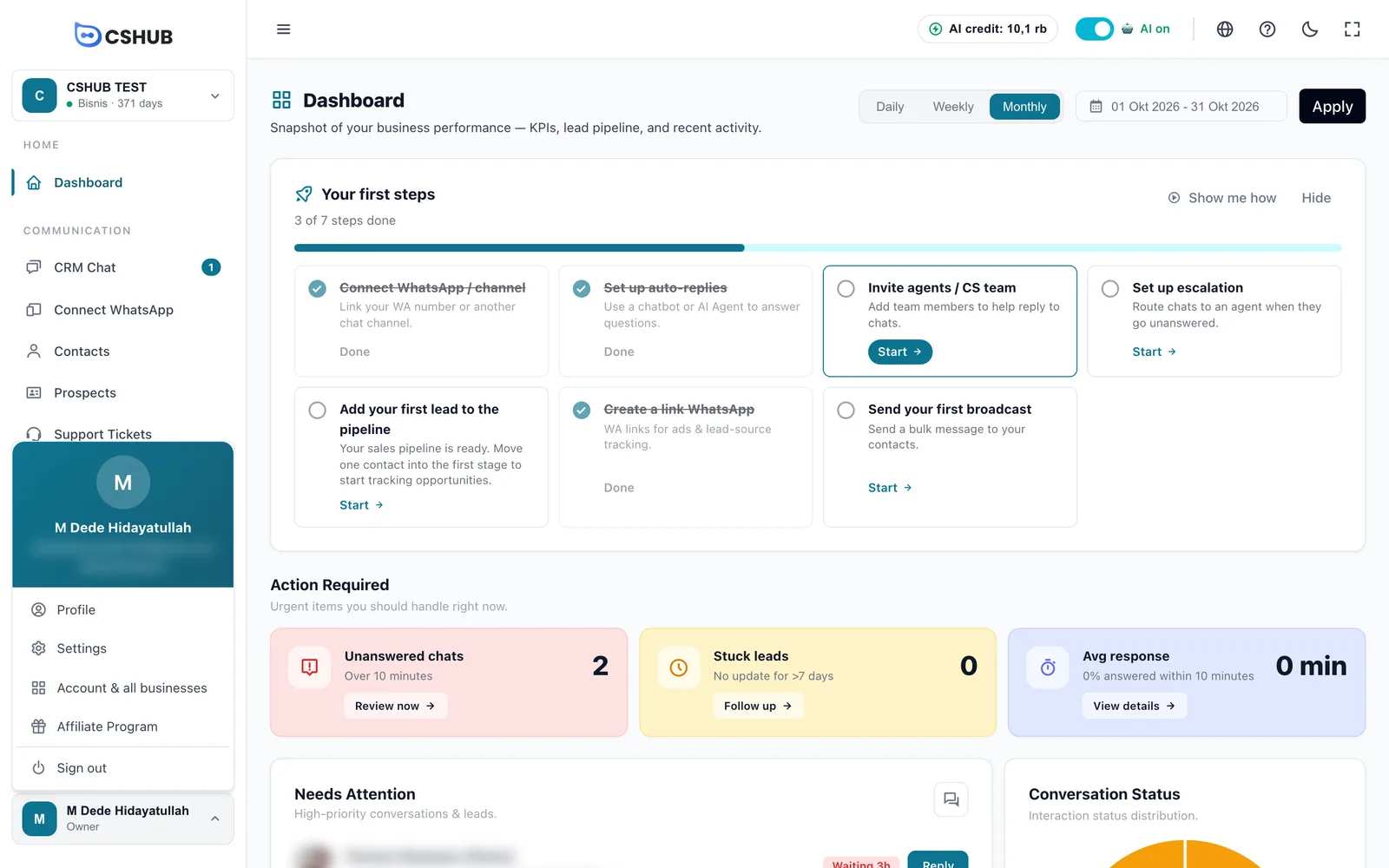
| Option | What it does |
|---|---|
| Profile | Your personal details and password change. See Team, CS & roles |
| Settings | The business settings page |
| Account & all businesses | The My Account page: your businesses, plans, and payment history |
| Affiliate Program | The affiliate dashboard for earning commission. See Affiliate program |
| Sign out | Signs you out on this browser |
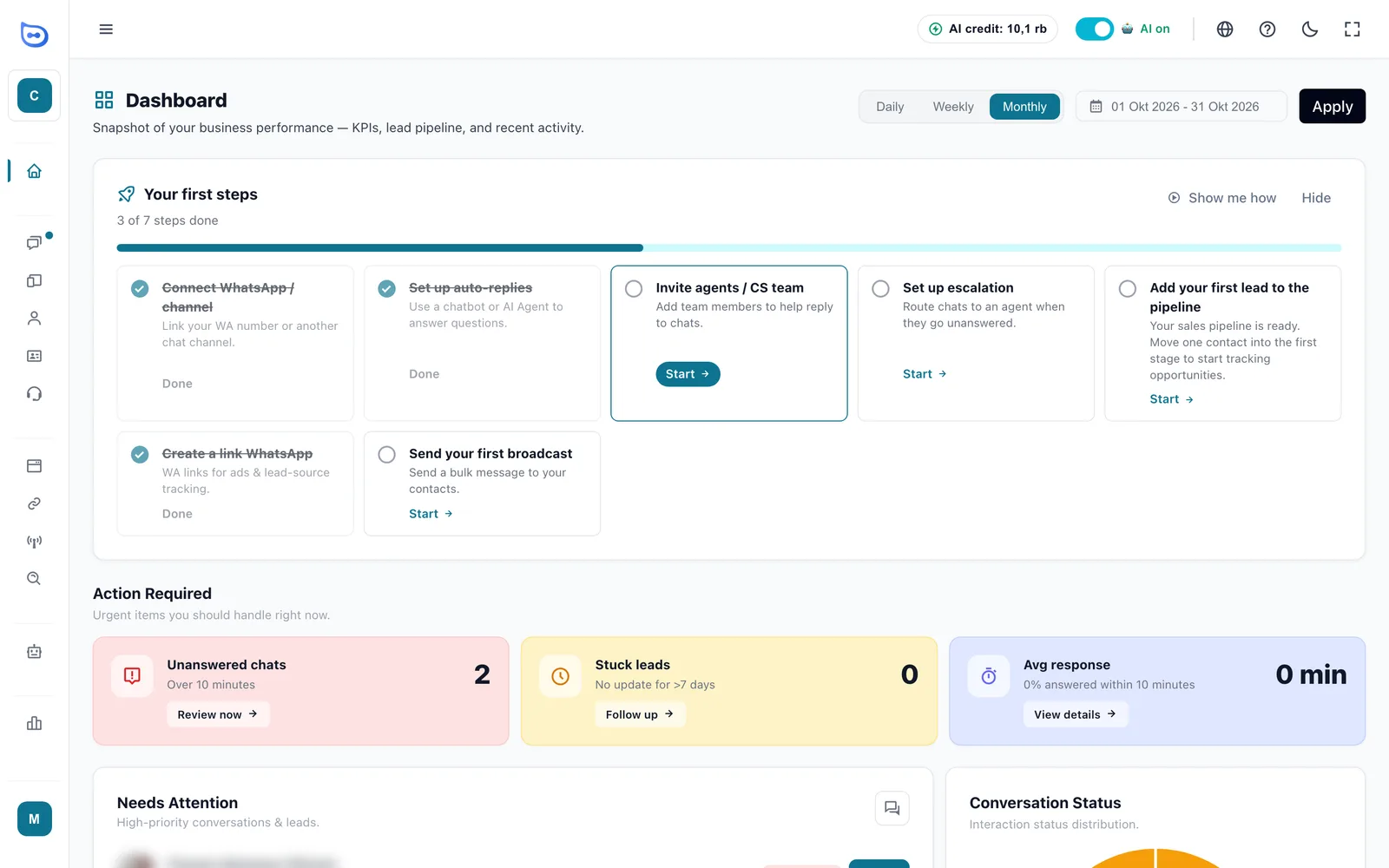
Collapsing the sidebar
The ☰ button on the left of the top bar collapses the sidebar to a row of icons, giving the content more room. Click it again to expand.
Top bar

| Element | What it does |
|---|---|
| ☰ | Collapses or expands the sidebar |
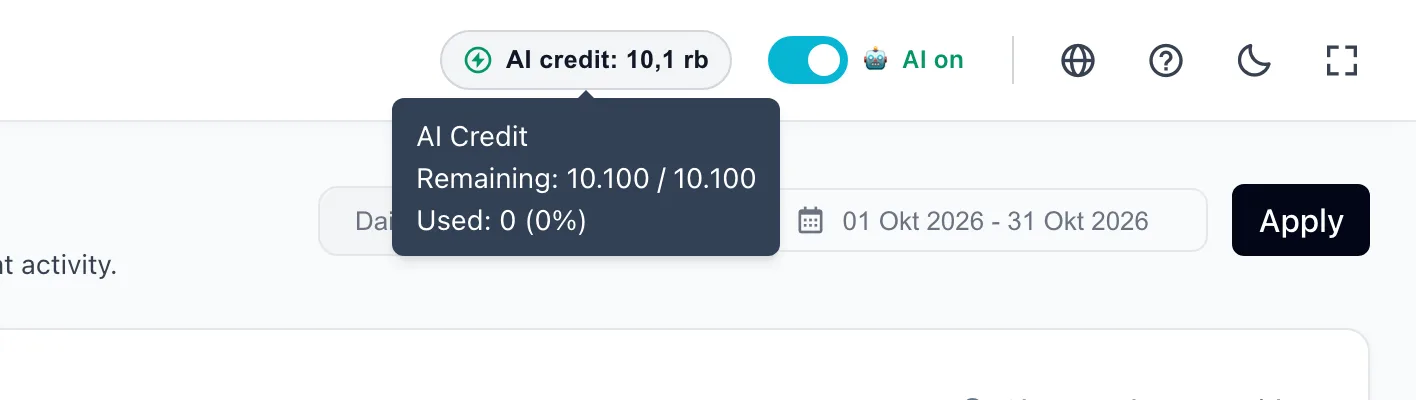
| AI credit | Remaining AI credit for the active business. Hover to see remaining, total, and used. See AI credit & top-ups |
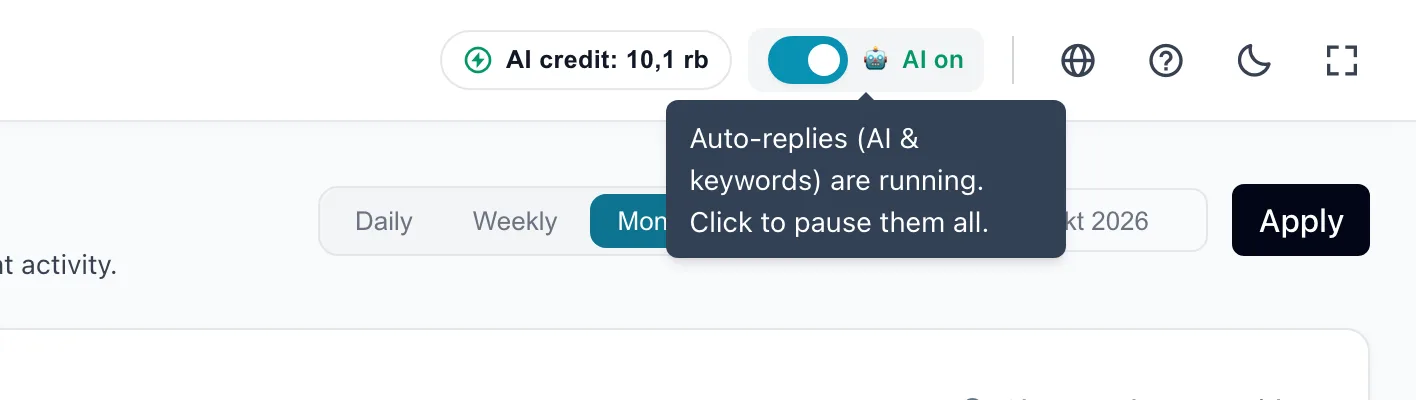
| AI on / AI paused | Turns all automatic replies (AI and keywords) on every channel of this business on or off at once |
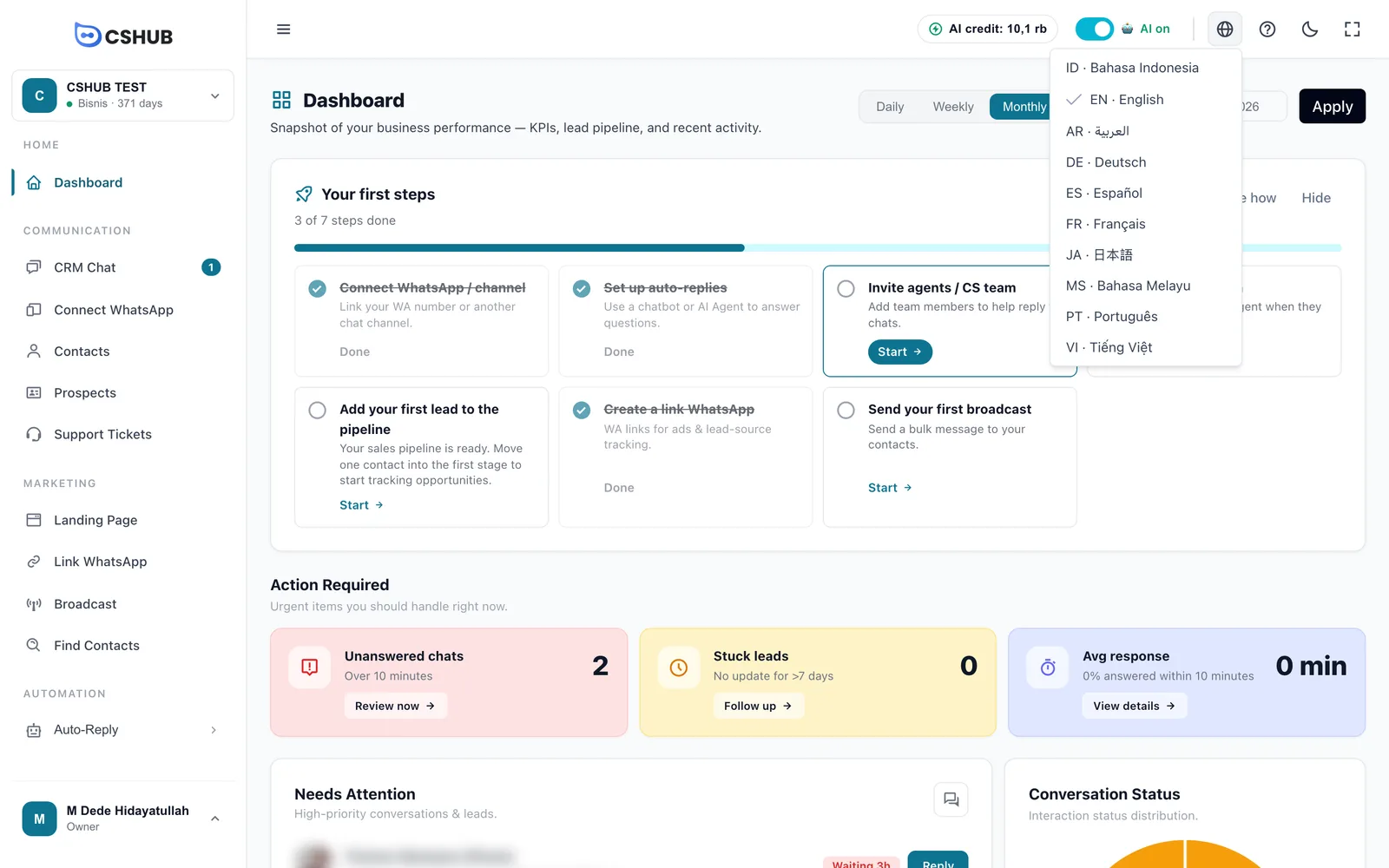
| Globe | Changes the app's display language |
| ? | Opens the Help panel |
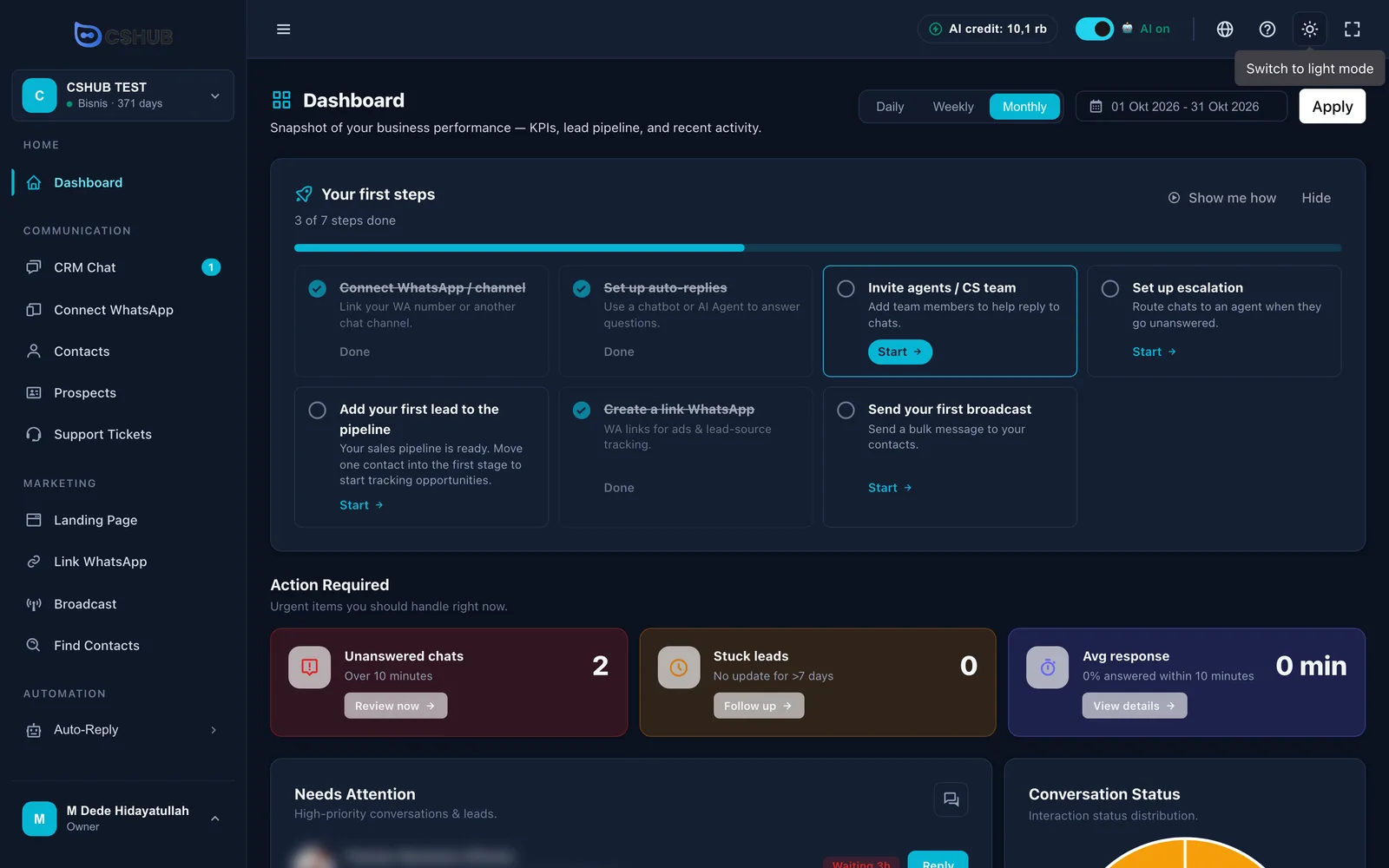
| Moon / sun | Switches between dark and light mode |
| Fullscreen | Hides the browser bars. Press again (or Esc) to exit |
If your business uses more than one currency, a display-currency picker also appears next to the globe.
The AI on switch
While the switch is on (AI on), incoming chats are answered according to each channel's auto-reply method. Click it to pause: the label changes to AI paused, chats still arrive in CRM Chat, but you and your team do the replying. While paused, CRM Chat shows a reminder strip with a Turn on button.
When to pause the AI
When you're updating prices or stock, running a promo that isn't in the AI knowledge yet, or dealing with an issue a person should explain directly.
Language and dark mode
The app is available in 10 languages: ID, EN, AR, DE, ES, FR, JA, MS, PT, and VI. The language you pick only changes the app for you, not the language the AI uses with customers (that's the Default language in Business settings).
The Getting started strip
Until the starter checklist is complete, a slim strip sits under the top bar on every page: Getting started 3/7 · Next: …, a small progress bar, a Continue button, and ×.

| Element | What it does |
|---|---|
| Continue | Opens the page for the next step |
| × | Closes the strip for this session (per business). It returns once the browser tab is closed and the app is opened again |
The strip doesn't show on the dashboard while the Your first steps card is visible (to avoid doubling up), nor when you're already on the page for that next step.
Dashboard
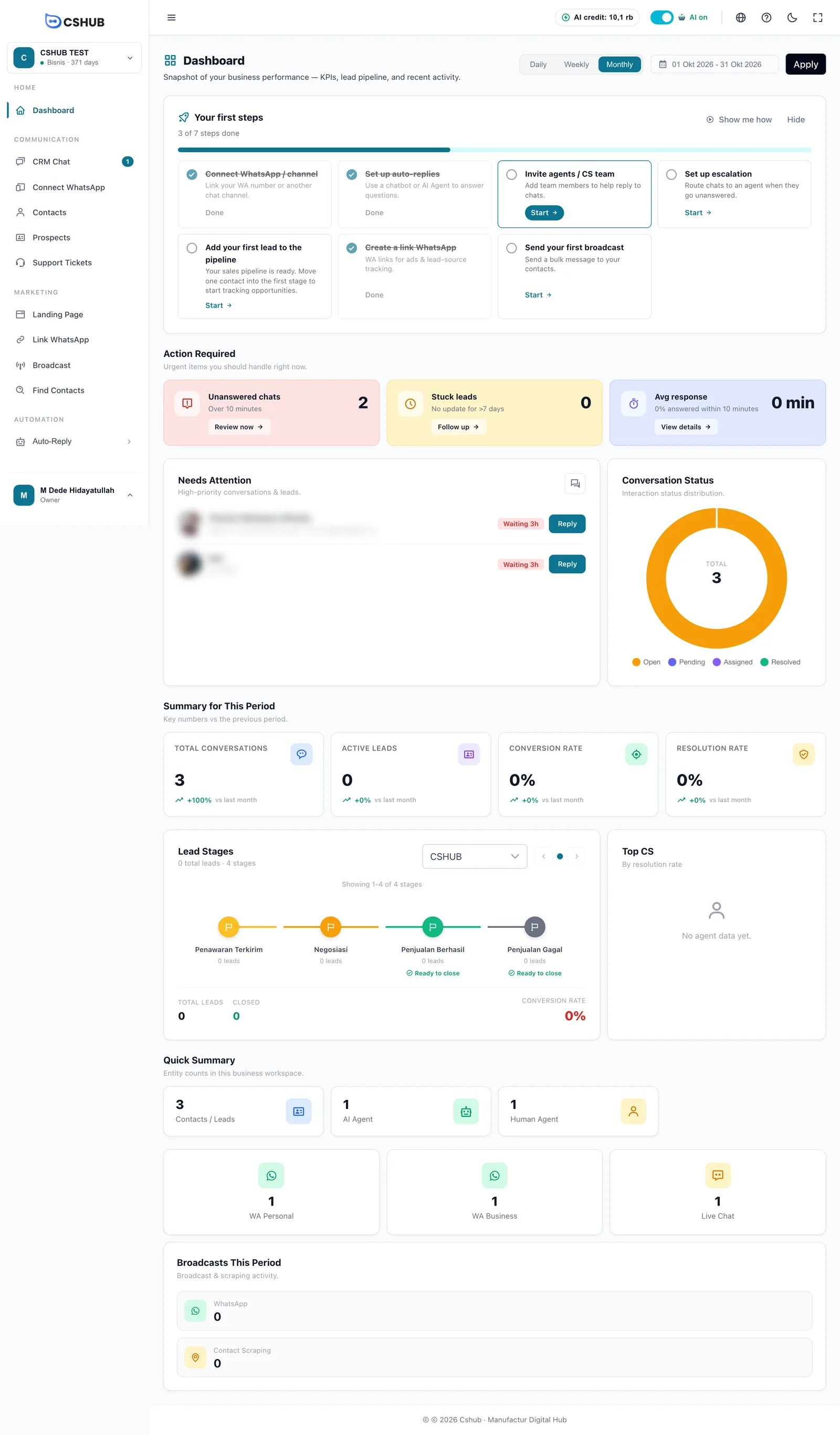
The dashboard is the first page you see inside a business. It summarizes conversations, prospects, your team, and sales.
Period filter
At the top right, pick Daily, Weekly, or Monthly, then a date range (with shortcuts such as Today, Last 7 days, This Month, or Custom). Numbers reload only after you click Apply.
Dashboard sections
| Section | What it shows |
|---|---|
| Your first steps | The starter checklist for your focus. See Sign up & onboarding |
| Connect WhatsApp to start receiving chats | Only when no channel is connected, replacing the chat-based sections. Buttons Connect WhatsApp or Use another channel |
| Action Required | Unanswered chats (waiting longer than the minute limit), Stuck leads (no update for more than 7 days), and your team's Avg response. Each has a button to the related page |
| Sales Performance & Transaction Funnel | Revenue, total orders, average order value, abandoned carts, and transactions per stage (Created → Pending → Paid → Shipped → Completed). Only for the Online Selling or All Features focus, on plans with the transactions feature |
| Needs Attention | The conversations waiting longest, each with a Reply button |
| Conversation Status | A donut of conversation statuses |
| Summary for This Period | Total Conversations, Active Leads, Conversion Rate, and Resolution Rate versus the previous period |
| Lead Stages | Prospects per pipeline stage, total leads, closings, and conversion rate. Only when the Prospects menu is visible |
| Top CS | Team members with the highest resolution rate |
| Quick Summary | Number of contacts, AI Agents, Human Agents, and connected channels (WA Personal, WA Business, Live Chat) |
| Broadcasts This Period | WhatsApp broadcasts and contact searches in this period |
The order of sections follows your business focus. For example, Online Selling moves Sales Performance to the top, while Customer Service moves Needs Attention up.
The Help button
The Help button in the bottom-right corner (and the ? icon in the top bar) opens the Help panel.
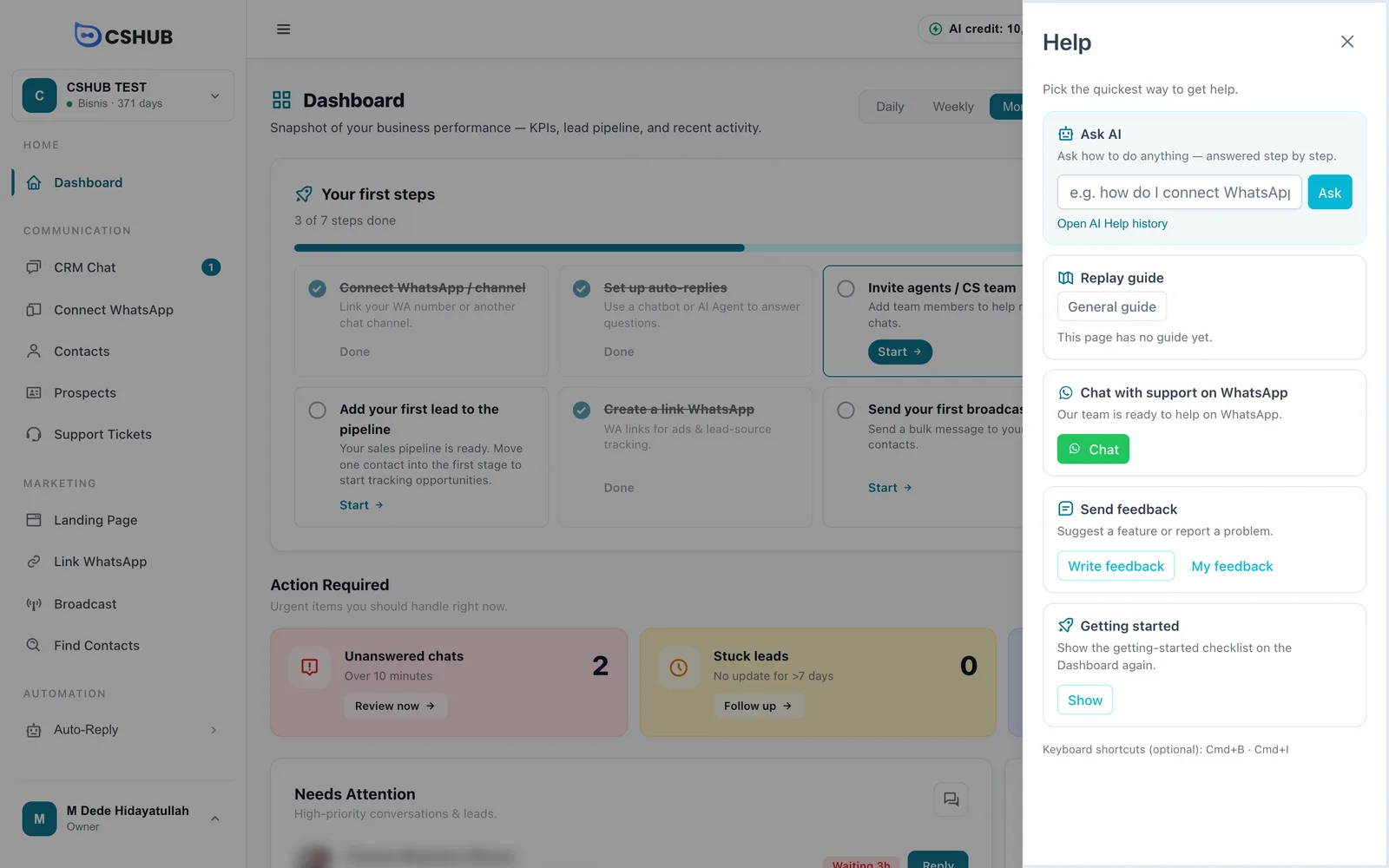
| Card | What it does |
|---|---|
| Ask AI | Ask how to do something and get step-by-step answers. See AI help assistant |
| Replay guide | Plays the short guide for this page or the General guide to the app layout |
| Chat with support on WhatsApp | Talk to the cshub team directly |
| Send feedback | Suggest a feature or report a problem, and follow its status in My feedback |
| Getting started | Shows the checklist card on the Dashboard again if you hid it |
The bottom of the panel lists keyboard shortcuts for opening the panel and guides (Ctrl on Windows, Cmd on Mac).
Related
- Core concepts — the terms used in the menus
- Quickstart: AI replies on WhatsApp
- Business focus — controlling which menus show
- AI help assistant