
Find contacts
Collect WhatsApp contacts and groups from the numbers connected to cshub automatically and on a schedule, and save them straight into your Contacts database — ready for a broadcast, a group broadcast, or follow-up by your CS team. No more copying numbers off the phone one by one.
The feature has three parts:
| Part | What it does |
|---|---|
| Contact Scraping | Pull the WhatsApp contact list from a connected number into your contact database |
| Group Scraping | Pull the list of WhatsApp groups that number belongs to |
| WA Group List | Manage the collected groups and turn group members into contacts |
Before you start
The number you use must be connected via WhatsApp (scan QR) and be Active.
The Find Contacts page
Open Find Contacts in the Marketing section of the sidebar.
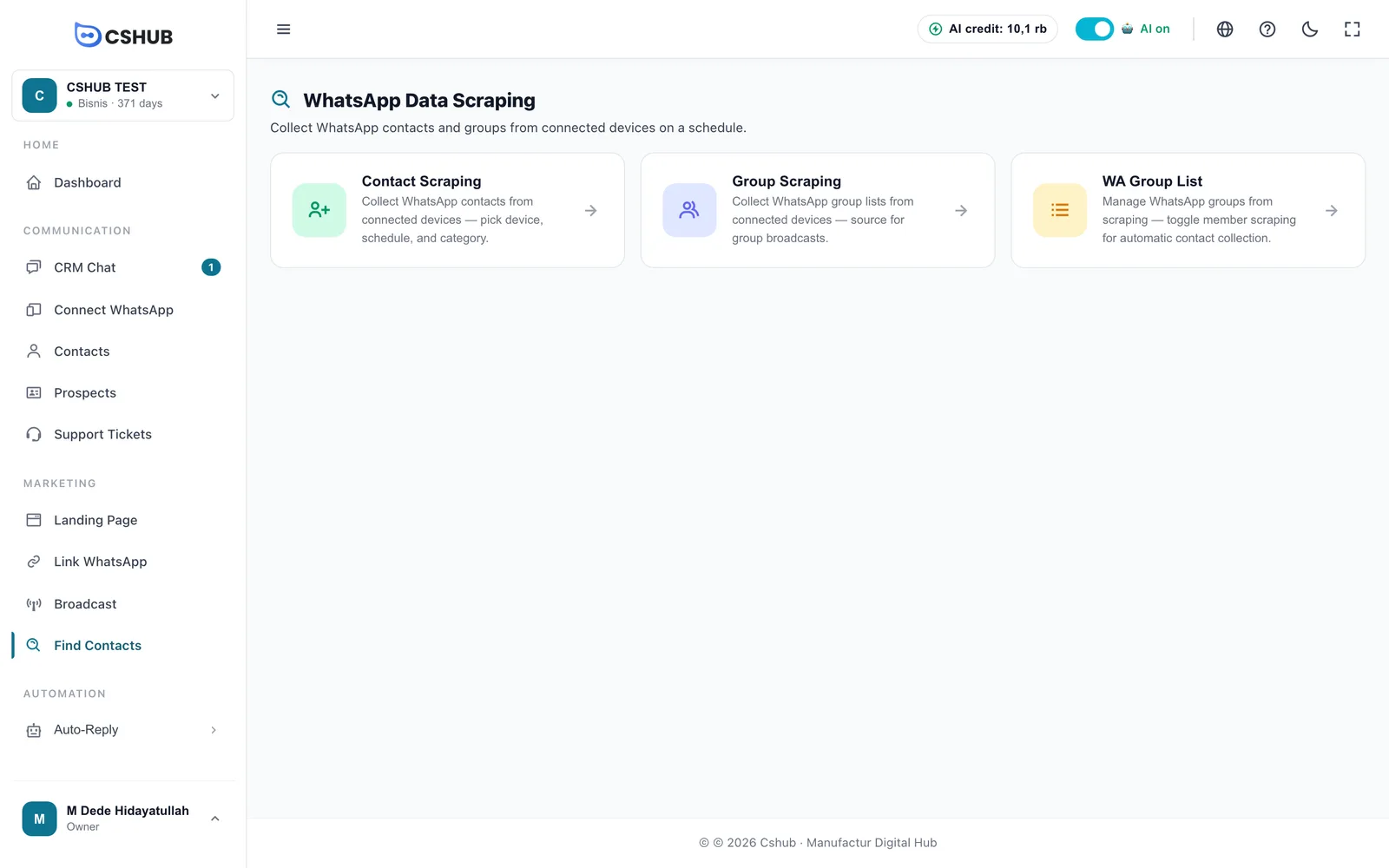
Once inside any of them, the Contact Scraping, Group Scraping, and WA Group List tabs at the top let you switch between them.
Contact Scraping
Click the Contact Scraping card. The Contact Scraping Jobs page lists every job you have created.
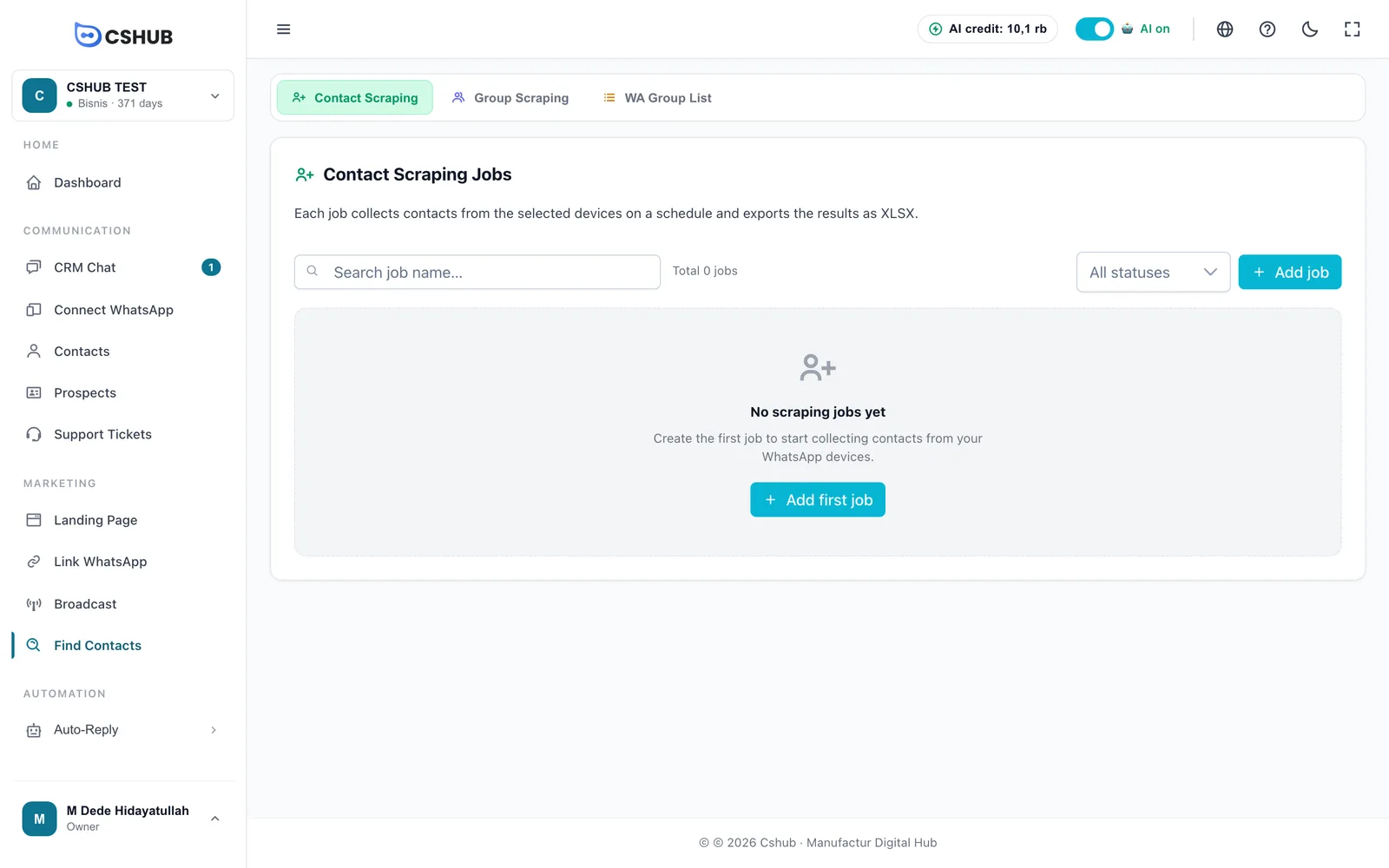
Each job row shows Name, Status, Schedule, Result (contacts collected), and Actions. You can search by job name and filter by status.
| Status | Meaning |
|---|---|
| Waiting | The job is waiting for its schedule, or is being processed |
| Done | The job has run |
Creating a contact scraping job
- Click Add job.
- Fill in the form:
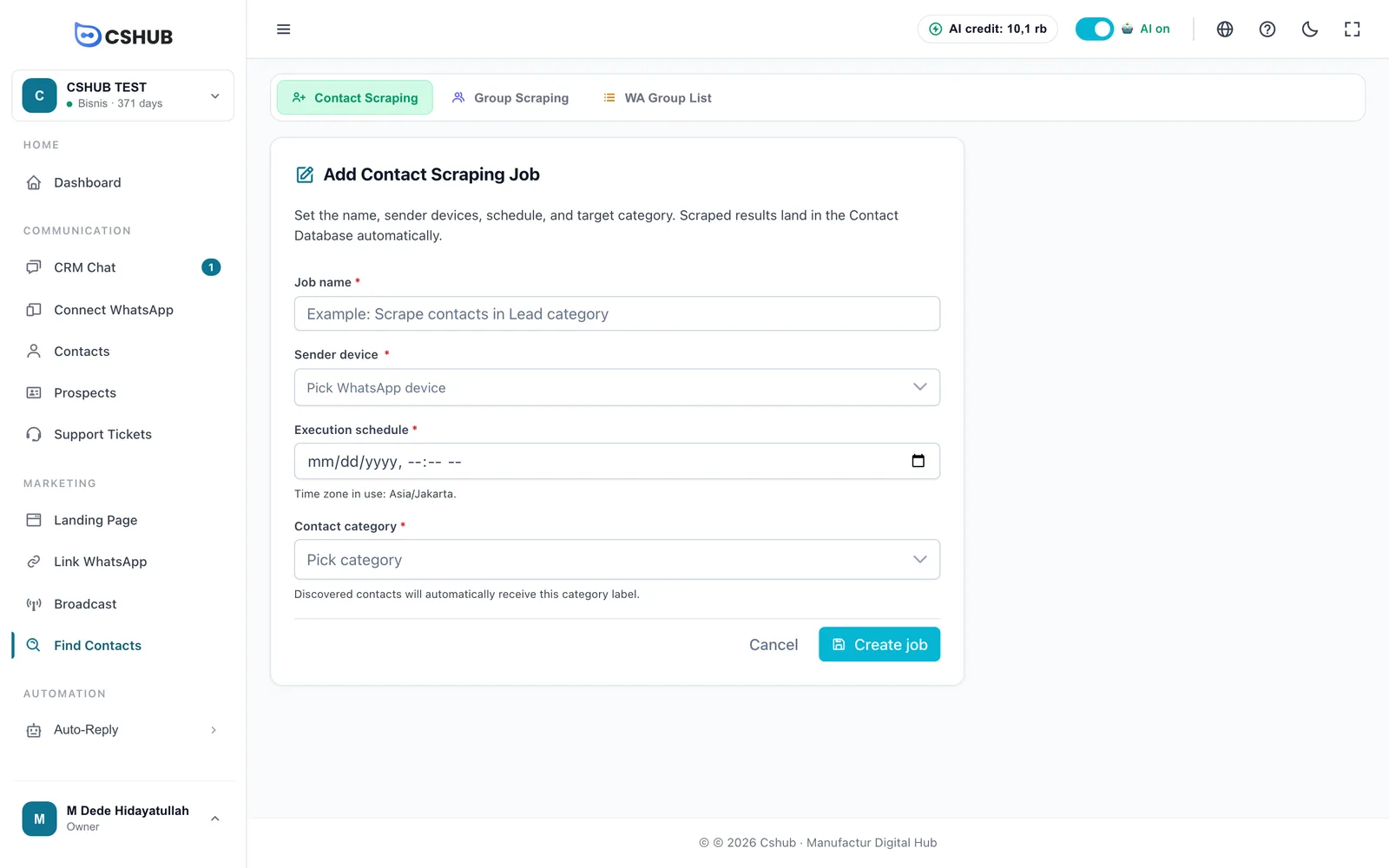
| Field | Description |
|---|---|
| Job name | A name to recognise the job (max. 255 characters) |
| Sender device | One or more WhatsApp numbers whose contacts you want to collect |
| Execution schedule | When the job runs. The time zone is shown under the field. If the time is already past, the job runs on the next cycle |
| Contact category | Required. Found contacts are automatically given this category, so they are easy to filter later |
- Click Create job.
Viewing the results
Open a job from the list to see the Scraping result. While the job is waiting, the page explains that contacts will appear once it runs on schedule. When it is done, the found contacts are listed with Phone, Name, Category, Owner, and Created.
- Export XLSX — download the job's contact list.
- Refresh — reload the latest results.
- Edit / Delete — change or remove the job.
- Mark as done / Move back to waiting — change the job status manually. Moving it back to Waiting makes it run again.
Every collected contact goes straight into Contacts.
Group Scraping
Click the Group Scraping tab. Jobs here collect the list of groups your number belongs to. Results go into the WA Group List.
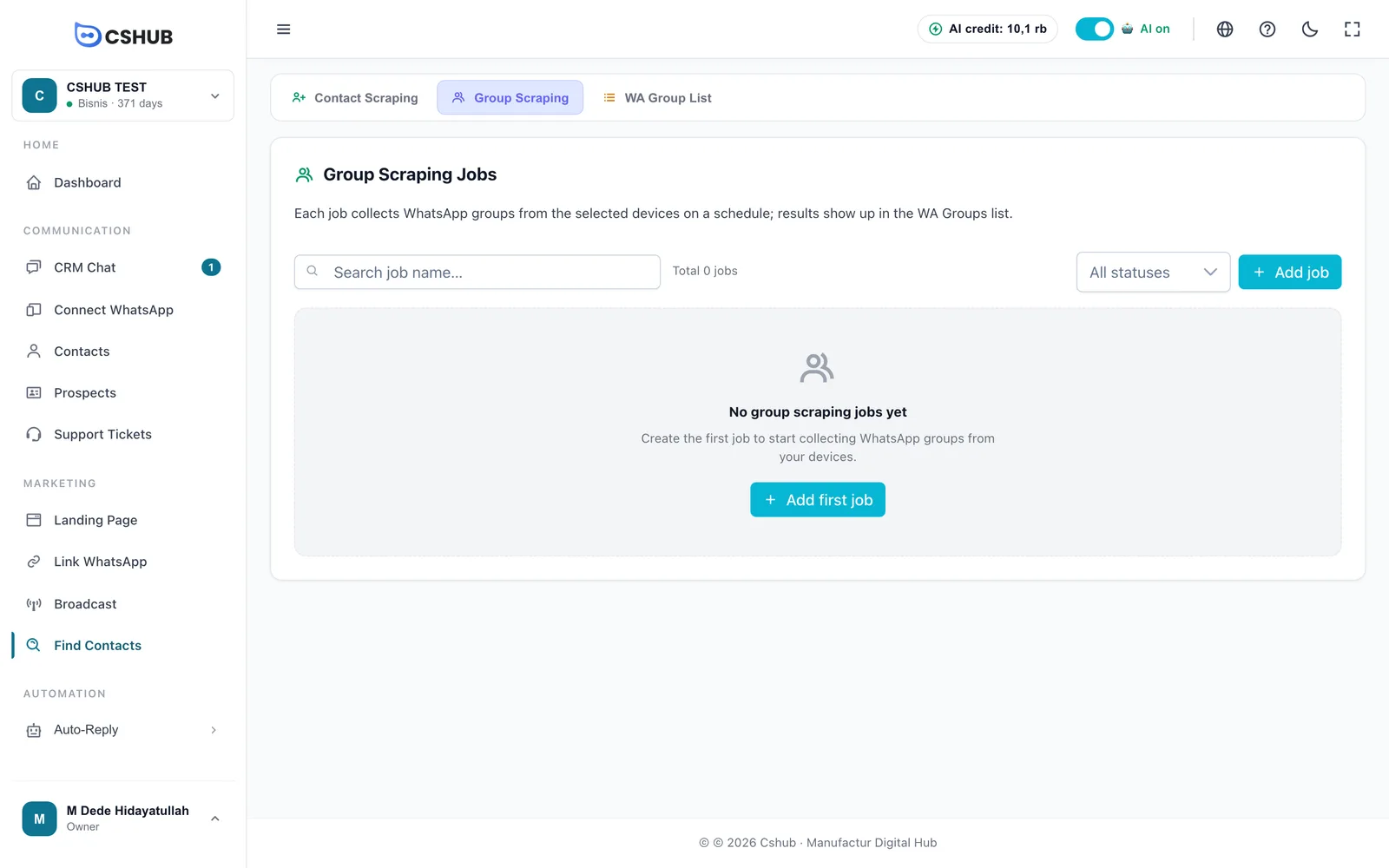
To create a job, click the add button and fill in:
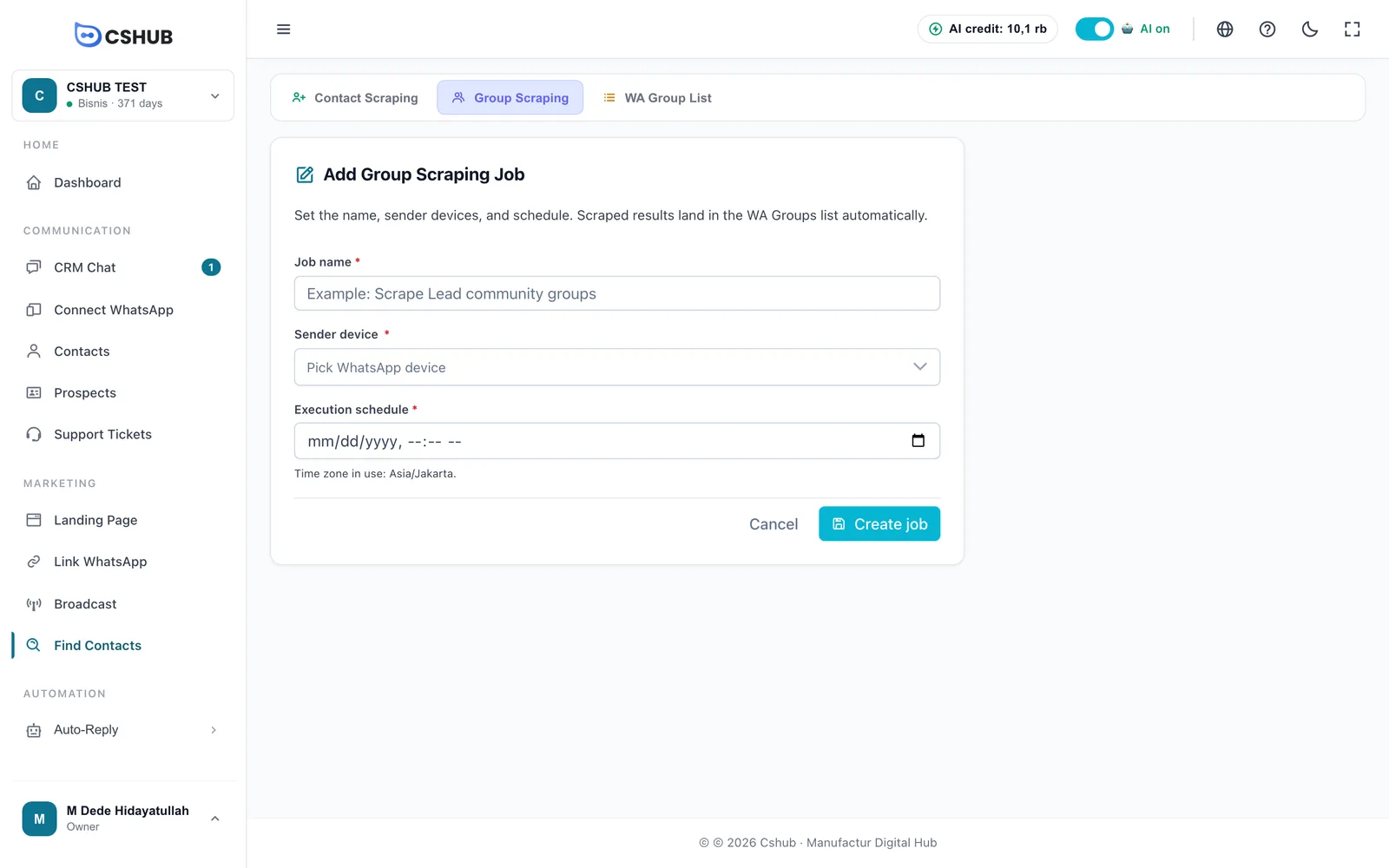
| Field | Description |
|---|---|
| Job name | A name to recognise the job |
| Sender device | The WhatsApp number whose groups you want to collect |
| Execution schedule | When the job runs |
Click Create job. Once it is done, open it to see the groups found — each has a View members button. Results can also be exported with Export XLSX.
WA Group List
The WA Group List tab combines the groups from all Group Scraping jobs. The groups here are the ones you can pick as targets for a Group broadcast.
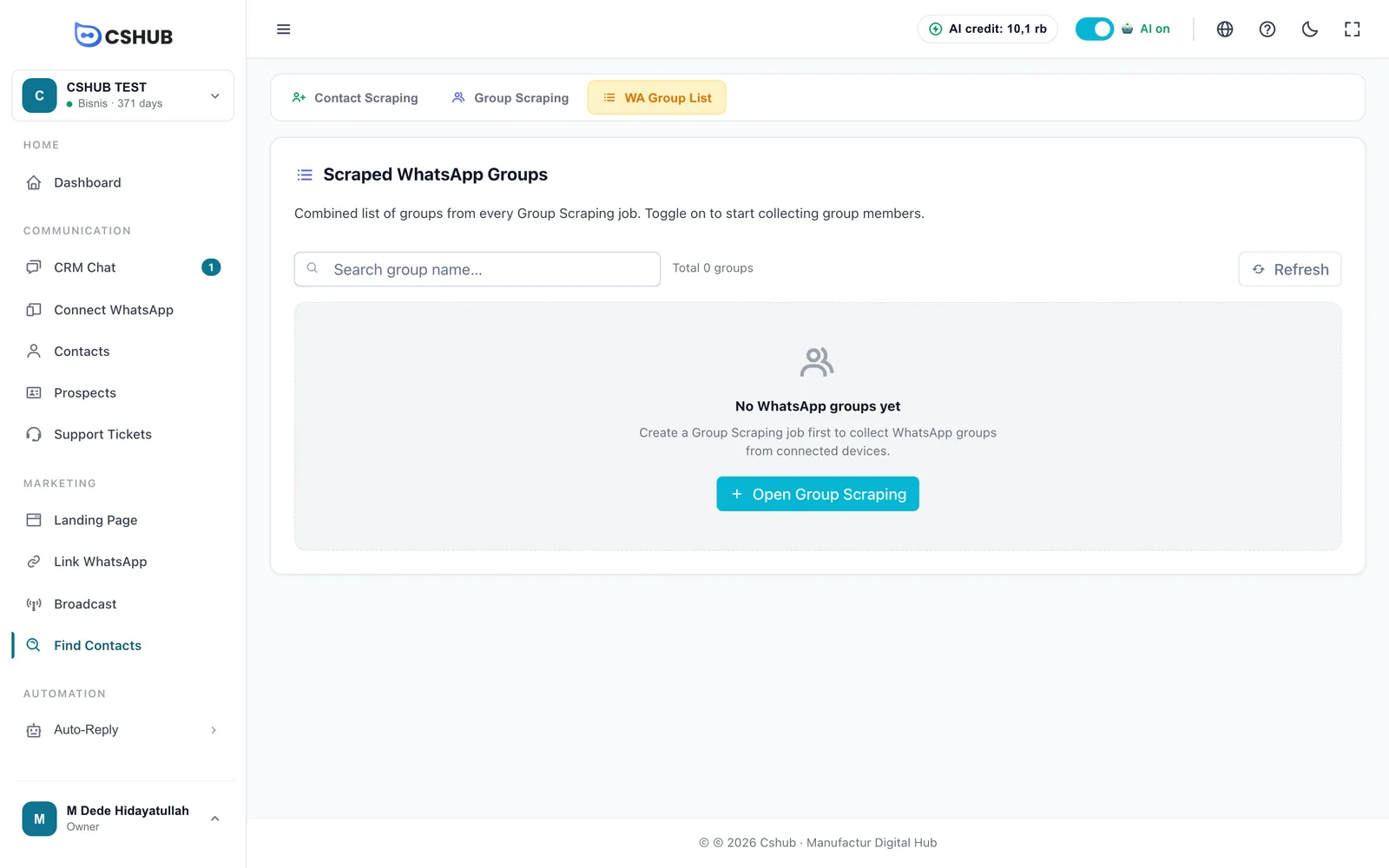
Each group shows its name, device, and a Member Scraping toggle:
| Toggle | Meaning |
|---|---|
| Active | cshub starts collecting this group's members and saves them as contacts |
| Inactive | Members are not collected |
Open a group to see its Group Members section. If the toggle is on but the list is still empty, collection is in progress — click Refresh again in a little while.
Delete removes a group from the list permanently. Members already added to the contact database stay there.
Quota
The number of contacts you can add with this feature follows your plan's quota per period (daily, monthly, or yearly, depending on the plan). Once the current period's quota is used up, new jobs are rejected until the period resets. See Billing & packages.
Tips
- Give each job a clear category (for example Community group leads) so results are easy to filter when broadcasting.
- Only collect contacts and groups that are relevant to your business, and message them reasonably. Mass messages to people who don't know you are the main reason numbers get banned — see the tips in WhatsApp broadcast.