
CRM Chat (inbox)
CRM Chat is the shared inbox where every customer chat from WhatsApp, Telegram, Instagram, Messenger, and your website live chat lands in one list, so the whole CS team can see who is waiting for a reply, who the AI is handling, and who nobody has picked up yet.
Open CRM Chat in the sidebar, under Communication. The number next to the menu is your count of unread chats.
The three-panel layout
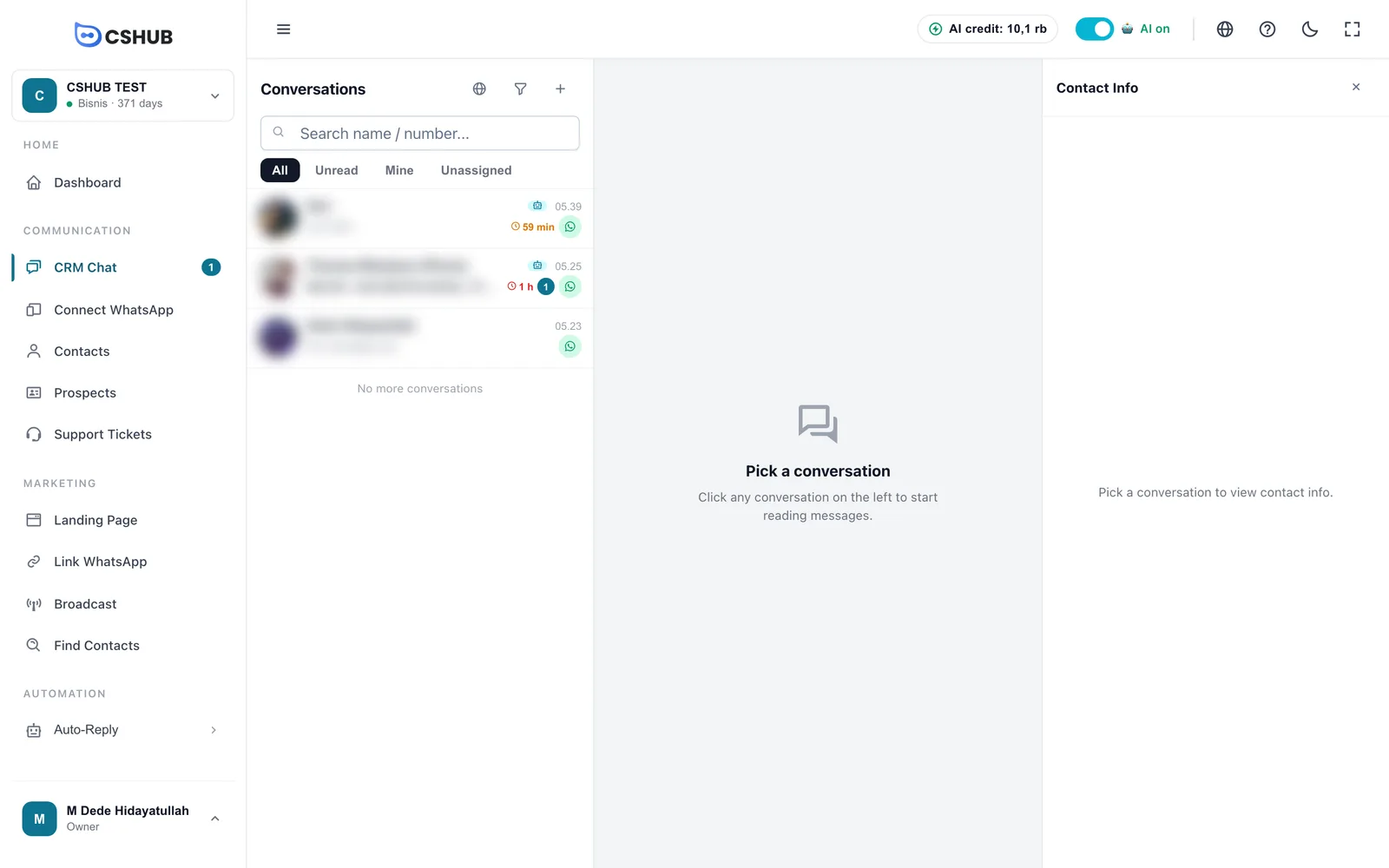
| Panel | What it holds |
|---|---|
| Conversations (left) | Every chat, plus search, tabs, and filters |
| Chat (middle) | The messages of the selected conversation and the reply box. See Replying to conversations |
| Contact Info (right) | Customer details, labels, pipeline, orders, follow-ups, and more actions. Close it with the × button |
If no channel is connected yet, the list shows Connect WhatsApp first — click the button to go straight to WhatsApp (scan QR).
Reading the conversation list
Each row gives you a quick summary so you know what to answer first:
| Marker | Meaning |
|---|---|
| Photo / initials | The customer's profile photo, or the channel icon when there is none |
| Name | The contact name; if it is empty, the number is shown |
| Robot icon | The AI is replying to this chat |
| You | You are handling this chat |
| Person icon | Another CS is handling this chat |
| Time | Time of the last message |
| Message preview | The last message. Media shows as Image, Video, Voice message, Document, Sticker, or Location |
| Waiting time (clock icon) | How long the customer has been waiting for a reply, e.g. 12 min, 1 h, 2 d. Turns orange after 15 minutes and red after 1 hour |
| Stage chip | The contact's pipeline stage, in the stage colour. See Prospects & pipeline |
| Label chip | The conversation's first label (hover to see all of them) |
| Round number | Number of unread messages |
| Resolved / Blocked | Conversation status when it was marked resolved or blocked |
| Channel icon | Where the chat came from: WhatsApp, Telegram, Instagram, Messenger, or live chat |
The list updates live — new messages jump to the top without reloading. Scroll down to load older conversations; the end of the list says No more conversations.
Connection dropped?
If you see Connecting... or Realtime connection lost, new messages won't appear on their own. Click Retry or reload the page.
Quick tabs
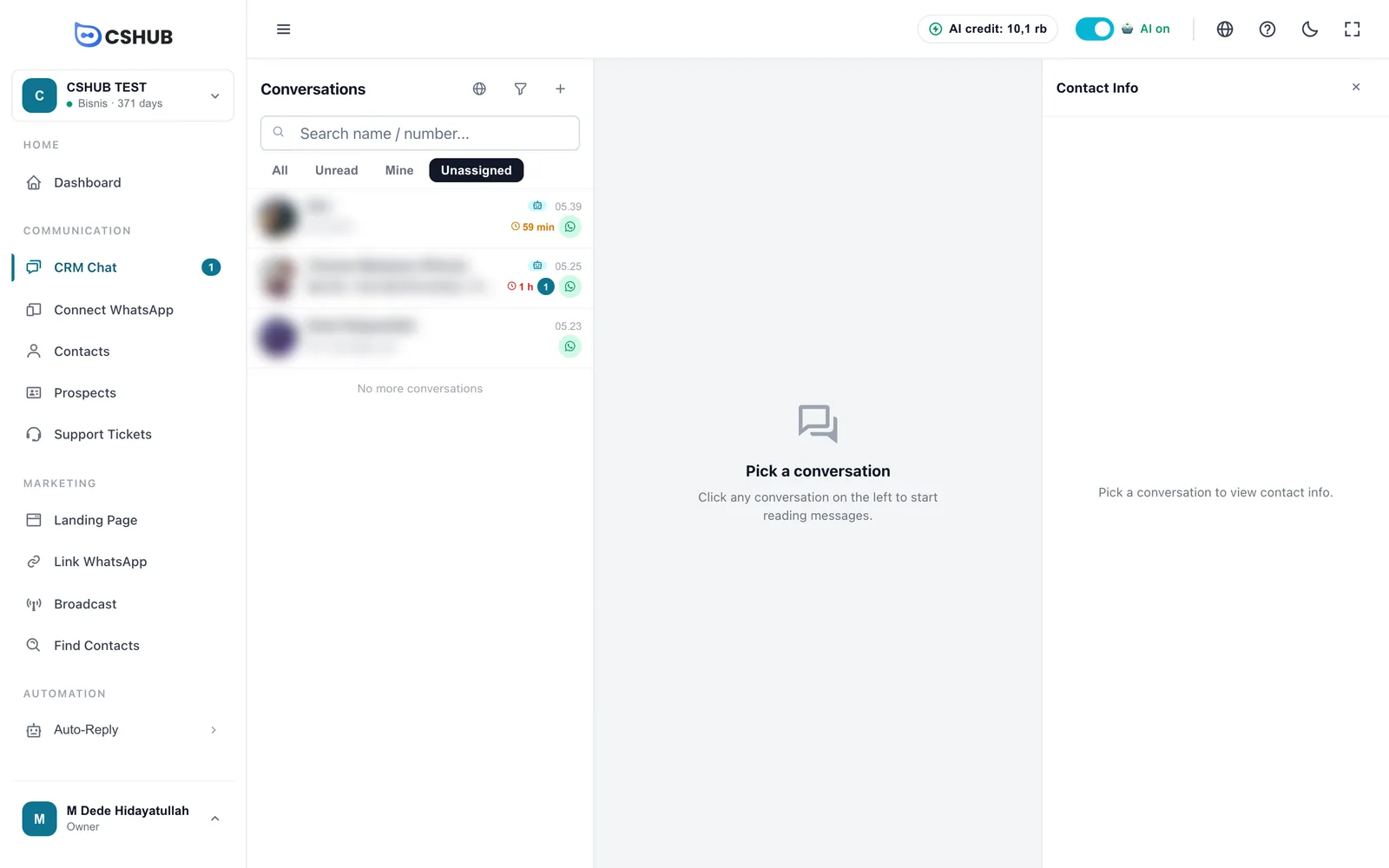
The four tabs under the search box sort the list in one click:
| Tab | Shows |
|---|---|
| All | Every conversation you are allowed to see |
| Unread | Only chats with unread messages |
| Mine | Chats assigned to you |
| Unassigned | The queue of chats no CS has picked up yet |
A simple CS routine
Start your shift on Unassigned, pick up the chat that has waited longest, then switch to Mine to continue the chats you already own.
Searching
Type a name or number in Search name / number.... Results filter as you type.
As soon as the box has text, a Search in message content switch appears. Turn it on to search inside message text, not just names and numbers — handy for an order number or a product keyword. This search is a little slower.
Click × in the search box to clear it.
Channel filter
The globe icon next to the Conversations title picks which channel to show:
| Option | Shows |
|---|---|
| All channels | Every chat |
| WhatsApp Personal | WhatsApp numbers connected via scan QR |
| WhatsApp Business | Official WhatsApp Business API numbers |
| Telegram | Telegram bots |
| Instagram DMs | |
| Messenger | Facebook Messenger messages |
| Live Chat | Your website live chat widget |
Advanced filter
The funnel icon opens Advanced Filter for finer filtering.
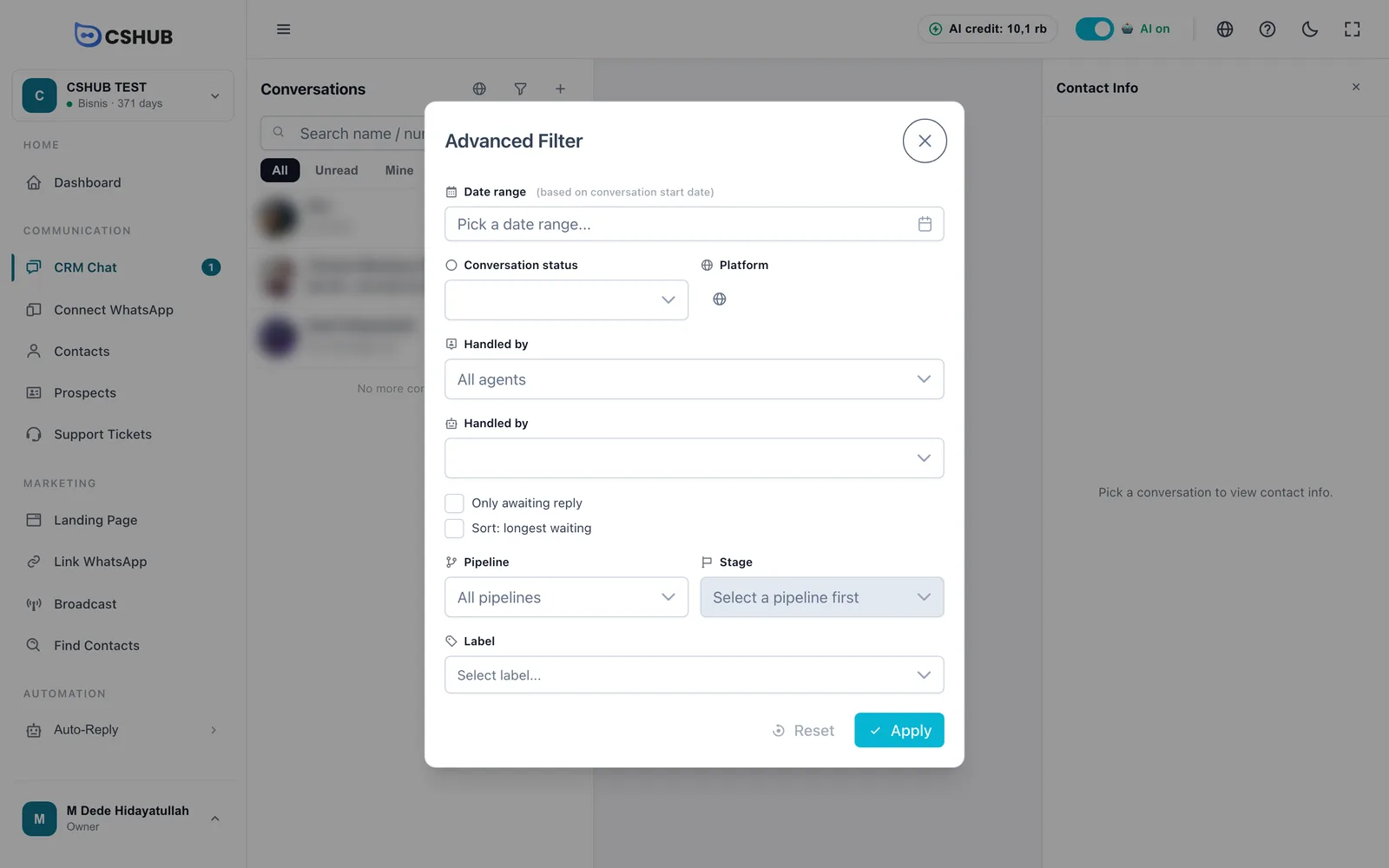
| Field | Description |
|---|---|
| Date range | Filter by the date the conversation started |
| Conversation status | All statuses, Open, Resolved, or Blocked |
| Platform | Same as the channel filter above |
| Handled by | One specific agent. If the list is empty, add team members first in Team, CS & roles |
| Handled | All, AI (the AI is replying), Me, or Other CS |
| Only awaiting reply | Chats whose last message came from the customer and hasn't been answered |
| Sort: longest waiting | Puts the chat that has waited longest at the top |
| Pipeline and Stage | Contacts in a given pipeline and stage. Pick the pipeline first, then the stage |
| Label | One or more chat labels. Labels are created in Data & templates → Chat Labels |
The Apply button shows how many filters you picked, e.g. Apply (3). Reset clears everything.
Active filters then show as small chips under the search box (e.g. Channel: …, Specific CS, Labels (2), Stage, Date range). Click × on a chip to drop one filter, or Clear all filters to drop them all.
Starting a new conversation
You can message a customer first instead of waiting for them. Click the + button next to the Conversations title.
From an existing contact
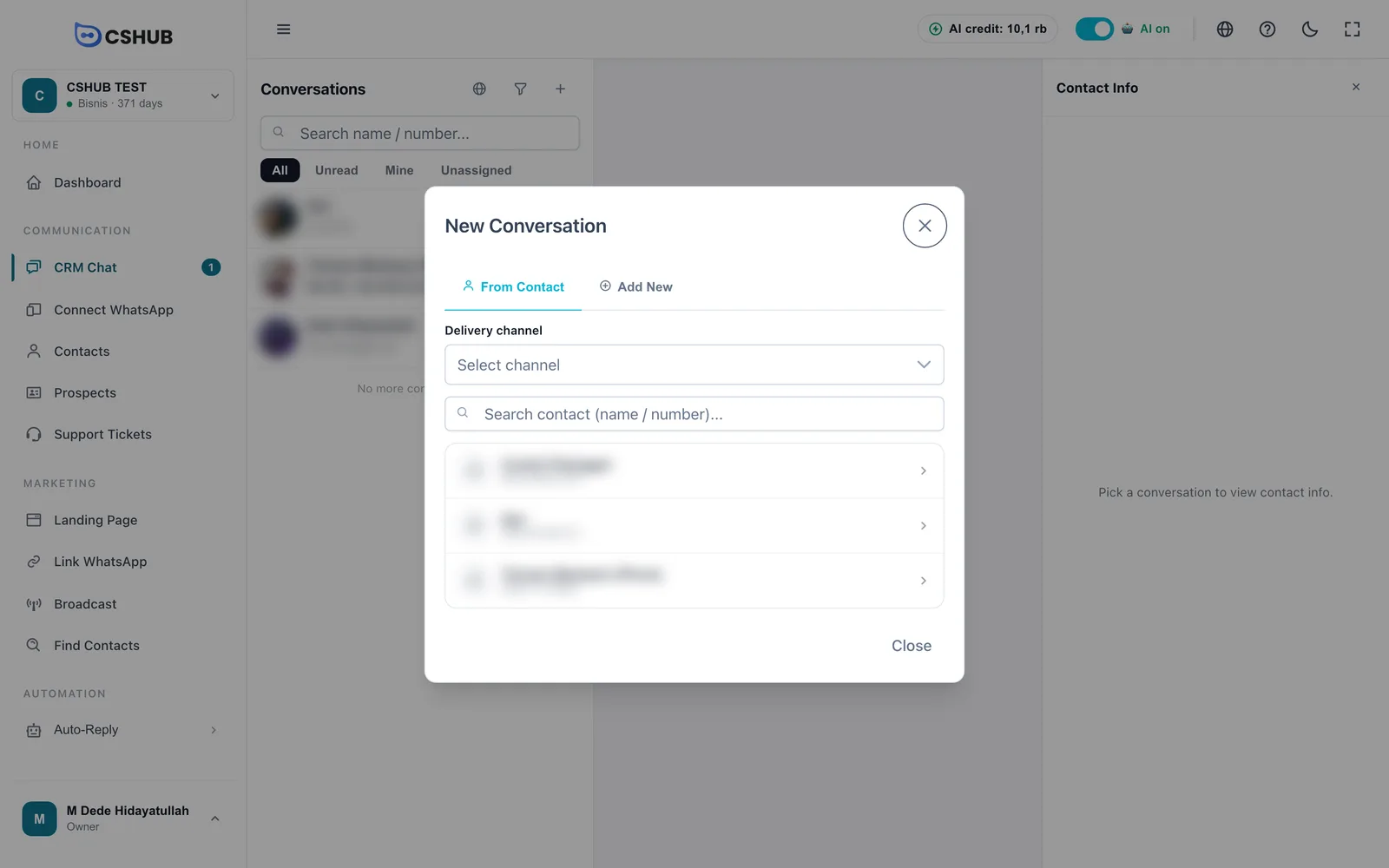
- Choose the Delivery channel.
- Search the contact by name or number and click it.
- The conversation opens in the middle panel, ready for your message.
If you already have a conversation with that contact, cshub reopens it instead of creating a new one. The first available device for that channel is picked automatically.
A new number
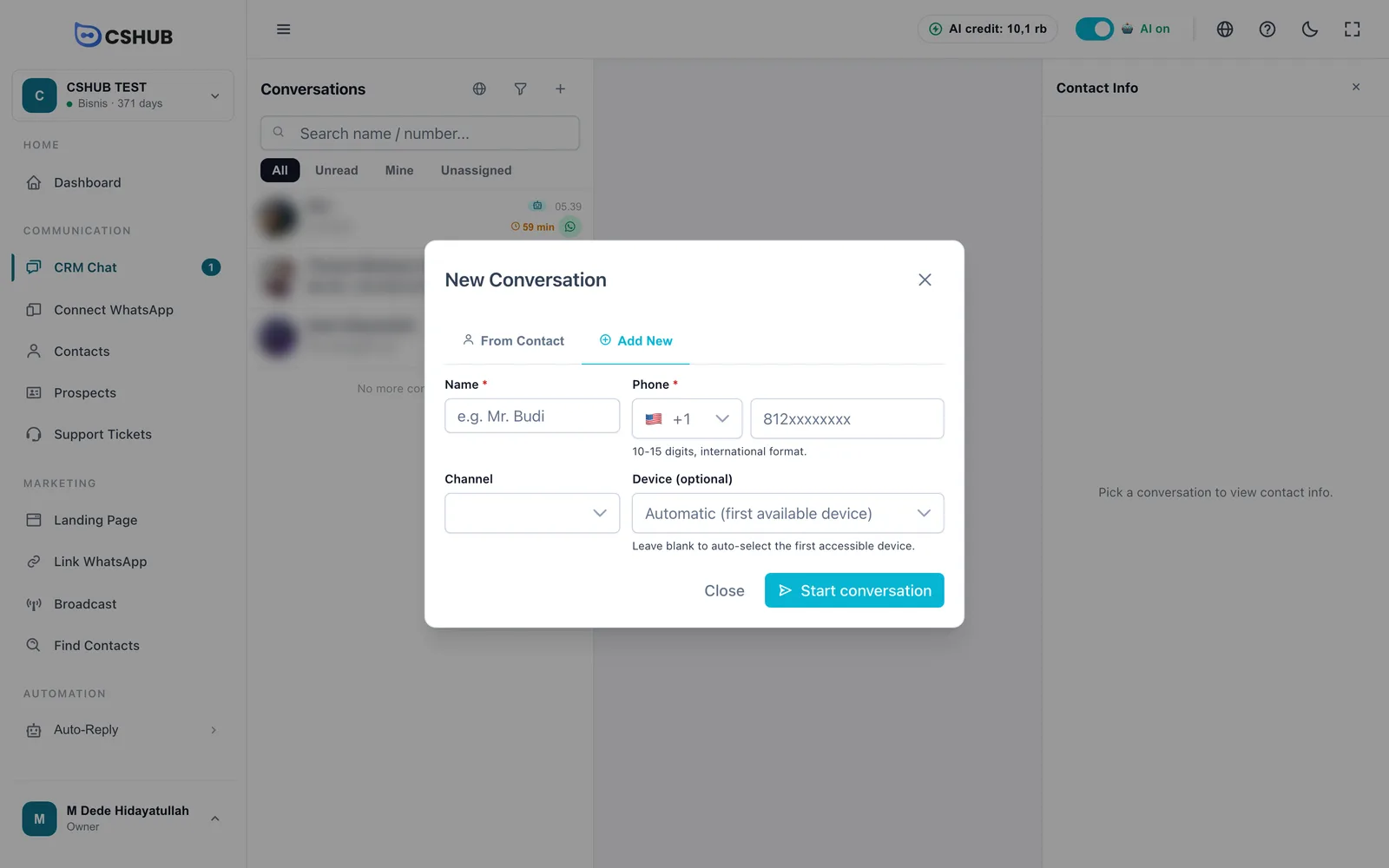
| Field | Description |
|---|---|
| Name | Required, up to 255 characters. A new contact is saved under this name |
| Phone | Required, 10–15 digits. Pick the country code, then type the number |
| Channel | The channel used to send |
| Device (optional) | The sending number/account. Leave empty to use the first device you can access |
Click Start conversation.
Messaging first on the WhatsApp Business API
On the official WhatsApp Business API, Meta only allows free-form messages within 24 hours of the customer's last message. Outside that window, the customer can only be reached with a Meta-approved message template. See Official WhatsApp Business API.
Who sees which chats
- Owners and admins see every conversation in the business.
- CS team members can be limited to chats from certain devices, or only chats assigned to them. Set this in Team, CS & roles and in each device's settings.
- New chats can be shared out to CS automatically (round robin and so on) from the device settings, e.g. in WhatsApp (scan QR).
If you see No access, ask the owner to add CRM Chat permission to your role. Package not active means the business package needs activating — see Billing & packages.
Next steps
- Replying to conversations — the reply box, taking over from the AI, and the Contact Info panel.
- Quick replies — save answers you type often.
- Unreplied chats — a report of chats left hanging.
- AI Agent — let AI answer chats around the clock.