
Keyword replies
Keyword replies (Manual ChatBot) send a fixed answer automatically whenever a customer's message contains a certain word — for example, any message containing "price" gets your price list — without using AI credit and with exactly the same answer every time.
They're ideal for questions whose answer never changes: price lists, store address, opening hours, bank details, or a catalog link. For varied questions, use an AI Agent — or combine both with the Keywords first, then AI mode.
Three auto-reply modes
Keyword replies only work when the channel uses one of these modes. You set the mode in each channel's settings (see About channels).
| Channel mode | Behavior |
|---|---|
| Keyword replies | Messages matching a keyword get your fixed answer. Everything else is answered manually by CS |
| AI Agent | Every chat is answered by the AI. Keywords aren't used |
| Keywords first, then AI | Keyword matches get your fixed answer; everything else is answered by the AI Agent |
Opening Manual Chatbot
In the sidebar, open the Automation group → Auto-Reply → Manual Chatbot.
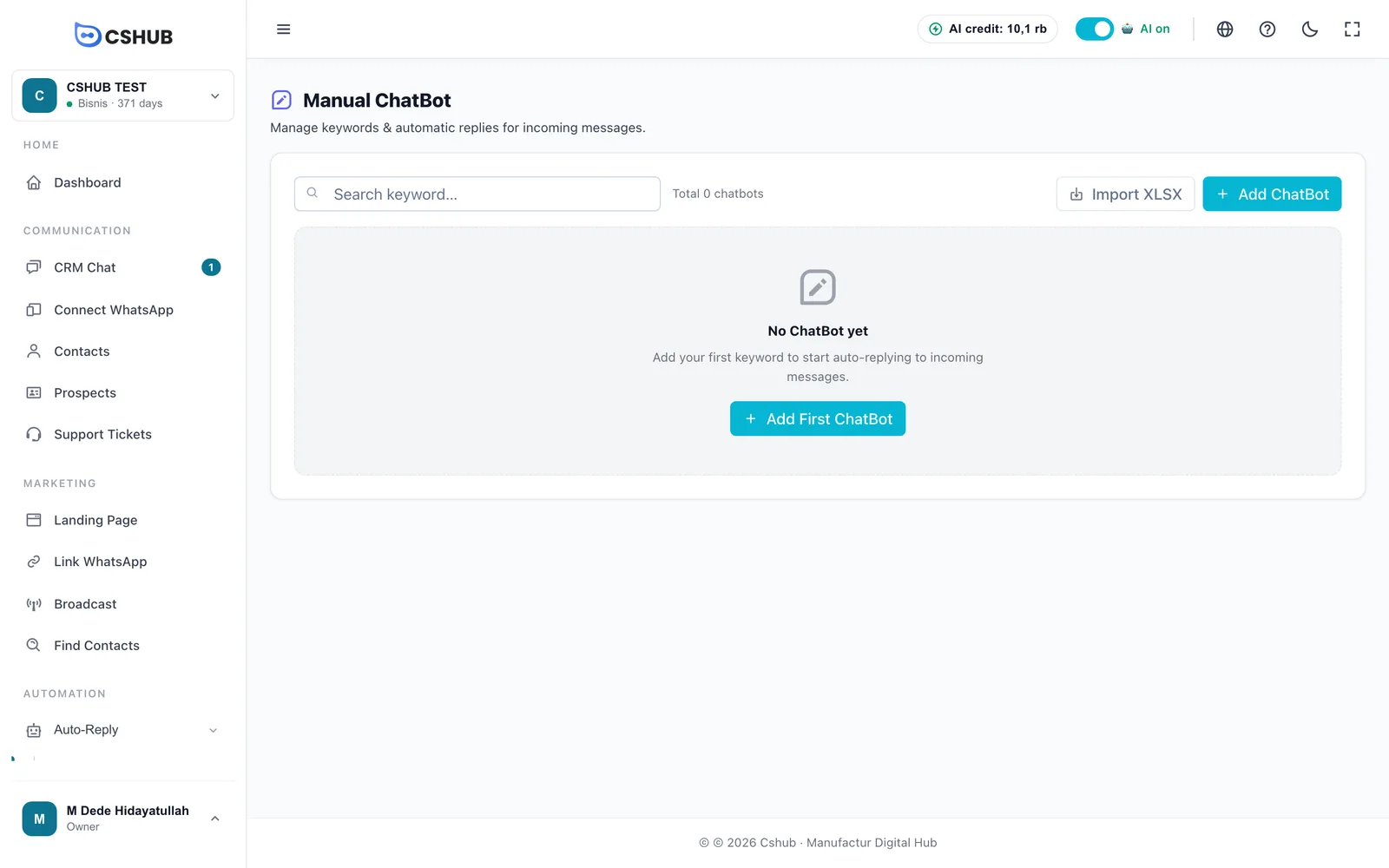
Once you have entries, the list shows these columns:
| Column | Contents |
|---|---|
| Keyword | The trigger keywords |
| Method | Reply type: Text Message, WhatsApp Template, or Image |
| Template | The template used, when the method is WhatsApp Template |
| Linked | Channels where this reply is active |
| Actions | Edit or Delete |
Tick several rows and click Delete Selected to remove them in one go. A deleted ChatBot no longer replies to incoming messages.
Creating a keyword reply
Click Add ChatBot.
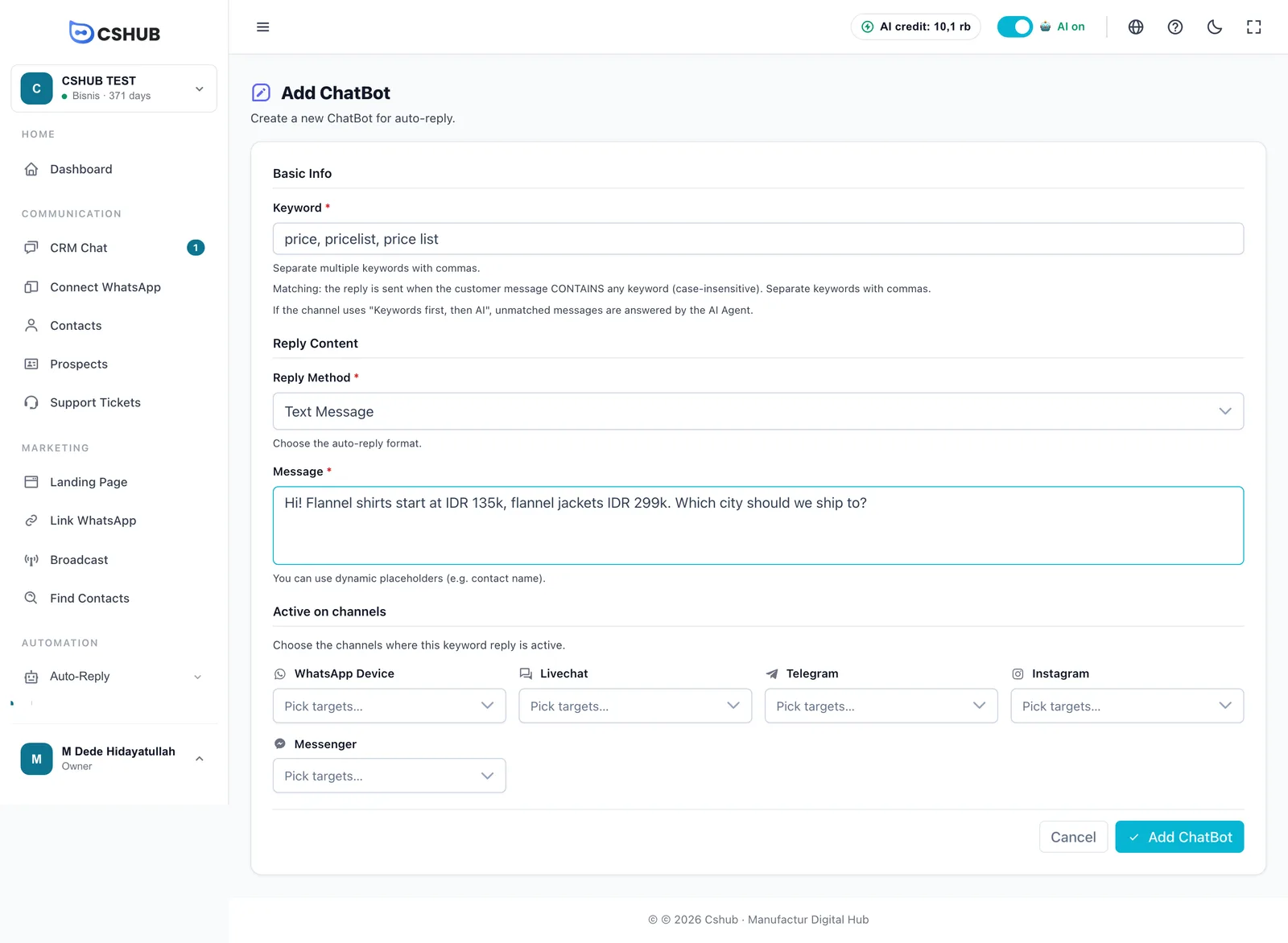
1. Basic Info — keywords
Fill in Keyword. Separate several keywords with commas, e.g. price, pricelist, price list.
How matching works:
- The reply is sent when the customer's message contains any of the keywords — it doesn't have to match exactly. The keyword
pricematches "hi, what's the price?". - Upper and lower case are treated the same.
- If the channel uses Keywords first, then AI, unmatched messages are answered by the AI Agent.
Choose specific keywords
Because matching is "contains", very short or common words — like ok or yes — can trigger replies on unrelated messages. Use words that are distinctive for the topic.
2. Reply Content
Choose the Reply Method:
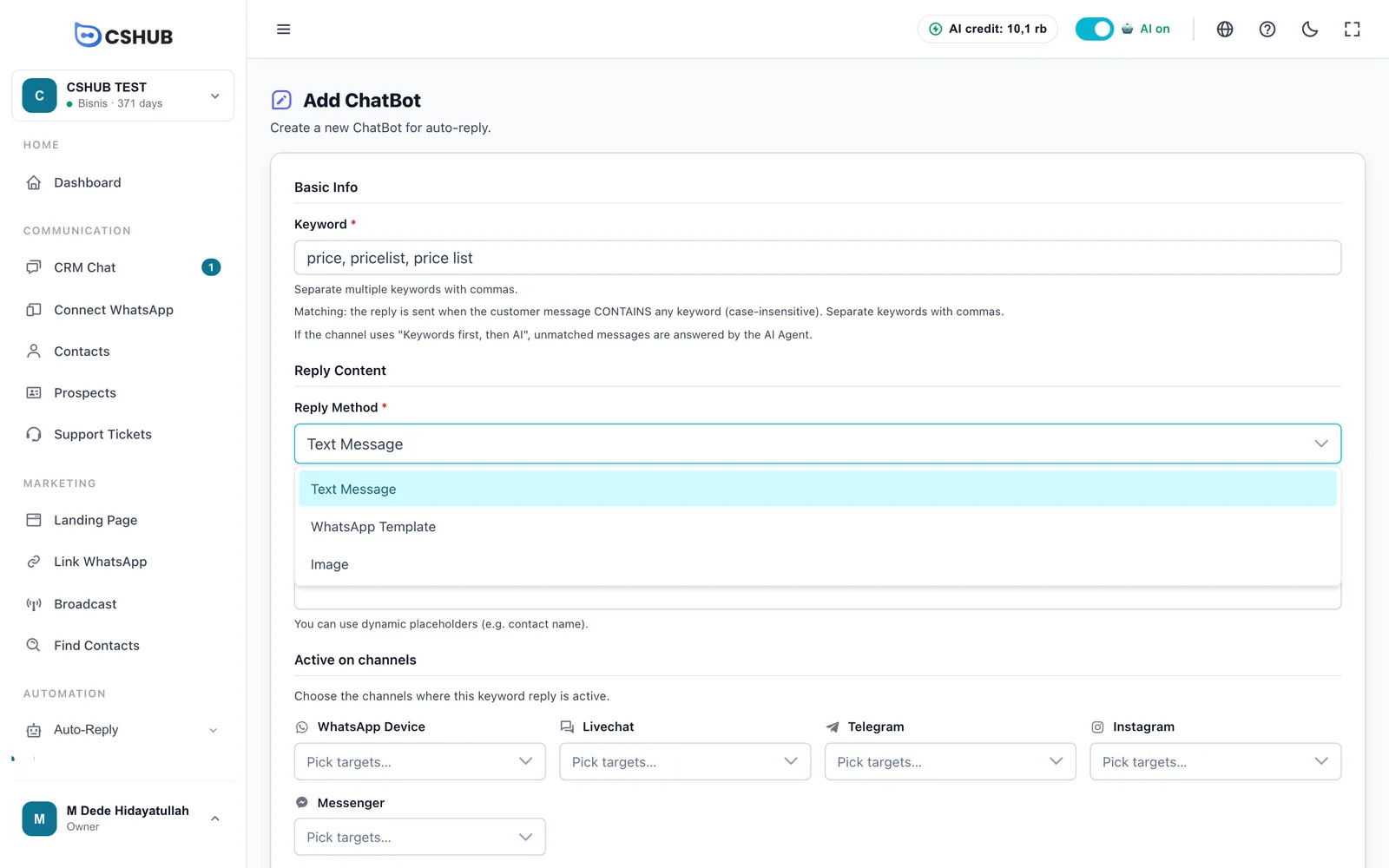
| Method | What to fill in |
|---|---|
| Text Message | Message — the reply text. You can use dynamic placeholders such as the contact name |
| WhatsApp Template | Pick a template you've already created. It must be ready before it can be used. Create templates in Data & templates |
| Image | Upload at least 1 image (up to 5 images, 2 MB each; JPG, PNG, or WebP) and an optional Caption |
3. Active on channels
Choose the channels where this keyword reply is active. Each channel type has its own picker:
| Picker | Contains |
|---|---|
| WhatsApp Device | WhatsApp numbers connected by scanning a QR |
| Livechat | Your website live chat widgets |
| Telegram | Your Telegram bots |
| Your Instagram accounts | |
| Messenger | Your Messenger pages |
If a picker says No channels connected yet, connect that channel first from the Connect WhatsApp menu.
Click Add ChatBot to save.
The WhatsApp Business API has its own chatbot
Keyword replies for official WhatsApp Business API numbers are created on the WABA account page. See WABA chatbots.
Importing many at once from Excel
Click Import XLSX on the ChatBot list.
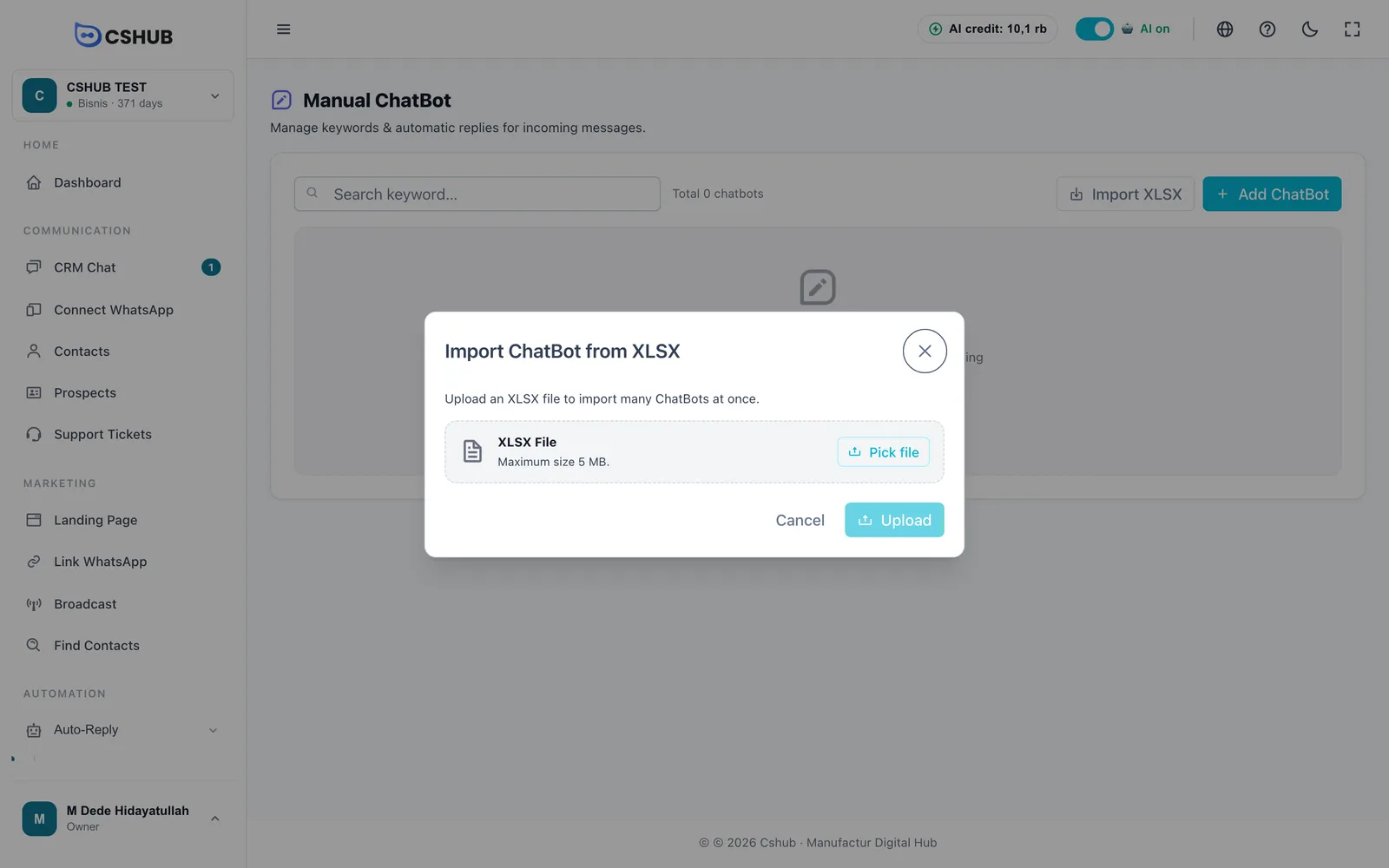
Prepare an Excel file with column headings in the first row, then one chatbot per row:
| Column | Contents |
|---|---|
| A — keyword | Keywords (required). Several are fine, separated by commas |
| B — reply_method | text for a text message, or template. Empty = text |
| C — message | The message text. Required when the method is text |
| D — template_id | The template's ID. Required when the method is template |
The file can be up to 5 MB. After uploading, cshub shows how many rows succeeded and lists errors for rows that failed — successful rows are kept.
Set channels after importing
Import can only create text and template replies. After importing, open each chatbot with Edit and check Active on channels so it runs on the right channels. Create image replies through the form.
Editing & deleting
- Click Edit on a chatbot row to change the keywords, reply, or channels, then Save Changes.
- Click Delete to remove one chatbot, or tick several and click Delete Selected.
Tips
- One topic, one chatbot. Put synonyms in one keyword list (
price, pricelist, price list) instead of creating several chatbots with the same answer. - Avoid overlapping keywords across chatbots — like
pricein one andwholesale pricein another — so it's clear which reply gets sent. - Combine with AI: use keywords for answers that must be exact (prices, bank details), and let the AI Agent answer the rest via Keywords first, then AI.
- For ready-made replies your CS team types into a chat themselves, use Quick replies.