
Quick replies
Quick replies are a library of answers your CS team uses all the time — greetings, bank details, how to order, opening hours — that you drop into the CRM Chat reply box just by typing a slash, with an image, video, audio file, or document attached when you need one.
With quick replies, your team's answers stay consistent and customers don't wait while you retype the same message again and again.
Opening the quick reply library
There are two ways in:
- Open Data & templates and the Quick Replies tab.
- From the CRM Chat reply box, click the Quick Replies icon and then the manage link at the bottom.
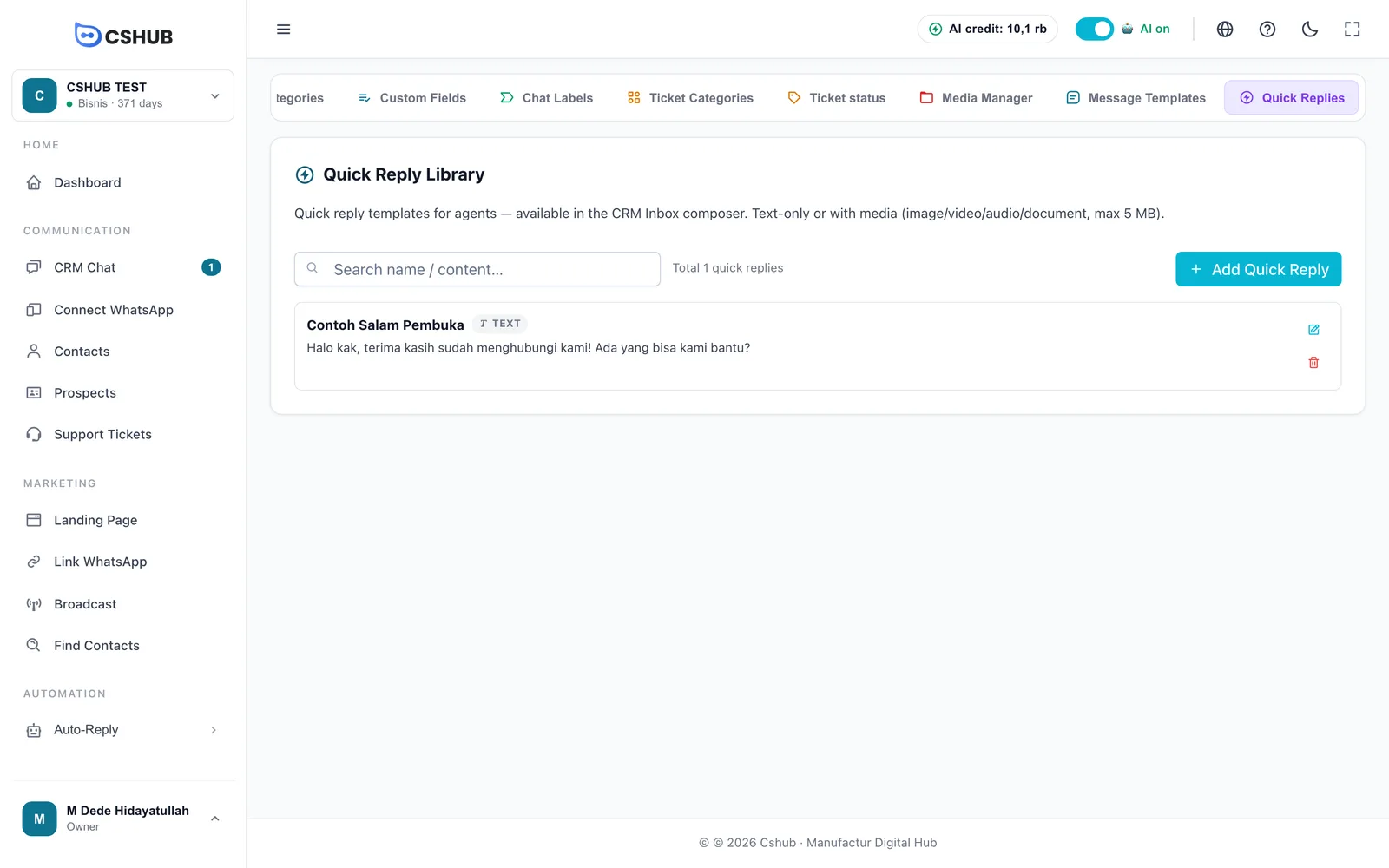
Each item shows its name, a type badge (Text, Image, Video, Audio, or Document), the message, and edit and delete buttons. Use Search name / content… to find a reply.
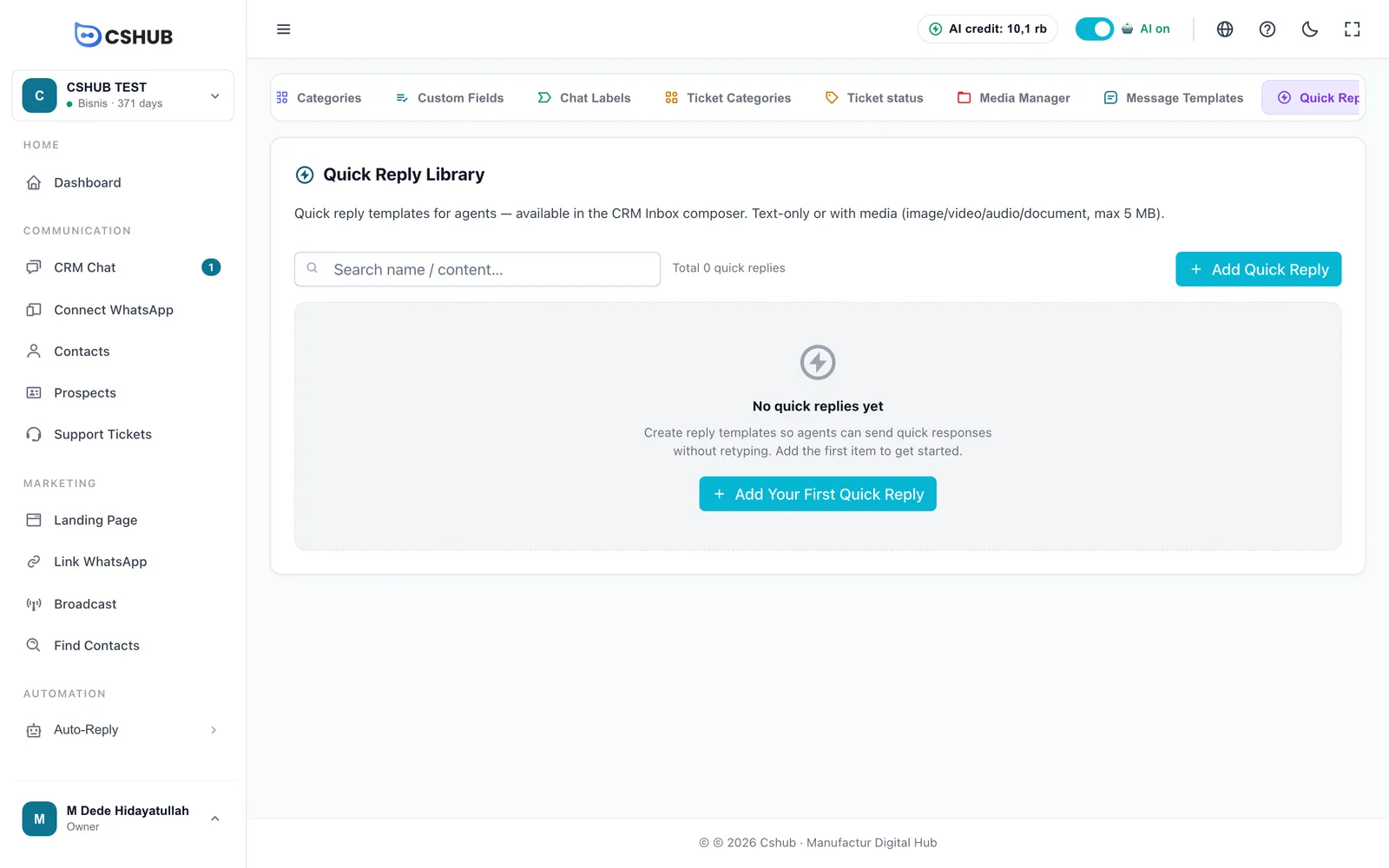
With none yet, the page shows No quick replies yet and an Add Your First Quick Reply button.
Creating a quick reply
- Click Add Quick Reply.
- Fill in the form, then click Add.
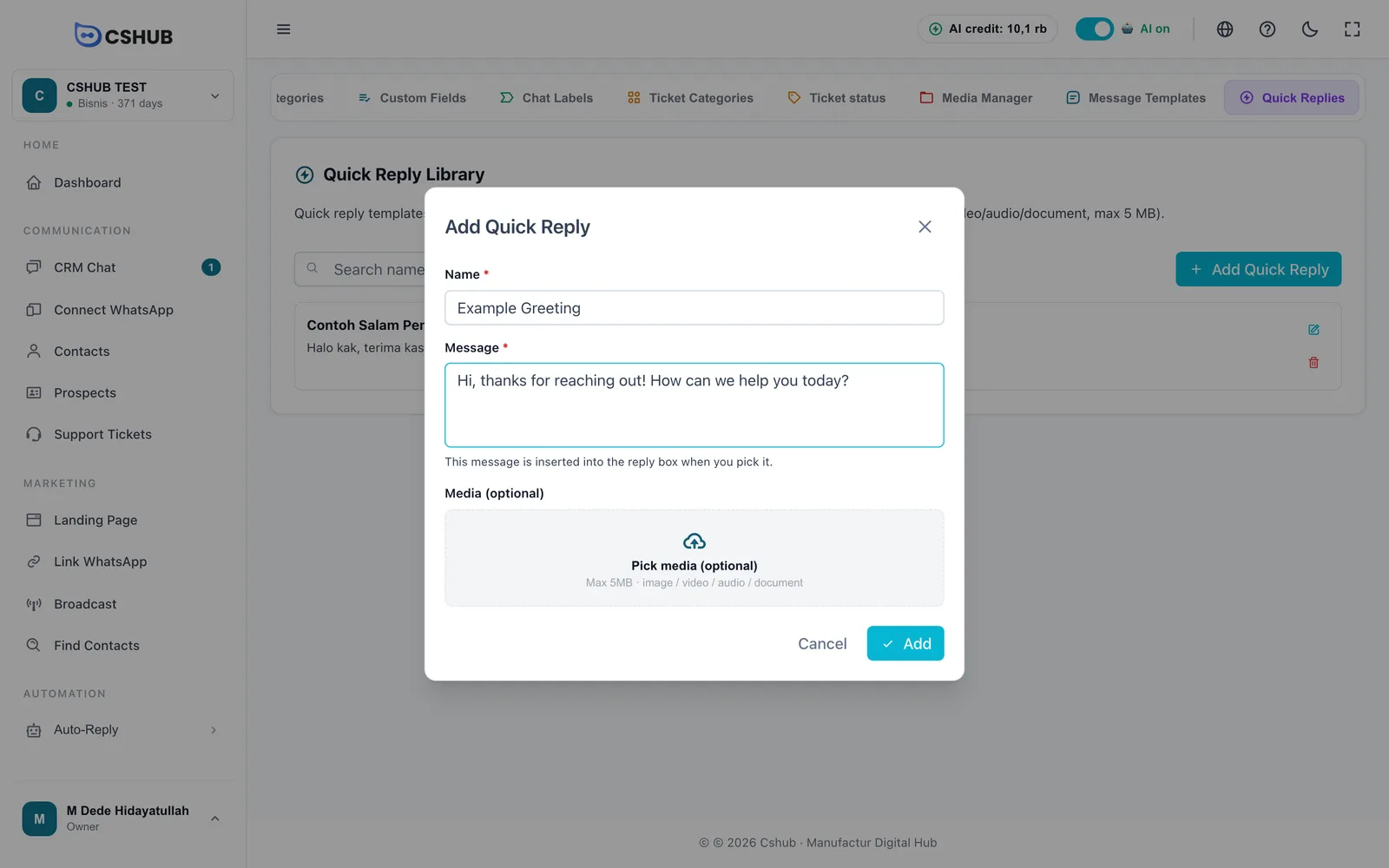
| Field | Description |
|---|---|
| Name | Required. What you'll search for when using it, e.g. Greeting or Order Confirmation. Keep it short and easy to type |
| Message | Required. The text inserted into the reply box when you pick it |
| Media (optional) | An image, video, audio file, or document, up to 5 MB. The message is sent as its caption |
To change a reply, click the pencil icon. When editing, pick a new file to replace the stored media, or leave it empty to keep it. Use Replace or Remove on the media preview to swap or drop the media.
The bin icon deletes the quick reply — its media file is deleted too.
Using quick replies in a chat
In the CRM Chat reply box:
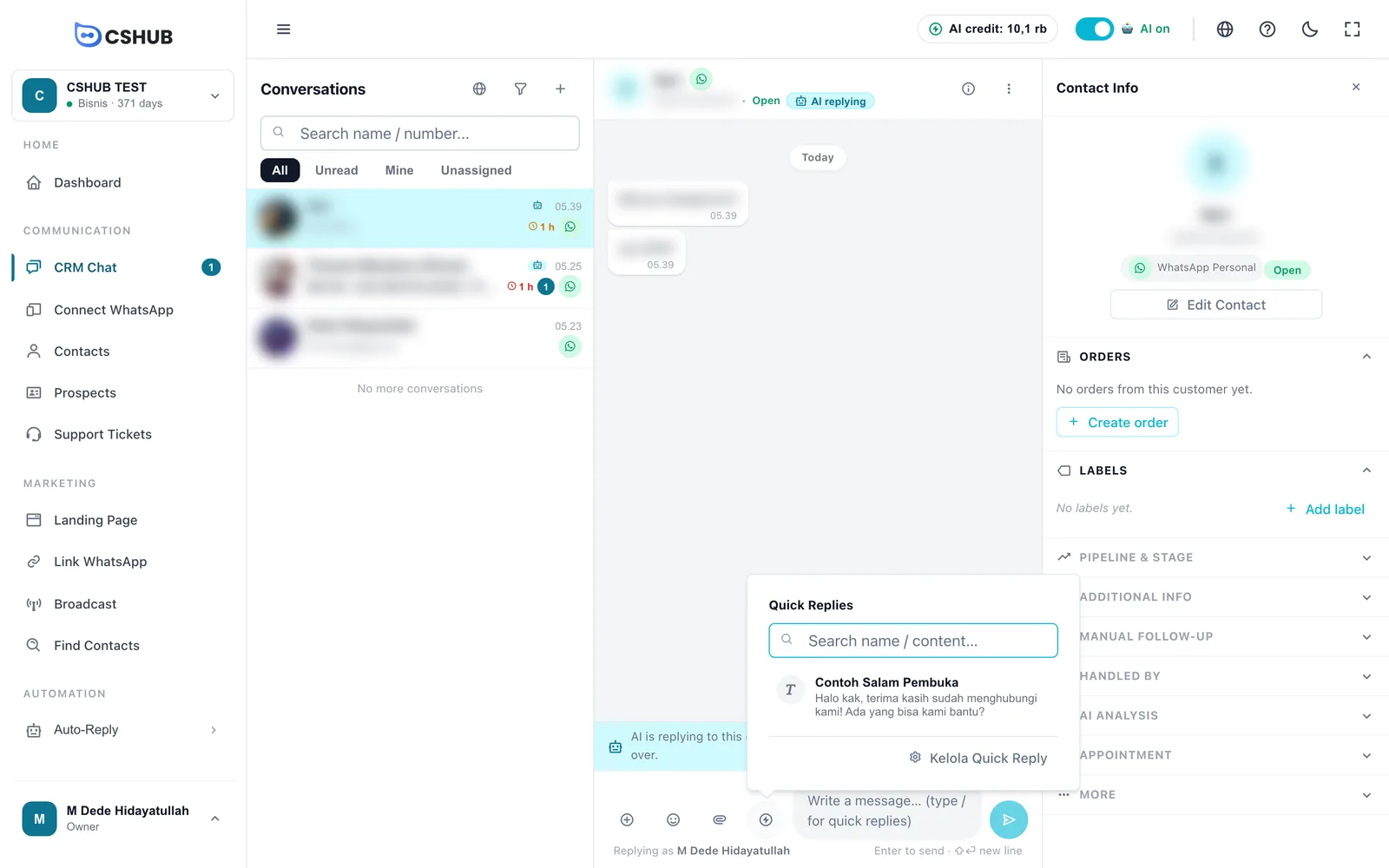
- Type / in the message box, or click the Quick Replies icon.
- Type a few letters of the name or text to filter.
- Pick the reply you want:
- A text reply lands in the message box. Adjust it if needed (e.g. the customer's name), then press Enter.
- A reply with media opens a Send quick reply preview — click Send.
Useful quick reply ideas
| Name | Message |
|---|---|
| Greeting | Hi! Thanks for reaching out. How can we help you today? |
| Bank details | You can transfer the payment to the following account… |
| How to order | To order, just send us the product name, quantity, and your full address. |
| Catalogue | (attach the PDF catalogue) Here's our latest catalogue. |
| Opening hours | We're online Monday–Saturday, 8 am to 5 pm. |
Quick replies vs message templates
Quick replies are used manually by CS while replying. For automatic replies, broadcasts, or official WhatsApp Business API templates, use Message Templates in Data & templates.
Access
If you see Package not active, activate the business package in Billing & packages. If you see No access, ask the owner to add the Quick Replies permission to your role in Team, CS & roles.