
Official WhatsApp Business API
Connect an official WhatsApp Business Platform account from Meta (Cloud API) to cshub to send official template broadcasts, set up automatic replies, and keep your business number in good standing with Meta. Every chat to a WABA number lands in CRM Chat alongside your other channels.
In cshub, one WABA account (WhatsApp Business Account) can hold several phone numbers. Each number is called a device. From the account page you manage four things: devices, templates, broadcasts, and chatbots.
Do you need WABA, or is scanning a QR enough?
WABA suits you if you need high volume, Meta-approved templates, or the green tick. To get going quickly without Meta verification, use WhatsApp (scan QR). The comparison is in About channels.
Before you start
- A Meta Business account (Business Manager) you manage.
- A phone number that is not registered on another WhatsApp Business Platform setup — or, if you want to keep using it in the WhatsApp Business app on your phone, choose Coexistence mode when connecting.
- For the Manual route: a Meta App with a System User and a long-lived access token.
WABA account list
Open Connect WhatsApp in the sidebar, then the Official WhatsApp Business API tab.
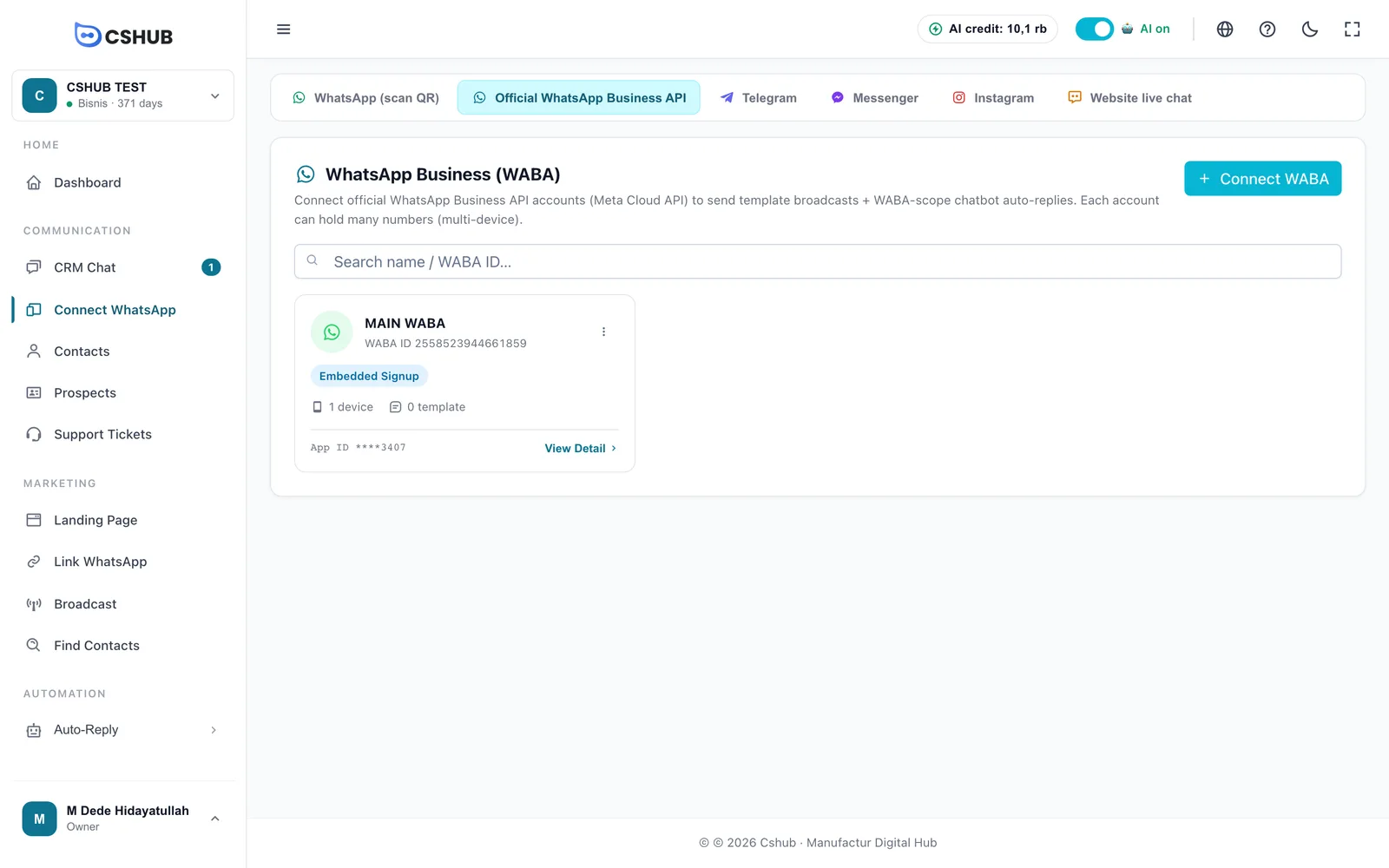
Each card shows the account name, WABA ID, connection method (Embedded Signup or Manual), device and template counts, and the Meta App ID. The ⋮ button on a card opens a menu:
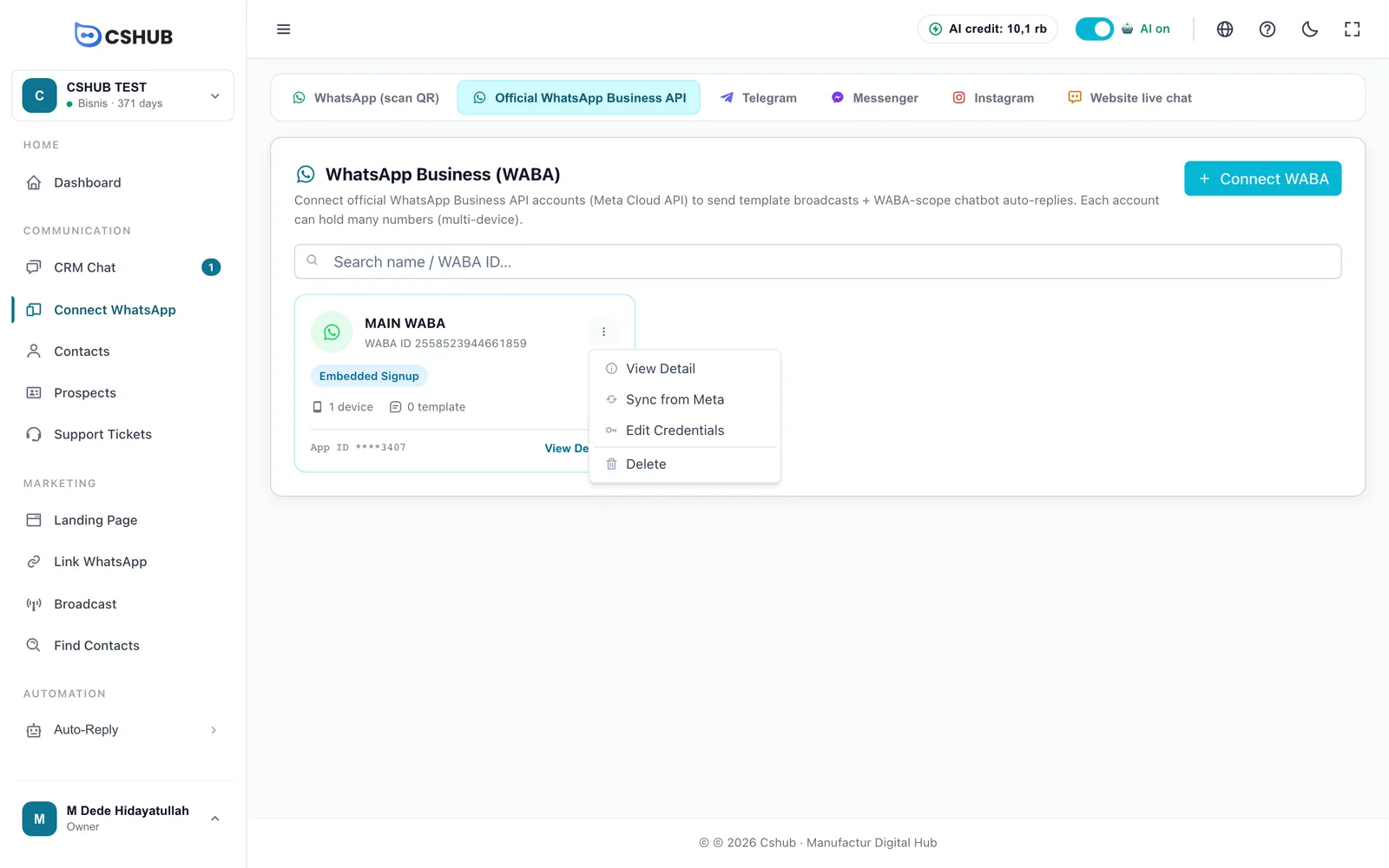
| Menu | What it does |
|---|---|
| View Detail | Opens the account page (same as clicking the card) |
| Sync from Meta | Pulls the latest numbers and templates from Meta and summarises the result, such as how many new devices were found, or "No changes from Meta." |
| Edit Credentials | Replaces this account's App Secret and access token |
| Delete | Removes the WABA account from cshub (see Deleting a WABA account) |
Connecting a WABA account
Click Connect WABA. There are two ways: Embedded Signup (easiest) or Manual.
Option 1 — Embedded Signup (Facebook login)
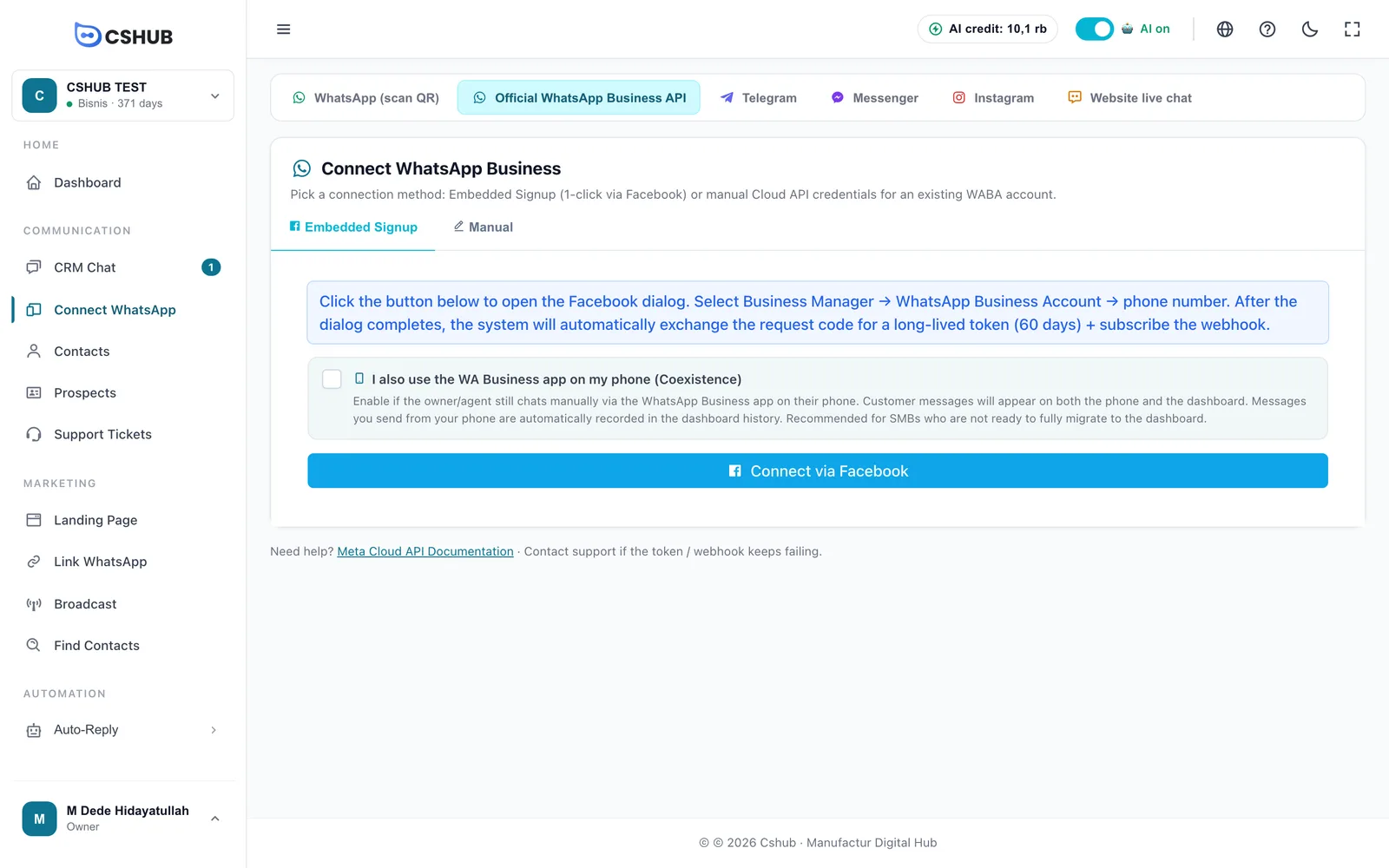
- If your number is still used in the WhatsApp Business app on your phone and you want to keep it that way, tick I also use the WA Business app on my phone (Coexistence) (see Coexistence).
- Click Connect via Facebook. A Facebook window opens.
- Log in, then choose your Business Manager → WhatsApp Business Account → phone number.
- When the dialog finishes, fill in Display Name (optional) — a name to tell accounts apart in the dashboard, e.g. Main Store WABA. If left empty, the WABA ID is used.
- Click Finalize Connection. Want to choose again? Click Cancel & Re-select.
cshub automatically exchanges the Facebook permission for a long-lived token (60 days) and connects the webhook, so incoming messages flow straight into CRM Chat.
Popup not showing?
Ad or popup blockers can stop the Facebook dialog. Allow popups for cshub and try again. If it still fails, use the Manual tab.
Option 2 — Manual (Cloud API credentials)
For WABA accounts that are already active and where you have access to the Meta Developers Console.
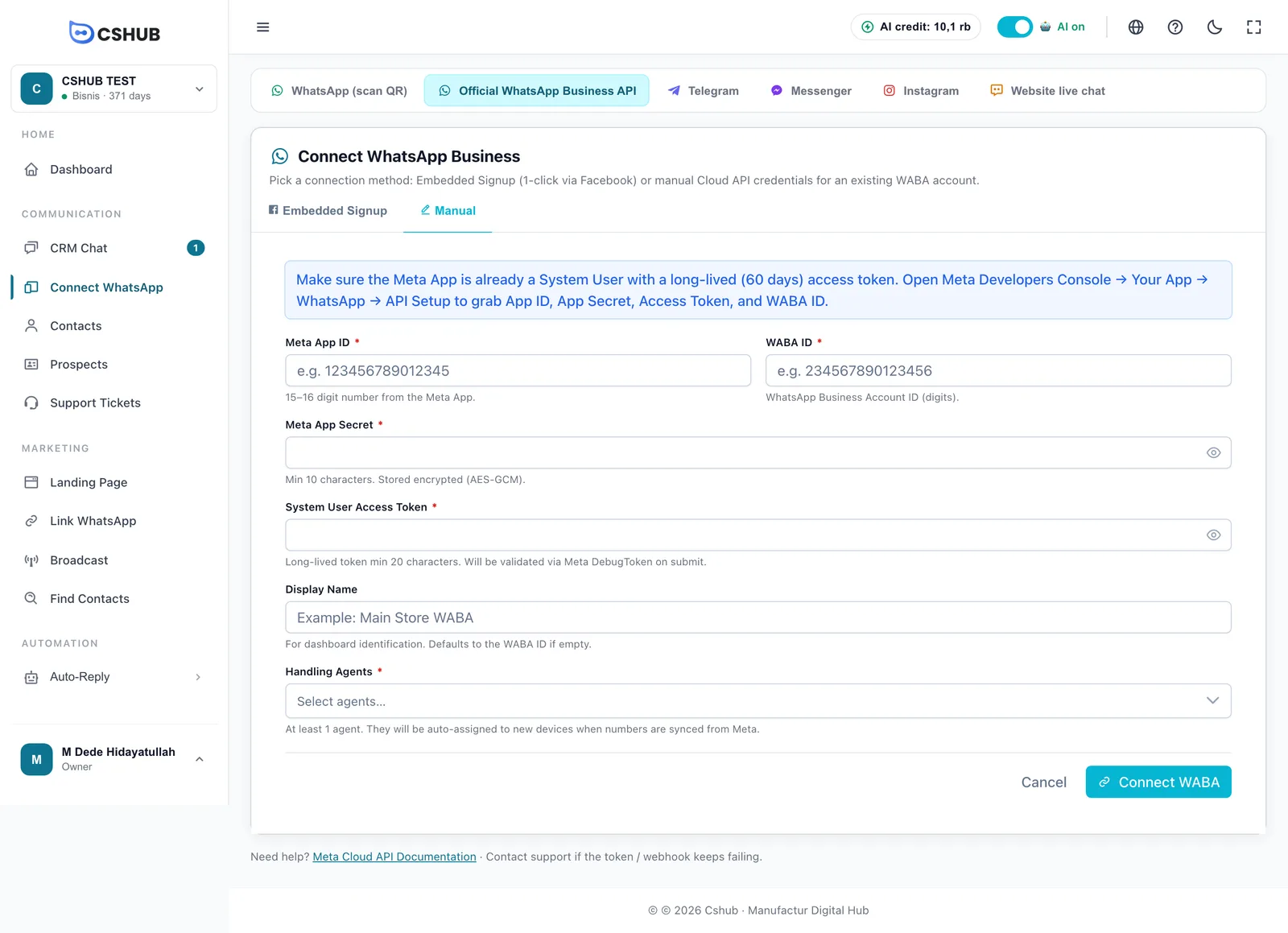
Find the values in Meta Developers Console → Your App → WhatsApp → API Setup.
| Field | Notes |
|---|---|
| Meta App ID * | The 15–16 digit number of your Meta App |
| WABA ID * | WhatsApp Business Account ID (digits only) |
| Meta App Secret * | At least 10 characters. Stored encrypted |
| System User Access Token * | A long-lived System User token, at least 20 characters. Checked with Meta when you save |
| Display Name | Name for the dashboard. Defaults to the WABA ID if empty |
| Handling Agents * | At least 1 team member. They're automatically assigned to every number synced from Meta |
Click Connect WABA.
If connecting fails
| Message | Cause & fix |
|---|---|
| Invalid Meta token | The token expired or the App Secret doesn't match the App ID. Generate a new token in Meta Business Manager |
| Webhook subscribe failed | The account is connected but the webhook isn't active. Open the account detail and click Reconnect |
| No WhatsApp number | The WABA has no phone number yet. Add one in Meta Business Manager → WhatsApp Manager → Phone Numbers, then try again |
| Embedded Signup failed | The Facebook code expired or was already used. Retry the dialog or use Manual |
| WABA already connected | This WABA ID is used in another cshub account. Remove it there first or contact support |
| Package limit reached | Your plan has reached its WABA account cap. See Billing & packages |
Coexistence mode
Coexistence lets one number be used at the same time in the WhatsApp Business app on your phone and in cshub:
- Customer messages arrive on your phone and in the cshub dashboard.
- Messages you send manually from your phone are recorded in the dashboard history, so your team knows the customer has been handled.
- cshub can still send template broadcasts and automatic replies.
It suits small businesses whose owner or CS still often replies from the phone but want to start using broadcasts and the CRM. Accounts in this mode carry a Coexistence badge on the detail page.
Account detail page
Click an account card (or ⋮ → View Detail).
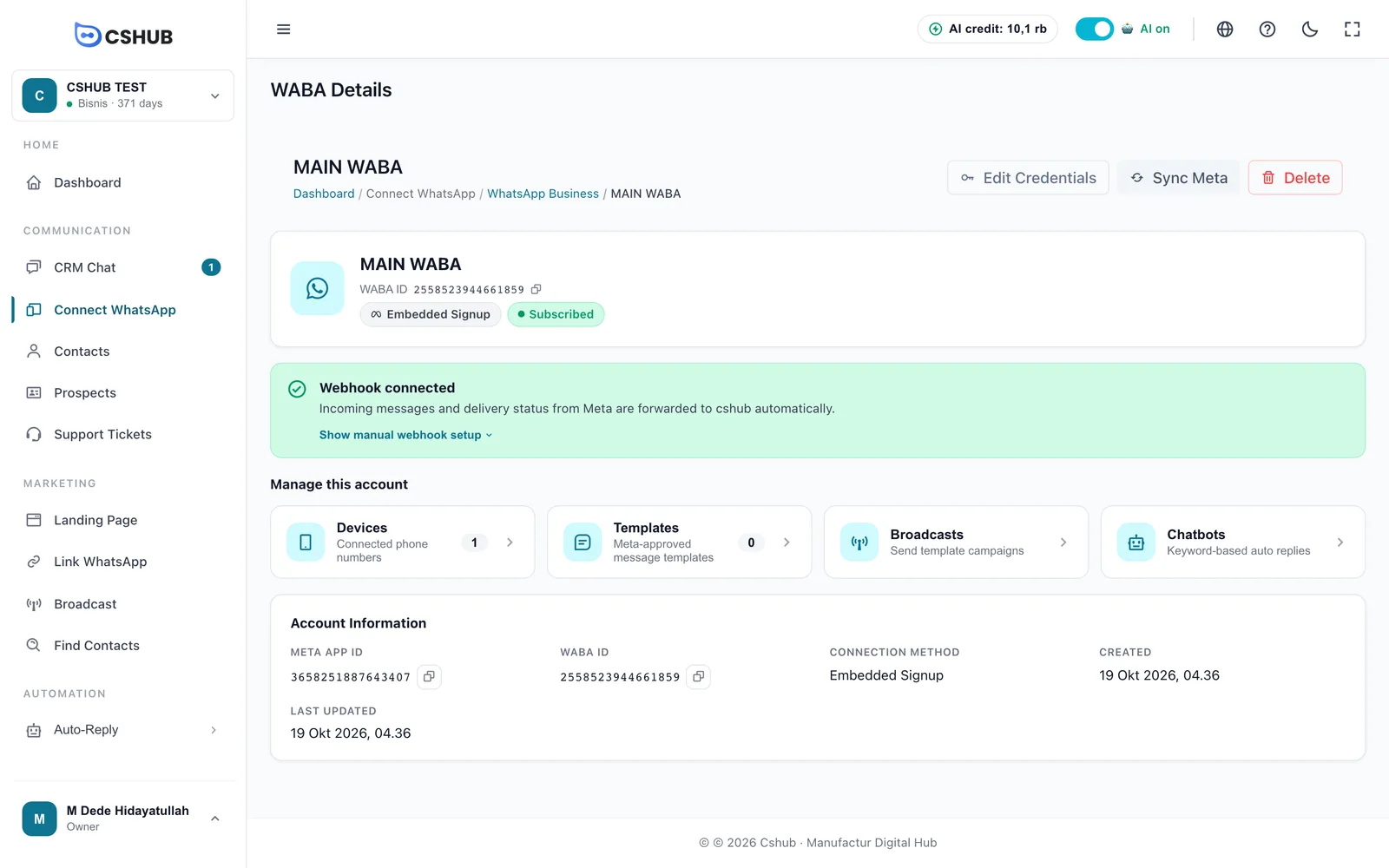
| Section | What's in it |
|---|---|
| Webhook status | A green Webhook connected box means incoming messages and delivery statuses from Meta are forwarded automatically. If you see Webhook not connected yet, click Reconnect |
| Show manual webhook setup | Shows the Webhook URL and Verify Token to paste manually into Meta Developers → App → WhatsApp → Configuration, in case automatic setup didn't work |
| Manage this account | Shortcuts to Devices, Templates, Broadcasts, and Chatbots |
| Account Information | Meta App ID, WABA ID (copyable), connection method, created and last-updated dates |
Webhook not connected = no incoming messages
Until the webhook is connected, customer chats to the WABA number won't reach cshub. If Reconnect keeps failing, make sure the access token has the whatsapp_business_management and whatsapp_business_messaging permissions.
Devices (numbers)
The Devices card opens the list of numbers in this account.
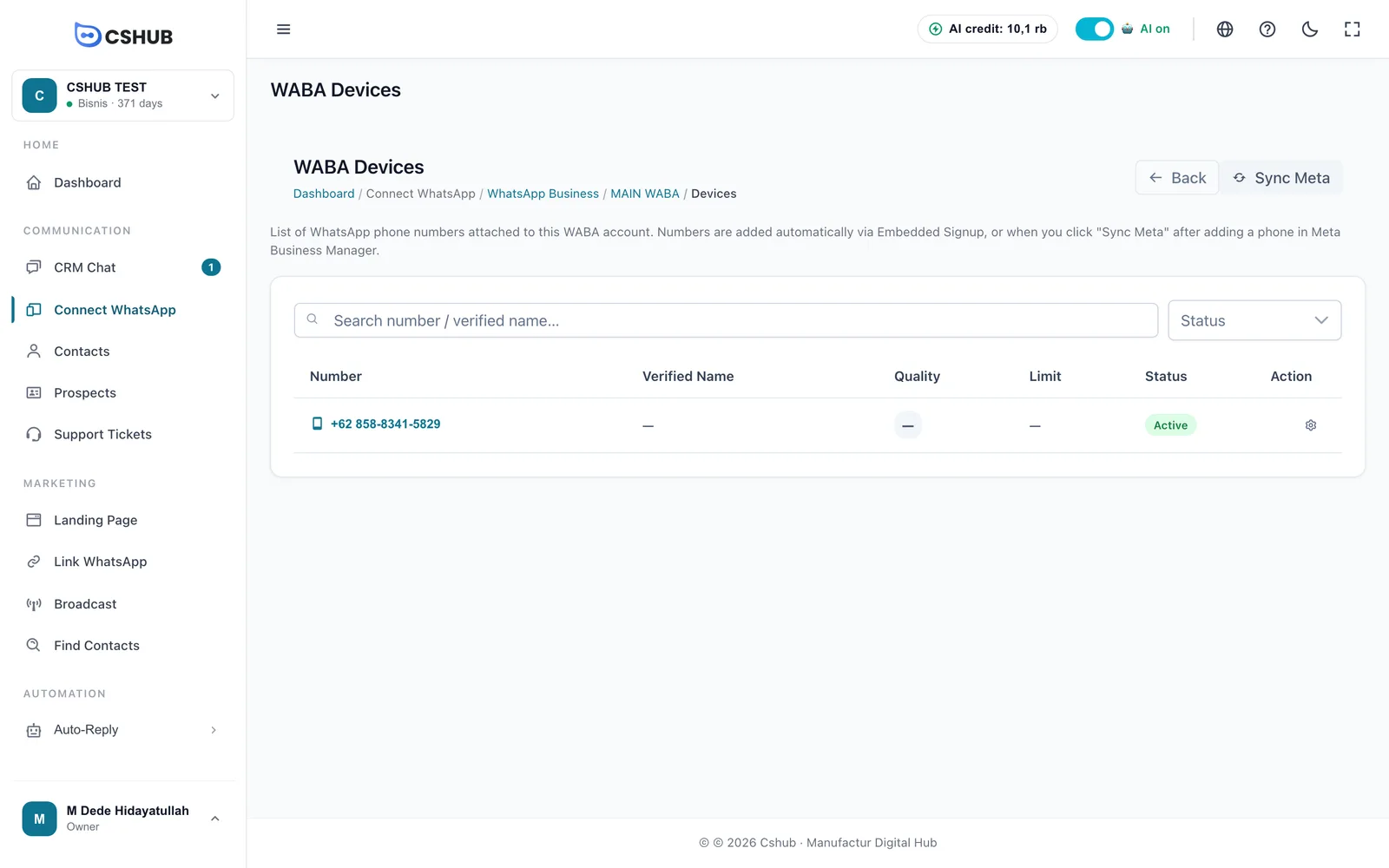
Numbers are added automatically during Embedded Signup, or when you click Sync Meta after adding a number in Meta Business Manager. Device statuses:
| Status | Meaning |
|---|---|
| Active | The number can send and receive messages |
| Inactive | The number can't be used yet |
| Blocked by Meta | Meta has restricted this number. Check the Quality Rating and your messaging practices |
Click the detail icon on a number's row to open its settings. There are three tabs.
Token & Info tab
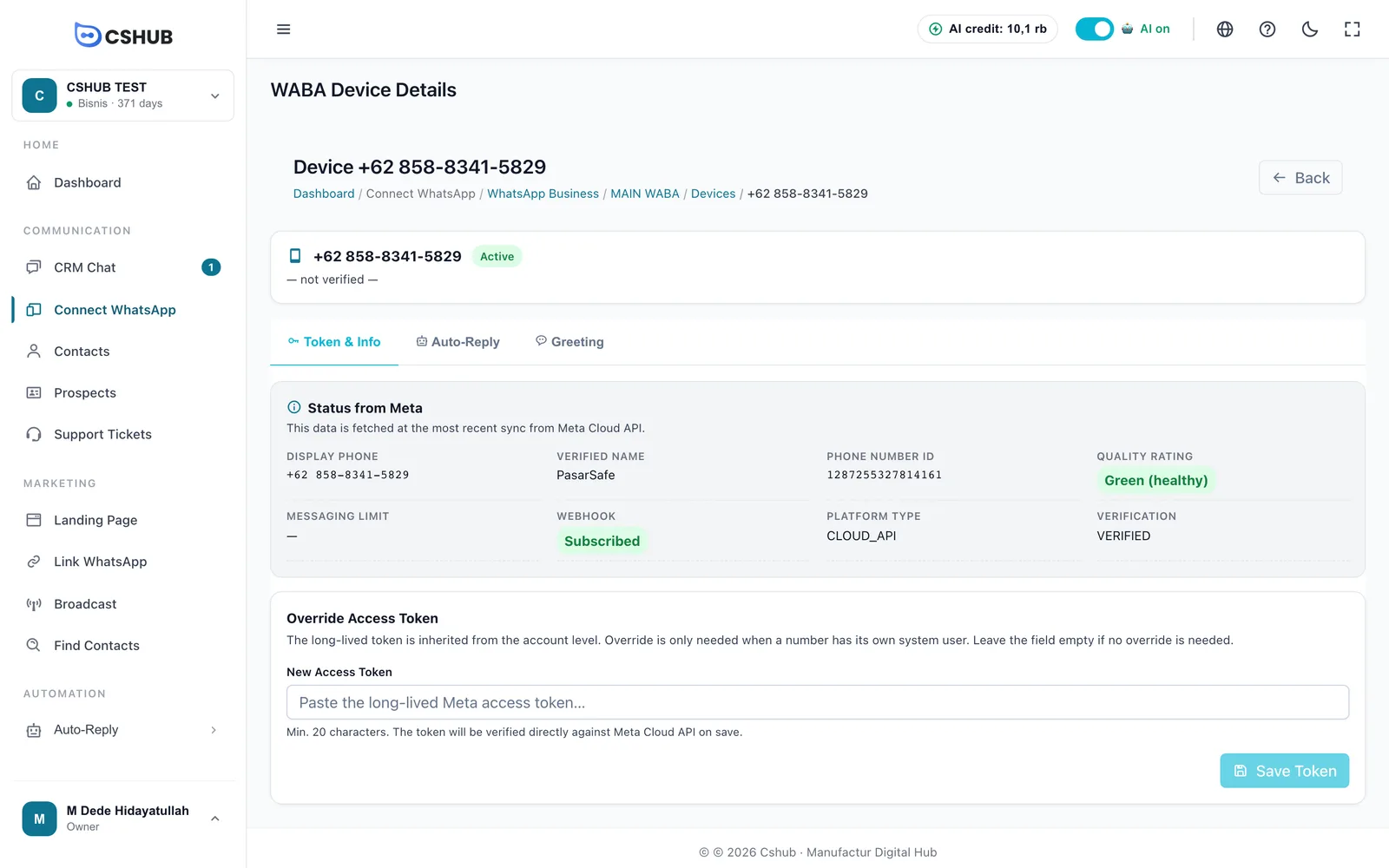
Status from Meta is fetched at the latest sync:
| Item | Meaning |
|---|---|
| Display Phone | The number as customers see it |
| Verified Name | The business name approved by Meta |
| Quality Rating | Number health: Green (healthy), Yellow (caution), or Red (restricted). It drops when many customers block or report your messages |
| Messaging Limit | How many conversations Meta lets you start per day |
| Webhook | Subscribed means incoming messages are forwarded to cshub |
| Platform Type / Verification | Platform type and verification status from Meta |
Only fill in Override Access Token if this number has its own System User. Normally the token is inherited from the account, so leave it empty.
Auto-Reply tab
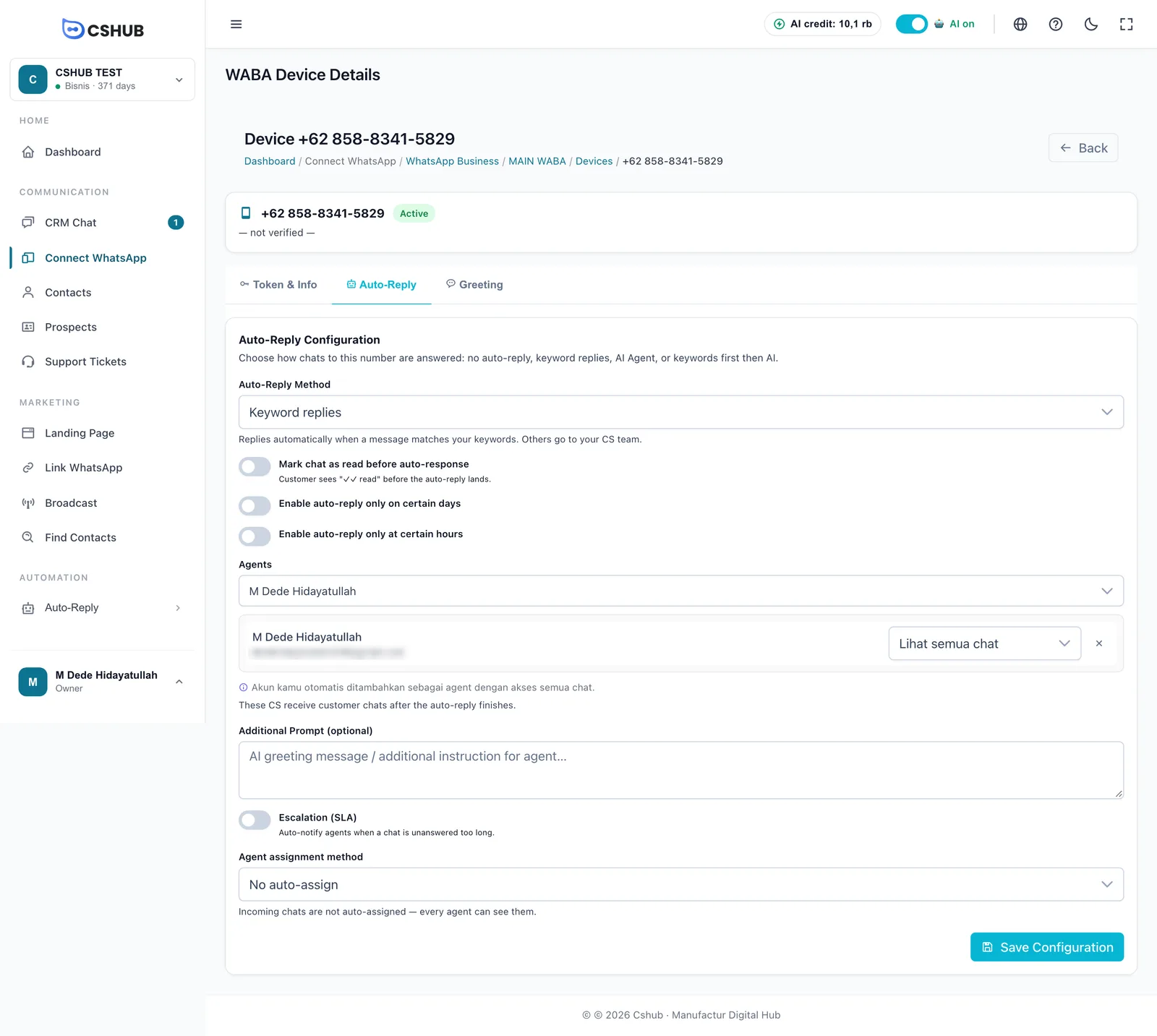
| Setting | Notes |
|---|---|
| Auto-Reply Method | No auto-reply, Keyword replies, AI Agent, or Keywords first, then AI. For the last two, pick the AI Agent |
| Mark chat as read before auto-response | Customers see the blue ticks before the automatic reply arrives |
| Enable auto-reply only on certain days | Choose the active days |
| Enable auto-reply only at certain hours | Set a Start and End time (e.g. 09:00) |
| Agents | The CS team members who receive chats after the auto-reply finishes, with their access level |
| Additional Prompt (optional) | Extra instructions for the AI Agent on this number only |
| Escalation (SLA) | Notifies agents when a chat waits too long for a human |
| Agent assignment method | How new chats are handed to your team (see About channels) |
Click Save Configuration. Keywords for WABA numbers are created in WABA Chatbots.
Greeting tab
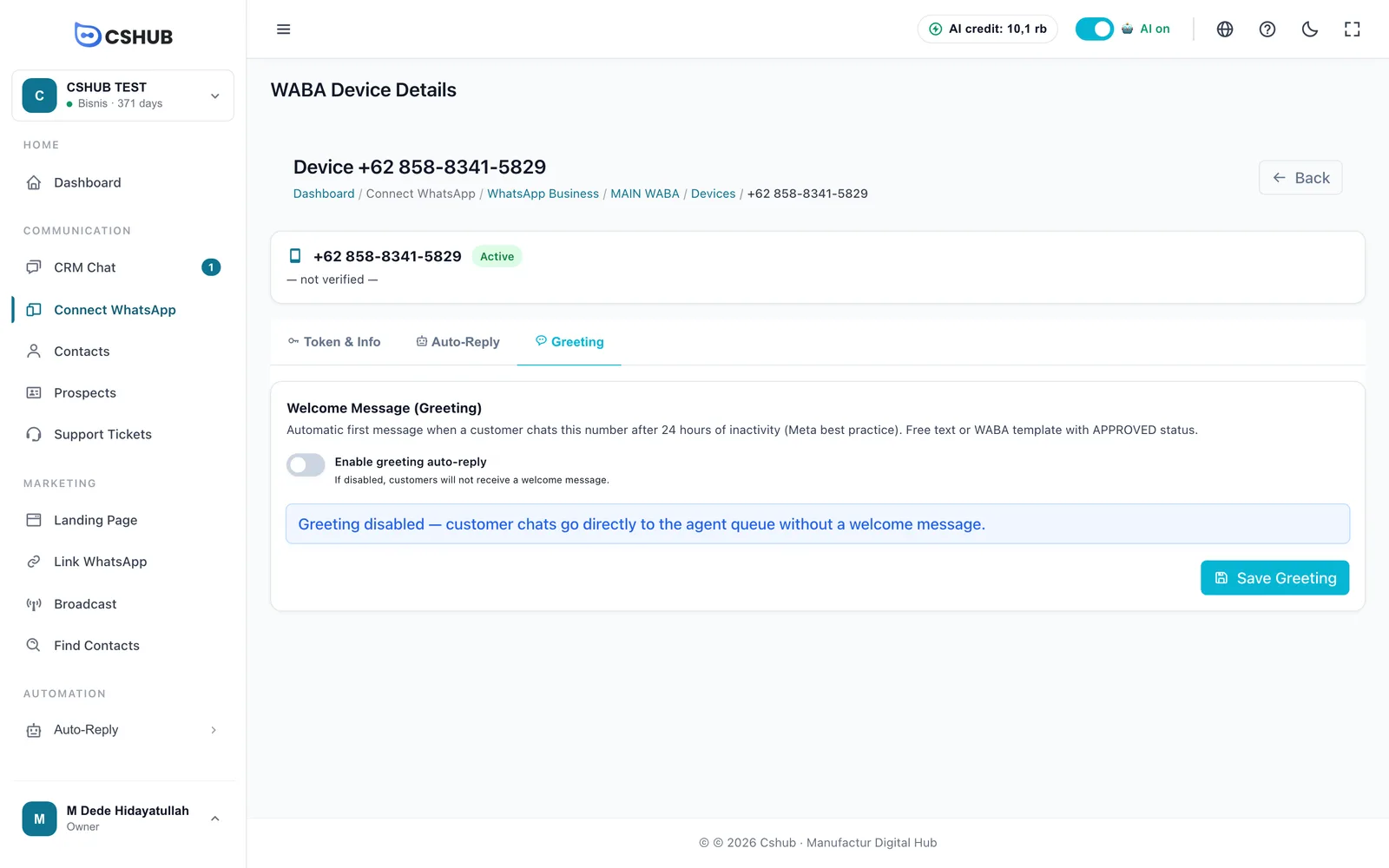
The greeting is an automatic welcome message sent when a customer writes after 24 hours without any interaction. Turn on Enable greeting auto-reply, then pick the Greeting Message Type:
- Free-form Text — write it yourself, up to 1,024 characters.
- WhatsApp Template — choose an Approved template.
Click Save Greeting.
Message templates
Meta requires an approved template to start a conversation with a customer (for example, a broadcast) or to message them outside the 24-hour window after their last reply.
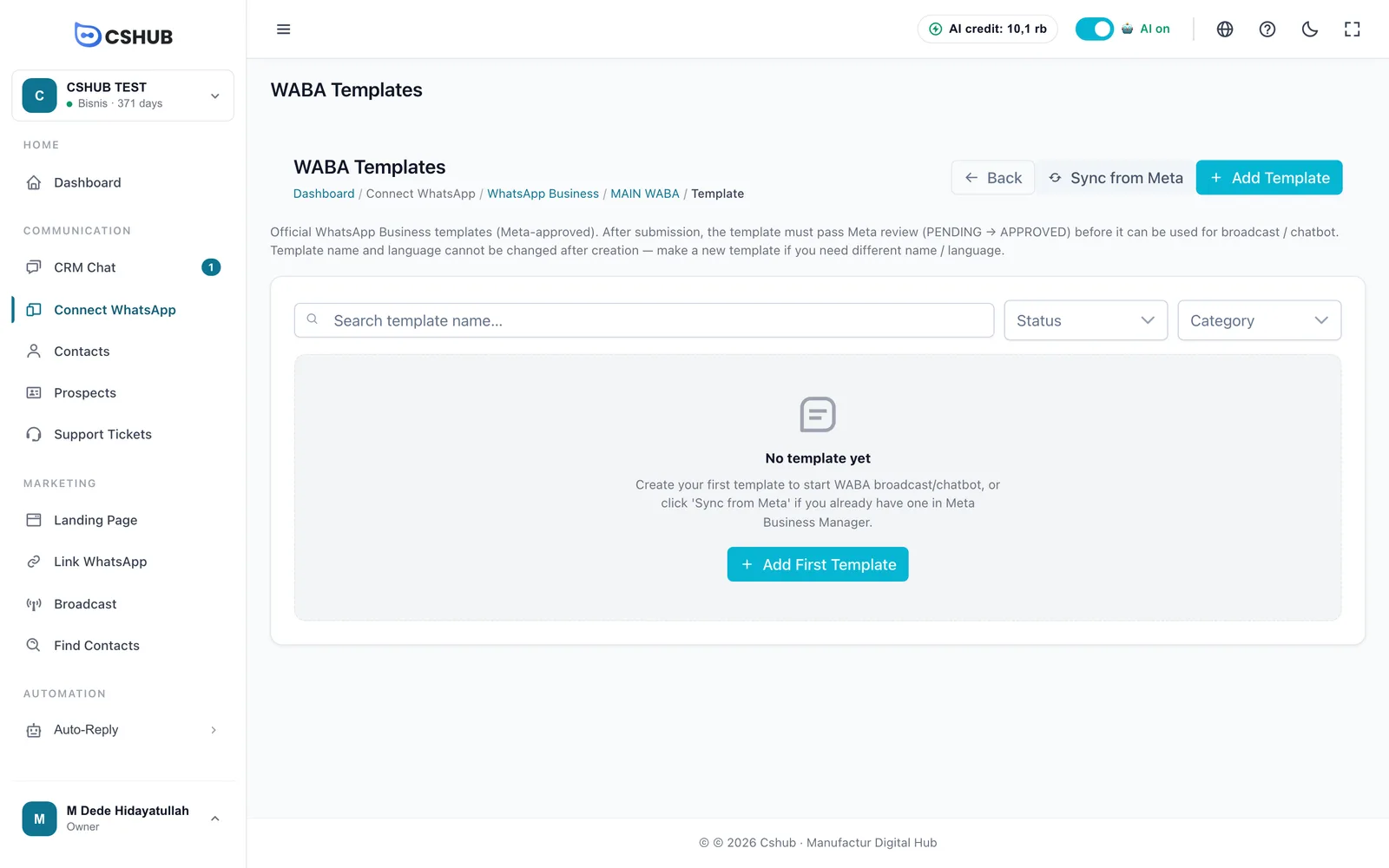
Already have templates in Meta Business Manager? Click Sync from Meta to pull them in. Templates deleted on Meta's side are marked Deleted.
| Template status | Meaning |
|---|---|
| Pending review | Just submitted, Meta is reviewing it |
| Approved | Ready for broadcasts, chatbots, and greetings |
| Rejected | Didn't pass review. Fix the content and create a new template |
| Deleted | Removed on Meta's side |
Creating a template
Click Add Template. The WhatsApp Preview on the right updates as you type.
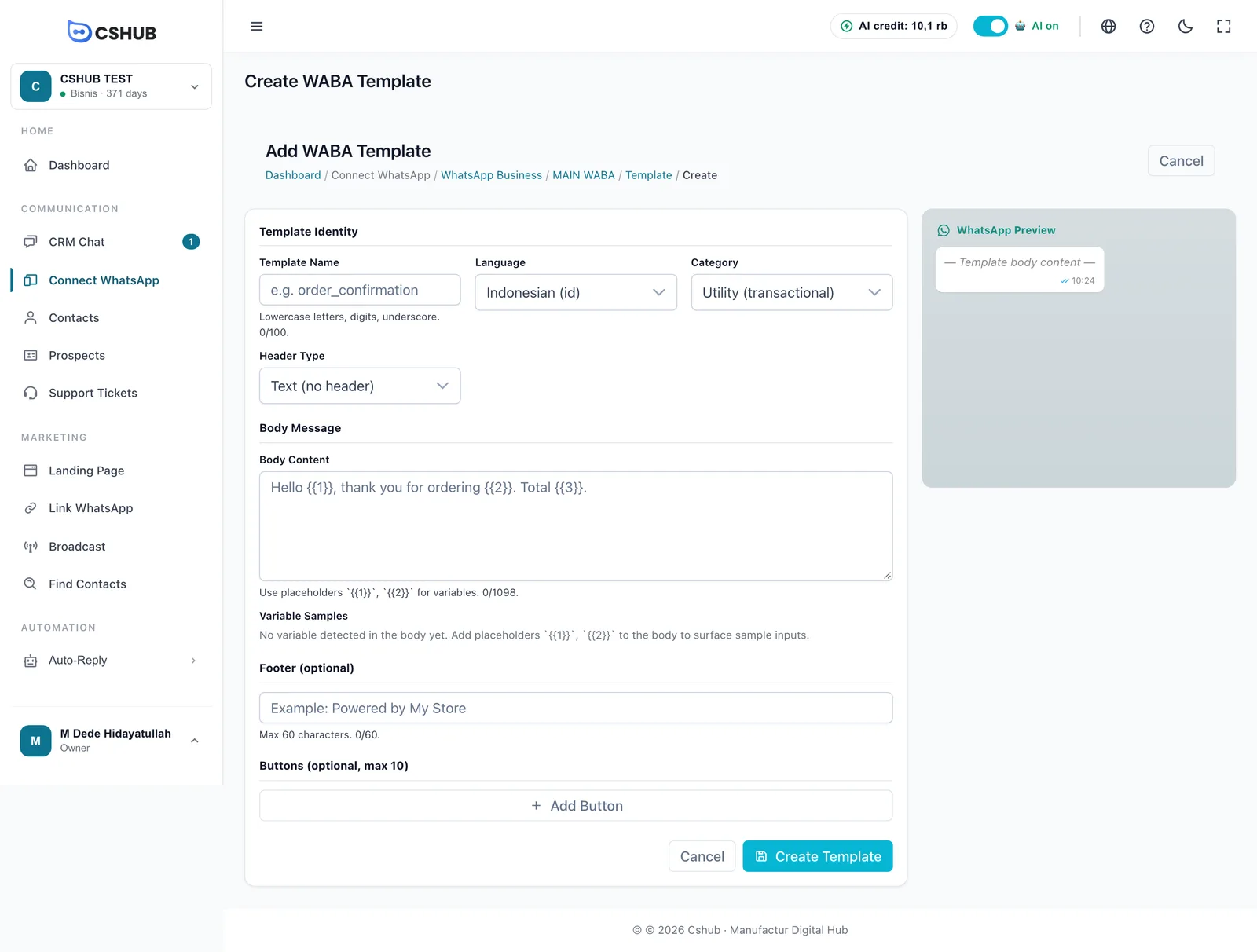
| Field | Notes |
|---|---|
| Template Name | Lowercase letters, digits, and underscores, e.g. order_confirmation. Up to 100 characters |
| Language | The template language, e.g. Indonesia (id) or English (en) |
| Category | Utility (transactional) for order/account updates, Marketing (promotional) for promos, Authentication (OTP) for verification codes |
| Header Type | Text (no header), Image (JPG/PNG up to 16MB), Video (MP4 up to 16MB), or Document (PDF up to 100MB). For media headers, upload the file |
| Body Content | The message, up to 1,098 characters. Use 1, 2 for parts that change per customer |
| Sample Variables | Appear automatically for each |
| Footer (optional) | Small text under the message, up to 60 characters |
| Buttons (optional, max 10) | Quick Reply, URL, Phone, or Copy Code |
Click Create Template. The template stays Pending review until Meta approves it.
Name and language can't be changed
Once created, a template's name and language are locked. If you need a different name or language, create a new template.
WABA broadcasts
Send an Approved template to many contacts at once.
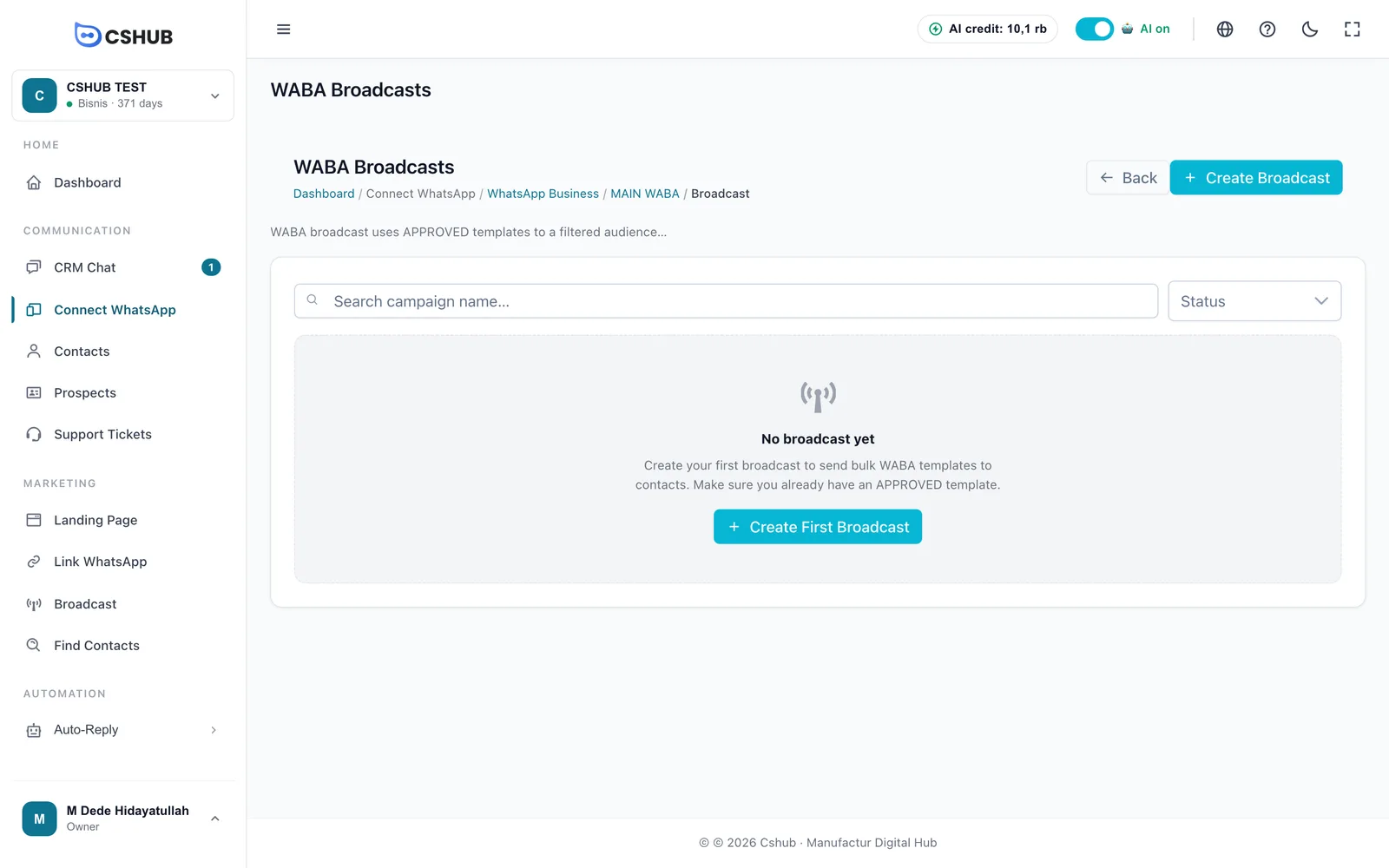
Click Create Broadcast:
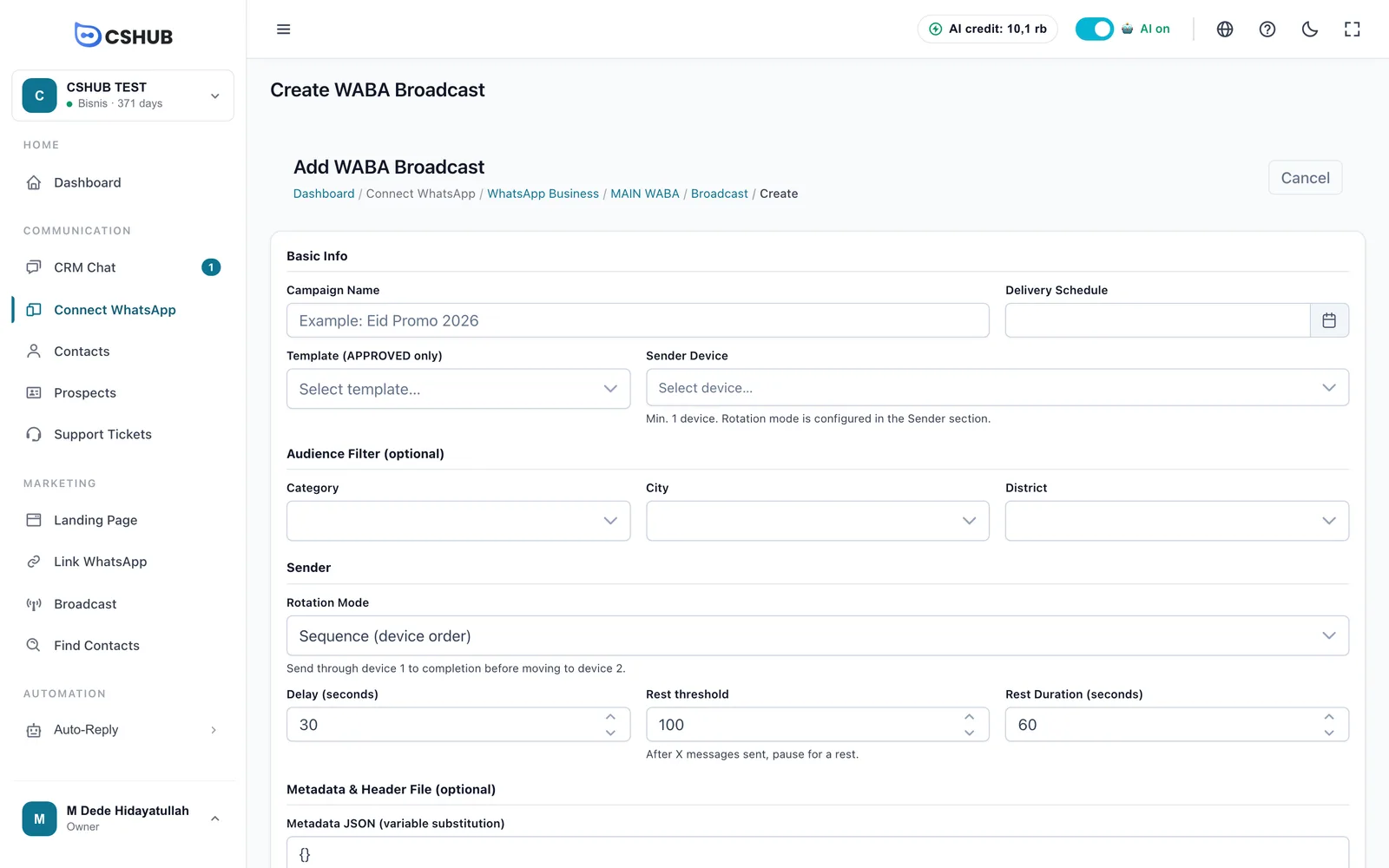
| Field | Notes |
|---|---|
| Campaign Name | A name to recognise the broadcast, e.g. Eid Promo 2026 |
| Delivery Schedule | Send date & time; must be in the future |
| Template (APPROVED only) | Only Approved templates are listed |
| Sender Device | At least 1 WABA number |
| Audience Filter (optional) | Filter contacts by Category, City, and District. Empty = all contacts |
| Rotation Mode | Sequence (device order) — use number 1 until done, then number 2; Spin (round-robin) — take turns between numbers; Random — a random number per contact |
| Delay (seconds) | Pause between messages |
| Rest threshold | After this many messages, sending pauses for a rest |
| Rest Duration (seconds) | How long that rest lasts |
| Metadata JSON | Values for the template's {"1": "Hello "}. The Pretty JSON button tidies it up |
| File Header Override (optional) | Only if the template has a media header and you want to replace its default file |
Click Schedule Broadcast. Broadcast statuses: Pending Schedule, Running, Completed, or Stopped. A broadcast can only be edited while it's still pending. Its detail page shows a progress bar (pending / sent / failed) and a Refresh Progress button.
For broadcasts over WhatsApp scan QR, see WhatsApp broadcast.
WABA chatbots
Keyword-based automatic replies just for the numbers in this WABA account.
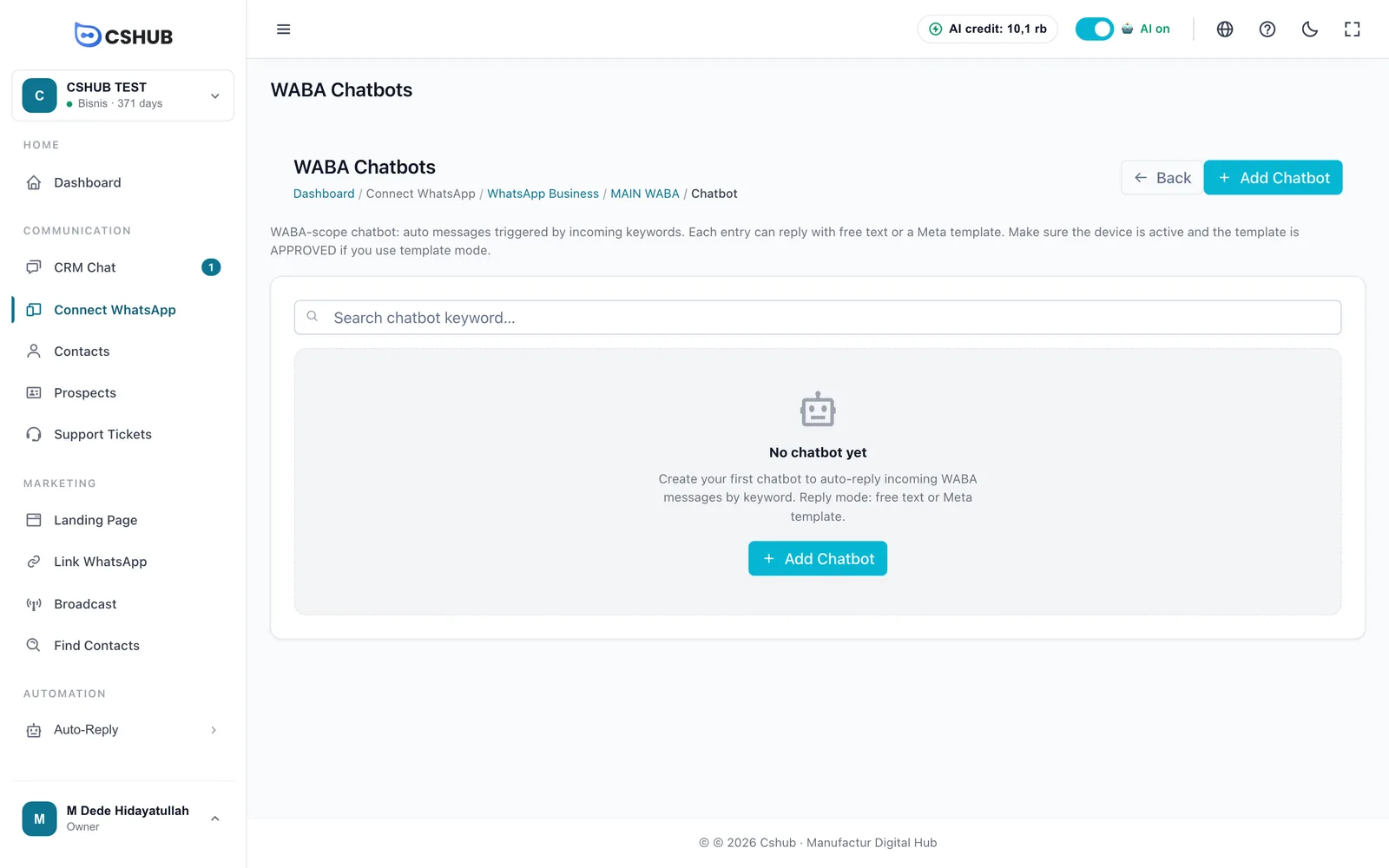
Click Add Chatbot:
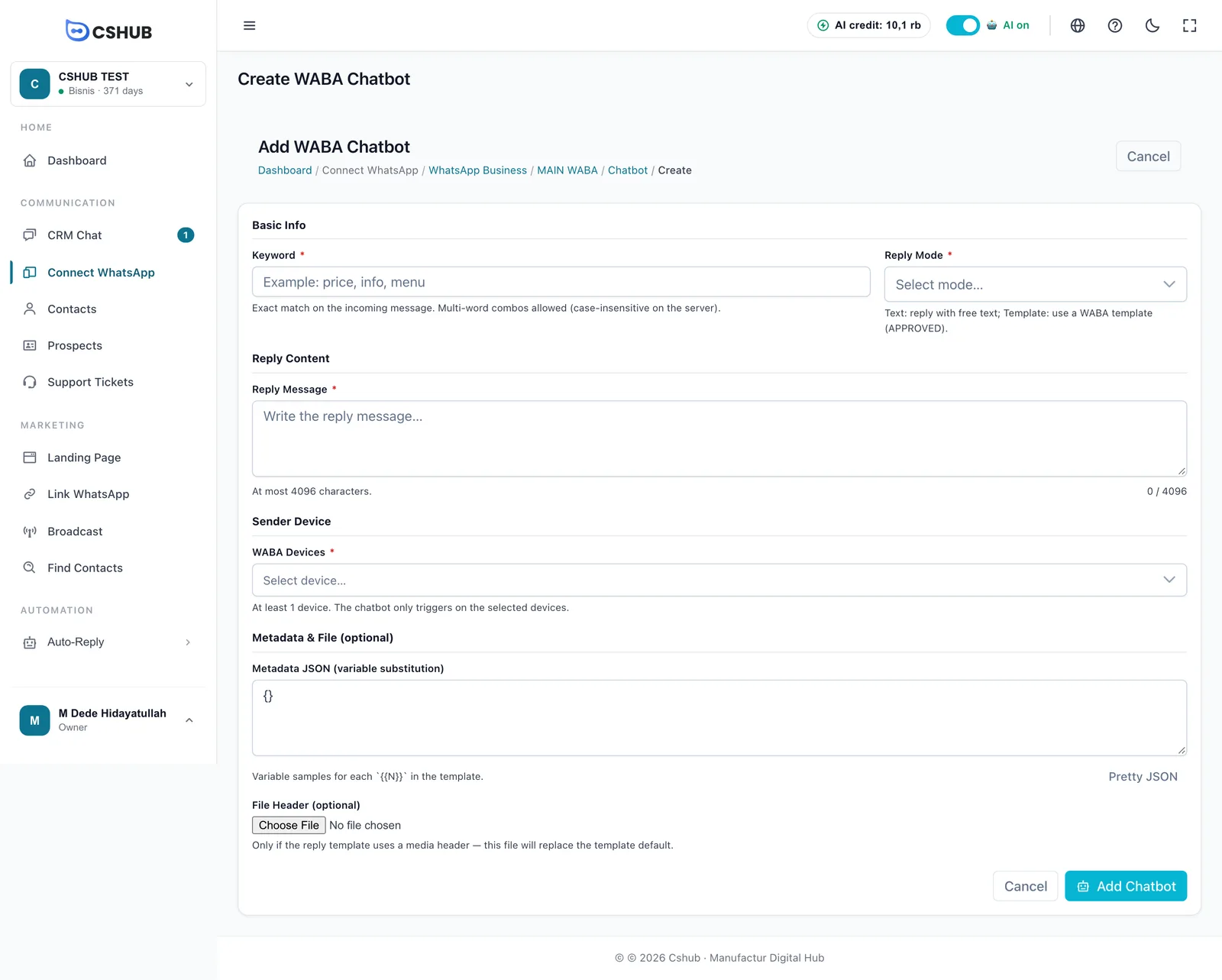
| Field | Notes |
|---|---|
| Keyword * | The word that triggers the reply. Matched exactly against the incoming message, not case-sensitive |
| Reply Mode * | Free-form Text — send plain text; WhatsApp Template — send an Approved template |
| Reply Message * | For text mode, up to 4,096 characters |
| WABA Template | For template mode |
| WABA Devices * | At least 1 number. The chatbot only fires on the selected numbers |
| Metadata JSON / File Header | Optional, to fill template variables and replace a media header file |
For the chatbot to be used, set that number's Auto-Reply Method to Keyword replies or Keywords first, then AI in the Auto-Reply tab.
Replacing credentials
Token expired or App Secret rotated? Open Edit Credentials on the detail page.
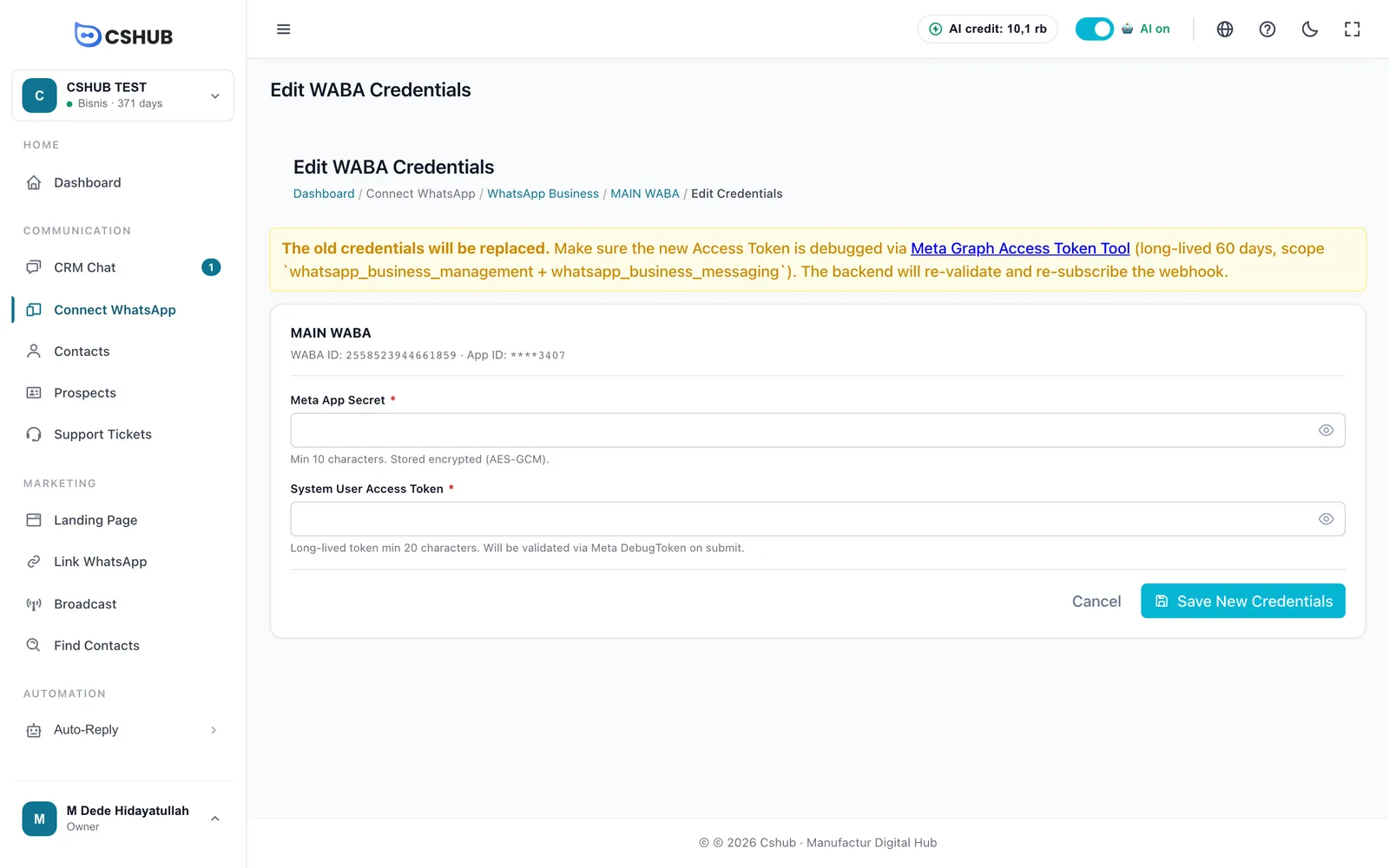
The fields are empty on purpose — old credentials are never shown. Enter the new Meta App Secret and System User Access Token, then click Save New Credentials. cshub checks the token with Meta and reconnects the webhook.
Deleting a WABA account
Choose Delete on the detail page or in the card menu.
- No chat history: the account is deleted and the Meta webhook is disconnected automatically.
- With history: choose Transfer history to another WABA account (history and devices move, then the account is deleted) or Force delete + history (permanent, can't be restored).
Tips
- Keep the Quality Rating green. Only broadcast to contacts who want to hear from you, and give them a way to opt out.
- Pick an honest template category. Promotional templates filed as Utility are often rejected or re-categorised by Meta.
- Sync after changing things on Meta. Added a number or template in Business Manager? Click Sync Meta so cshub catches up.
More issues are covered in Troubleshooting.