
AI Agent
An AI Agent is an AI assistant that answers your customers 24/7 on WhatsApp, Instagram, Messenger, Telegram, and your website live chat — using the business knowledge you give it, speaking in the style of the character you pick, and handing chats over to your CS team when needed.
One AI Agent can be connected to several channels at once, and you can have more than one — for example one for sales and one for after-sales support. Every AI reply uses AI credit.
The fastest path to a working AI
- Create an AI Agent and pick its character.
- Fill in its AI knowledge — at least the business info.
- Try it on the Test tab.
- Connect it to a channel.
The edit page shows these four steps as the AI Agent readiness checklist.
Opening AI Agent
In the sidebar, open the Automation group → Auto-Reply → AI Agent.
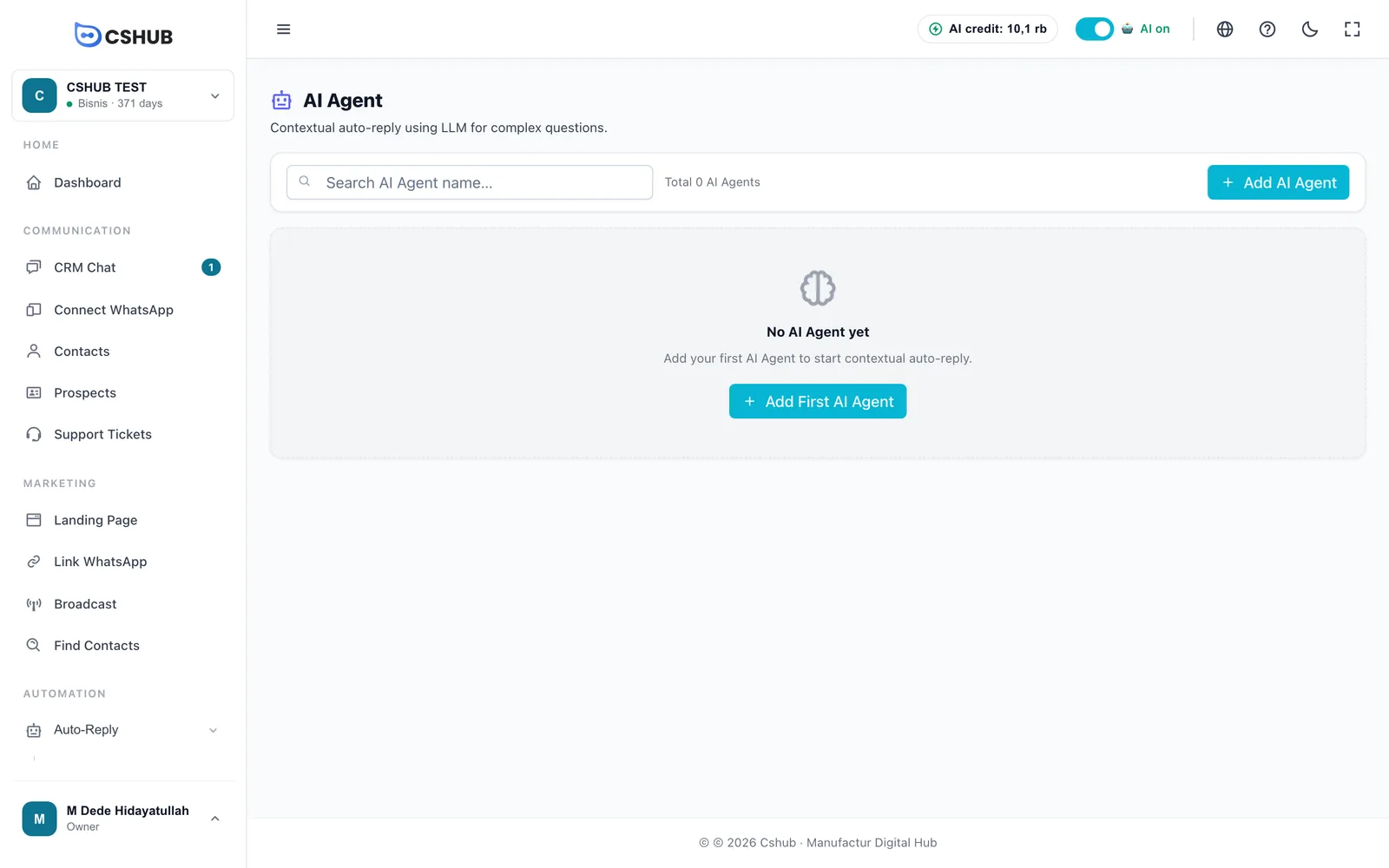
Once you have agents, each one shows as a card.
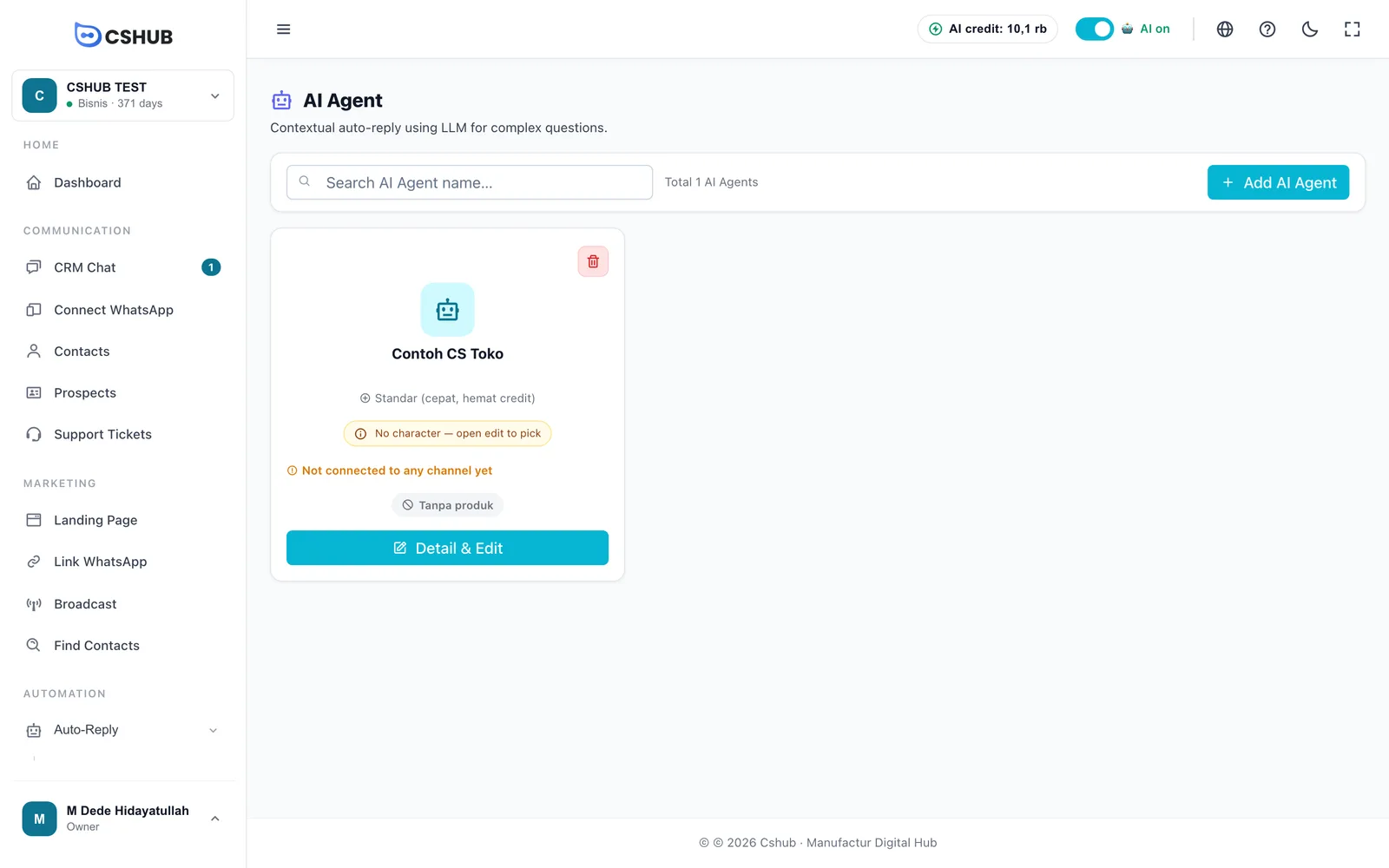
| Card element | Meaning |
|---|---|
| Model | The AI model the agent uses: Standard or Advanced |
| Character | The persona the agent uses |
| Channels | Where the agent is active, or Not connected to any channel yet |
| Product mode | Whether the agent may offer products (see AI selling & chat checkout) |
| Detail & Edit | Opens the full settings page |
Creating an AI Agent
Click Add AI Agent. Creation has two steps: Pick Character, then Configure.
1. Pick a character
The character decides how the AI talks and behaves — pushing for the sale, patiently handling complaints, or neatly taking orders.
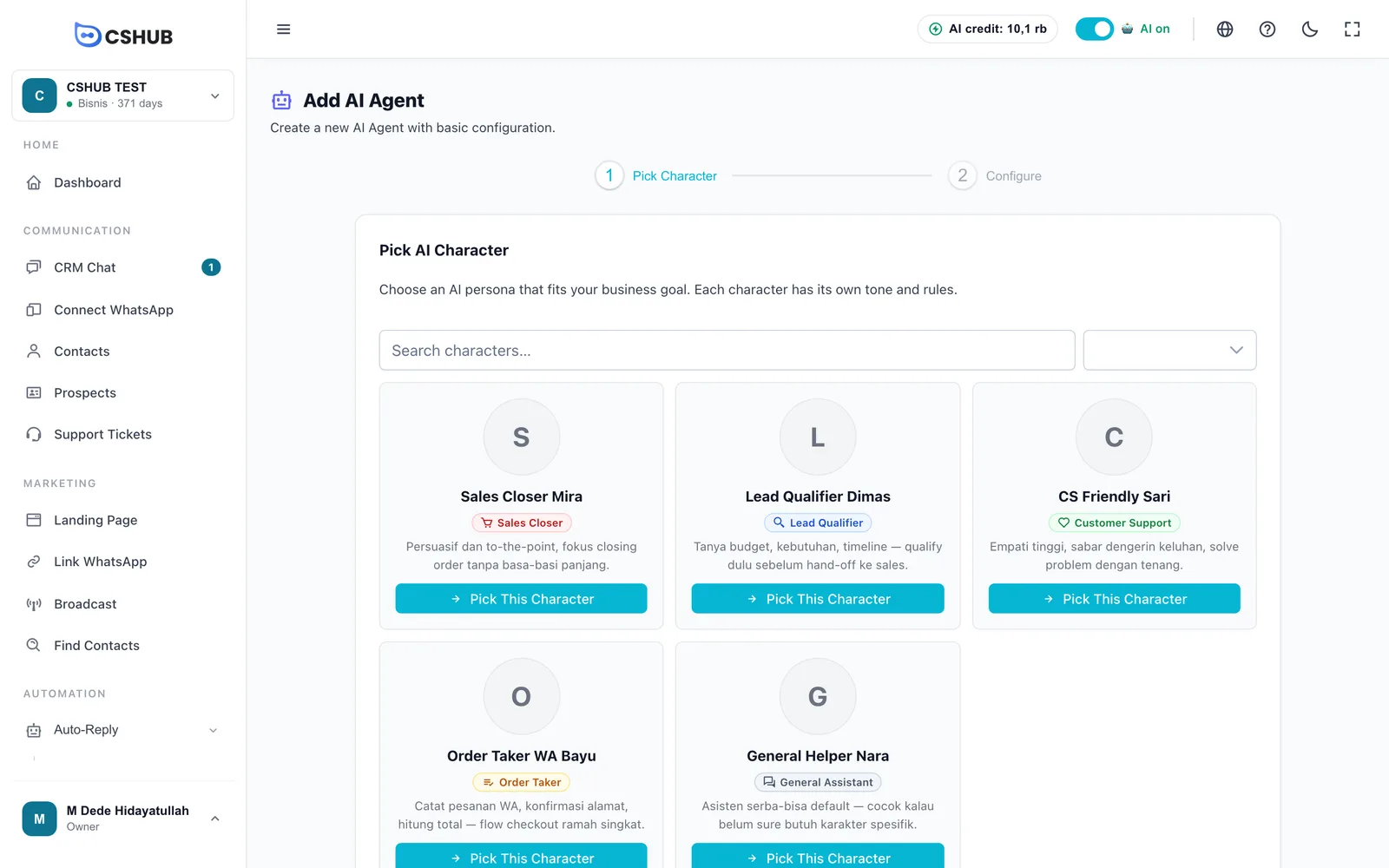
| Role | Best for |
|---|---|
| Sales Closer | Shops that want the AI to actively offer and close sales |
| Lead Qualifier | Businesses that want the AI to ask about needs before passing the lead to sales |
| Customer Support | Customer service, complaints, and after-sales questions |
| Order Taker | Taking orders by chat: confirming the address, adding up the total |
| General Assistant | An all-rounder when you're not sure which character you need |
Use the search box or role filter to narrow the list, then click Pick This Character. You move straight to the next step.
2. Configure
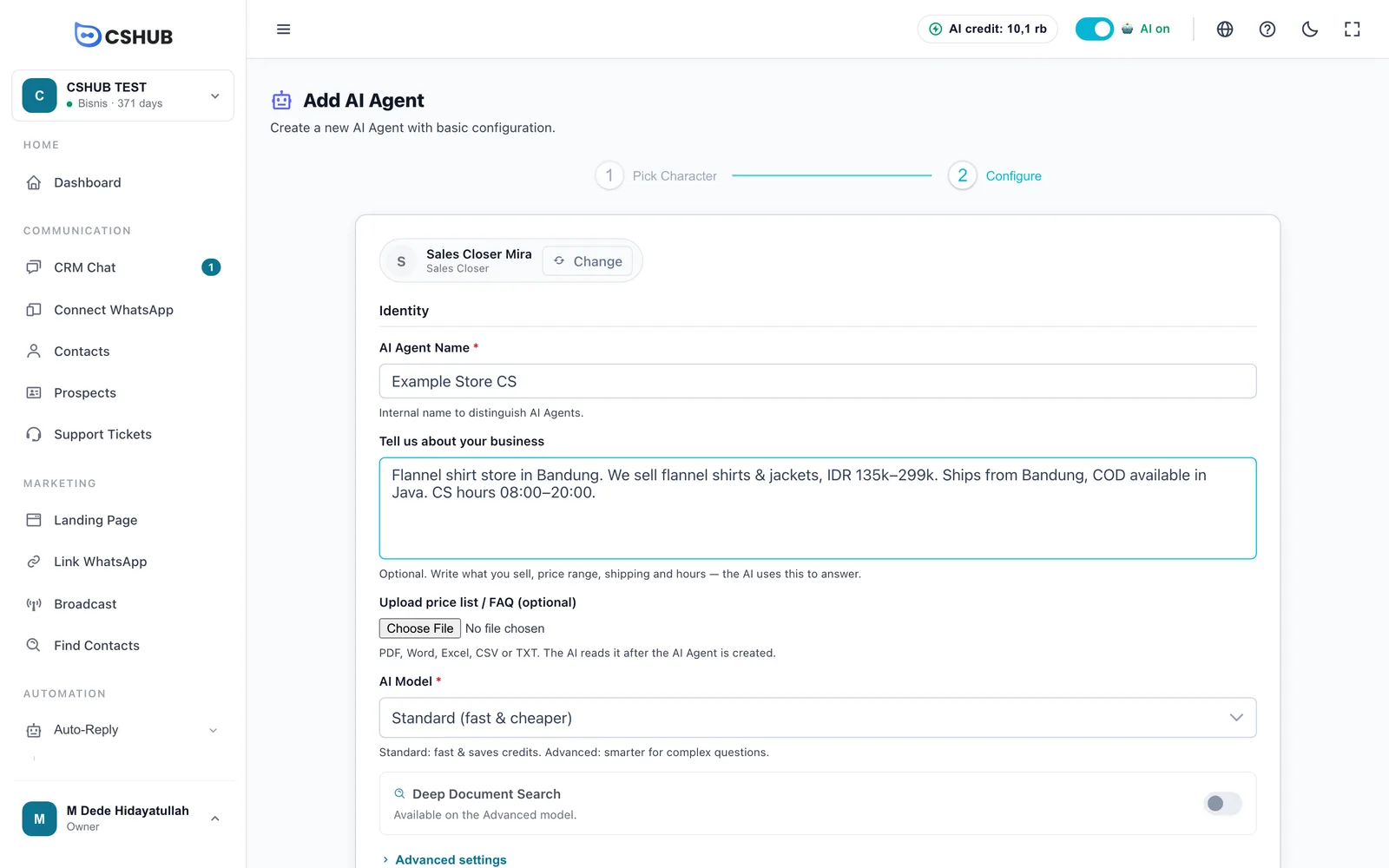
| Field | Details |
|---|---|
| AI Agent Name (required) | An internal name to tell agents apart, e.g. Sales Agent. Up to 100 characters. Customers never see it |
| Tell us about your business | Optional. What you sell, price range, shipping, and opening hours. It's saved as the Business info in AI knowledge |
| Upload price list / FAQ | Optional. PDF, Word, Excel, CSV, or TXT. Uploaded right after the agent is created, then read by the AI |
| AI Model (required) | Standard (fast & cheaper) or Advanced (smarter) for complex questions. Advanced uses more credit |
| Deep Document Search | Advanced model only. The AI searches your documents step by step before answering — more accurate with many or long documents, but a bit slower and uses more credit |
Click Advanced settings to show the technical numbers. The defaults are fine to start with.
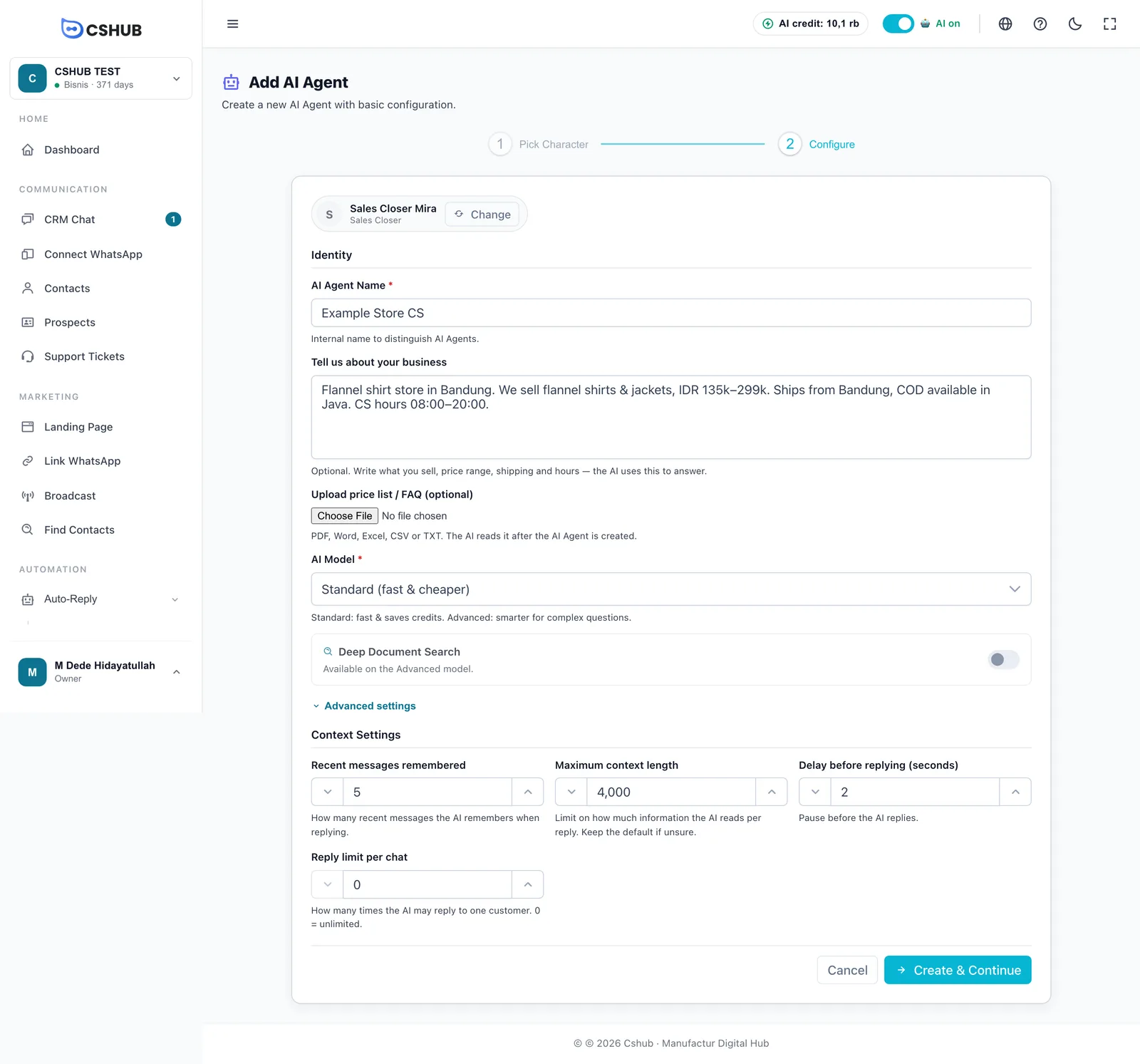
| Advanced setting | Default | Details |
|---|---|---|
| Recent messages remembered | 5 | How many recent messages in the chat the AI reads when replying |
| Maximum context length | 4000 | Limit on how much information the AI reads per reply. Keep the default if unsure |
| Delay before replying (seconds) | 2 | A short pause before the AI replies, so it feels more natural |
| Reply limit per chat | 0 | How many times the AI may reply to one customer. 0 = unlimited |
Click Create & Continue. The agent is saved and the edit page opens so you can finish setting it up.
Created from the "device connected" screen
If you click Set up an AI Agent right after connecting WhatsApp, the new agent is connected to that number automatically and the page opens on the Test tab.
The AI Agent edit page
All of an agent's settings live on one page, with tabs on the left.
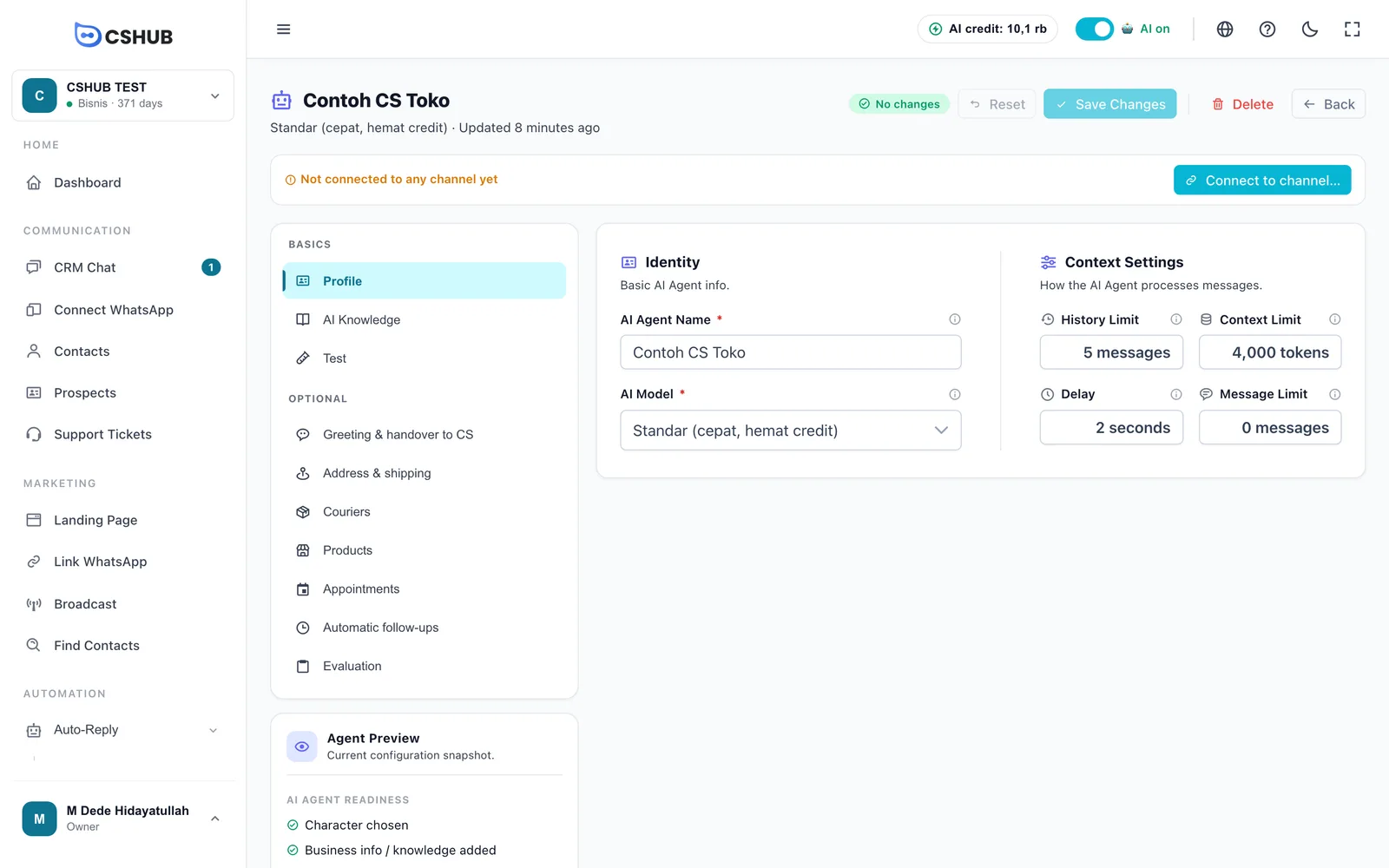
Top of the page
| Element | What it does |
|---|---|
| Change badge | No changes, or how many unsaved changes there are |
| Reset | Discards all unsaved changes |
| Save Changes | Saves changes on every tab at once |
| Delete | Deletes the agent. Its Q&A, follow-ups, couriers, and documents are deleted too |
| Back | Returns to the AI Agent list. If you have unsaved changes, cshub asks first |
| Connect to channel… | Choose which channels this agent answers (see Connecting to channels) |
Remember to save
Changes on any tab only take effect after you click Save Changes. The exception: uploading and deleting documents in AI knowledge is saved immediately.
Tabs
| Group | Tab | What's inside |
|---|---|---|
| Basics | Profile | Name, AI model, and context settings |
| Basics | AI Knowledge | Business info, Q&A, and documents. See AI knowledge |
| Basics | Test | A practice chat with the agent (see Testing) |
| Optional | Greeting & handover to CS | Greeting message, when the AI hands over to CS, and AI lead qualification |
| Optional | Address & shipping | Shipping-cost calculation and the shipping origin. See AI selling & chat checkout |
| Optional | Couriers | Couriers used for shipping quotes. Only shown for businesses in Indonesia |
| Optional | Products | Products the AI may offer |
| Optional | Appointments | Let the AI book appointments + availability. See AI appointment booking |
| Optional | Automatic follow-ups | Messages sent when a customer goes quiet. See Automatic follow-ups |
| Optional | Evaluation | Reviews AI answer quality and SOP compliance (see Evaluation) |
Couriers, Products, and Appointments depend on your plan. If your active plan doesn't include the feature, the tab shows a padlock and can't be opened — upgrade in Billing & packages to unlock it.
Profile tab
| Field | Details |
|---|---|
| AI Agent Name | The agent's internal name |
| AI Model | Standard (fast, saves credit) or Advanced (more accurate, more credit) |
| History Limit | How many recent messages the AI remembers (same as Recent messages remembered at creation) |
| Context Limit | Limit on information read per reply |
| Delay | Pause before the AI replies, in seconds |
| Message Limit | Maximum AI replies per conversation. 0 = unlimited |
When to use Message Limit
If you only want the AI to greet — say, reply 3 times and then step back so CS can take over — set Message Limit to 3.
Agent Preview & readiness
The Agent Preview card at the bottom left summarizes the current configuration, plus the AI Agent readiness checklist:
| Readiness item | Ticked when |
|---|---|
| Character chosen | The agent has a character |
| Business info / knowledge added | Business info is filled in, or there's Q&A or a document |
| Tested | You've tried the agent on the Test tab |
| Connected to a channel | The agent is connected to at least one channel |
Testing
The Test tab is a practice chat: you play the customer and the AI answers exactly as it would on a real channel — but nothing is sent to any contact.
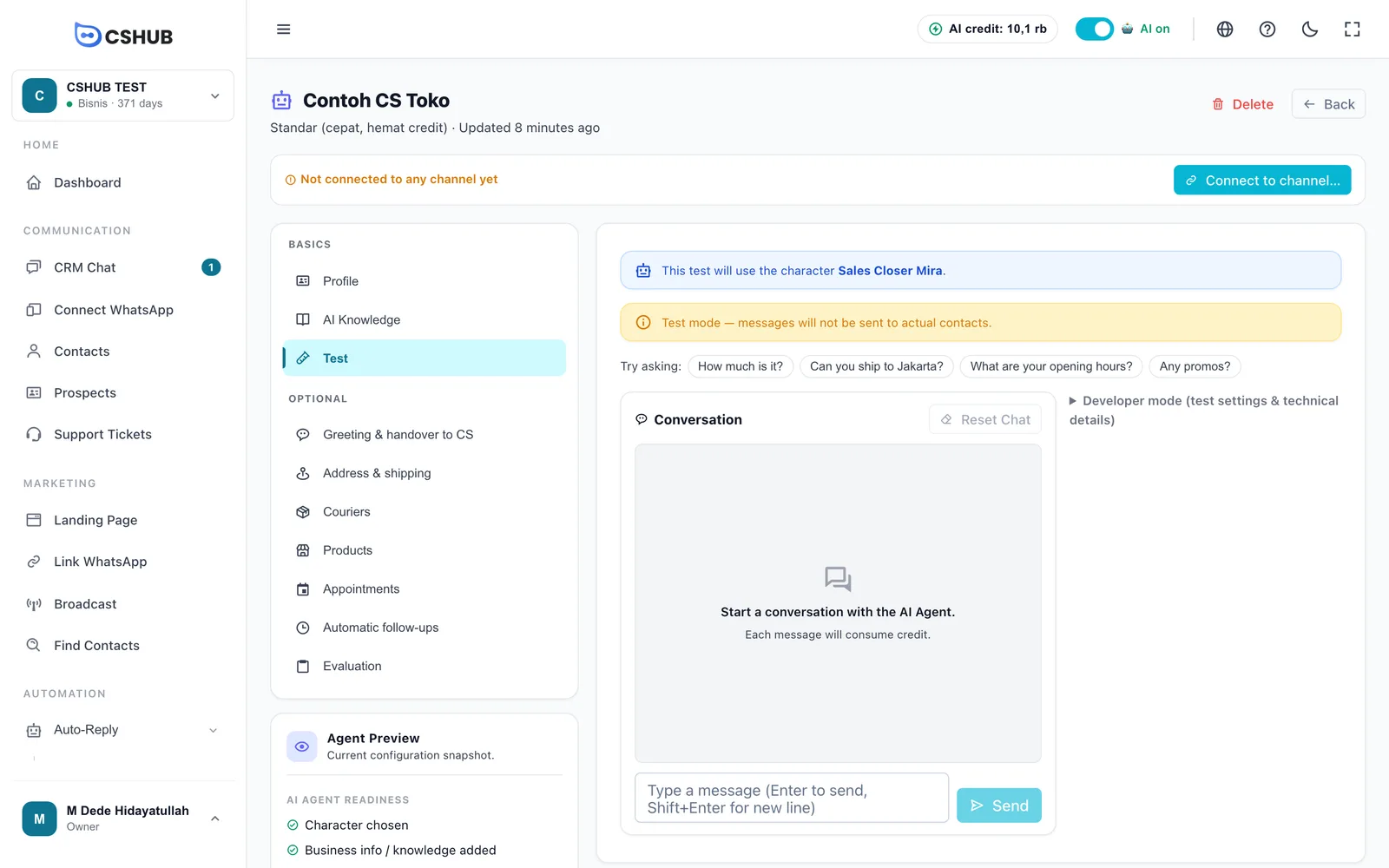
- Click a sample question, or type your own and click Send (Enter to send, Shift+Enter for a new line).
- Read the AI's answer. Below it you'll see Was this answer right?
- If it's off, choose Answer not right, then Add to Q&A — the question is added to your Q&A list in AI knowledge. Fill in the correct answer and click Save Changes.
- Click Reset Chat to start a fresh conversation.
Once the agent has been tested, you'll see a Connect to WhatsApp prompt if it isn't connected to a channel yet.
Testing uses credit
Each test message uses AI credit just like a real chat. When credit runs out you'll see Credit empty. with a Top-up Credit button. See AI credit & top-ups.
If you have unsaved changes, a strip says You have unsaved changes. Save first so the test uses them. — click Save now so the test uses your latest settings.
Developer mode opens test settings (for example, whether to use documents) and the technical details of the last answer — the model, credit used, and which documents the AI read. Handy for working out why the AI answered the way it did.
Connecting to channels
An AI Agent only replies to customers once it's connected to a channel. Click Connect to channel… on the edit page.
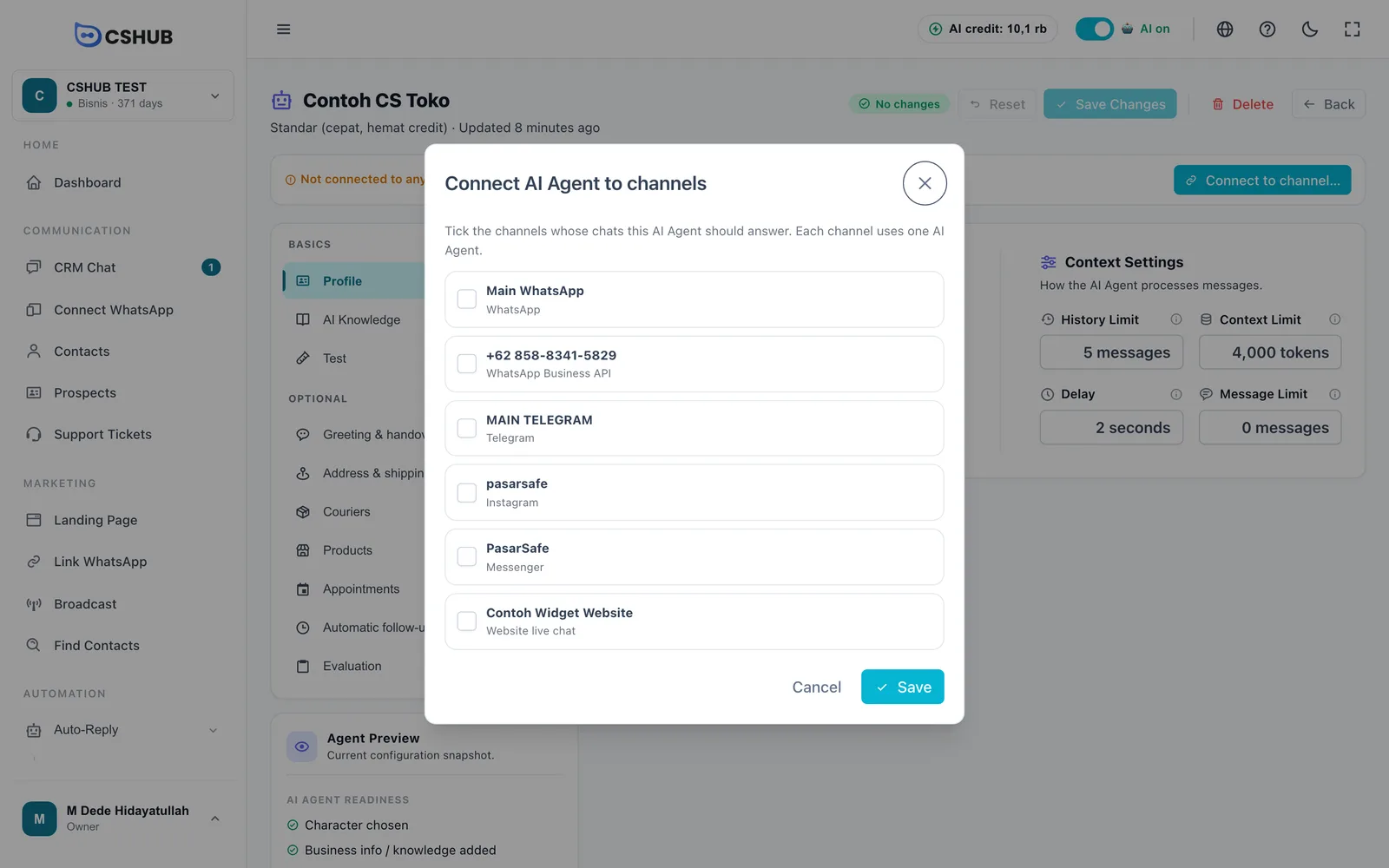
- Tick the channels whose chats this agent should answer.
- For WhatsApp, WhatsApp Business API, and Telegram, choose a mode:
- AI replies to every chat
- Keywords first, then AI — messages that match a keyword get your fixed answer; the rest go to the AI.
- Click Save.
Each channel can use only one AI Agent. If another agent already uses a channel, its row says currently uses "…" (will be replaced). To remove the agent from a channel, untick it and click Save.
If you have no channels yet, the dialog shows No channel connected yet. with a Connect WhatsApp first → link. See About channels.
You can also do it from the channel
You can pick the same agent from each channel's own settings, such as Auto-reply method in WhatsApp (scan QR). The result is the same.
Evaluation
The Evaluation tab helps you judge the quality of the AI's answers in real conversations. It has three sub-tabs: Analisa (analysis), SOP, and Pengaturan (settings). These screens are currently shown in Indonesian.
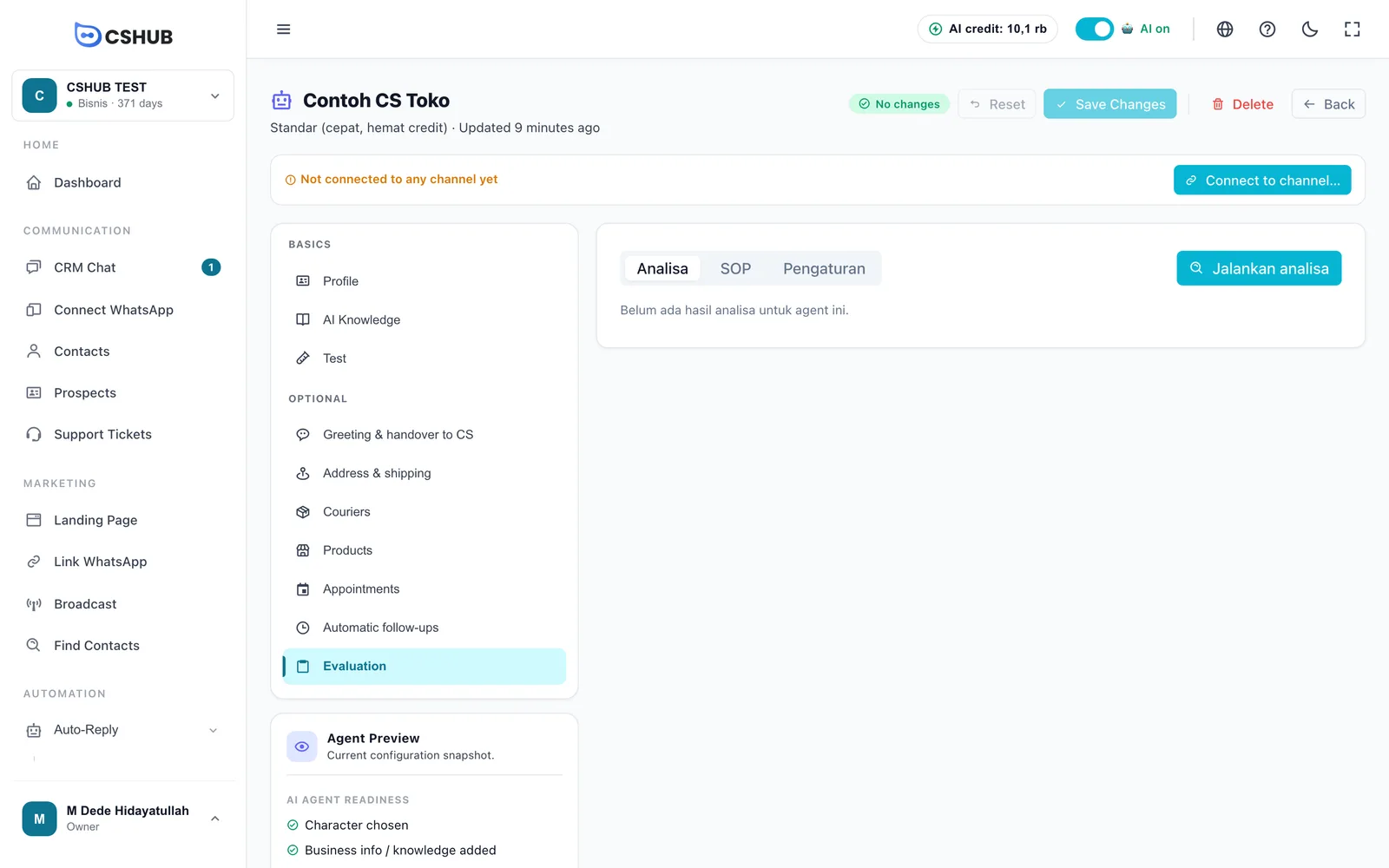
Analysis
Click Jalankan analisa (run analysis), set the maximum number of conversations and how they're picked, then run it. The analysis reads conversations this agent answered and uses AI credit — conversations analysed recently are reused to save credit. You can cancel while it runs.
The results include:
| Section | What it shows |
|---|---|
| Headline numbers | Conversations, messages, AI-answered chats, SOP compliance %, and unanswered rate |
| Top topics & questions | What customers ask about most |
| Often unanswered | Questions the AI couldn't answer — great candidates for your Q&A |
| AI answer mistakes | Wrong answers, with a quote from the conversation |
| Compliance per rule & SOP violations | Shown once you've written SOP rules |
| Recommendations | Suggested improvements you can act on |
If credit runs out, the analysis stops and partial results are kept.
SOP
Your SOP is split into separate rules so the analysis can score compliance rule by rule.
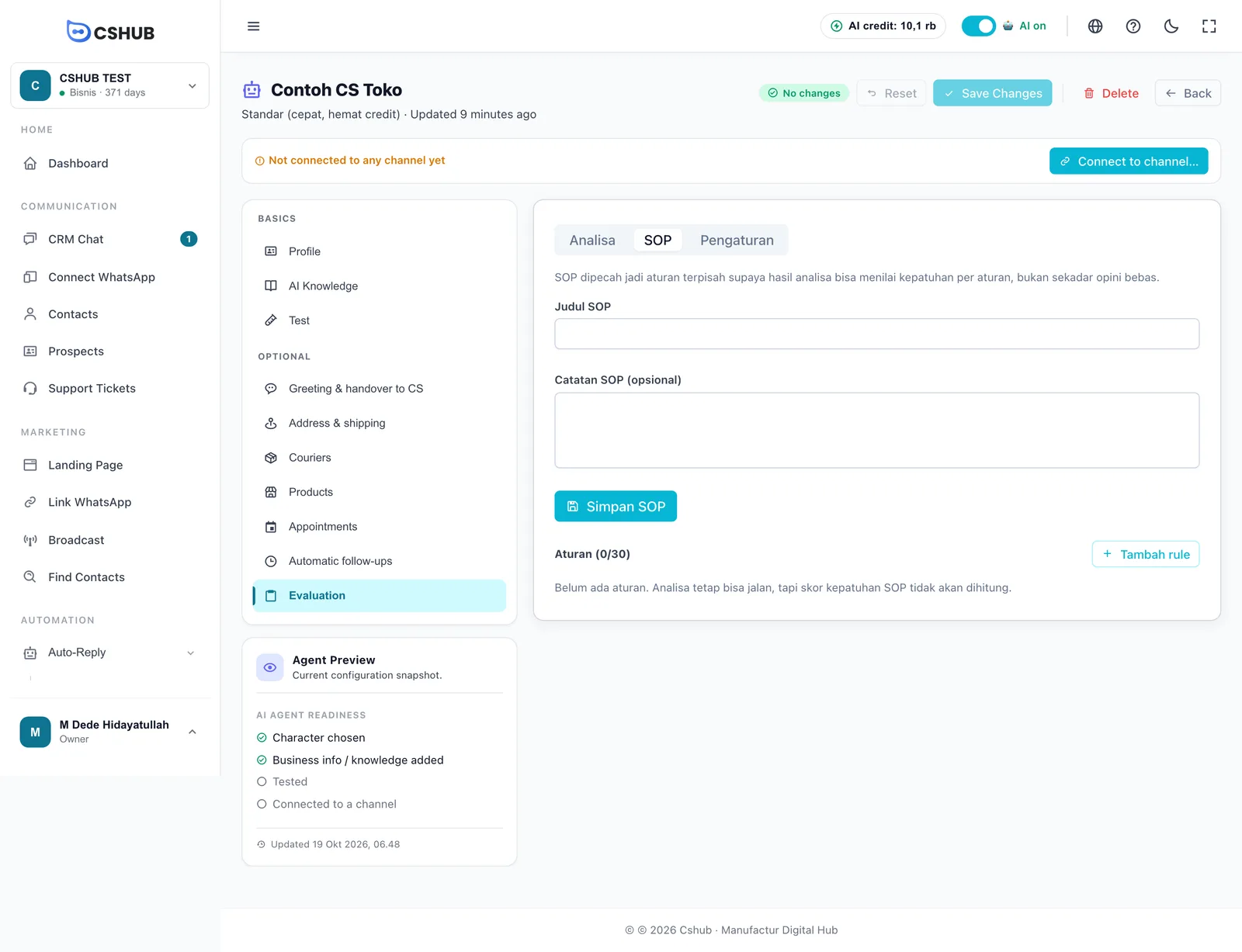
- Enter the SOP title and (optional) notes, then save the SOP.
- Click Tambah rule (add rule) for each rule — a code (e.g. GREETING), title, explanation (read by the AI when scoring), severity, and weight (1–5).
- Up to 30 rules per agent.
Settings
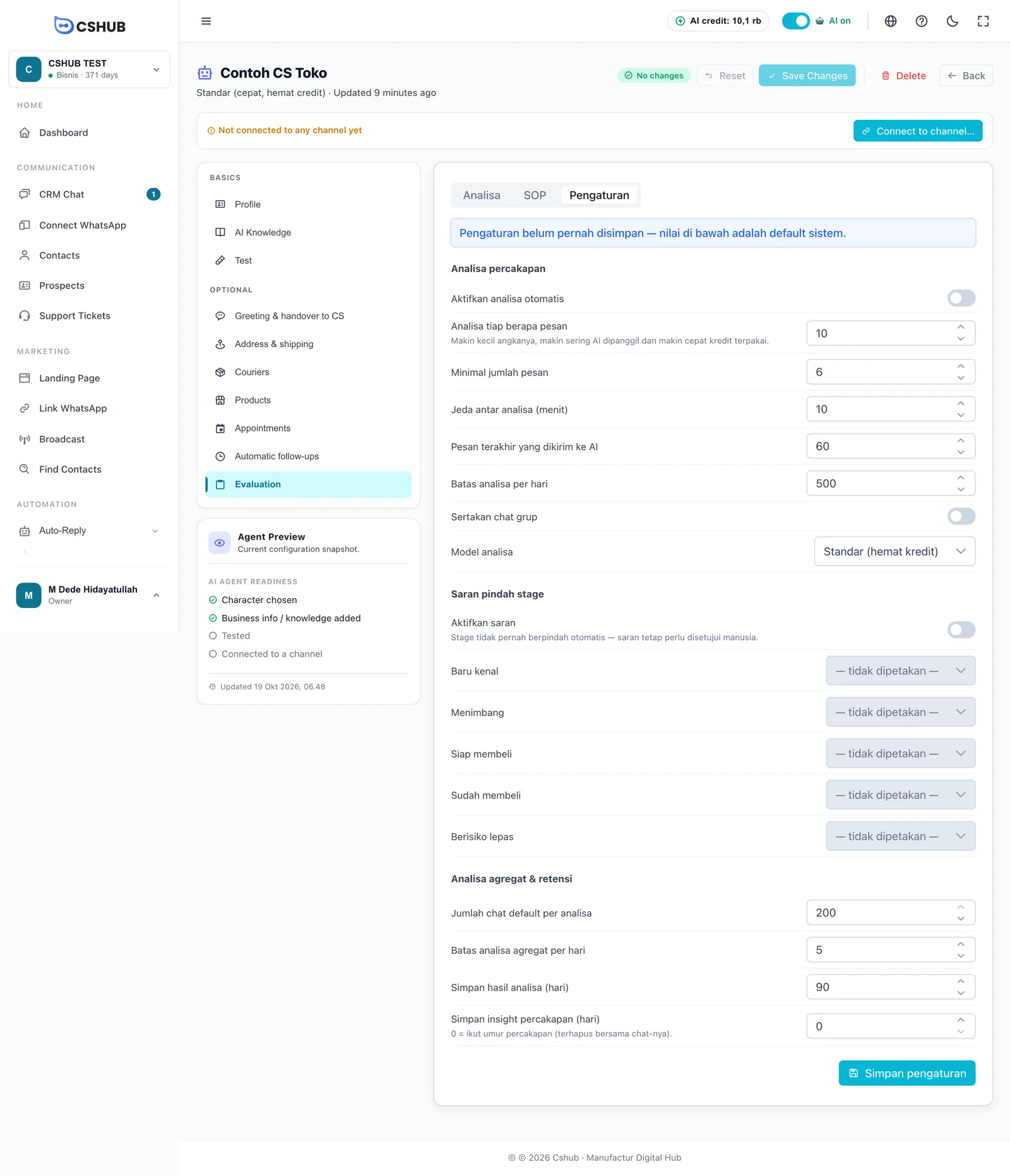
| Section | What it controls |
|---|---|
| Conversation analysis | Turns on automatic per-conversation analysis and sets how often it runs. The smaller "analyse every N messages", the more often the AI runs and the faster credit is used |
| Stage suggestions | Maps customer states (new, considering, ready to buy, bought, at risk) to pipeline stages. Stages never move by themselves — a person still approves each suggestion in Prospects |
| Aggregate analysis & retention | Chats per analysis, daily limit, and how long results are kept |
Save with the settings tab's own save button (separate from Save Changes in the header). Per-conversation results also appear under AI analysis in the Contact Info panel and in AI Insight.
Pausing all AI at once
The AI on switch in the app's top bar pauses or resumes AI replies for your whole business at once — useful while you update prices or during an outage. While paused it reads AI paused; incoming chats still land in CRM Chat but the AI doesn't answer them. The switch takes effect immediately, no save needed.
To pause the AI in just one conversation, take over the chat from CRM Chat.
Tips for better answers
- Start with short, clear business info, then add Q&A for questions that need an exact answer (address, hours, payment methods).
- Test with real questions from customer chats, including short or misspelled ones.
- Fill in the handover conditions on the Greeting & handover tab so serious complaints aren't left with the AI.
- Check the Evaluation tab regularly and move "often unanswered" questions into your Q&A.