
Group broadcast
Send one message to several WhatsApp groups at once — ideal for announcing a promo, a schedule, or news to the communities, reseller groups, or customer groups you manage. Each selected group receives one message, sent from a WhatsApp number connected to cshub.
In cshub this feature is called Blast Group. The difference from a WhatsApp broadcast: a regular broadcast sends a private message to each contact, while Blast Group posts the message inside the group, so every member sees the same message.
Before you start
- The sender number must be connected via WhatsApp (scan QR) and be a member of the target groups.
- The group list comes from the WA Group List. If it is empty, collect your groups first with Group Scraping in Find contacts.
Group broadcast list
Open Broadcast in the sidebar, then click the Blast Group card (or the Blast Group tab at the top of any broadcast page).
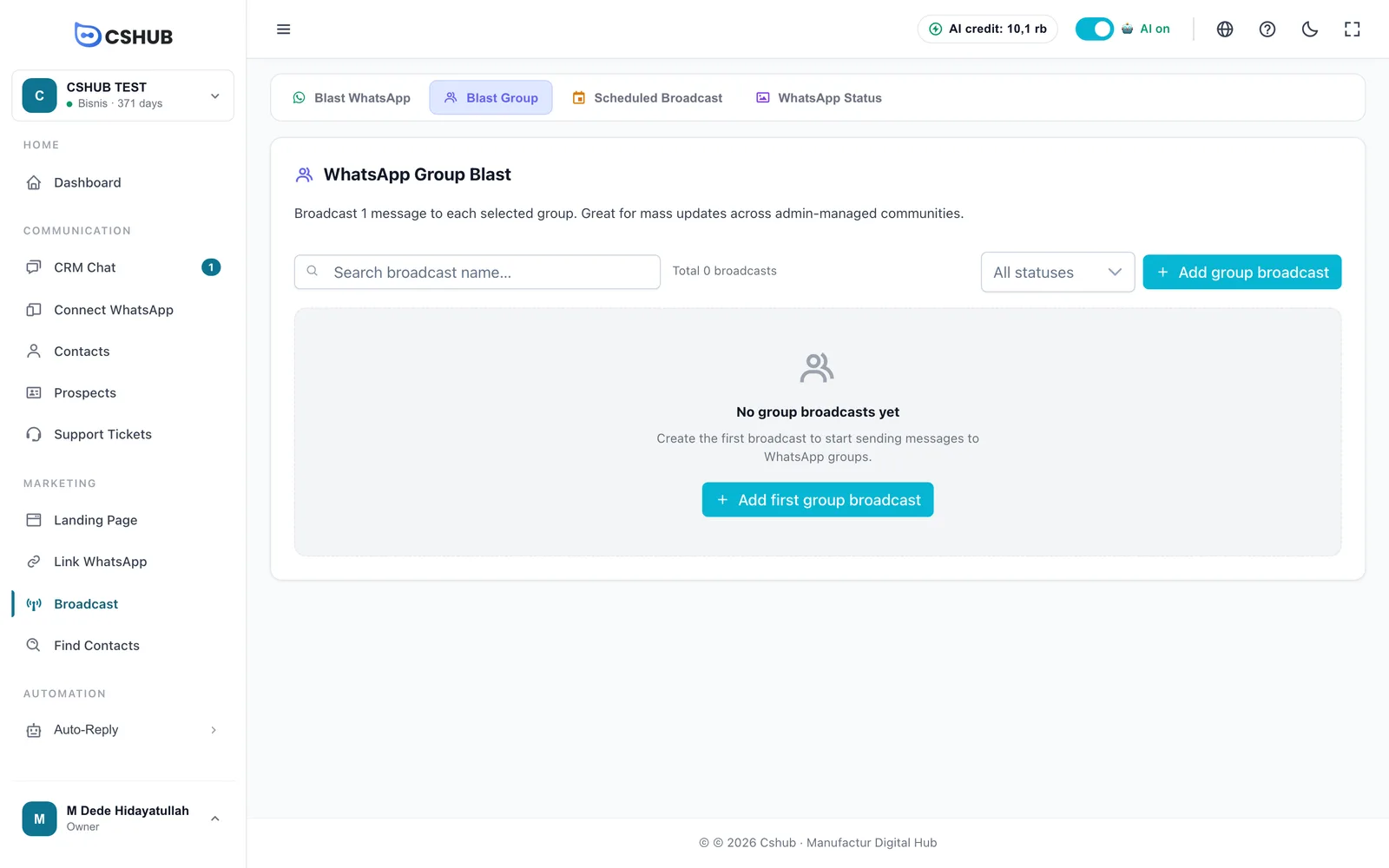
The table shows Name, Status, Schedule, Progress, and Actions, with a search box and a status filter. Statuses work the same as a regular broadcast:
| Status | Meaning |
|---|---|
| Waiting | Waiting for its send time. Only this status can be edited |
| Running | Messages are being posted to the groups one by one |
| Paused | Sending is on hold |
| Completed | Every group has been processed |
| Failed | Sending stopped because of a problem |
The Actions menu contains View details, Edit, Pause / Resume, Export XLSX, and Delete.
Creating a group broadcast
Click Add group broadcast.
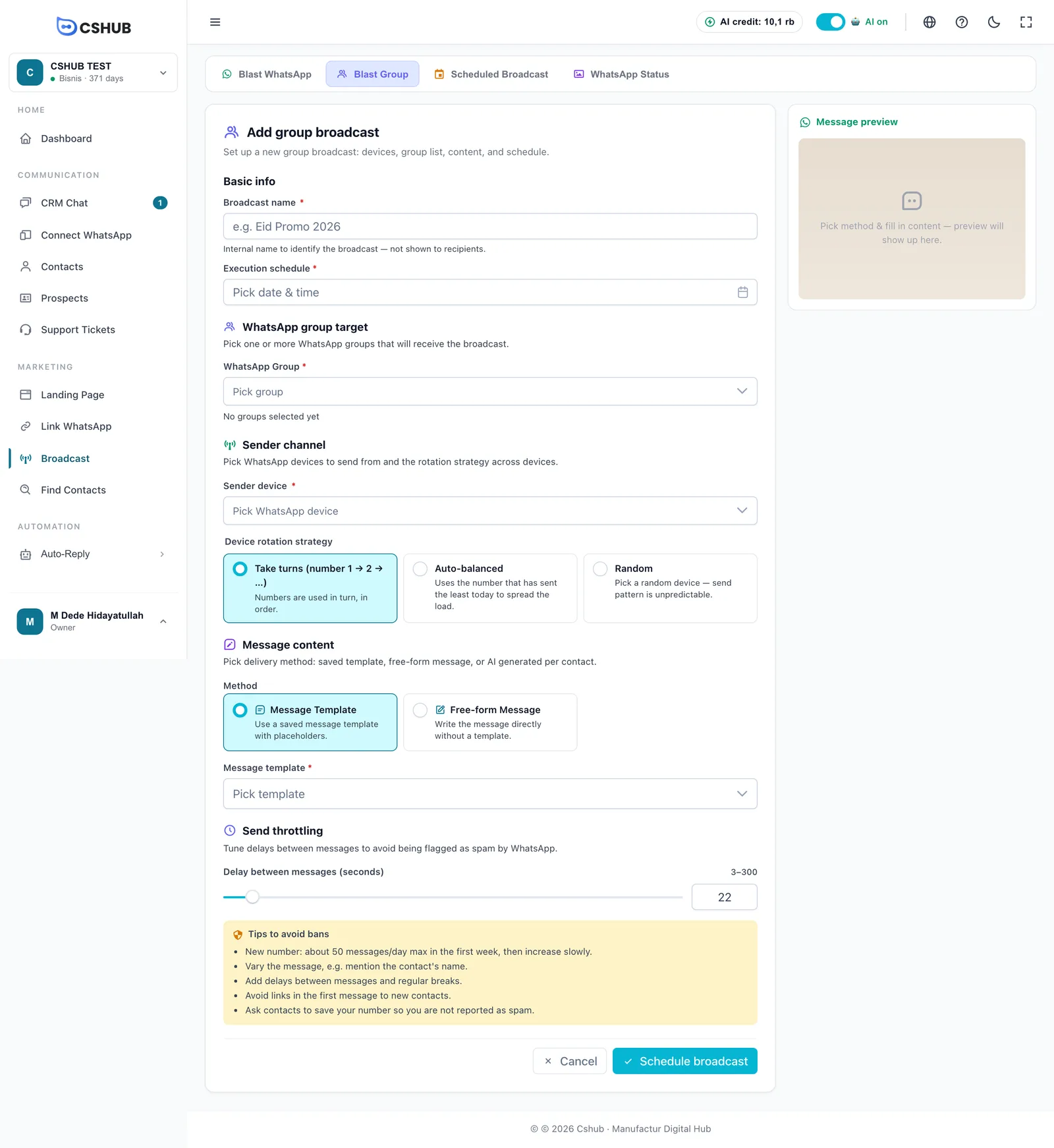
1. Basic info
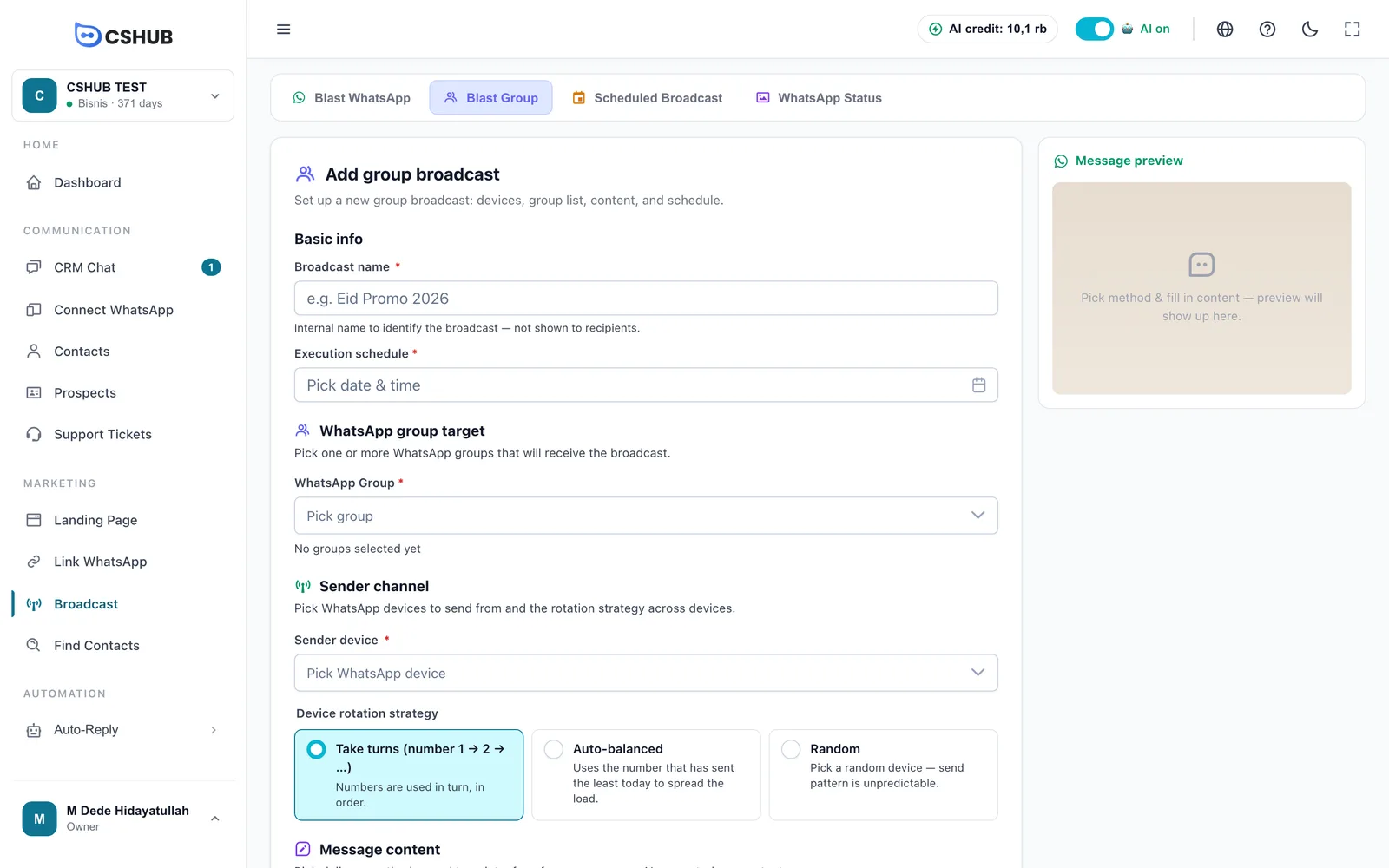
| Field | Description |
|---|---|
| Broadcast name | Internal name (max. 255 characters), never shown to group members |
| Execution schedule | Date and time to send. Required, and it must be in the future |
2. WhatsApp group target
In the WhatsApp Group field, pick one or more target groups. The number of selected groups appears below. Each group receives one message.
Group list is empty?
Groups only appear once they are in the WA Group List. Run a Group Scraping job first — see Find contacts.
3. Sender channel
Pick the Sender device (one or more WhatsApp numbers) and the Device rotation strategy:
| Strategy | Behaviour |
|---|---|
| Take turns (number 1 → 2 → …) | Numbers are used in turn, in order |
| Auto-balanced | Uses the number that has sent the least today |
| Random | Picks a number at random |
Make sure the numbers you choose are members of the target groups — WhatsApp does not let outsiders post into a group.
4. Message content
Group broadcasts have two methods (no AI):
| Method | Description |
|---|---|
| Message Template | Use a saved template from Data & templates |
| Free-form Message | Type the message directly |
The Message preview panel on the right shows how the message will look in WhatsApp.
5. Send throttling
Set the Delay between messages (seconds) between 3 and 300 using the slider or the number box. The delay applies between groups. Below it is the Tips to avoid bans box.
6. Save
Click Schedule broadcast. The broadcast is saved as Waiting and runs automatically when its time comes.
Credit
When you save, cshub checks that your plan is active and has enough credit — each group counts as one message. If not, you will see Insufficient balance with a Manage plan button. See Billing & packages.
Tracking delivery
Open View details from the Actions menu. The detail page shows progress and the Recipient groups list:
| Column | Contents |
|---|---|
| Group | Group name and its group code (JID) |
| Status | Active or Skipped |
| Send result | Success, Failed, or Not sent |
| Sent at | When the message was posted |
From the detail page you can Pause / Resume, Export XLSX, and Refresh.
Tips
- Post only to groups you manage or whose members agreed to receive updates. Annoyed groups can report your number.
- Use a generous delay when you have many groups — 20 seconds or more is a good start.
- To message each group member privately instead, use a WhatsApp broadcast with the WhatsApp Group filter.