
Appointments
Appointments is a shared calendar for scheduling meetings with your contacts — consultations, site visits, product demos, or rental bookings — with list and monthly calendar views, a summary of today's schedule, and a button that opens the customer's chat straight away.
You can create appointments yourself on this page or from the Contact Info panel in CRM Chat, and the AI can also create them automatically when a customer asks for a slot in chat — see AI appointment booking.
Opening Appointments
Click Appointment in the sidebar, under Communication.
Can't see the Appointment menu?
The menu shows when appointments are included in your package and your Business focus covers bookings. If it's missing, choose Show all features in the sidebar, or check your package in Billing & packages.
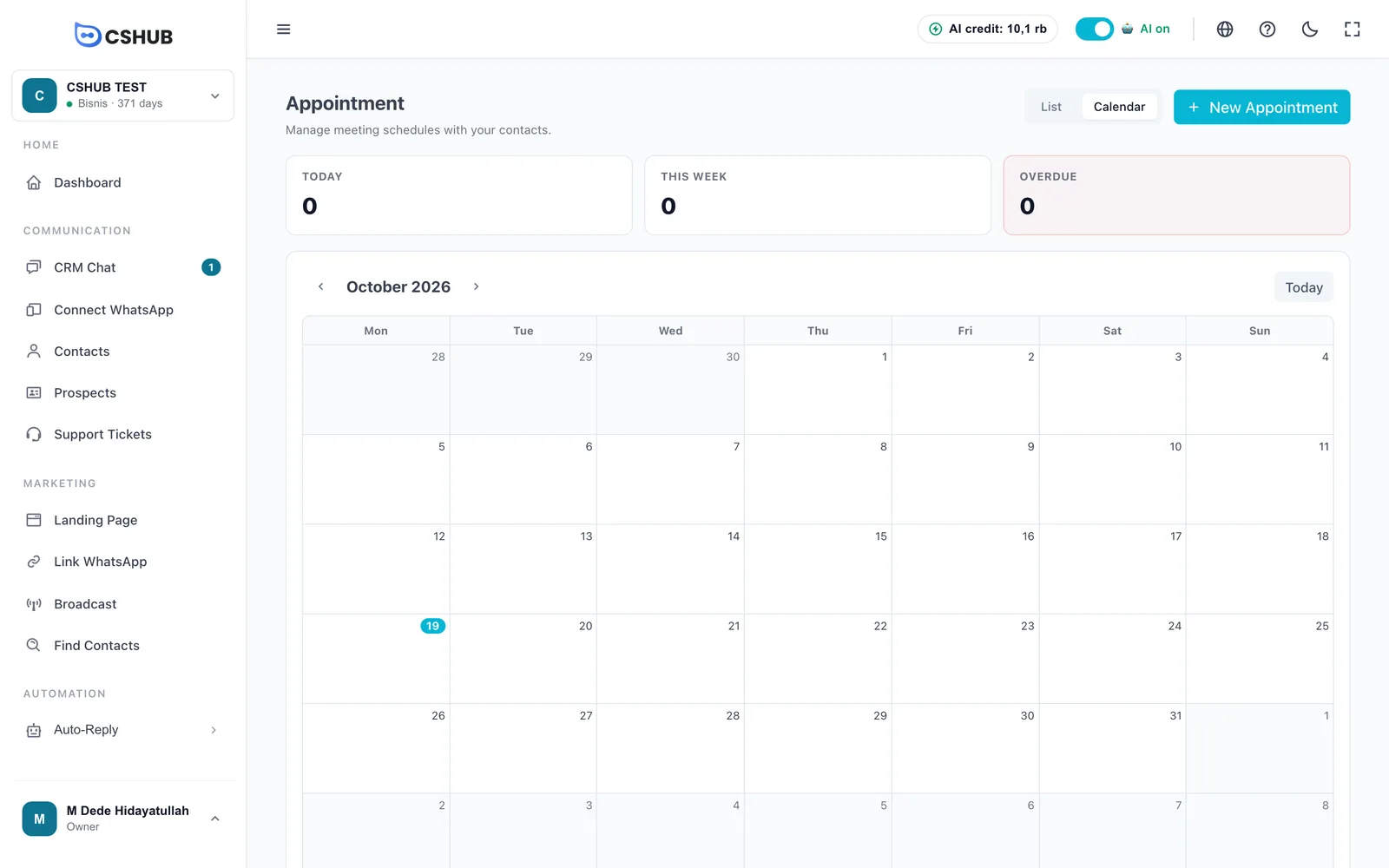
Summary cards
| Card | What it shows |
|---|---|
| Today | Appointments today |
| This week | Appointments in the next 7 days, excluding today |
| Overdue | Appointments whose end time has passed but are still Scheduled |
List & Calendar views
The List and Calendar buttons at the top right switch views.
List shows a table with Time, Title, Contact, Location, Status, and Actions (edit and delete). Above the table are filters:
| Filter | Description |
|---|---|
| Search title or contact name… | Find a specific appointment |
| Date range | Limit to a period |
| Filter status | Show only certain statuses |
| Reset filters | Clear all filters |
With no data, it says No appointments yet.
Calendar shows a full month. Use the ‹ › arrows to change month and Today to jump back to the current month. Today's date is circled. When a day has many appointments, some are shown and the rest are summed up as +… more.
Creating an appointment
- Click New Appointment.
- Fill in the form, then click Save.
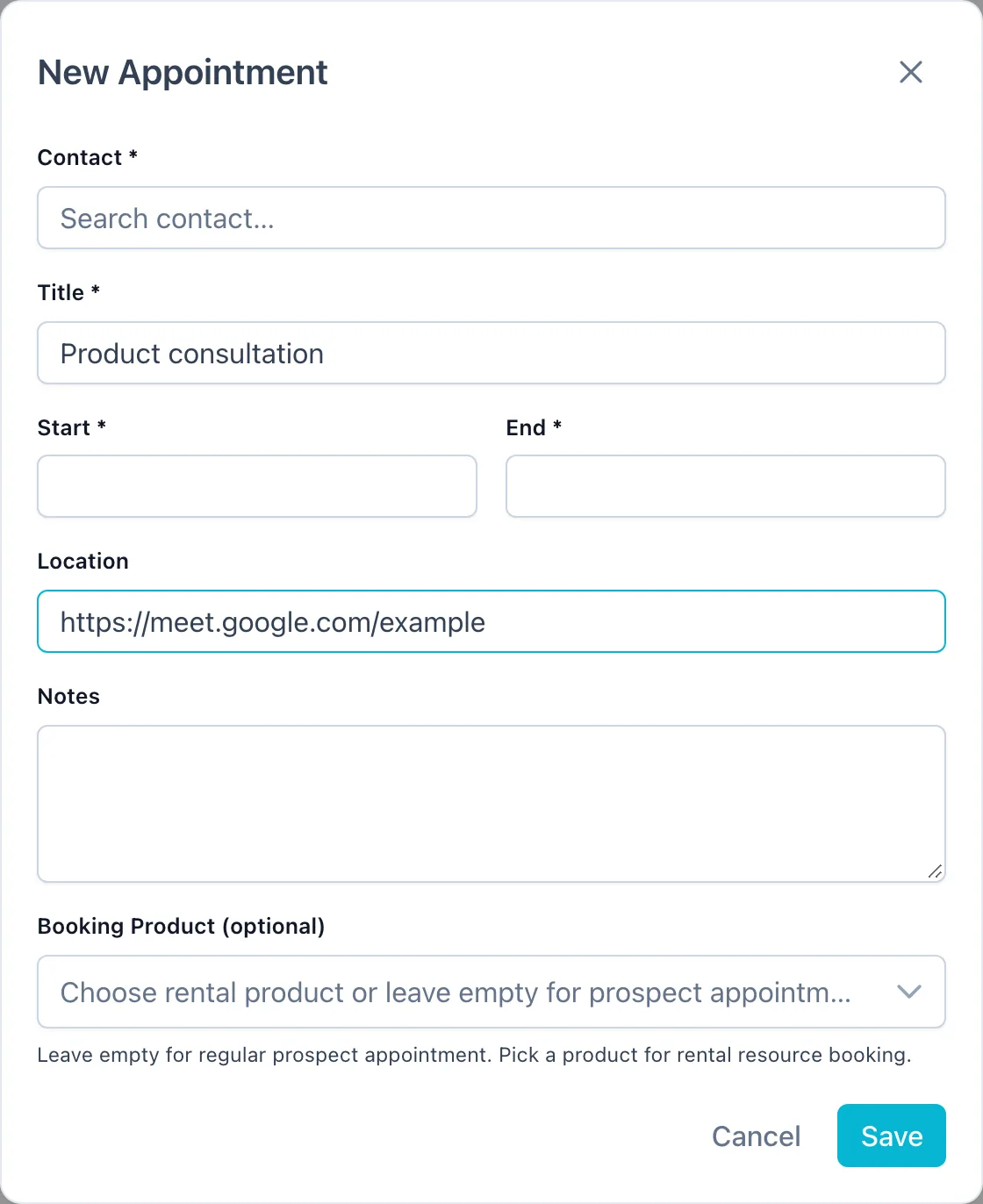
| Field | Description |
|---|---|
| Contact | Required. Search the contact by name. The contact must already be in your contact database |
| Title | Required, e.g. Supply contract meeting |
| Start | Required. Start date and time |
| End | Required. Must be after the start |
| Location | An address or meeting link (Zoom/Meet) |
| Notes | Extra details |
| Booking Product (optional) | Leave empty for a regular appointment. Pick a rental product to book its units for that time |
| Unit Count | Appears once a booking product is picked: how many units are booked (1–100) |
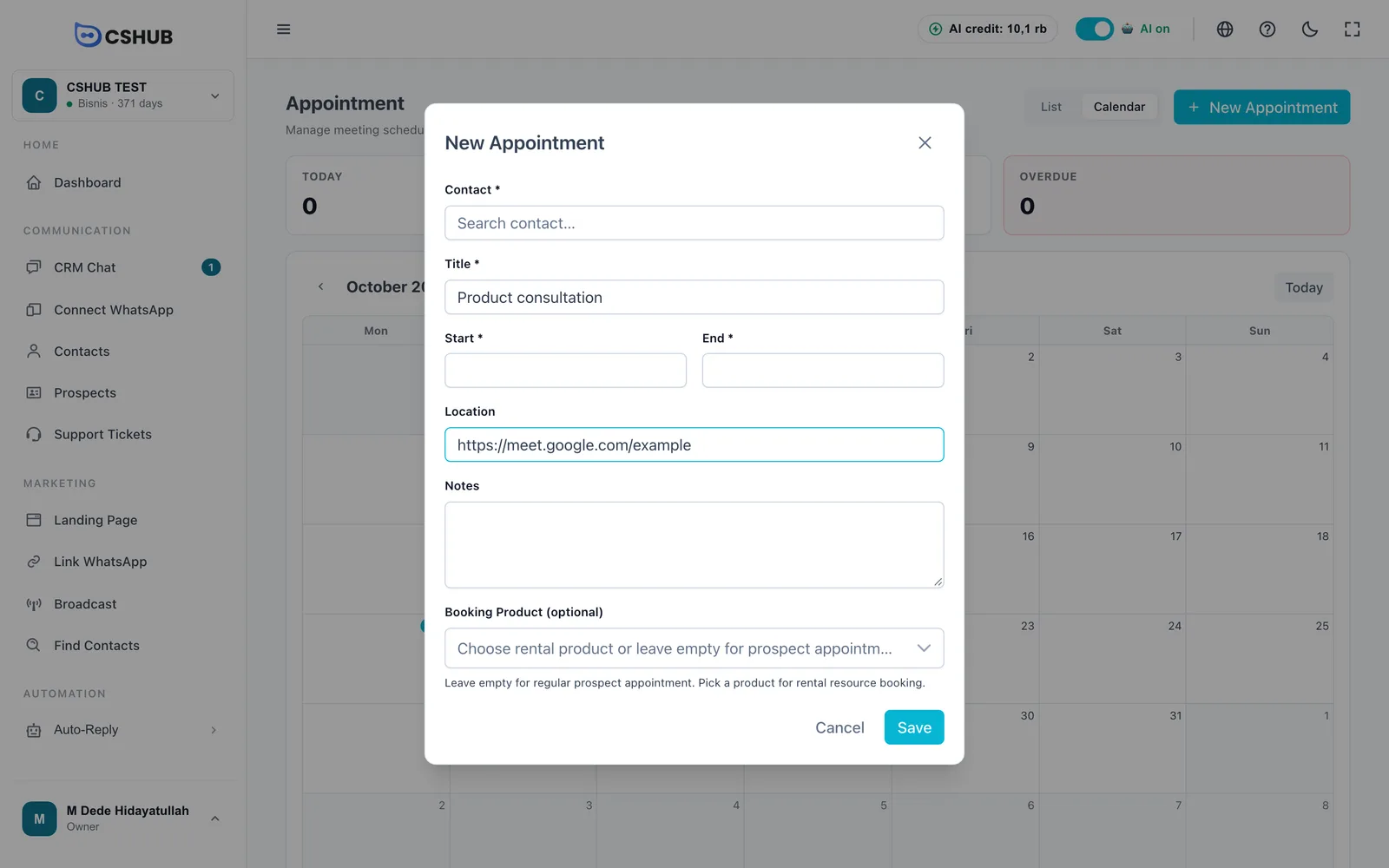
Booking rental items
Pick a Booking Product to rent out resources such as a room, a camera, or a vehicle. The list shows products set up as rentals (daily or hourly) in Products & stock.
Creating an appointment from a chat
In CRM Chat, open the Contact Info panel and the Appointment section. There you can see the chatting customer's appointments and create a new one without looking the contact up again.
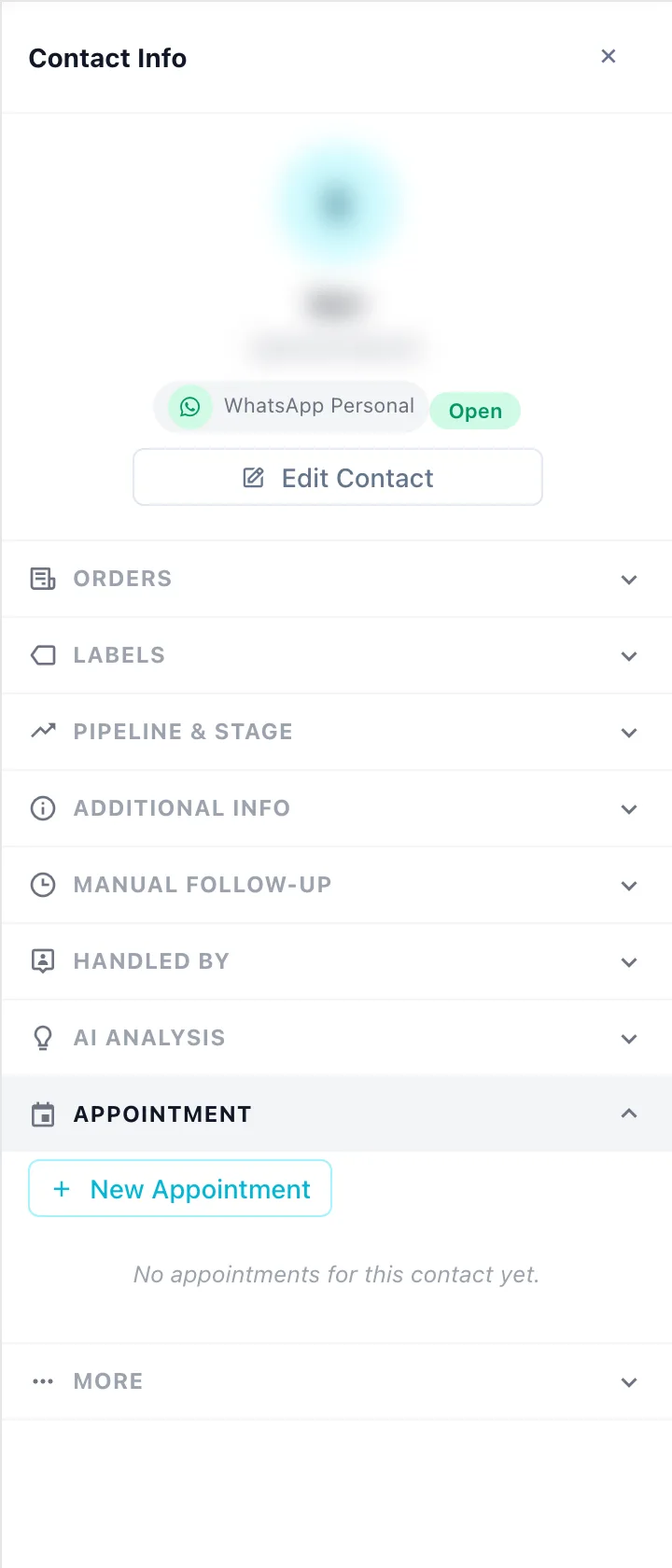
If it says the contact isn't saved yet, add them to the Contact Database first.
Details, status & actions
Click an appointment in the list or calendar to open its details: Time, Contact, Location, Notes, and Created by.
| Button | What it does |
|---|---|
| Open Chat | Opens the conversation with the contact in CRM Chat — e.g. to send a reminder |
| Add to Google Calendar | Opens Google Calendar with the appointment details filled in |
| Edit | Change the appointment, including its status |
| Delete | Deletes the appointment after confirmation. Can't be undone |
The appointment status is changed via Edit:
| Status | Meaning |
|---|---|
| Scheduled | Every new appointment starts here |
| Done | The meeting took place |
| Cancelled | The appointment was called off |
| No Show | The customer didn't turn up |
Keep the Overdue card at zero
After a meeting, set its status to Done, Cancelled, or No Show. That way the Overdue card only lists appointments that really need follow-up.