
WhatsApp broadcast
Send one message to many contacts at once from a connected WhatsApp number — an end-of-month promo, a restock alert, or a payment reminder — and narrow the recipients by category, region, group, or pipeline stage. Every contact receives the message privately, not through a group.
In cshub this feature is called Blast WhatsApp. cshub sends the messages one by one with delays, rotating across your sender numbers, so WhatsApp does not treat your number as spam.
Other kinds of broadcast
- Sending to WhatsApp groups (1 message per group)? Use Group broadcast.
- Sending repeatedly every day, month, or year? Use Scheduled broadcast.
- Posting a 24-hour story? Use WhatsApp Status.
- Using an official WhatsApp Business API number? Its broadcasts live on that channel's page — see WhatsApp Business API.
The Broadcast page
Open Broadcast in the Marketing section of the sidebar. You will see four broadcast cards.
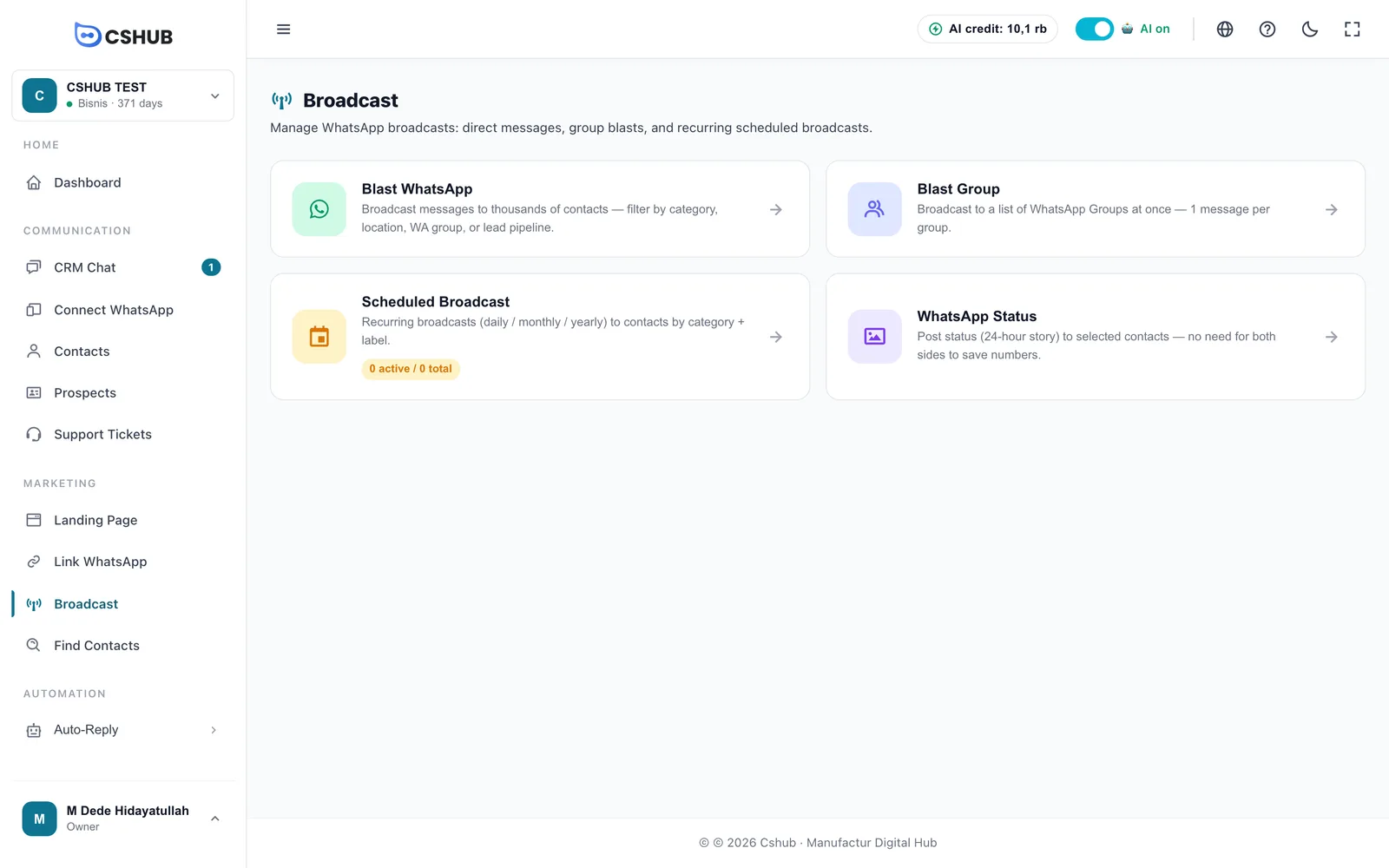
| Card | What it is for |
|---|---|
| Blast WhatsApp | Private messages to many contacts, run once. Covered on this page |
| Blast Group | One message to each selected WhatsApp group. See Group broadcast |
| Scheduled Broadcast | Recurring broadcasts (daily/monthly/yearly). The badge shows how many are active out of the total. See Scheduled broadcast |
| WhatsApp Status | 24-hour story to selected contacts. See WhatsApp Status |
Once inside any of them, a row of tabs at the top lets you jump between the four broadcast types.
Broadcast list
Click the Blast WhatsApp card. The WhatsApp Individual Blast page lists every broadcast you have created.
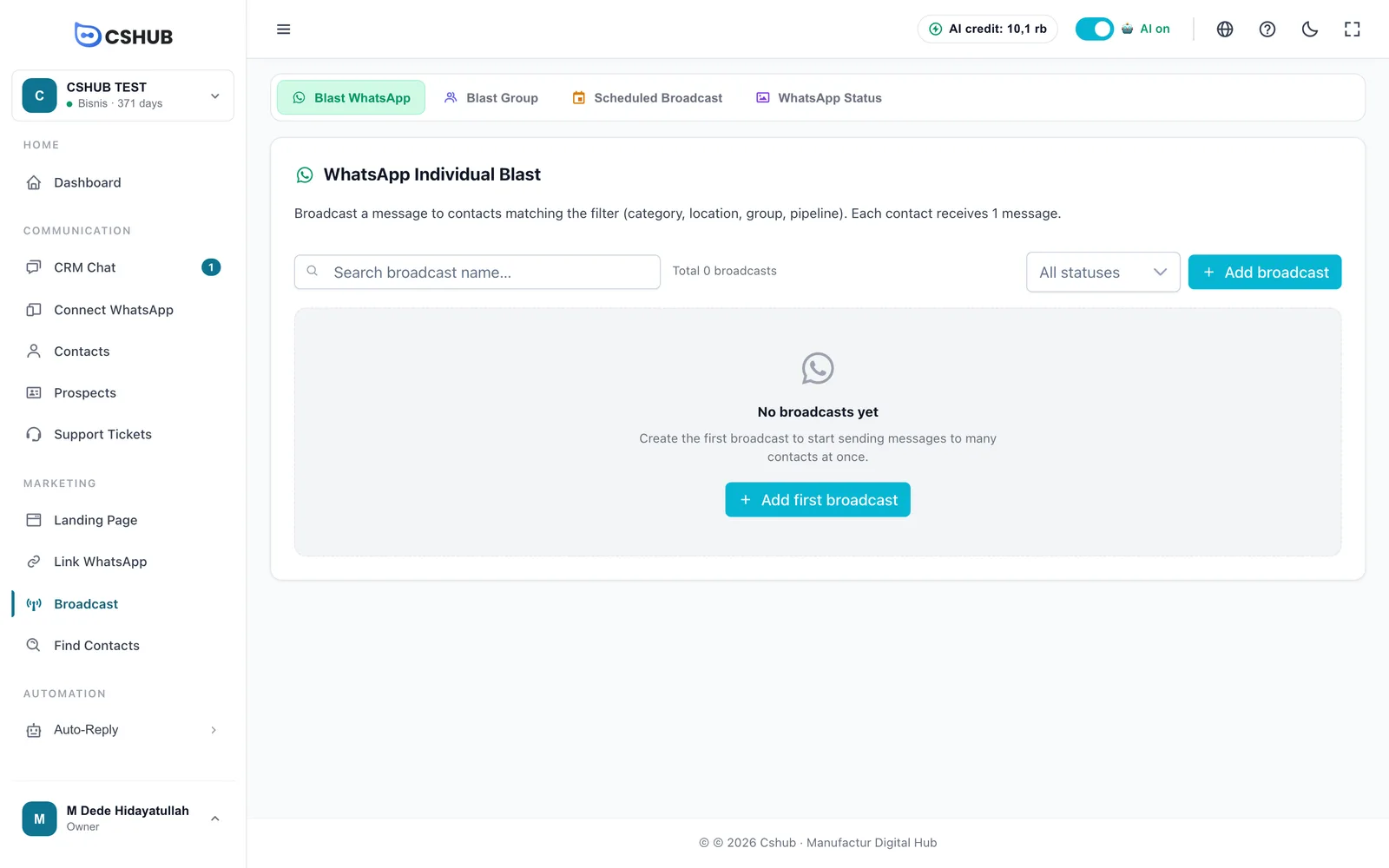
The table shows Name, Status, Schedule, Progress (sent, failed, and skipped out of the total recipients), and Actions. You can search by name and filter by status.
Broadcast statuses
| Status | Meaning |
|---|---|
| Waiting | Saved and waiting for its send time. Only broadcasts in this status can be edited |
| Running | Messages are being sent one by one |
| Paused | Sending is on hold. Click Resume to continue |
| Completed | Every recipient has been processed |
| Failed | The broadcast stopped because of a problem, such as a disconnected device |
The Actions menu on each row contains View details, Edit, Pause / Resume, Export XLSX, and Delete. Deleting a broadcast also permanently deletes its recipient list and sending history.
Creating a broadcast
Click Add broadcast. The form is split into sections, with a Message preview on the right.
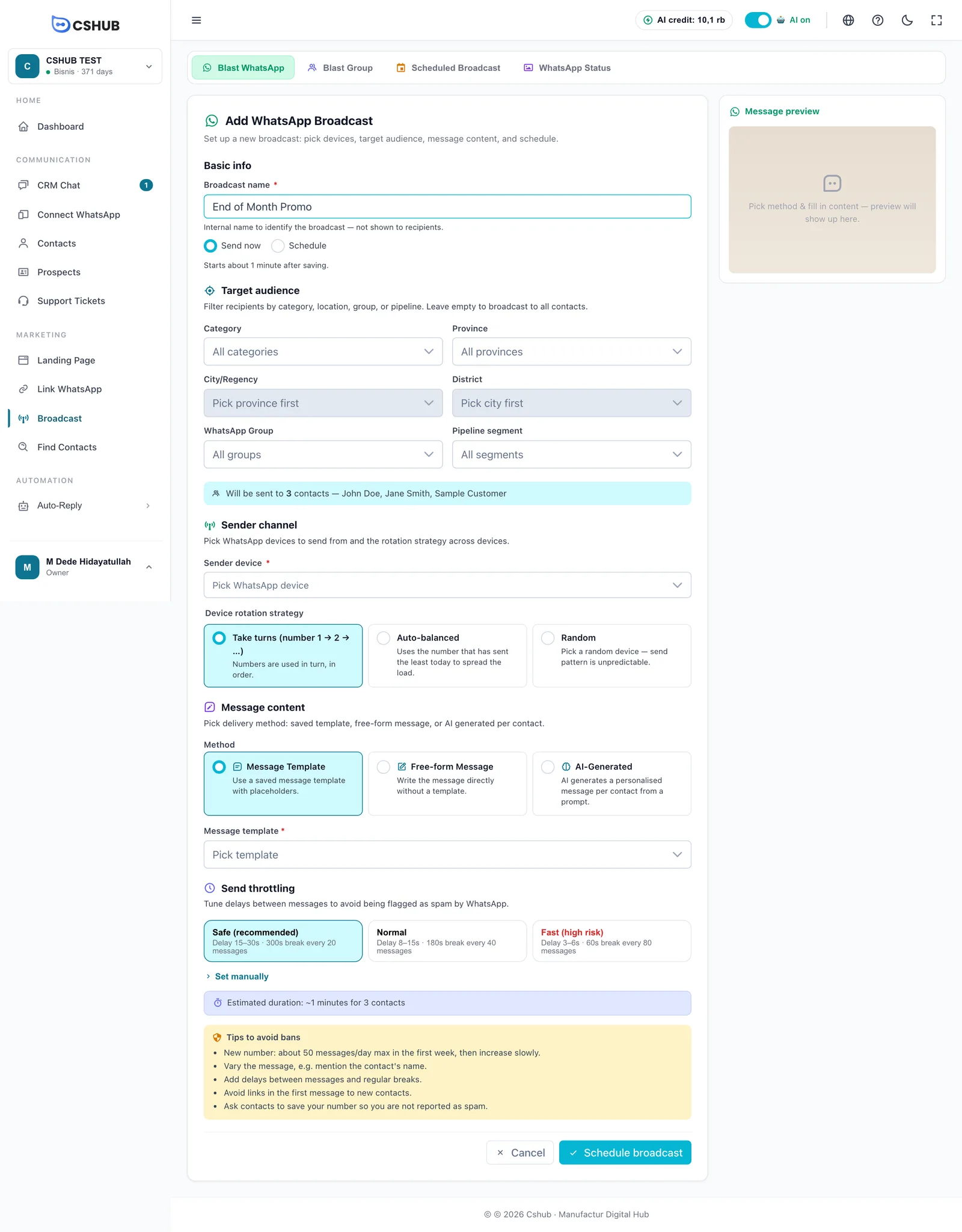
1. Basic info
| Field | Description |
|---|---|
| Broadcast name | Internal name to identify the broadcast (max. 255 characters). Recipients never see it |
| Send now | Sending starts about 1 minute after you save |
| Schedule | Shows the Execution schedule field to pick a date and time. It must be in the future |
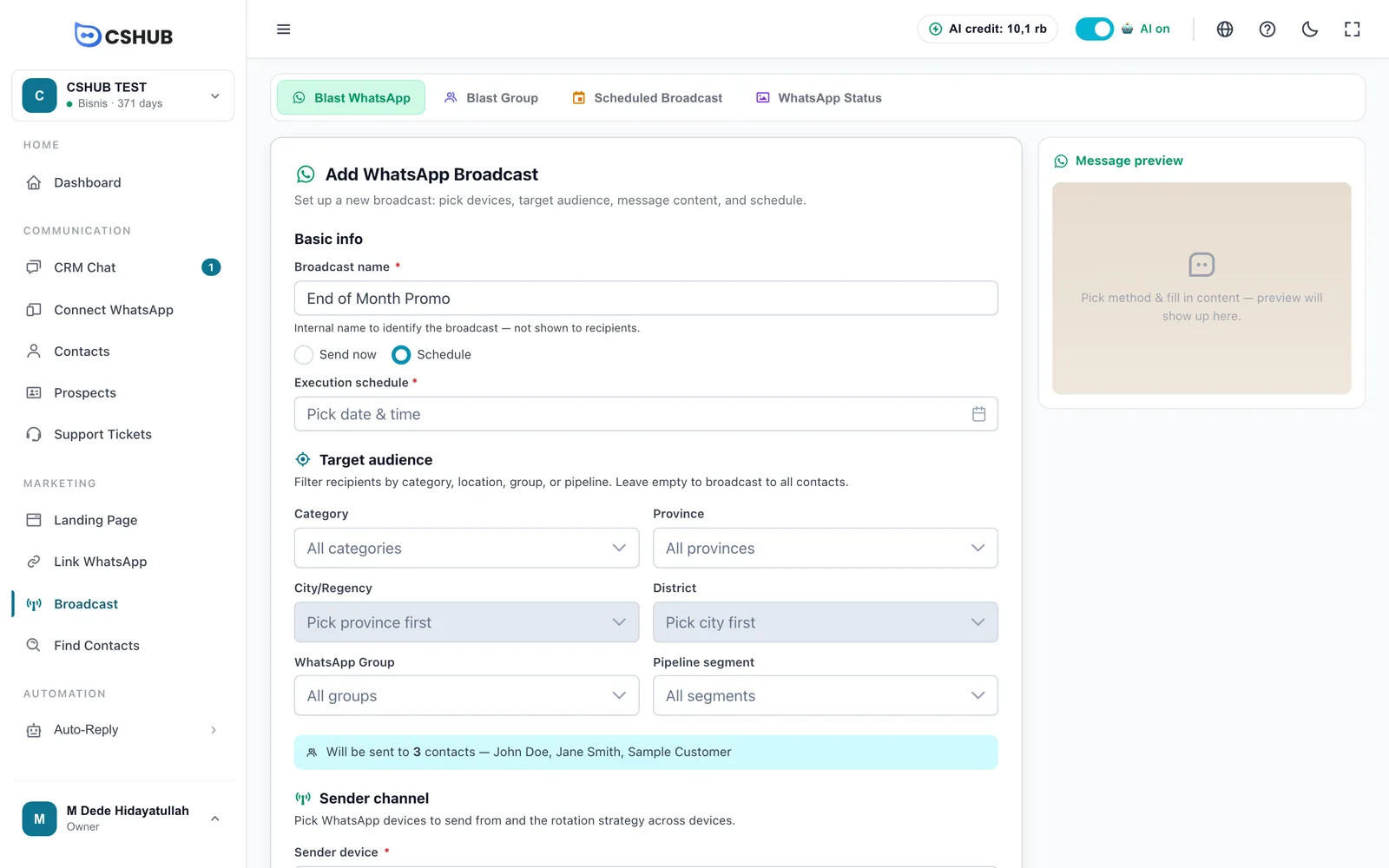
2. Target audience
Choose who receives the message. Filters can be combined, and if you leave all of them empty, the message goes to every contact in your business.
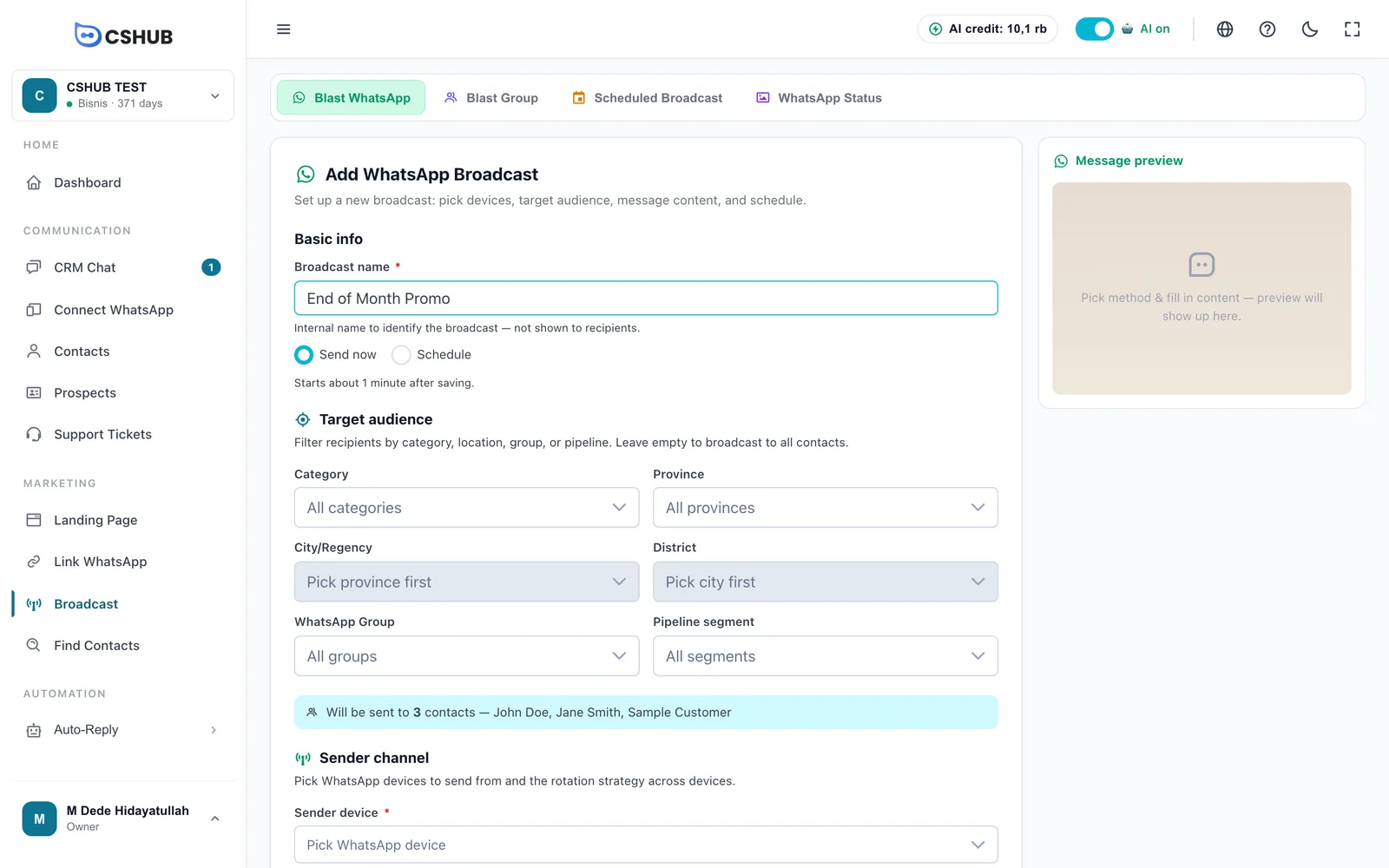
| Filter | Description |
|---|---|
| Category | Contact category, such as Customer or Reseller. Managed in Data & templates |
| Province → City/Regency → District | Filter by the contact's address. City unlocks after province, district after city |
| WhatsApp Group | Contacts who are members of a given WhatsApp group (groups collected with Find contacts) |
| Pipeline segment | Contacts at a particular pipeline stage. See Prospects & pipeline |
Below the filters, cshub immediately counts the real number of recipients and shows a few sample names — using exactly the same filter that will be used when sending.
A province alone does not narrow recipients
If you only pick a province, cshub warns that the region filter is not applied yet. Pick a city/regency or district as well so recipients are actually narrowed.
3. Sender channel
| Field | Description |
|---|---|
| Sender device | One or more WhatsApp numbers to send from. Only devices connected by scanning a QR code |
| Device rotation strategy | How messages are shared when you pick more than one device (see below) |
| Strategy | Behaviour |
|---|---|
| Take turns (number 1 → 2 → …) | Numbers are used in turn, in order |
| Auto-balanced | Uses the number that has sent the least today, to spread the load |
| Random | Picks a number at random — the sending pattern is hard to predict |
Spread the load across numbers
For large audiences, using 2–3 numbers means each one sends fewer messages, which lowers the risk of a ban.
4. Message content
Pick one of three methods:
| Method | Description |
|---|---|
| Message Template | Use a saved template (it can include an image). Templates are created in Data & templates |
| Free-form Message | Type the message directly into Message body |
| AI-Generated | Write an instruction in AI prompt (10–2,000 characters). AI writes a slightly different message for each contact at send time |
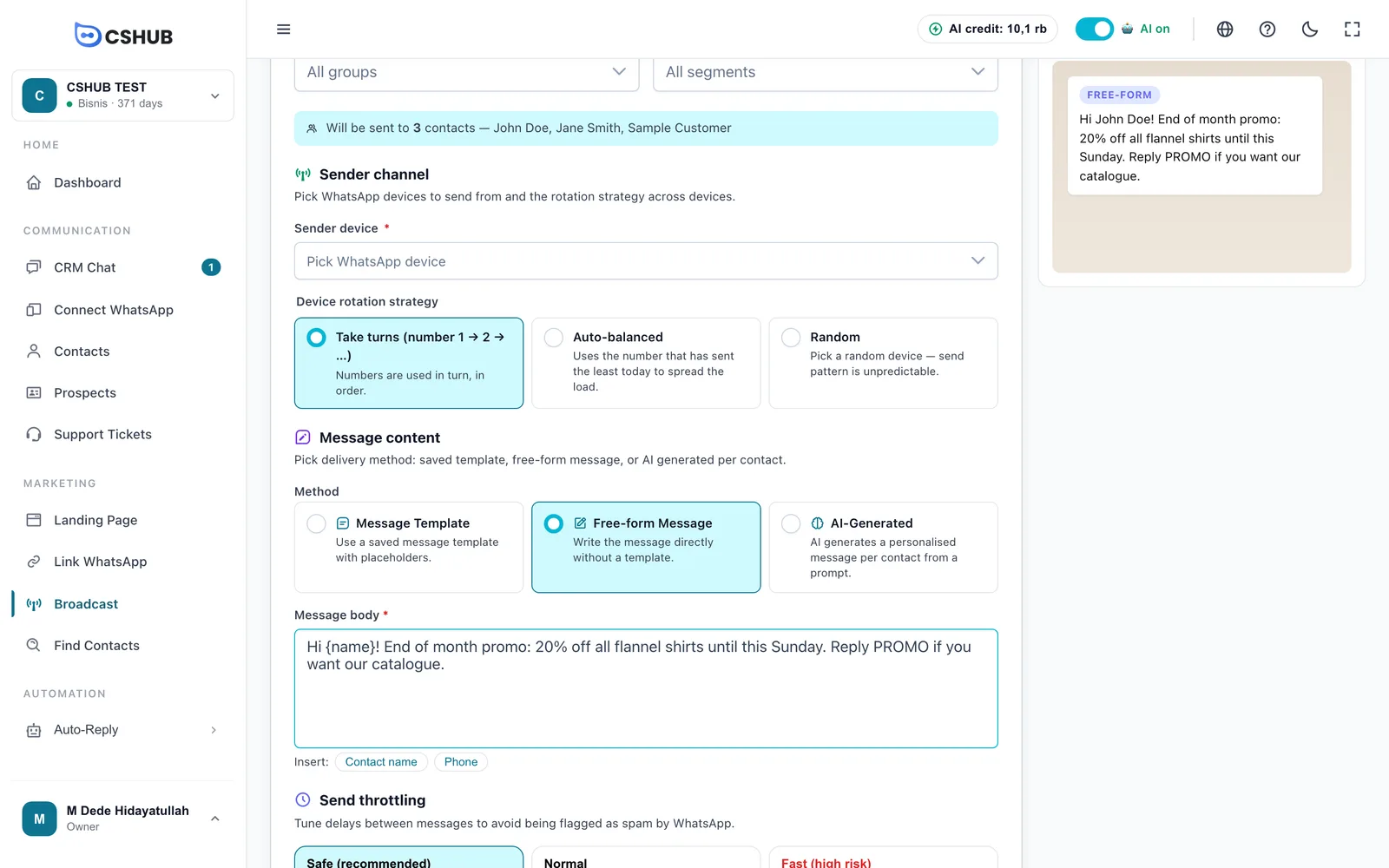
Under Message body, the Insert: Contact name and Phone buttons add variables. At send time they are replaced for each recipient:
| Variable | Replaced with |
|---|---|
{name} or {nama} | Contact name |
{phone} or {telepon} | Contact's WhatsApp number |
{owner} or {pemilik} | Name of the contact's owner (the CS who handles that contact) |
The Message preview panel shows the message as it will look in WhatsApp, using the first sample recipient. For AI-Generated, click Generate a sample to see one example written by AI.
5. Send throttling
Set delays between messages so WhatsApp does not flag you as spam. Pick a preset:
| Preset | Delay between messages | Break |
|---|---|---|
| Safe (recommended) | 15–30 seconds | 300 seconds every 20 messages |
| Normal | 8–15 seconds | 180 seconds every 40 messages |
| Fast (high risk) | 3–6 seconds | 60 seconds every 80 messages |
Click Set manually to enter your own numbers:
| Field | Range |
|---|---|
| Delay between messages (seconds) | 3–300 |
| Stop every (message count) | 10–300 |
| Rest duration (seconds) | 10–300 |
cshub shows the Estimated duration for your recipient count, plus a Tips to avoid bans box.
6. Confirm and send
Click Schedule broadcast. The Send this broadcast? dialog summarises the recipients, contact count, sender numbers, message, schedule, and estimated duration. If there is no recipient filter at all, it stresses that the message goes to ALL contacts.
- Send a test to my number — sends one sample message to the WhatsApp number on your account. Available when you use a Message Template, have picked a device, and your account has a phone number.
- Review again — go back to the form.
- Yes, schedule it — save the broadcast.
Insufficient balance
When you save, cshub checks your plan: it must be active, your remaining credit must cover the number of recipients, and if your plan limits WhatsApp messages per period, that limit is checked too. If not, you will see Insufficient balance with a Manage plan button. See Billing & packages and AI credit & top-ups.
Tracking and managing a broadcast
Click View details on a broadcast row to open its detail page: sending progress, devices in use, and the Recipient list.
| Recipient column | Contents |
|---|---|
| Name / Phone | Contact name and number |
| Status | Active (will be sent) or Skipped |
| Send result | Success, Failed, or Not sent |
| Sent at | When the message was delivered |
On the detail page you can:
- Pause / Resume sending.
- Skip a recipient so they are not messaged. Undo with Activate, as long as the message has not been sent yet.
- Export XLSX — download a report with each recipient's name, number, status, and sending log.
- Refresh — reload the latest progress.
- Search by phone number and filter by status or send result.
Edit only while Waiting
A broadcast that is Running or Paused can no longer be edited. To change the content, pause it and create a new broadcast.
Keeping your number safe
- New number: about 50 messages a day at most in the first week, then increase slowly.
- Vary the message — mention the contact's name with
{name}, or use AI-Generated. - Add delays and regular breaks — the Safe preset already does this.
- Avoid links in the first message to new contacts.
- Ask contacts to save your number so they don't report you as spam.
- Make sure the device is Active before the send time. If it disconnected, scan again in WhatsApp (scan QR).
For other sending problems, see Troubleshooting.