
Replying to conversations
Once a chat is open in CRM Chat, you can reply to the customer, take over from the AI, send photos, files, products, or quick replies, and manage everything about the customer — labels, pipeline, orders, follow-ups, and appointments — from the Contact Info panel on the right without leaving the page.
This page continues from CRM Chat (inbox). Click any conversation in the left list to open it.
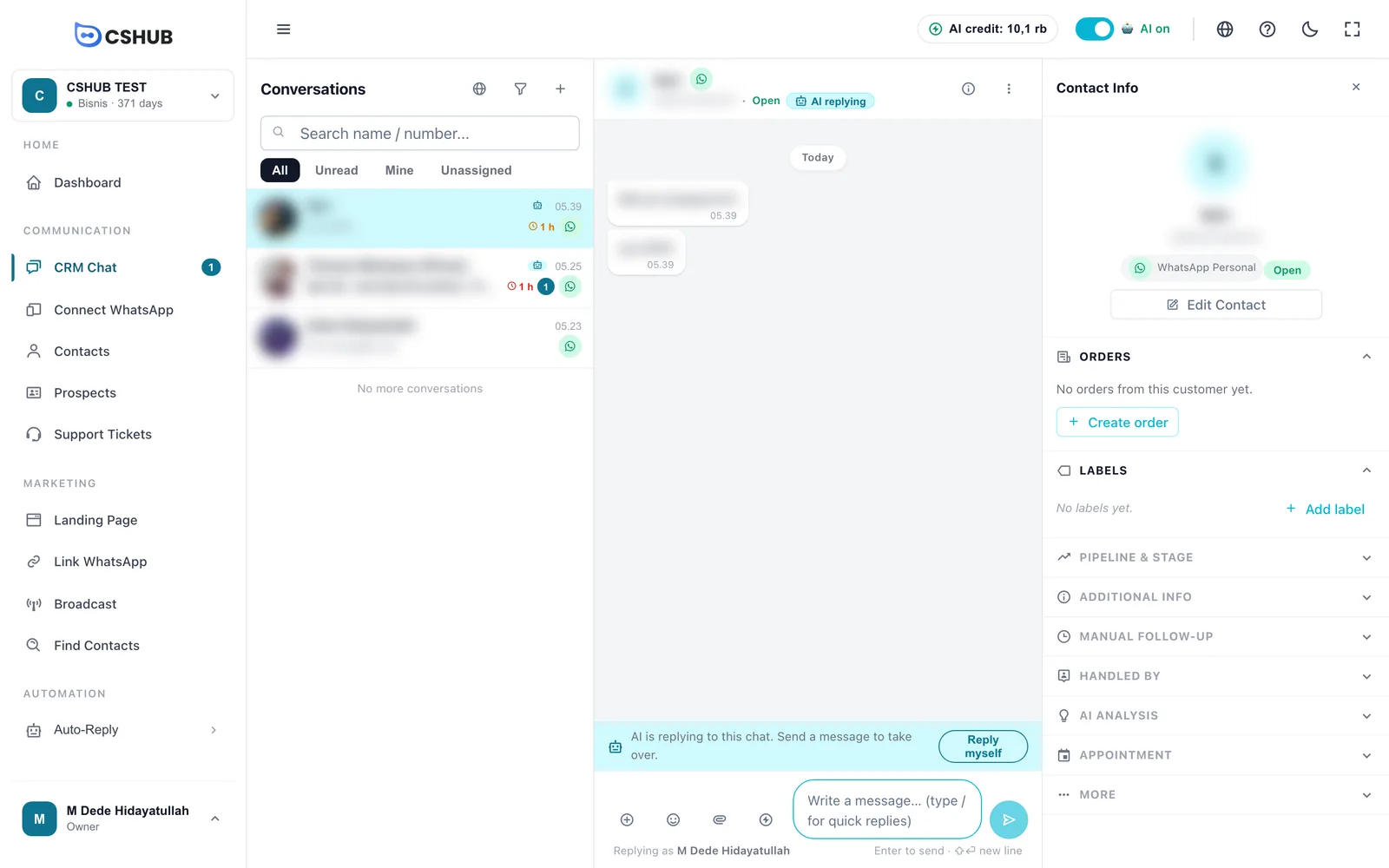
Conversation header
| Part | Description |
|---|---|
| Name & number | Who the customer is, plus the icon of the channel the chat came from |
| Status | Open, Resolved, or Blocked |
| AI pill | Who is replying to this chat right now (see the table below). Click to switch |
| ⓘ button | Opens or closes the Contact Info panel |
| ⋮ button | The conversation actions menu |
The header pill has three states:
| Pill | Meaning | Clicking it |
|---|---|---|
| AI replying | Auto-replies (AI Agent or keywords) are on for this chat | Pauses the AI for this chat so you reply |
| You are replying | A human has taken over; auto-replies are stopped | Lets the AI reply again |
| AI paused (whole business) | All auto-replies for the business were switched off with the AI on switch at the top of the screen | — turn the top AI switch back on |
Taking over from the AI
While the AI is handling a chat, a banner above the reply box says AI is replying to this chat. Send a message to take over.
There are three ways to take over:
- Just send a message. The moment you send a reply, the AI is paused for this chat — you'll see AI paused for this chat. You're replying now.
- Click Reply myself on the banner.
- Open the ⋮ menu → Take Over.
To hand the chat back to the AI, open ⋮ → Let AI reply again, or click the You are replying pill in the header.
Why take over?
Without taking over, both you and the AI may answer the same message. Taking over makes sure the customer gets one answer — yours.
Actions menu (⋮)
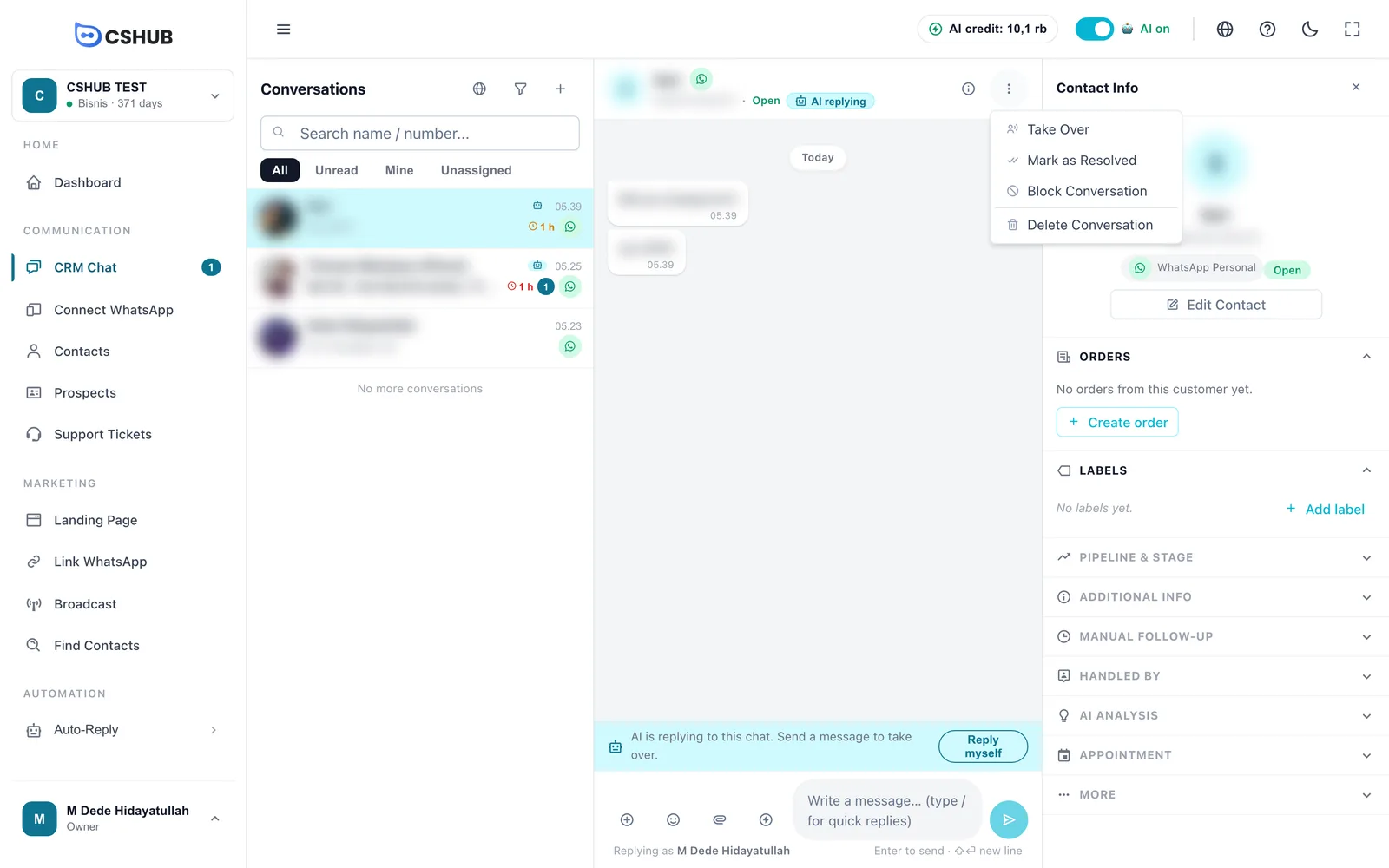
| Action | What it does |
|---|---|
| Take Over / Let AI reply again | Turns auto-replies for this chat off or back on |
| Mark as Resolved | Sets the chat to Resolved — a sign this customer's issue is done |
| Block Conversation / Unblock | Marks the chat as Blocked in the list — useful for spam or prank numbers. You can unblock any time |
| Delete Conversation | Points you to the right panel → More Actions → Delete Conversation to confirm |
Messages
Customer messages sit on the left, your business's messages (including AI replies) on the right. Messages are grouped by date (Today, Yesterday, then the date). Scroll up to load older messages.
Messages you send carry a status:
| Status | Meaning |
|---|---|
| Sending... | Being processed |
| Sent | Has left cshub |
| Delivered | Reached the customer's phone |
| Read | The customer has read it |
| Failed to send | Not delivered — hover the message and pick Retry, or Delete |
Hover a message to reveal its actions:
- Reply — quotes that message. The quote shows above the reply box; click × to cancel.
- Delete — removes the message from the conversation in cshub. It is not removed from the customer's phone.
Click an image to see it full size.
The reply box
Type in Write a message… (type / for quick replies). Press Enter to send and Shift + Enter for a new line. Below the box, Replying as followed by your name shows who is sending.
The buttons to the left of the reply box:
| Button | What it does |
|---|---|
| + | Send a product, a payment link, or create an order |
| Emoji | Insert an emoji |
| Attach file | Send a Photo or a File |
| Quick Replies | Pick a saved reply template |
Send a product, payment link, or order
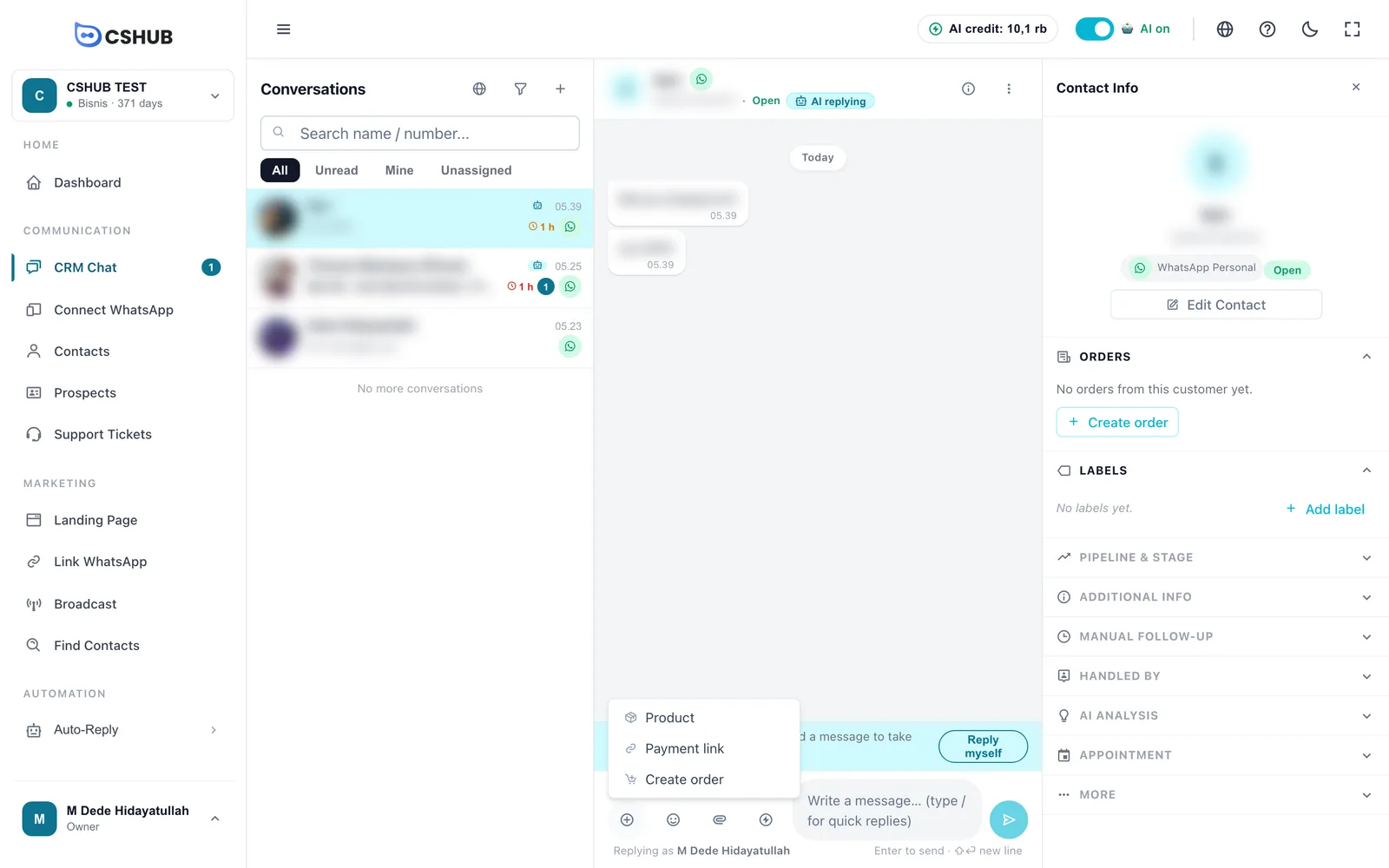
| Option | What happens |
|---|---|
| Product | Opens Send products. Search and pick up to 5 products; each is sent as a photo with its name and price. Products come from Products & stock |
| Payment link | Opens the right panel at Orders. Pick the order and click Send payment link |
| Create order | Opens a new order form in a new tab, with this chat's customer already filled in. See Orders |
Send photos & files
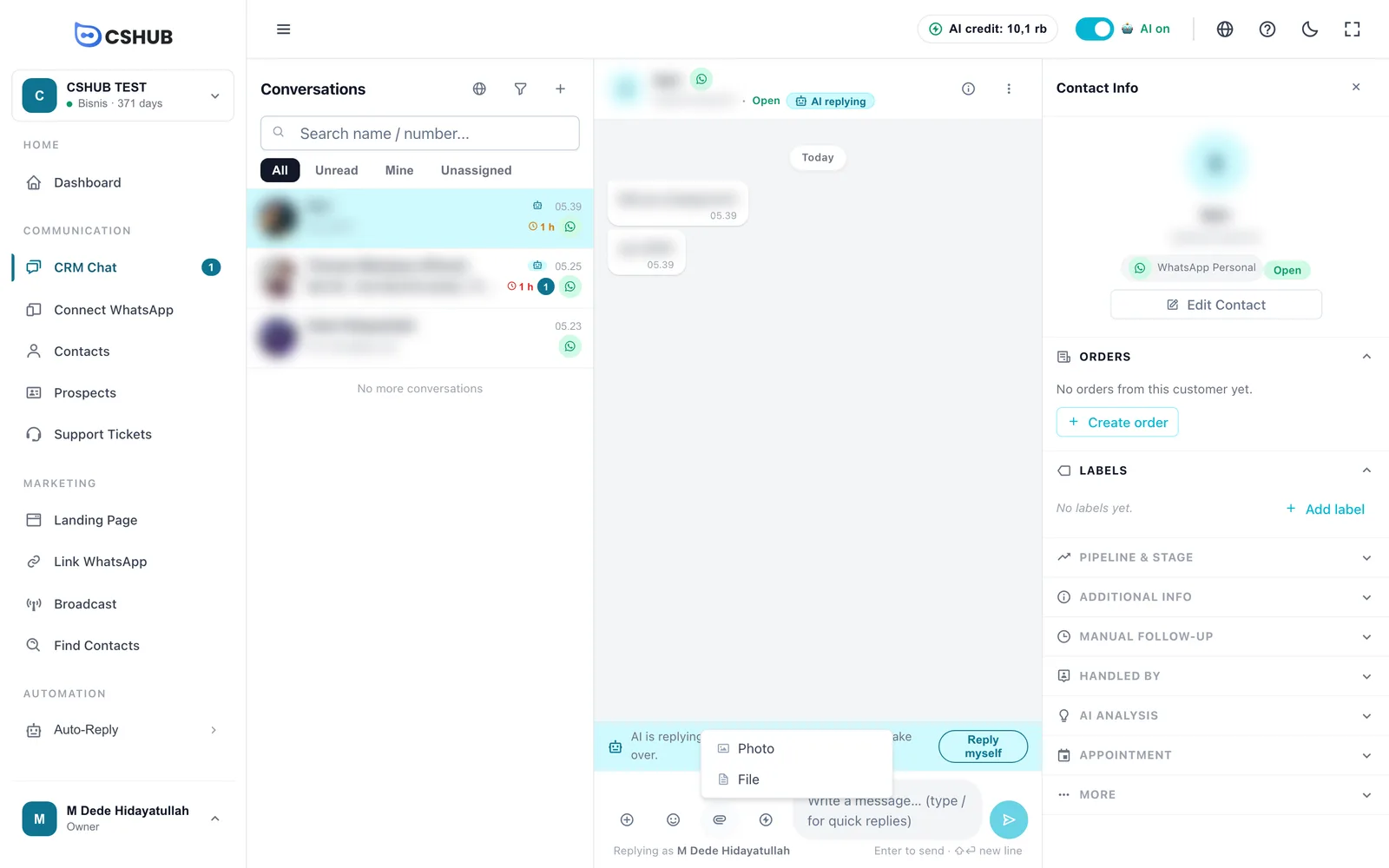
- Photo — pick an image (jpg, png, gif, webp), add a caption if you like, then Send.
- File — any file type, e.g. a PDF catalogue or invoice. You can add a Caption (optional).
Each attachment can be up to 25 MB.
Quick replies
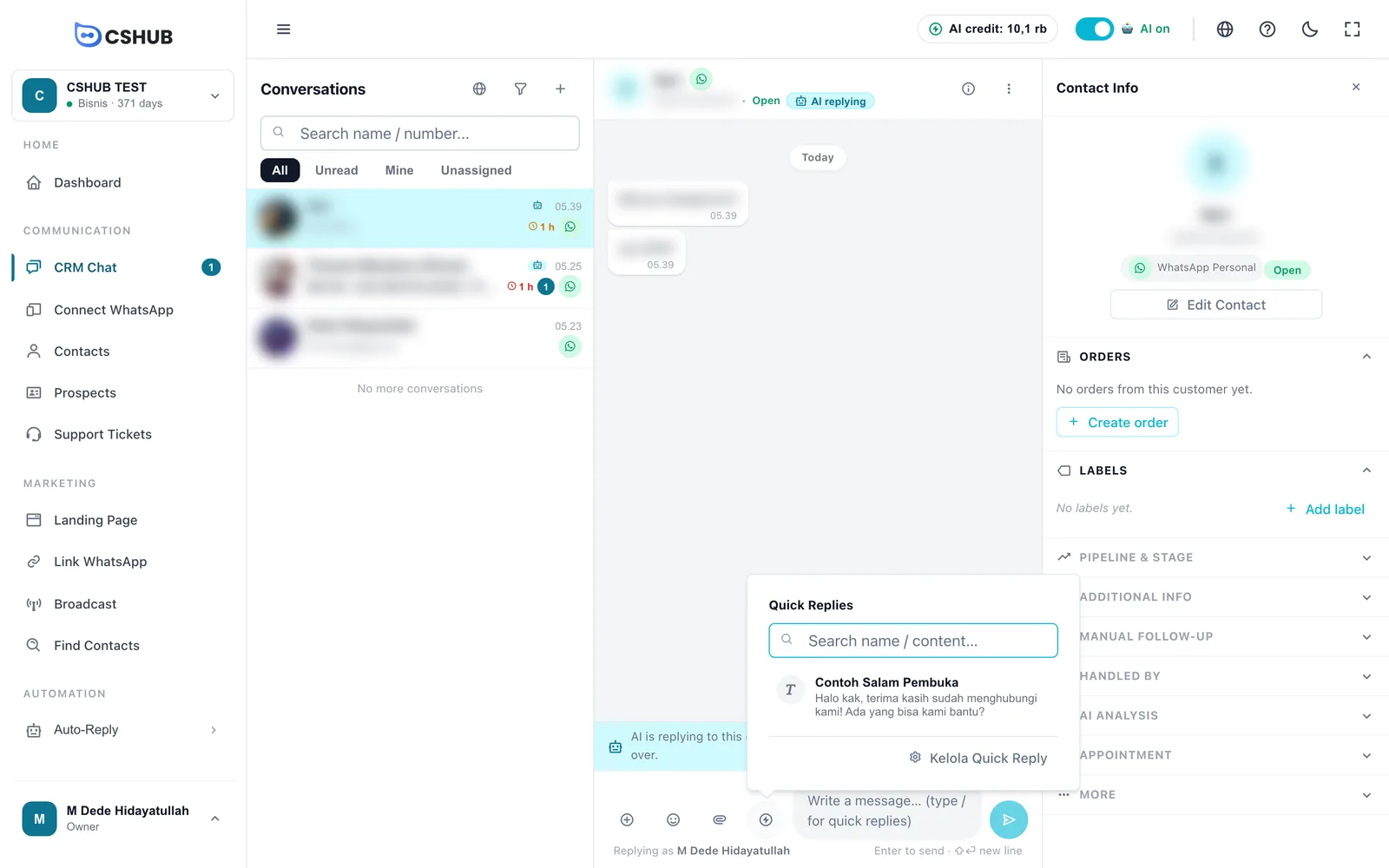
Click the Quick Replies icon, or type / in the message box, to bring up your quick replies. Type a few letters to filter, then pick one:
- A text reply is inserted into the message box — you can still edit it before sending.
- A reply with media opens a Send quick reply preview; click Send.
The manage link at the bottom takes you to the quick reply library. See Quick replies.
The Contact Info panel
The right panel holds everything about the customer in the open chat. Click a section title to expand or collapse it.
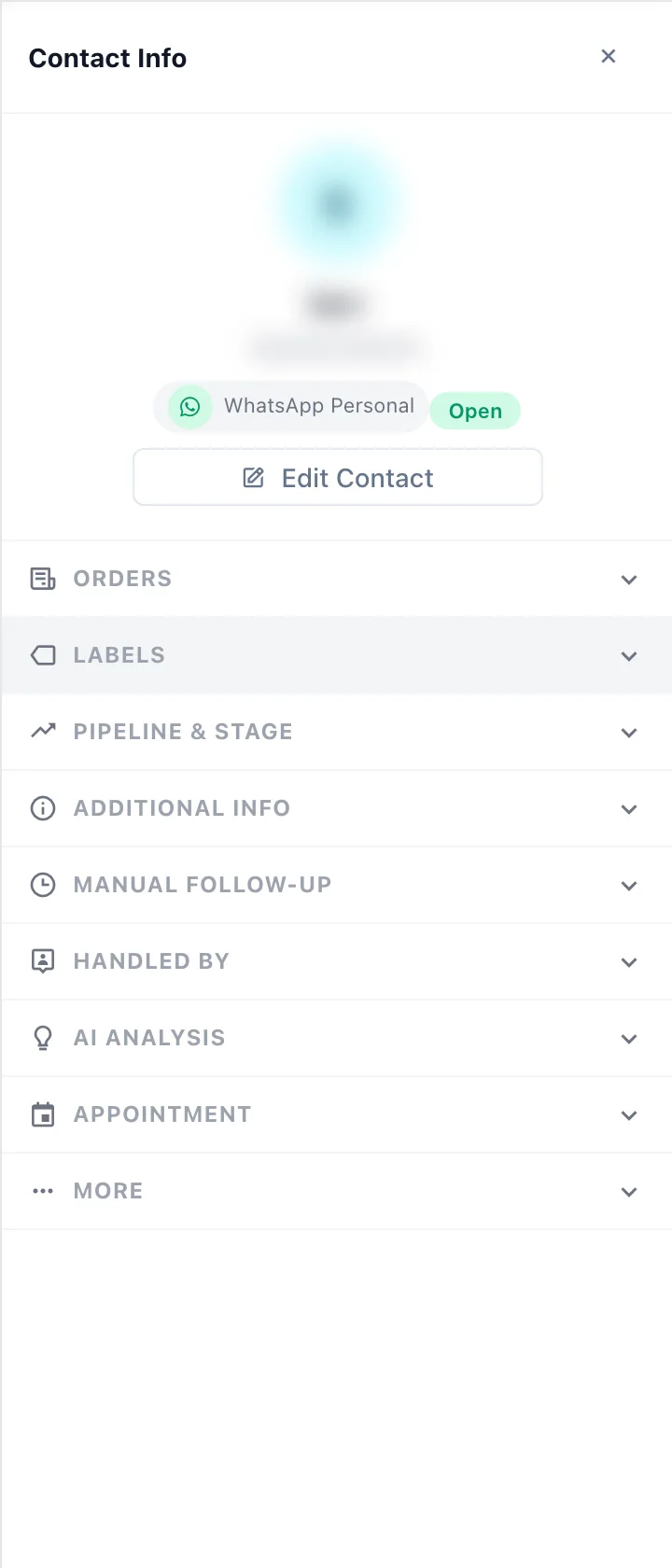
Profile & Edit Contact
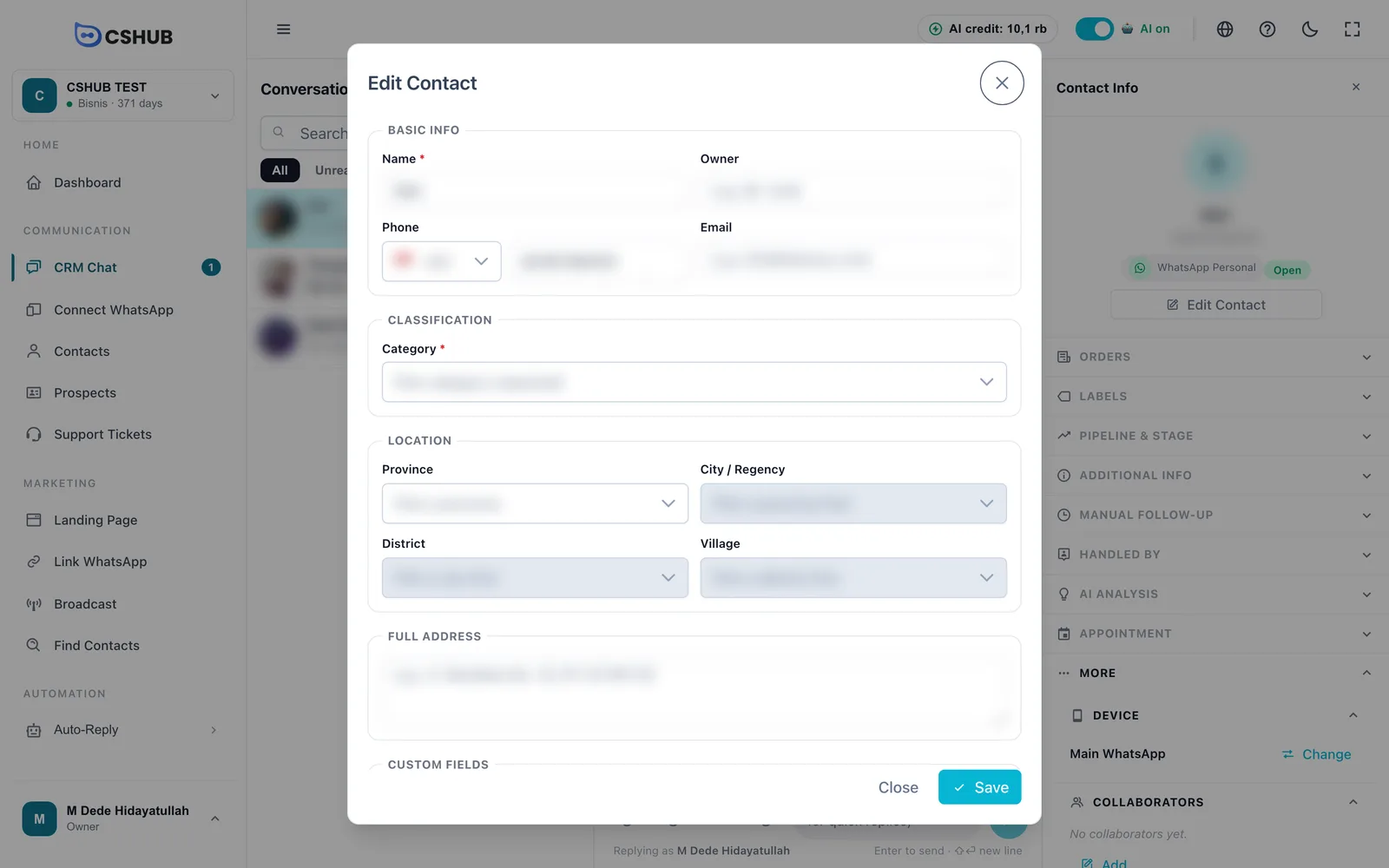
The top shows the photo, name, number, channel, and chat status. Edit Contact opens the full contact form — name, owner, phone, email, category, location, address, and custom fields. Each field is explained in Contacts.
Orders
Lists this customer's orders. With none yet, it says No orders from this customer yet. with a Create order button.
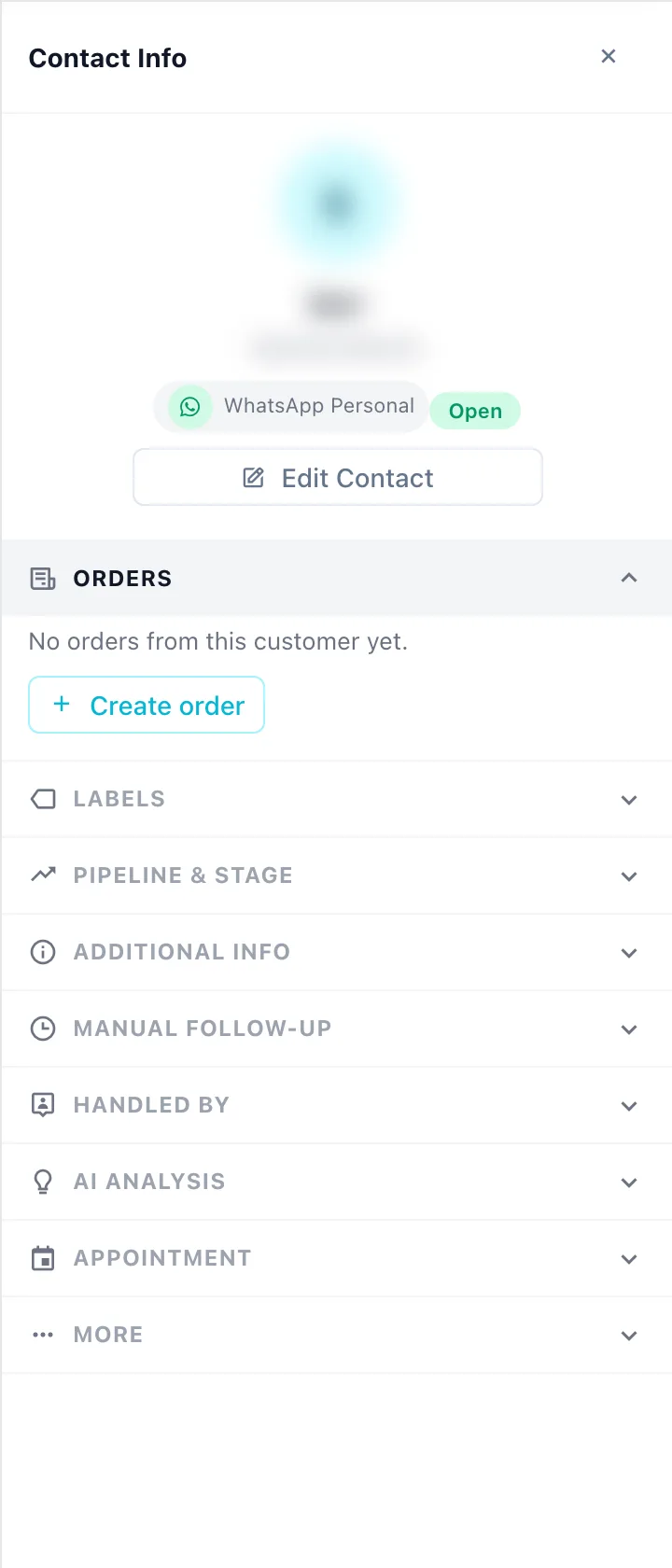
For an existing order, Send payment link drops a sentence with the payment link into the reply box — check it, then send. View all opens the full order list.
Labels
Labels tag a conversation, e.g. Complaint, VIP, or Price question. Click Add label to open Pick Label.
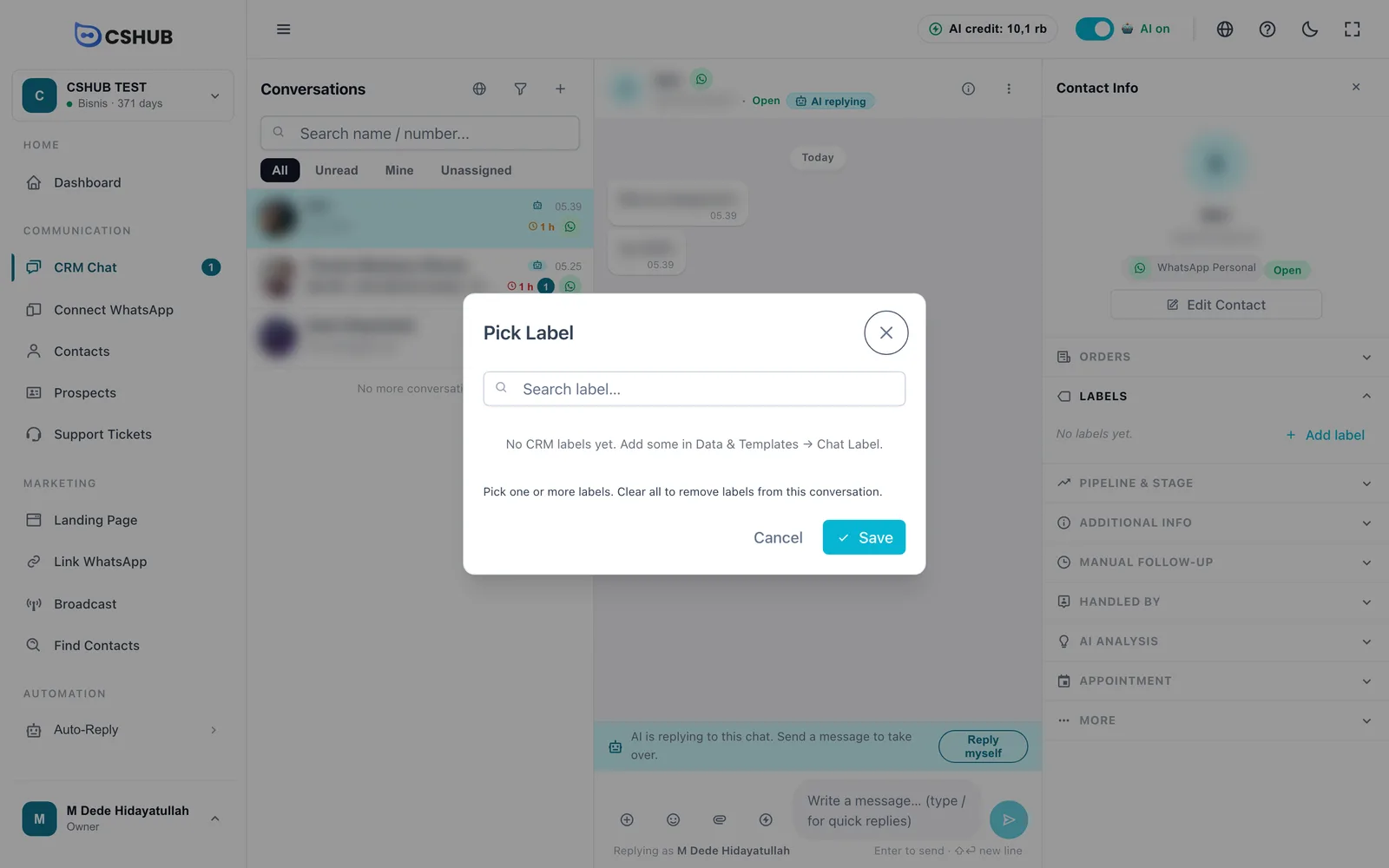
Pick one or more labels and click Save. To remove every label from the conversation, clear all selections and save. New labels are created in Data & templates → Chat Labels.
Pipeline & stage
Places the contact in a sales stage. Click Set Pipeline, choose the Pipeline and then the Stage, and Save. Clear takes the contact out of the pipeline.
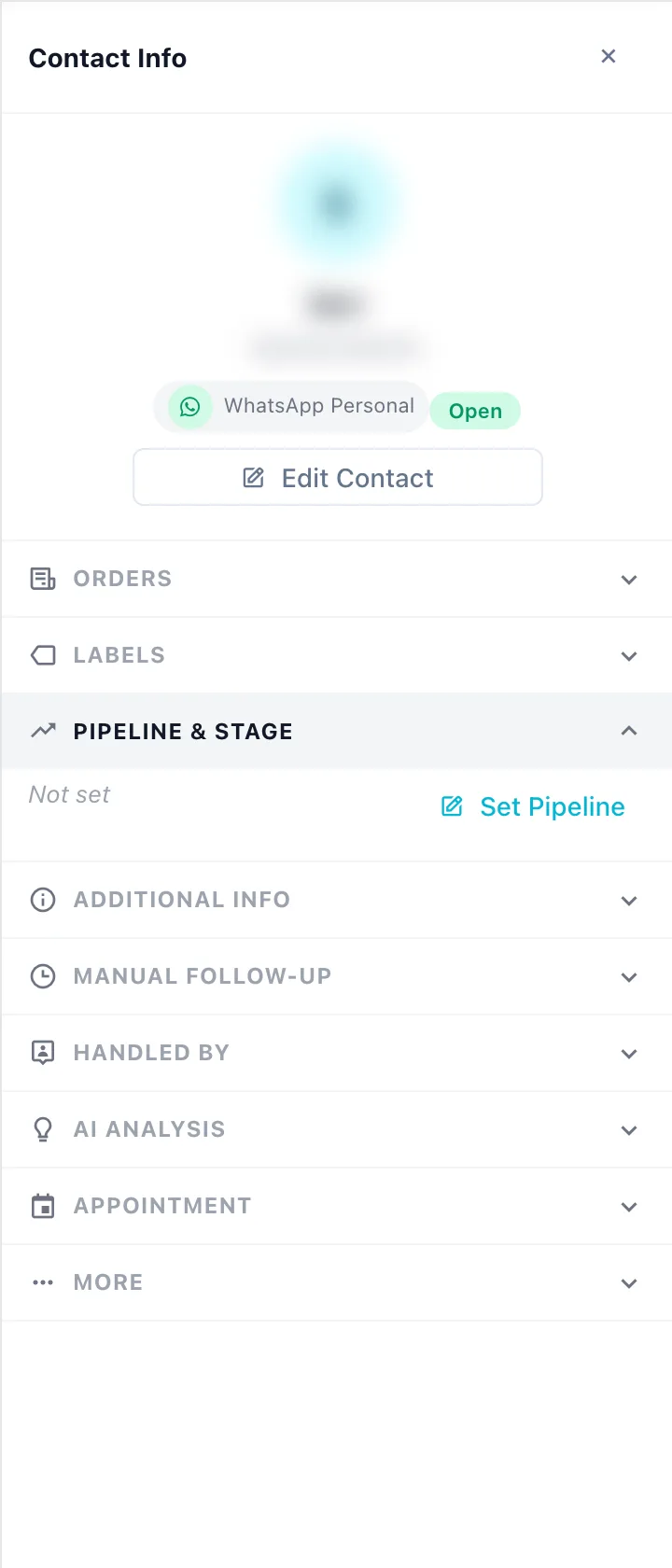
Changes here show up right away on the Prospects & pipeline board, and the other way round.
Additional Info
Free-form notes just for this contact, on top of the custom fields shared by all contacts. Click Add, then Add field.
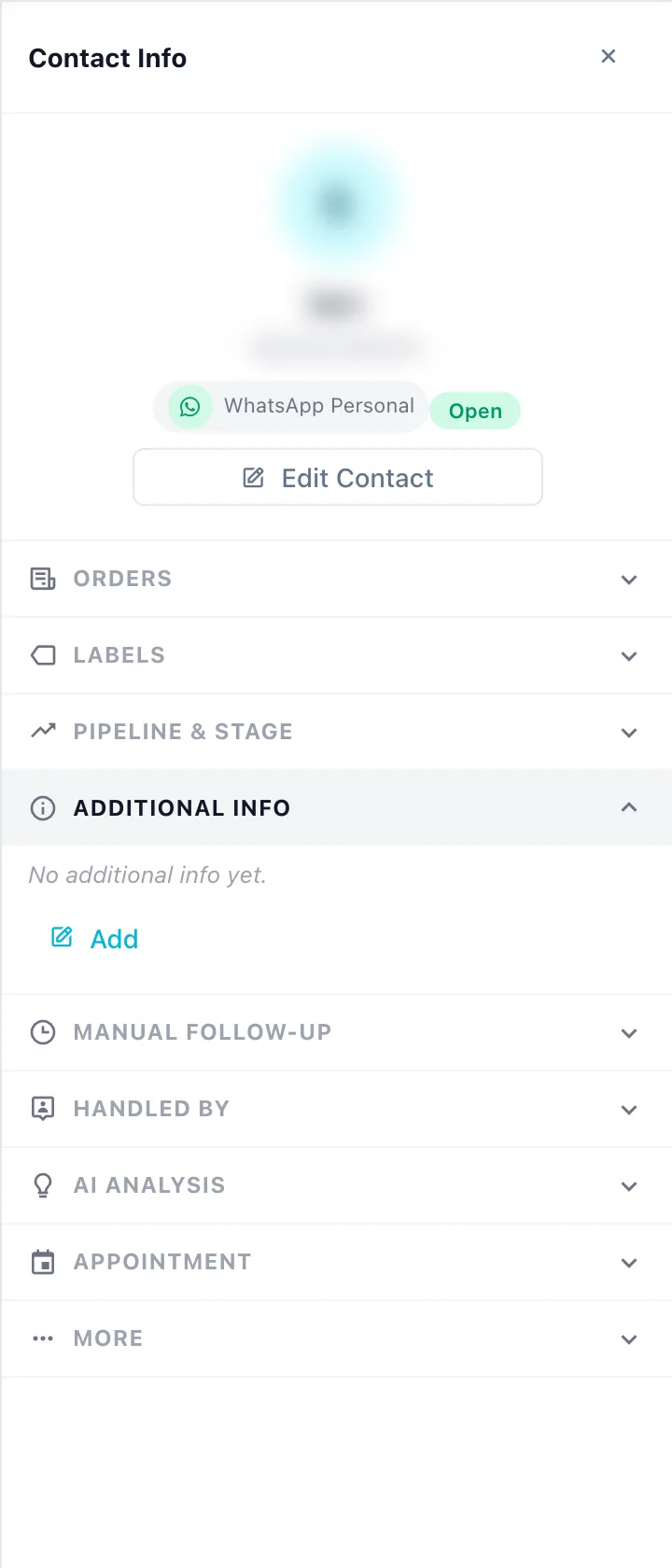
| Field | Description |
|---|---|
| Field name | What the info is, e.g. Shoe size |
| Type | Text, Number, Date, or Options |
| Value | The content. For Options, write the choices separated by commas (e.g. Gold, Silver, Bronze) and pick the value |
| Note | An internal note (optional) |
Field names can't repeat, and an Options field needs at least one choice.
Manual Follow-Up
Schedule a follow-up message for this customer — say, a payment reminder tomorrow morning. Click Add.
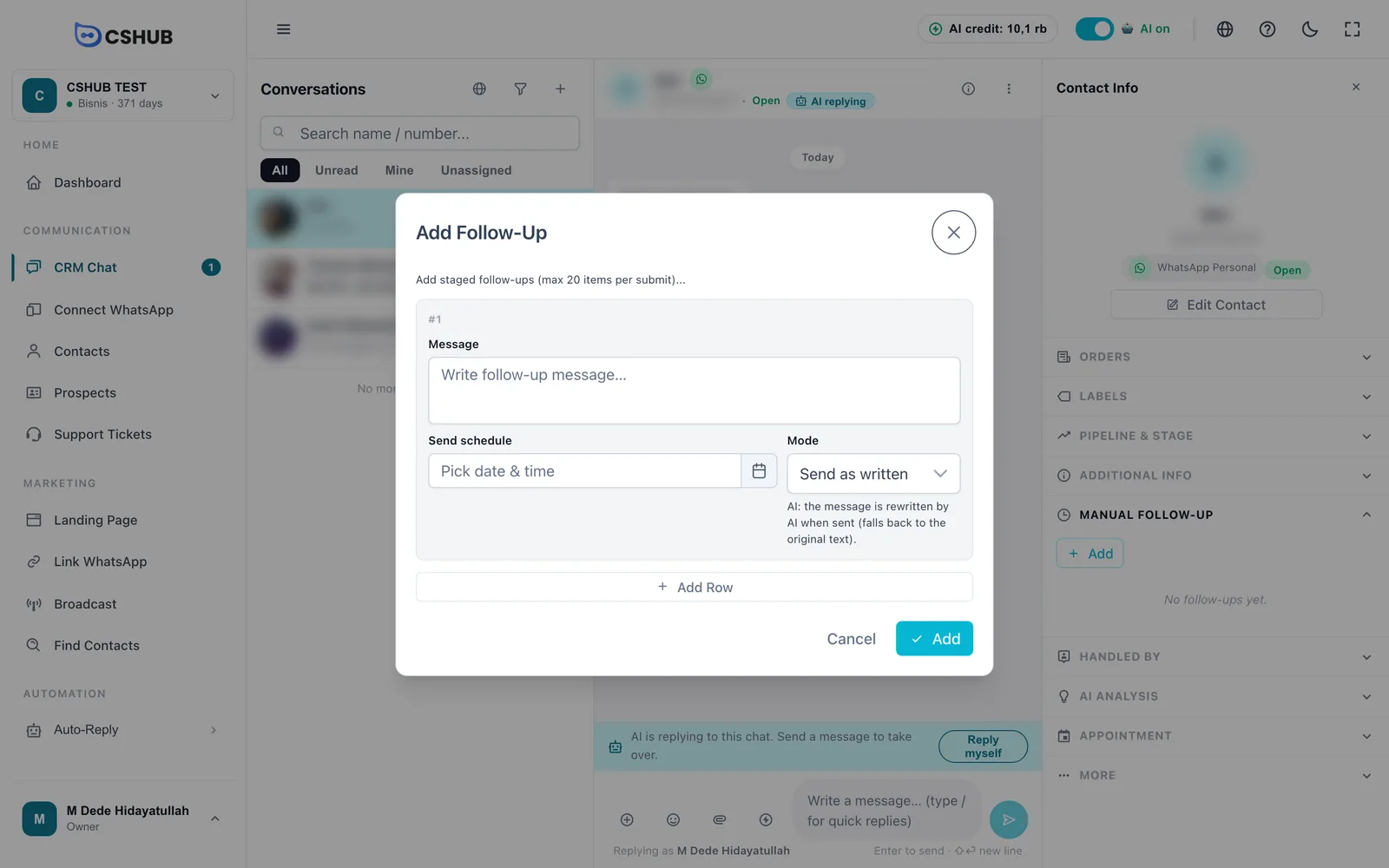
| Field | Description |
|---|---|
| Message | The follow-up text. Required |
| Send schedule | Date and time to send. Must be in the future |
| Mode | Send as written — sent exactly as typed. Rewritten by AI — when it's time, the AI rewrites the message from the chat history; if that fails, your original text is sent |
Click Add Row to schedule several staged messages at once (up to 20 per save).
Saved follow-ups are grouped into Waiting, Sent, Failed, and Cancelled. Only waiting ones can be edited or deleted. Cancel All cancels every follow-up still waiting.
Manual vs automatic
Follow-ups here are created one by one for one customer. For automatic follow-ups to many customers, use Automatic follow-ups.
Handled by
Shows the CS responsible for this chat. Click Set Agent, pick a team member, and save — the chat moves to that person's Mine tab.
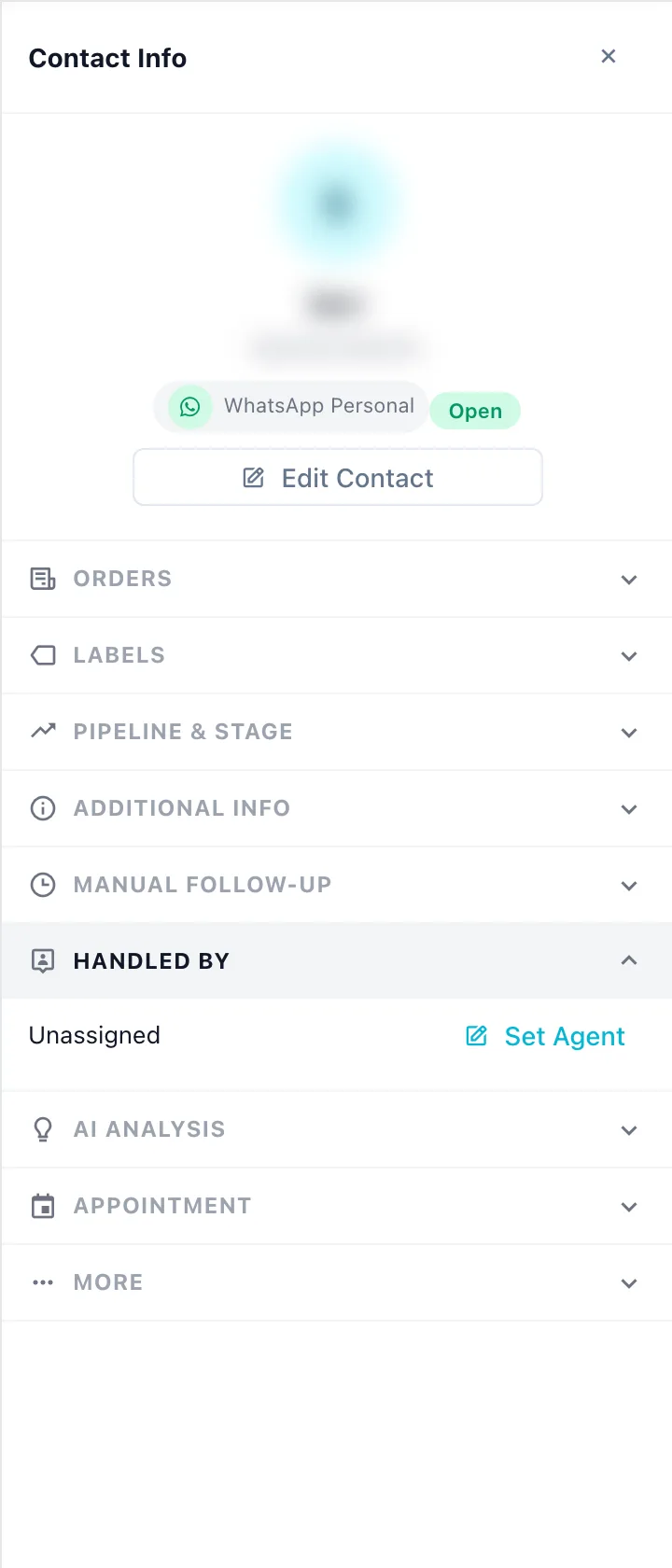
If the agent list is empty, add team members first in Team, CS & roles.
AI analysis
The AI reads the conversation and sums up where the customer stands. Click Analyse now to start.
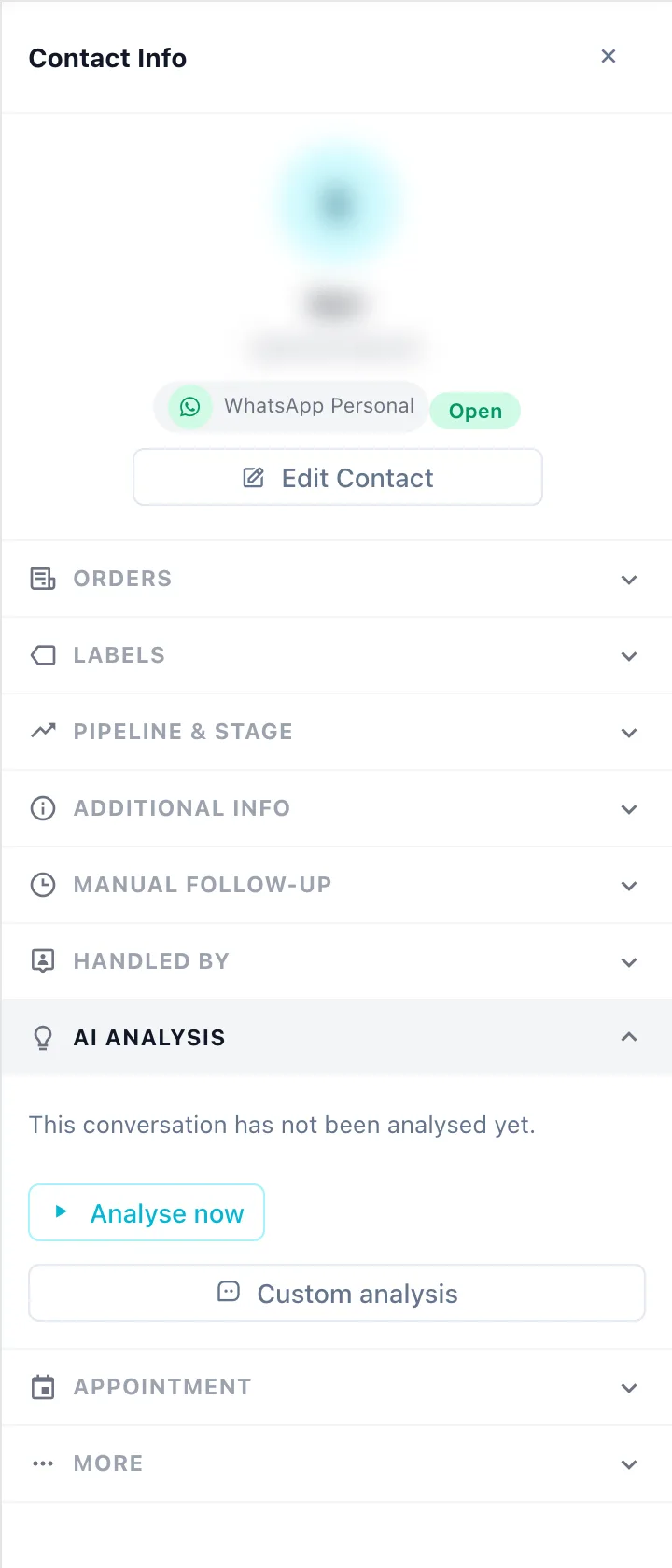
The result contains:
| Part | What it shows |
|---|---|
| Lead score | How likely the customer is to buy |
| Stage | Just aware, Considering, Ready to buy, Purchased, or At risk |
| Traits | The customer's style and character |
| Needs | What the customer is looking for |
| Unanswered | Customer questions that haven't been answered |
| Objections | Why the customer is hesitating |
| Next step | A suggested action with a draft reply. Use this draft puts it in the reply box |
When the AI thinks the contact should move to another pipeline stage, you'll see Suggested move to …. Click Analyse again after new messages arrive.
Custom analysis opens a dialog where you can ask anything about this chat, such as Why hasn't this customer bought yet? Choose Messages to analyse (the last few messages or all messages), then type your question.
Uses AI credit
Every analysis and every Custom analysis question uses AI credit. If you run out, the analysis is skipped. The Custom analysis Q&A history is cleared when the dialog closes. Very short conversations can't be analysed yet.
To analyse many chats at once, see AI Insight & analyst.
Appointment
Shows this customer's appointments and a button to create a new one. The contact must already be saved in your contact database.
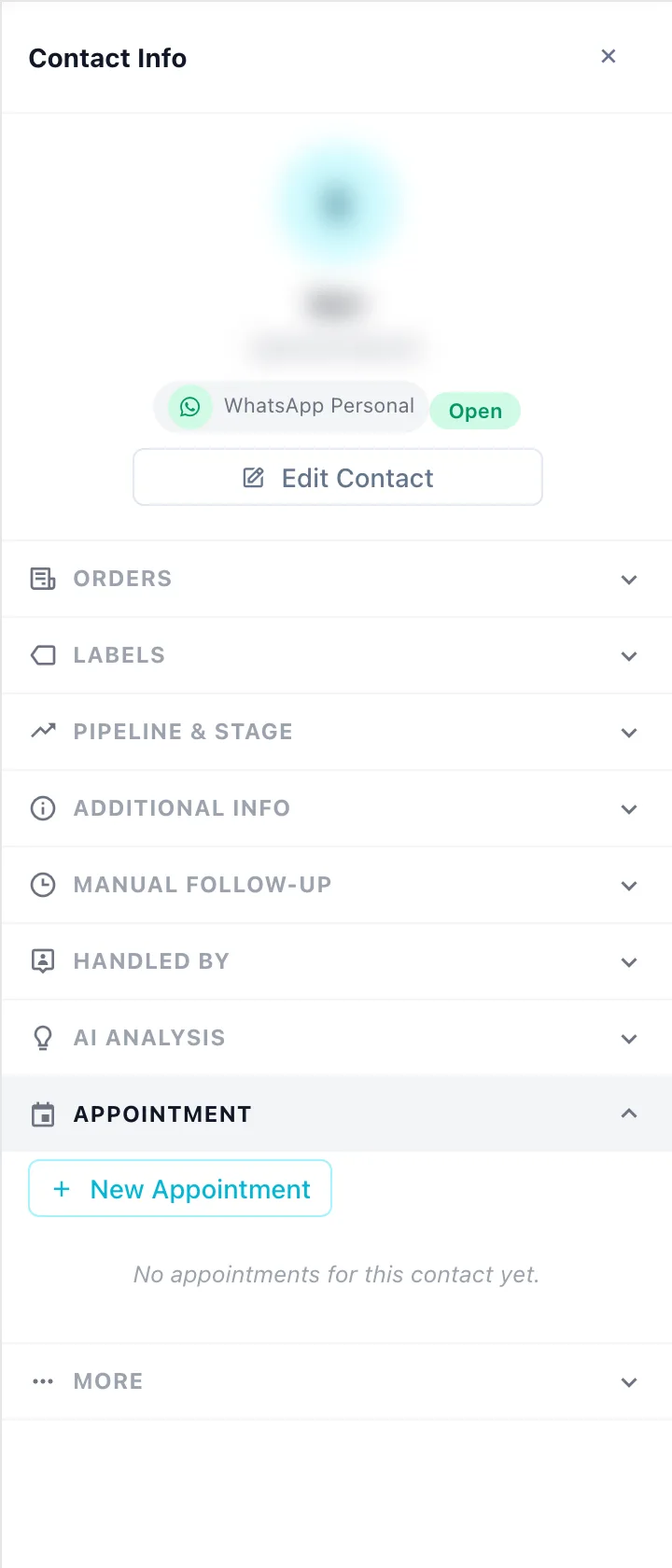
See Appointments for the fields.
More
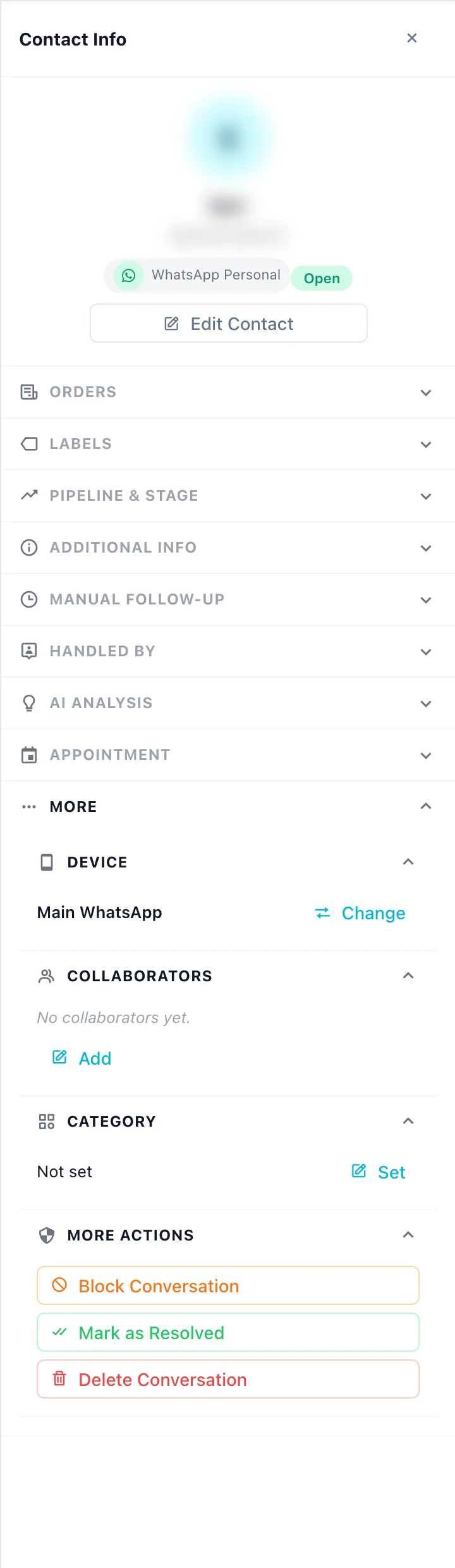
| Section | What it does |
|---|---|
| Device | The number/account used to reply to this chat. Change moves the conversation to another device on the same channel |
| Collaborators | Add other team members to help on this chat, besides the responsible CS |
| Category | Group conversations. Categories are created in Data & templates → Categories |
| More Actions | Block Conversation (or Unblock), Mark as Resolved, and Delete Conversation |
Deleting a conversation
Delete Conversation permanently removes every message, note, and attachment in that conversation. To confirm, type the contact name exactly as shown, then click Delete Permanently.
This can't be undone
A deleted conversation can't be restored. If you only want to tidy up the list, use Mark as Resolved.