
Billing & plans
The Billing menu is where you manage a business's subscription: see the current plan and when it ends, renew or switch plans, buy a Lifetime plan you pay for only once, apply a voucher code, pay (including with a foreign card), and review payment history — all from inside that business. It's also where you buy extra AI credit, monthly active user quota, and storage.
Plans in cshub apply per business. If you have two businesses, each has its own plan, active period, and quotas.
Opening Billing
Click Billing in the sidebar. The main page shows these cards:
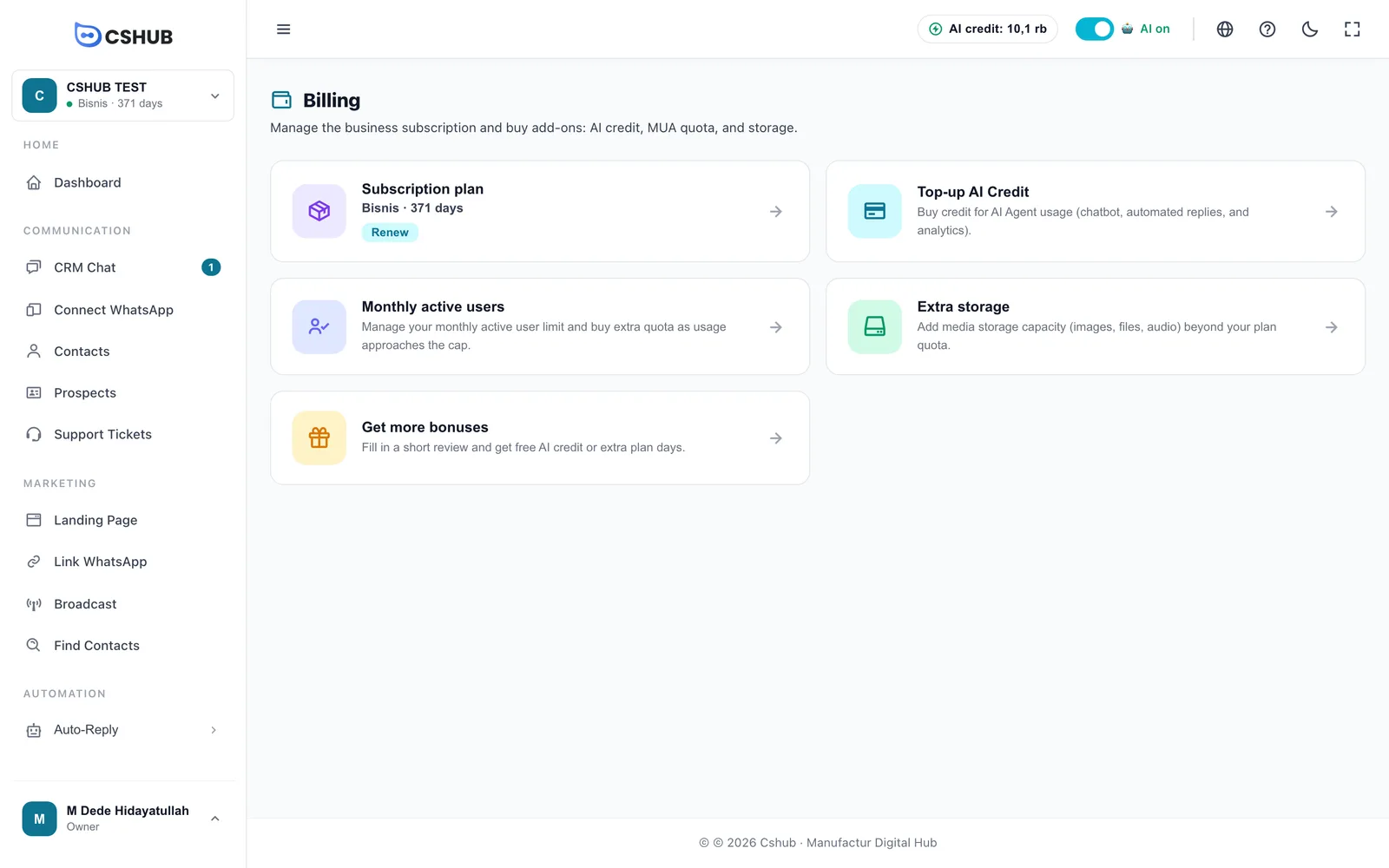
| Card | What's inside |
|---|---|
| Subscription plan | This business's plan, the days left, and a Renew button |
| Top-up AI Credit | Buy credit for AI Agent. See AI credit & top-ups |
| Monthly active users | Monthly active contact quota (MUA). See AI credit & top-ups |
| Extra storage | More space for media. See AI credit & top-ups |
| Get more bonuses | Fill in a short review for AI credit or extra plan days. See Get bonuses |
On every billing page these cards also appear as a row of tabs at the top, so you can jump between them without going back.
Who can buy a plan?
Only the business owner or team members with payment permission can buy. Other team members can view the plan, but the payment buttons aren't available to them. Permissions are set in Team & roles.
The Subscription plan page
Click the Subscription plan card.
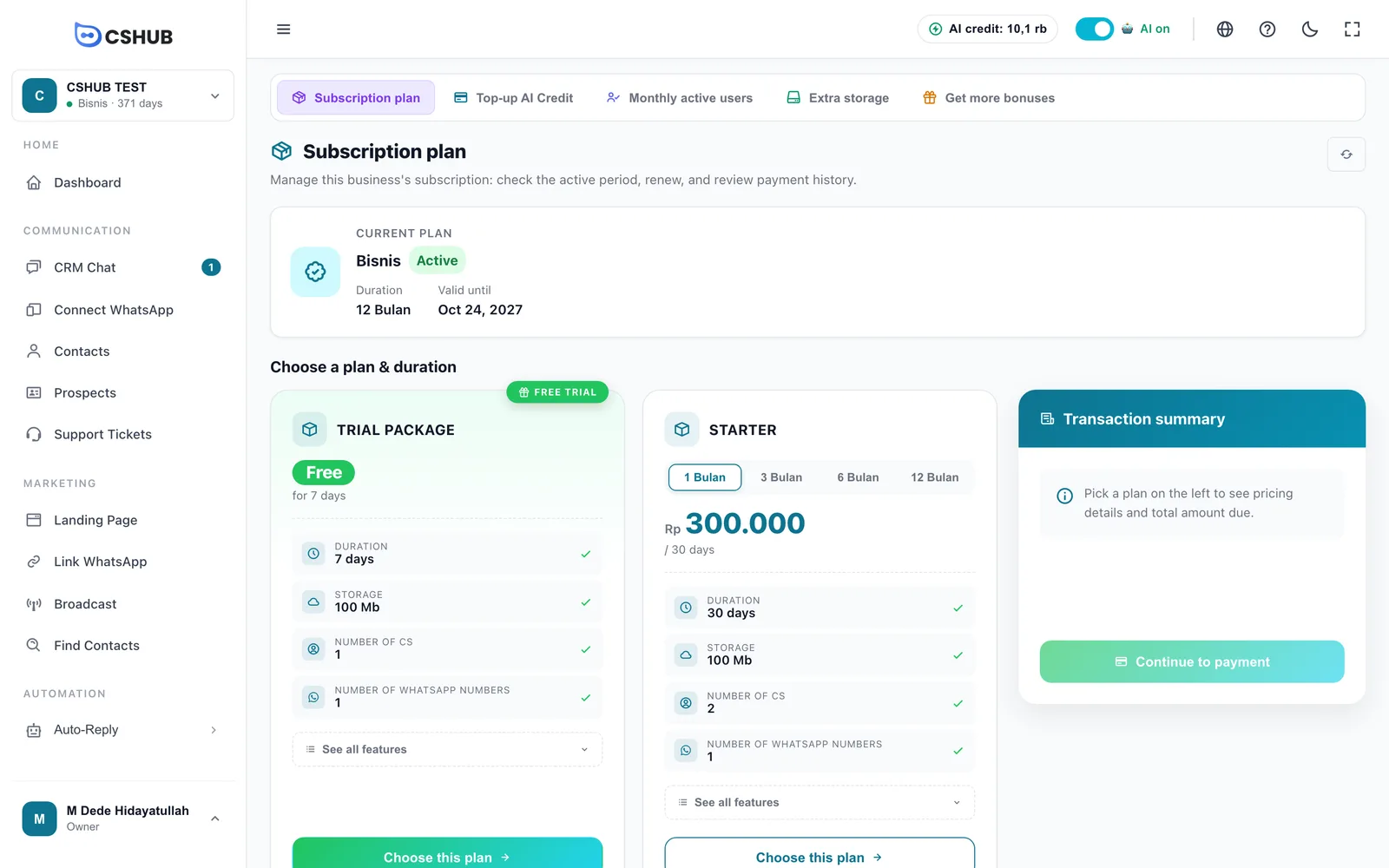
From top to bottom, this page contains:
- Continue payment — a yellow card that only appears when a transaction is still unpaid.
- Current plan — plan name, status (Active / Plan expired), Duration, and Valid until (or Expired on once it has passed). Lifetime plans carry a Lifetime badge and show Never expires as the date.
- Choose a plan & duration — cards for every plan you can buy. While Lifetime plans are on sale, this section has two tabs: Subscription and Lifetime (LTD).
- Transaction summary — the price breakdown for the plan you pick, plus a voucher box.
- This business's plan history — every plan transaction for this business, including ones created from My Account.
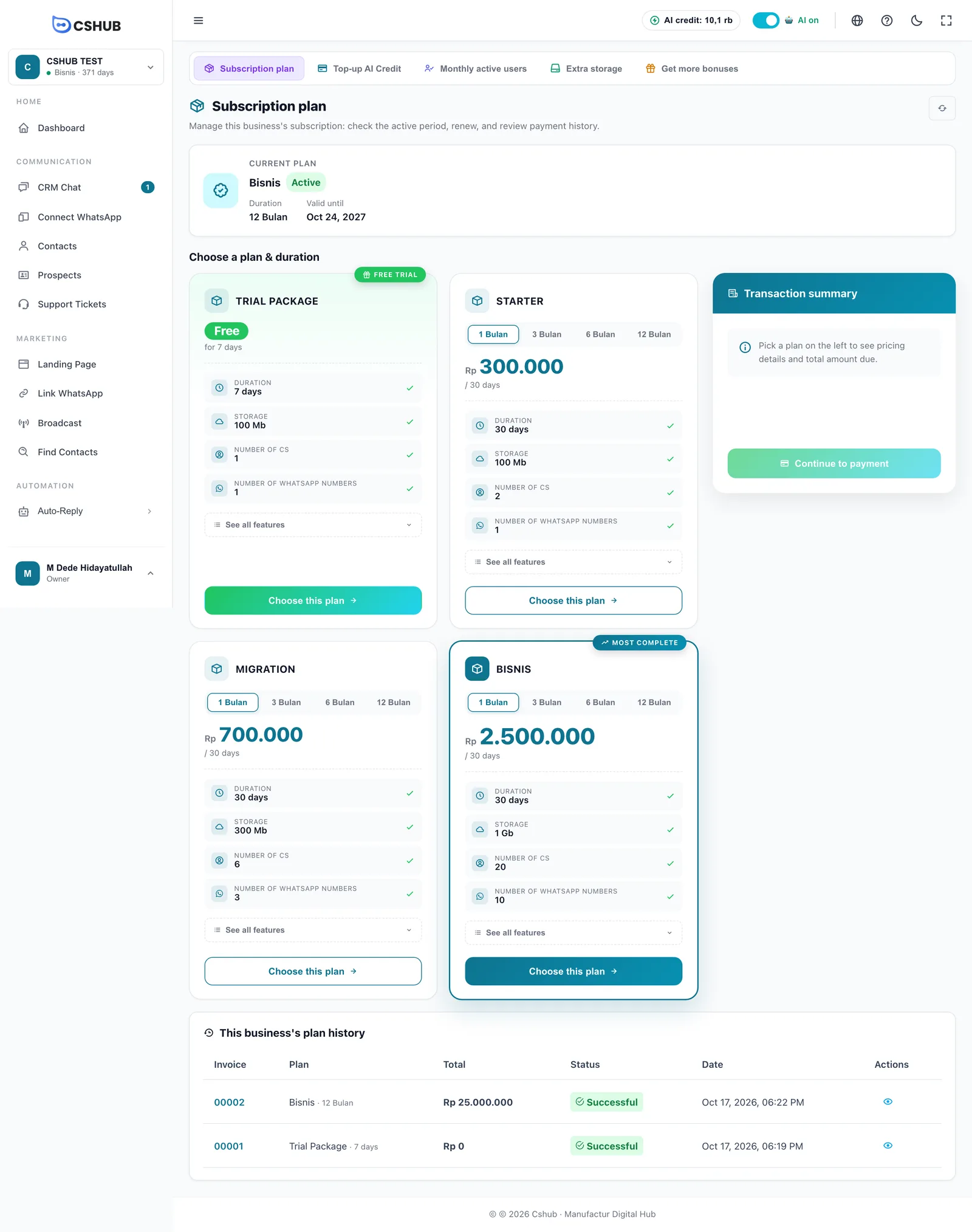
What's on a plan card
| Part | Description |
|---|---|
| Duration tabs (1 / 3 / 6 / 12 months) | How long to subscribe. The price changes with the duration |
| Price | Price for the chosen duration, e.g. "/ 30 days" |
| Duration, Storage, Number of CS, Number of WhatsApp numbers | The plan's main quotas |
| See all features | Opens the full list: AI reply credits, WhatsApp Official (WABA), Instagram, Messenger, Telegram, broadcasts, AI agent, shop features, product & transaction limits, landing pages, appointments, and more |
| Free Trial | A free trial plan. The trial can only be used once — it can't be bought again |
| Most Complete | The plan with the most features |
Current prices
Plan prices and contents can change. Always check the numbers on the Subscription plan page or the comparison table in My Account.
Buying or renewing a plan
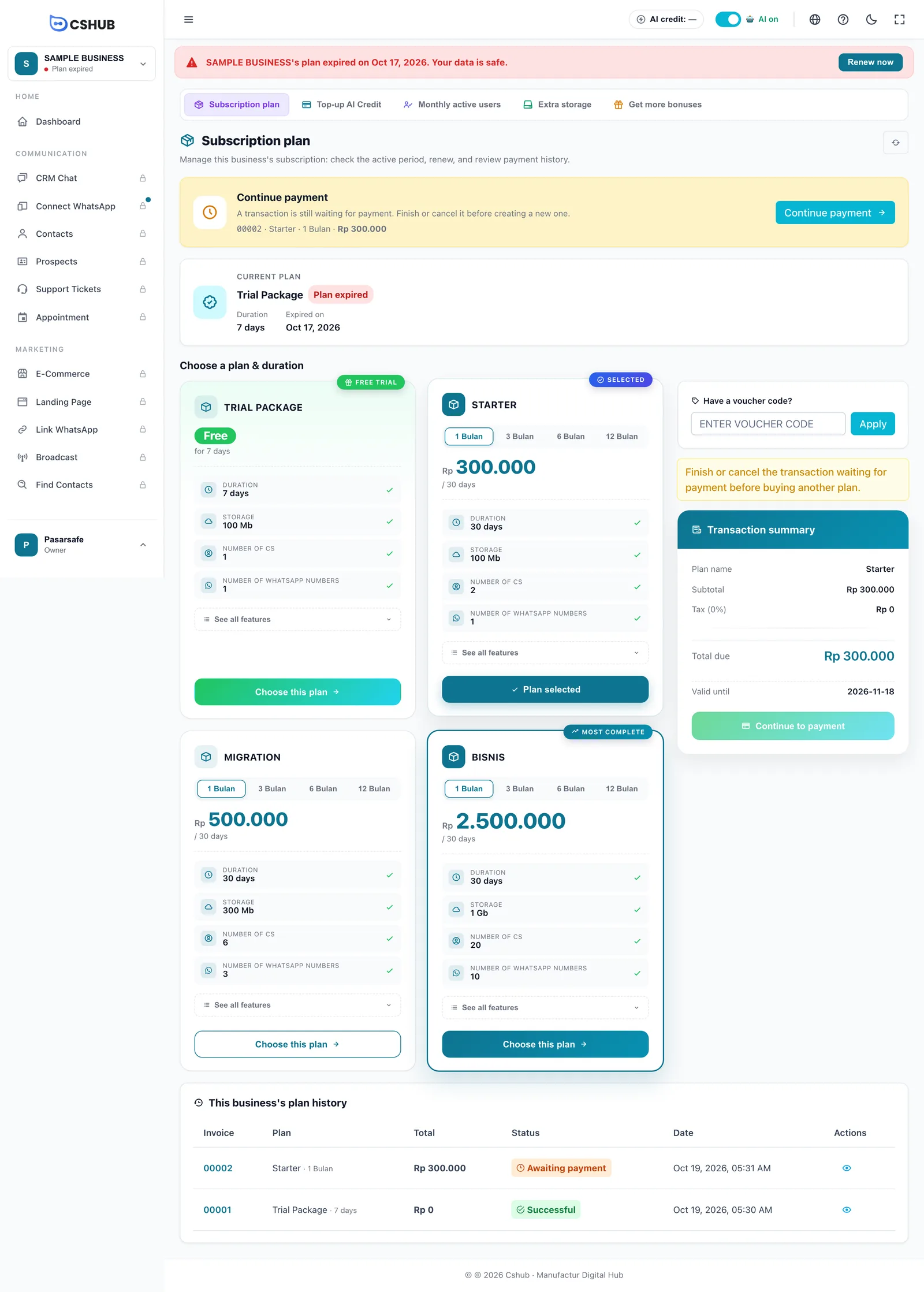
- Under Choose a plan & duration, pick a duration tab on the plan you want.
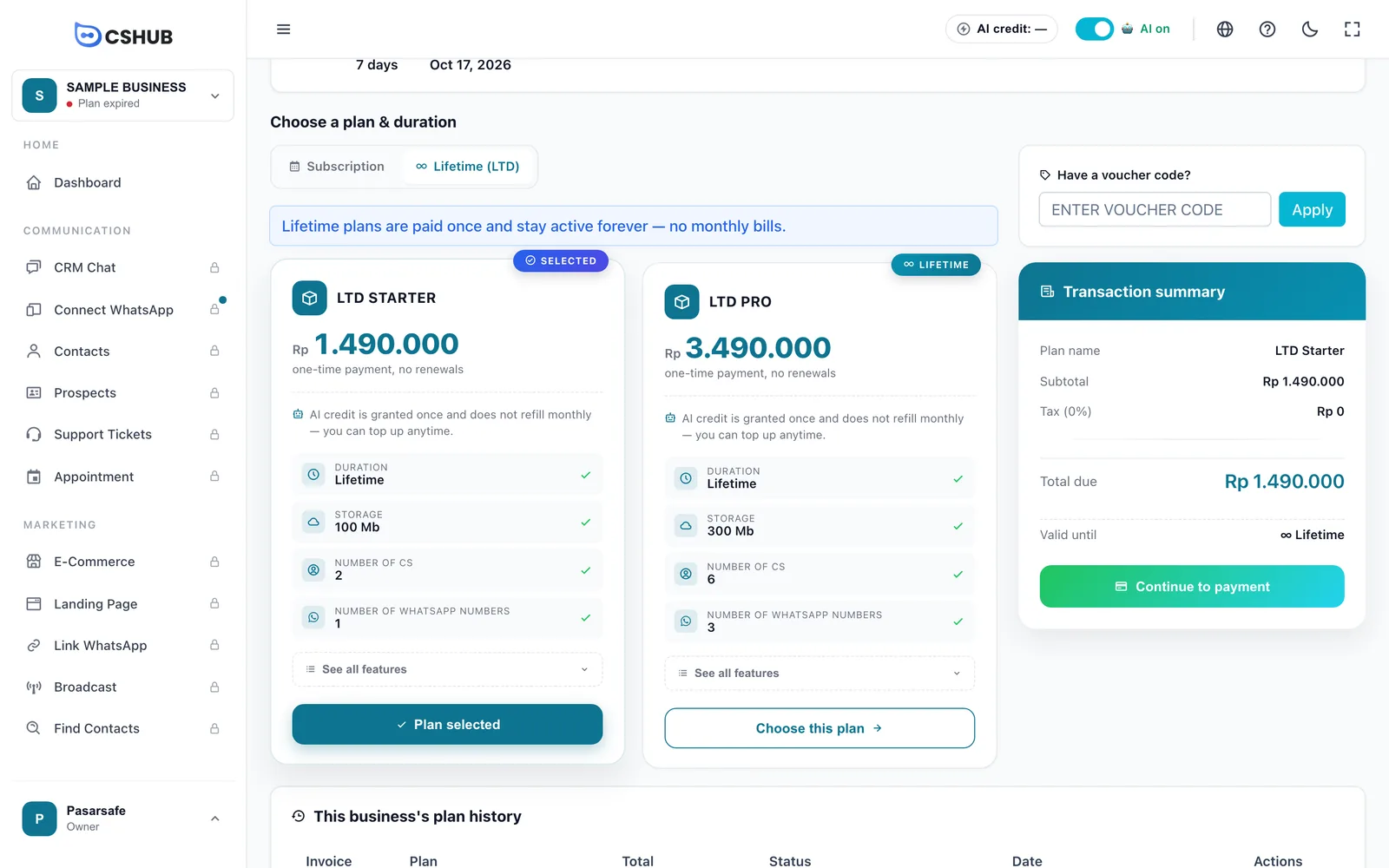
- Click Choose this plan. The card is marked Selected and the button changes to Plan selected.
- Check the Transaction summary on the right: Plan name, Subtotal, Tax, Total due, and Valid until.
- (Optional) Enter a code under Have a voucher code? and click Apply.
- Click Continue to payment. The transaction is created and you're taken to the payment page.
Renewing early doesn't waste days
If your plan is still active when you renew, the new period is added after the current end date — your remaining days aren't lost. Check Valid until in the summary before paying.
Voucher codes
A voucher reduces the price before tax. Once applied, the summary shows a Voucher discount (CODE) line and the reduced total. Click Change to use a different code.
A voucher can be refused if the code doesn't exist, is no longer active, hasn't started or has ended, doesn't apply to the chosen plan, the price is below the minimum purchase, or its usage limit is used up. The reason appears under the voucher box.
One pending transaction at a time
While a transaction is Awaiting payment, the yellow Continue payment card shows at the top and Continue to payment is disabled. Finish that payment, or open the transaction and click Delete transaction, before creating a new one.
Lifetime plans (LTD)
A Lifetime plan (Lifetime Deal, LTD for short) is paid once and stays active forever — no monthly bills and nothing to renew. It's a limited offer: you can only buy it while the cshub team has the sale open.
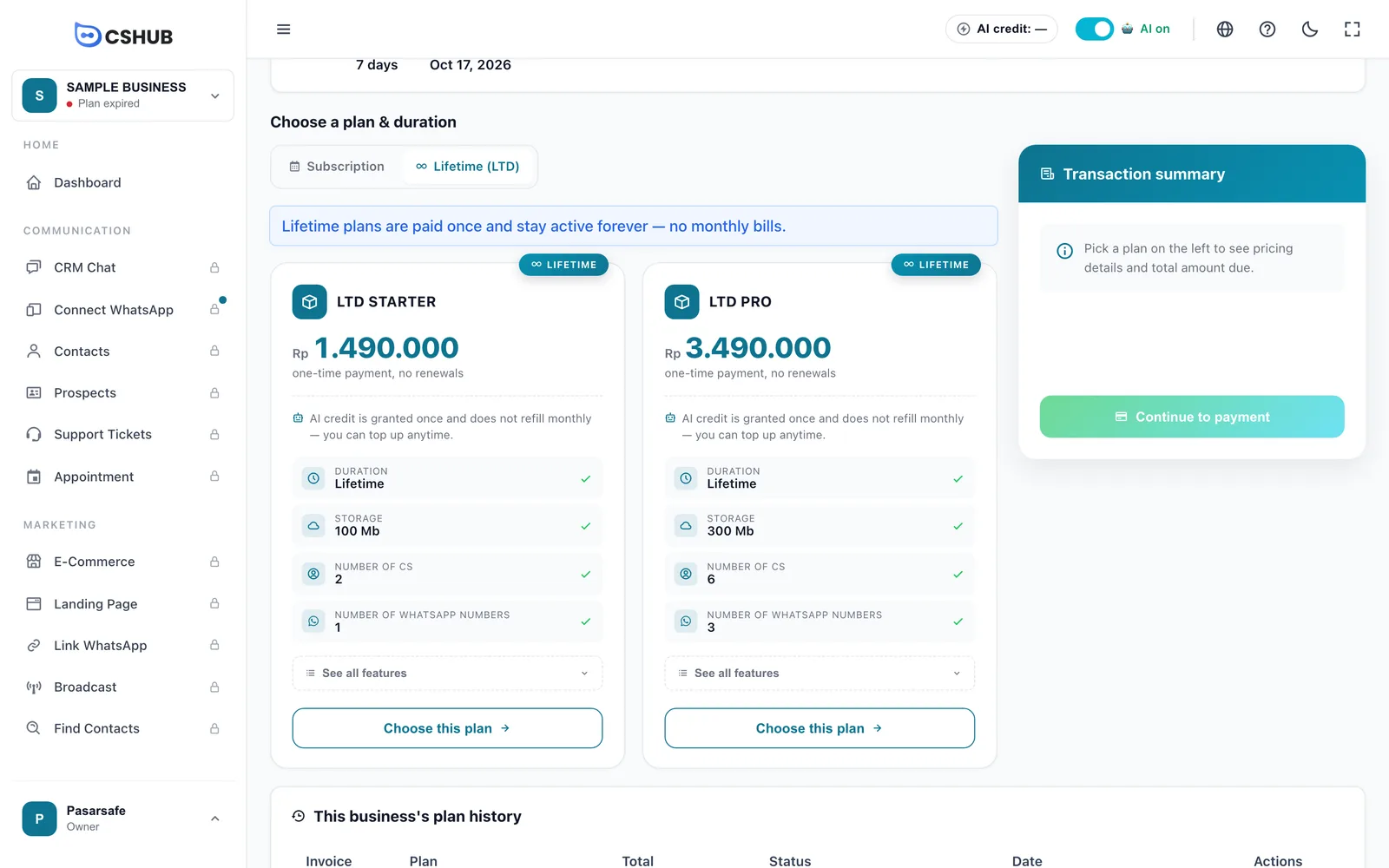
The Lifetime (LTD) tab only appears while the Lifetime sale is open. If you don't see it, Lifetime plans aren't on sale right now — pick a plan on the Subscription tab as usual.
How it differs from a subscription
| Subscription plan | Lifetime plan | |
|---|---|---|
| Payment | Per duration (1 / 3 / 6 / 12 months), renewed manually | One-time payment, no renewals |
| Active period | Until the Valid until date | Forever — it never expires |
| AI credit from the plan | Refilled every month | Granted once at purchase, not refilled monthly |
| Top-ups (AI credit, MUA, storage) | Yes | Yes, anytime |
| Vouchers | Yes | Yes |
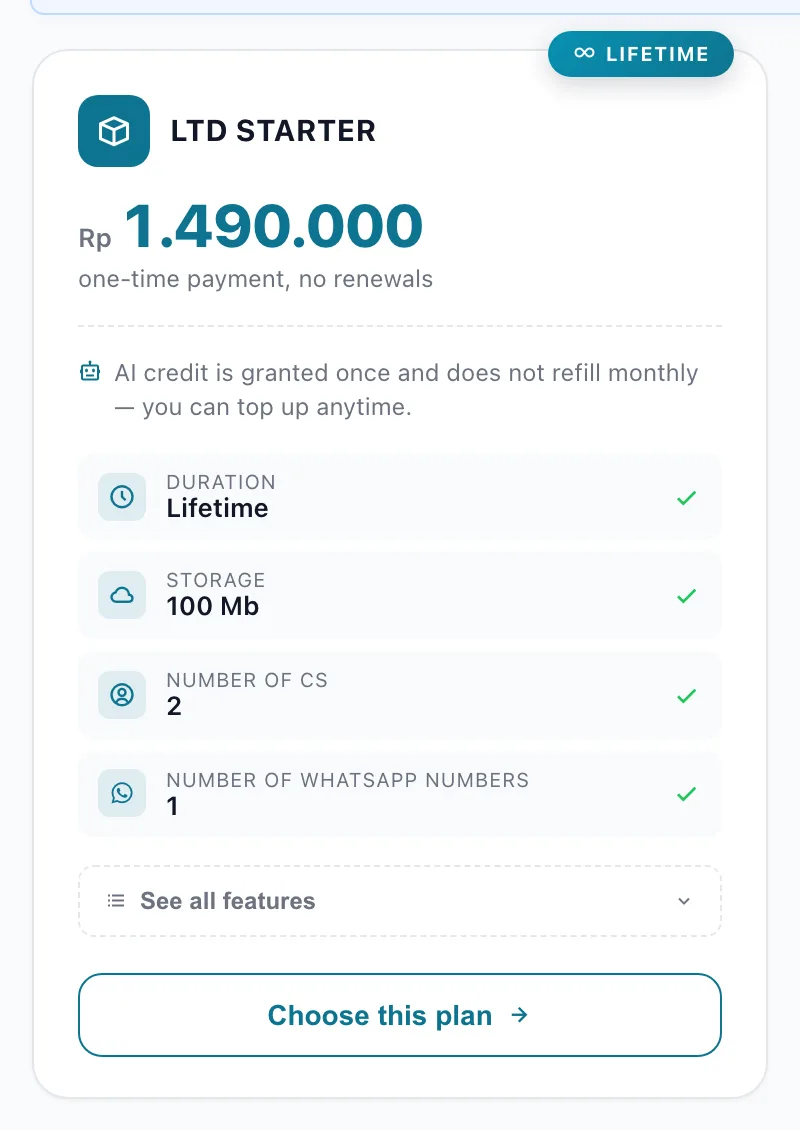
Lifetime AI credit doesn't refill
On a subscription plan, the plan's AI credit allowance is restored every month. On a Lifetime plan, the plan's AI credit is granted once only. When it runs out, buy more through Top-up AI Credit — anytime, without changing plans.
Buying a Lifetime plan
- Under Choose a plan & duration, click the Lifetime (LTD) tab.
- Click Choose this plan on the tier you want. Lifetime plans have no duration tabs — there's a single price.
- Check the Transaction summary: Valid until shows ∞ Lifetime.
- (Optional) Enter a voucher code and click Apply.
- Click Continue to payment and pay like any other transaction (see Paying a transaction).
Once the payment is Successful, the Current plan card shows a Lifetime badge and Never expires. Renewal reminders and expired-plan banners won't appear for this business again.
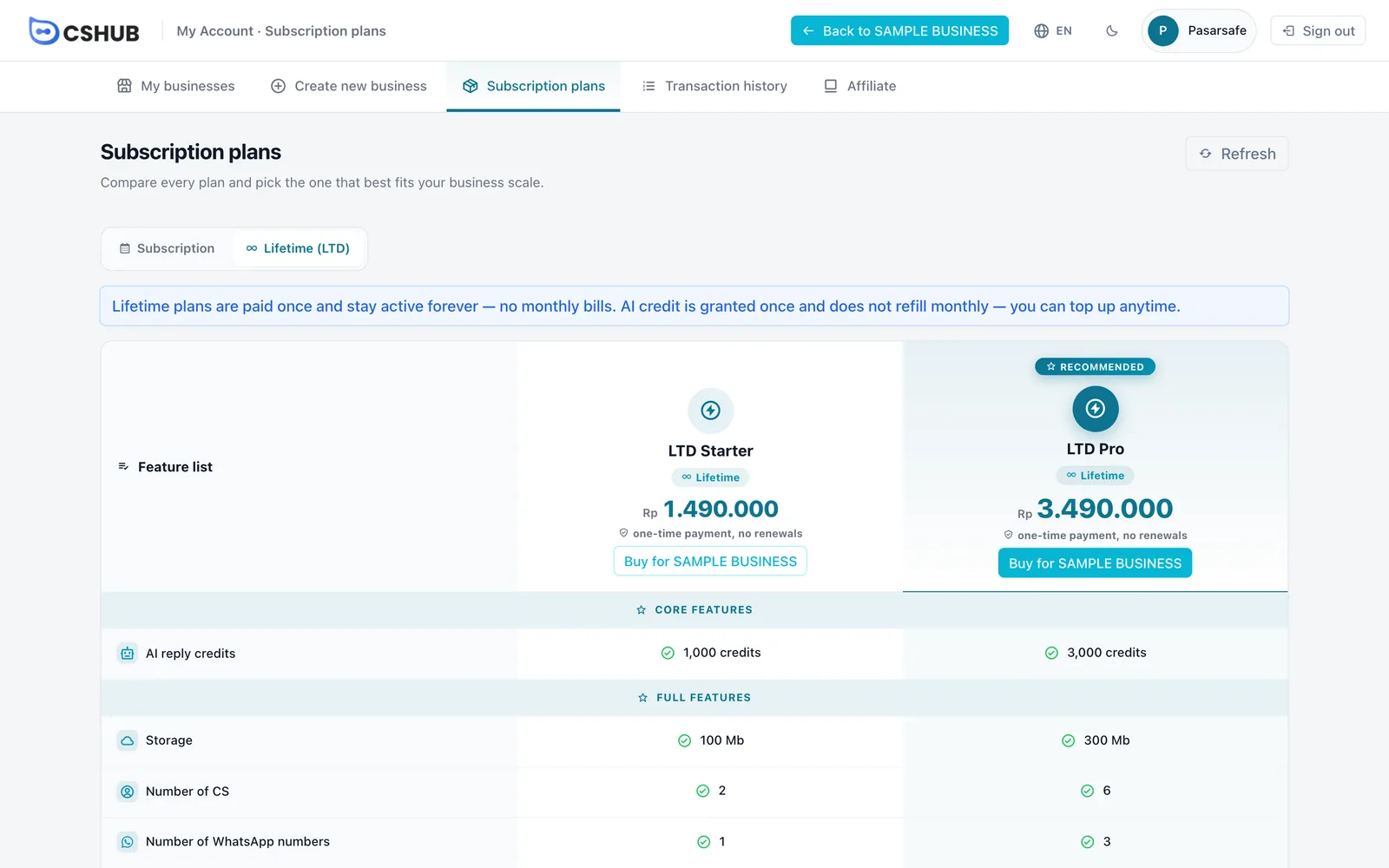
You can also compare Lifetime plans in My Account → Subscription plans, on the Lifetime (LTD) tab. The Buy for <business name> button there brings you to this page.
Upgrading to a higher Lifetime tier
Already on a Lifetime plan and need bigger quotas? You only pay the price difference.
- Open Billing → Subscription plan. The Current plan card has an Upgrade Lifetime section listing the higher tiers, each with Pay the difference: Rp … and the extra AI credit (+N AI credit).
- Click Upgrade on the tier you want. That tier is selected on the Lifetime (LTD) tab, and the summary shows the difference with the note The summary price is the difference from your current Lifetime plan.
- Click Continue to payment and pay.
You can also go straight to the Lifetime (LTD) tab: higher-tier cards show the difference and the extra credit, and you click Choose this plan as usual.
After a successful upgrade:
- The plan switches to the new tier and stays active forever.
- Your remaining AI credit carries over, plus the credit difference between the tiers. Example: the old tier includes 1,000 credits, the new tier 3,000, and you have 400 left — after upgrading you have 400 + 2,000 = 2,400.
On the Lifetime (LTD) tab, your current tier is marked This is your current plan and lower tiers are marked This tier is lower than your plan — neither can be chosen. Upgrades are only possible while the Lifetime sale is open.
Lifetime plan rules
- A business with a Lifetime plan can't buy monthly subscription plans. The Subscription tab is locked with the message This business already has a Lifetime plan, so it doesn't need a subscription. AI credit, MUA, and storage top-ups can still be bought anytime.
- Only on sale while the sale is open. If the sale has closed by the time you click buy, you'll see Lifetime plan sales are closed. You can still choose a subscription plan.
- Existing buyers are safe. When the sale closes, Lifetime plans already bought stay active forever. A Lifetime transaction that was created but not yet paid can still be completed.
- Lifetime plans apply per business, like any other plan. If you have two businesses, each needs its own plan.
Paying a transaction
After clicking Continue to payment (or Continue payment), the transaction detail page opens.
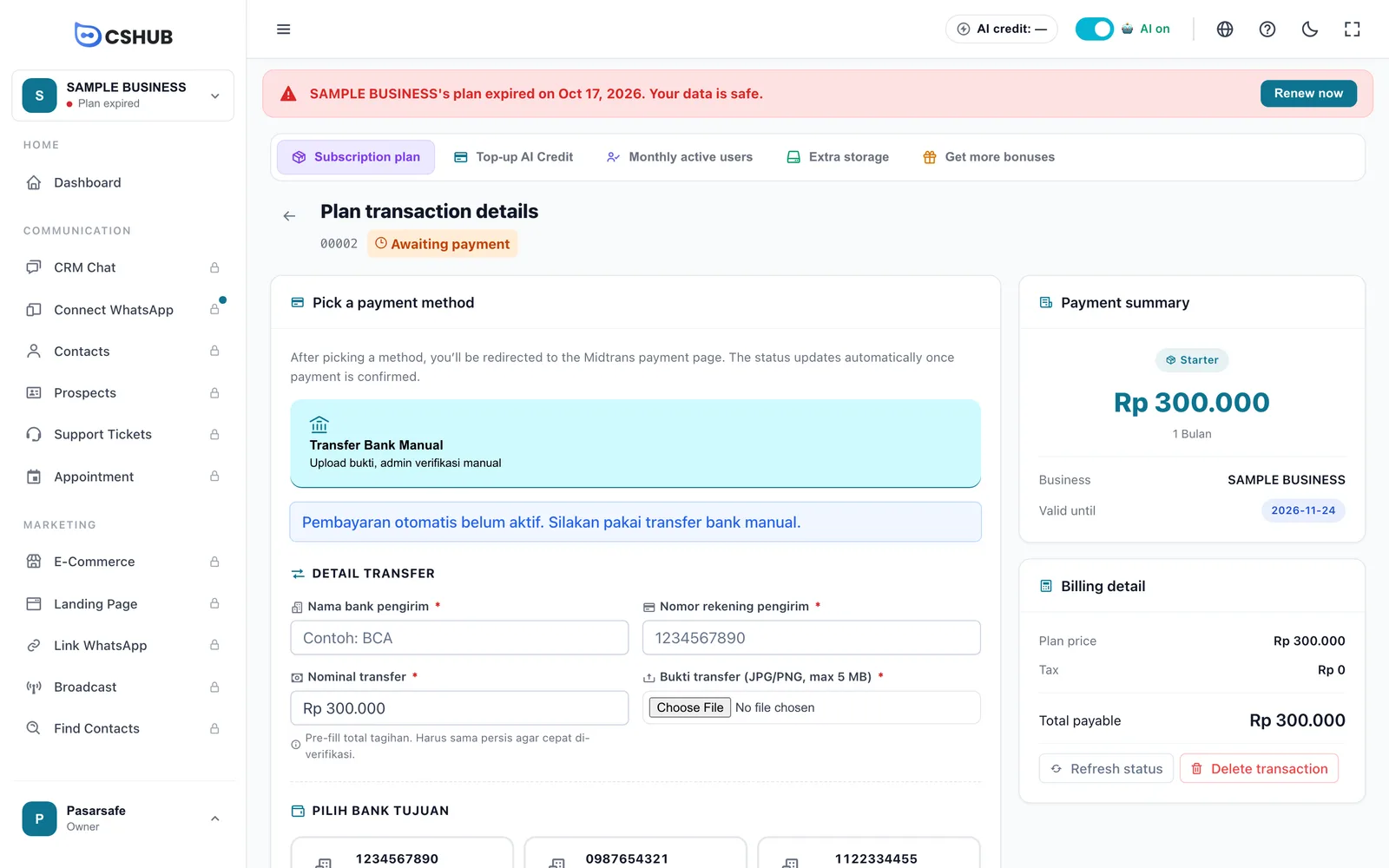
There are up to three ways to pay, depending on what's enabled:
| Method | How it works |
|---|---|
| E-wallet & others (Bayar via E-wallet & Lainnya) | GoPay, OVO, DANA, QRIS, bank virtual account, or card. A payment window opens; once the payment is confirmed the status updates automatically. Only shown when automatic payment is enabled |
| Manual bank transfer (Transfer Bank Manual) | Transfer to a cshub account and upload the proof. The cshub team verifies within 1×24 working hours |
| International card (USD) | Visa, Mastercard, Amex, and other foreign cards, paid in US dollars on Polar's checkout page. The status updates automatically after you pay. Only shown when international payment is enabled. See below |
If automatic payment isn't available, you'll see a note that only manual bank transfer can be used for now.
Labels in Indonesian
The e-wallet and manual transfer method names and their notes currently appear in Indonesian even in the English app. The Indonesian names are shown in brackets above.
Manual bank transfer
- Under the destination bank picker, choose the cshub account you'll transfer to.
- Transfer the Total payable from your account.
- Fill in the transfer detail:
| Field | Description |
|---|---|
| Sender bank name | The bank you sent from, e.g. BCA |
| Sender account number | Your account number |
| Transfer amount | Pre-filled with the total due. Keep it identical so it's verified quickly |
| Transfer proof | A photo or screenshot of the receipt, JPG/PNG, up to 5 MB |
- Click Send transfer proof. The status changes to Admin verification and the page shows Payment is being processed.
- Once verified, the status becomes Successful and the plan is active right away. Click Refresh status to check without reloading the page.
Not verified after 24 working hours?
Contact the cshub team and mention the invoice number. Also make sure the amount you sent matches the total due.
International card (USD)
This option is for buyers who can't pay with Indonesian e-wallets or banks — for example because they live abroad. The payment is processed by Polar, an international payment provider. Polar acts as the merchant of record: it issues the invoice and handles digital sales tax in your country.
- On the transaction detail page, choose the International card (USD) tab.
- Check the Estimated charge in USD. It's converted from the rupiah total (after voucher and tax) at today's rate. The final amount is shown on Polar's checkout page — Polar may add local tax for your country.
- Click Pay with Polar. You're taken to Polar's secure payment page.
- Enter your card details and complete the payment.
- You're brought back to cshub automatically and see Confirming your payment…. The page updates on its own; it usually takes only a few seconds for the status to change to Successful and the plan to become active.
You don't need to upload any proof — confirmation comes from Polar automatically. If Confirmation not received yet appears after a while, click Check status again. If you didn't actually complete the payment, click Choose another method.
Works for every kind of purchase
The international card option can be used for subscription plans, Lifetime plans (including upgrades), and AI credit, MUA, and storage top-ups — as long as it's enabled. If the tab isn't there, use another method.
Plan transaction statuses
| Status | Meaning | What you can do |
|---|---|---|
| Awaiting payment | Created, not paid yet | Pay, or Delete transaction |
| Admin verification | Transfer proof is being checked | Wait; click Refresh status |
| Successful | The plan is active | Click Enter business |
| Rejected | The transfer proof was rejected | Create new transaction |
| Expired | The payment window passed | Create new transaction |
Only unpaid transactions can be deleted. Deleting a transaction that used a voucher returns that voucher's usage.
This business's plan history
The table at the bottom of the Subscription plan page lists Invoice, Plan (with its duration), Total, Status, and Date. Click the invoice number or the eye icon to open the details — from there you can continue a pending payment.
This history only covers the business you're in. To see transactions for all your businesses at once, open My Account → Transaction history.
Trial period
Your first business usually gets a free trial plan when it's created. During the trial, a N days left on your trial banner appears at the top of the app with an Upgrade now button. Pick a paid plan before the trial ends so your features keep running.
Next steps
- AI credit & top-ups
- Get bonuses — AI credit or extra plan days from reviews
- When your plan expires
- My Account & all businesses