
Abandoned carts
Keep track of would-be buyers who started filling in a landing page checkout form but never finished, and reach out on WhatsApp before they forget. The Abandoned Cart page shows who they are, which product they picked, how much of the form they completed, and when they were last active — so your team can win back sales that almost slipped away.
How abandoned carts are recorded
When a visitor opens a product landing page and starts the checkout form — typing a name or phone number, picking a variant, or ticking a bump — cshub saves their progress automatically. There's nothing to install.
- If the visitor completes checkout, the cart becomes Became an order and is linked to its order number in Orders.
- If not, the cart stays Active for 24 hours after the last activity, then becomes No checkout > 24 h.
Where the data comes from
Abandoned carts are recorded from product landing page checkout forms. Orders from AI chats or manual entry don't appear in this list.
Opening Abandoned Cart
Open Orders → Abandoned Cart in the Products & Orders section of the sidebar.
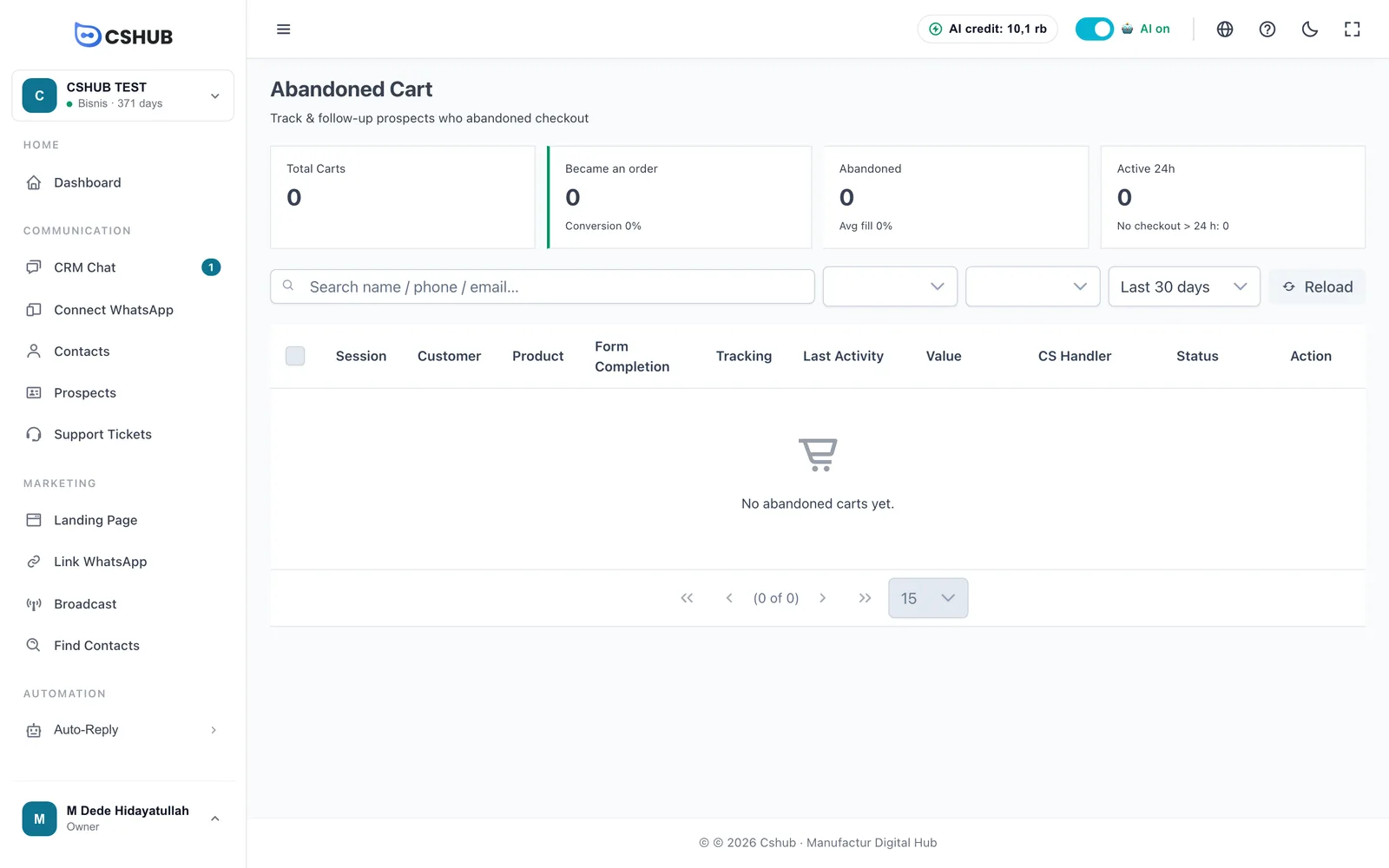
Don't see the menu?
The sidebar follows your business focus. Click Show all features at the bottom of the sidebar. This feature comes with packages that include transactions — check Billing & packages.
Summary cards
| Card | Meaning |
|---|---|
| Total Carts | All carts in the selected period |
| Became an order | Carts that turned into orders, with the Conversion rate |
| Abandoned | Carts that haven't become orders, with the Avg fill of the form |
| Active 24h | Carts active in the last 24 hours, with the number at No checkout > 24 h |
Cart list
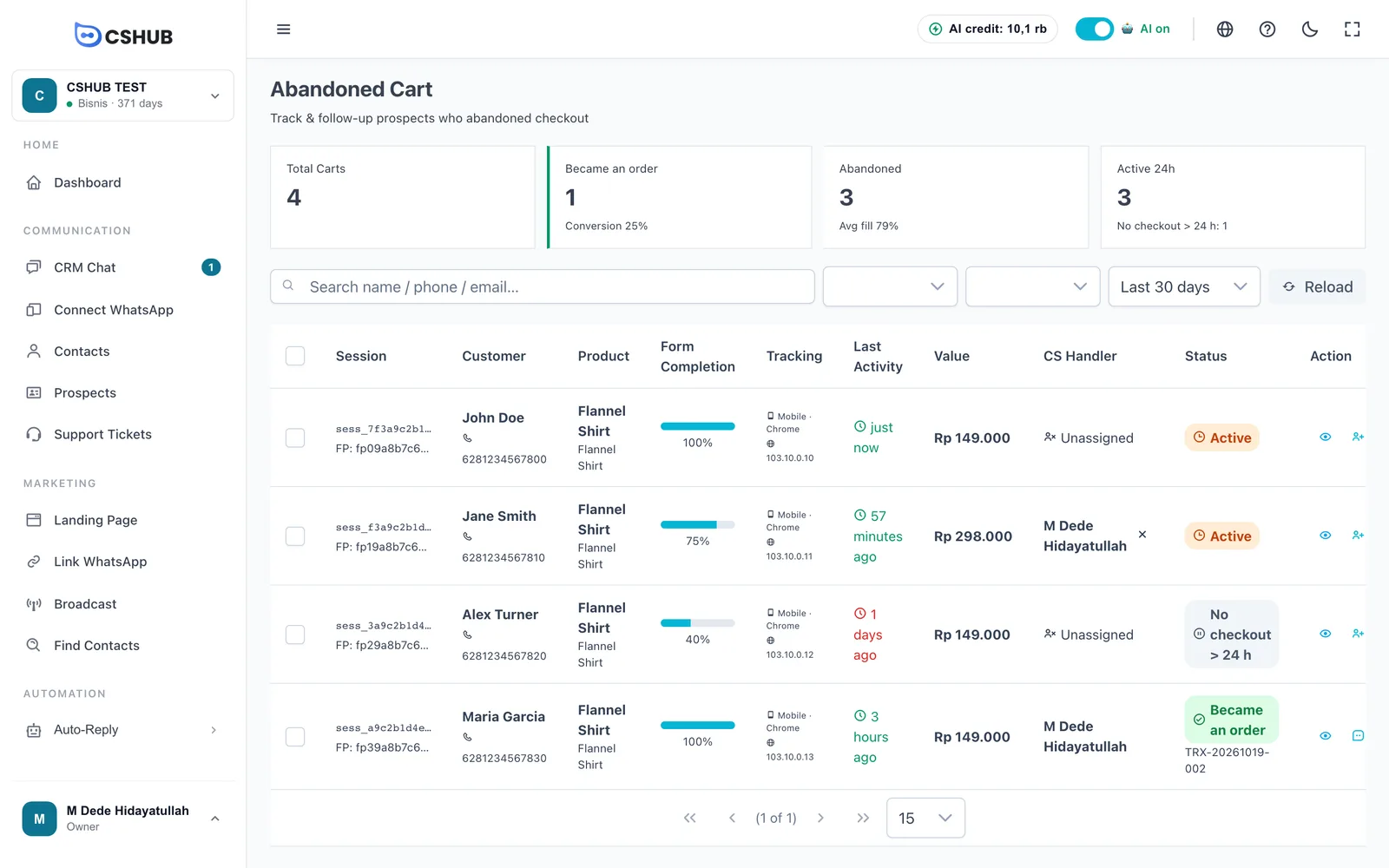
| Column | What it shows |
|---|---|
| Session | The visit's session code |
| Customer | The name and phone number the visitor has typed |
| Product | The product and the landing page where checkout started |
| Form Completion | How complete the form is, as a percentage |
| Tracking | The visitor's device, browser, and IP address |
| Last Activity | When the visitor last touched the form, e.g. 50 minutes ago |
| Value | Cart total |
| CS Handler | The assigned team member, or Unassigned |
| Status | Cart status (see below) |
| Action | Action buttons (see below) |
Cart statuses
| Status | Meaning |
|---|---|
| Active | The visitor was active in the last 24 hours — probably still deciding. The best time to say hello |
| No checkout > 24 h | More than 24 hours without activity and not an order yet |
| Became an order | The visitor completed checkout. The order number appears under the status |
Searching & filtering
- Search box — search by name, phone number, or email.
- Status filter — All Status, Became an order, Abandoned, Recent (24h), or No checkout > 24 h.
- Assignment filter — All Assignment, Assigned, or Unassigned.
- Period — Last 7 days, Last 30 days, Last 90 days, or All time.
- Reload — refreshes the list.
Cart actions
| Action | What it does |
|---|---|
| View details (eye icon) | Opens the full cart details |
| Assign CS | Assigns the cart to a team member. Not available for carts that became orders |
| Chat via CRM | Opens a WhatsApp conversation with the customer in CRM Chat. If you've never chatted, a new conversation is created automatically |
| Open external WhatsApp | Opens WhatsApp on your phone or WhatsApp Web to the customer's number |
| Delete cart | Removes the cart from the list. Can't be undone |
The chat buttons only appear once the visitor has typed a phone number. To remove the handler, click the × next to their name.
Assigning many carts at once
Tick several carts in the left-most column, then click Assign to CS. Pick a team member, and tick Skip already-assigned carts if you don't want to replace existing handlers.
Cart details
Click the eye icon to open Abandoned Cart Detail.
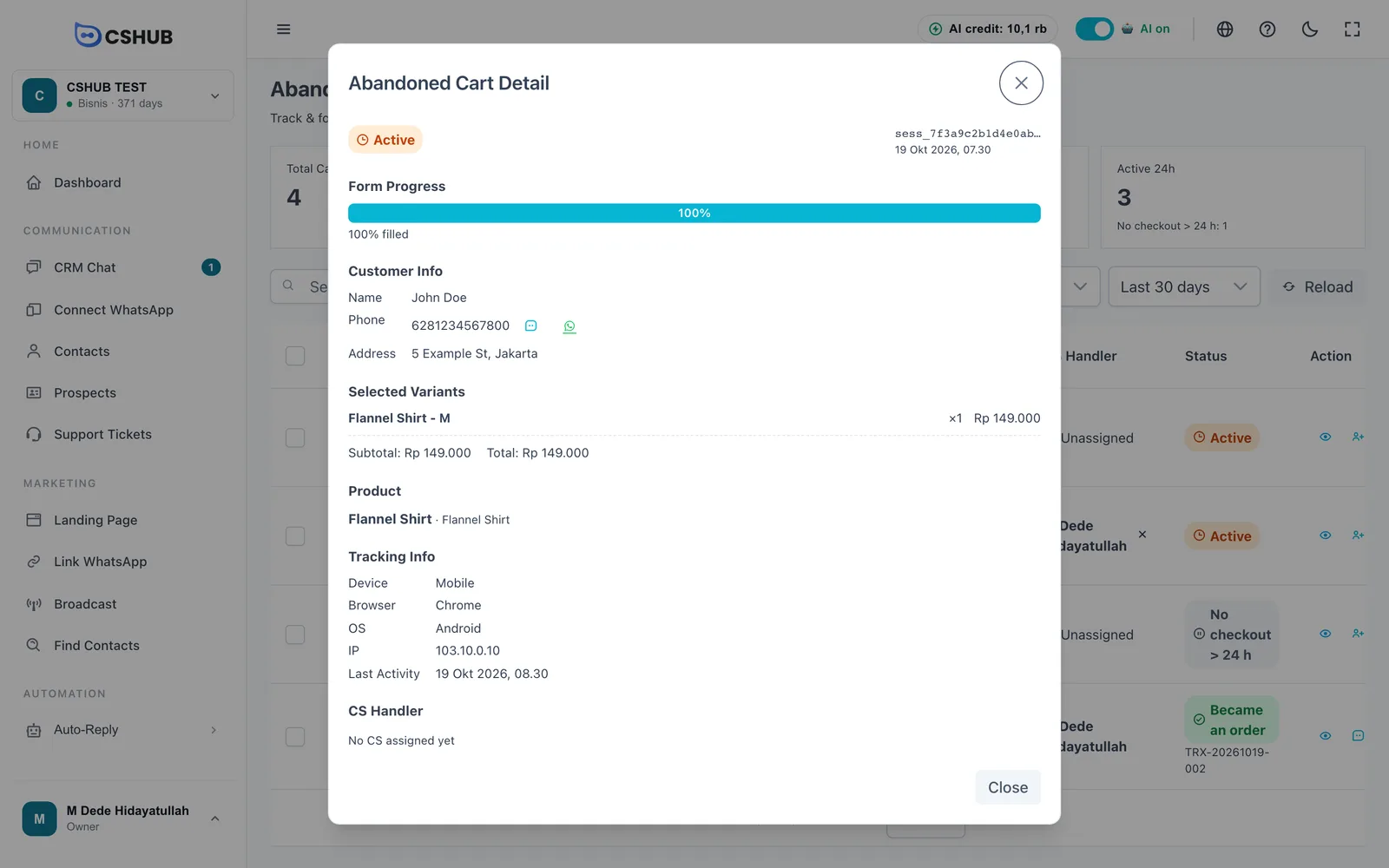
| Section | What it shows |
|---|---|
| Form Progress | Percentage of the form filled in |
| Customer Info | Name, phone number (with CRM chat and WhatsApp buttons), and the address typed so far |
| Selected Variants | Variant, quantity, and price. Includes bump offer appears if the bump was ticked |
| Subtotal / Total | Cart value |
| Product | The product and its landing page |
| Tracking Info | Device, browser, OS, IP, and last activity |
| Conversion | For carts that became orders: the transaction number |
| CS Handler | The team member handling it |
Follow-up tips
- Reach the Active ones first. Visitors who just filled in the form are the easiest to bring back.
- Prioritise high form completion. A form that's 75–100% filled usually means the buyer is only unsure about shipping, payment, or stock.
- Split the work with the Unassigned filter and Assign to CS, then each CS uses the Assigned filter.
- Prepare follow-up messages in Quick replies so your team replies in the same tone, for example offering help or a small bonus.
- Track the conversion trend in Reports & logs.