
WhatsApp Status
Post a WhatsApp Status (24-hour story) with an image or video from your business number straight from cshub, and decide which contacts may see it — all contacts, or only certain categories. Statuses can be scheduled and posted from several numbers at once.
It is a handy way to show off new products, testimonials, or daily deals to customers who already know your number, without picking up each phone.
Who can see the status
A status only reaches contacts who have saved your business number in their phone contacts. Contacts who have not saved it will not see the status even if selected — this is a WhatsApp limitation, not a cshub one.
Status list
Open Broadcast in the sidebar, then click the WhatsApp Status card (or the WhatsApp Status tab at the top of any broadcast page).
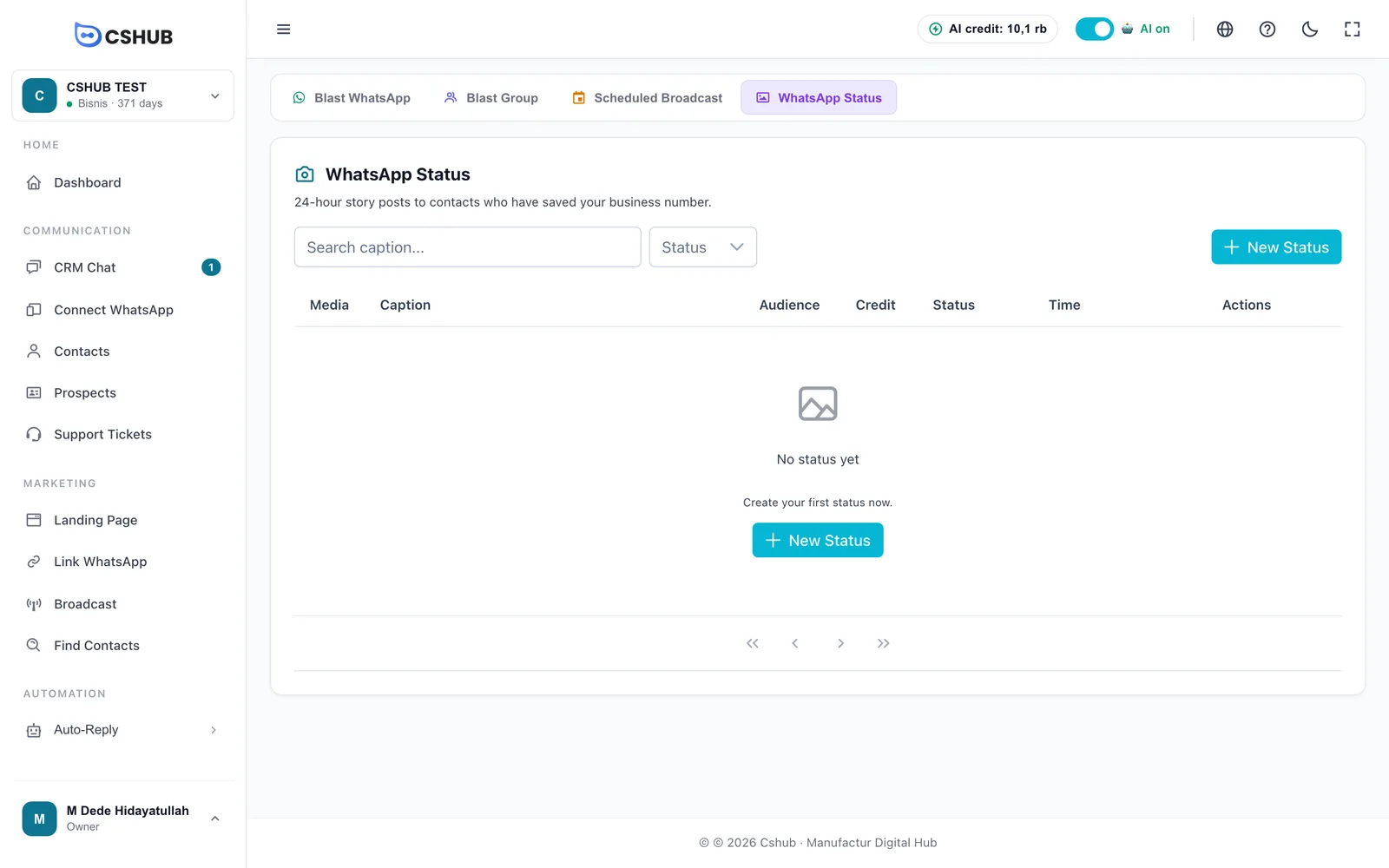
The table shows Media, Caption, Audience (number of contacts), Credit used, Status, Time, and Actions. You can search captions and filter by status.
| Status | Meaning |
|---|---|
| Draft | Saved but not scheduled |
| Scheduled | Waiting for its posting time |
| Posting | Being uploaded to WhatsApp |
| Posted | Live and visible to the audience |
| Failed | Could not be posted, for example because a device disconnected |
| Expired | More than 24 hours old and gone from WhatsApp |
Draft and Scheduled statuses can still be edited or deleted. Once processed, a status can no longer be changed.
Creating a status
Click New Status.
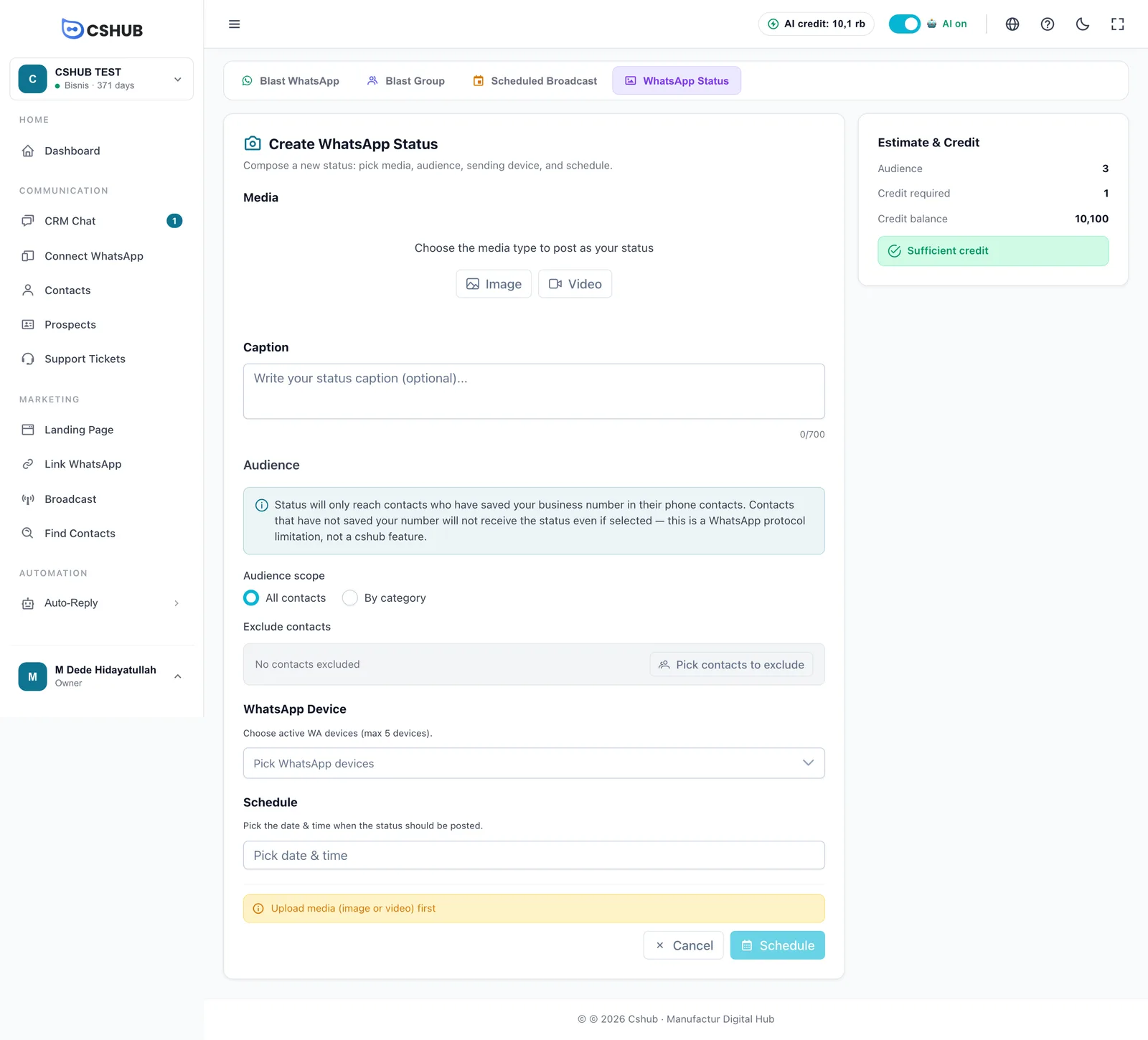
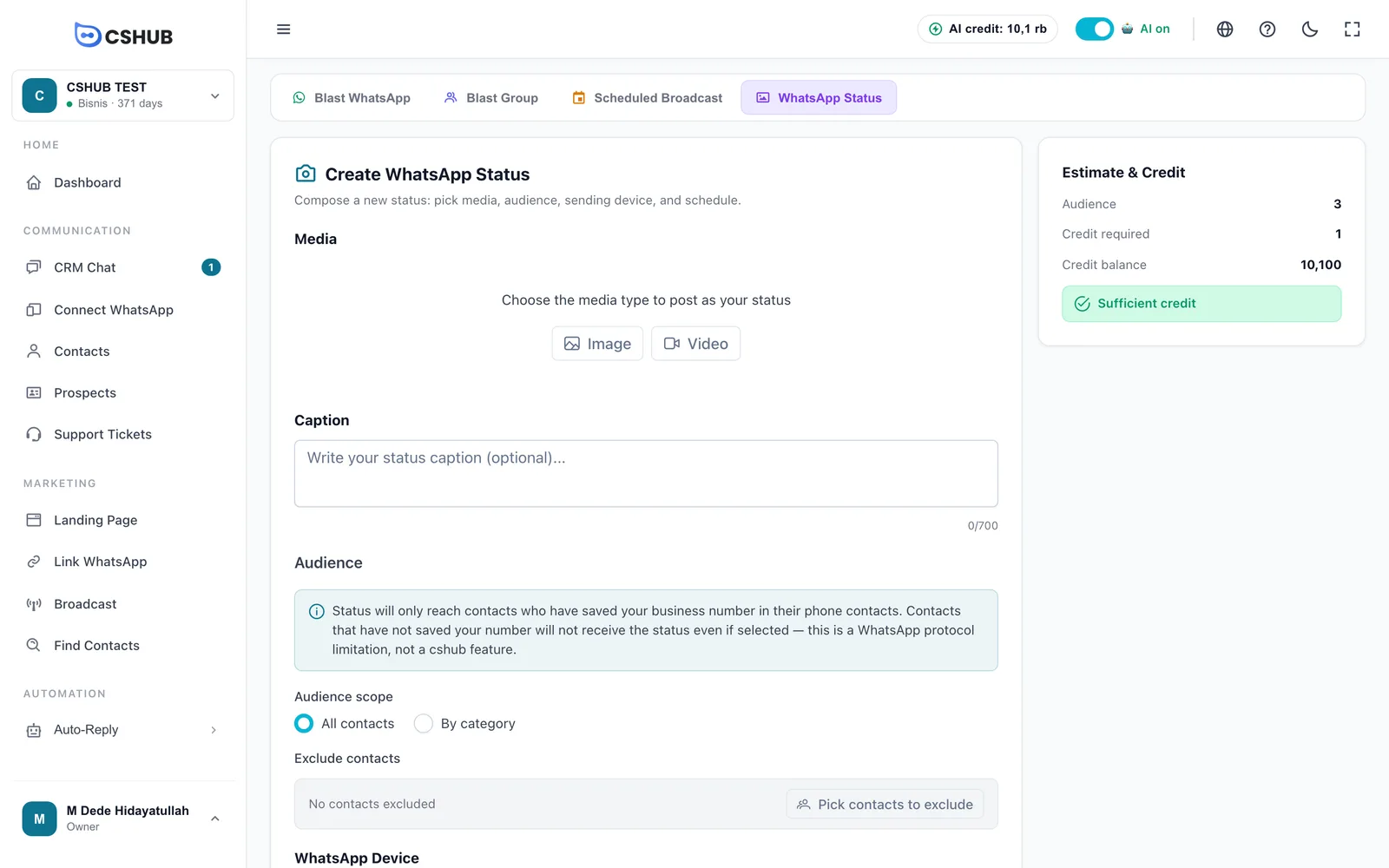
1. Media and caption
| Field | Description |
|---|---|
| Media | Choose Image or Video, then upload the file. Size limits are 16 MB for images and 64 MB for videos. Click Replace media to swap it |
| Caption | Optional, up to 700 characters |
2. Audience
| Field | Description |
|---|---|
| Audience scope | All contacts, or By category and then pick one or more categories in Select categories |
| Exclude contacts | Click Pick contacts to exclude, search by name or number, tick the contacts, then Apply. These contacts will not see the status |
3. WhatsApp Device
Pick the devices that will post the status — up to 5. The status goes live on each number. Only numbers connected via WhatsApp (scan QR) can use this feature.
4. Schedule
Pick the posting date and time. The earliest allowed time is about 5 minutes from now.
5. Estimate & Credit
The panel on the right recalculates whenever the audience changes:
| Row | Contents |
|---|---|
| Audience | Number of contacts targeted after filters and exclusions |
| Credit required | 1 credit per 10 contacts (rounded up) |
| Credit balance | Your plan's remaining credit |
If the balance is too low, the panel shows Insufficient credit with a Top up now button. Credit is only deducted when the status is actually posted. See AI credit & top-ups.
6. Schedule it
The Schedule button only becomes active when everything is in place. Until then, the first missing requirement is shown above the button, for example:
- Upload media (image or video) first
- Pick at least 1 contact category
- Pick at least 1 WhatsApp device
- Pick a date & time for the post schedule
- Audience is empty — check filter & exclude
- Credit balance is insufficient
Status detail
Click a status row to open Status Detail: the media, caption, audience size and credit, scheduled or posted time, and the time left before it expires.
The Status per Device table shows the result on each number:
| Column | Contents |
|---|---|
| Device | The number that posted it |
| State | Pending, Whitelist set, Posting, Sent, or Failed |
| Whitelist | Number of contacts allowed to see the status on that number |
| Posted | When it went live |
| Error | Reason if it failed |
For a status that is still Draft or Scheduled, the Post now button posts it without waiting for the schedule.
Status privacy on the phone
To limit who can see it, cshub sets the Status privacy on the sending number to "only share with" the audience you picked. That setting stays in place after the status goes live. If you post a status manually from the phone, check Status privacy in WhatsApp first.
Tips
- Use portrait images (9:16) so they fill the phone screen.
- Ask customers to save your number — for example in a welcome message or a WhatsApp broadcast — to widen your status reach.
- Statuses disappear automatically after 24 hours. Schedule a new one if you want it to show again tomorrow.