
Daily chat report
The Daily Chat Report automatically sends a summary of today's chats to your WhatsApp (and to the team members you choose) every day at the time you set — a list of the contacts who chatted that day along with their pipeline and stage — so you always know who came in without having to open cshub.
Here's what a report looks like (WhatsApp scan QR). The message itself is written in Indonesian:
📊 Laporan Chat Harian — 13 Jun 2026
Chat baru hari ini: 12 kontak

1. Rina Lestari - Penjualan - Prospek
2. Siti Aminah - Penjualan - Follow Up
3. Budi - belum di pipeline
...
…dan 2 kontak lainnya.
Each line reads Name - Pipeline - Stage; belum di pipeline means the contact isn't in a pipeline yet, and …dan 2 kontak lainnya means "…and 2 more contacts".
Opening the settings
Open Settings in the sidebar, then choose the Chat Report card or tab. Only the business owner can open these settings.
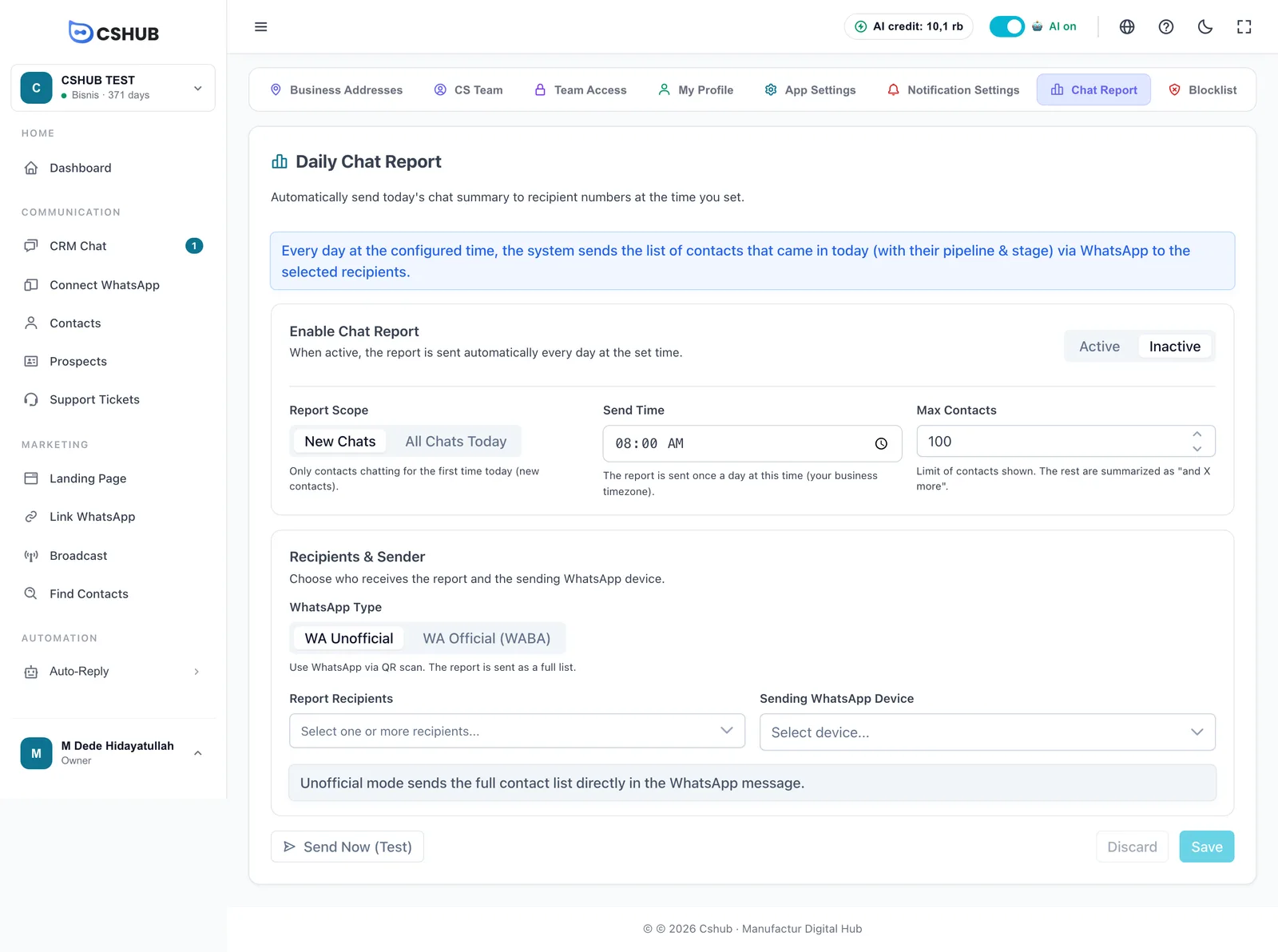
Schedule & scope
| Field | Description |
|---|---|
| Enable Chat Report | Active = the report goes out automatically every day. Inactive = no scheduled report |
| Report Scope | Which contacts are included (see the table below) |
| Send Time | The hour and minute the report is sent, once a day, in your business timezone. Default 08:00 |
| Max Contacts | How many contacts are written out in the message (1–500, default 100). The rest are summed up as "…and X more contacts" |
| Scope | Who's included |
|---|---|
| New Chats | Only contacts chatting for the first time today — handy for watching new prospects |
| All Chats Today | Every contact who sent a message today, including existing customers |
Pick a send time that fits
The report covers chats from midnight up to the send time. For a full-day recap, send it in the late afternoon or evening, e.g. 20:00. For a to-do list to work through in the morning, set it to the start of your working day.
Recipients & sender
WhatsApp Type
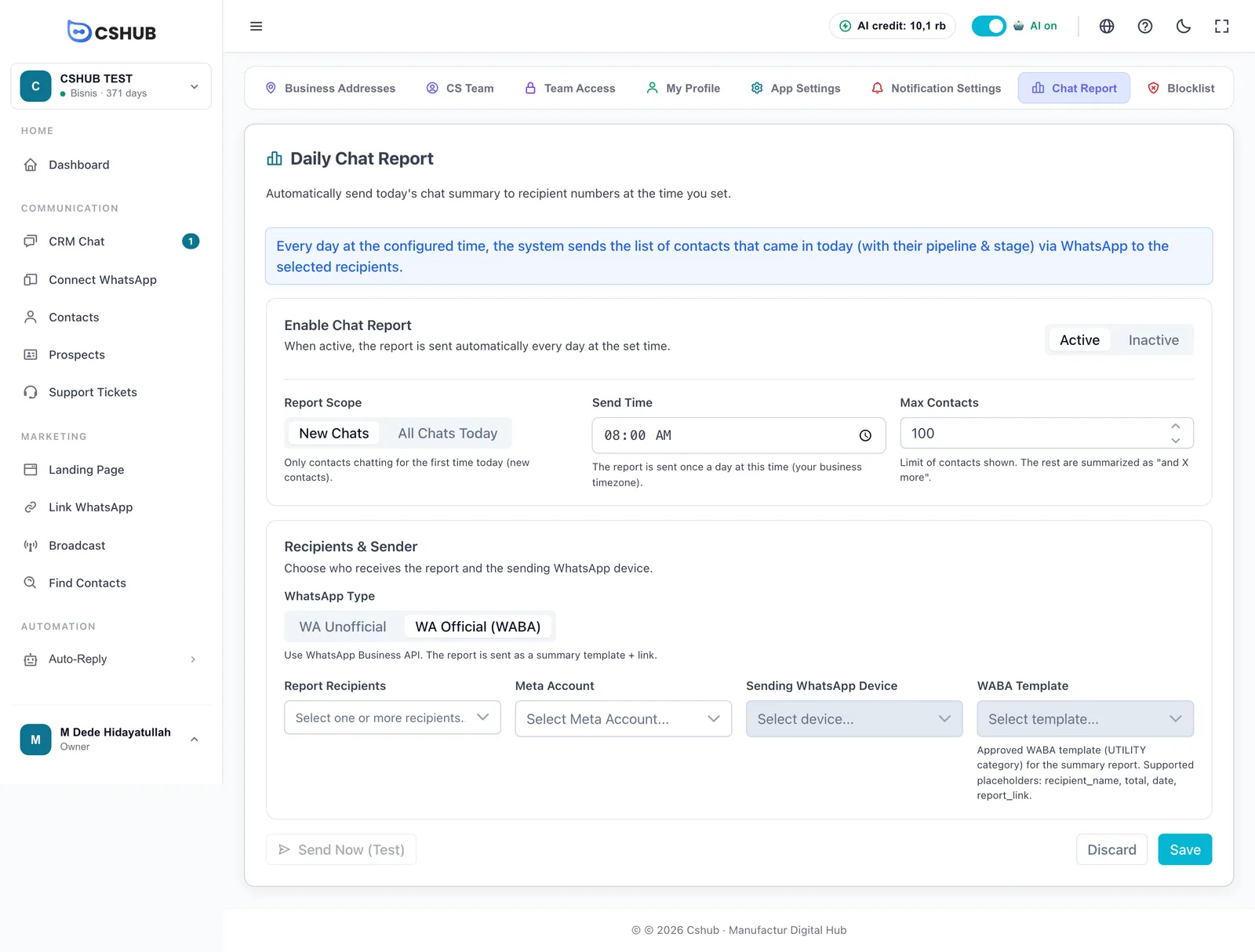
| Option | Sent from | Message content |
|---|---|---|
| WA Unofficial | A number connected through WhatsApp (scan QR) | The full contact list right in the WhatsApp message |
| WA Official (WABA) | A number on the official WhatsApp Business API | A summary template with the chat count and a link to the details |
WABA can't send long lists because of Meta's template rules, which is why it only sends a summary.
Fields
| Field | Description |
|---|---|
| Report Recipients | One or more team members. Type to search by name |
| Sending WhatsApp Device | The number that sends the report |
| Meta Account (WABA only) | The Meta account your WABA number belongs to. Pick this first so the device and template lists fill in |
| WABA Template (WABA only) | An approved template in the UTILITY category. Placeholders you can use: recipient name, total, date, and report link |
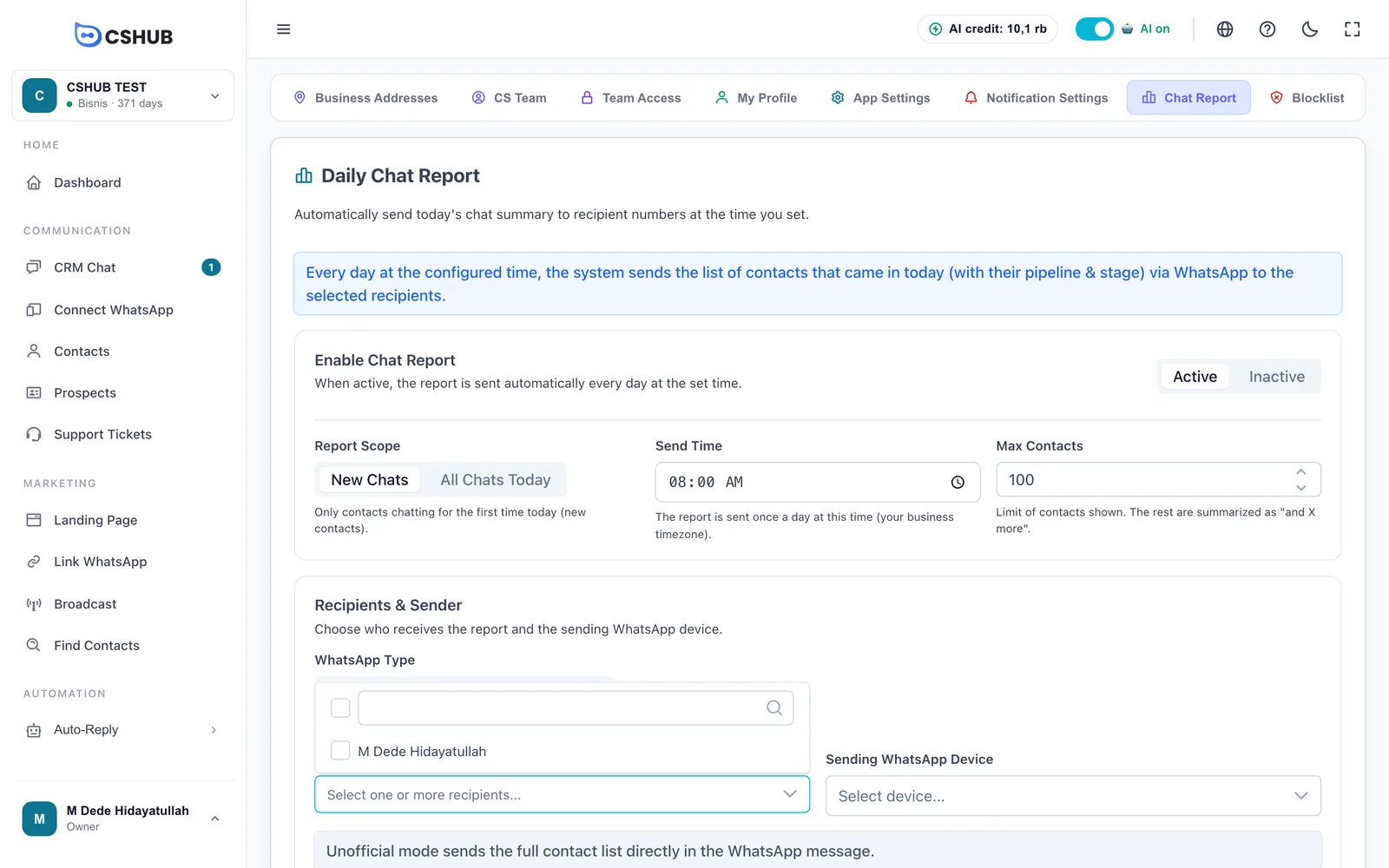
Recipients need a phone number
The report goes to the phone number saved on each team member's profile. Members without a phone number are skipped. Check the number in My Account (for yourself) or in Team, CS & roles.
Turning the report on
- Choose Active on the Enable Chat Report card.
- Set the Report Scope, Send Time, and Max Contacts.
- Choose the WhatsApp Type.
- Pick at least one Report Recipient.
- Pick the Sending WhatsApp Device. For WABA, also pick the Meta Account and the WABA Template.
- Click Save. You'll see Chat report settings saved successfully.
If something is missing when you turn it on, cshub won't save and shows Complete the form first with the reason: Select at least one recipient before enabling., Select a sending device before enabling., or Select a WABA template before enabling.
Discard throws away changes you haven't saved.
Sending a test
Click Send Now (Test) to send today's report right away — a quick way to see what the message looks like.
- The button only works once all changes are saved (Save changes first before sending a test.).
- If it works, you'll see Test report sent with the number of recipients and contacts. The message reaches WhatsApp within a few seconds.
- If it can't be sent, you'll see Test report not sent with the reason — for example no sending device chosen, recipients without a phone number, or no contacts counted today for the chosen scope.
- You can run a test even while the report is Inactive, as long as recipients and a sending device are saved.
- A test doesn't affect the daily schedule — the scheduled report still goes out at its usual time.
Cost & sending rules
| Rule | Description |
|---|---|
| Credit | Each recipient who gets the report uses 1 AI credit, tests included. If credit runs out, that recipient is skipped |
| Days with no chats | If no contacts are counted, nothing is sent and no credit is used |
| Once a day | The scheduled report only goes out once per day, even if you save the settings again after the send time |
| Device must be connected | If the sending number is disconnected, the report doesn't go out. Make sure its status is Active |
Chat report vs other notifications
| Feature | When it's sent | Content |
|---|---|---|
| Daily Chat Report (this page) | Once a day at a set time | A recap of every contact who chatted that day |
| Notifications | Whenever something happens (e.g. a new order) | One event per message |
| Escalation to your team | When a chat goes unanswered too long | A reminder to the agent on duty |
To see unanswered chats right inside the app, open Unreplied chats.